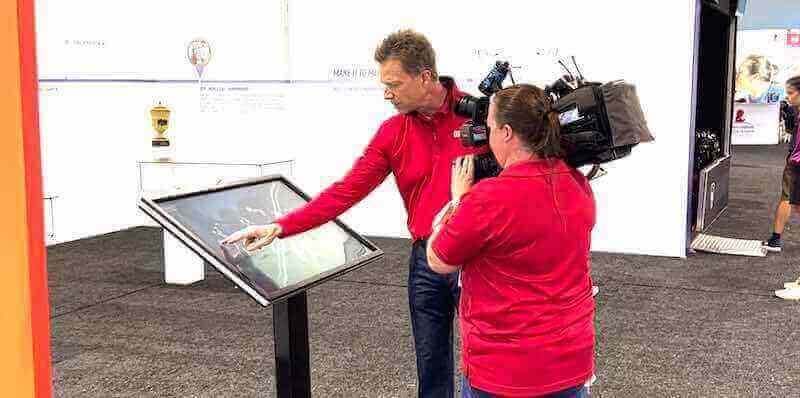
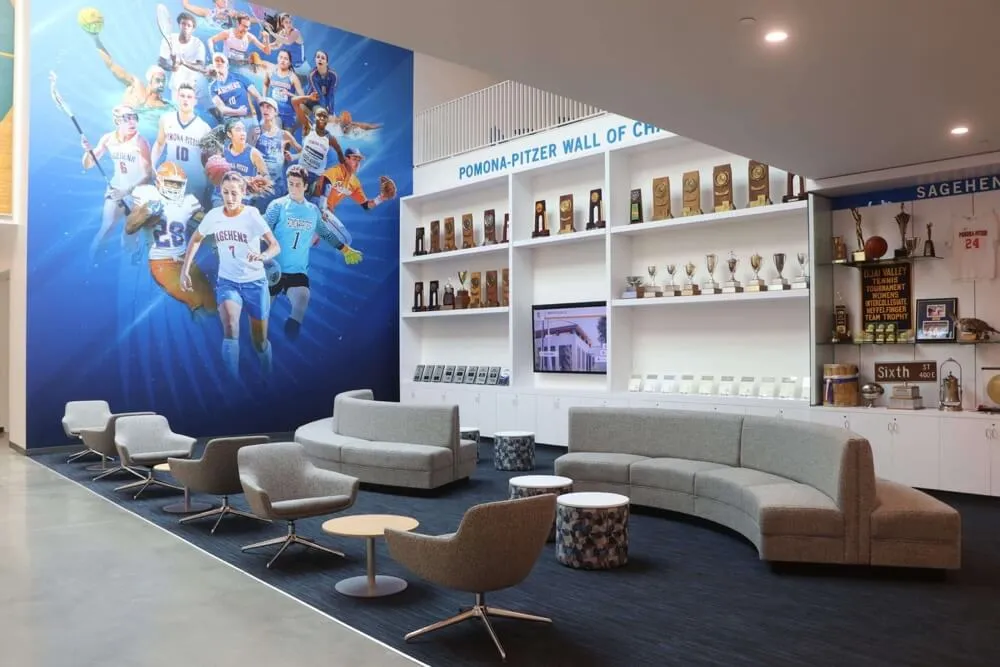
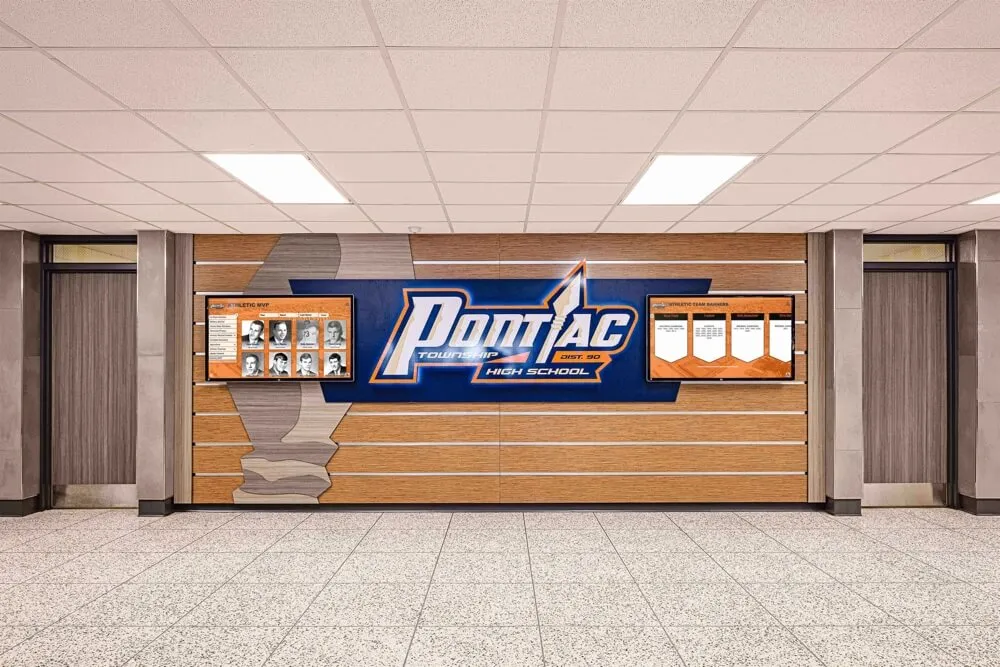
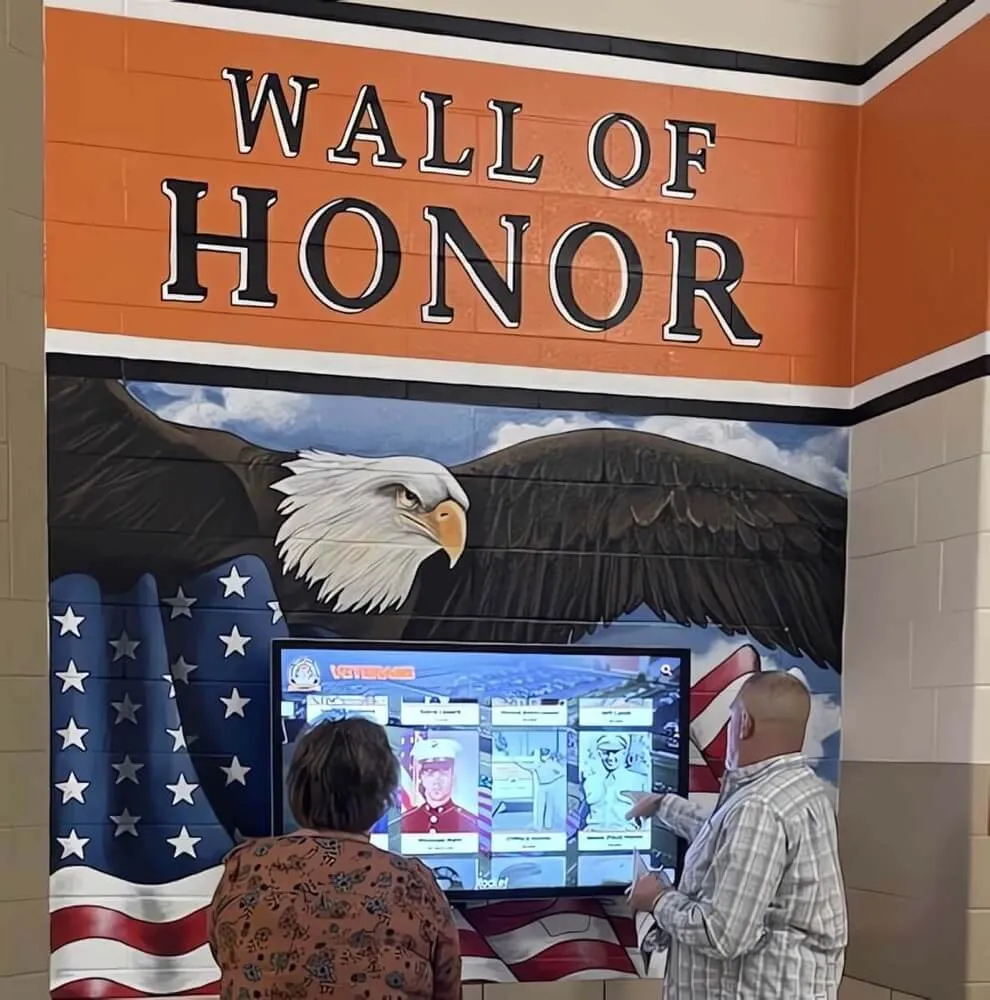
Interactive Displays: Touchscreen Recognition Displays That Also Work Online
Plan interactive recognition displays that run on touchscreens and online: navigation zones, accessibility notes, content modules, and a publishing cadence.
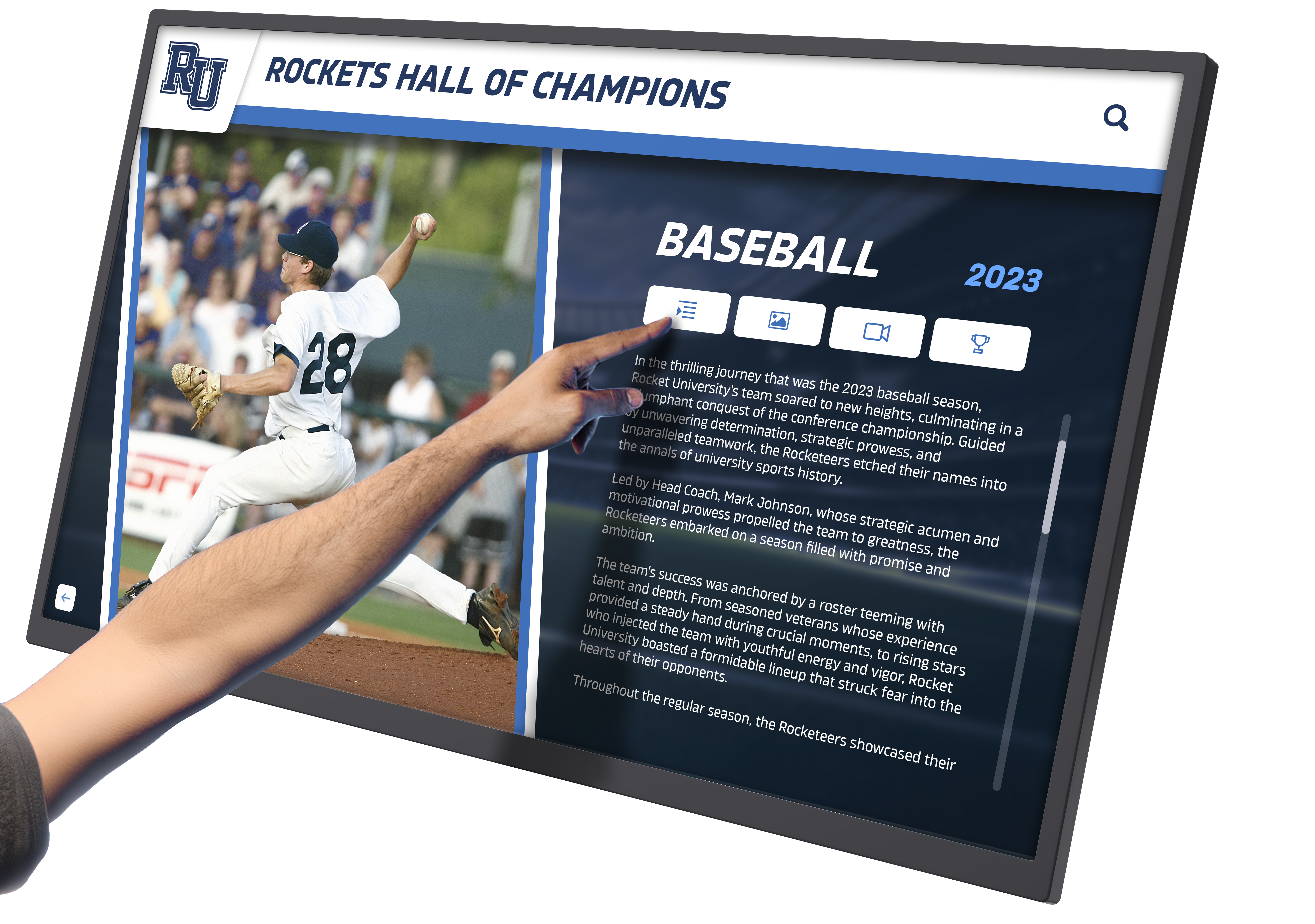
Intent: demonstrate — Build interactive recognition displays that feel great on a touchscreen and remain discoverable online.
Program Snapshot
- Audience: on-site visitors + online community
- Primary outcomes: engagement, storytelling, sponsor value, easy updates
- Cadence: monthly refresh + event mode for ceremonies
- Featured modules: directories, galleries, video, record boards, sponsor loops
Display Integration (layout zones that work)
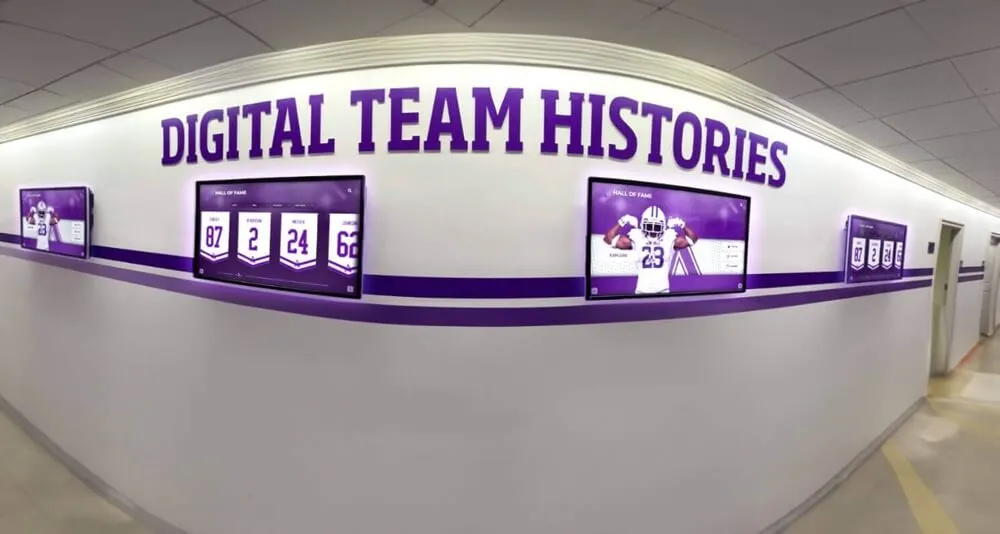
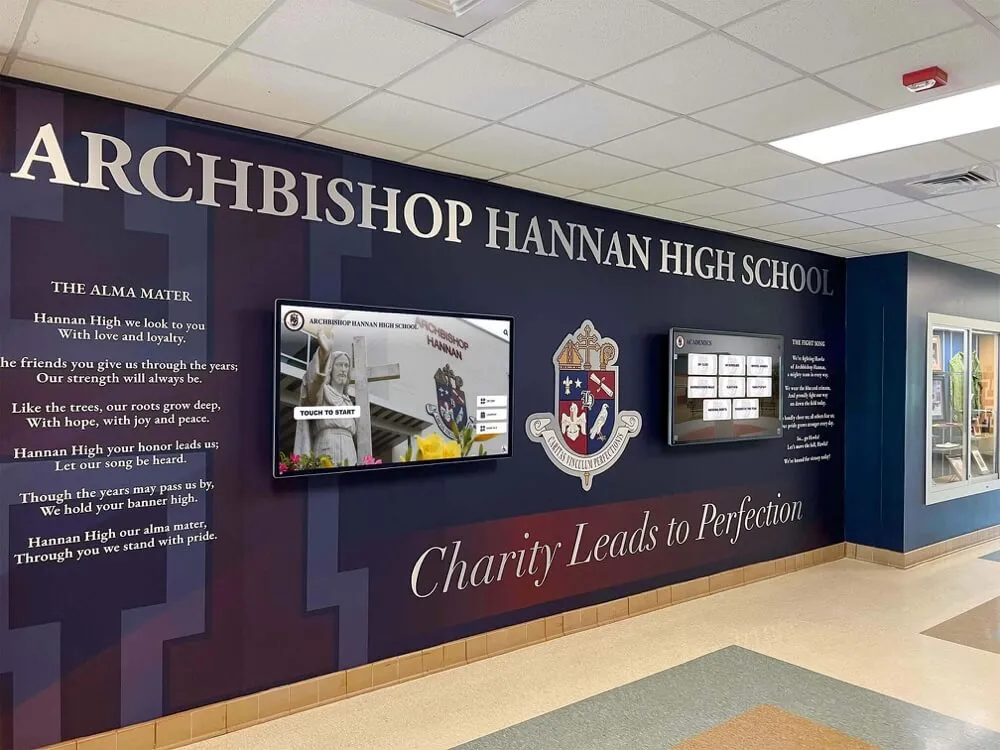
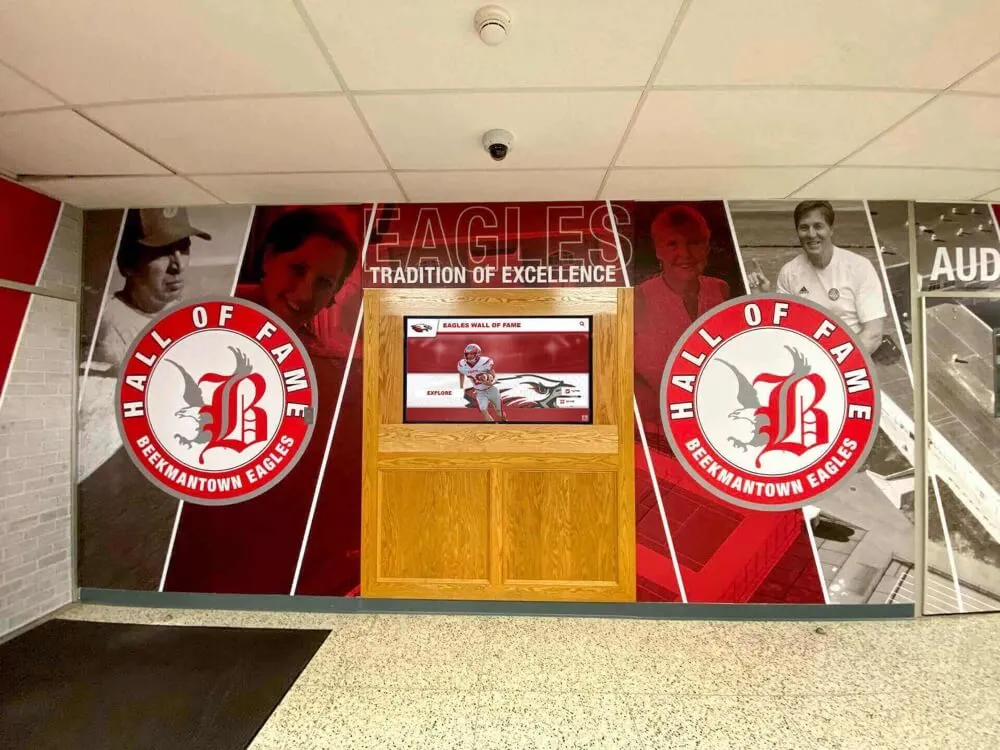
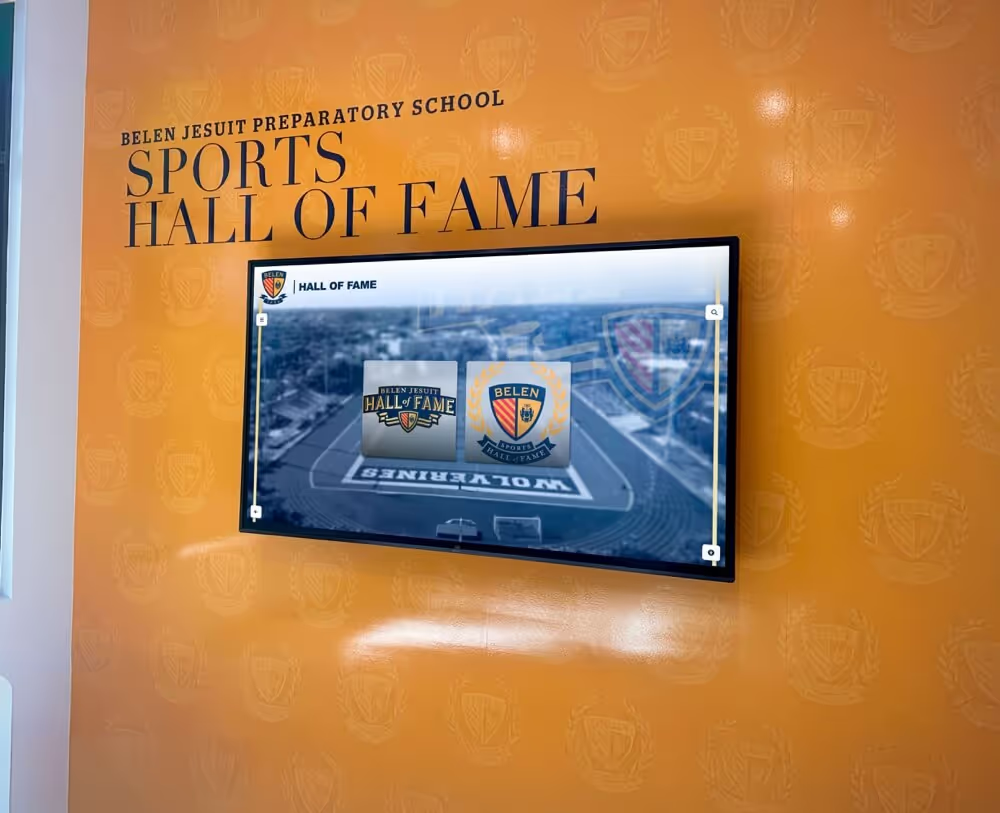
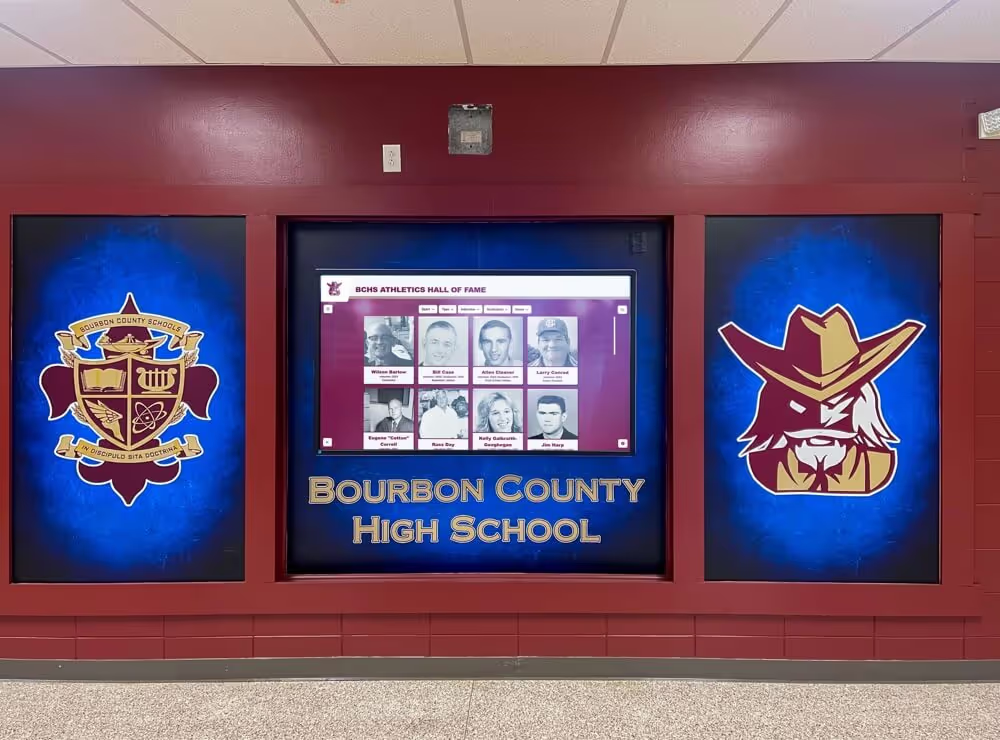
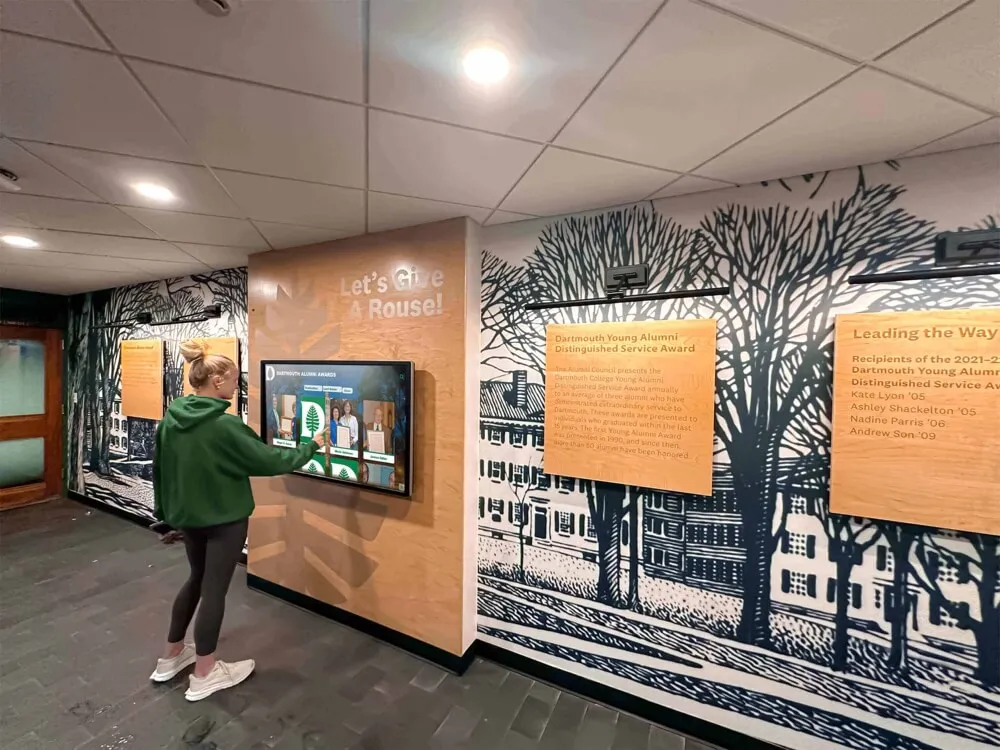
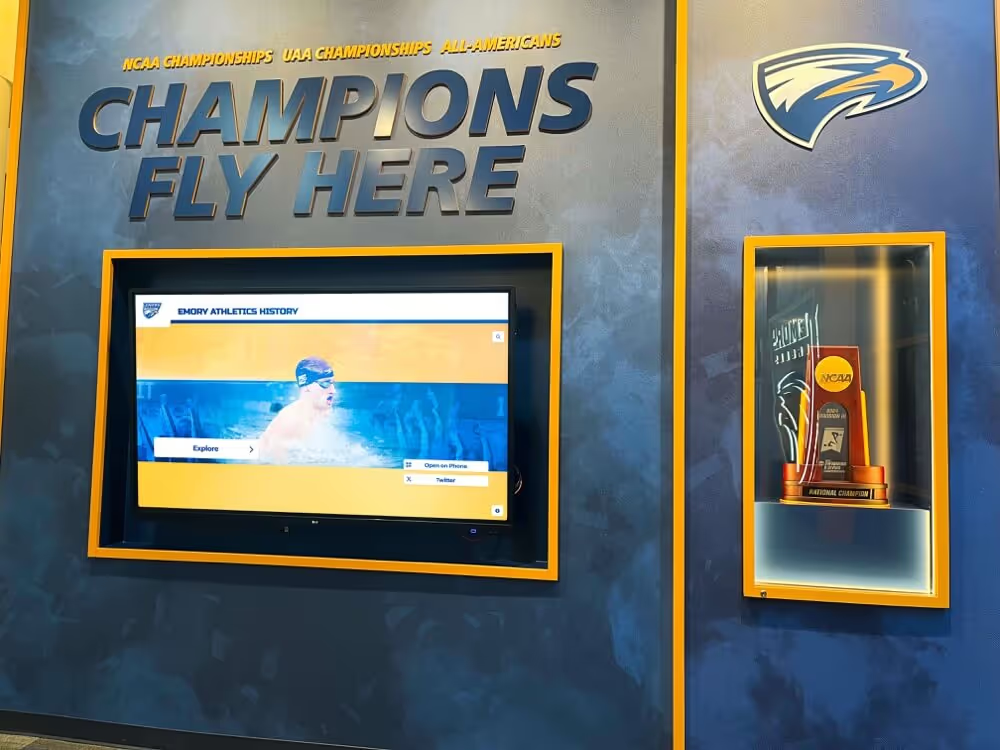
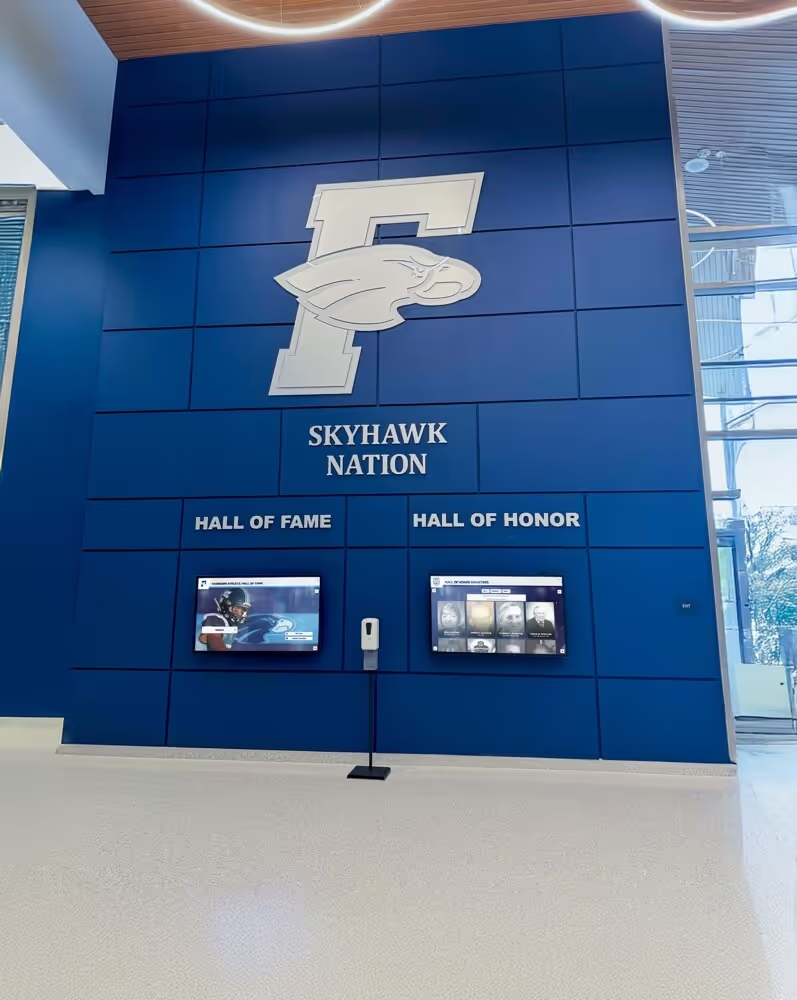
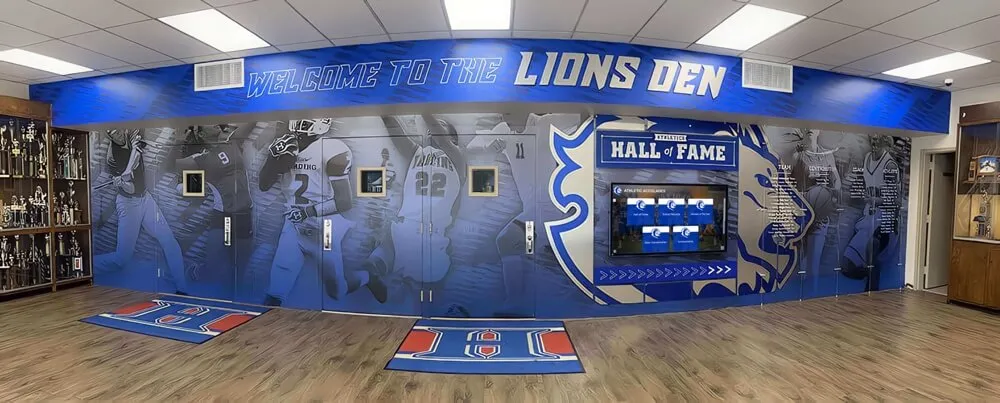
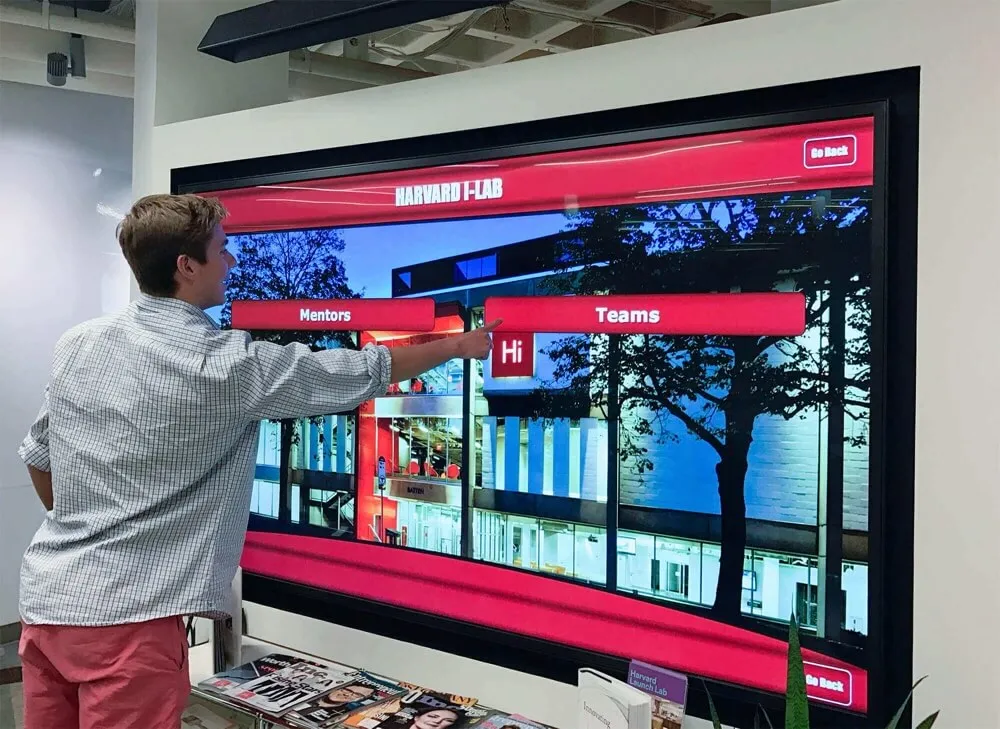
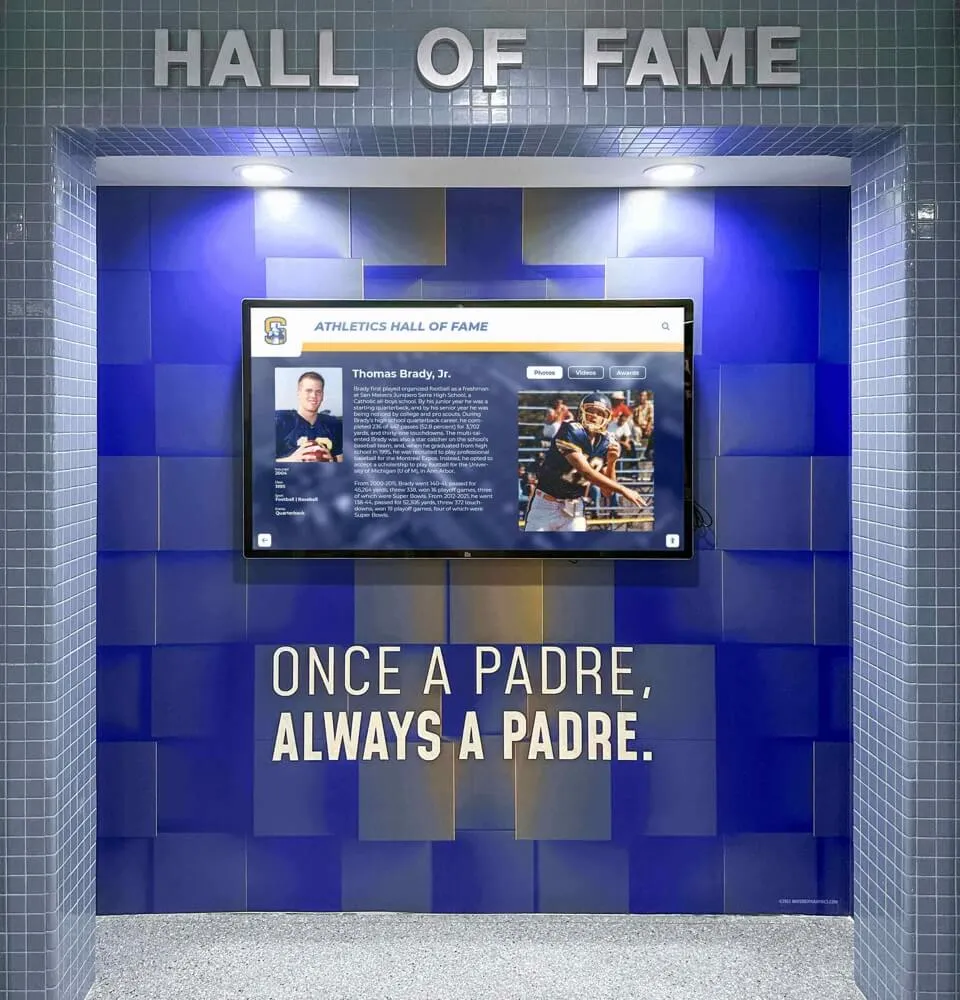
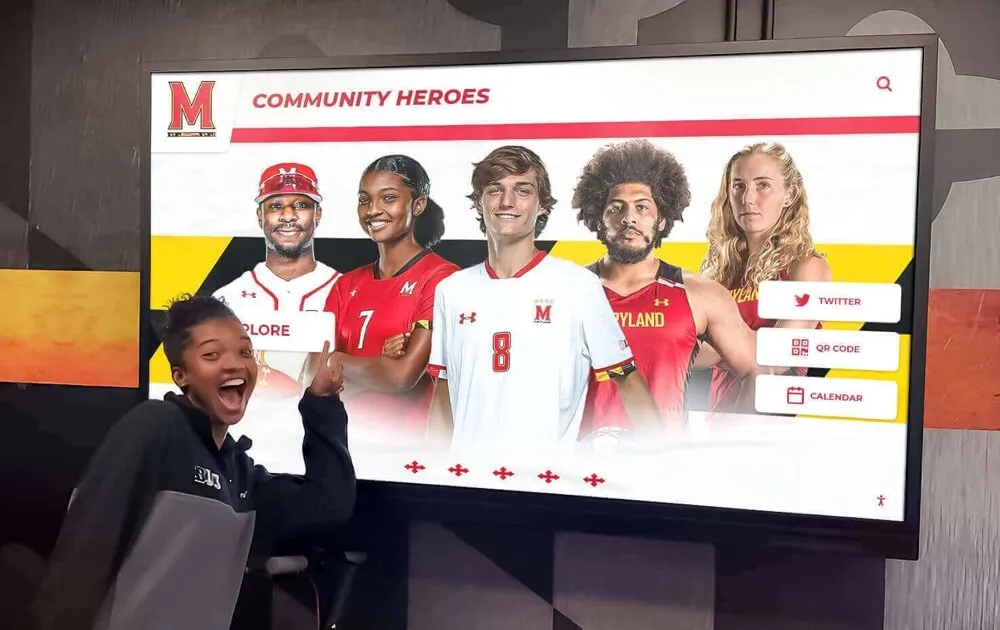
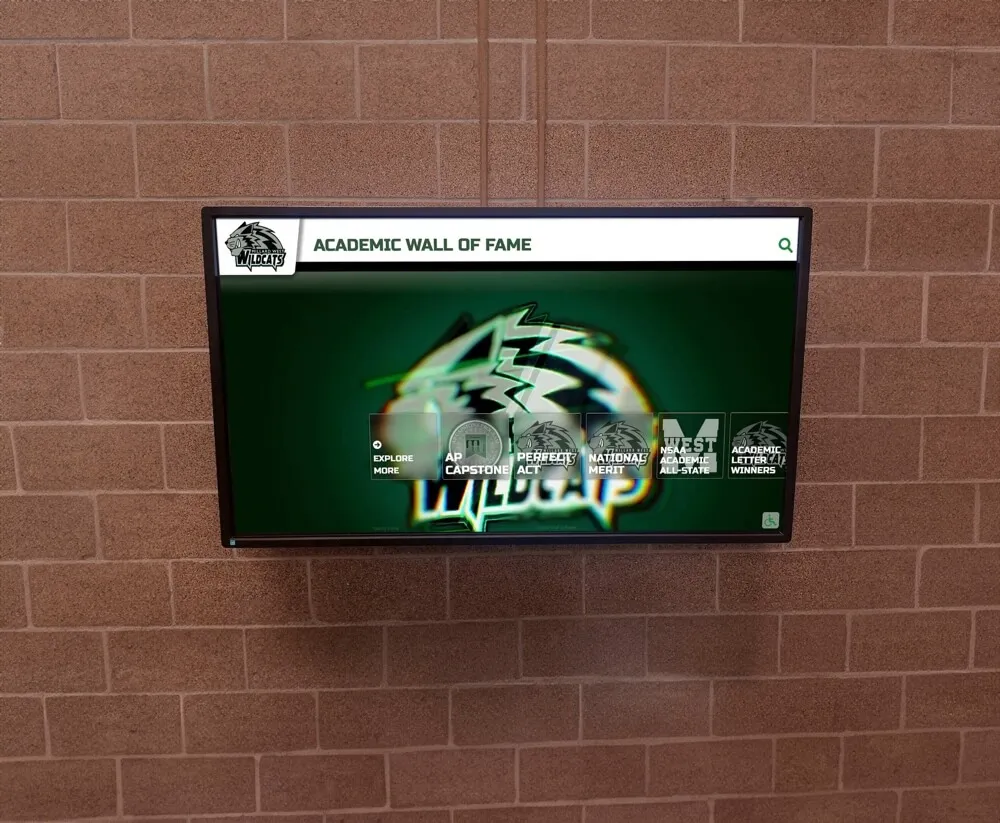
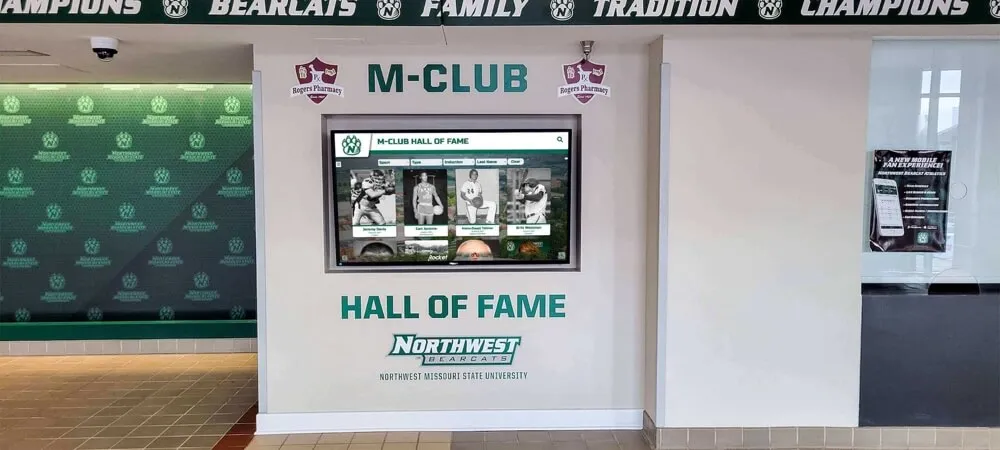
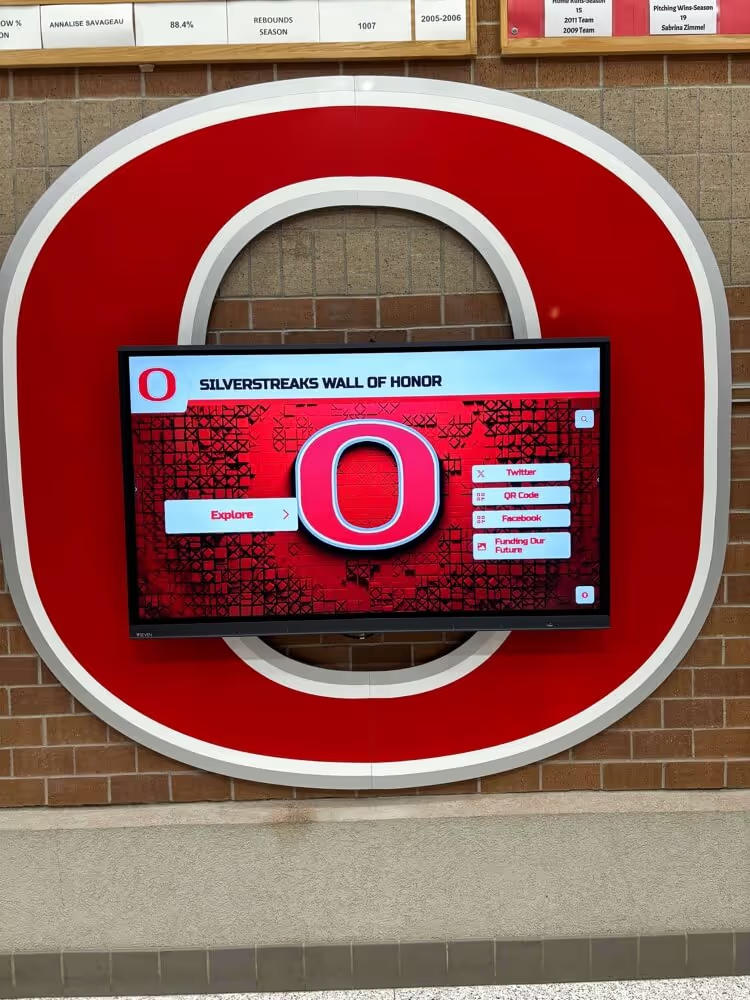
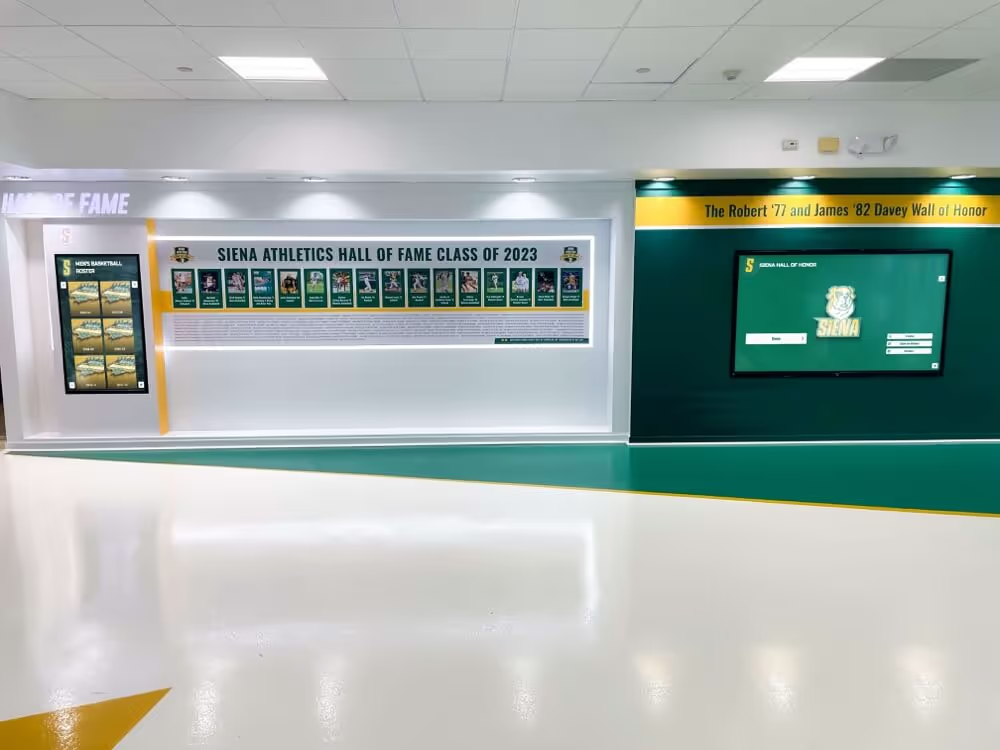
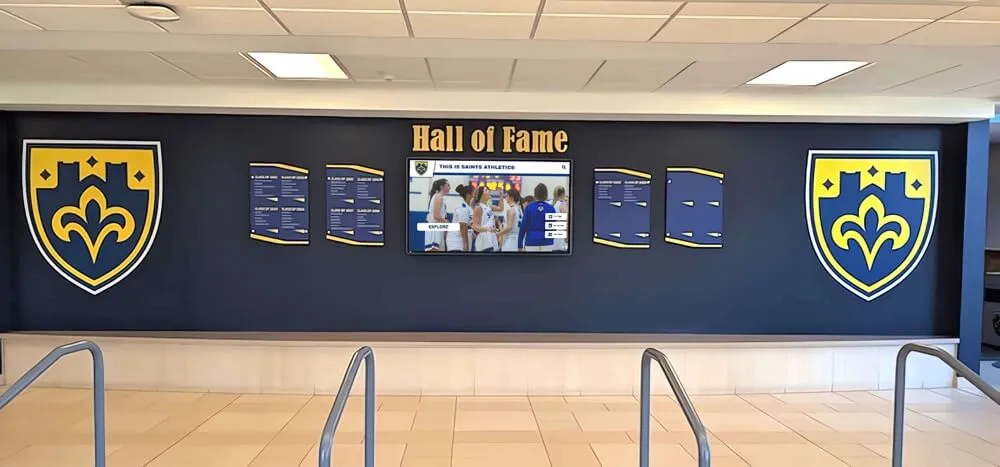
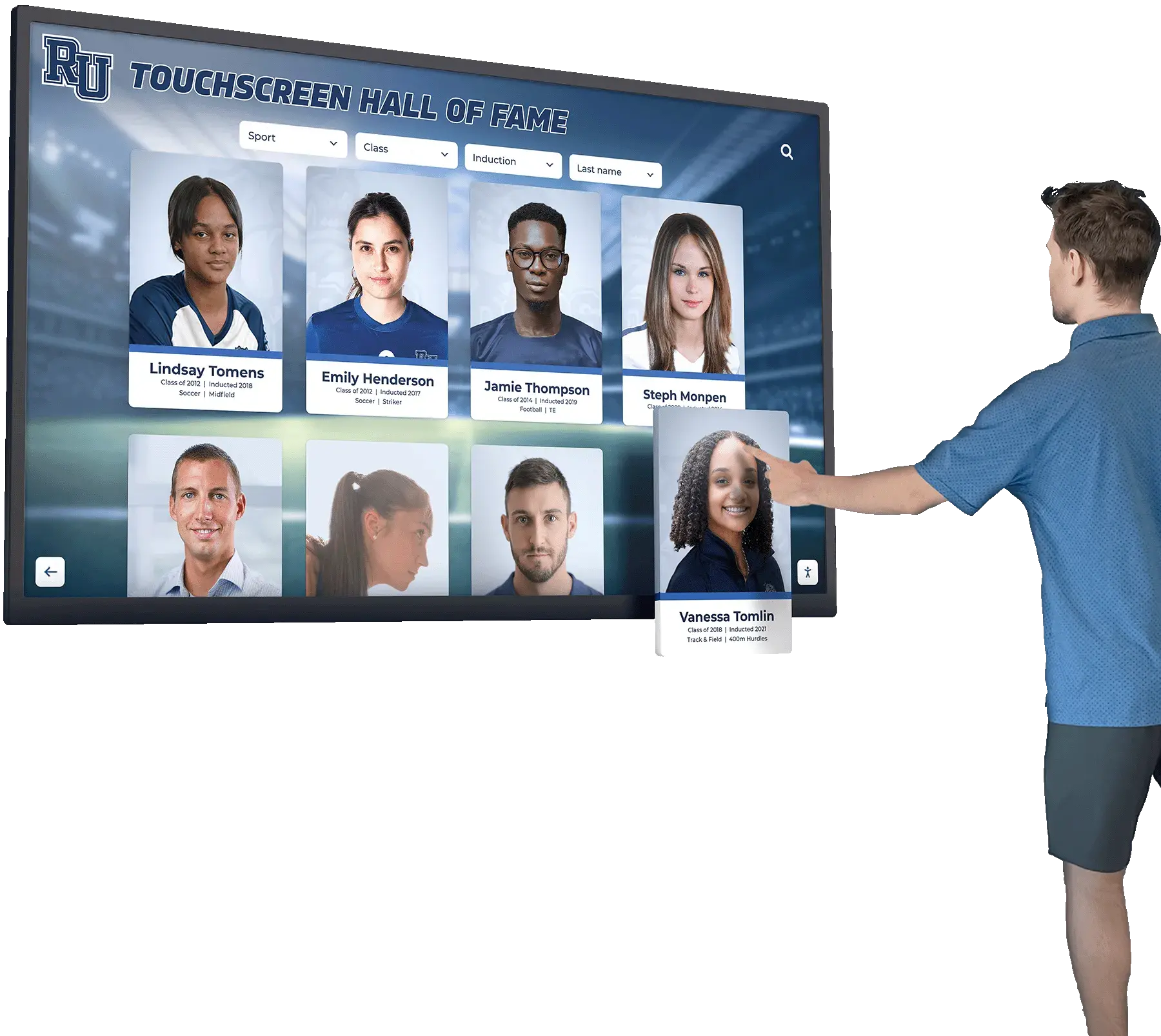
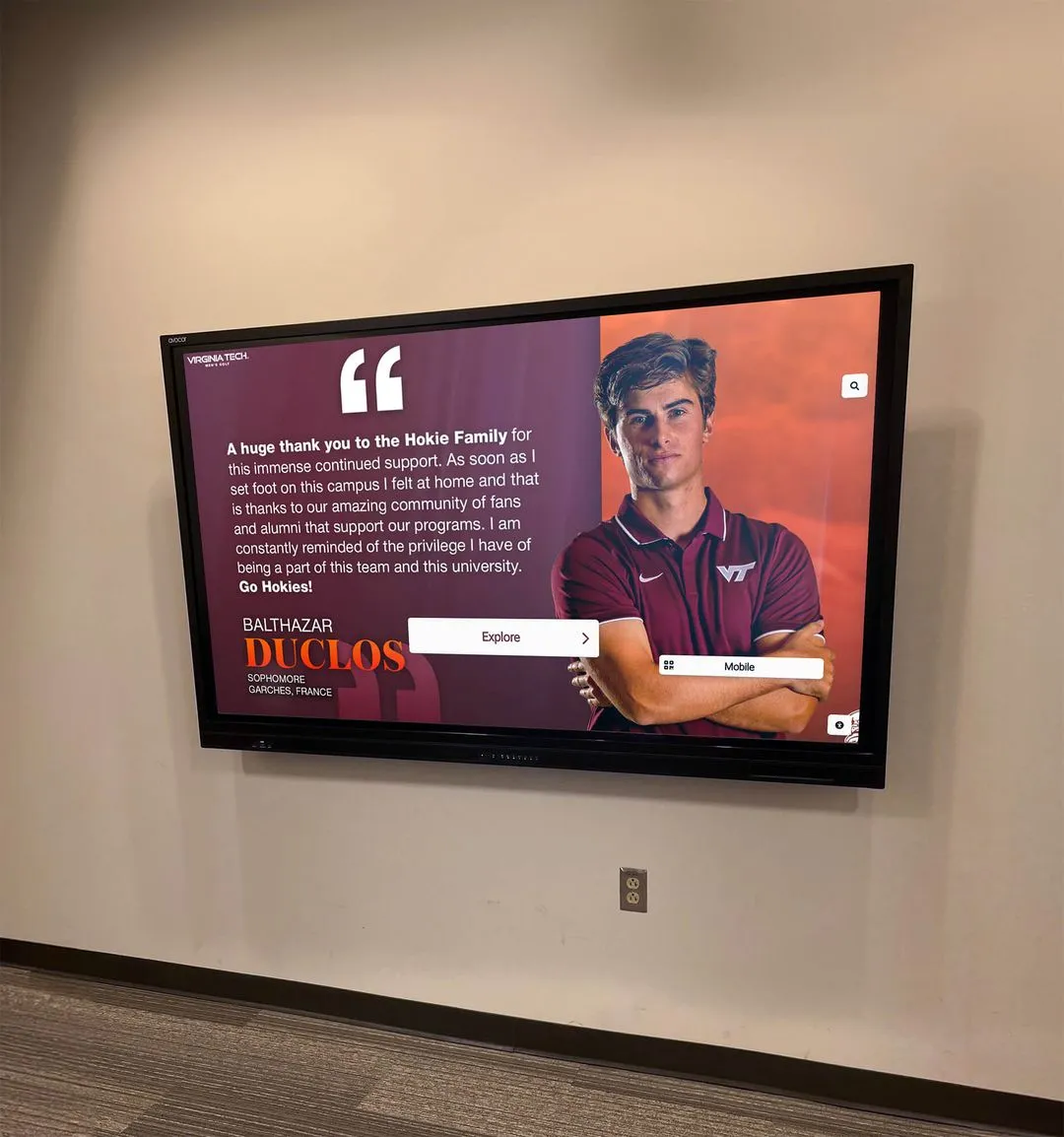
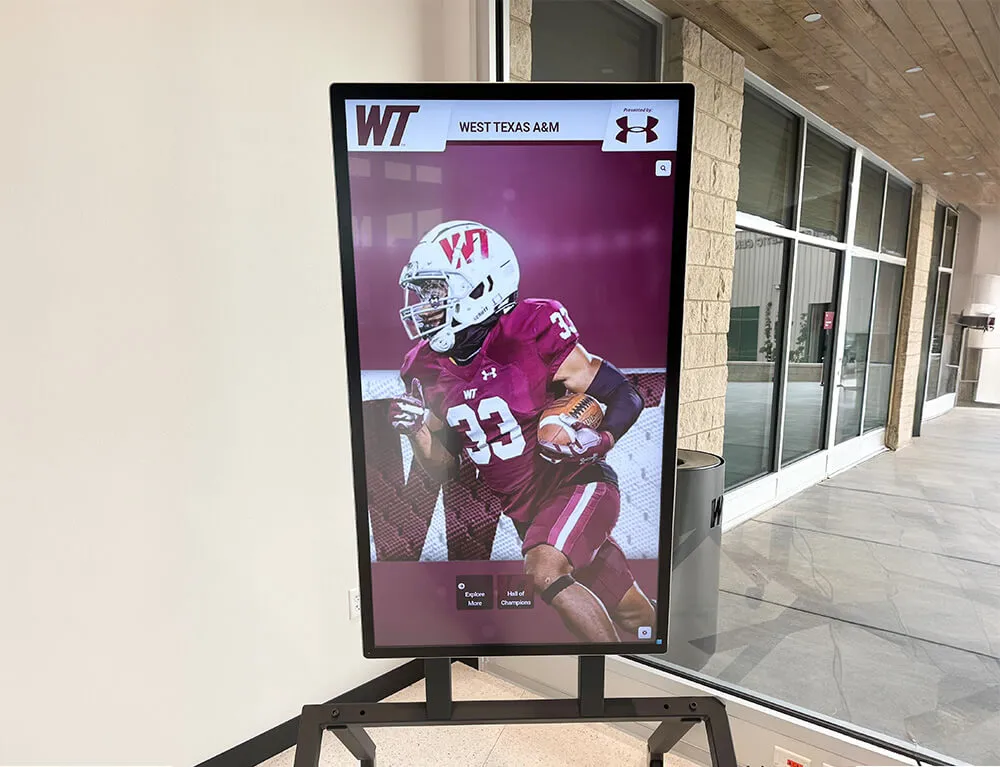
Recommended touchscreen layout zones
- Top navigation: categories, search, “browse by decade”
- Primary content: entries, profiles, record boards
- Secondary rail: featured honorees, sponsor ribbon, announcements
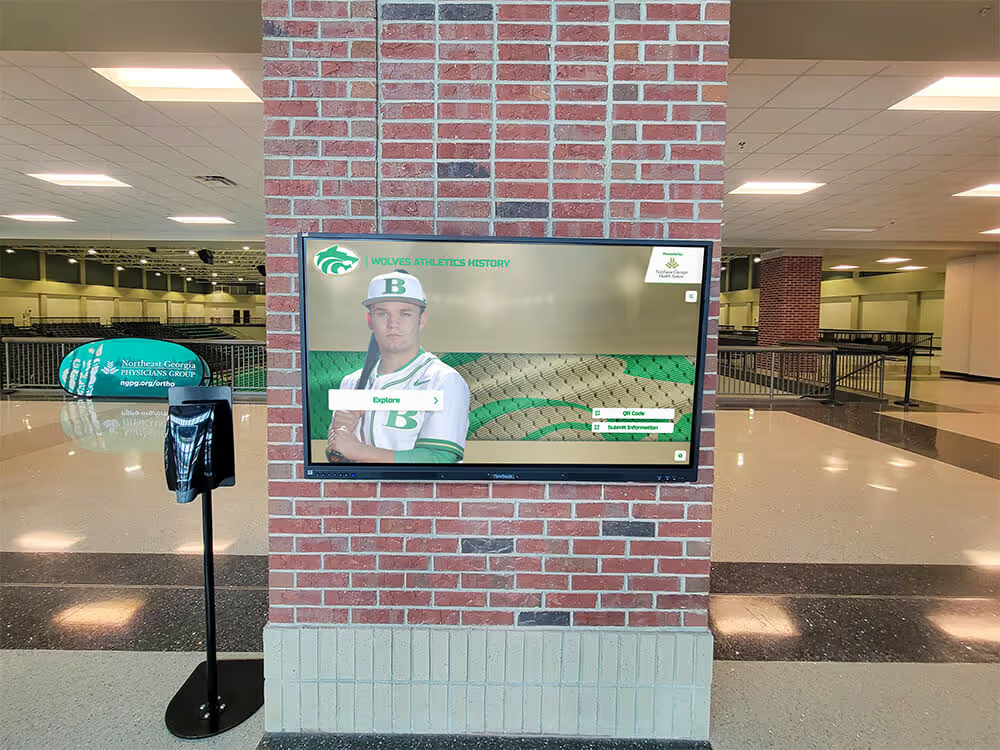
- Footer/utility: QR/share, accessibility toggle, help
ADA-minded notes (practical)
- Maintain strong contrast and avoid text on busy photos.
- Use large touch targets and sufficient spacing.
- Ensure focus states are visible and navigation is consistent.
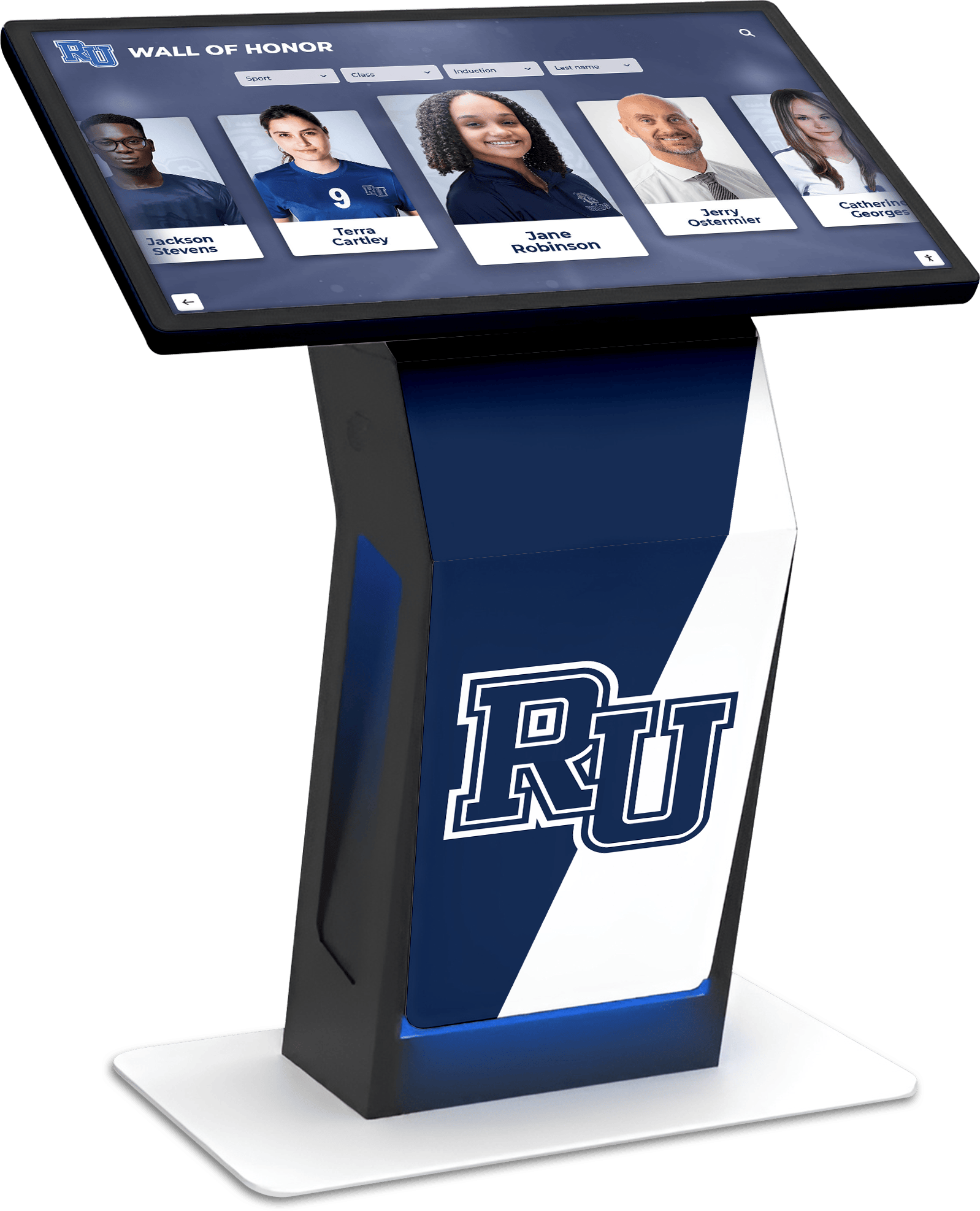
Content Architecture (modules that keep the display alive)
- Auto-updating galleries (event photos, historical highlights)
- Video reels (short, captioned clips)
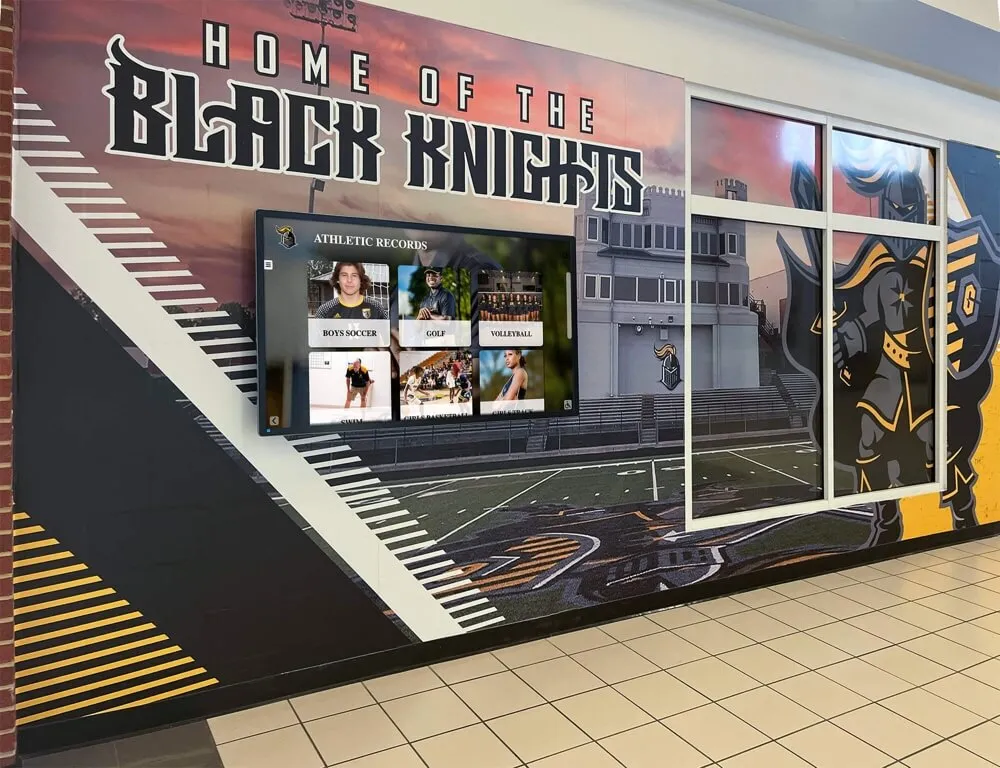
- Record boards (filters, rankings, seasonal rollups)
- Sponsor ribbons (rotations + tier placement rules)
- QR share links (take content from the wall to the phone)
Execution Timeline (Plan → Build → Launch → Refresh)
Plan
- Choose your primary browse paths (category, decade, search).
- Define your content templates and accessibility requirements.
Build
- Populate the top modules (directories + featured content).
- Test touch targets and readability on the actual display size.
Launch
- Publish a ceremony-ready “launch collection.”
- Enable event mode: sponsor loop + featured honorees + gallery rotation.
Refresh
- Schedule monthly content drops (new honorees, new media).
- Rotate sponsor placements and track clicks.
Copy/Paste Asset: Touchscreen Layout QA Checklist
- First-tap destinations are obvious (categories/search)
- Touch targets are large enough for kiosk use
- Focus states are visible and consistent
- Contrast meets accessibility targets
- Galleries and videos load quickly and have captions/labels
Next step
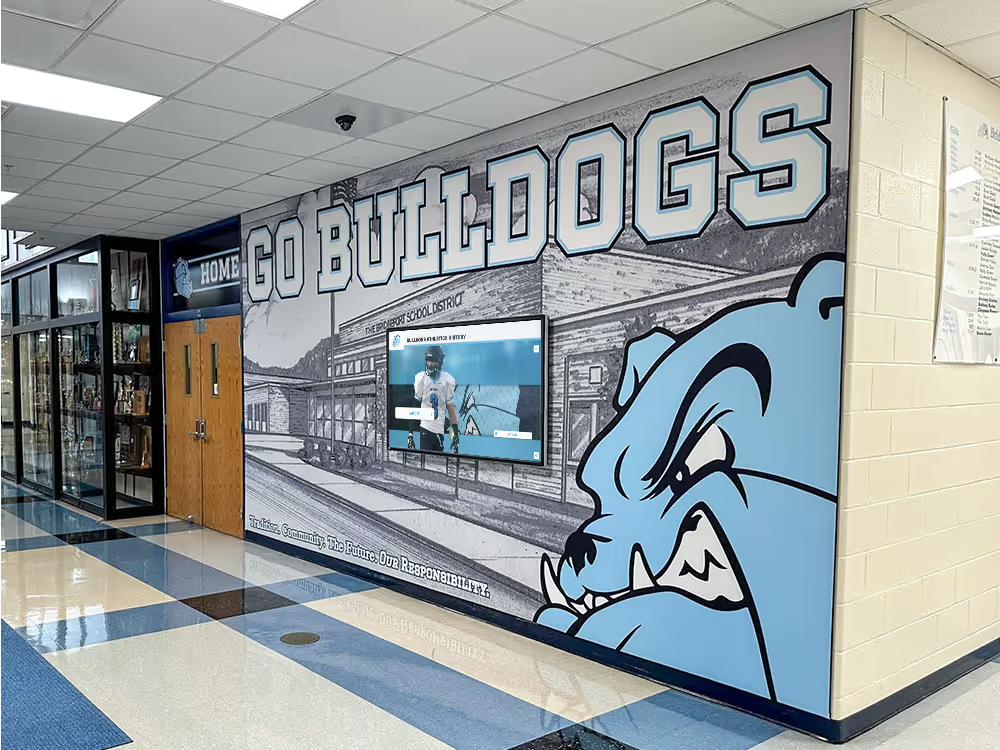
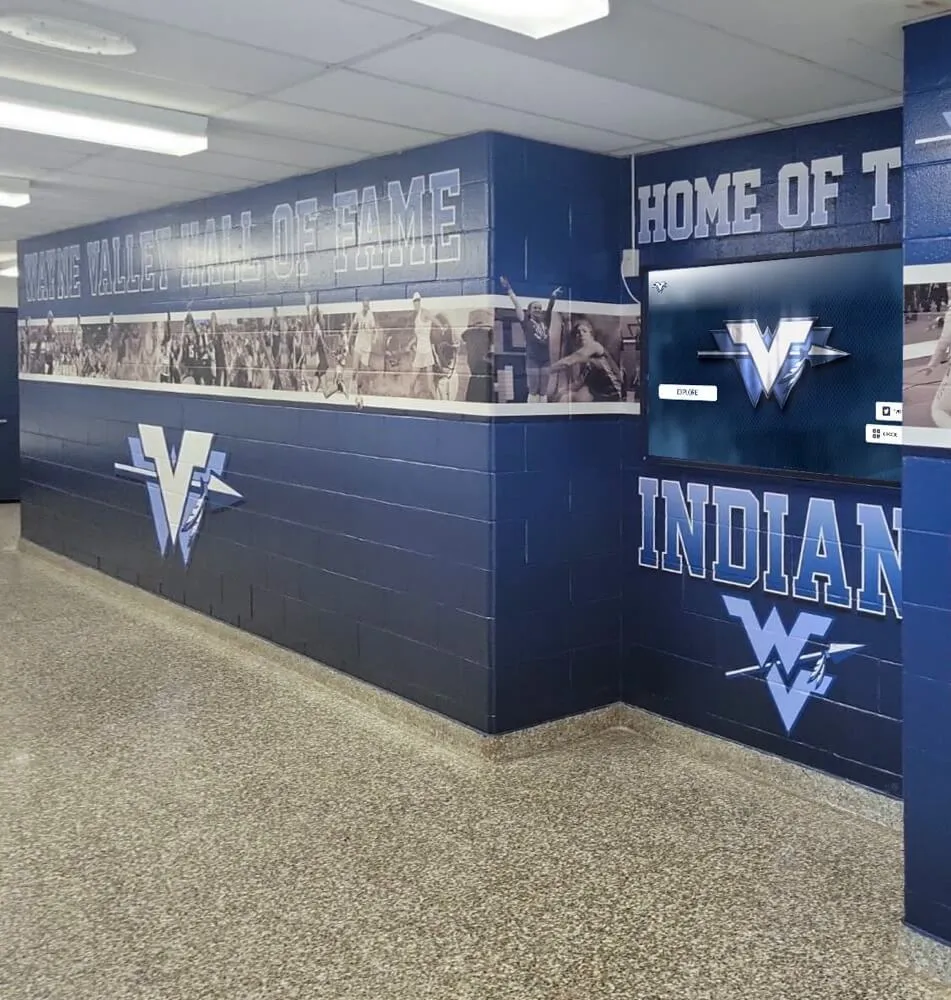
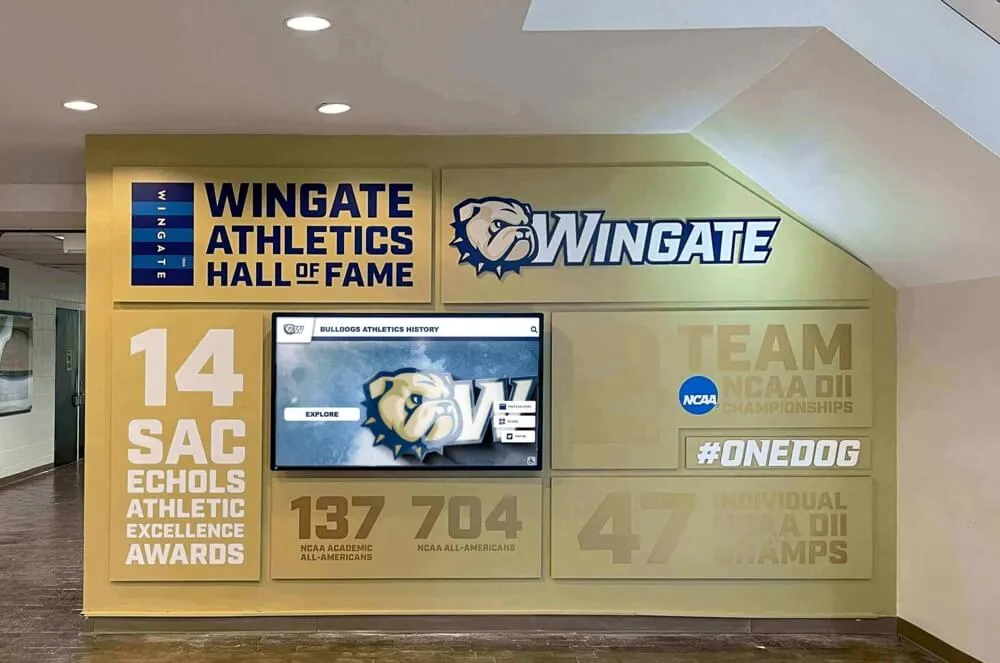
Request a layout mock-up for your space (hallway, lobby, alumni center): Request Your Free Custom Demo (?demo=demo).
FAQ
Frequently Asked Questions
Answers for teams building an online hall of fame or awards website.
What content works best on interactive displays?
Short, scannable modules: directories, galleries, record boards, video reels, sponsor loops, and QR/share links. Keep the first two taps fast.
How do we design touchscreen layouts for accessibility?
Use large touch targets, high contrast, clear focus states, and simple navigation. Avoid dense text blocks and ensure keyboard navigation works for testing.
Can we manage touchscreen and online content together?
Yes—use one content model (entries, categories, media) and publish to both contexts via a cloud workflow and scheduled updates.