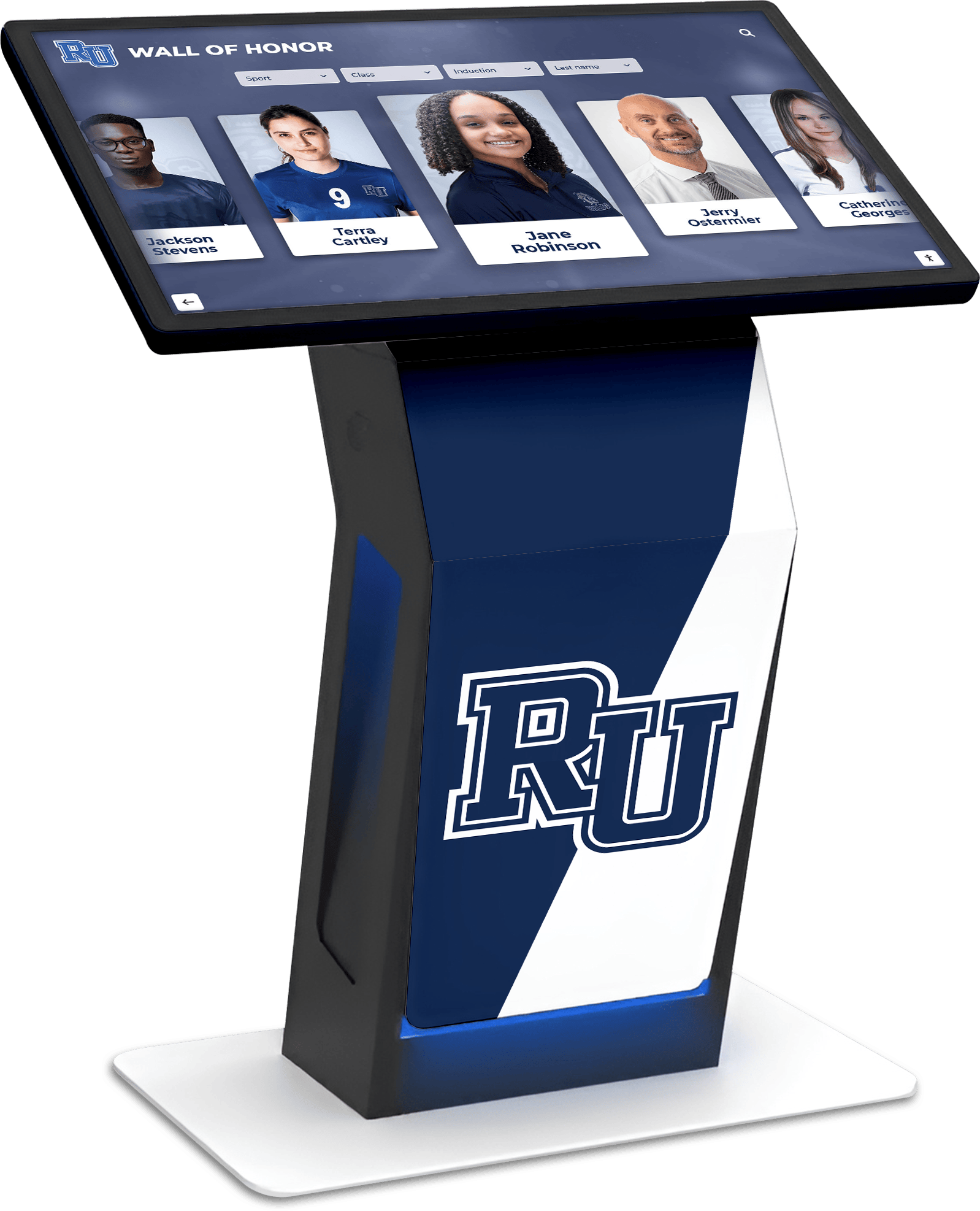




UPDD touch software (Universal Pointer Device Driver) represents a critical yet often overlooked component enabling interactive touchscreen displays across schools, universities, museums, and organizations worldwide. While most users focus on visible applications and content management systems, the underlying driver software determines whether touchscreens respond accurately, support multi-touch gestures, function across different operating systems, and maintain compatibility with both modern and legacy hardware.
Yet selecting appropriate touch driver solutions remains challenging for many organizations implementing interactive displays. How do universal pointer device drivers differ from native operating system touch support? What advantages justify considering specialized driver software versus relying on built-in capabilities? When do hardware compatibility issues, multi-touch requirements, or cross-platform needs warrant dedicated touch driver solutions? Which technical considerations ensure interactive displays deliver responsive, reliable experiences across years of operation?
This comprehensive guide explores UPDD touch software and universal pointer device drivers for educational and institutional applications, providing decision-makers with practical insights for understanding touch driver technology, evaluating when specialized solutions address specific requirements, and implementing touchscreen systems that deliver consistent performance across diverse hardware and software environments.
Touchscreen driver software forms the critical communication layer between physical touch hardware and operating systems, translating touch inputs into system responses that power interactive experiences. Organizations successfully implementing interactive displays recognize that while sophisticated content management platforms create engaging applications, robust touch driver infrastructure determines whether users experience smooth, accurate, frustration-free interactions or encounter responsiveness problems undermining interactive effectiveness.

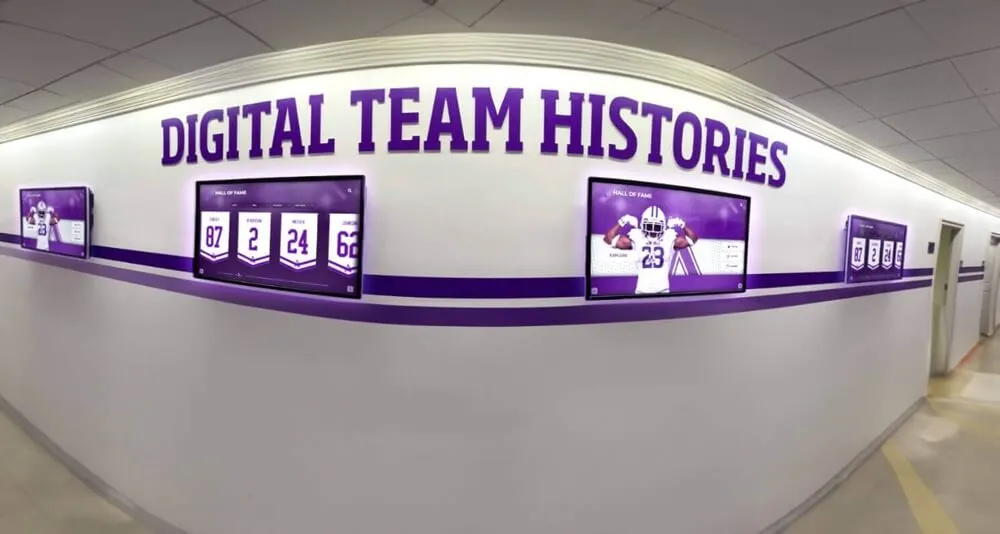
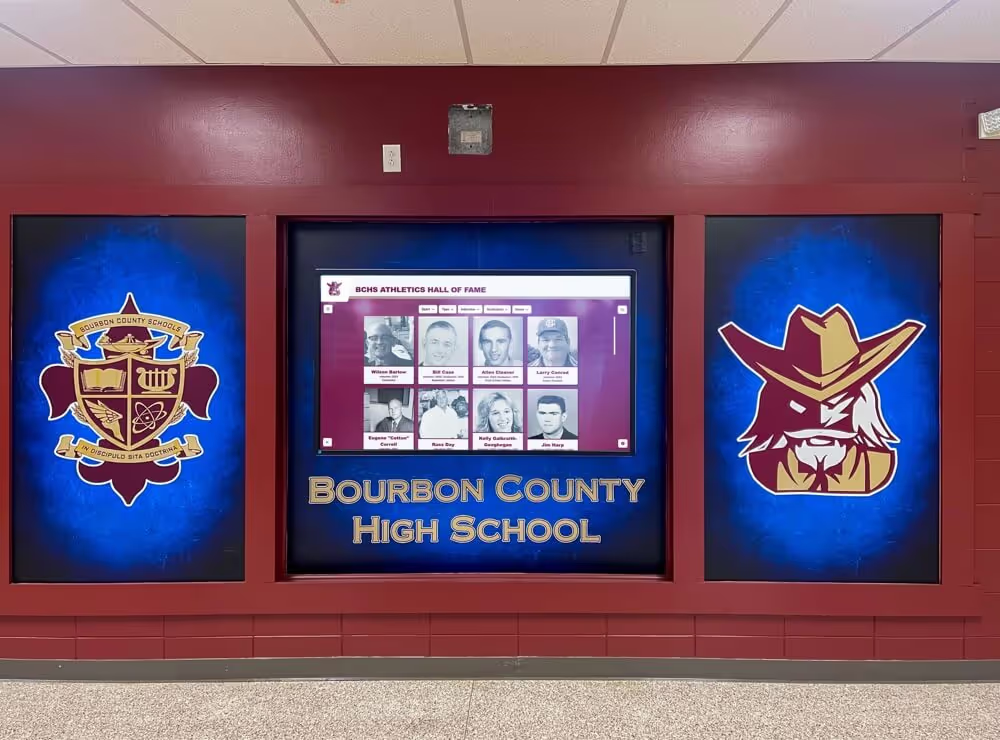
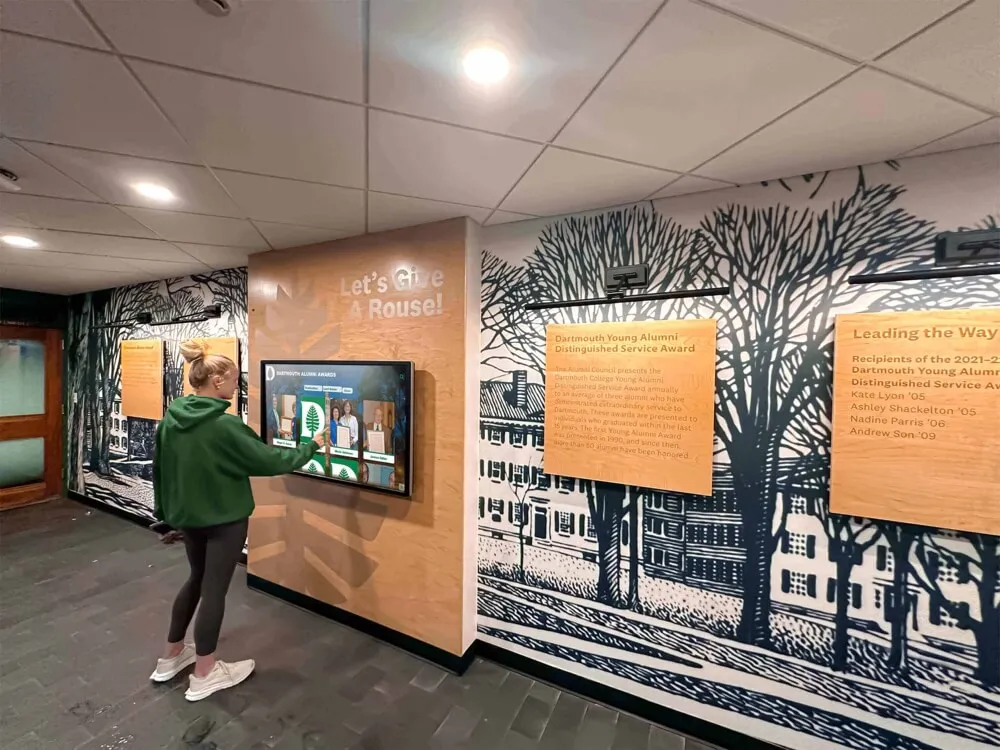
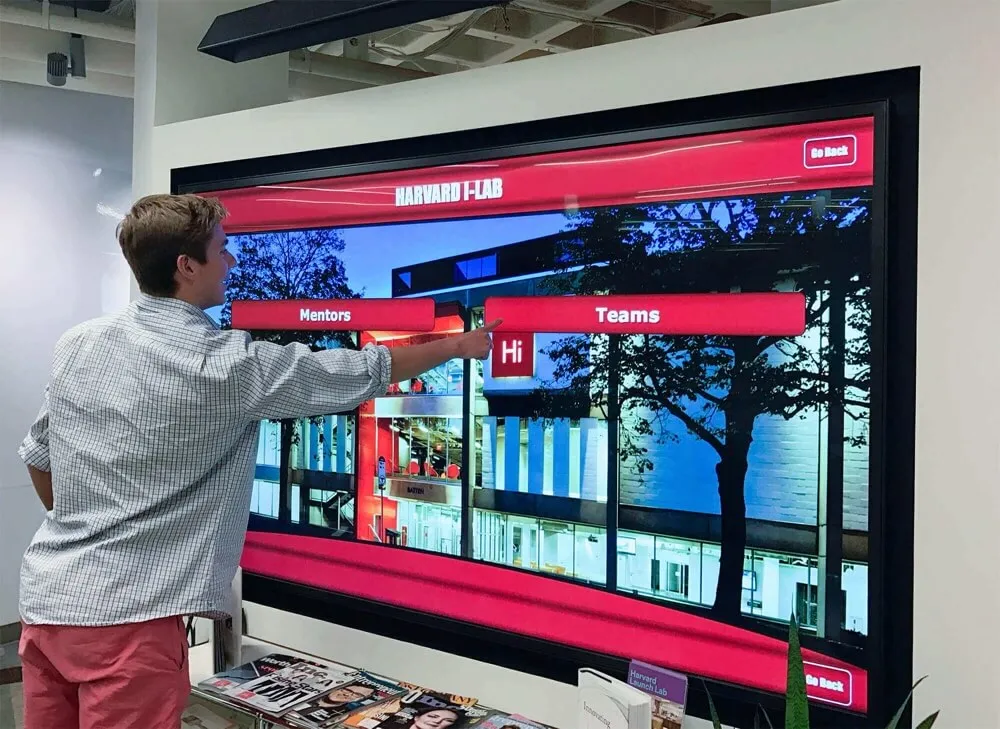
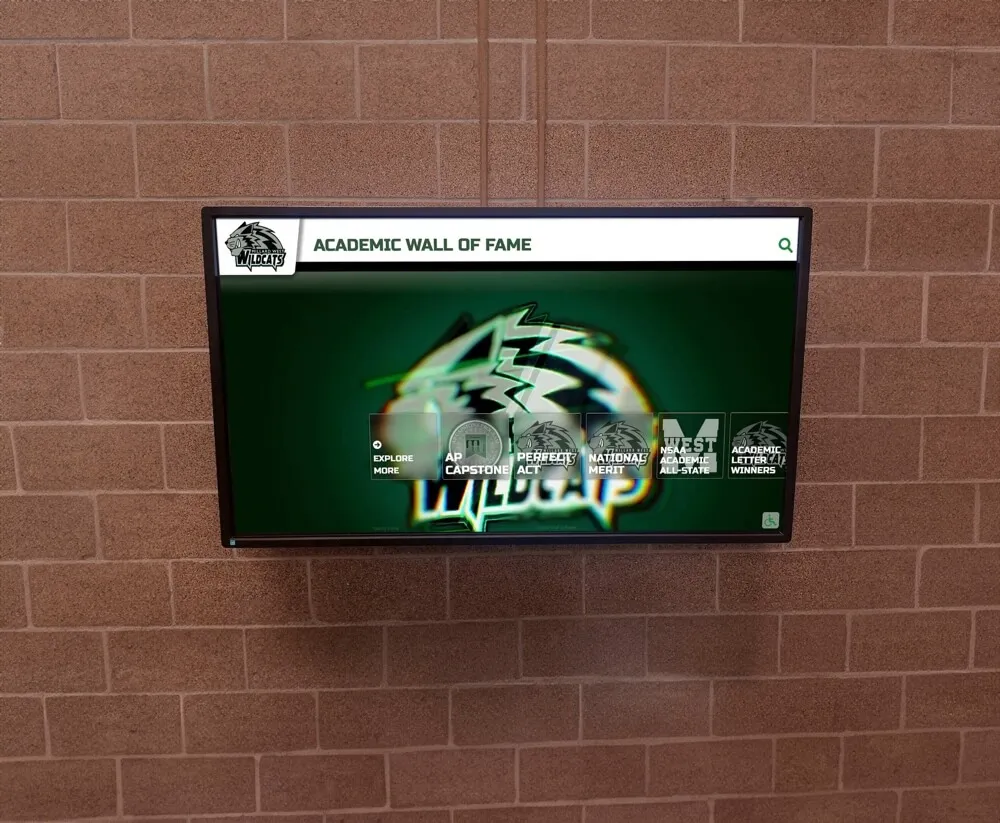
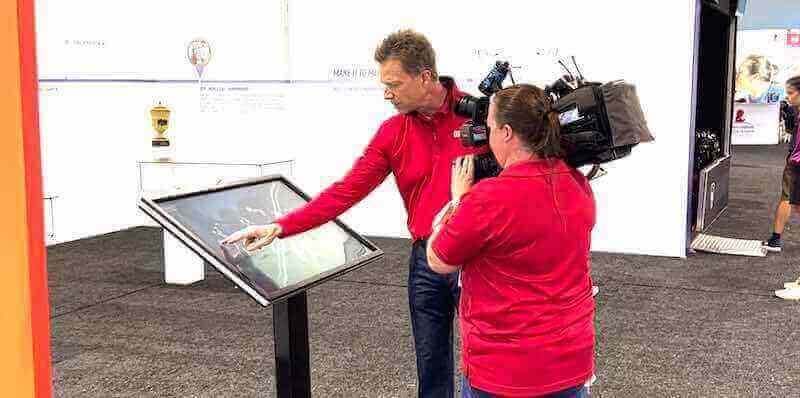
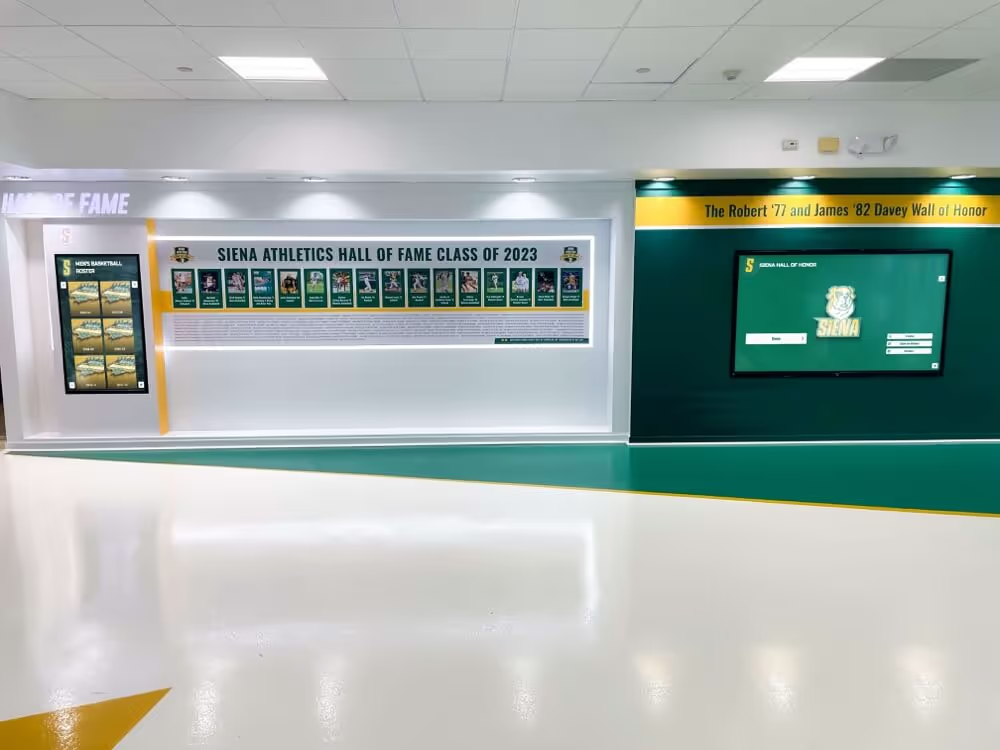
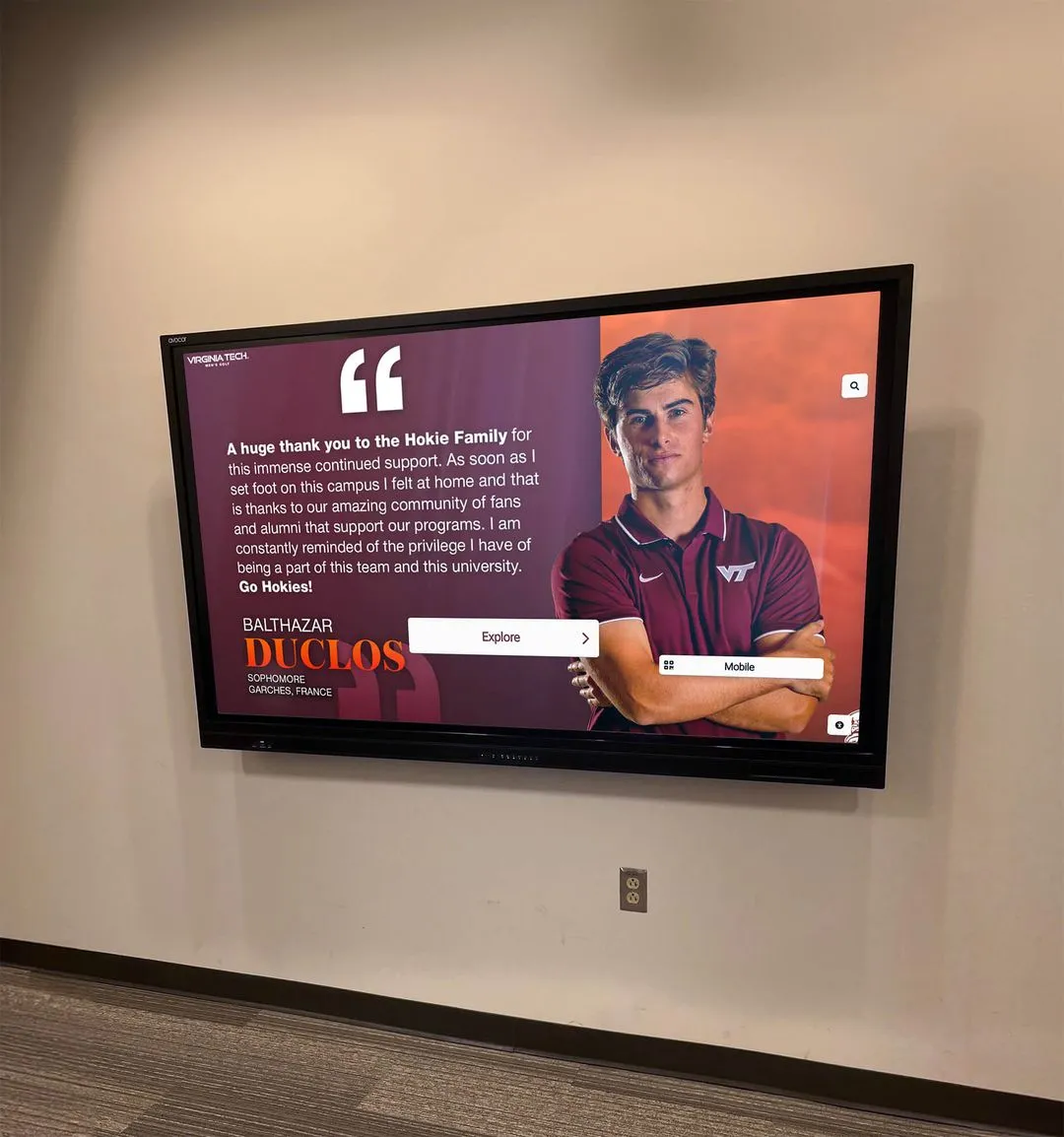
Reliable touch driver software ensures accurate, responsive interactions that make interactive displays genuinely engaging
Understanding Touch Driver Software Fundamentals
Before evaluating specific touch driver solutions like UPDD, understanding what touch drivers do and why they matter helps organizations make informed decisions about interactive display infrastructure.
What Touch Drivers Do
Touch driver software serves as the essential translator between touch hardware and computer systems:
Signal Processing and Translation
Touch drivers manage complex signal processing:
- Receive raw electrical signals from touchscreen controllers via USB, serial, or other connection protocols
- Translate analog or digital signals into precise coordinate information identifying touch locations
- Process multi-touch data streams tracking multiple simultaneous contact points
- Filter noise and erroneous signals ensuring accurate touch detection
- Apply calibration data correcting for hardware variations and environmental factors
- Generate standardized input events operating systems and applications recognize
- Manage timing and sequencing of touch events maintaining proper gesture recognition
This translation process happens continuously in milliseconds, directly affecting whether touchscreens feel responsive and accurate or sluggish and imprecise to users.
Operating System Integration
Effective drivers integrate seamlessly with operating systems:
- Present touch input as mouse movements and clicks for backward compatibility with non-touch applications
- Provide native touch event data to touch-aware applications supporting advanced gestures
- Implement operating system-specific touch protocols and APIs
- Manage device detection and connection handling
- Support system-level touch settings and configuration options
- Enable accessibility features for touch-based interaction
- Coordinate with other input devices preventing conflicts
Proper operating system integration ensures applications receive touch input in expected formats enabling reliable functionality across diverse software environments.
Hardware Communication Management
Touch drivers maintain ongoing hardware communication:
- Initialize touchscreen controllers establishing operational parameters
- Monitor connection status detecting hardware disconnections or failures
- Implement power management reducing energy consumption during idle periods
- Update firmware on supported devices improving capabilities over time
- Query hardware capabilities determining supported features and resolutions
- Manage multiple simultaneous touch devices when present
- Provide diagnostic information for troubleshooting hardware issues
This hardware management creates reliable operation maintaining consistent functionality across varying conditions and extended operational periods.
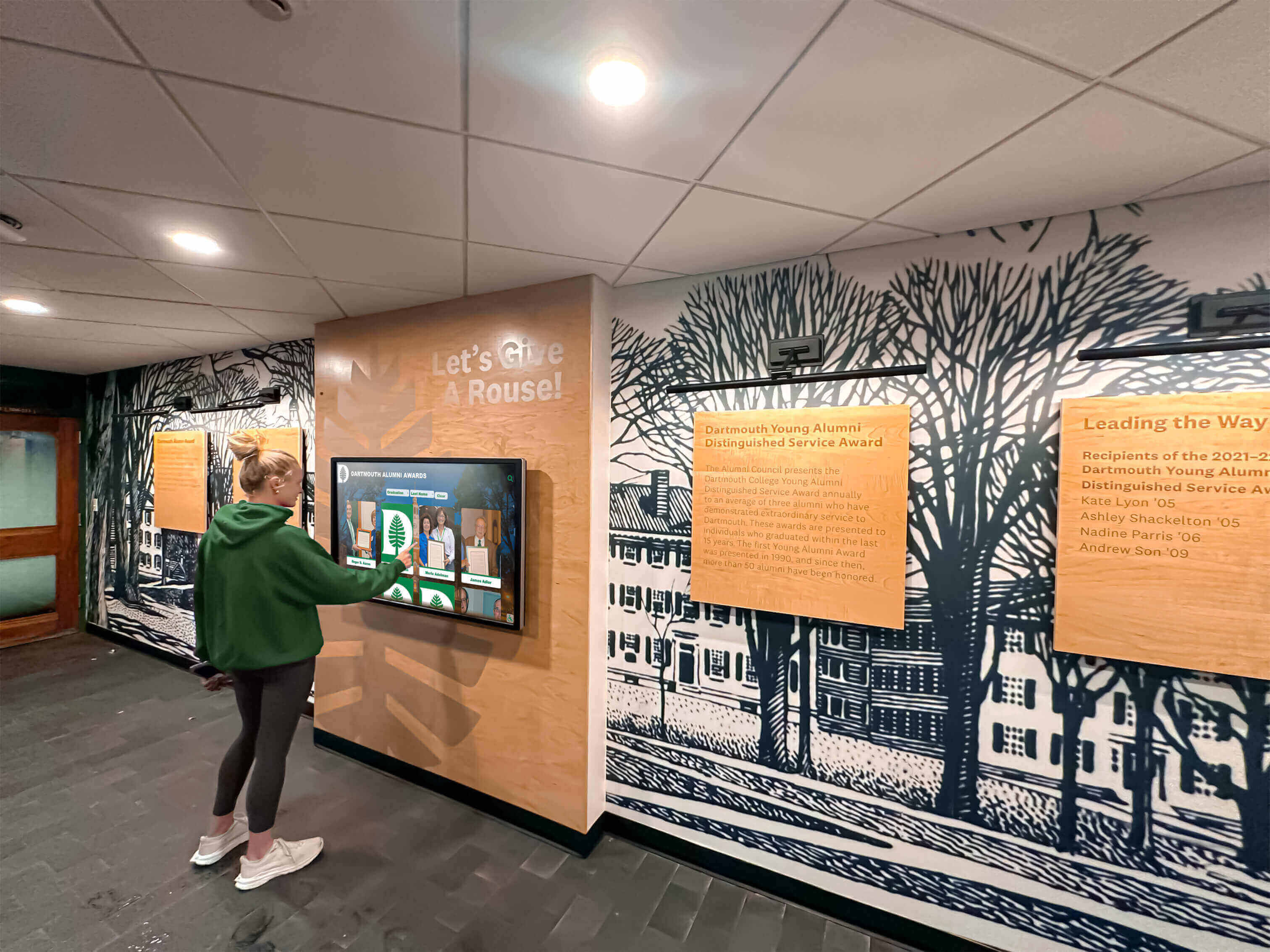
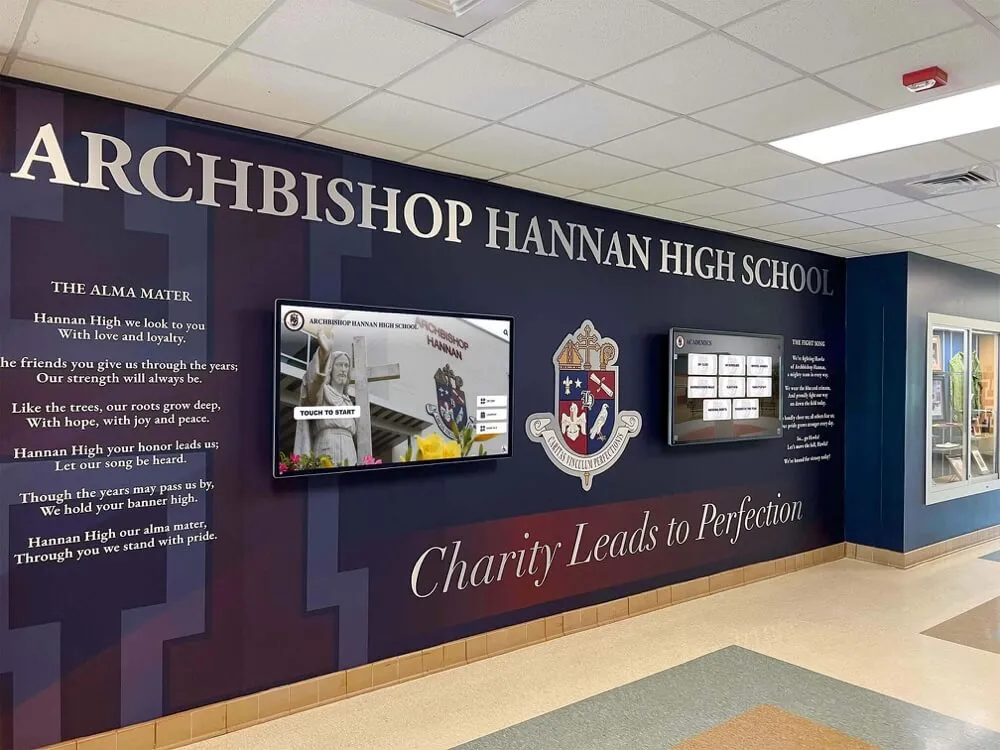
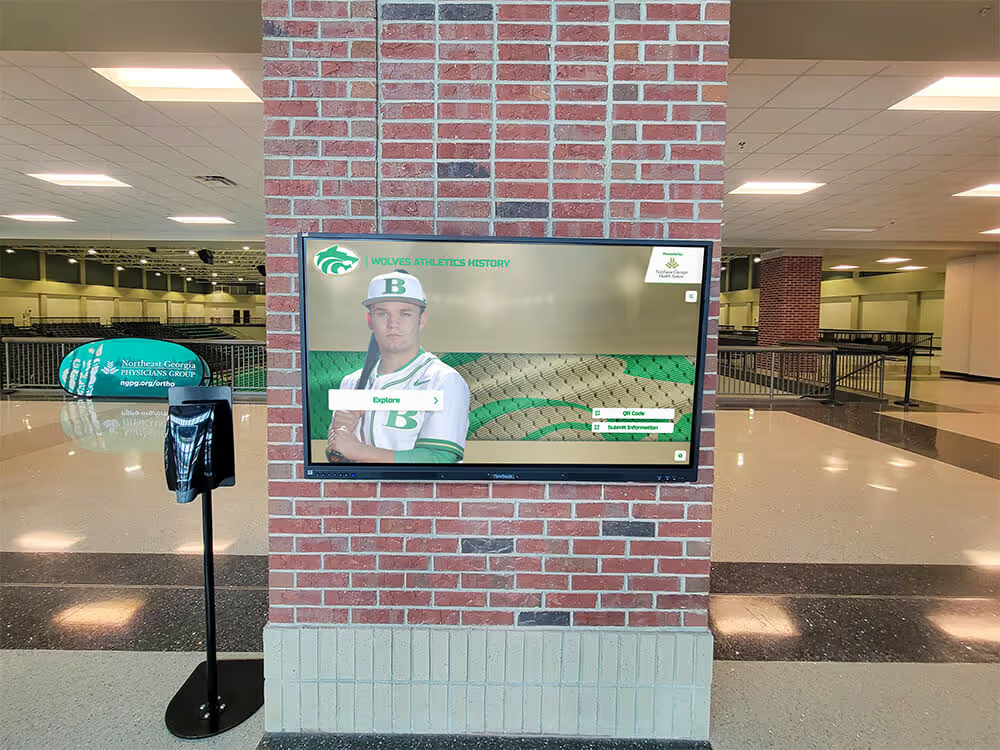
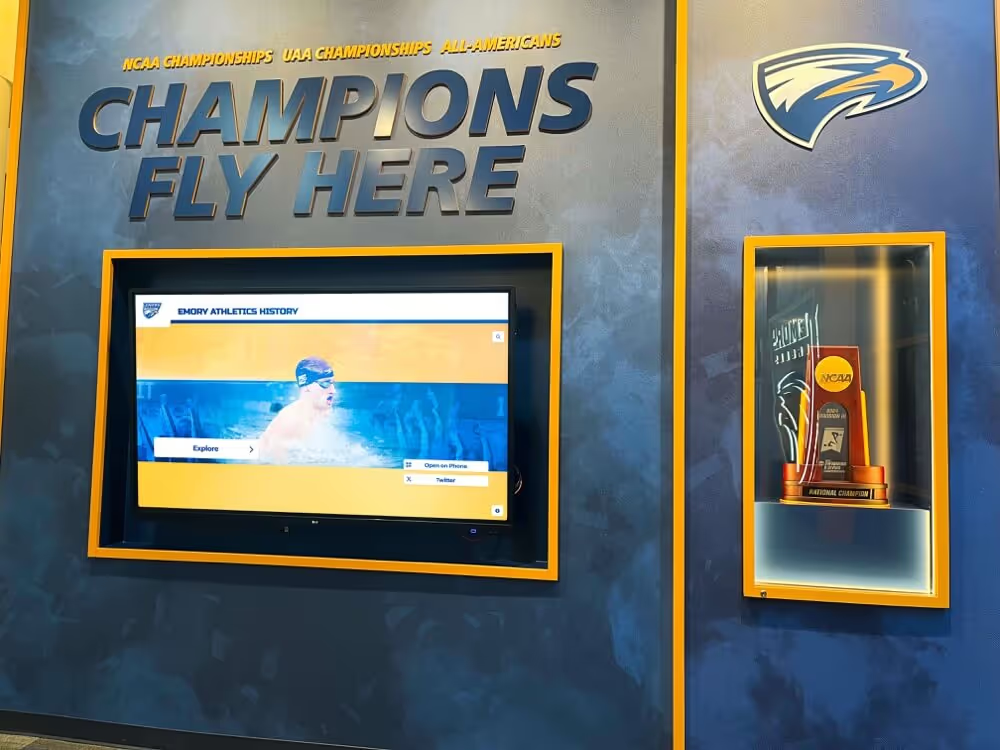
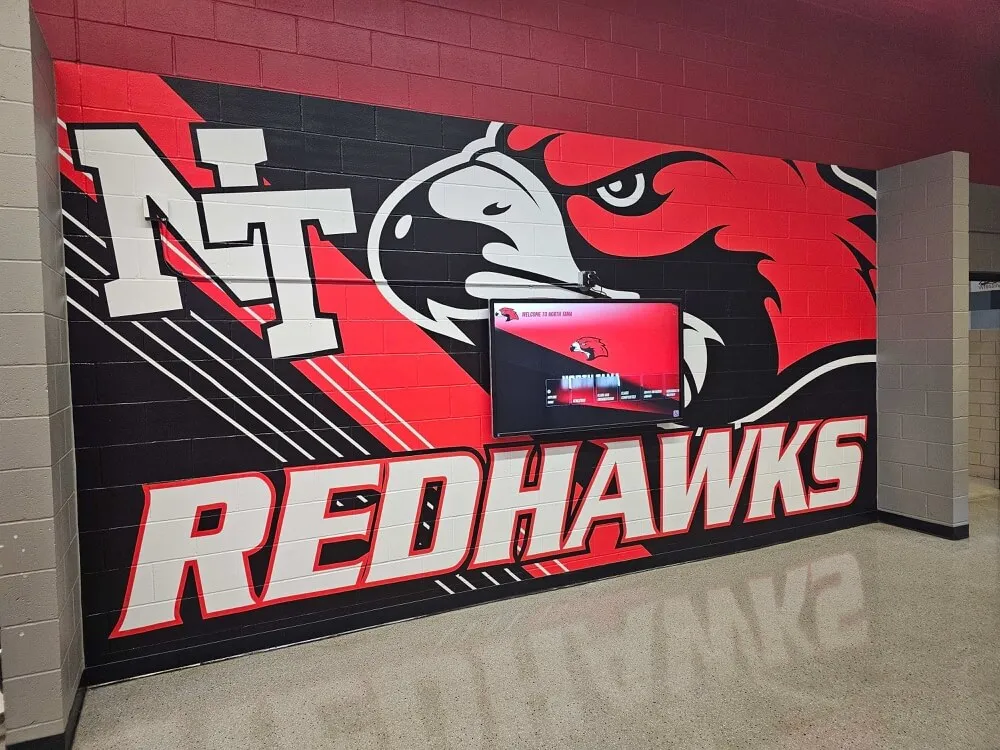
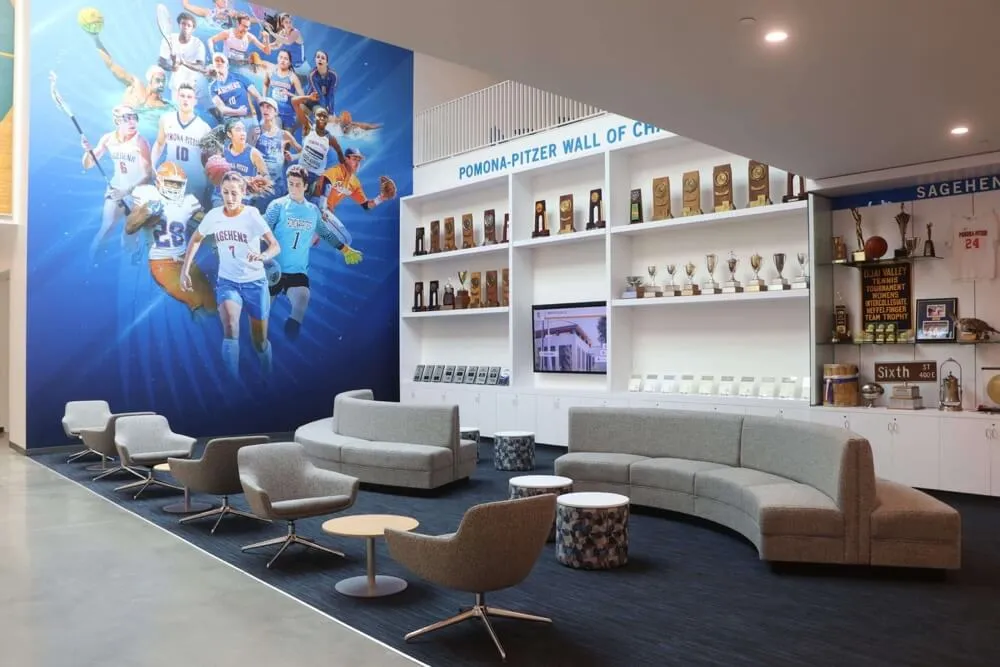
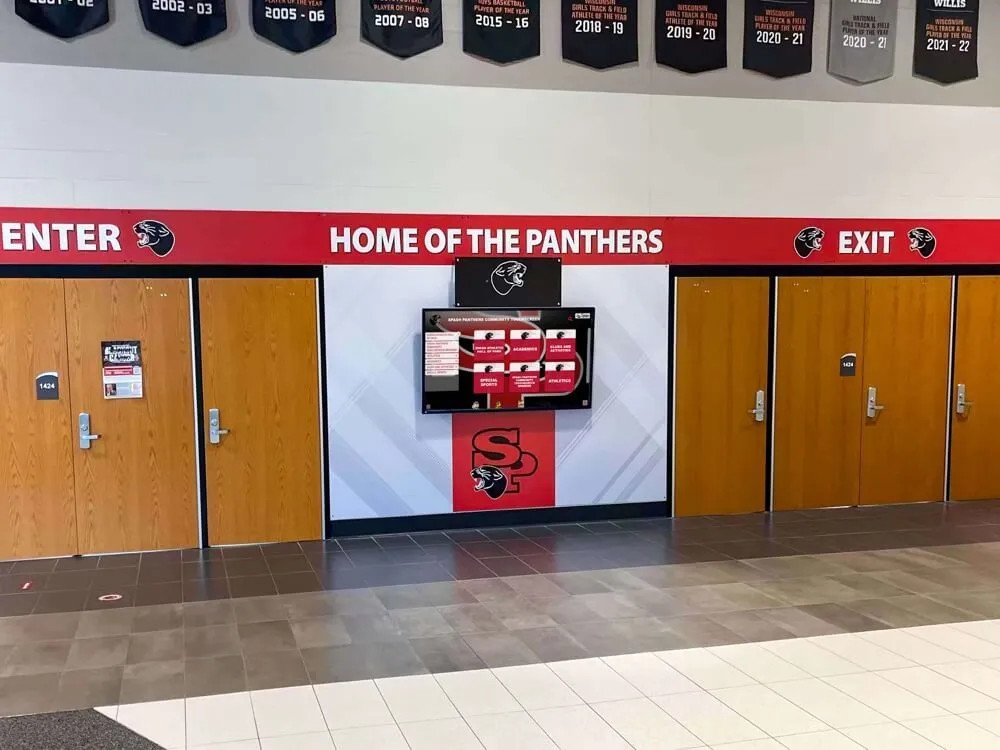
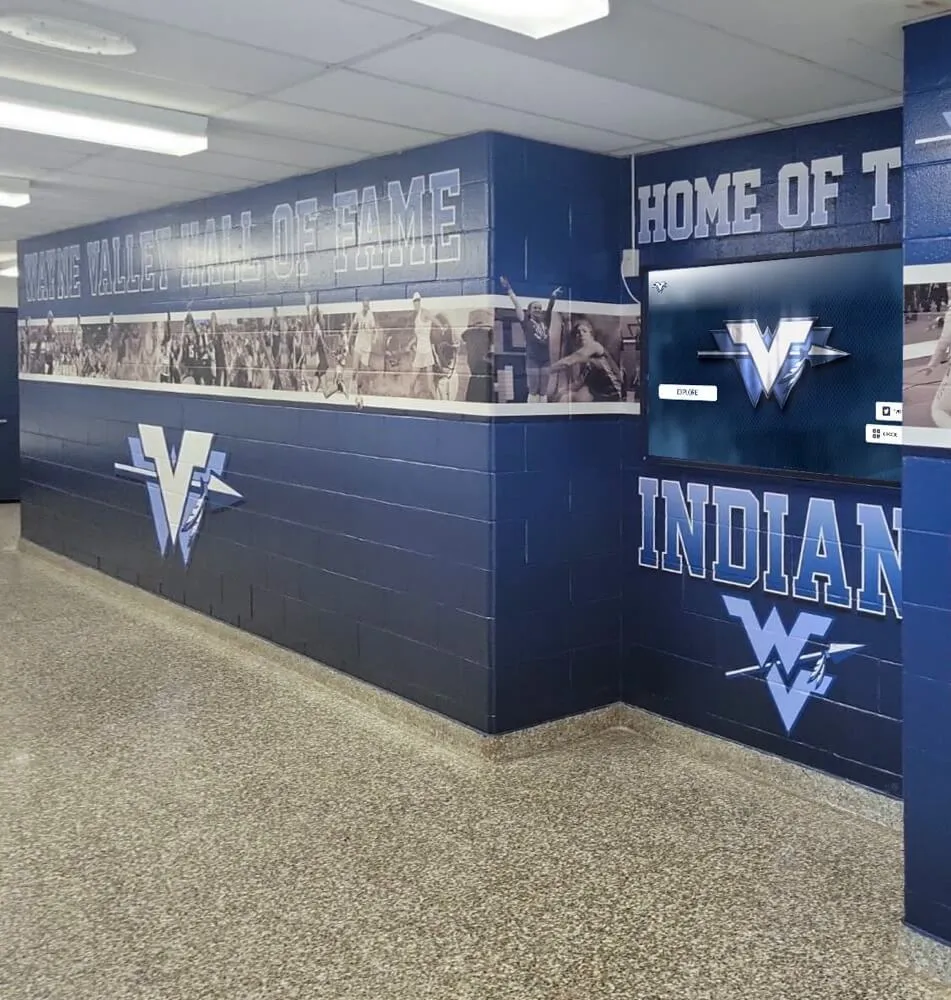
Quality touch driver software enables natural, intuitive interactions users expect from modern touchscreens
Native Operating System Touch Support vs. Universal Drivers
Modern operating systems include built-in touch support, raising questions about when specialized driver software like UPDD provides value:
Native Operating System Capabilities
Current Windows, macOS, and Linux versions offer integrated touch functionality:
- Automatic driver installation for HID (Human Interface Device) compliant touchscreens
- Basic touch input translation for single-touch and multi-touch devices
- Standard gesture recognition for common interactions
- System settings for basic touch configuration
- Power management and device detection
- Plug-and-play functionality for mainstream hardware
For many modern touchscreens connected to current operating systems, native support provides adequate functionality without additional software.
When Universal Drivers Add Value
Specialized touch driver software like UPDD addresses scenarios where native support proves insufficient:
Legacy Hardware Support
- Older touchscreens using serial connections unsupported by modern operating systems
- Non-HID USB devices requiring custom communication protocols
- Specialized industrial or commercial touch controllers
- Touch hardware predating modern HID standards
- Extending operational life of functioning older equipment
- Maintaining compatibility with discontinued hardware lines
Organizations with existing touchscreen investments often face situations where perfectly functional hardware becomes unusable on current operating systems without specialized driver support.
Advanced Multi-Touch Configuration
- Enhanced gesture recognition beyond basic operating system support
- Customizable touch behavior for specialized applications
- Multi-touch tuning optimizing responsiveness for specific use cases
- Advanced palm rejection preventing unintended inputs
- Pressure sensitivity configuration when hardware supports it
- Touch point discrimination improving accuracy with multiple simultaneous touches
Applications requiring sophisticated multi-touch interaction often benefit from enhanced driver-level configuration capabilities.
Cross-Platform Consistency
- Identical touch behavior across Windows, macOS, Linux, and Android
- Unified configuration management across heterogeneous environments
- Consistent API access for application developers
- Simplified support and troubleshooting procedures
- Reduced training requirements across different systems
- Standardized deployment processes
Organizations operating mixed computing environments value consistent touch experiences regardless of underlying operating systems.
Enhanced Diagnostics and Support
- Comprehensive diagnostic tools for troubleshooting touch issues
- Detailed logging of touch events and driver behavior
- Calibration utilities optimizing accuracy for specific installations
- Performance monitoring identifying responsiveness problems
- Configuration backup and restoration capabilities
- Remote diagnostic support for distributed installations
Technical support teams managing multiple interactive displays benefit from robust diagnostic capabilities unavailable through native operating system tools.
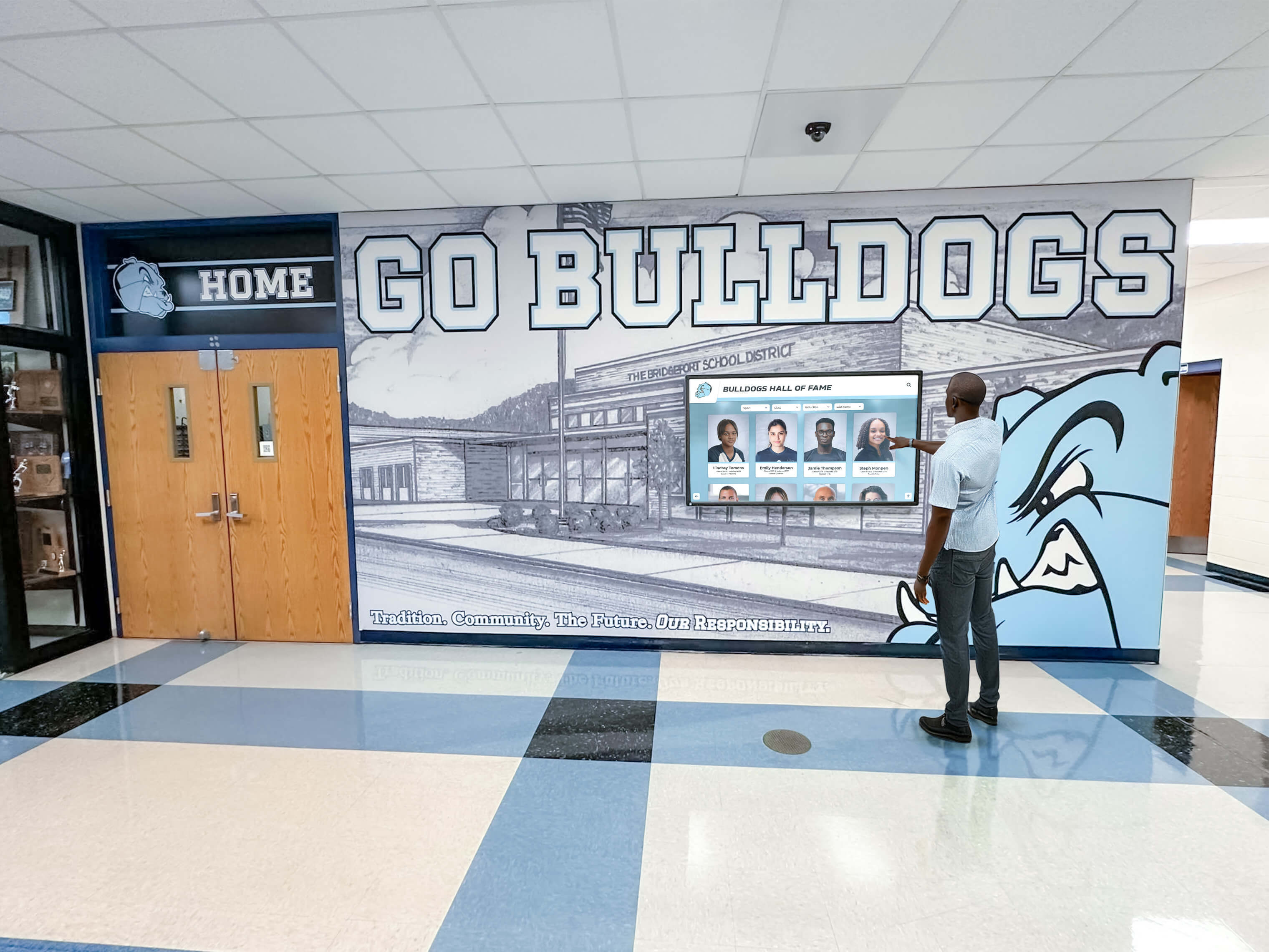
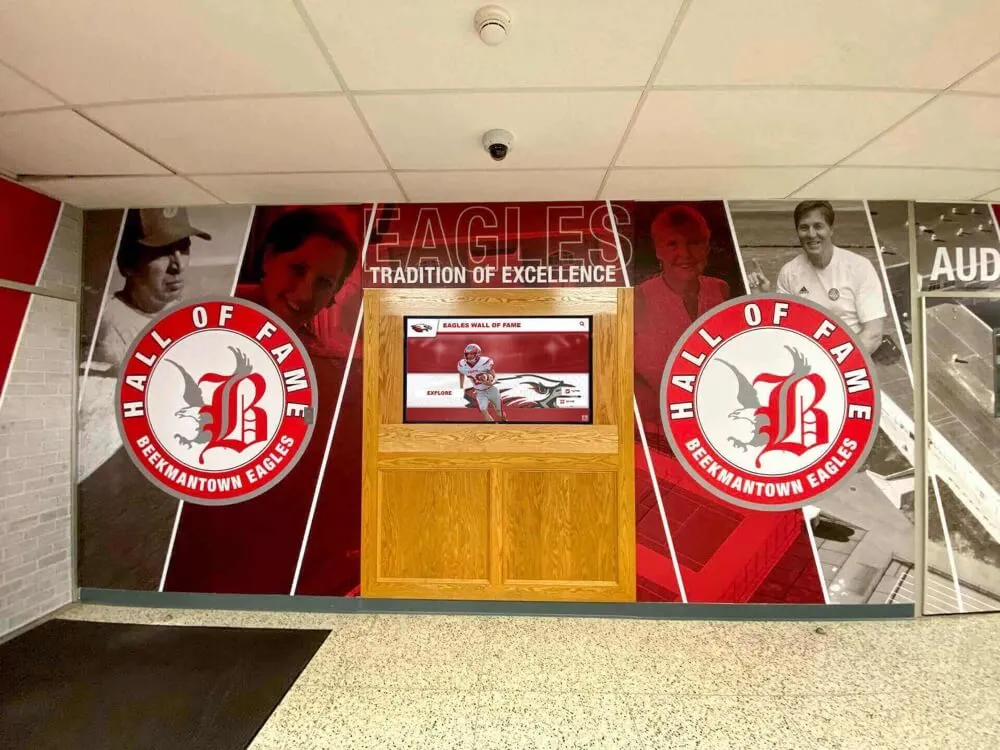
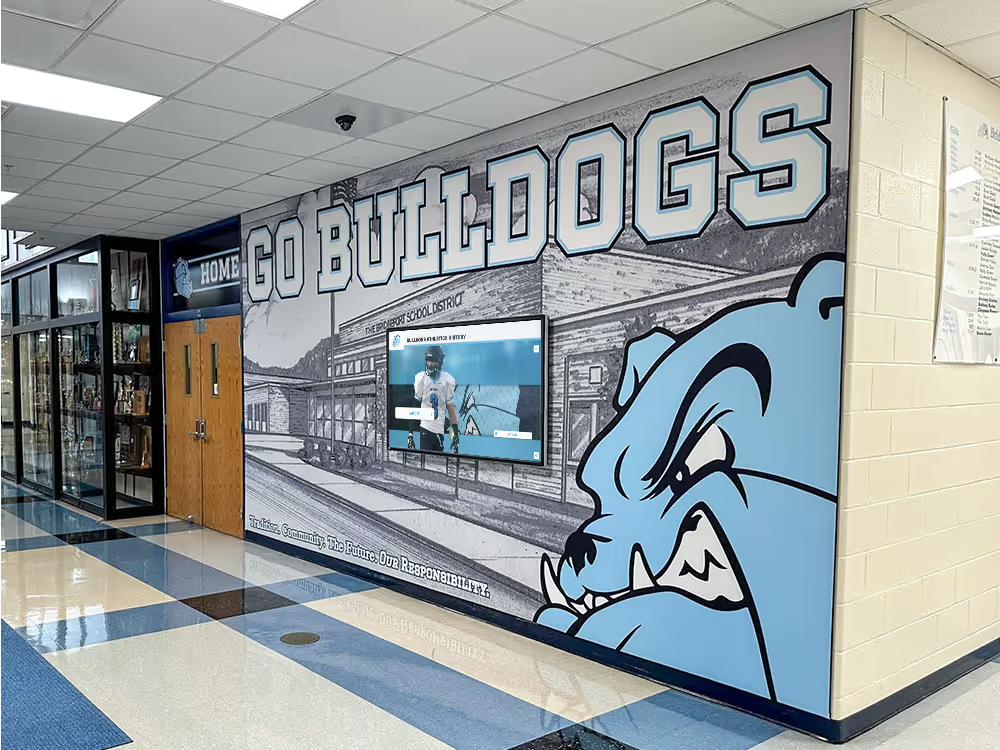
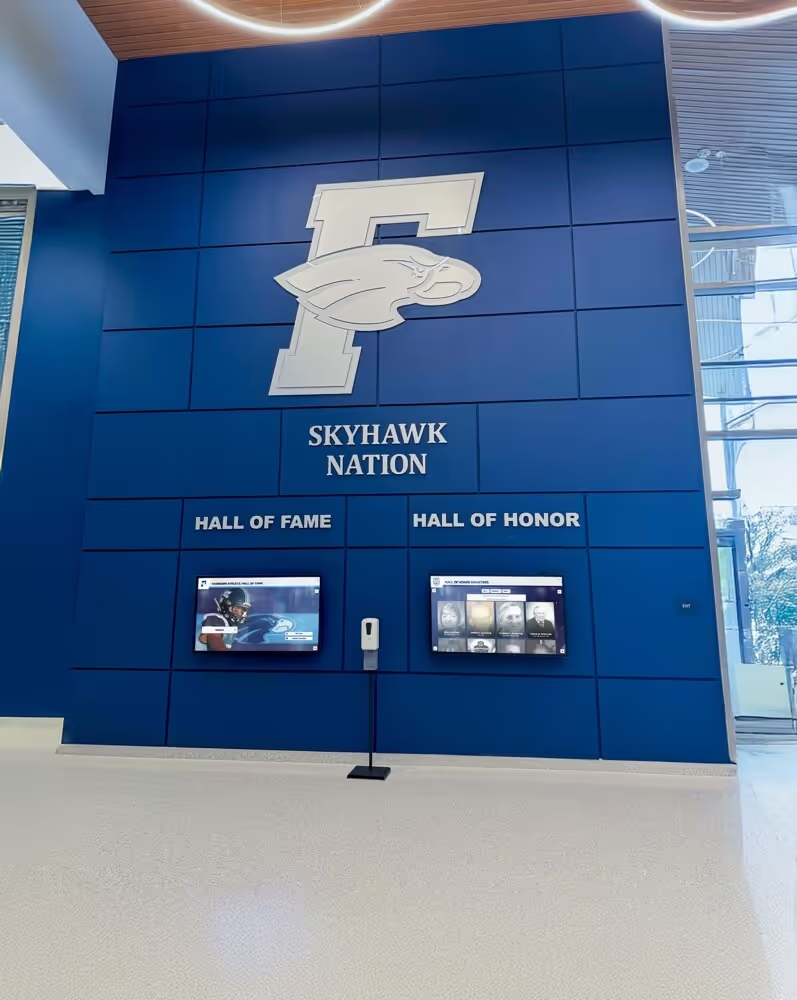
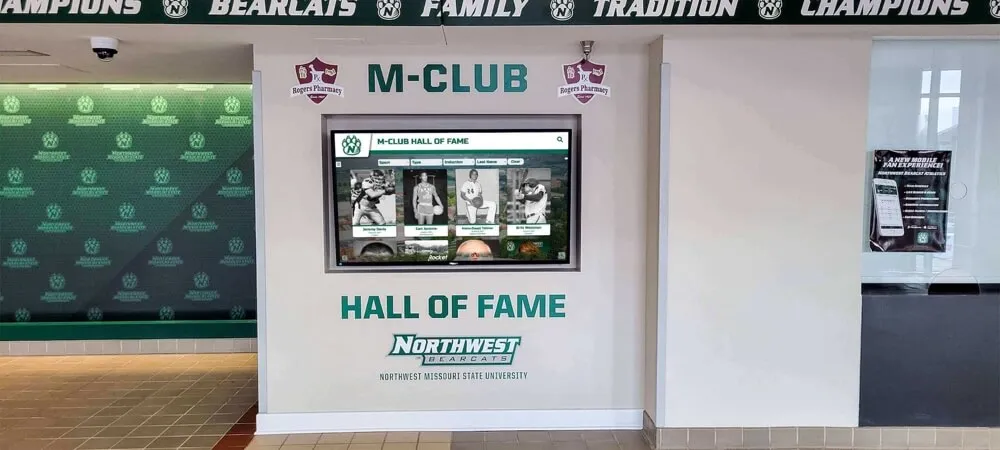
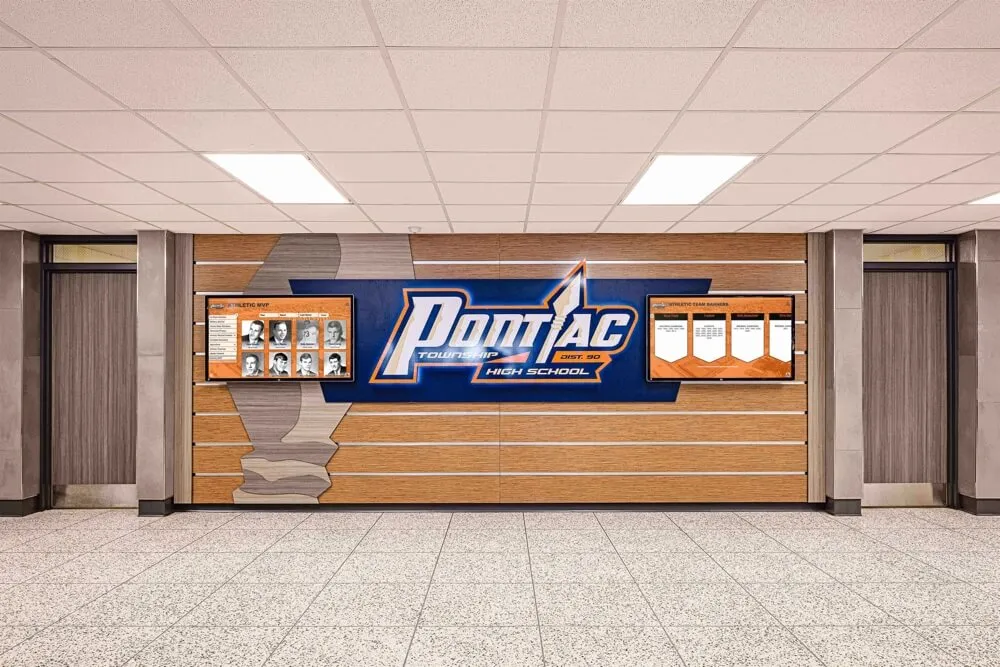
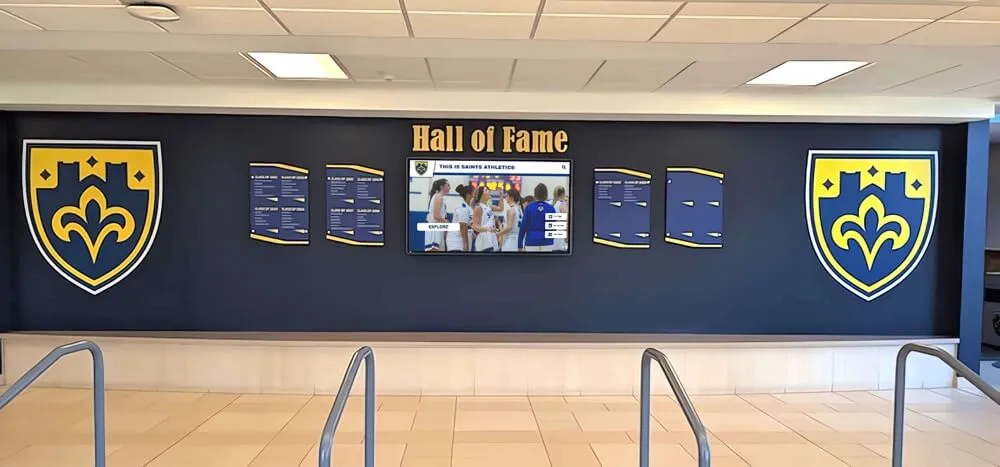
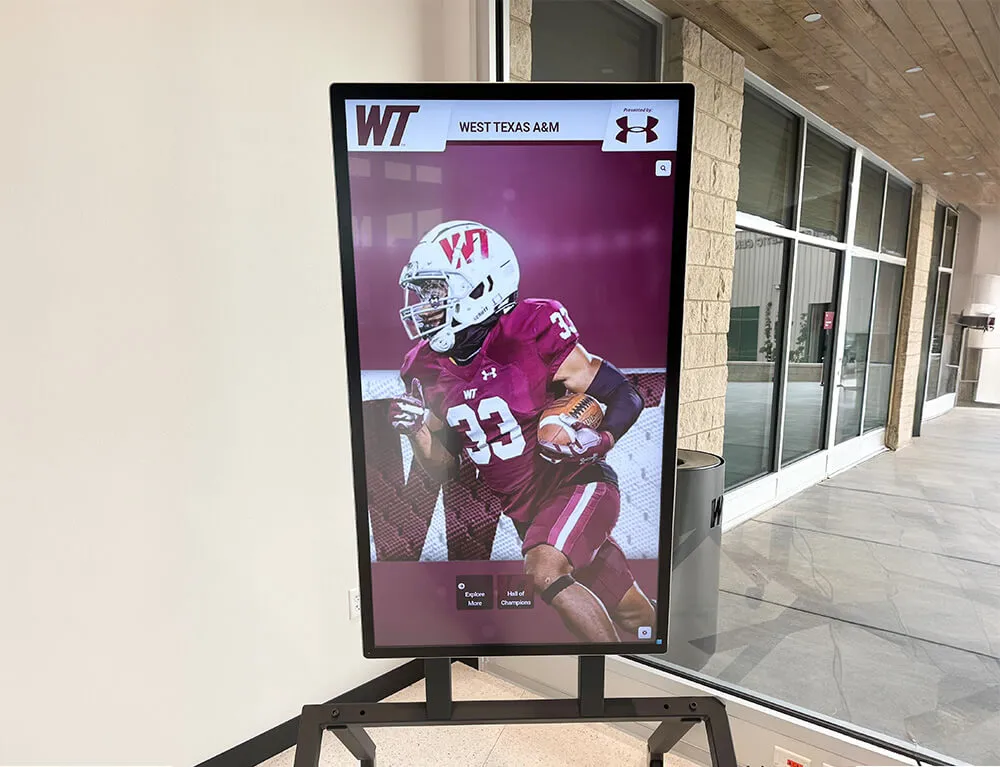
Professional interactive installations require reliable touch driver solutions ensuring consistent operation
UPDD Software: Overview and Capabilities
UPDD (Universal Pointer Device Driver) software from Touch-Base represents a comprehensive touch driver solution supporting diverse hardware across multiple operating systems.
Company Background
Touch-Base Ltd., headquartered in the United Kingdom, has specialized in touch driver development for over 30 years, accumulating extensive experience with touchscreen technologies across evolving computing platforms. The company focuses exclusively on touch input solutions, providing specialized expertise in this technical domain.
The UPDD driver suite represents Touch-Base’s flagship product, deployed across thousands of installations worldwide in educational institutions, museums, corporate environments, retail locations, and industrial settings. This extensive deployment history provides real-world validation across diverse use cases and hardware configurations.
Core UPDD Capabilities
UPDD software delivers comprehensive touch driver functionality addressing complex implementation requirements:
Extensive Hardware Compatibility
UPDD supports extraordinarily broad touchscreen hardware:
- Modern HID USB touchscreens from major manufacturers
- Legacy serial touchscreens using RS-232 communication
- Non-HID USB devices requiring custom protocols
- Specialized industrial and commercial touch controllers
- Interactive whiteboards and large-format displays
- Pen digitizers and stylus-based input devices
- Touch overlay systems for existing monitors
- Capacitive, resistive, infrared, and other touch technologies
This extensive compatibility enables organizations to standardize on unified driver software regardless of hardware variety, simplifying management and support across diverse installations.
Comprehensive Operating System Support
UPDD functions across all major computing platforms:
- Windows XP through Windows 11 supporting legacy and current systems
- macOS from version 10.4 through current releases
- Linux distributions including Ubuntu, Red Hat, and Debian variants
- Android for mobile and embedded touch applications
- Native support for both Intel x86 and ARM processor architectures
Cross-platform consistency enables organizations to maintain identical touch functionality across heterogeneous computing environments, reducing complexity and training requirements.
Advanced Multi-Touch Support
UPDD implements sophisticated multi-touch capabilities:
- Full gesture recognition including pinch, zoom, rotate, and swipe
- Simultaneous tracking of ten or more contact points depending on hardware
- Native operating system gesture integration mimicking trackpad functionality
- Custom gesture definition for specialized applications
- TUIO protocol support for multi-touch application development
- Comprehensive API enabling direct application integration
- Configurable touch point filtering and palm rejection
Multi-touch capabilities enable natural interaction patterns users expect from smartphone and tablet experiences, creating more engaging interactive displays.
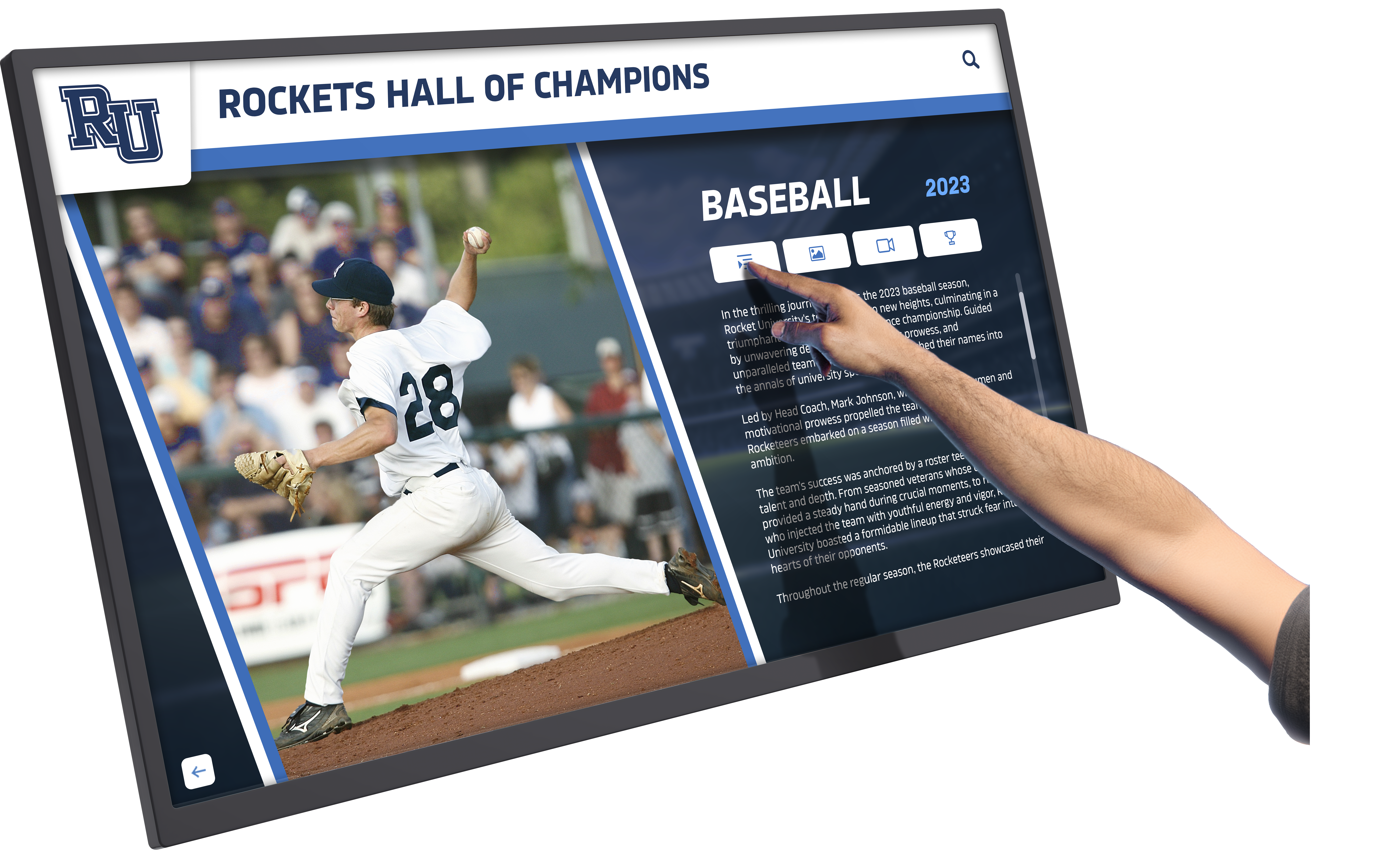
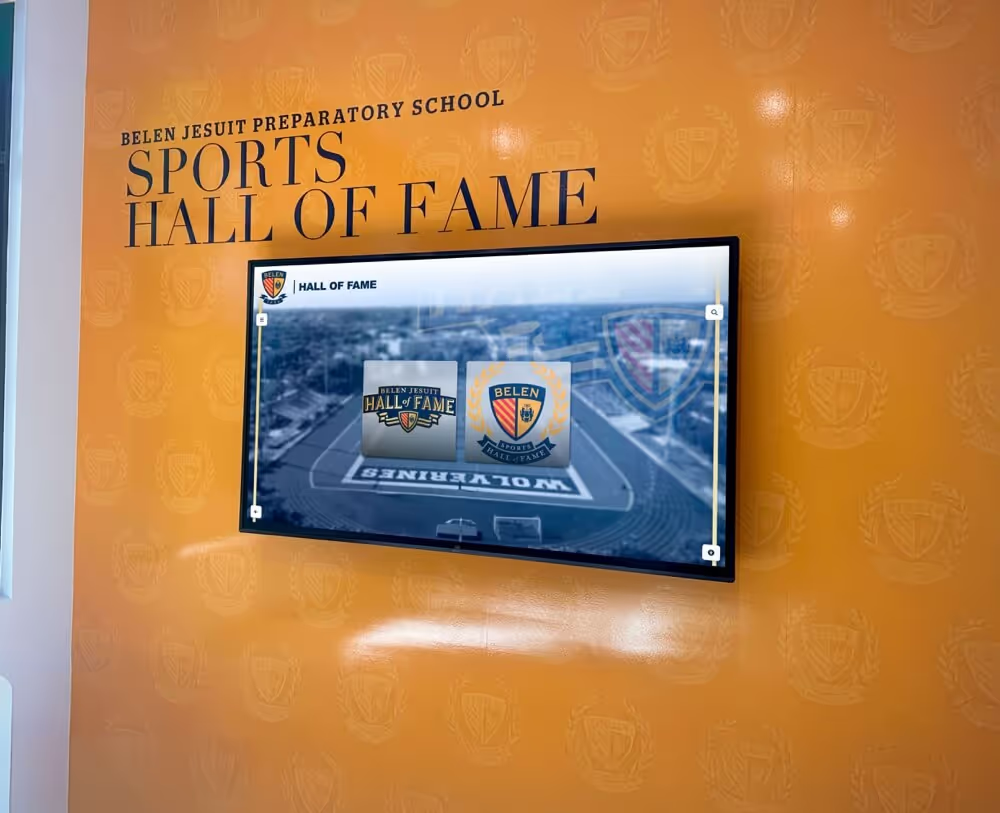
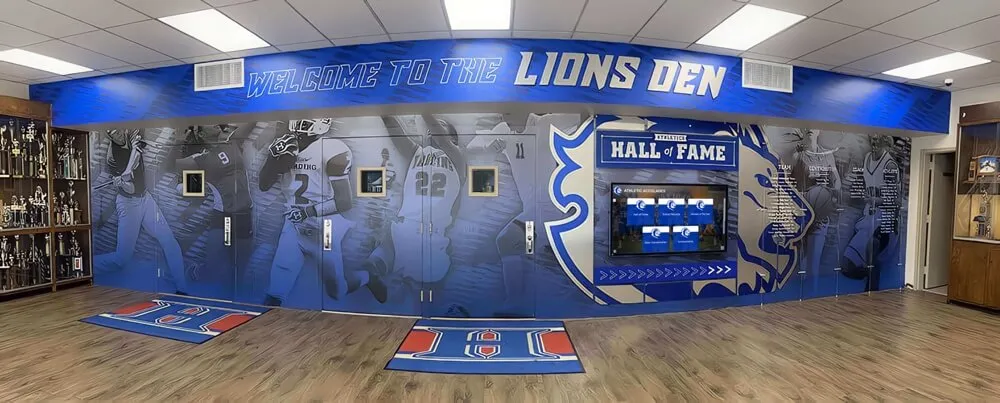
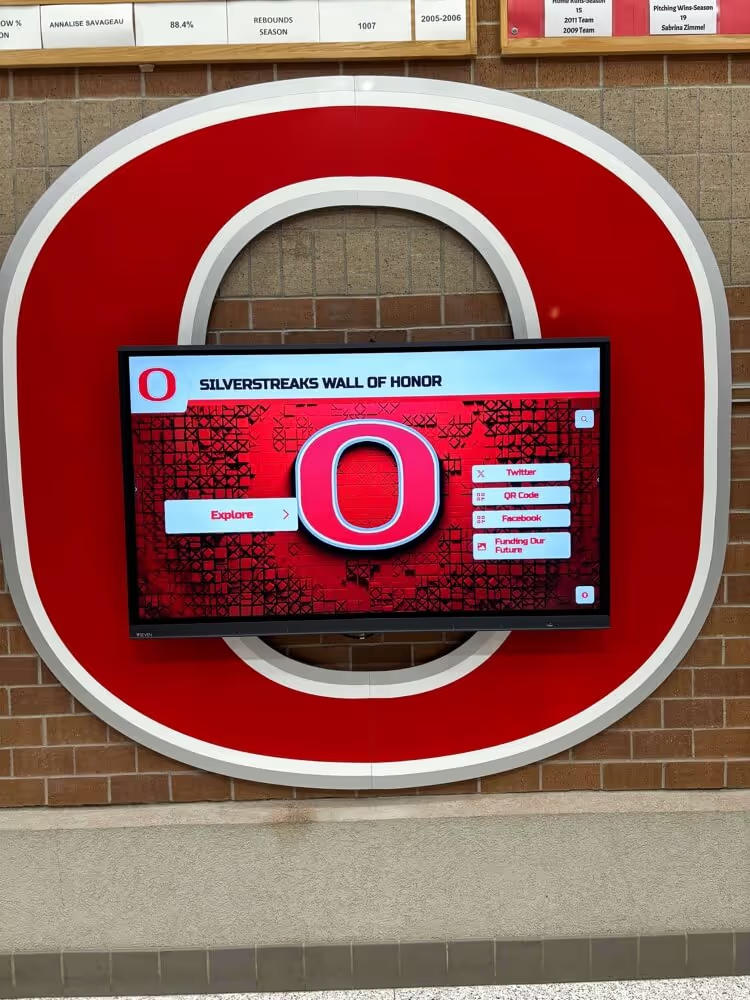
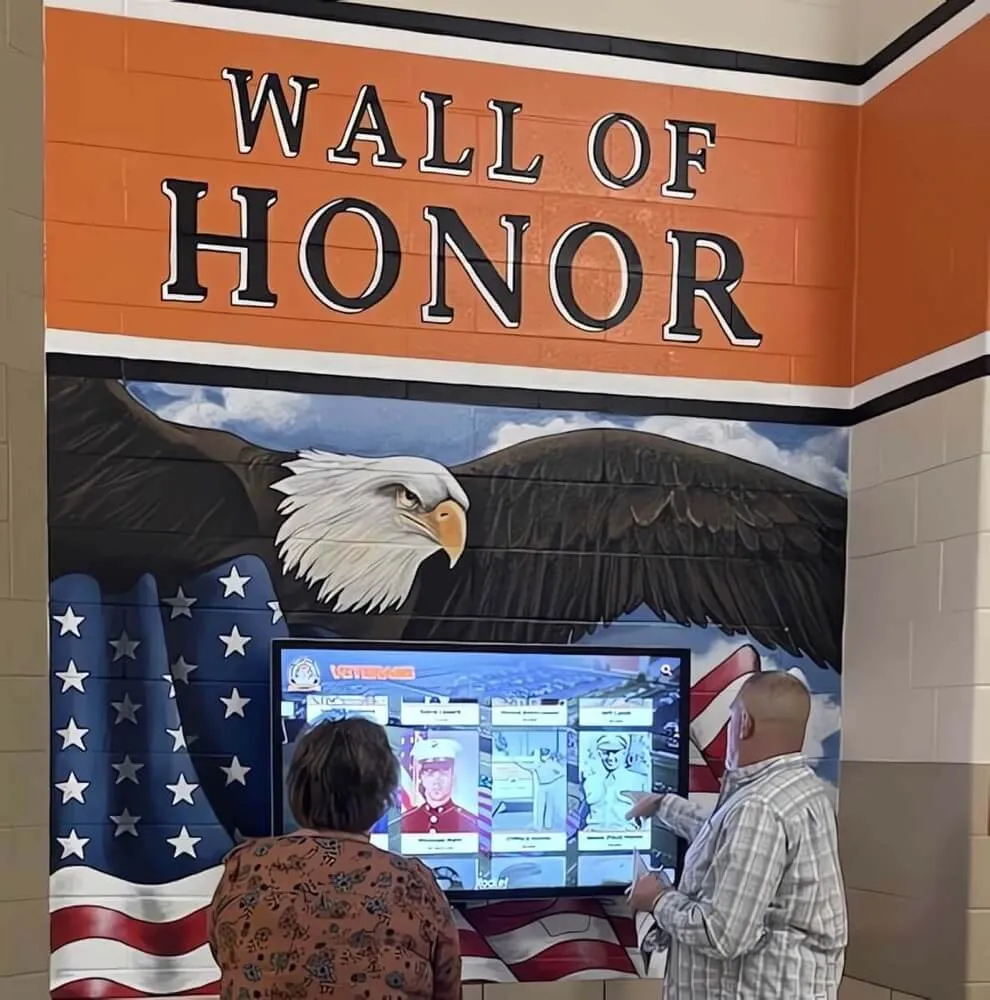
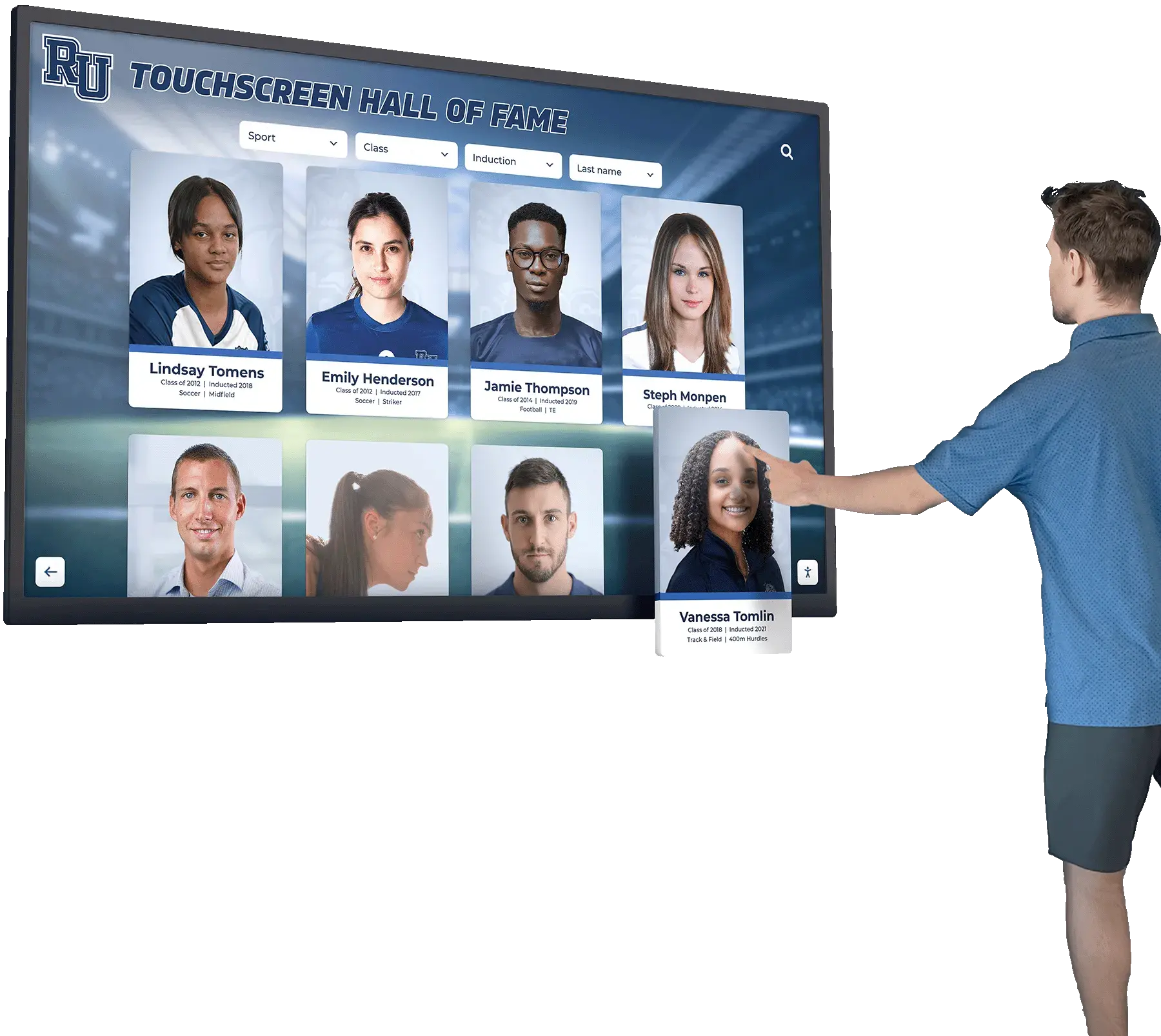
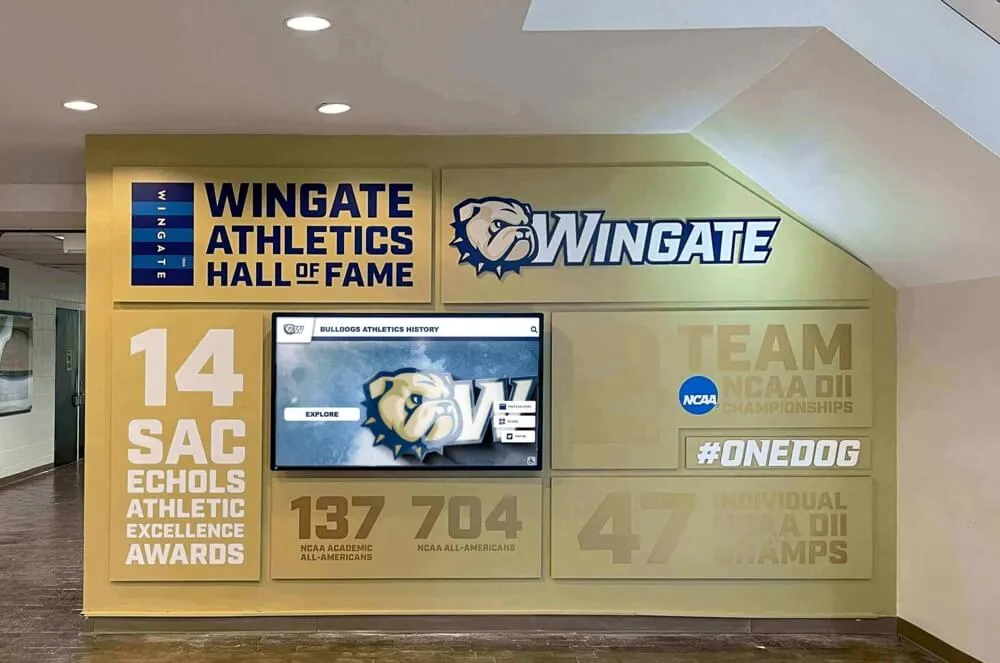
Advanced multi-touch driver capabilities enable gesture-based navigation creating intuitive user experiences
Configuration and Calibration Tools
UPDD includes comprehensive configuration utilities:
- Graphical configuration interface for all driver settings
- Precision calibration tools optimizing touch accuracy
- Multiple touch device management when using several screens
- Profile-based configurations for different users or applications
- Backup and restore capabilities for configuration preservation
- Command-line tools for automated deployment and management
- Remote configuration support for distributed installations
Robust configuration capabilities enable technical teams to optimize touch behavior for specific installations and application requirements.
Developer Integration Options
UPDD provides extensive developer support:
- Comprehensive API (Application Programming Interface) for direct driver access
- Support for C, C++, C#, Java, Python, and other development environments
- TUIO server implementation for multi-touch frameworks
- SDK (Software Development Kit) with documentation and examples
- Direct touch data access bypassing mouse emulation limitations
- Event subscription for real-time touch monitoring
- Custom gesture recognition integration
Development teams creating specialized interactive applications benefit from direct driver integration capabilities enabling sophisticated touch-based functionality beyond standard mouse emulation.
UPDD Versions and Licensing
Touch-Base offers UPDD in several versions addressing different needs:
UPDD Console
The standard UPDD version provides comprehensive capabilities:
- Full driver functionality for single or multiple displays
- Configuration and calibration utilities
- Diagnostic and troubleshooting tools
- Basic API access for application integration
- Suitable for most interactive display implementations
UPDD Console addresses typical organizational requirements for professional interactive displays.
UPDD Commander
An enhanced version adds advanced features:
- Sophisticated gesture recognition and customization
- Extended API capabilities for complex integrations
- Advanced multi-touch configuration options
- Additional diagnostic and monitoring tools
- Priority technical support
Organizations with specialized requirements or custom application development often utilize UPDD Commander for its extended capabilities.
Licensing Models
Touch-Base employs various licensing approaches:
- Single-system licenses for individual installations
- Volume licensing for multiple deployment
- OEM (Original Equipment Manufacturer) licensing for hardware vendors
- Subscription options for enterprise deployments
- Educational and non-profit pricing considerations
Organizations should consult Touch-Base directly regarding current licensing options and pricing for specific deployment requirements.
Touch Driver Software in Educational Recognition Applications
While UPDD serves diverse industries, its role in educational recognition displays illustrates how robust touch driver infrastructure supports engaging interactive experiences.
Recognition Display Touch Requirements
Interactive recognition applications like digital halls of fame demand specific touch capabilities:
Multi-User Interaction Support
Recognition displays often serve multiple simultaneous users:
- Groups exploring content together during tours or events
- Parents and students browsing achievement information
- Alumni gathering at homecoming or reunion celebrations
- Visitors independently accessing different content sections
Touch driver software must handle multiple simultaneous touch points reliably, preventing interference between users and maintaining responsive performance during concurrent interactions.
Extended Interaction Sessions
Recognition exploration differs from brief wayfinding interactions:
- Users browse multiple profiles investigating achievements
- Search and filtering operations require multiple sequential touches
- Photo galleries and video content involve extended navigation
- Deep content exploration accessing biographical details and media
Touch drivers must maintain consistent accuracy and responsiveness throughout extended interaction sessions without degrading performance over time.
Diverse User Demographics
Recognition displays serve broad audiences:
- Young students with limited fine motor control
- Elderly alumni with varied physical capabilities
- Visitors unfamiliar with touchscreen technology
- Users with accessibility considerations
Touch driver software supporting configuration flexibility enables optimization for broad user populations ensuring everyone successfully navigates recognition content.
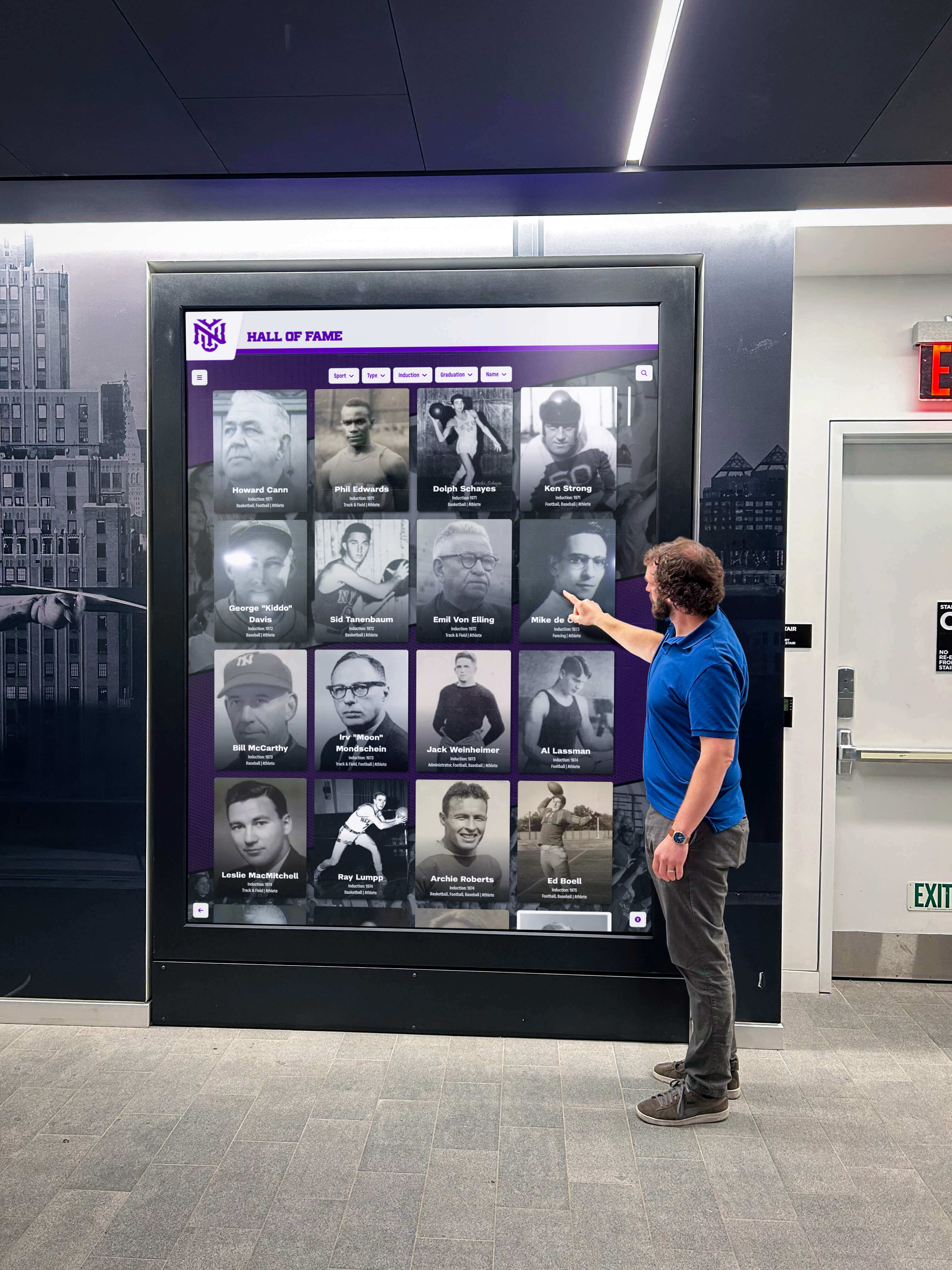
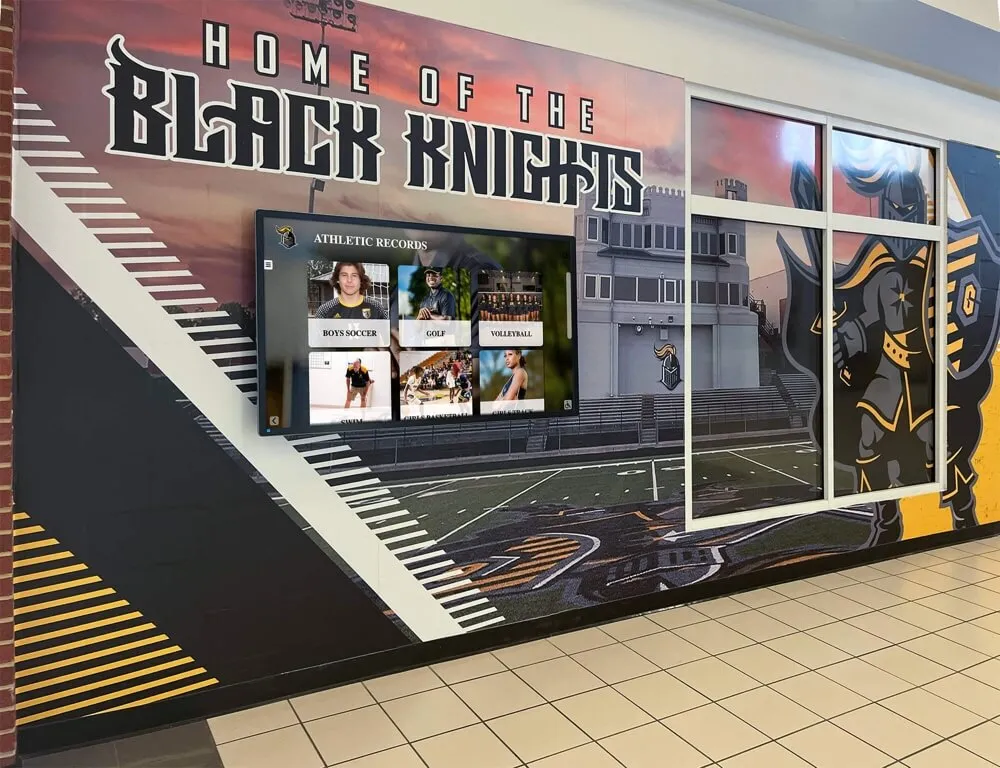
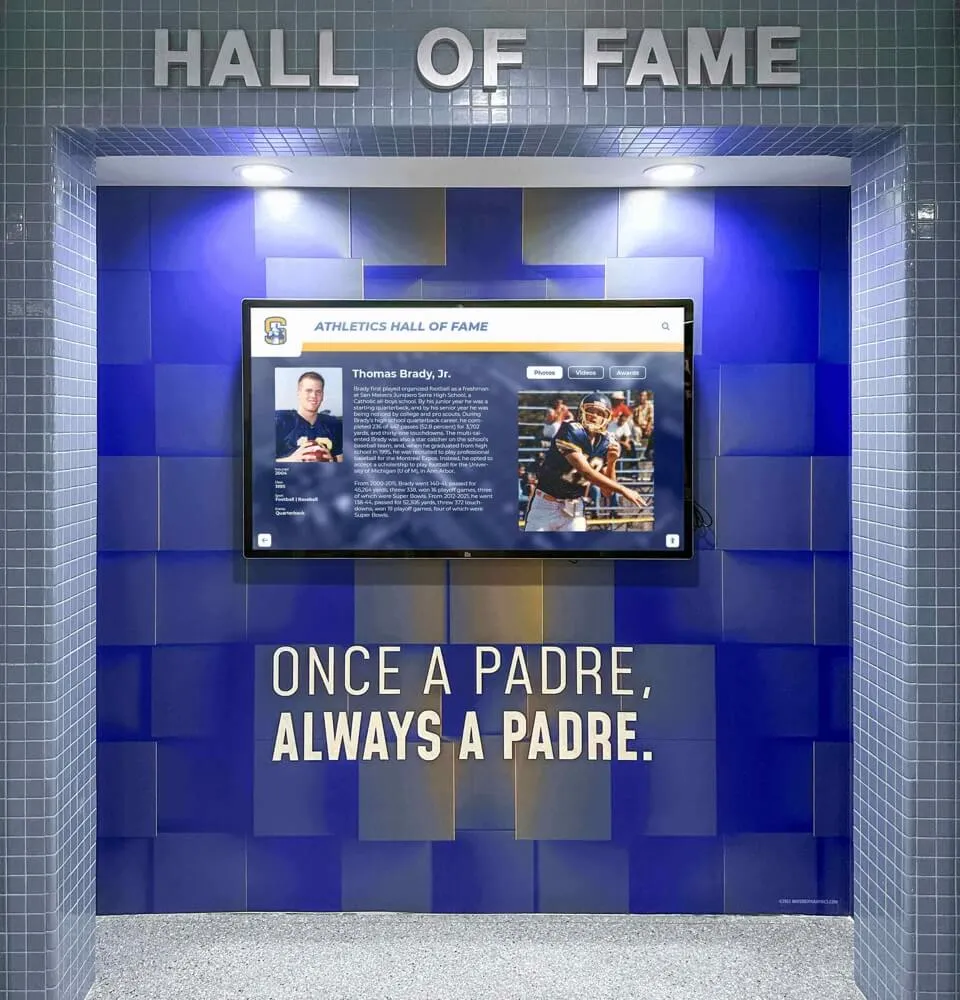
Recognition displays serve diverse audiences requiring touch drivers supporting varied interaction patterns and capabilities
Touch Driver Considerations for Recognition Software
Organizations implementing digital recognition displays should consider touch driver requirements:
Application-Level Touch Support
Recognition software platforms vary in touch implementation:
- Purpose-built recognition software often implements sophisticated touch handling optimized for content exploration
- General content management systems may rely more heavily on driver-level touch translation
- Custom applications benefit from direct driver API access for enhanced responsiveness
- Web-based platforms depend on browser touch interpretation
Solutions like Rocket Alumni Solutions provide purpose-built recognition platforms specifically designed for interactive touchscreen experiences, with software architectures optimized for the exploration patterns common in digital hall of fame applications.
Hardware Integration Coordination
Recognition display implementations coordinate multiple components:
- Touchscreen overlays or integrated touch displays
- Media players or computers running recognition software
- Network connectivity for cloud-based content management
- Audio systems for multimedia content
- Peripheral devices like keyboards for accessibility
Touch driver selection should align with overall hardware architecture ensuring compatibility across all system components and smooth integration with recognition software platforms.
Long-Term Operational Reliability
Recognition displays often operate continuously:
- 12-16 hour daily operation during school or facility hours
- Extended operation during special events and celebrations
- Years of service delivering consistent recognition experiences
- Limited IT support attention after initial installation
Touch driver software must deliver consistent reliability across extended operational periods with minimal maintenance requirements, ensuring recognition displays remain functional recognition experiences without ongoing technical intervention.
Configuration Stability and Backup
Recognition displays require stable touch configuration:
- Calibration settings must persist across system restarts and updates
- Touch behavior should remain consistent for user familiarity
- Configuration restoration capabilities enable rapid recovery from issues
- Profile management supports different operational modes when needed
Robust configuration management prevents situations where touch calibration drifts or resets, degrading user experiences and requiring technical intervention.
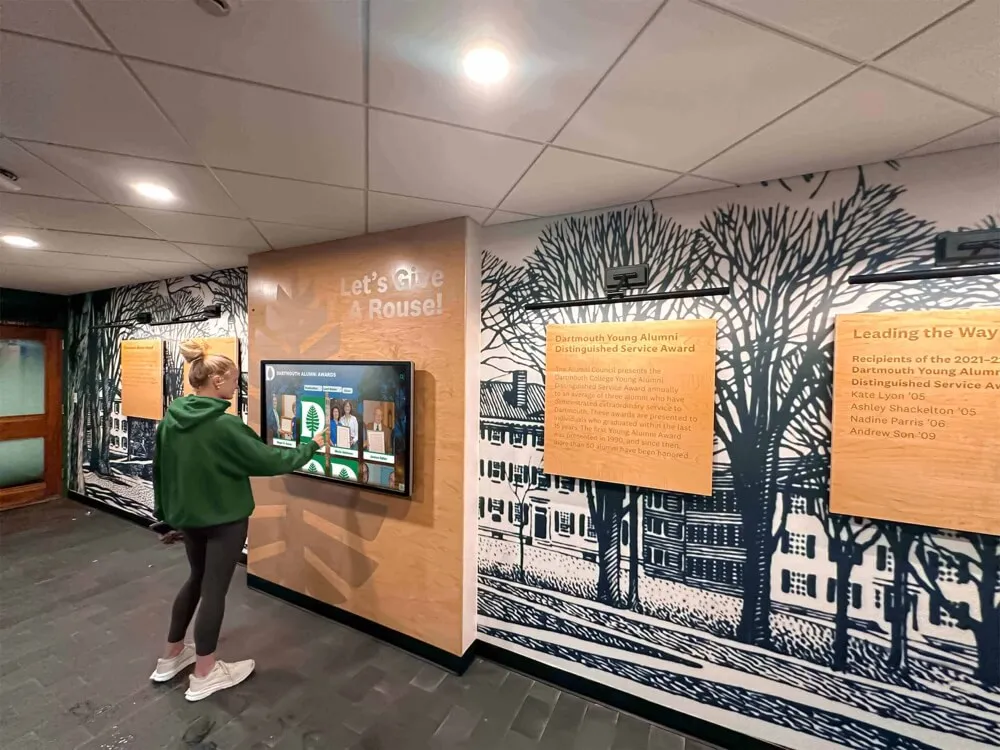
Recognition displays operate for years requiring touch driver software delivering consistent long-term reliability
Technical Implementation Considerations
Organizations implementing touchscreen systems with specialized driver software like UPDD should address several technical considerations.
Hardware Selection and Compatibility
Touch driver software effectiveness begins with compatible hardware selection:
Touchscreen Technology Types
Different touch technologies affect driver requirements:
Capacitive Touchscreens
- Most common in modern displays and mobile devices
- Support multi-touch gestures natively
- Excellent optical clarity and durability
- Typically use HID protocols with good native operating system support
- Work well with standard and specialized drivers
- Suitable for public-facing recognition displays
Resistive Touchscreens
- Older technology still used in some applications
- Generally single-touch operation
- More durable in harsh environments
- Often use non-HID protocols requiring specialized drivers
- Less optical clarity than capacitive alternatives
- May remain in service in legacy installations
Infrared Touchscreens
- Use light beam interruption for touch detection
- Excellent for large-format displays
- Support multi-touch operation
- Work with various objects including gloves and styluses
- May require specialized drivers for optimal performance
- Common in interactive whiteboard applications
Optical/Camera-Based Touch
- Use cameras tracking contact points
- Scale to very large interactive surfaces
- Support multi-touch and gesture recognition
- Often employ specialized communication protocols
- May depend on vendor-specific or universal drivers
- Used in large-format recognition walls
Understanding touchscreen technology types helps organizations select hardware compatible with chosen driver solutions.
Vendor and Model Considerations
Hardware vendor selection affects driver requirements:
- Major manufacturers (Elo, 3M, Planar) typically provide good native driver support
- Specialized vendors may offer enhanced drivers for their hardware
- Generic touchscreens from lesser-known manufacturers may benefit from universal drivers
- Consider long-term vendor stability for ongoing support
- Evaluate availability of technical documentation and integration resources
- Verify driver compatibility before finalizing hardware purchases
Organizations should confirm touchscreen hardware compatibility with planned driver solutions before procurement avoiding incompatibility discoveries during installation.
Connection Interface Considerations
Physical connections affect driver options:
- USB (HID and non-HID) represents the current standard with broad support
- Serial RS-232 connections require specialized drivers on modern systems
- Network-connected touch controllers may use proprietary protocols
- Wireless touch solutions introduce additional complexity
- Consider available computer connectivity when selecting touchscreens
Modern installations typically employ USB connections for simplicity, while legacy hardware may require serial support necessitating specialized driver software.
Operating System Platform Selection
Operating system choices interact significantly with touch driver requirements:
Windows Platform Considerations
Windows remains common for interactive displays:
- Excellent native HID touch support in Windows 7 and later
- Windows 10 and 11 provide robust multi-touch capabilities
- Good compatibility with diverse touch hardware
- Extensive software availability for interactive applications
- Familiar to IT support staff in most organizations
- Specialized drivers add value primarily for legacy hardware or enhanced configuration needs
Windows platforms work well with both native drivers and specialized solutions like UPDD depending on specific requirements.
macOS Platform Considerations
Apple systems see growing use in educational environments:
- macOS includes solid native touch support for HID devices
- Apple’s trackpad gesture conventions influence user expectations
- Fewer touch-specific applications compared to Windows
- Specialized drivers like UPDD enable legacy hardware support
- May require special configuration for optimal public kiosk operation
- Hardware selection should prioritize macOS compatibility
Organizations standardizing on Apple hardware benefit from specialized drivers enabling broader touchscreen compatibility beyond Apple’s official support.
Linux Platform Considerations
Linux platforms serve specialized applications:
- Native touch support varies across distributions
- Generally good HID device compatibility in mainstream distributions
- May require additional configuration for optimal operation
- Excellent for embedded and kiosk applications
- Cost advantages for budget-conscious implementations
- Specialized drivers simplify setup and provide consistent behavior
Linux installations often benefit from universal driver software simplifying deployment and ensuring consistent operation across distributions.
Android Platform Considerations
Android appears in some interactive display applications:
- Built for touch interaction from inception
- Excellent native multi-touch support
- Limited for traditional desktop-style applications
- Well-suited for specialized kiosk applications
- Security and management considerations for public deployment
- Driver requirements primarily for specialized or industrial hardware
Android platforms typically require specialized drivers only for non-standard hardware configurations.
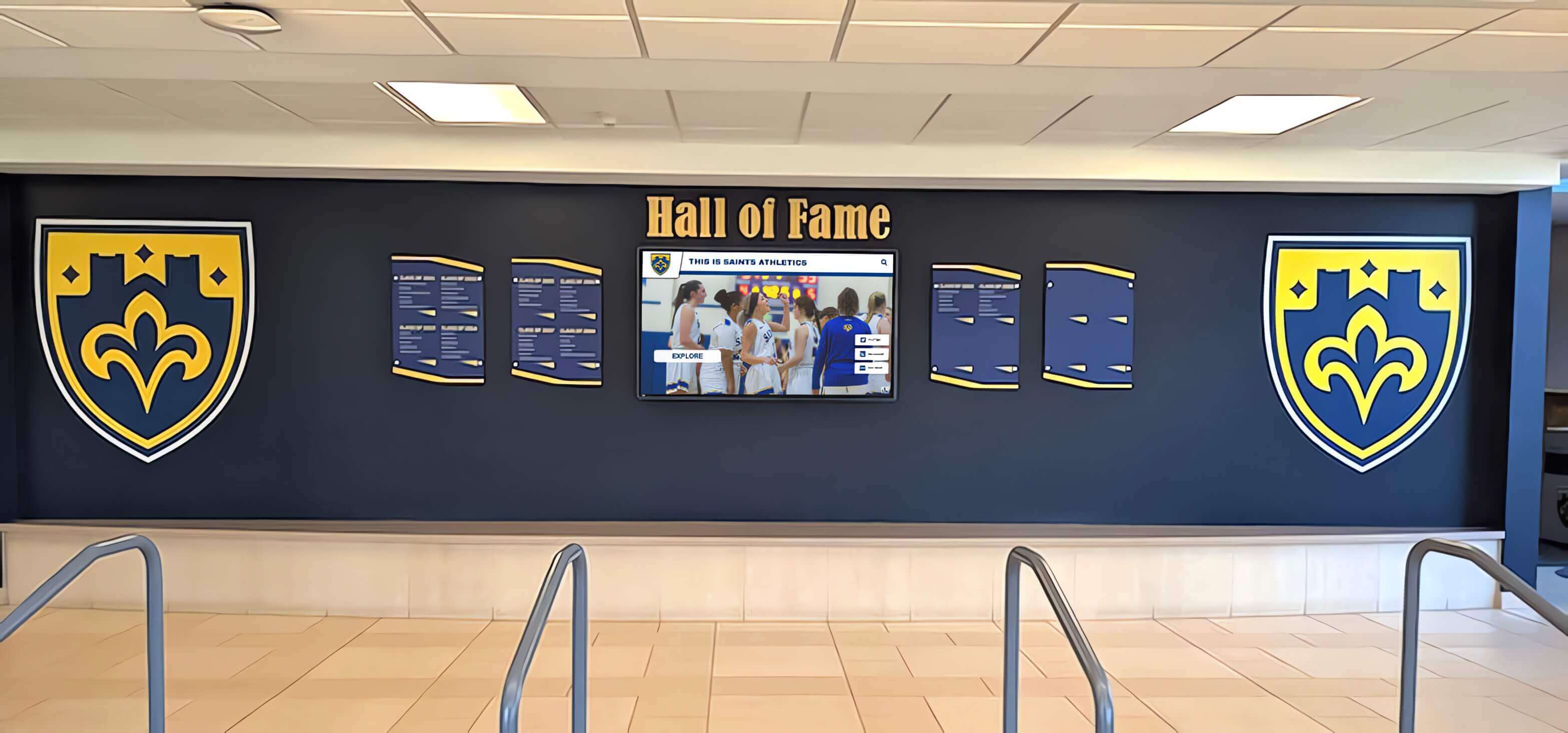
Operating system platform selection significantly influences touch driver requirements and implementation approaches
Installation and Configuration Best Practices
Proper touch driver installation and configuration ensures optimal interactive display performance:
Initial Installation Procedures
Systematic installation prevents configuration issues:
- Begin with clean operating system installations when possible
- Install touch drivers before connecting touchscreen hardware
- Follow vendor-specific installation sequences
- Disable conflicting native drivers if necessary
- Verify proper driver loading through system device managers
- Document installation steps for future reference or replication
- Test basic touch functionality before proceeding to advanced configuration
Careful initial installation establishes solid foundations for reliable long-term operation.
Calibration Optimization
Proper calibration ensures accurate touch response:
- Perform initial calibration following manufacturer procedures
- Use precision calibration tools for demanding applications
- Test calibration accuracy across entire screen surface
- Verify calibration persistence across system restarts
- Recalibrate periodically if accuracy degrades
- Document calibration settings for restoration if needed
- Consider professional calibration for critical installations
Accurate calibration significantly affects user experiences, particularly for applications requiring precise touch targeting.
Multi-Touch Configuration
Multi-touch settings affect gesture recognition and responsiveness:
- Configure touch point count matching hardware capabilities
- Adjust gesture sensitivity for target user populations
- Enable appropriate palm rejection preventing unintended inputs
- Test multi-touch operation with representative user interactions
- Balance sensitivity against false touch prevention
- Configure timeout values for extended interactions
- Verify multi-touch performance under realistic usage scenarios
Proper multi-touch configuration creates natural interaction experiences supporting the exploration patterns common in interactive touchscreen recognition displays.
Performance Optimization
Several factors affect touch responsiveness:
- Minimize background processes consuming system resources
- Allocate sufficient processing power for smooth operation
- Optimize graphics settings balancing quality and performance
- Configure power management preventing sleep during operation
- Update graphics drivers for optimal rendering performance
- Monitor system resource usage identifying bottlenecks
- Test performance during peak usage scenarios
Smooth, responsive touch interaction requires adequate system resources and proper configuration preventing lag or stuttering during use.
Security Configuration
Public-facing interactive displays require security considerations:
- Restrict operating system access preventing unauthorized changes
- Implement kiosk mode limiting interaction to approved applications
- Disable system shortcuts and key combinations
- Configure automatic startup launching interactive applications
- Implement content filtering for web-enabled displays
- Establish remote management access for technical support
- Plan recovery procedures for system failures or tampering
Robust security configuration prevents misuse while maintaining accessibility for legitimate interactive experiences.
Comparing Touch Driver Solutions
Organizations evaluating touch driver software should understand how different solutions compare.
Native Operating System Drivers vs. Universal Drivers
Decision factors for native versus specialized drivers:
Advantages of Native Operating System Drivers
- No additional software cost or licensing
- Automatic updates through operating system maintenance
- Minimal additional complexity
- Adequate for most modern HID touchscreens
- Sufficient for basic single-touch or simple multi-touch needs
- Reduced software management overhead
Advantages of Universal Drivers Like UPDD
- Support for legacy and non-HID hardware
- Advanced configuration and calibration capabilities
- Cross-platform consistency
- Enhanced multi-touch configuration
- Comprehensive diagnostic and troubleshooting tools
- API access for custom application integration
- Professional technical support from specialized vendors
Organizations with modern touchscreens, current operating systems, and basic touch requirements may find native drivers sufficient, while those with legacy hardware, cross-platform needs, or advanced requirements benefit from specialized solutions.
Touch Driver Software Alternatives
Several universal touch driver solutions exist beyond UPDD:
Elo TouchSystems Drivers
Hardware manufacturer Elo provides drivers for their extensive touchscreen product lines:
- Optimized specifically for Elo hardware
- Free for Elo touchscreen purchasers
- Support for Elo’s current and legacy products
- Windows, macOS, and Linux compatibility
- Good integration with Elo’s specialized features
- Limited support for non-Elo hardware
Organizations standardizing on Elo touchscreens benefit from vendor-provided driver optimization.
3M Touch Systems Drivers
3M offers drivers for their touchscreen products:
- Tailored for 3M touch technologies
- No separate licensing for 3M hardware owners
- Long history across various touch technologies
- Support for industrial and commercial applications
- Limited cross-vendor hardware support
Similar to Elo, 3M drivers serve organizations using 3M touchscreen products.
Open Source Touch Drivers
Linux community maintains open-source touch support:
- Included in mainstream Linux distributions
- Community development and support model
- No licensing costs
- Variable hardware compatibility
- May require technical expertise for configuration
- Best-effort support through community resources
Linux-focused organizations often rely on open-source drivers, supplementing with specialized solutions when encountering compatibility issues.
Specialized Application-Integrated Touch
Some interactive software platforms implement touch handling internally:
- Direct touch event processing within applications
- Optimized for specific interaction patterns
- May bypass driver-level gesture recognition
- Often web-based applications using browser touch APIs
- Reduced dependency on driver-level configuration
- May still rely on driver software for basic communication
Purpose-built interactive recognition software platforms often implement sophisticated application-level touch handling while still depending on driver software for fundamental hardware communication.
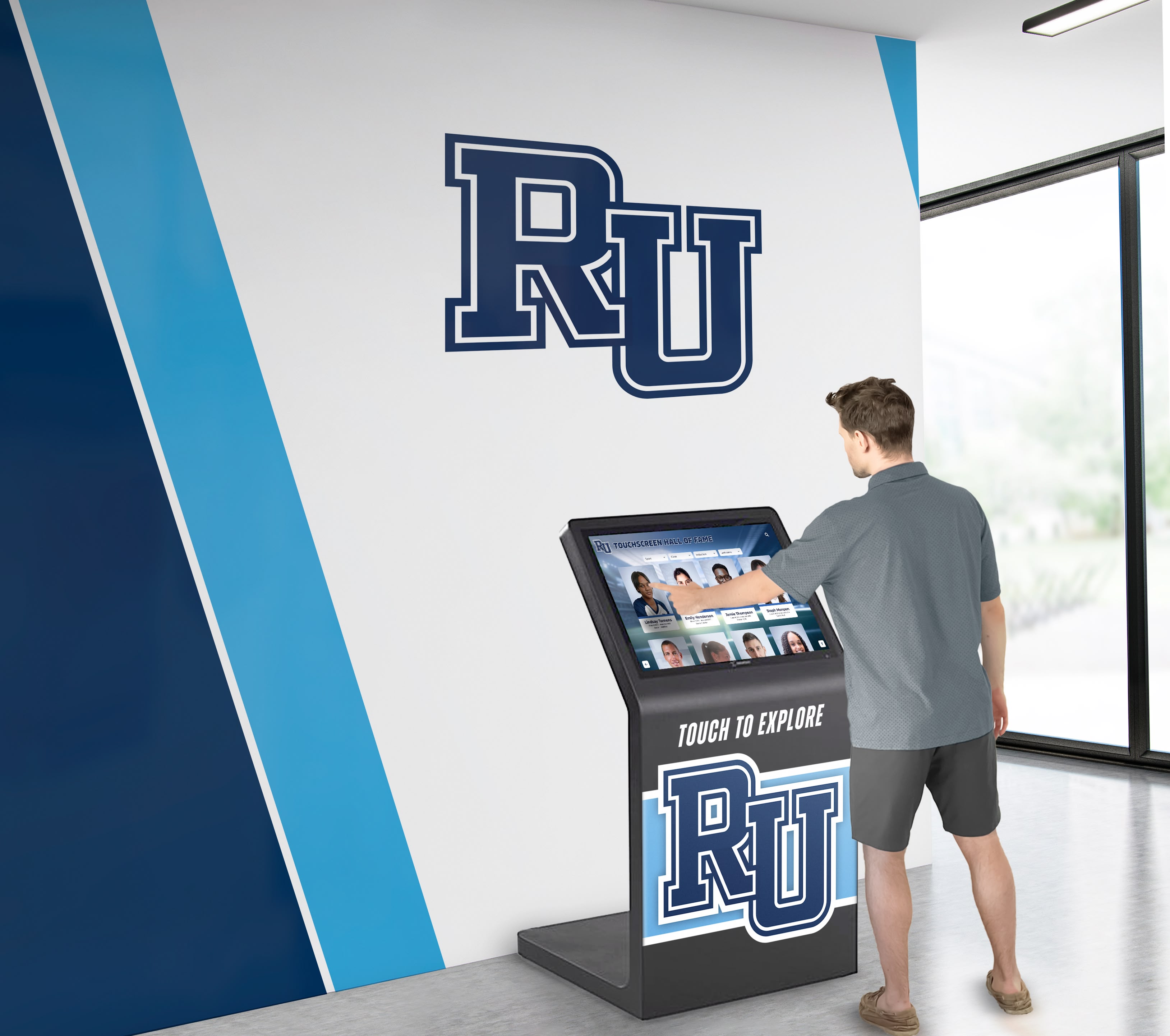
Thoughtful touch driver selection based on specific requirements ensures reliable interactive displays
Touch Driver Software in Complete Interactive Systems
Understanding how touch driver software fits within complete interactive display implementations helps organizations make informed technology decisions.
The Interactive Display Technology Stack
Interactive displays comprise multiple technology layers:
Hardware Layer
- Physical touchscreen or touch overlay
- Display panel or projection system
- Media player, computer, or embedded system
- Network connectivity infrastructure
- Mounting hardware and enclosures
- Power management and distribution
- Audio systems when required
Driver Layer
- Touch driver software translating hardware signals
- Graphics drivers rendering visual content
- Audio drivers managing sound output
- Network drivers enabling connectivity
- Operating system core managing resources
Operating System Layer
- Windows, macOS, Linux, Android, or specialized embedded systems
- Security and user account management
- Power management and hardware control
- System utilities and maintenance tools
- Update management and patch deployment
Application Layer
- Interactive content software presenting information
- Content management systems organizing and updating content
- Web browsers for web-based applications
- Utility software for diagnostics and administration
- Security software for public-facing installations
Content Layer
- Profiles, achievements, and biographical information
- Photographs, videos, and multimedia assets
- Historical records and archival materials
- Real-time data feeds and dynamic content
- User interface designs and navigation structures
Touch driver software occupies a critical infrastructure role within this stack, affecting how higher layers function while depending on proper hardware layer implementation.
Integration with Recognition Software Platforms
Organizations implementing digital recognition displays should consider how touch drivers integrate with recognition software:
Purpose-Built Recognition Platforms
Specialized recognition software platforms like Rocket Alumni Solutions provide comprehensive solutions for digital halls of fame and achievement displays:
Key Platform Capabilities
- Unlimited profile databases organizing individuals across all achievement categories
- Sophisticated search and filtering enabling instant discovery
- Rich multimedia integration showcasing photos, videos, and documents
- Web and mobile accessibility extending recognition beyond physical displays
- Cloud-based management allowing updates from anywhere
- Template systems ensuring consistent, professional presentation
- Analytics revealing engagement patterns and popular content
- Role-based administration supporting collaborative content management
Touch Driver Requirements
- Compatible with standard HID touchscreens using native drivers
- Support for specialized hardware through universal drivers when needed
- Multi-touch capability enabling natural gesture-based navigation
- Reliable touch response for extended exploration sessions
- Cross-platform operation matching organization technology standards
Purpose-built recognition platforms implement sophisticated application-level touch handling optimized for achievement exploration while depending on driver software for foundational touch hardware communication.
Integration Considerations
Organizations implementing recognition displays should verify:
- Recognition software compatibility with planned touchscreen hardware
- Touch driver support for required operating systems
- Multi-touch capability matching software requirements
- Configuration tools optimizing touch for recognition applications
- Technical support coordination between driver and software vendors
- Testing procedures validating complete system operation
Coordinated hardware, driver, and software selection ensures recognition displays deliver engaging experiences showcasing achievements effectively.
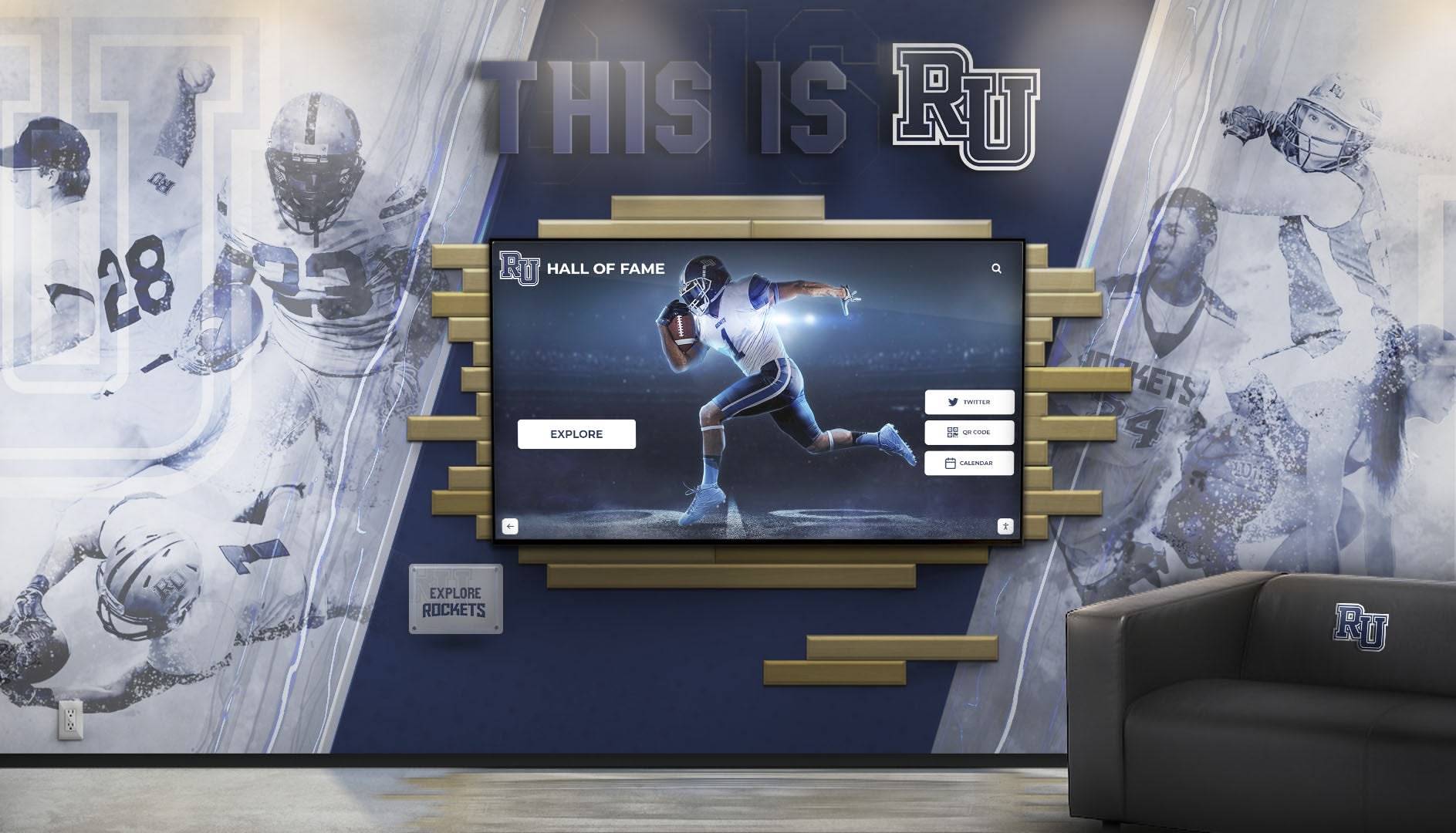
Successful recognition displays require coordinated hardware, driver software, and application platform integration
Vendor Selection and Support Considerations
Touch driver software decisions involve vendor relationship considerations:
Technical Support Availability
Touch driver issues may require specialized assistance:
- Evaluate vendor technical support availability and responsiveness
- Consider time zone differences affecting support accessibility
- Review support knowledge base and documentation quality
- Verify support continuation across product lifecycle
- Understand escalation procedures for critical issues
- Consider professional services for complex implementations
- Plan for support coordination across multiple vendors
Reliable technical support proves critical when troubleshooting touch-related issues affecting interactive display functionality.
Update and Maintenance Policies
Driver software requires ongoing maintenance:
- Understand update frequency and testing procedures
- Verify compatibility maintenance across operating system updates
- Review security patch deployment timelines
- Consider update testing requirements before production deployment
- Plan for periodic driver updates in maintenance schedules
- Evaluate automatic versus manual update mechanisms
- Document tested configurations for stability
Proactive update management prevents situations where operating system updates break touch functionality requiring emergency troubleshooting.
Long-Term Vendor Stability
Interactive displays often operate for many years:
- Research vendor history and financial stability
- Consider market position and customer base size
- Evaluate product roadmap and continued development
- Review hardware vendor relationships and partnerships
- Understand contingency options if vendor discontinues products
- Consider open-source or community-supported alternatives
- Document dependencies for long-term planning
Vendor stability considerations help organizations avoid situations where driver software becomes unsupported during interactive display operational life.
Cost Considerations for Touch Driver Software
Organizations budgeting for interactive displays should understand touch driver cost implications.
Driver Software Licensing Costs
Touch driver software licensing varies significantly:
Native Driver Options: $0
- Modern operating systems include touch support at no additional cost
- Covers most HID-compliant touchscreen hardware
- Adequate for many basic interactive applications
- Updates included in operating system maintenance
- No separate vendor relationships required
Universal Driver Solutions: Varies
- UPDD and similar universal drivers typically charge per-system licensing fees
- Single-system licenses may range from nominal to moderate costs
- Volume licensing reduces per-system costs for large deployments
- Educational and non-profit pricing often available
- OEM licensing for hardware vendors differs from end-user pricing
- Subscription models may include updates and support
Organizations should request current pricing from touch driver vendors for specific deployment requirements, as licensing costs and models change over time.
Vendor-Specific Drivers: Often Included
- Major touchscreen manufacturers typically include drivers with hardware
- Optimized for vendor’s specific products
- Updates generally provided free during product support lifetime
- May require registration or support agreements
- Support costs potentially included with hardware purchase
Hardware bundling often makes vendor-provided drivers cost-effective for organizations standardizing on specific manufacturers.
Total Cost of Ownership Considerations
Beyond initial licensing, several factors affect long-term costs:
Support and Maintenance Costs
- Annual support agreements when required by vendors
- Internal IT staff time for installation, configuration, and troubleshooting
- Ongoing update management and testing procedures
- Technical support incident costs for per-incident billing models
- Training costs for staff managing interactive displays
Hardware Compatibility Implications
- Specialized drivers may enable continued use of legacy hardware avoiding replacement costs
- Universal drivers may allow hardware vendor changes providing procurement flexibility
- Driver limitations might necessitate hardware upgrades or replacements
- Testing costs verifying driver compatibility before hardware purchases
Opportunity Costs
- Implementation delays due to driver configuration issues
- Reduced user engagement from poor touch responsiveness
- Negative institutional impressions from malfunctioning interactive displays
- Staff time addressing recurring touch-related problems
- Reputation impacts when prominent displays fail to function properly
Comprehensive cost evaluation considers both direct licensing expenses and indirect costs affecting total ownership expenses.
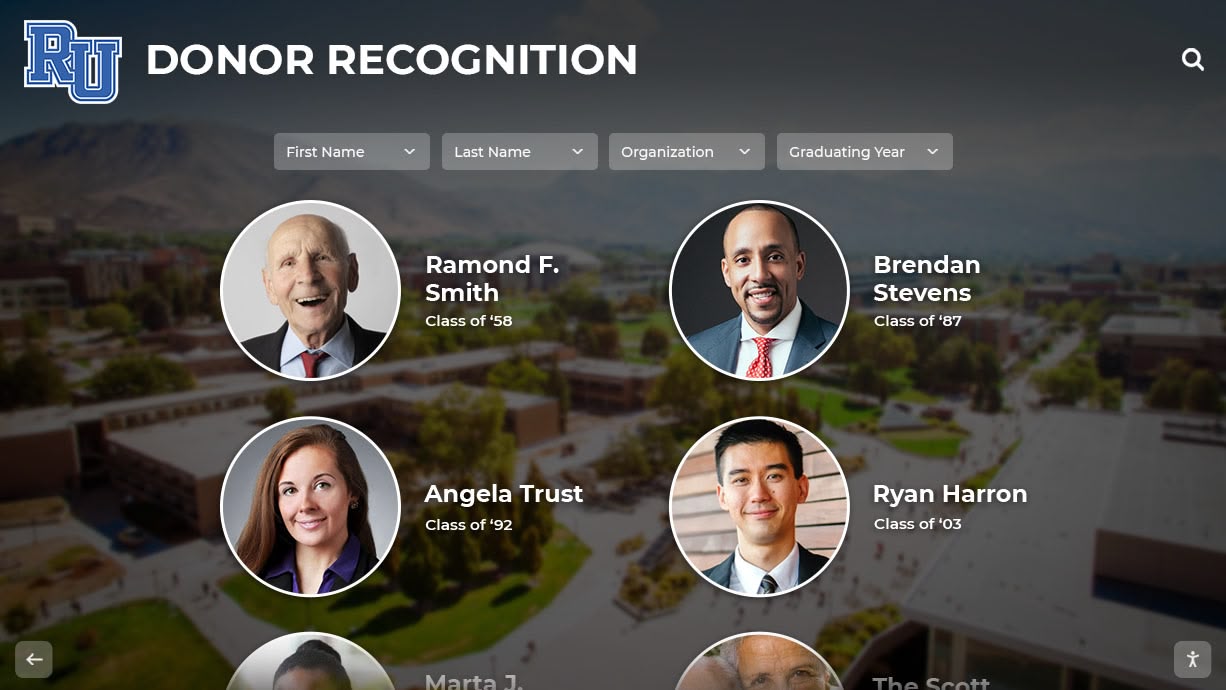
Total cost of ownership for interactive displays encompasses hardware, driver software, applications, and ongoing support
Best Practices for Touch Driver Implementation
Organizations implementing touch driver software should follow proven practices ensuring successful deployments.
Planning Phase Best Practices
Thorough planning prevents implementation problems:
Requirements Definition
- Document specific touch requirements for planned applications
- Identify hardware constraints or preferences
- Clarify operating system platform standards
- Determine multi-touch gesture requirements
- Define performance expectations and success criteria
- Identify accessibility requirements for diverse users
- Establish budget parameters for driver software
Clear requirements enable appropriate driver solution selection matching organizational needs.
Hardware and Driver Compatibility Verification
- Research driver support for candidate touchscreen hardware
- Verify operating system compatibility for all components
- Test actual hardware with planned driver software when possible
- Review manufacturer compatibility documentation
- Consult vendor technical support confirming support
- Consider pilot testing before large-scale deployment
- Document verified compatible configurations
Compatibility verification prevents incompatibility discoveries during installation.
Vendor Evaluation
- Compare multiple driver solutions against requirements
- Evaluate technical support quality and availability
- Review vendor stability and market presence
- Assess update frequency and maintenance commitments
- Analyze licensing models and pricing structures
- Consider existing vendor relationships and standardization
- Request references from similar implementations
Thorough vendor evaluation ensures driver solution selection supporting long-term success.
Implementation Phase Best Practices
Systematic implementation ensures reliable results:
Pilot Testing
- Deploy initial system validating complete configuration
- Test comprehensive interactive scenarios matching expected usage
- Verify touch accuracy, responsiveness, and multi-touch operation
- Evaluate user experiences with diverse user populations
- Identify configuration adjustments improving performance
- Document successful configuration parameters
- Resolve issues before scaling to additional installations
Pilot testing identifies and resolves problems before widespread deployment.
Documentation and Configuration Management
- Document hardware configurations including models and connections
- Record driver software versions and installation procedures
- Preserve calibration settings and configuration parameters
- Create system build procedures for consistent replication
- Maintain vendor contact information for support
- Document troubleshooting procedures for common issues
- Establish configuration backup and recovery processes
Comprehensive documentation enables consistent deployment and efficient troubleshooting.
Training and Knowledge Transfer
- Train IT staff on driver installation and configuration
- Develop troubleshooting guides for common issues
- Establish escalation procedures for complex problems
- Document vendor support processes and contacts
- Create user guides when relevant for operational staff
- Share knowledge across teams managing multiple locations
- Plan for staff turnover maintaining institutional knowledge
Effective training ensures staff can maintain interactive displays effectively.
Operational Phase Best Practices
Ongoing operation requires continued attention:
Monitoring and Maintenance
- Establish monitoring procedures detecting touch issues
- Schedule periodic calibration verification and adjustment
- Implement proactive driver update testing and deployment
- Monitor for operating system updates affecting touch functionality
- Track touch-related support incidents identifying patterns
- Maintain spare hardware for rapid problem resolution
- Document configuration changes and their impacts
Proactive monitoring and maintenance prevent small issues from becoming major problems.
User Feedback Collection
- Gather user feedback about touch responsiveness and accuracy
- Observe users interacting with displays identifying usability issues
- Monitor engagement analytics revealing interaction patterns
- Solicit staff input about recurring problems or concerns
- Consider user demographics identifying accessibility improvements
- Test displays periodically simulating user experiences
- Implement improvements based on feedback and observations
User-centered operation ensures interactive displays meet community needs effectively.
Continuous Improvement
- Review emerging touch technologies and driver capabilities
- Evaluate periodic hardware refresh opportunities
- Consider software platform updates improving functionality
- Implement configuration optimizations discovered over time
- Share best practices across multiple installations
- Participate in user communities and vendor advisory groups
- Plan strategic improvements extending system value
Continuous improvement orientation maximizes interactive display effectiveness across operational life.
Future Trends in Touch Driver Technology
Touch driver software continues evolving alongside touchscreen hardware and applications.
Emerging Touch Technologies
New touch sensing approaches affect driver requirements:
Ultra-Large Format Touch Systems
Touch-enabled video walls and large interactive displays:
- Multiple-panel systems requiring coordinate mapping across physical gaps
- Camera-based touch detection covering large surfaces
- Multi-user simultaneous interaction support
- Specialized driver coordination managing multiple detection systems
- Applications in college athletics halls of fame and institutional recognition
Driver software must support emerging large-format technologies enabling impressive recognition displays.
Haptic Feedback Integration
Touchscreens providing tactile response:
- Vibration or texture feedback confirming touch registration
- Enhanced user experiences particularly for accessibility
- Driver integration managing haptic actuator control
- Synchronization between visual, touch, and haptic responses
- Energy management for haptic systems
Haptic-capable drivers will enhance interactive experiences through multi-sensory feedback.
Stylus and Passive Pen Support
Enhanced precision input alongside finger touch:
- Palm rejection preventing unintended touches while writing
- Pressure sensitivity enabling drawing and annotation applications
- Tilt detection for natural stylus interaction
- Simultaneous finger and stylus operation
- Applications in educational interactive displays for annotation
Stylus support expands interactive display applications beyond navigation to content creation.
Contactless Gesture Recognition
Hover and air gesture detection:
- Proximity sensing detecting hand position above screens
- Gesture recognition without physical contact
- Hygiene advantages for public installations
- Driver integration with multiple sensor types
- Applications in high-traffic public spaces
Contactless interaction may reduce wear while addressing hygiene concerns in public installations.
Driver Software Evolution
Touch driver software continues advancing:
Enhanced Multi-Touch Intelligence
Sophisticated gesture recognition and touch interpretation:
- Machine learning improving palm rejection and false touch prevention
- Context-aware gesture recognition adapting to applications
- Predictive touch improving perceived responsiveness
- Adaptive calibration compensating for environmental factors
- User behavior learning personalizing touch response
Intelligent driver software will deliver increasingly natural interaction experiences.
Cross-Device Touch Continuity
Consistent touch experiences across device ecosystems:
- Unified gesture conventions across desktop, tablet, and phone interfaces
- Configuration synchronization across multiple devices
- Shared preferences following users between systems
- Consistent application behavior regardless of platform
- Simplified training through standardized interactions
Cross-device consistency will benefit organizations with varied hardware ecosystems.
Cloud-Based Driver Management
Centralized driver configuration and monitoring:
- Remote driver deployment and updates across installations
- Centralized monitoring of touch system health
- Configuration management from cloud dashboards
- Analytics revealing usage patterns and issues
- Reduced on-site technical support requirements
Cloud management will simplify driver administration for multi-location deployments.
Increased Security Focus
Enhanced security features protecting interactive systems:
- Signed drivers preventing malware exploitation
- Secure boot integration ensuring driver integrity
- Encrypted communication with touch hardware
- Tamper detection and reporting capabilities
- Security update prioritization and rapid deployment
Security enhancements will become increasingly critical for public-facing interactive installations.
Decision Framework for Touch Driver Selection
Organizations selecting touch driver solutions should follow systematic decision processes.
Assessment Questions
Key questions guide driver selection decisions:
Hardware Considerations
- What touchscreen hardware will we use?
- Does the hardware use HID or proprietary protocols?
- Do we have existing legacy touchscreens to support?
- Will we standardize on specific manufacturers?
- What touch technologies (capacitive, resistive, infrared) will we employ?
- Do we need multi-touch capabilities?
Operating System Considerations
- What operating systems will run interactive displays?
- Do we need cross-platform consistency?
- Are we willing to standardize for simplification?
- Do native drivers support our hardware adequately?
- What update management processes can we support?
Application Considerations
- What applications will run on interactive displays?
- Do applications require advanced multi-touch gestures?
- Will applications access touch data directly through APIs?
- Are applications web-based or native?
- Do applications implement custom touch handling?
Support Considerations
- What internal technical expertise exists for driver management?
- Do we need vendor technical support?
- Can we manage driver updates and maintenance?
- How many locations will require support?
- What response times do display issues require?
Budget Considerations
- What budget exists for driver licensing?
- Can we allocate funds for annual support?
- What total cost of ownership is acceptable?
- Do we have hardware budget flexibility?
- Can we phase implementations to spread costs?
Decision Criteria Matrix
Systematically evaluate driver options:
| Criteria | Native OS Drivers | Universal Drivers (UPDD) | Vendor Drivers |
|---|---|---|---|
| Hardware Compatibility | HID devices only | Extensive legacy support | Vendor-specific |
| Multi-Touch Support | Standard gestures | Advanced configuration | Varies by vendor |
| Cross-Platform | OS-dependent | Unified across platforms | May vary |
| Cost | Included with OS | Licensed per system | Often included with hardware |
| Support | OS vendor forums | Specialized vendor | Hardware vendor |
| Advanced Features | Limited | Comprehensive | Vendor-specific |
| Diagnostic Tools | Basic | Extensive | Varies |
| API Access | Standard OS APIs | Comprehensive APIs | Varies |
Decision matrices clarify how different solutions address specific organizational requirements.
Recommendation Scenarios
General guidance for common scenarios:
Scenario 1: Modern Hardware, Standard Requirements
Organization with current HID-compliant touchscreens implementing basic interactive displays:
- Recommendation: Native operating system drivers
- Rationale: Modern hardware with standard protocols works well with built-in support, minimizing costs and complexity
Scenario 2: Legacy Hardware Support Needs
Organization with existing serial or non-HID touchscreens requiring continued operation:
- Recommendation: Universal drivers like UPDD
- Rationale: Specialized drivers enable legacy hardware support on current operating systems, extending investment value
Scenario 3: Cross-Platform Deployment
Organization with mixed Windows, macOS, and Linux systems requiring consistent touch experiences:
- Recommendation: Universal drivers providing cross-platform consistency
- Rationale: Unified driver software simplifies management and creates consistent user experiences
Scenario 4: Single Vendor Hardware Standard
Organization standardizing on Elo, 3M, or other major touchscreen manufacturer:
- Recommendation: Vendor-provided drivers
- Rationale: Vendor drivers optimize for specific hardware while bundling costs with hardware procurement
Scenario 5: Advanced Multi-Touch Requirements
Organization developing custom applications with sophisticated gesture recognition and direct driver integration:
- Recommendation: Universal drivers with comprehensive APIs
- Rationale: Advanced driver capabilities and API access enable specialized application development
Scenario 6: Budget-Constrained Implementation
Organization with limited budget implementing basic interactive displays:
- Recommendation: Native drivers with HID-compatible hardware
- Rationale: Eliminating driver licensing costs and simplifying support reduces total cost of ownership
These scenarios illustrate how organizational requirements, constraints, and priorities guide driver selection decisions.
Conclusion: Touch Drivers as Critical Infrastructure
Touch driver software, while largely invisible to end users, forms critical infrastructure determining whether interactive touchscreen displays deliver engaging experiences or frustrating interactions. Organizations implementing digital recognition displays, wayfinding kiosks, interactive athletic achievement showcases, or other touchscreen applications must carefully consider how touch driver selection affects hardware compatibility, multi-touch capabilities, cross-platform operation, and long-term reliability.
UPDD touch software from Touch-Base represents a comprehensive universal driver solution addressing scenarios where native operating system support proves insufficient—particularly for legacy hardware support, advanced multi-touch configuration, cross-platform consistency, or specialized application integration. However, many modern interactive display implementations function effectively with native operating system drivers, avoiding additional licensing costs and management complexity.
Successful interactive display implementations begin with clear requirements definition, continue through systematic hardware and driver compatibility verification, and proceed with coordinated selection of touchscreen hardware, driver software, operating systems, and interactive applications forming complete technology stacks. Organizations implementing digital halls of fame and recognition displays benefit from purpose-built recognition platforms like Rocket Alumni Solutions providing comprehensive solutions combining sophisticated touchscreen software optimized for achievement exploration with guidance on compatible hardware and driver configurations ensuring reliable operation across years of showcasing student and alumni accomplishments.
Ready to implement engaging interactive recognition displays for your school or organization? Rocket Alumni Solutions provides purpose-built platforms specifically designed for digital halls of fame and achievement displays, combining intuitive touchscreen software optimized for recognition applications with comprehensive support for hardware selection, driver configuration, and implementation ensuring interactive displays deliver reliable, engaging experiences showcasing achievements effectively across years of operation. Our team guides organizations through the complete implementation process—from touch-compatible hardware selection and driver configuration to content development and ongoing support—creating recognition programs that strengthen community connections while celebrating individuals shaping your institution’s heritage.
Whether implementing single touchscreen kiosks or comprehensive multi-location recognition display networks, understanding touch driver software fundamentals enables informed technology decisions ensuring interactive displays deliver the responsive, reliable experiences communities deserve when exploring the achievements and individuals defining institutional excellence and heritage.