Interactive Touch Screen Digital Signage: How It Works and What You Need
- Home /
- Digital Hall of Fame Insights & Resources /
- Interactive Touch Screen Digital Signage: How It Works and What You Need
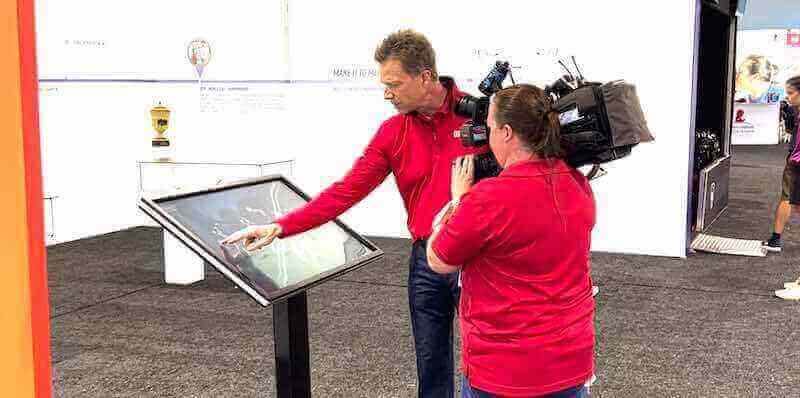
The Easiest Touchscreen Solution




Live Example: Rocket Alumni Solutions Touchscreen Display
Interact with a live example (16:9 scaled 1920x1080 display). All content is automatically responsive to all screen sizes and orientations.
Intent: Define — Interactive touch screen digital signage puts live, searchable content directly at a visitor’s fingertips, turning a passive display into a two-way experience where users search, explore, and discover information on their own terms. For schools, universities, and athletic programs looking to modernize recognition walls, halls of fame, and lobby displays, understanding how this technology works—and what you actually need to deploy it well—is the starting point for any planning conversation.
This guide walks through the underlying technology, the hardware and software components a complete system requires, and the questions worth asking before you commit. It also explains where purpose-built recognition platforms fit into the broader interactive signage space, and what separates them from generic display tools.
Interactive touch screen digital signage has become a common fixture in school lobbies, athletic hallways, hospital reception areas, and corporate headquarters. What looks simple from the outside—tap the screen, get information—relies on a layered stack of hardware, software, networking, and content management decisions made well before installation day. Getting those decisions right is what separates systems that become valued community centerpieces from ones that go dark after six months.

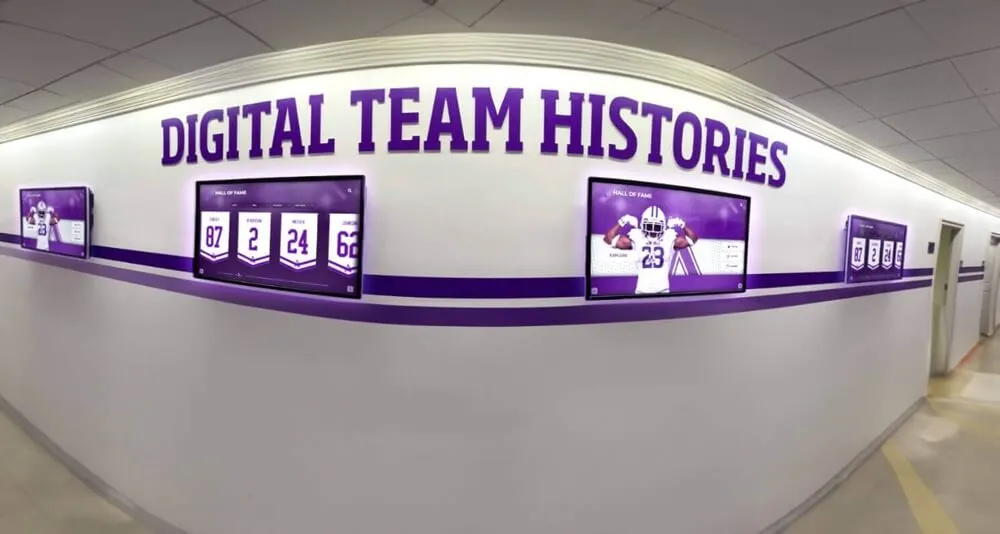
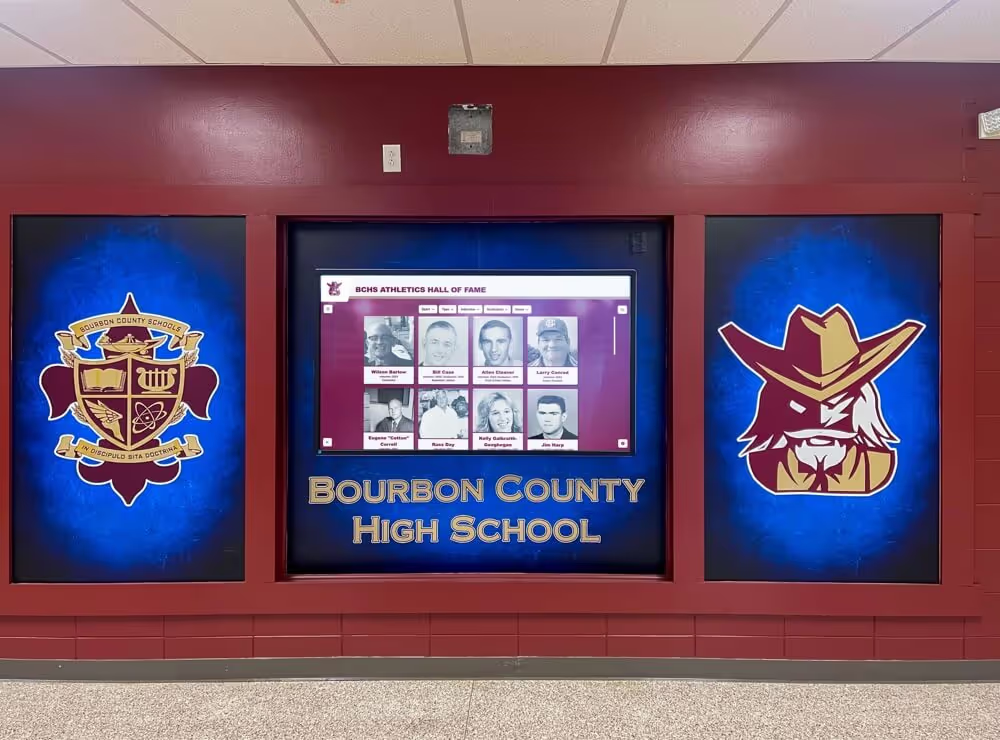
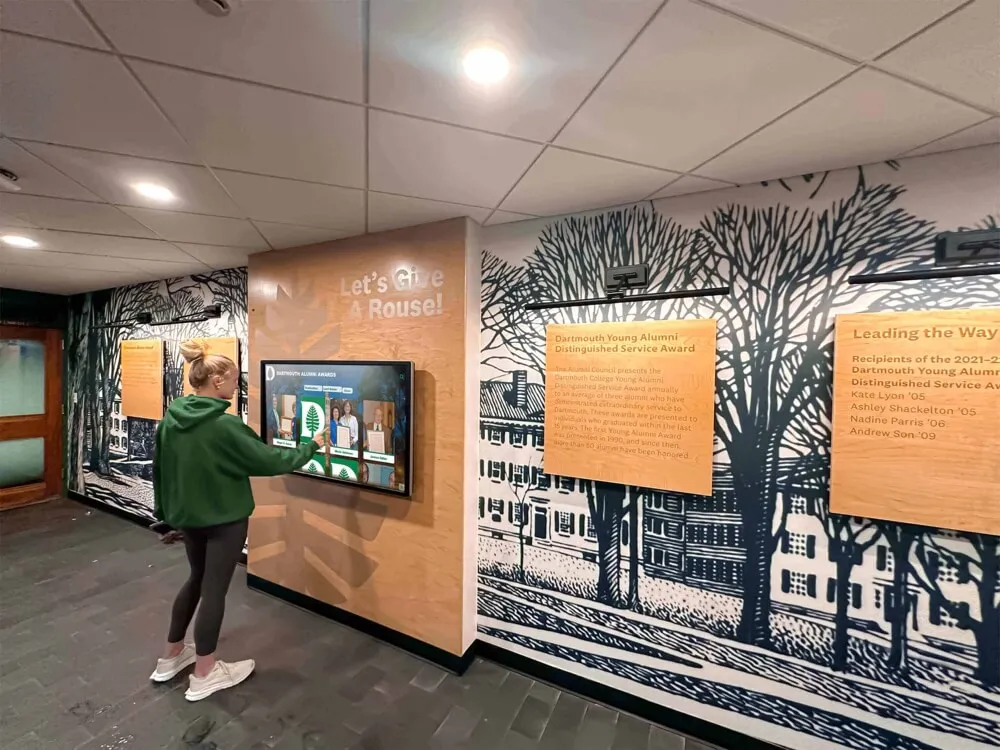
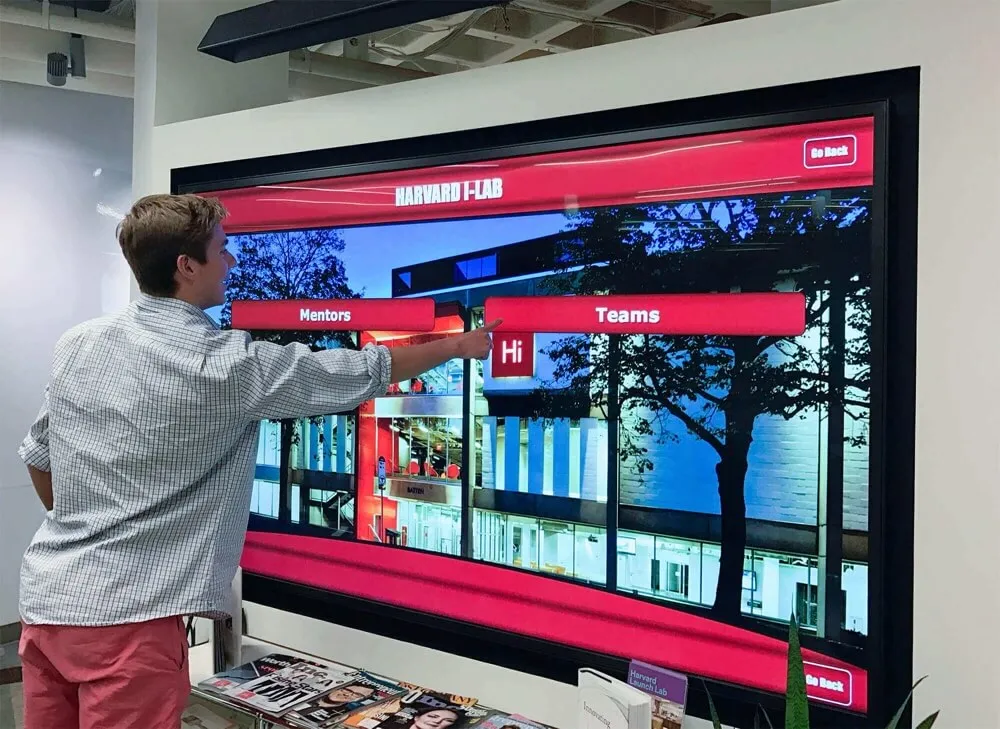
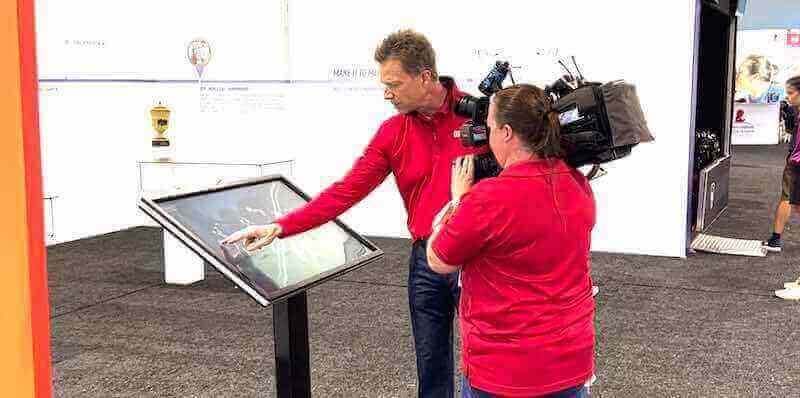
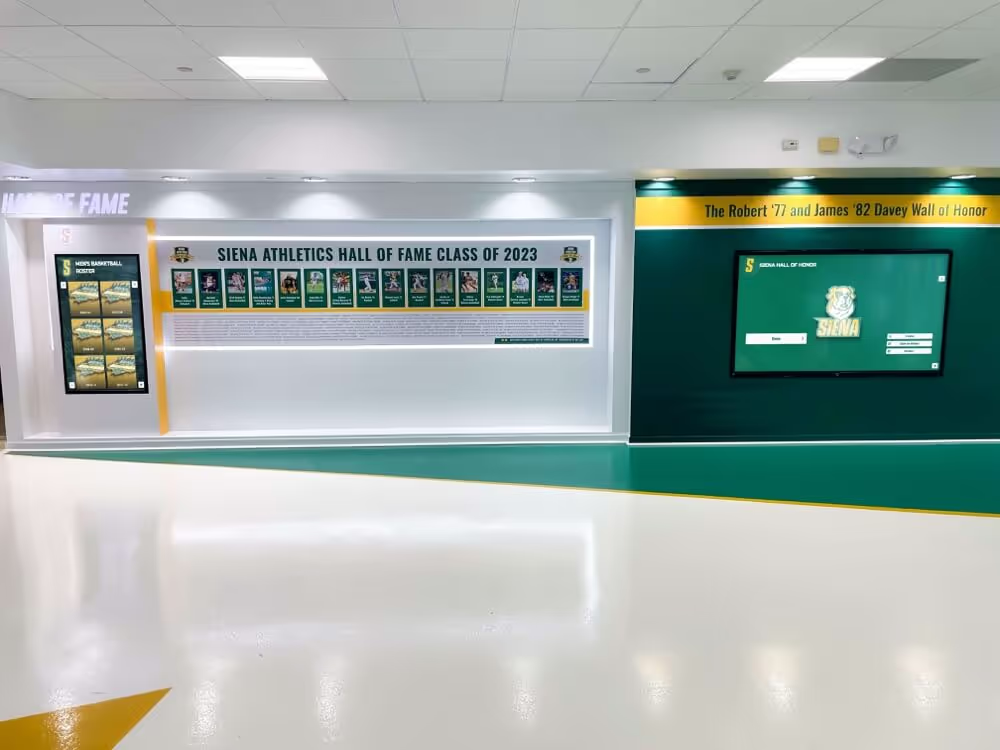
Interactive touchscreen systems range from simple kiosks to multi-screen recognition environments depending on the institution's goals and available space
Program Snapshot: Interactive Touch Screen Digital Signage at a Glance
Before diving into technical details, this table captures the key elements of a complete interactive touchscreen signage deployment so you can scope your project accurately from the start.
| Element | Description | Key Decisions |
|---|---|---|
| Touch Technology | The sensor layer that detects finger contact | Capacitive (most common), infrared, optical, or resistive |
| Display Hardware | The screen, enclosure, and computing unit | Screen size, brightness (nits), orientation, indoor vs. outdoor |
| Software Platform | The application visitors interact with | Purpose-built recognition vs. generic digital signage CMS |
| Content Management | How staff update and publish content | Cloud-based vs. on-device, update frequency, staff technical skill |
| Networking | Connectivity for remote management and updates | Wired Ethernet preferred; Wi-Fi with stable signal acceptable |
| Mounting & Installation | Physical placement and structural requirements | Wall-mount, floor-standing kiosk, or recessed architectural installation |
| ADA Compliance | Reach range, contrast, audio options | Screen center at 48–54" height; WCAG 2.1 AA contrast minimums |
| Ongoing Support | Maintenance, content refreshes, hardware service | Vendor SLA, in-house IT capacity, warranty coverage |
How Touchscreen Technology Actually Works
The “touch” in a touchscreen is a sensor layer added to a standard display. Different sensor technologies handle this differently, each with trade-offs for educational and recognition environments.
Capacitive Touch (Most Common in Schools and Public Spaces)
Projected capacitive (PCAP) technology uses the same mechanism behind smartphone screens. A grid of conductive electrodes embedded in glass creates an electrical field. When a finger contacts the surface, it disturbs the field at a precise coordinate, which the controller chip translates into an X/Y position.
What this means for schools:
- Works with bare fingers and many styluses; does not respond to gloves
- Supports true multi-touch (pinch-to-zoom, two-finger scroll)
- Glass surface is durable and easy to clean between visitors
- Performs consistently under normal indoor lighting conditions
PCAP displays are the standard choice for indoor recognition walls, halls of fame, and lobby kiosks where visitors interact frequently throughout the school day.
Infrared (IR) Touch
Infrared touchscreens use an array of LED emitters and receivers along the frame edges, creating an invisible grid of light beams across the display surface. When any object—finger, stylus, gloved hand, even a pointer—interrupts a beam, the controller calculates the touch point.
What this means for schools:
- Works with any object, including gloved hands and pointers
- No overlying glass, so brightness is not reduced by a sensor layer
- Frame adds bezel width, which may not suit ultra-slim wall installations
- Sensitive to direct sunlight and strong ambient light from nearby windows
IR touch makes sense for large-format displays where accessibility for different users—including those who cannot easily remove gloves—is a priority.
Resistive Touch (Less Common Today)
Resistive screens use two flexible conductive layers separated by a small gap. Physical pressure pushes the layers together, completing a circuit at the contact point.
- Low cost; works with any object including a stylus
- Single-touch only; no multi-touch support
- Surface is softer and more prone to scratching over time
- Rarely specified for modern educational or recognition signage installations
For any new recognition or lobby display installation, capacitive or IR technology is almost always the better choice.
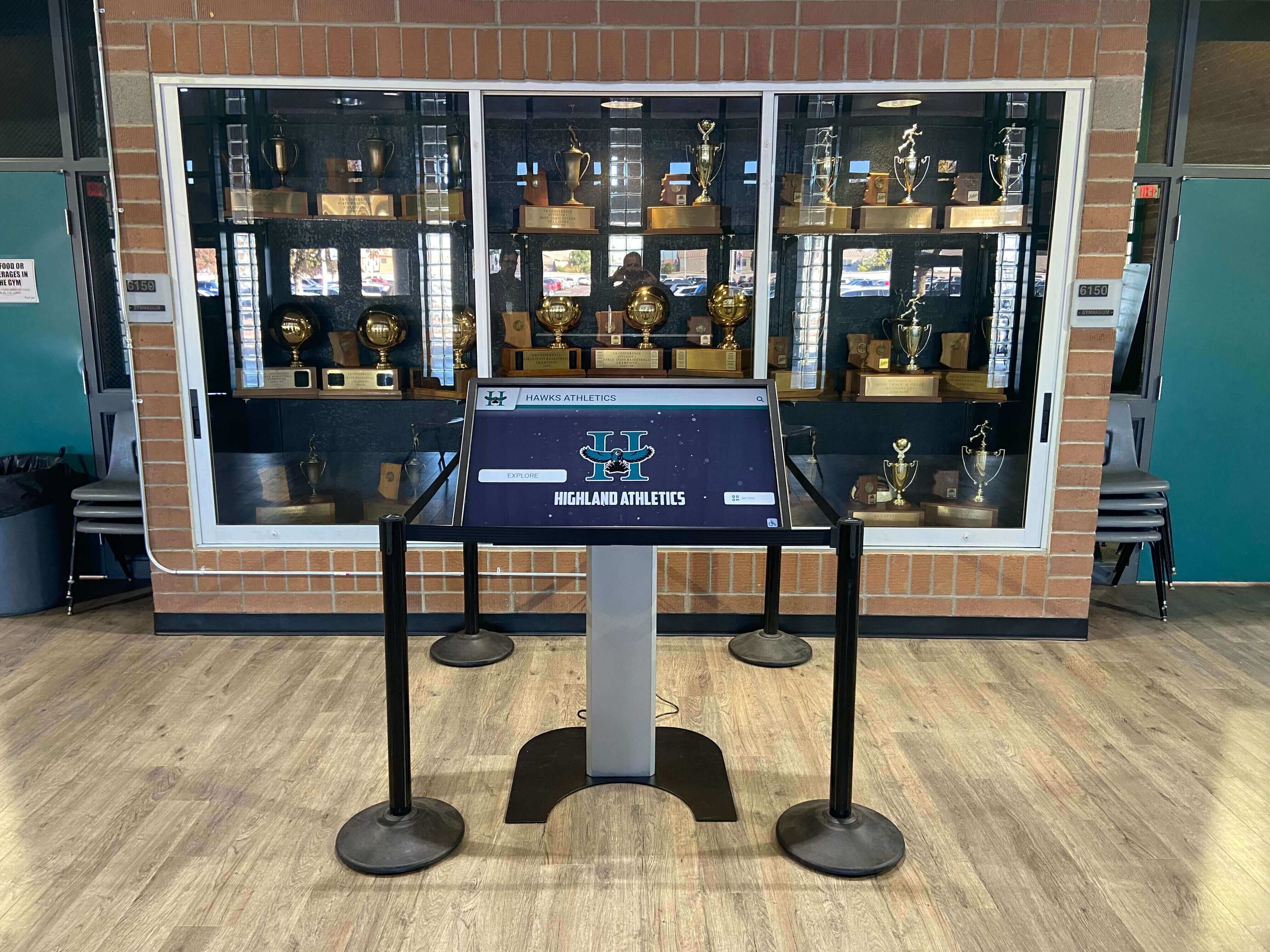
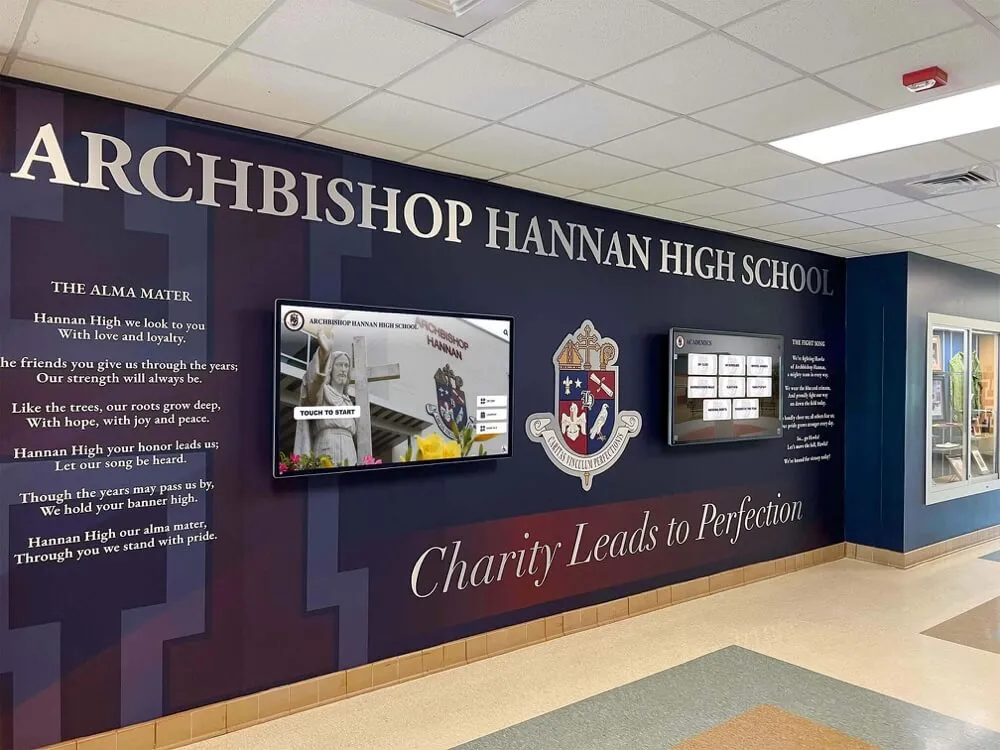
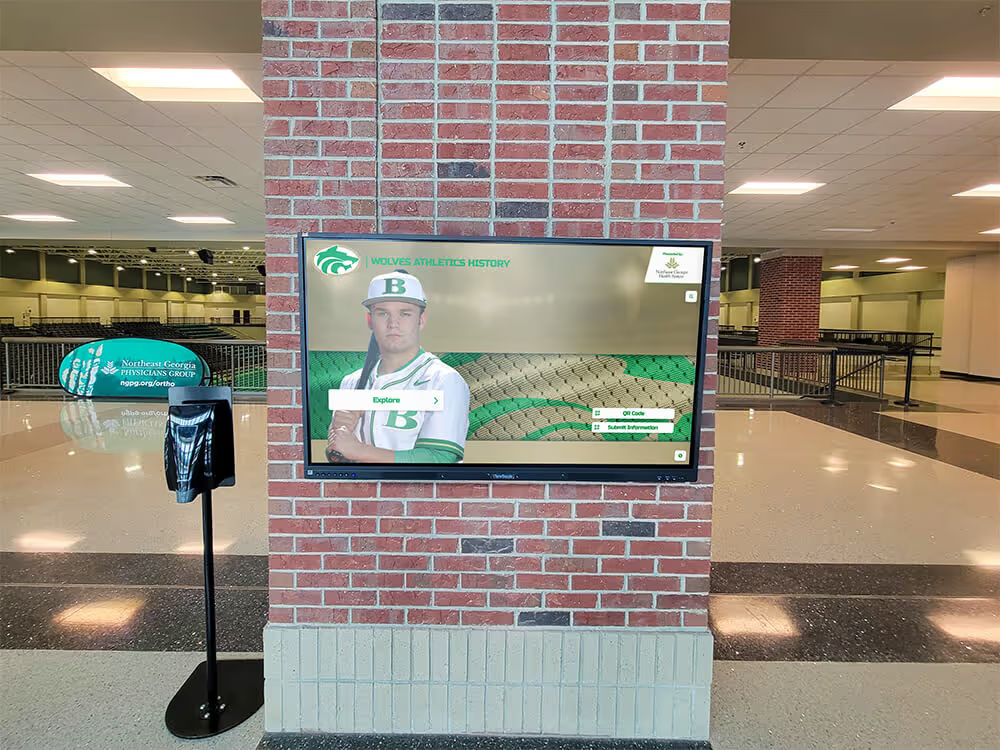
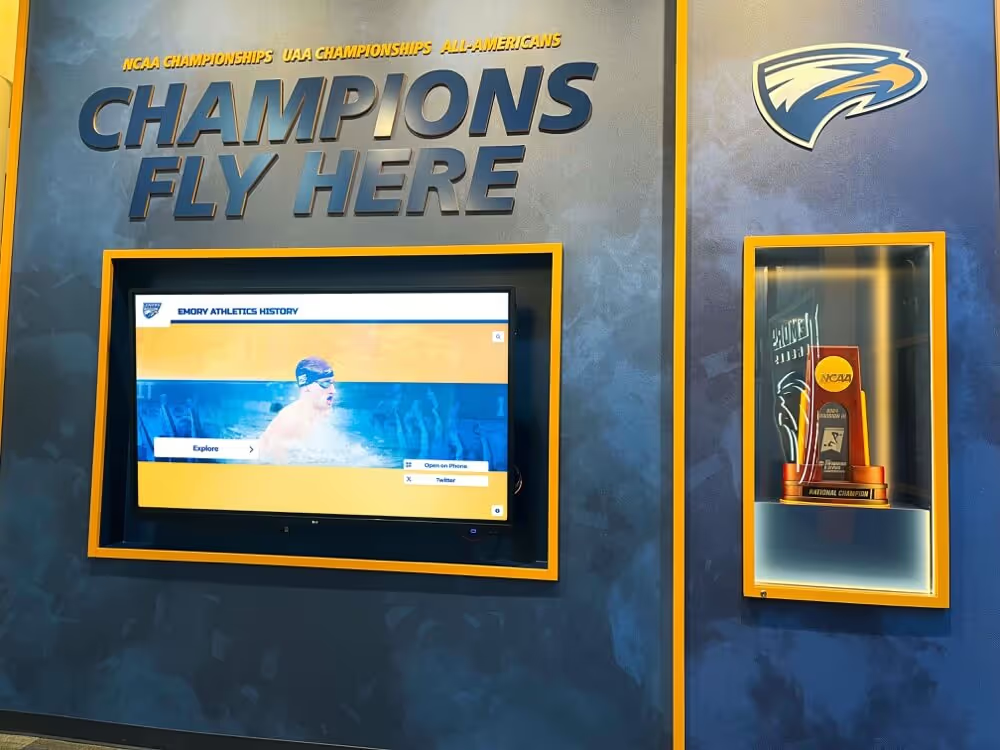
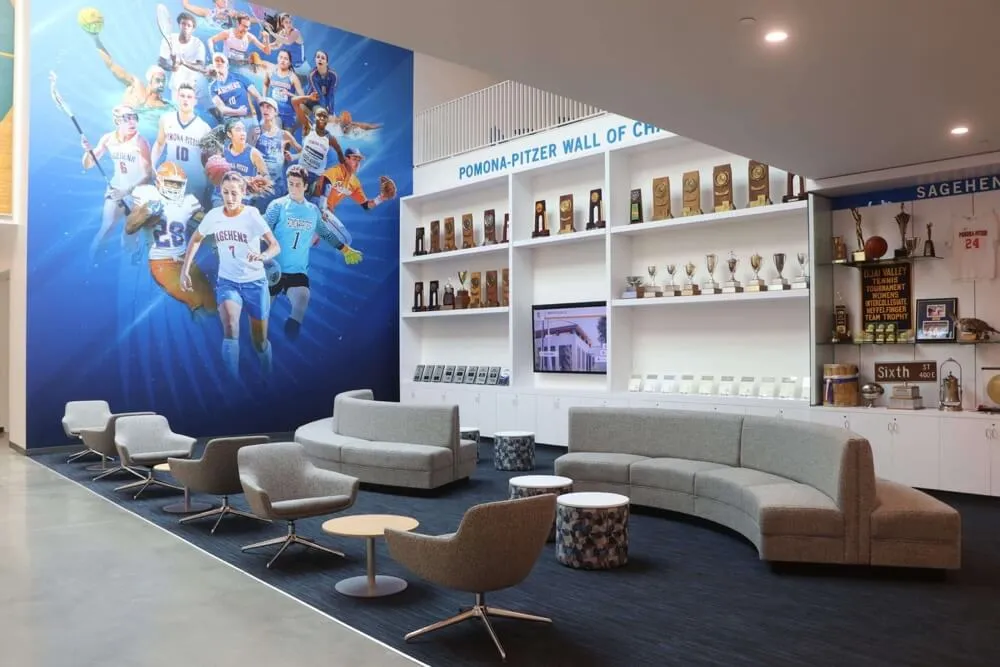
Modern capacitive touchscreens fit naturally into school trophy cases and recognition wall environments, handling high visitor traffic reliably
Content Architecture: Hardware Components You Need
A complete interactive touchscreen signage system is not a single device—it is a combination of components that must work together reliably. Understanding what equipment goes into an interactive kiosk helps you evaluate vendor proposals and avoid surprises during installation.
The Display Panel
Screen size, brightness rating, and panel type drive much of the cost and visitor experience.
Screen size: Common sizes for school lobbies and athletic hallways range from 43" to 86". Larger displays work well for recognition walls where multiple visitors may gather simultaneously. Smaller displays suit focused kiosk applications like directories or individual award lookup stations.
Brightness: Measured in nits. Standard office displays run 250–400 nits. High-brightness panels for brightly lit lobbies or areas near windows should reach 700–1,000+ nits. Outdoor-rated displays need 2,500+ nits. Many school installations underestimate brightness requirements and end up with washed-out screens that are difficult to read in afternoon sunlight.
Panel type: IPS (In-Plane Switching) panels offer wide viewing angles important in hallway settings where visitors approach from the side. VA panels offer higher contrast ratios but at narrower viewing angles. IPS is generally preferred for high-traffic recognition displays.
The Computing Unit
Every touchscreen needs a computer to run the software. This is often built into the display (as a System-on-Chip module or plug-in PC slot), or it is a separate mini PC or media player mounted behind the screen.
Built-in computing (SoC): Simpler installation, fewer cable runs, lower cost, but performance is limited. Suitable for lightweight kiosk applications with modest content libraries.
External mini PC: More processing power, easier to upgrade independently of the display, and better suited for complex interactive applications with large media libraries including video. Common in professional recognition installations.
Operating system: Windows is most common for enterprise touchscreen applications due to broad software compatibility. Some platforms run on Android. The OS affects which software platforms are compatible, so confirm OS requirements before purchasing hardware.
Enclosures and Mounting Hardware
A display panel without proper physical mounting is an installation waiting to fail. Options include:
- Flush wall mounts: Sleek appearance; require adequate wall structure and depth for the display’s weight
- Projecting wall arms: Allow angling the screen for better ergonomics and visitor approach
- Floor-standing kiosk enclosures: Freestanding units with built-in cable management, often lockable for security
- Custom millwork installation: Built into trophy cases, recognition walls, or existing architectural features
Enclosure selection affects future maintenance access—hardware swaps and repairs are far easier when the enclosure was designed with service in mind, not just aesthetics.
Connectivity and Networking
Reliable network connectivity is essential for cloud-based content management and remote monitoring. Wired Ethernet is preferred for stability; a dedicated network port at the installation location should be part of pre-construction planning. Wi-Fi works but adds variables—channel congestion, signal interference, and router reboots can interrupt content management workflows at inconvenient times.
Configuring display connections properly is a detail often overlooked until after mounting when cable access becomes difficult and costly to revise.
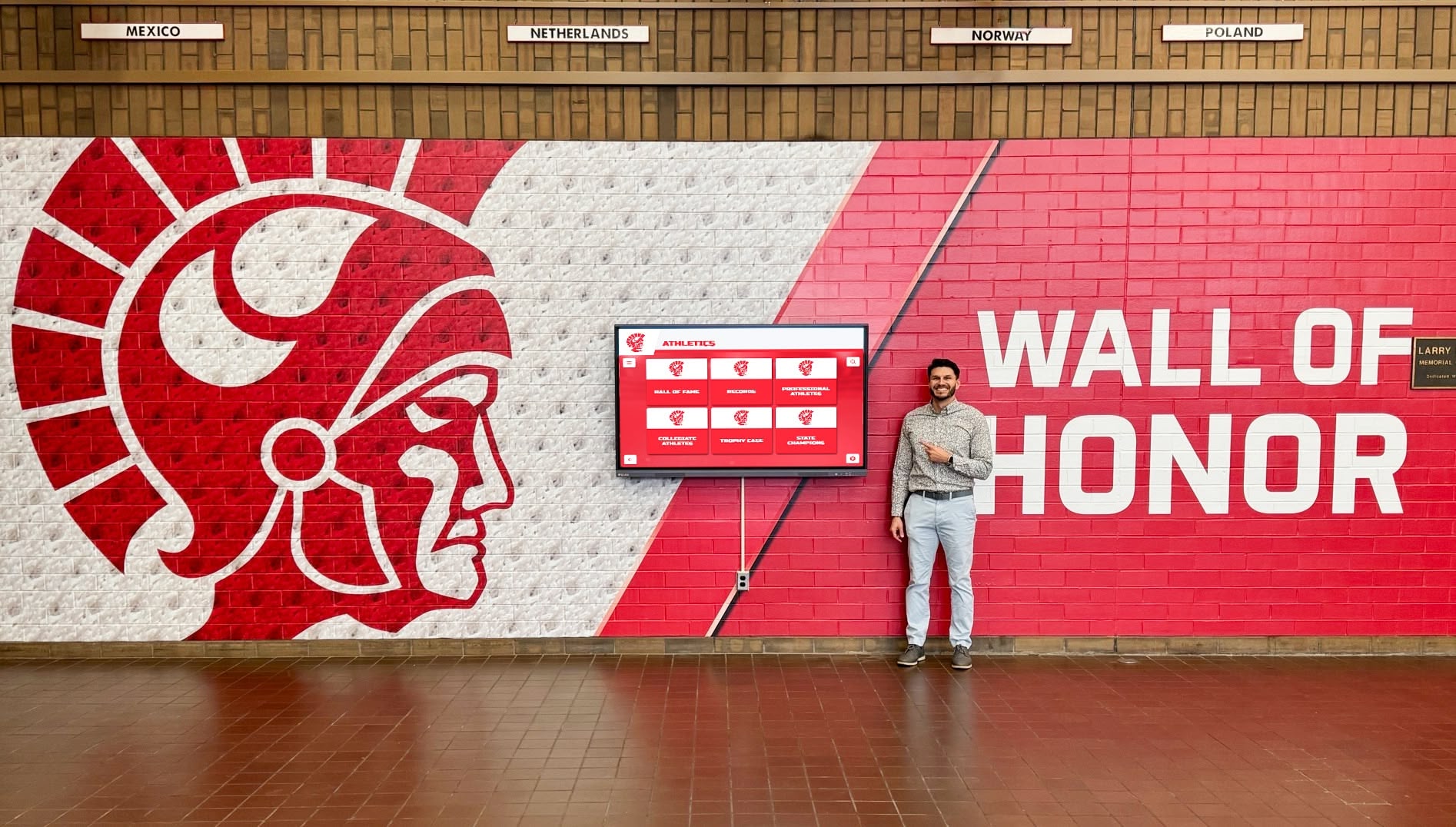
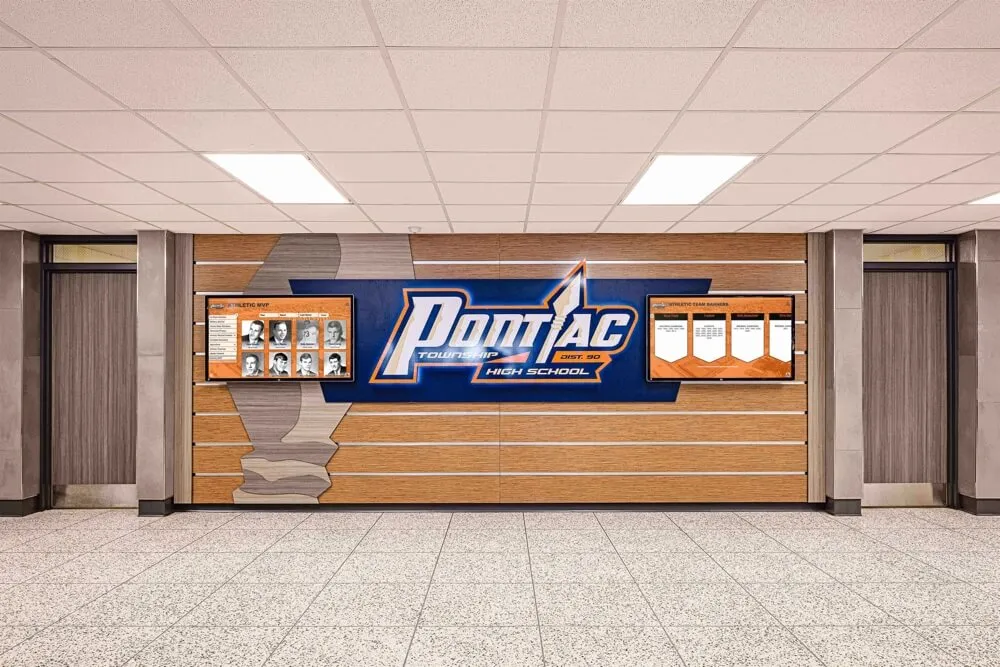
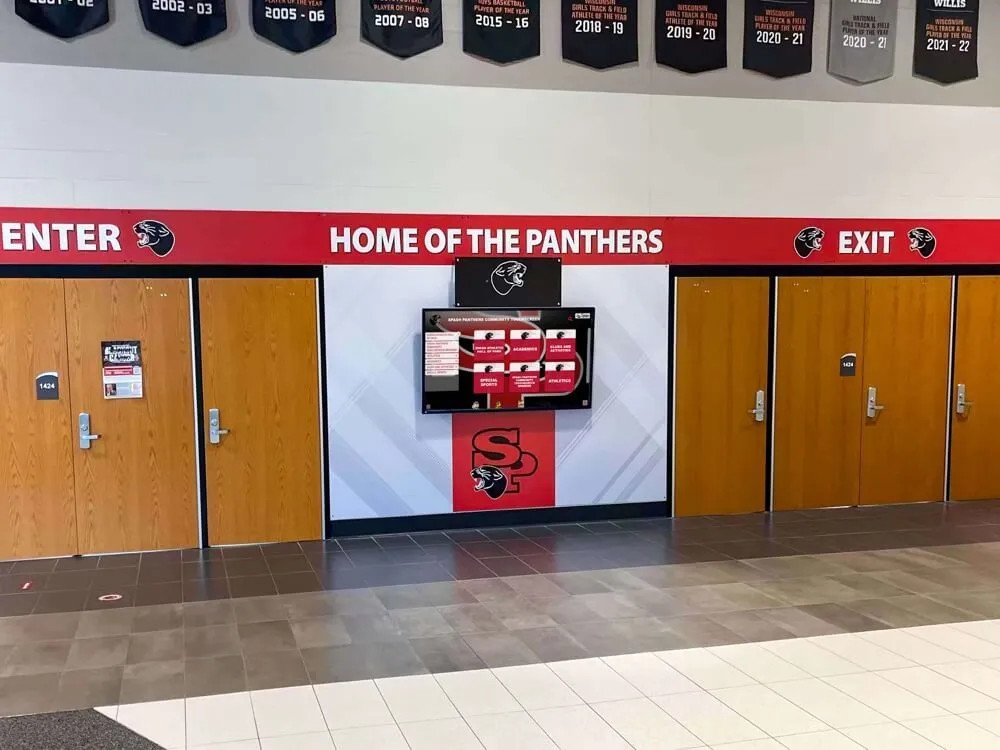
A complete touchscreen installation integrates display hardware, computing unit, mounting, and network connectivity into a system visitors can navigate without instruction
Software: The Layer That Makes It Interactive
Hardware is only the foundation. The software determines what visitors can do, how content is organized, and how easy it is for staff to keep the display current. Choosing the wrong software for your use case is the most common reason interactive signage underperforms.
Generic Digital Signage vs. Purpose-Built Recognition Platforms
Most discussions of interactive signage start with generic digital signage platforms—software designed to schedule and rotate content across multiple screens. These tools work well for menus, announcements, and promotional slides, but they are limited when the goal is a searchable, interactive recognition experience where visitors find specific people and explore detailed profiles.
Choosing the right software for interactive touchscreen experiences starts with clarifying what visitors actually need to do. If they need to search for specific people, filter by sport or year, and explore individual profiles with photos and statistics, a generic slideshow platform will not serve that use case.
Generic signage platforms are designed for:
- Scheduled content rotation across multiple screens
- Announcement displays, digital menus, event slideshows
- Content that staff push to passive viewers
Generic signage limitations for recognition:
- No individual profile databases or searchable indexes
- Visitors cannot pause content or search for specific people
- All content exists as isolated slides without connections between profiles
- Designed for simple announcements, not complex recognition storytelling
Purpose-built recognition platforms are designed for:
- Searchable databases of individuals with dedicated profile pages
- Multimedia integration—photos, video, career statistics, biographical text
- Intuitive CMS designed for non-technical staff (athletic directors, office administrators)
- Built-in display modes for both kiosk interaction and passive digital signage
For schools and universities building recognition programs—halls of fame, donor walls, academic honor rolls, alumni galleries—purpose-built platforms deliver experiences that generic signage tools cannot match.
Content Management System (CMS) Requirements
The CMS is the administrative interface staff use to create and update content. Evaluate CMS tools against these criteria before committing to a platform:
Ease of use: Athletic directors and office staff should be able to add a new inductee, upload photos, and publish without calling IT. Systems that require coding knowledge or complex workflows create content backlogs that leave displays stale.
Cloud access: Remote CMS access means content can be updated from any device. Staff can add a new inductee from home the evening of a ceremony, and the display updates automatically when the network syncs.
Scheduled publishing: Coordinate content releases with ceremony dates. A well-designed CMS allows drafts prepared weeks in advance to go live at a specific time without requiring someone to log in at the moment of release.
Bulk import: Schools often start with dozens or hundreds of existing honorees whose records are in spreadsheets, old databases, or physical files. Bulk import tools—CSV upload, template-based batch creation—compress that initial content migration from months to days.
Media handling: The CMS should accept common image and video formats without requiring staff to pre-convert files. Storage should scale with the institution’s growing content library without additional fees.
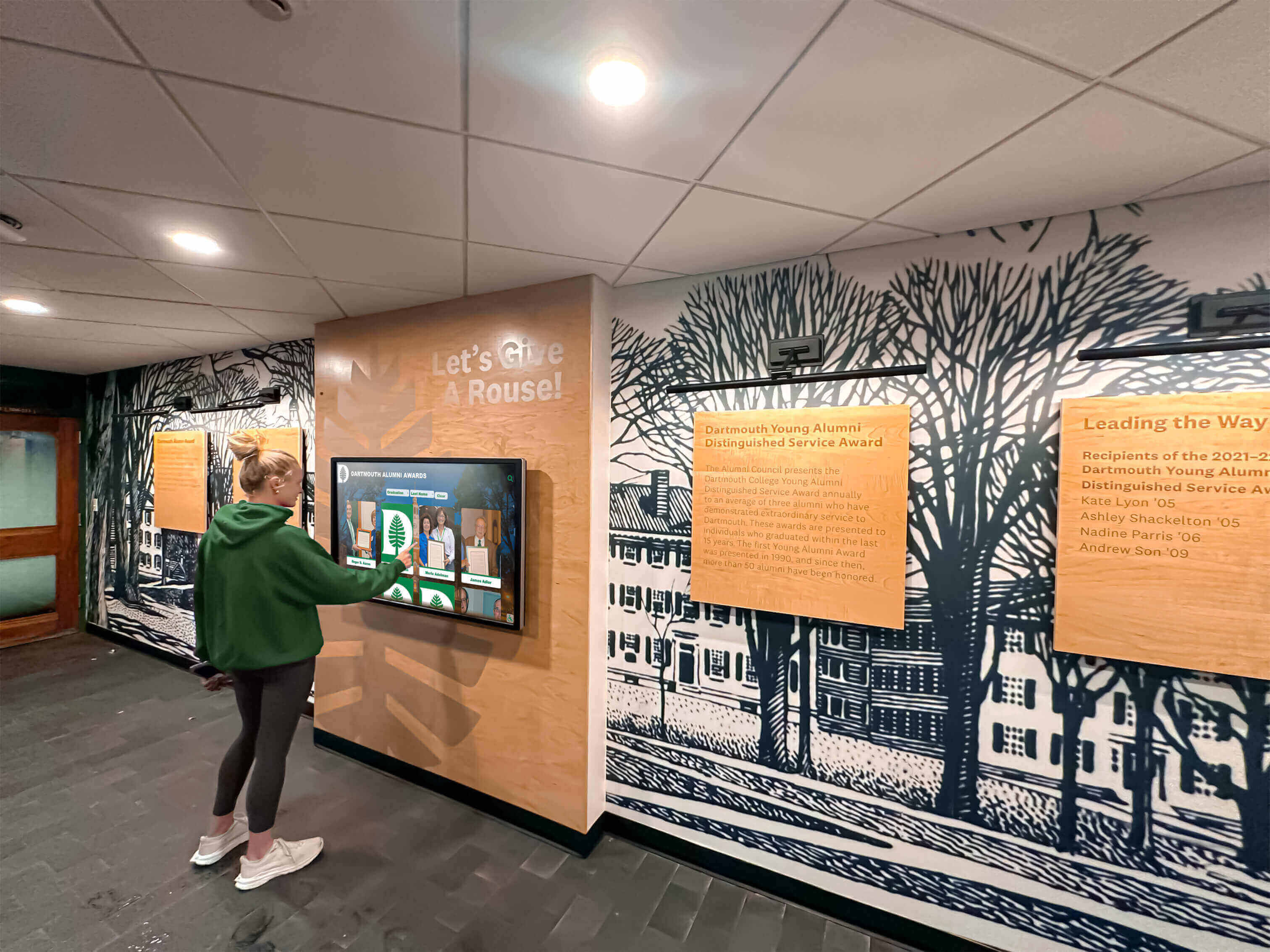
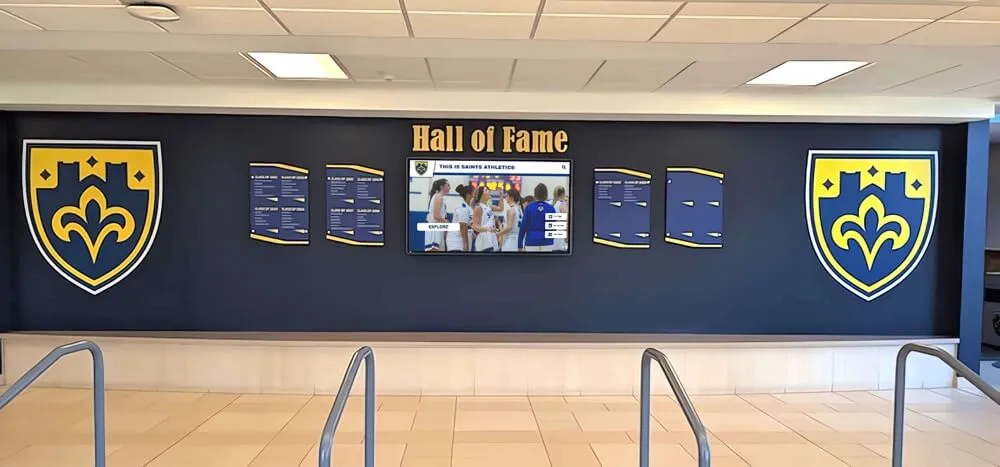
An intuitive CMS keeps school recognition displays current; when content is easy to update, staff do it consistently and displays stay relevant for returning visitors
Execution Timeline: From Decision to Launch
Planning and executing an interactive touchscreen installation follows a predictable sequence. Rushing any phase typically adds cost or delays the launch.
Phase 1 — Plan (4–8 Weeks)
Define the recognition program scope: Who will be recognized? What content types (photos, video, statistics, biographical text) will each profile include? How many inductees exist already, and how many will be added per year?
Assess the physical installation site: wall structure, electrical access, lighting conditions, floor traffic patterns, ADA reach requirements. Decide on display size and mounting approach before ordering anything.
Evaluate software platforms against your recognition program requirements. Comparing touchscreen software platforms at this stage—before purchasing hardware—avoids compatibility problems after mounting.
Phase 2 — Build (4–12 Weeks)
Procure hardware. If ordering custom enclosures or large-format commercial displays, lead times of 4–8 weeks are typical. Plan around construction or renovation schedules to avoid conflicts.
Configure the software platform and begin content entry. Initial content migration—digitizing existing plaques, scanning photos, writing biographical entries—is the most time-intensive step for most institutions and should never be underestimated.
Test the full system before mounting. Run the software on the actual hardware in a staging area, confirm touch accuracy across the screen surface, verify content displays correctly at actual installation lighting conditions, and train staff who will manage ongoing updates.
Phase 3 — Launch
Schedule installation around an event—induction ceremony, season opener, homecoming, or open house—to maximize initial visibility. Brief visitors on how the display works; many people do not realize a lobby screen is interactive unless something invites them to try.
Announce the display through school communications. A display that visitors know exists generates substantially more engagement than one discovered by accident weeks after installation.
Phase 4 — Refresh
Set a content refresh cadence. At minimum, add new honorees at the end of each season or academic year. Regular updates—new photos, video highlights from recent seasons, updated statistical records—keep the display relevant and give returning visitors a reason to interact again. A display that shows the same content as last year is a missed opportunity.
Display Integration: What Good Installation Looks Like
The physical placement and presentation of a touchscreen display dramatically affects whether visitors engage with it or walk past it.
Placement and Traffic Flow
Position displays where natural traffic pauses—main lobby entrances, trophy case hallways, athletic facility corridors leading to gyms or field houses. Avoid placement in narrow passages where stopping to interact creates congestion.
Schools planning kiosk-style campus recognition displays consistently find that placement within the first 20 feet of a main entrance drives higher engagement than displays tucked into secondary corridors or auxiliary spaces.
Screen Height and ADA Compliance
The Americans with Disabilities Act requires interactive elements to be reachable by individuals using wheelchairs. The standard reach range for forward approach is 15"–48" from the finished floor; for side approach, 9"–54". Positioning the screen center at approximately 48"–54" serves most standing users while keeping interactive elements within wheelchair reach.
Mount the touchscreen so that the primary interactive zone—search fields, navigation buttons, profile cards—falls within this range. Designs that require reaching above 48" for essential navigation functions do not meet ADA requirements.
Screen Orientation and Visibility
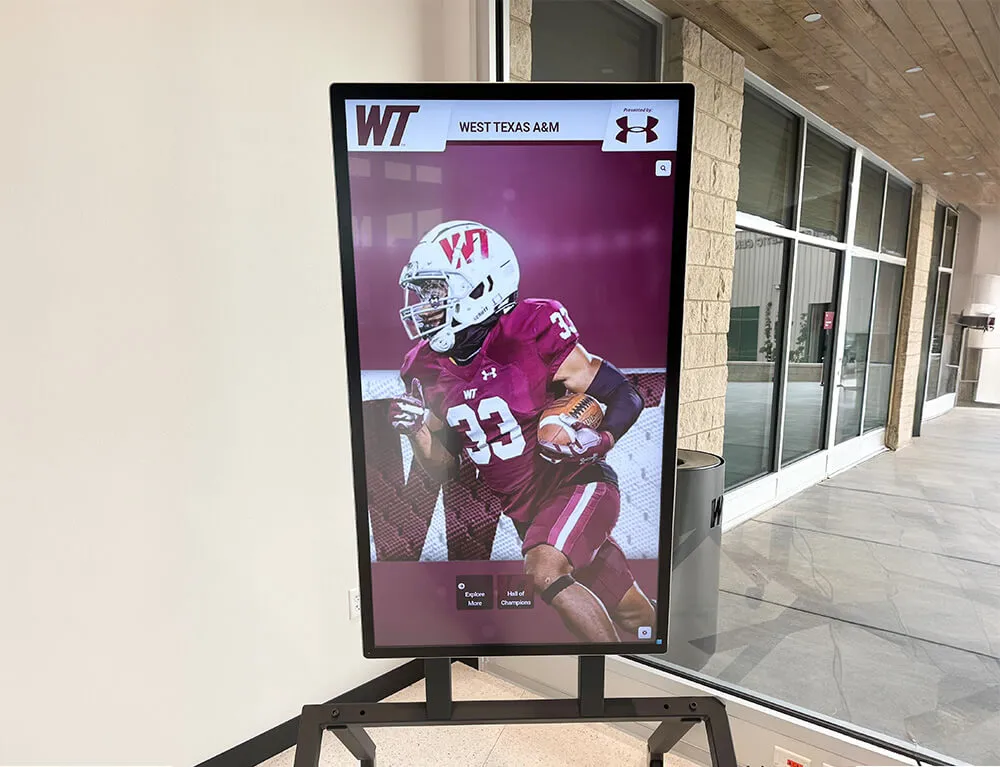
Portrait orientation suits tall profile layouts common in hall of fame displays, where individual cards with photos and biographical information read naturally in vertical format. Horizontal (wide-format) orientation works well for content-rich displays with multiple side-by-side panels, record boards, or comparison views.
High-brightness panels are worth the additional cost in any location with significant ambient light. A display that is difficult to read creates friction before the visitor even attempts to interact.
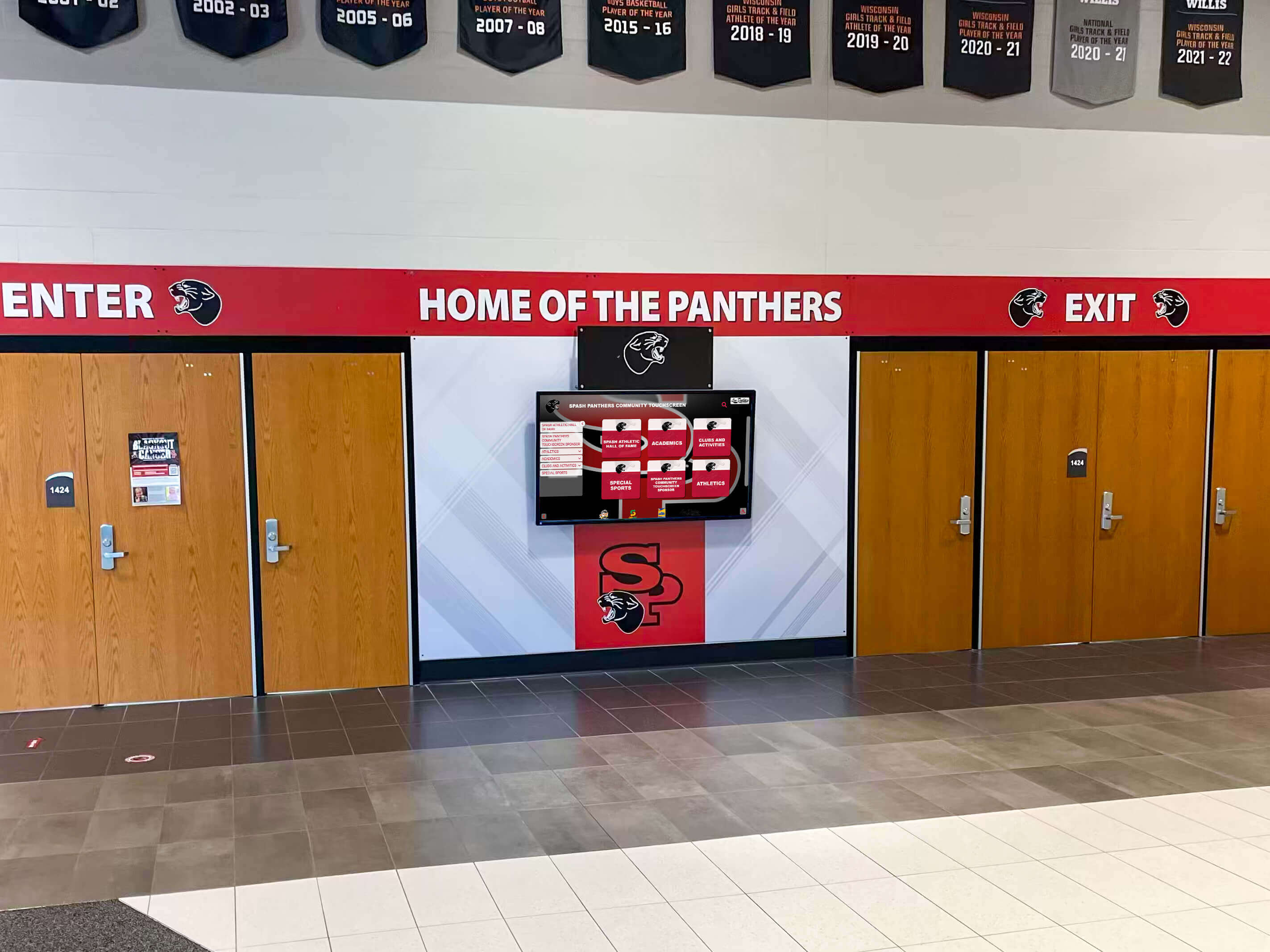
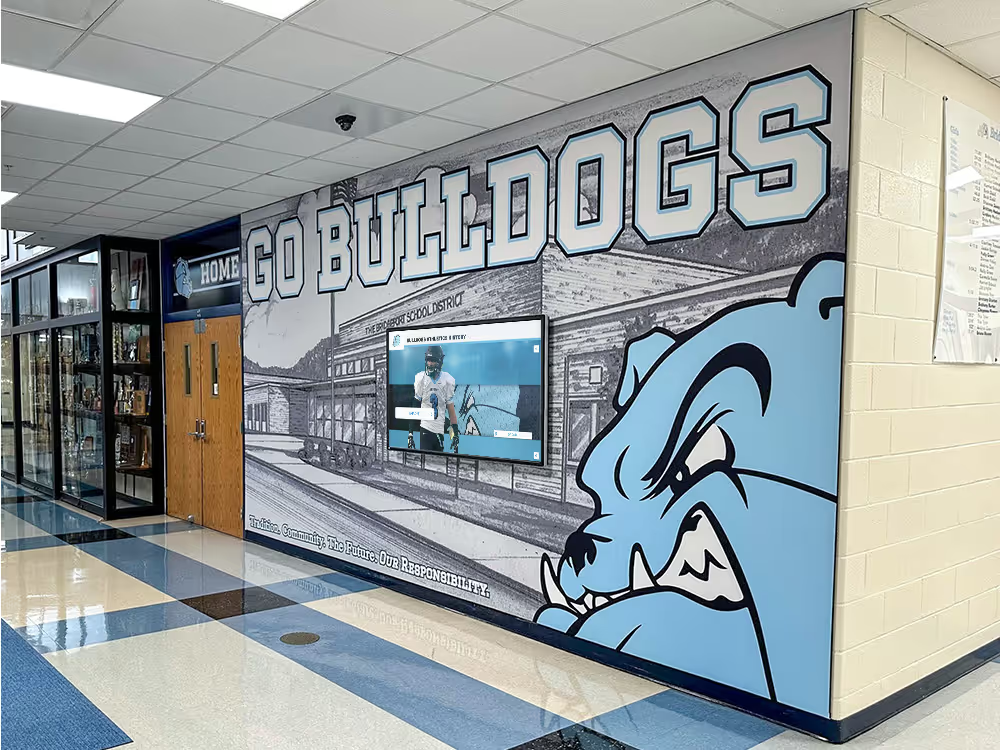
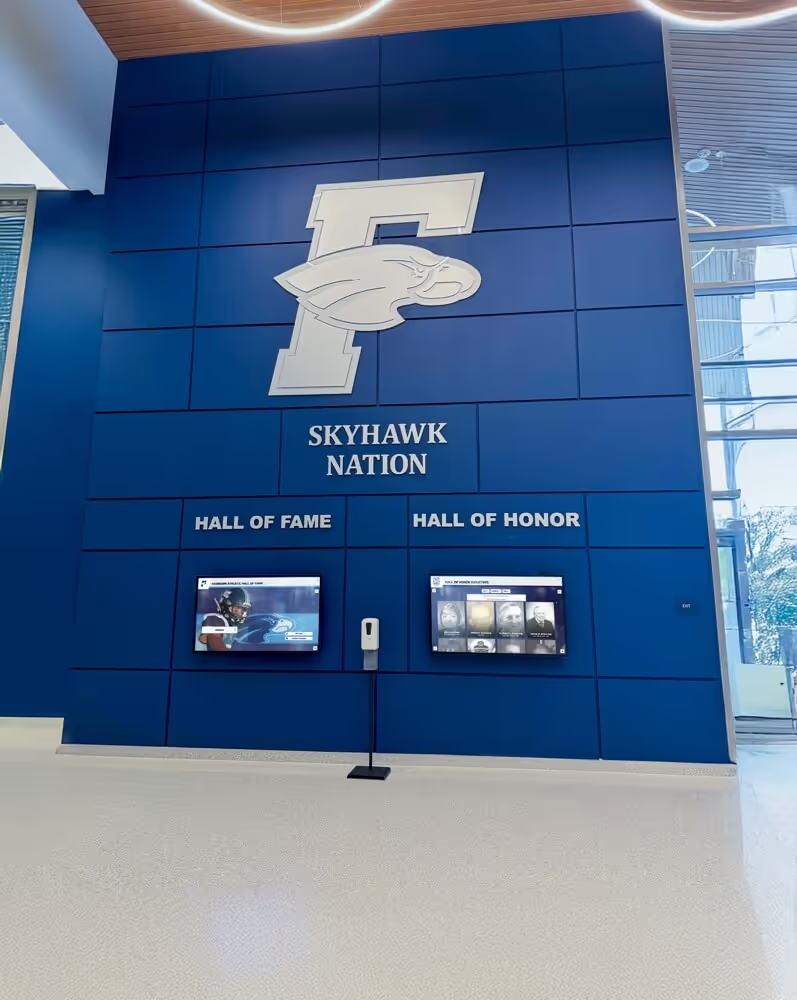
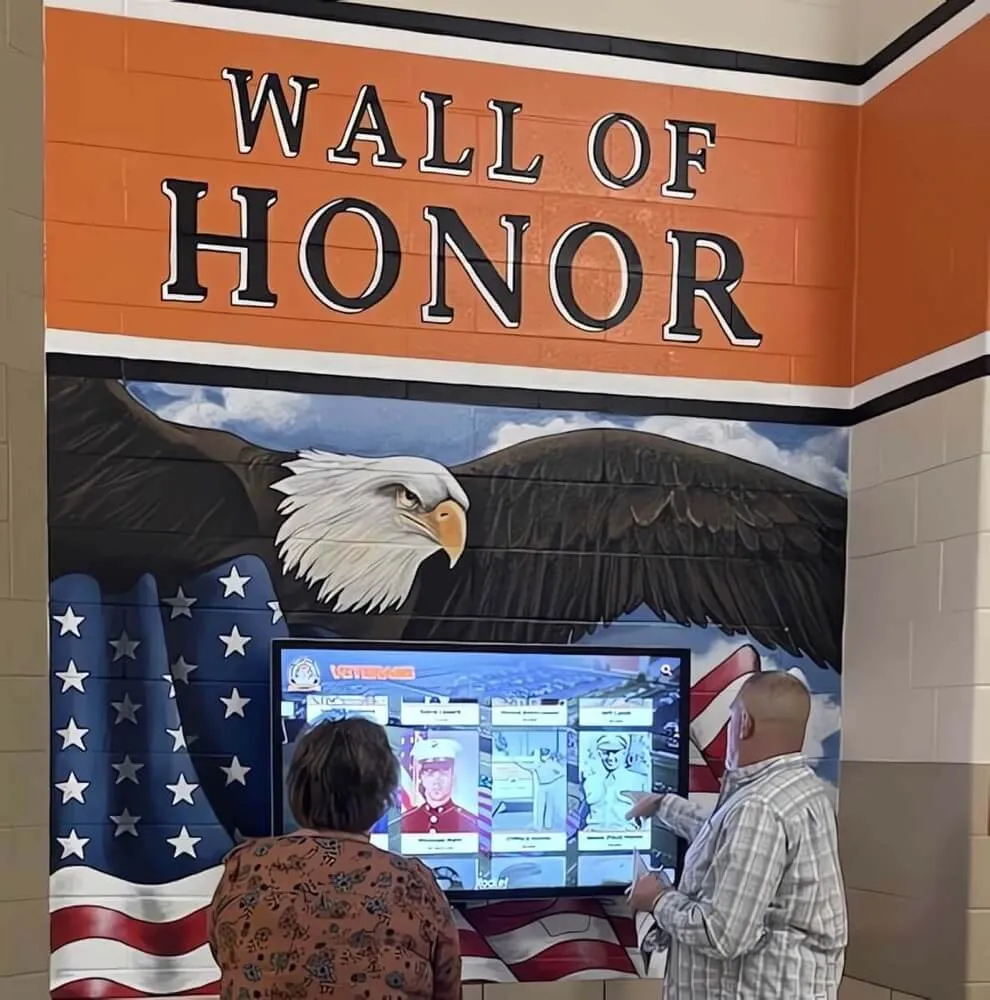
Placement near main school entrances and athletic facility corridors maximizes visitor engagement with interactive recognition displays throughout the school day
Fitting Into Surrounding Architecture
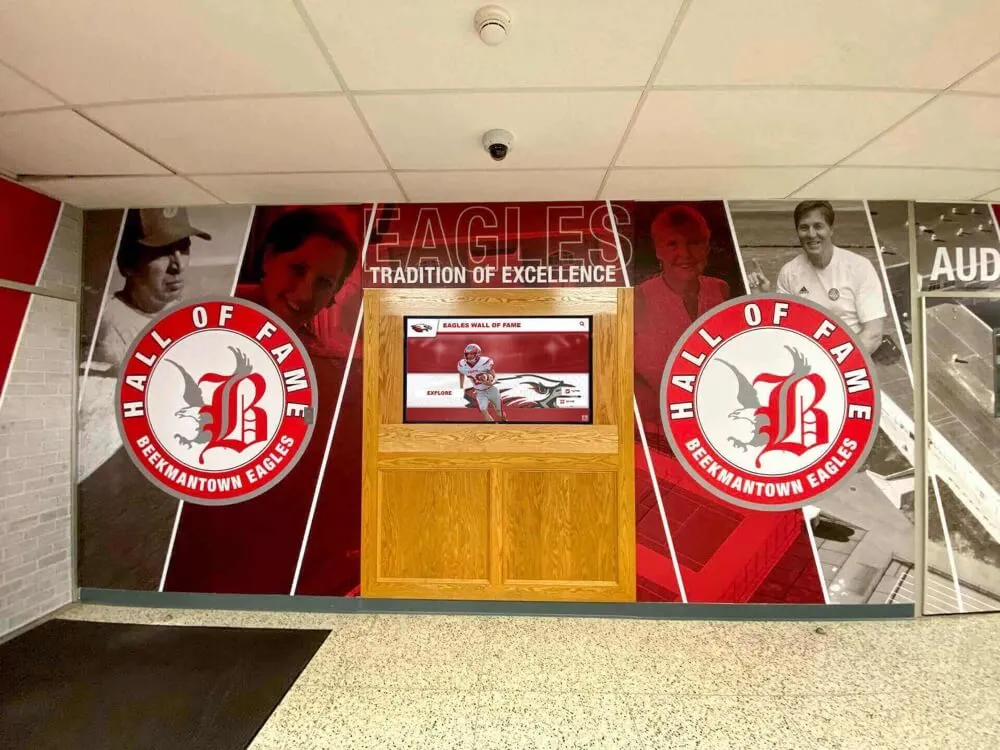
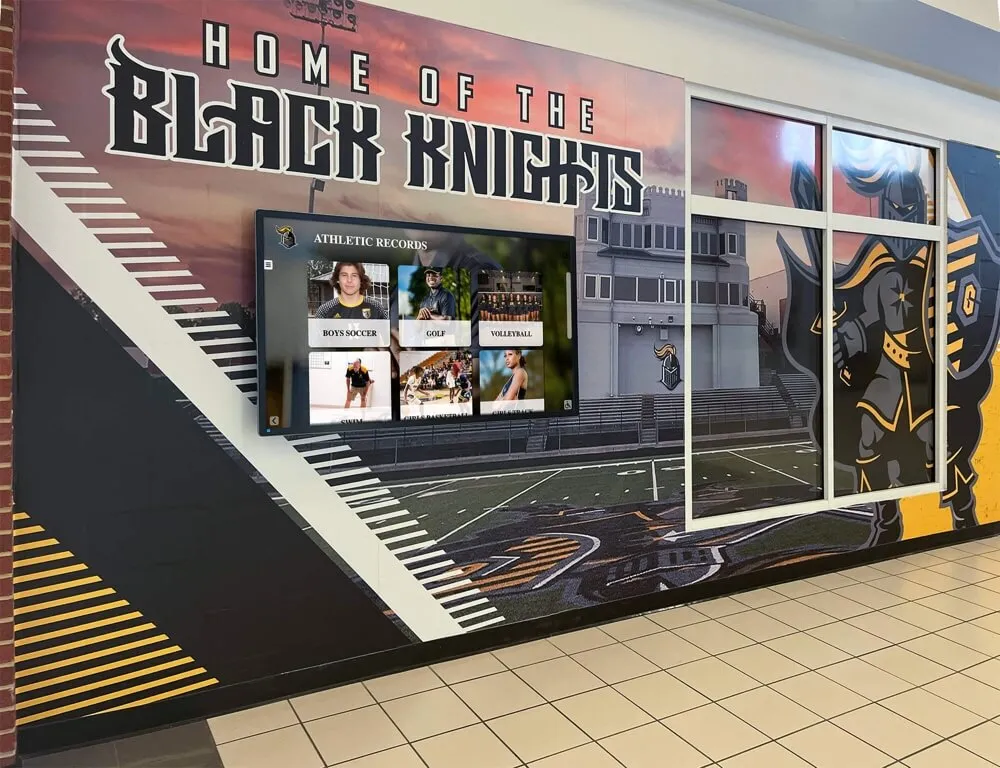
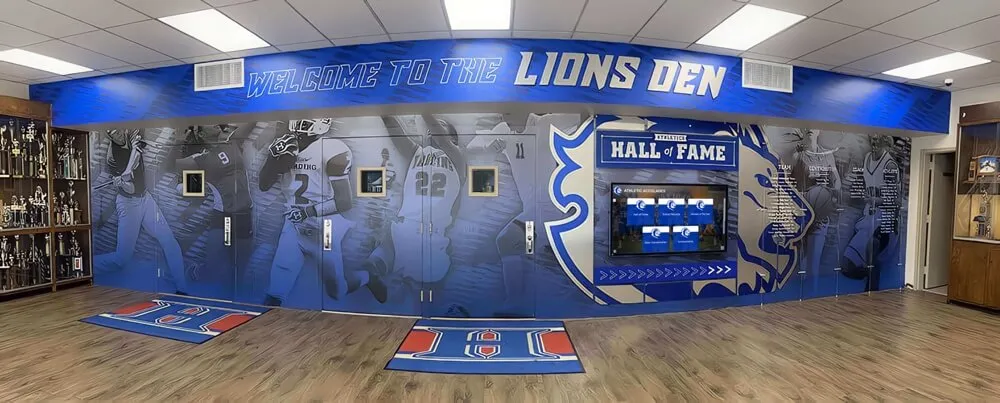
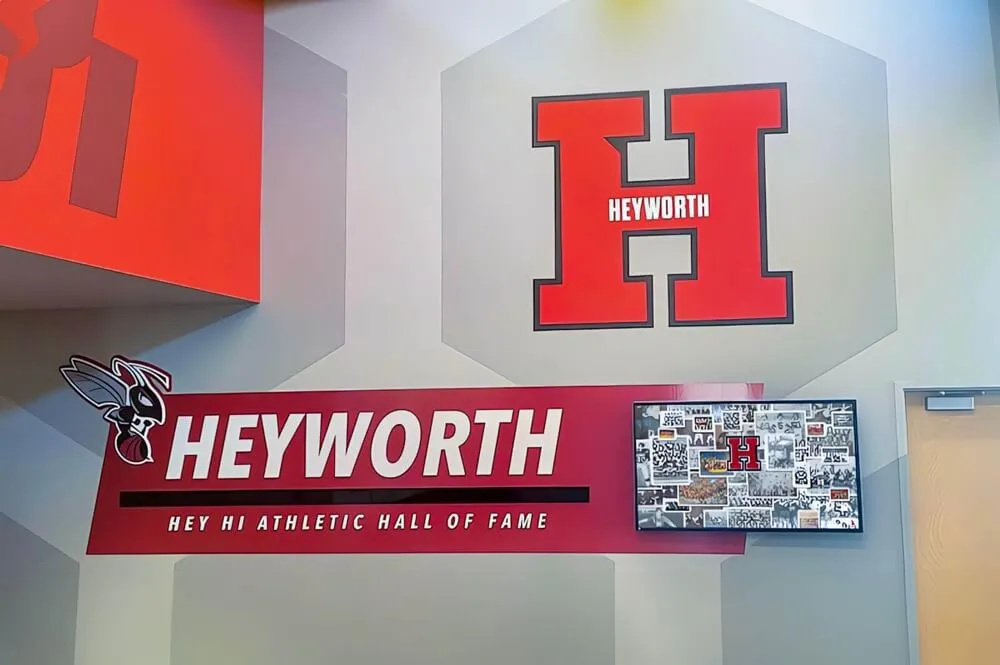
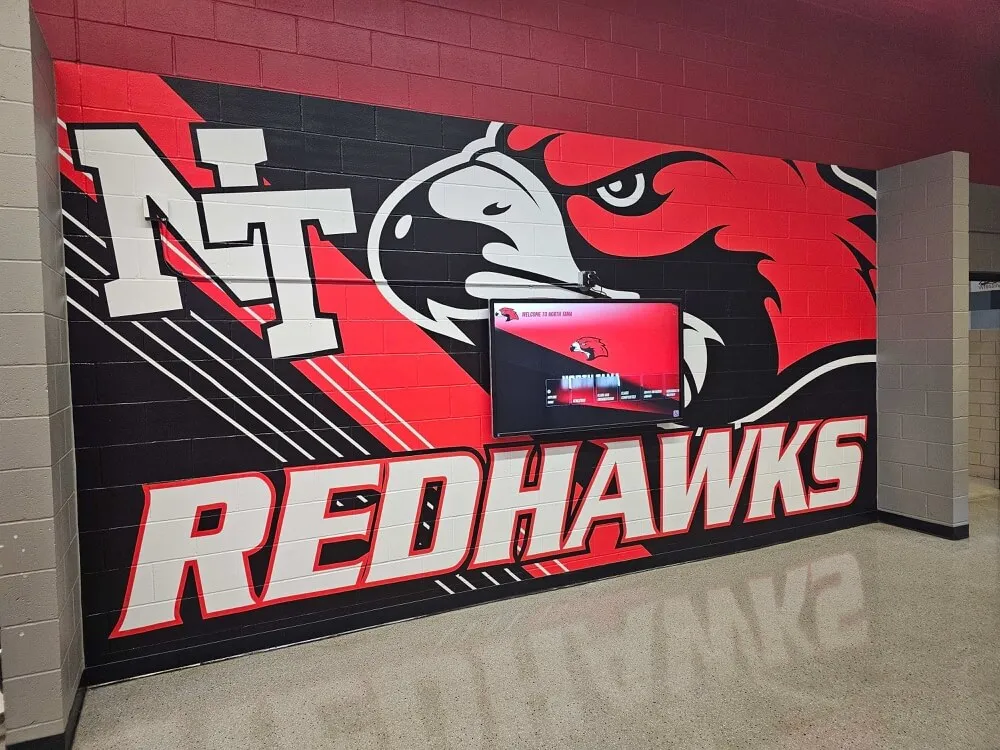
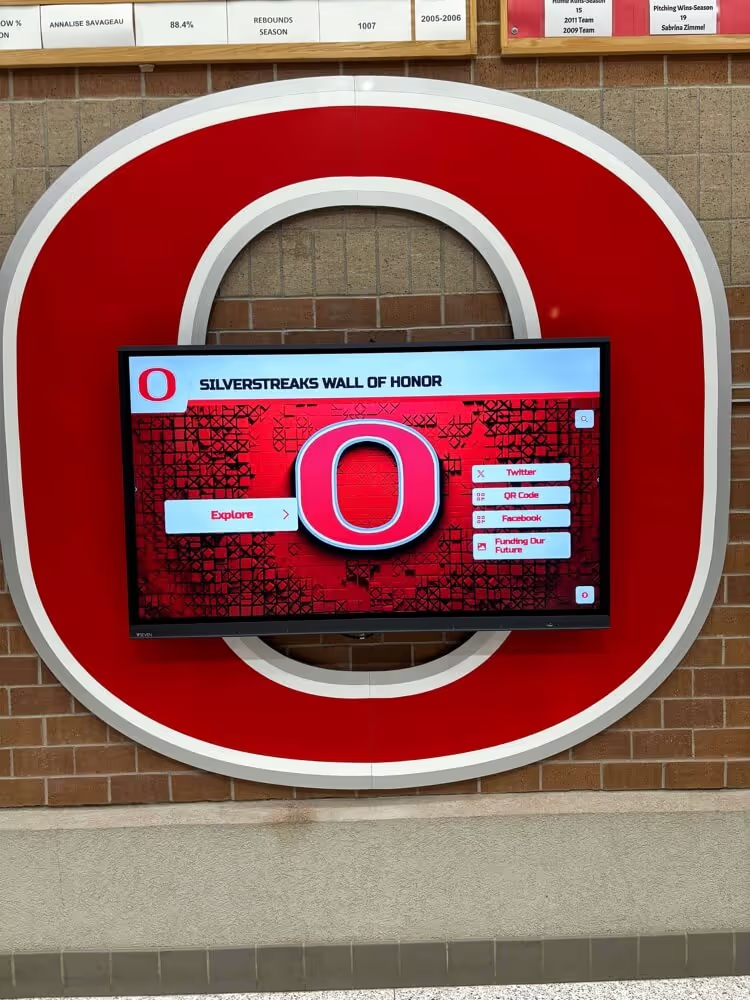
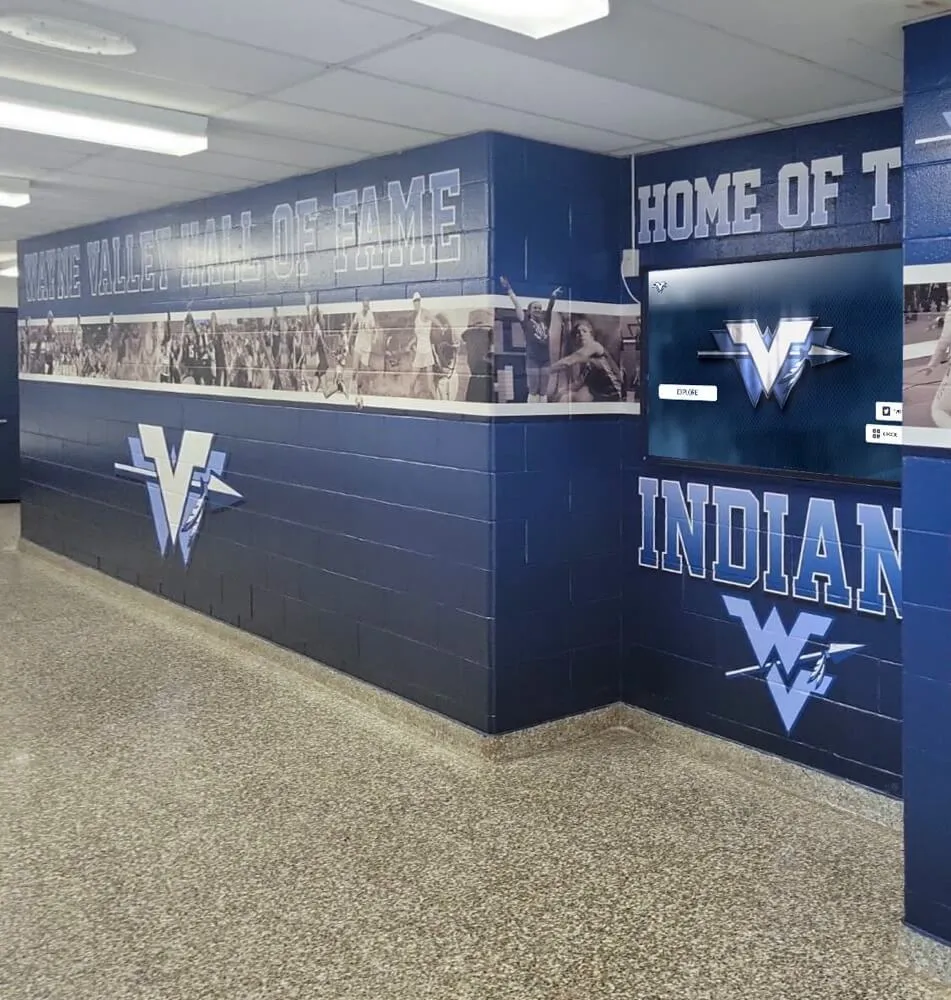
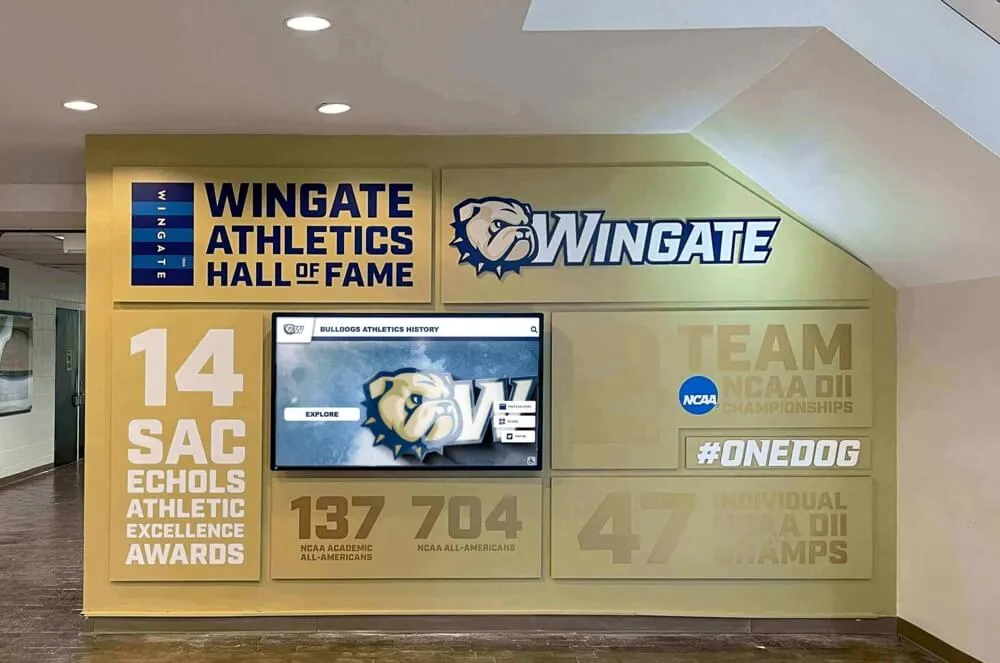
Touchscreen displays perform best when they feel like part of the space rather than technology dropped into a hallway. Wall graphics, painted murals, mascot branding, and physical trophies surrounding the screen create a cohesive recognition environment where the digital element amplifies the physical space rather than competing with it.
Building a complete school digital signage environment includes planning the space around the screen—artwork, lighting, seating, and signage that draws visitors toward the display rather than past it.
Key Questions to Ask Before You Buy
Any vendor can show you a touchscreen. These questions help you evaluate whether a proposed system will actually serve your recognition program goals long-term.
1. Does the software support unlimited recognition capacity? Physical plaques have space limits; digital systems should not. Confirm that the platform does not charge per-inductee or impose an arbitrary content cap that will create costs as your program grows.
2. Who manages content, and how easy is it? Request a live demo of the CMS—not just the visitor-facing display. If the administrative interface requires significant technical training, your content will go stale. Watch an actual staff member complete a common task: adding a new inductee with photo and biographical text.
3. What is the hardware warranty and replacement policy? Touchscreens are commercial hardware. Confirm warranty length, what is covered (panel, compute unit, touch overlay), and typical response time for hardware service calls. A year-two failure with no service contract is a costly problem.
4. Is the system web-accessible? The most effective recognition programs extend beyond the physical display to a web portal accessible from any device. This serves alumni, prospective families, and community members who will never visit campus in person, multiplying the reach of your recognition investment.
5. What does ADA compliance look like in practice? Look for platforms built to WCAG 2.1 AA standards—sufficient color contrast, keyboard navigation alternatives, screen reader compatibility, and captioned video. Ask for documentation, not just assurances.
6. What does ongoing support include? Verify that software updates are included in the annual cost, that security patches are applied on a regular schedule, and that the vendor has a support channel your staff can actually reach when a problem occurs.
Evaluating interactive display options for educational environments requires putting these questions to every platform under consideration before any hardware arrives on campus.
Cost Factors: What Drives the Price
Interactive touchscreen digital signage costs vary widely based on system complexity. Understanding the cost drivers helps you build a realistic budget and evaluate whether vendor proposals are complete.
Display hardware: A commercial-grade 55" touchscreen display typically runs $1,500–$4,000 depending on brightness, resolution, and touch technology. Large-format 86" displays at commercial-grade specifications can exceed $8,000–$15,000. Consumer-grade displays sold at retail prices are not built for the daily interaction cycles or continuous operation that public installations require.
Computing hardware: Built-in computing solutions are included in the display cost. External mini PCs add $300–$800. Commercial media players for applications with large video libraries run $500–$2,000.
Enclosures and mounting: Basic wall mounts cost $100–$400. Custom enclosures, floor-standing kiosks, and architectural millwork integration run $1,500–$10,000+ depending on design complexity and materials.
Software licensing: Generic digital signage platforms typically charge $20–$100/month per screen. Purpose-built recognition platforms vary; evaluate total cost of ownership including per-screen fees, any per-inductee charges, annual support costs, and software update policies.
Content development: Initial content entry—digitizing photos, writing profiles, migrating existing honoree data from spreadsheets or physical plaques—is frequently the largest cost institutions underestimate. Budget staff time (and possibly content development assistance) for this step before launch.
Installation: Professional installation including electrical and network rough-in runs $500–$2,000 for straightforward wall mounts, and more for complex enclosure work, custom millwork integration, or structural reinforcement.
Where Interactive Touch Screen Signage Serves Schools Best
Schools and athletic programs use interactive touchscreen displays across a range of recognition applications. How schools are using touchscreen recognition technology illustrates the breadth of recognition programs these systems can support.
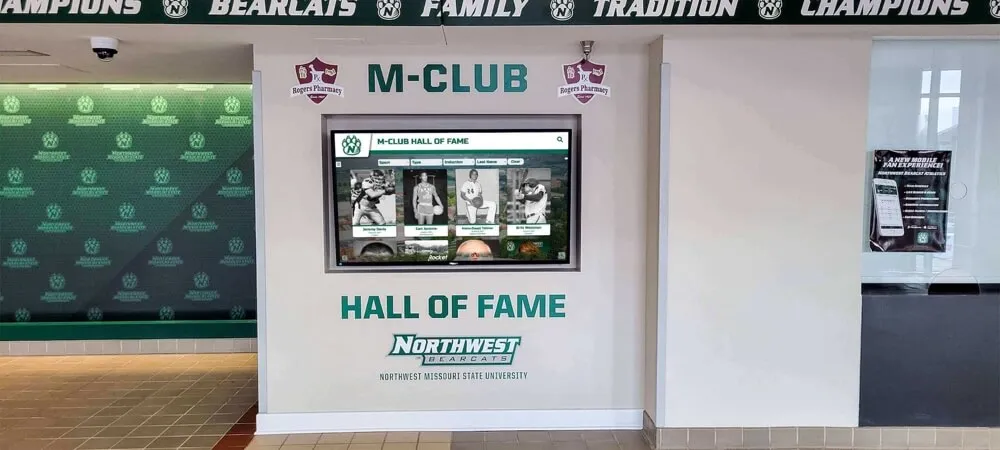
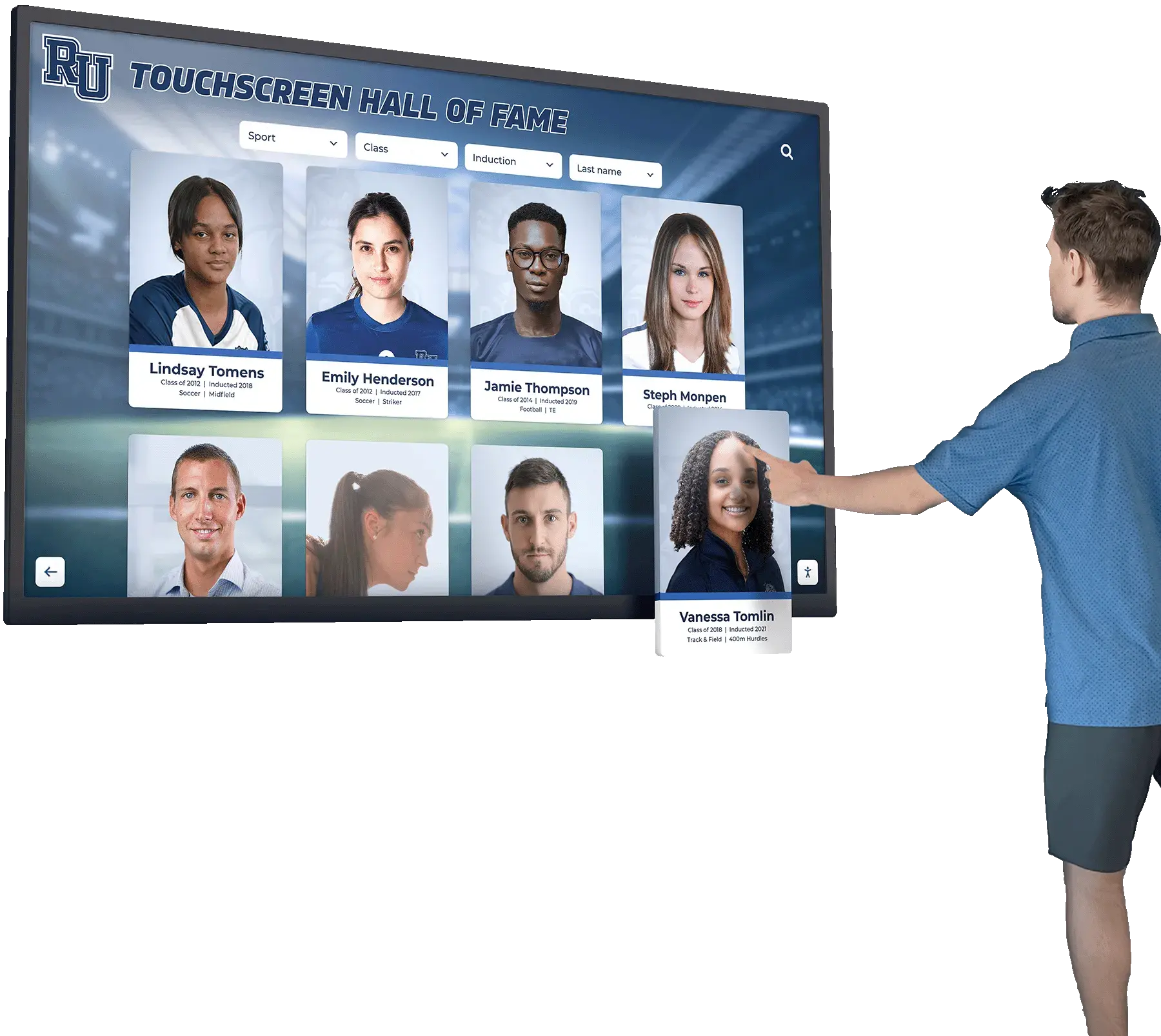
Athletic Halls of Fame Searchable databases of inducted athletes, coaches, and teams. Profiles include photos, career statistics, award history, and video highlights. Visitors search by name, sport, year, or achievement category—finding specific individuals in seconds rather than scanning a wall of plaques.
Donor Recognition Walls Interactive donor displays replace engraved plaques with searchable, immediately updatable digital records. New donors are added as gifts are received rather than waiting months for manufactured hardware. Campaign progress boards can reflect real-time fundraising totals.
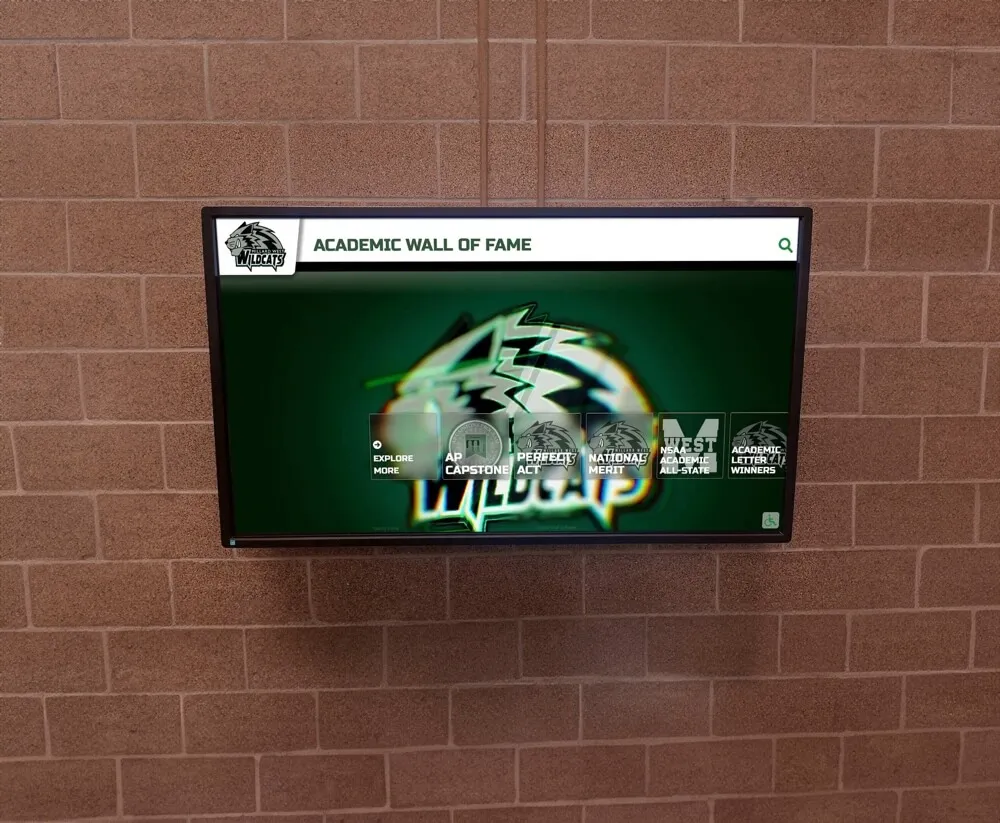
Academic Honor Displays Honor roll members, National Merit Scholars, valedictorians, and academic award recipients shown in searchable galleries. Year-over-year records accumulate into a comprehensive academic history visible to current students, parents, and prospective families touring campus.
Alumni Engagement Galleries Alumni galleries connecting current students to graduates who attended the same school. Career fields, collegiate placements, and notable achievements create mentorship connections and demonstrate program outcomes to families evaluating the school.
Building Directories and Wayfinding Campus and building directories with room search, faculty lookup, and event schedules—practical navigation tools that also display recognition content and school pride assets in idle mode between active searches.
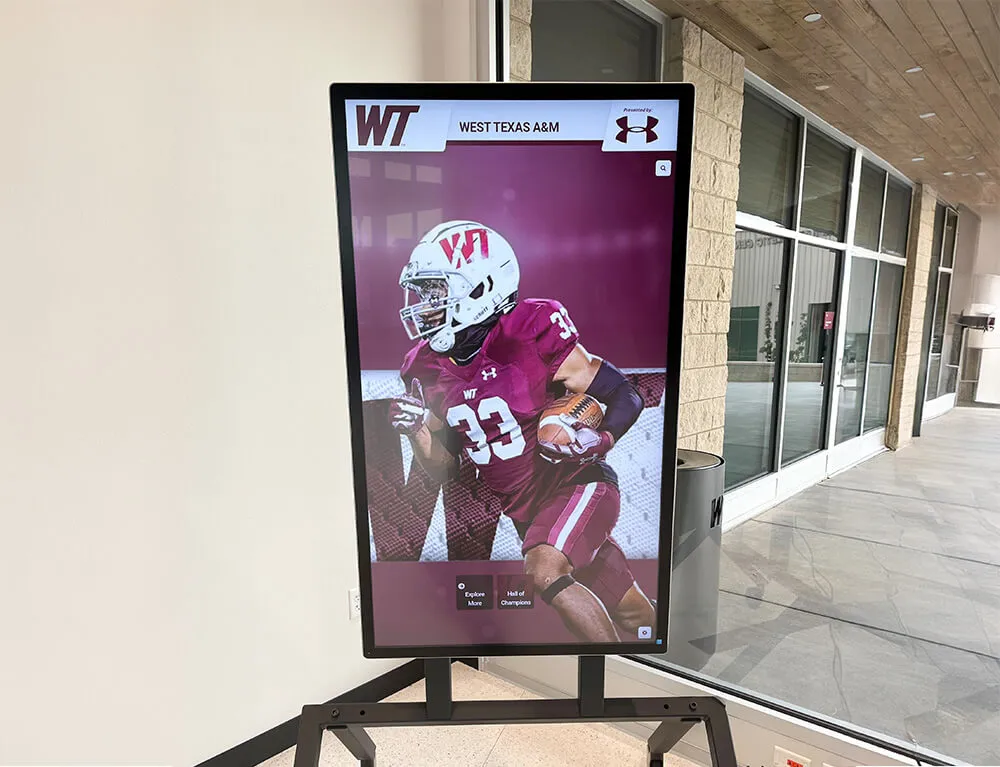
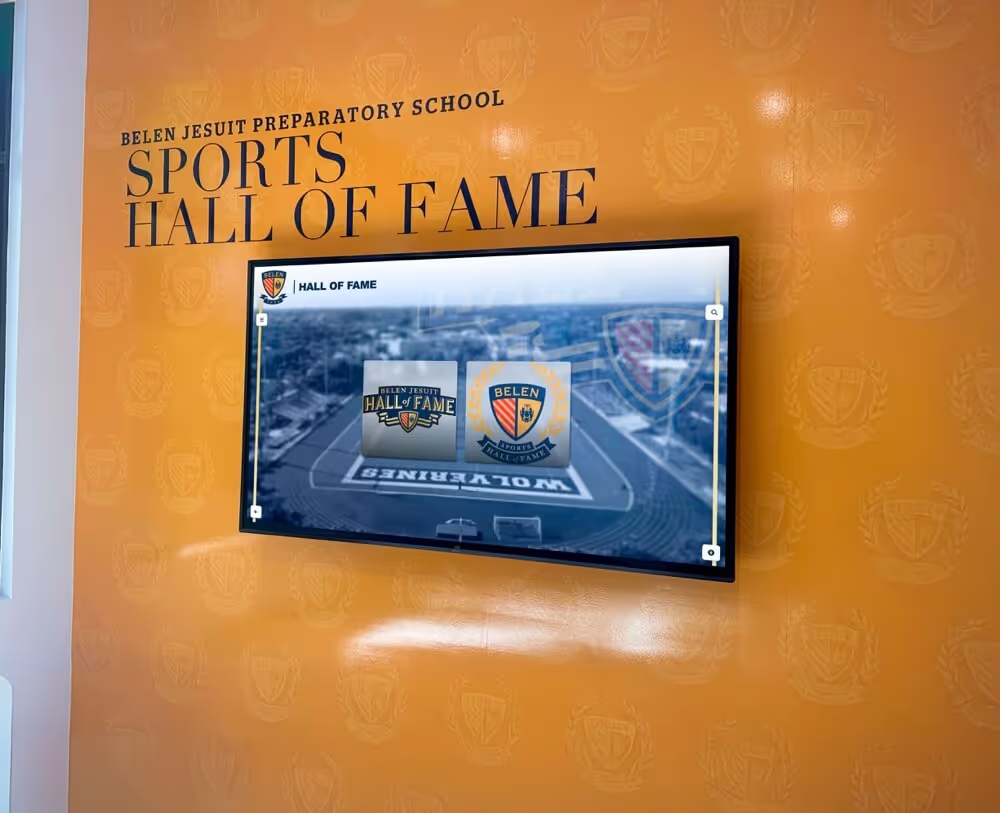
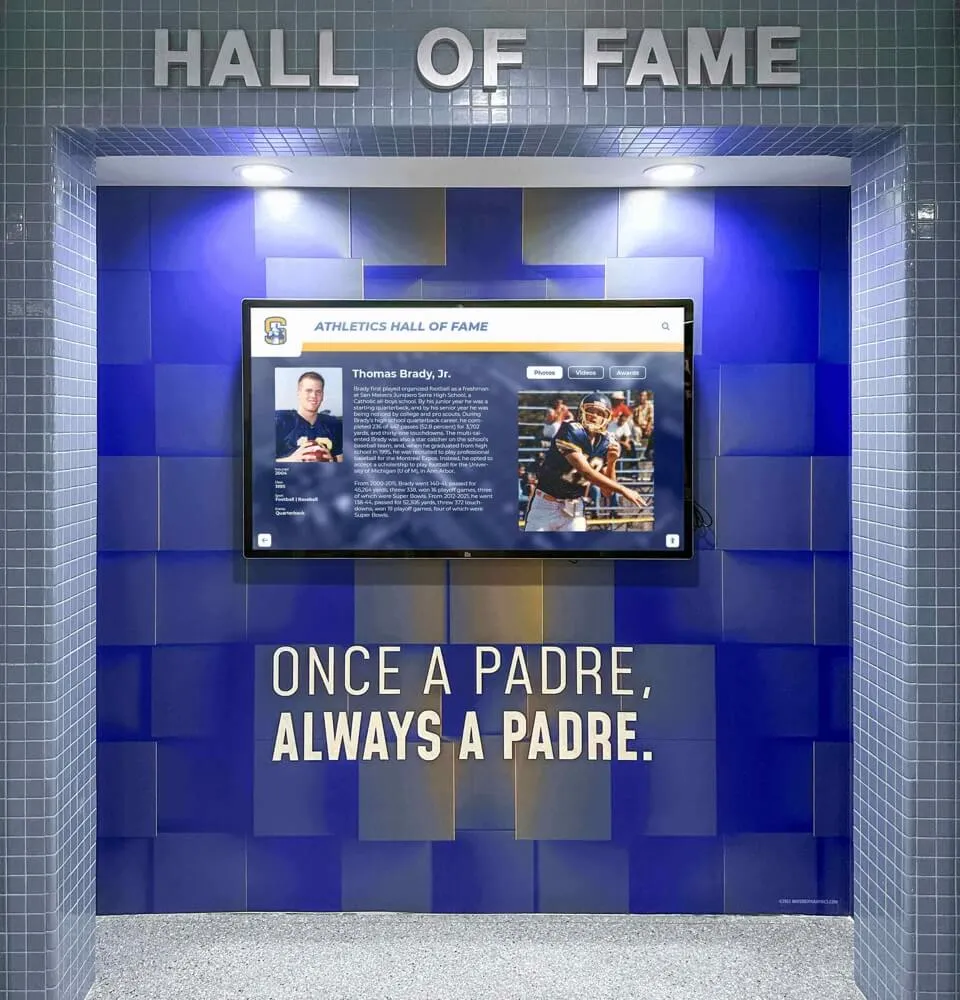
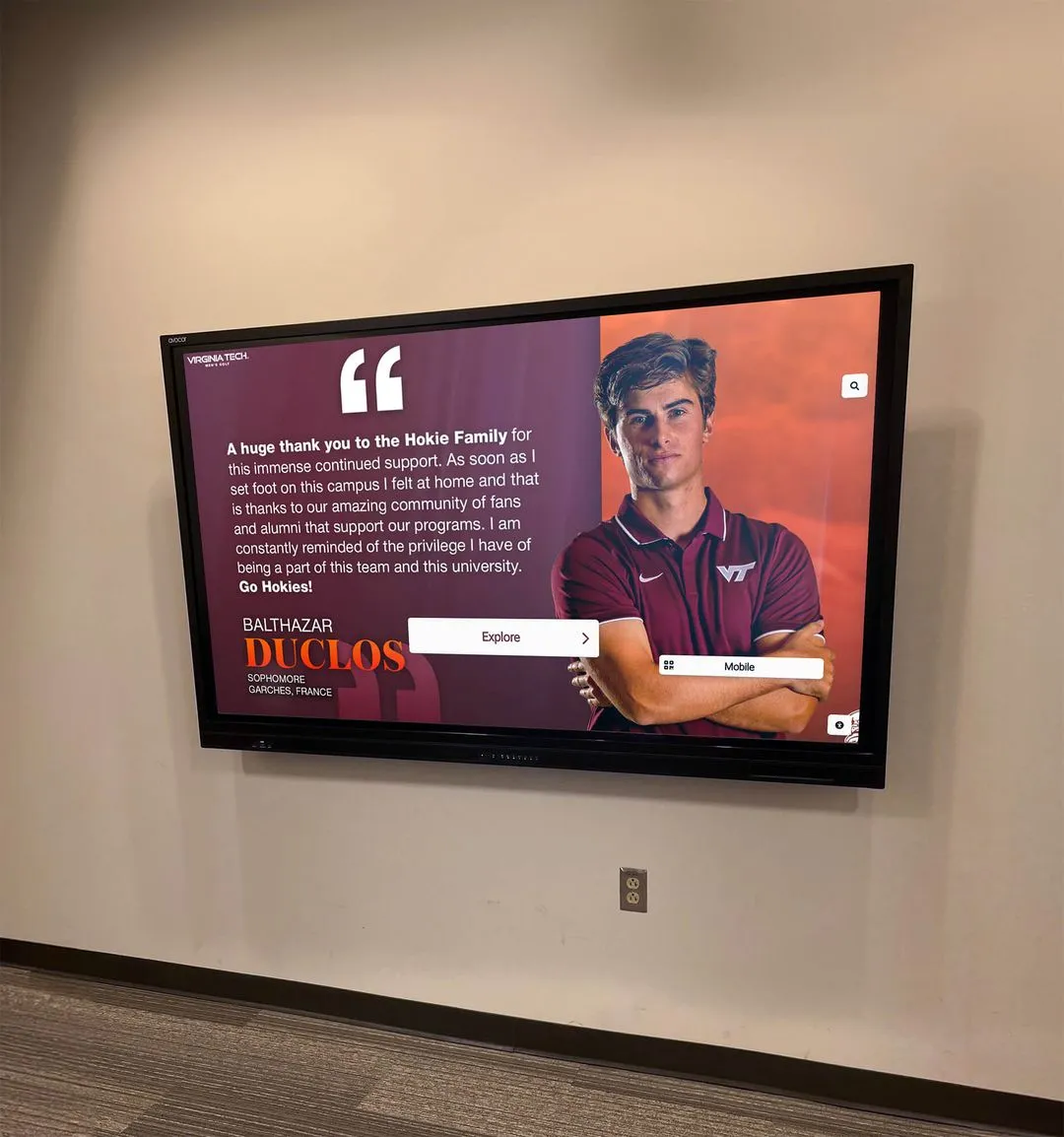
Purpose-built recognition platforms display rich athlete profiles with photos, statistics, and biographical details that generic digital signage tools cannot replicate
Choosing a Vendor Who Understands Educational Recognition
Commercial AV vendors can sell and mount a screen, but not every vendor understands what schools and athletic programs actually need from recognition technology. When evaluating vendors, distinguish between:
- Hardware-only suppliers who provide and install displays but offer no software, content management, or ongoing program support
- Generic signage vendors who provide scheduling software suited for announcements but lack recognition database capabilities
- Purpose-built recognition platforms that provide hardware, software, content management, and ongoing support designed specifically for school and institutional recognition programs
Selecting the right CMS and deployment model for your operating environment affects every aspect of long-term success: who manages updates, how quickly new content appears after an induction ceremony, what happens when hardware fails mid-season, and whether the display grows with your program or becomes a static artifact.
Solutions like Rocket Alumni Solutions are built specifically for school and institutional recognition—combining purpose-built touchscreen software with content management tools designed for the staff who run athletic programs, alumni offices, and development departments, not for IT professionals. The platform supports unlimited inductees, ADA-compliant interfaces meeting WCAG 2.1 AA standards, and web-accessible display of the same recognition content that appears on the physical screen.
What distinguishes a recognition platform from generic digital signage is not the hardware it runs on—it is the depth of the recognition database, the flexibility of the content structure, and the usability of the tools available to the staff responsible for keeping the program current year after year.
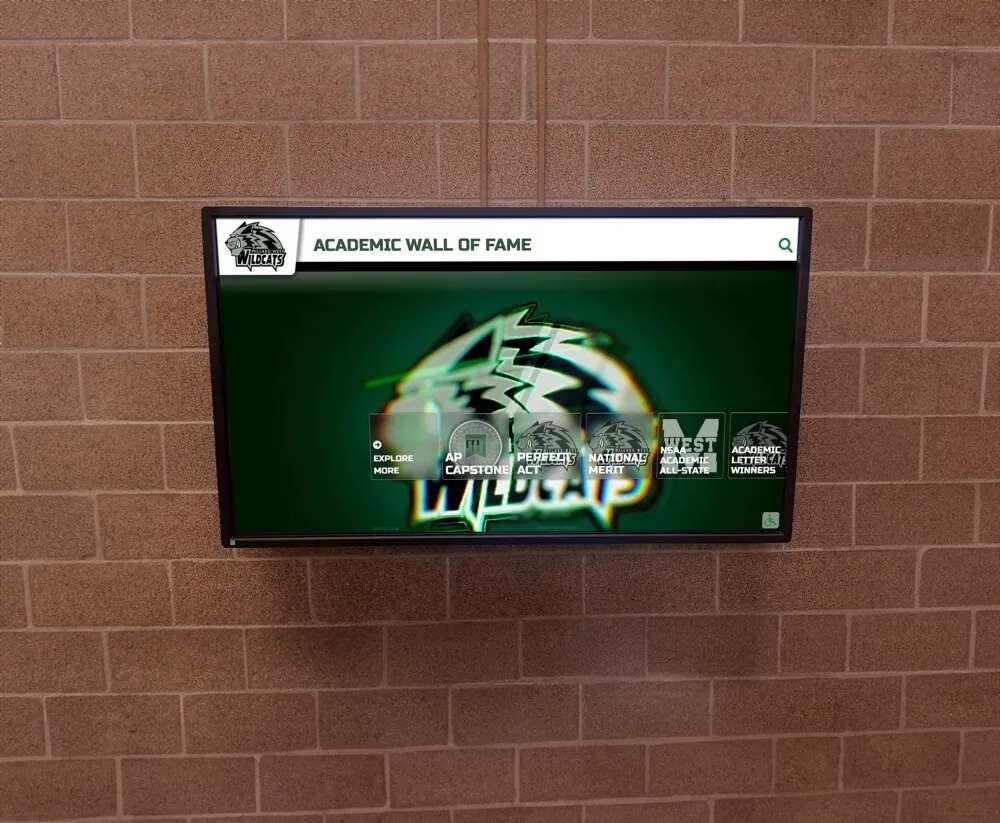
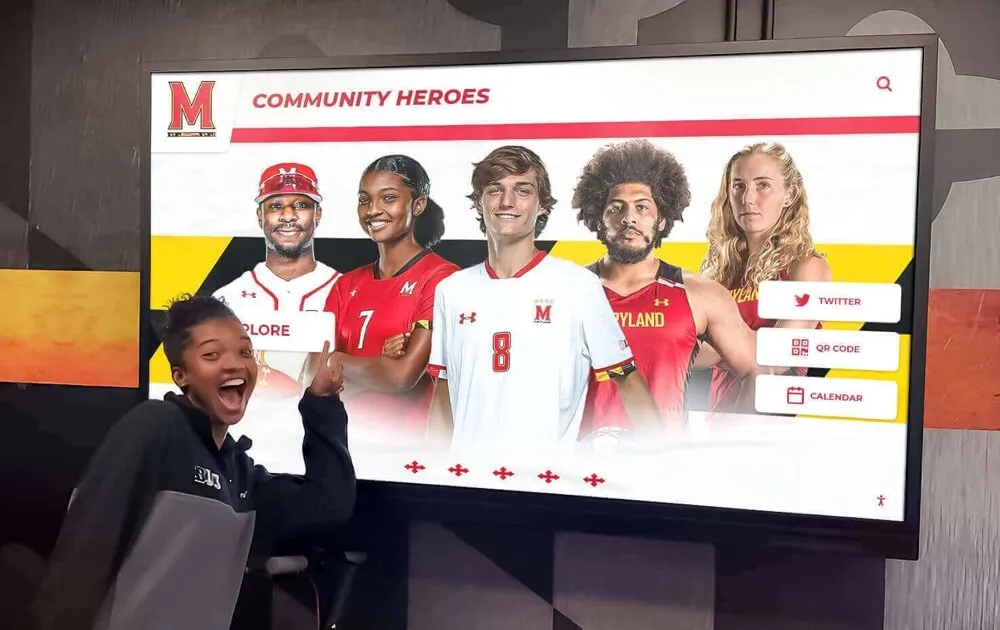
Academic recognition displays let students, parents, and visitors explore honor roll history and achievement records across multiple years in one searchable interface
Measurement: Knowing Whether Your Display Is Working
Deploying a touchscreen display is an investment. Tracking engagement helps justify continued investment and identify where improvements are needed.
| Metric | What It Measures | How to Track |
|---|---|---|
| Session count | Number of distinct visitor interactions per day or week | CMS analytics or external kiosk analytics tool |
| Average session duration | How long visitors engage per interaction | CMS analytics |
| Most-viewed profiles | Which honorees generate the most interest | CMS content reports |
| Search terms used | What visitors are looking for | CMS search logs |
| Content update frequency | How often staff refresh content | CMS audit log |
| Visitor feedback | Qualitative perception of the display experience | Brief surveys at events, staff observation notes |
Displays with consistent content updates outperform static installations in both session count and average session duration. A display that shows the same records as six months ago gives returning visitors no reason to interact a second time.
Reusable Planning Checklist
Use this checklist when planning an interactive touchscreen digital signage installation for a school, university, or athletic program.
Site Assessment
- Identify primary traffic locations (main lobby, athletic hallway, trophy case corridor)
- Measure available wall space and assess structural capacity for display weight
- Confirm electrical outlet access (dedicated circuit recommended)
- Confirm network port or stable Wi-Fi access point within 10 feet of installation site
- Document ambient light sources; measure lux levels at peak-traffic hours
- Measure floor-to-ceiling height; confirm ADA reach compliance at proposed mounting height
Hardware Selection
- Choose screen size appropriate to traffic density and typical viewing distance
- Specify brightness (nits) based on ambient light assessment
- Select touch technology (PCAP recommended for most indoor recognition applications)
- Decide on computing unit (built-in SoC or external mini PC)
- Choose enclosure or mounting approach based on architectural context and service access needs
Software Evaluation
- Request live CMS demo from each vendor under consideration
- Confirm unlimited recognition capacity (no per-profile fees or content caps)
- Verify web-accessible version of recognition content for alumni and remote audiences
- Test bulk import tools with a sample data set before committing
- Confirm ADA/WCAG 2.1 AA compliance with documentation
- Review vendor support SLA and software update/security patch cadence
Content Planning
- Inventory existing honorees and estimate total profile count at launch
- Identify available photos, video, and statistical records for initial content migration
- Assign named staff responsibility for ongoing content management
- Set content refresh schedule (end of each season minimum; monthly recommended)
- Plan a launch event to generate initial visitor awareness and engagement
Getting the full value from touchscreen recognition software depends on completing this planning work before hardware arrives—not after it is already mounted on the wall.
If you are planning an interactive recognition display for your school, university, or athletic program and want to see how a purpose-built platform handles the full stack from content management to touchscreen interaction, talk to our team at Rocket Alumni Solutions and request a custom demo built around your recognition goals.
Live Example: Rocket Alumni Solutions Touchscreen Display
Interact with a live example (16:9 scaled 1920x1080 display). All content is automatically responsive to all screen sizes and orientations.