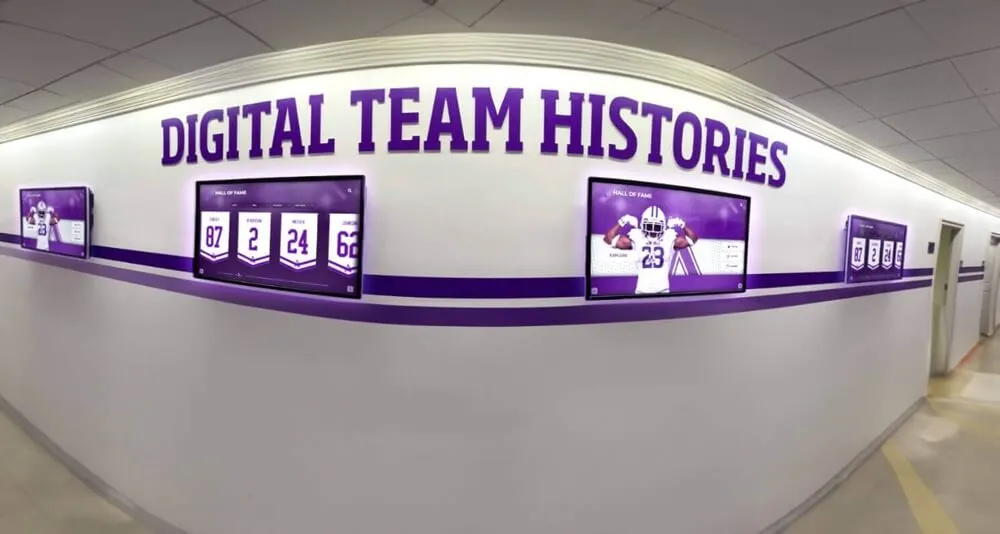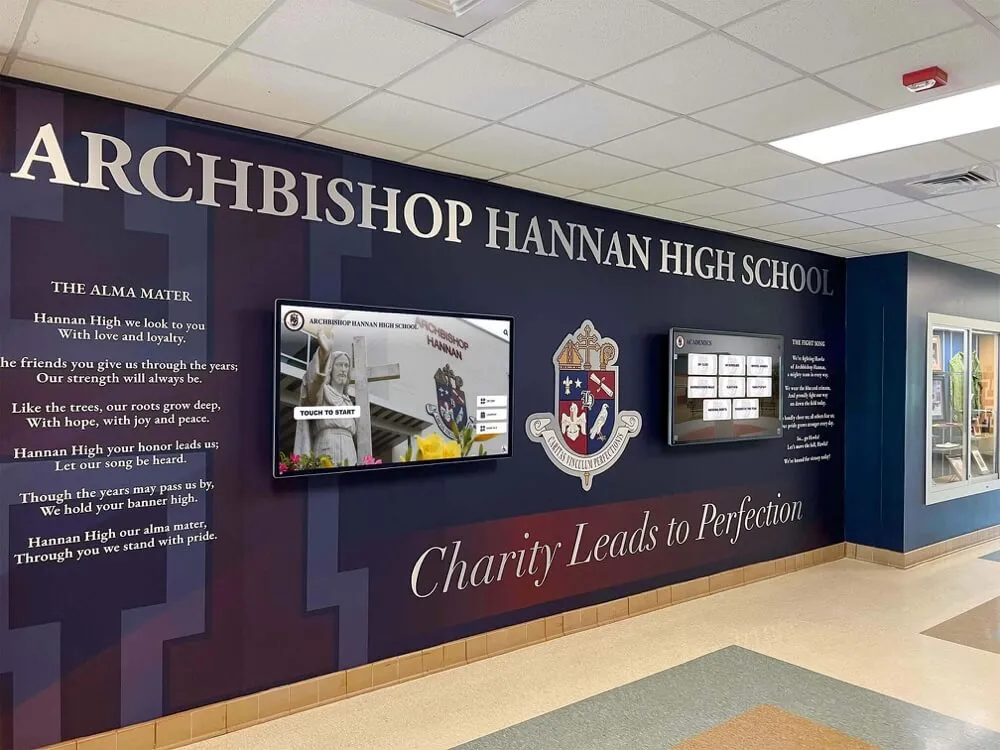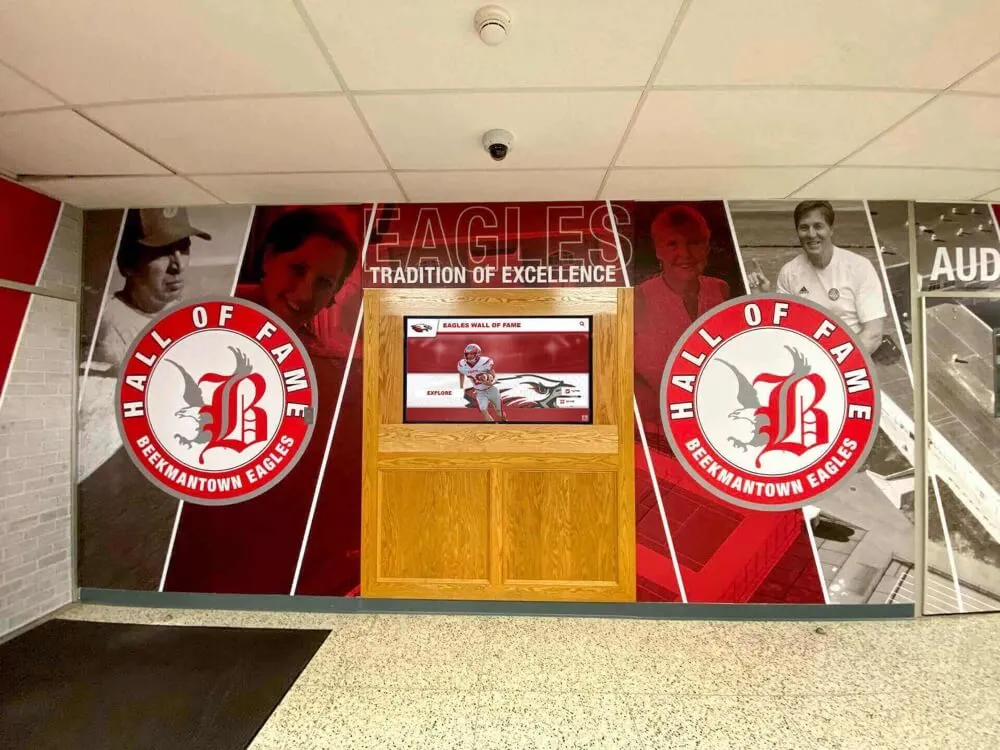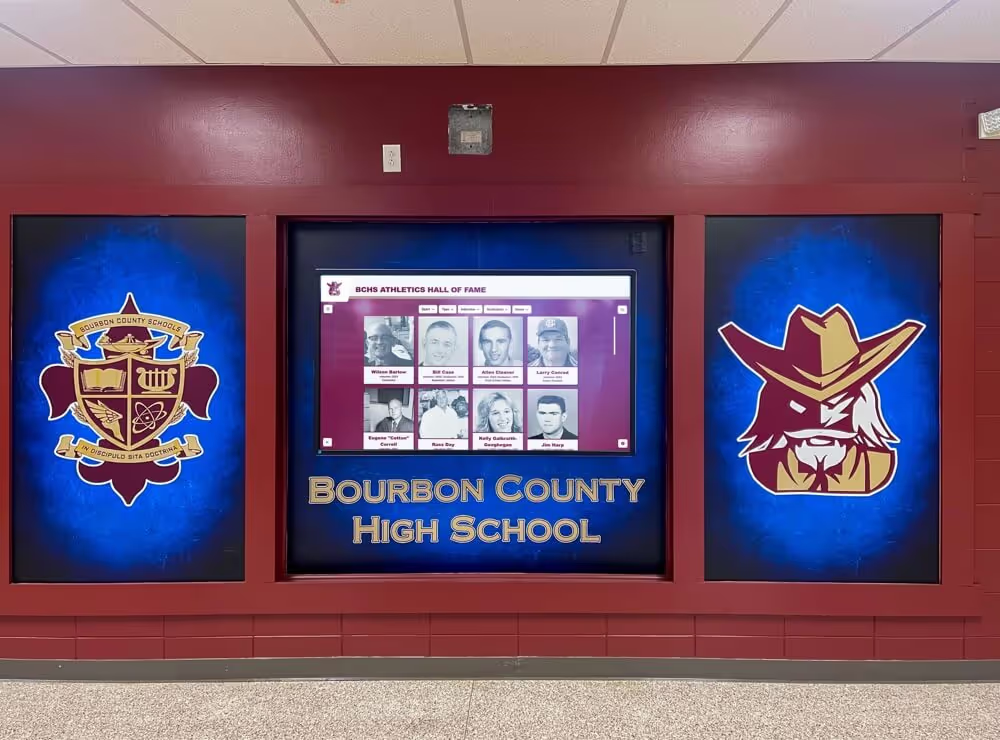




A hall of fame website media transcoding settings checklist is a structured set of codec, resolution, bitrate, audio, and caption decisions that ensures every inductee video file plays correctly on your school’s touchscreen kiosk, recognition website, and lobby streaming display—without buffering, format errors, or silent audio tracks.
School athletic directors and facilities staff who collect raw video from coaches, families, and news archives quickly discover that “video” is not a single format. A .MOV file from an iPhone, a broadcast-quality .MXF from a news station, and a low-resolution .AVI from a 2003 camcorder all need different transcoding paths before they belong in the same recognition archive. This checklist consolidates every setting decision into a single reference that a volunteer or IT staff member can follow without a broadcast engineering background.
Inductee video is one of the highest-engagement content types on a digital hall of fame display. Visitors linger when they see highlights, interviews, and tribute clips tied to a profile they already care about. Getting the transcoding settings wrong means that engagement never happens: the video stalls, renders without sound, or refuses to load on a classroom projector, a donor center kiosk, or a touchscreen mounted in a gymnasium lobby.

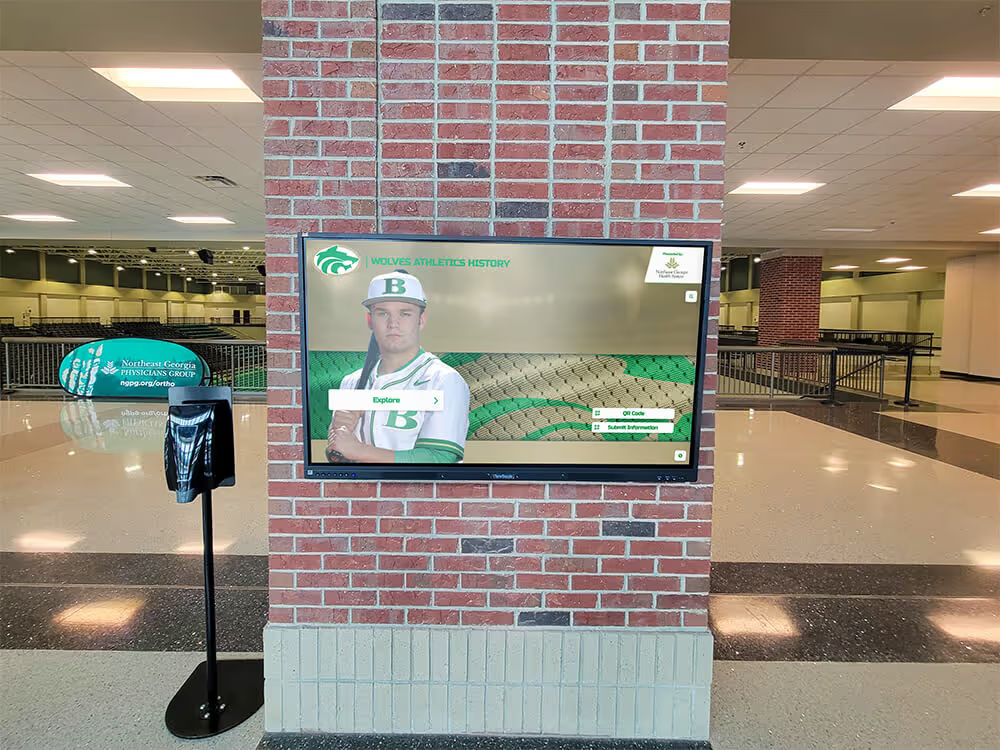
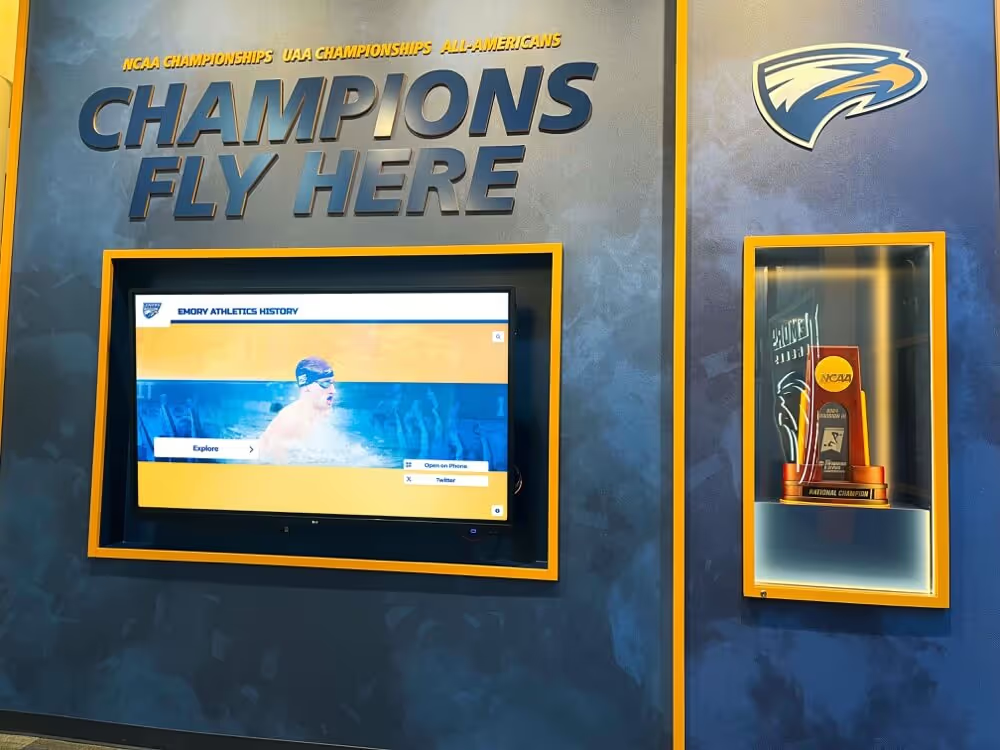
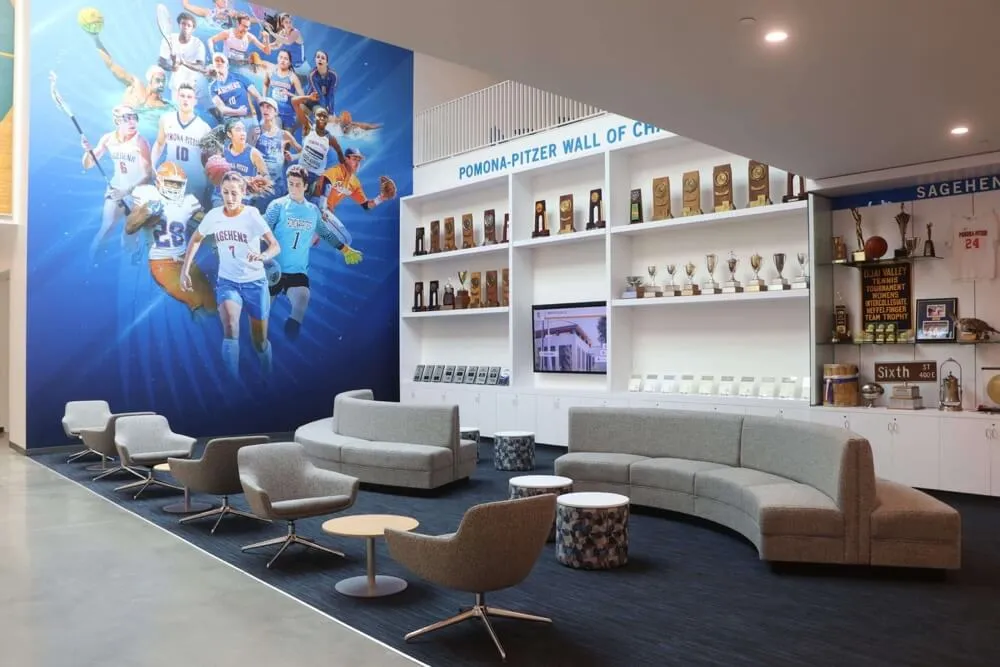
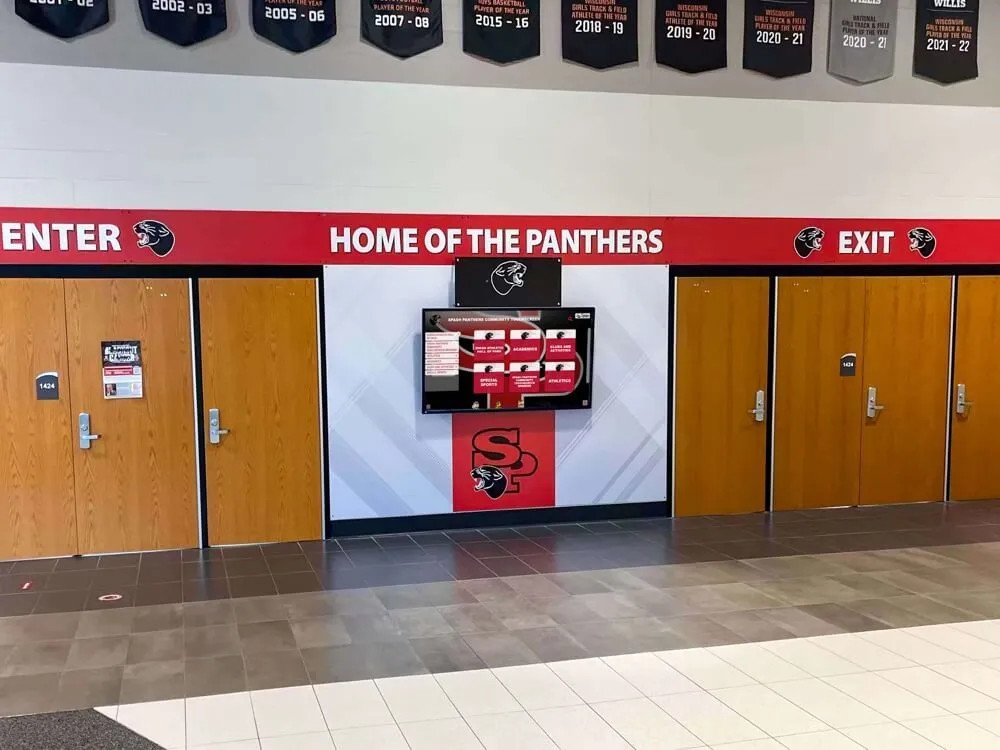
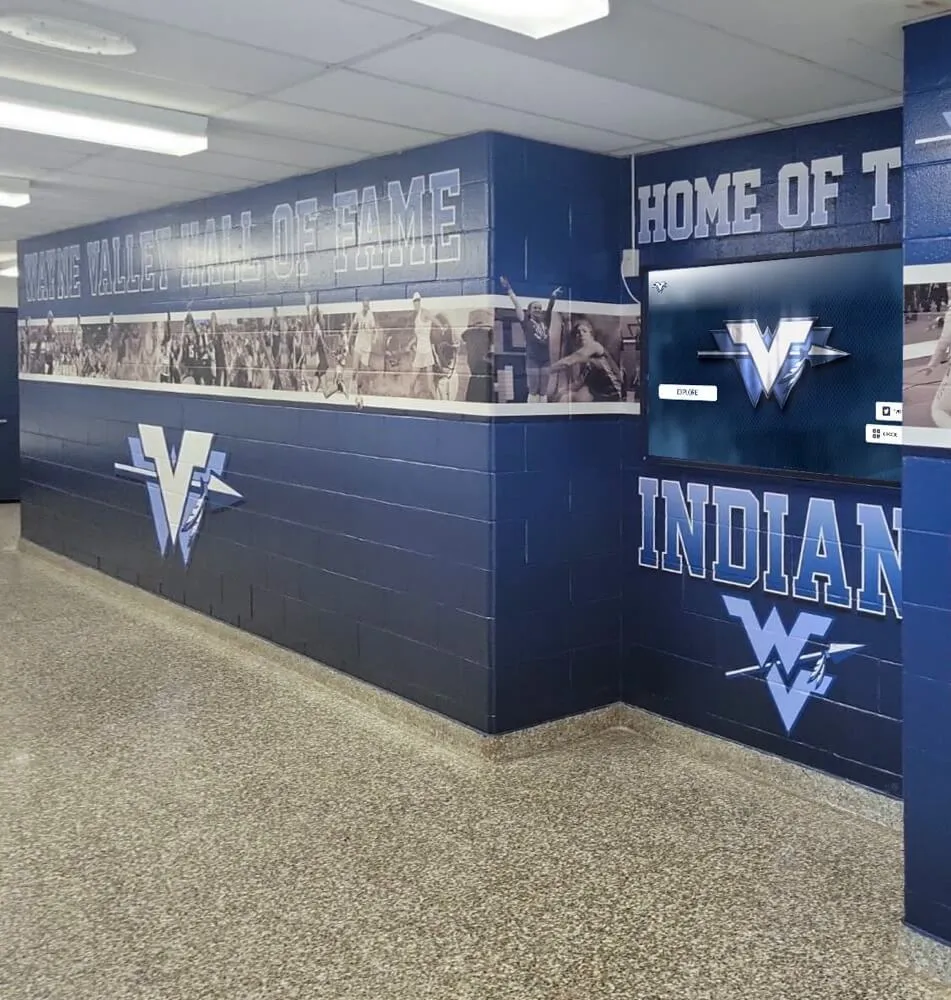
Properly transcoded inductee video plays without buffering or format errors on lobby screens that serve students, families, and returning alumni
Program Snapshot
| Element | Details |
|---|---|
| Audience | Athletic directors, IT staff, facilities coordinators, archives volunteers, recognition program owners |
| Outcome | Every inductee video file transcoded to a consistent, device-agnostic format before it enters the recognition archive |
| Time investment | 15–30 minutes per file for initial transcoding; 5 minutes per file for quality verification |
| Key deliverables | Container format, codec, resolution, bitrate, audio, and caption settings standardized across the entire archive |
| Display payoff | Inductee video loads instantly on touchscreen kiosks, school websites, projector setups, and donor recognition displays without manual troubleshooting |
Content Architecture: Mapping Video Types to Display Modules
Every transcoded video file eventually lands in one or more display contexts. Match your transcoding decisions to the output destination before you process a single file.
| Video Block | Content Type | Display Module | Transcoding Priority |
|---|---|---|---|
| Highlight reel | 30–90 second career summary | Auto-play lobby loop | Fast load, H.264, 1080p |
| Induction tribute | 2–5 minute ceremony speech or tribute | On-demand inductee profile | High quality, H.264, 1080p |
| Archival interview | Legacy footage, often pre-digital | Historical archive browser | Upscale and denoise before encoding |
| Ceremony recording | Full induction ceremony | Year-by-year event archive | Long-form, adaptive bitrate |
| Social-share clip | 15–30 second shareable excerpt | QR unlock or social gallery | Compressed, 720p, mobile-first |
Understanding which video types live in your archive shapes every setting in the checklist that follows. Schools managing digital lobby display content for multiple audiences consistently report that the biggest transcoding failures come from treating all video as a single category rather than matching settings to the delivery context.
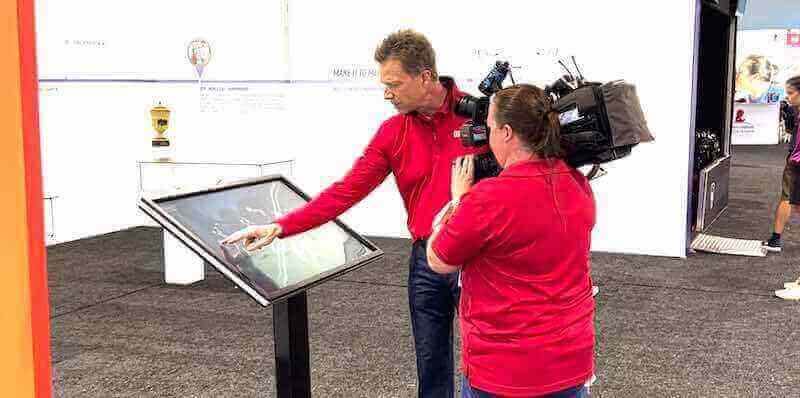
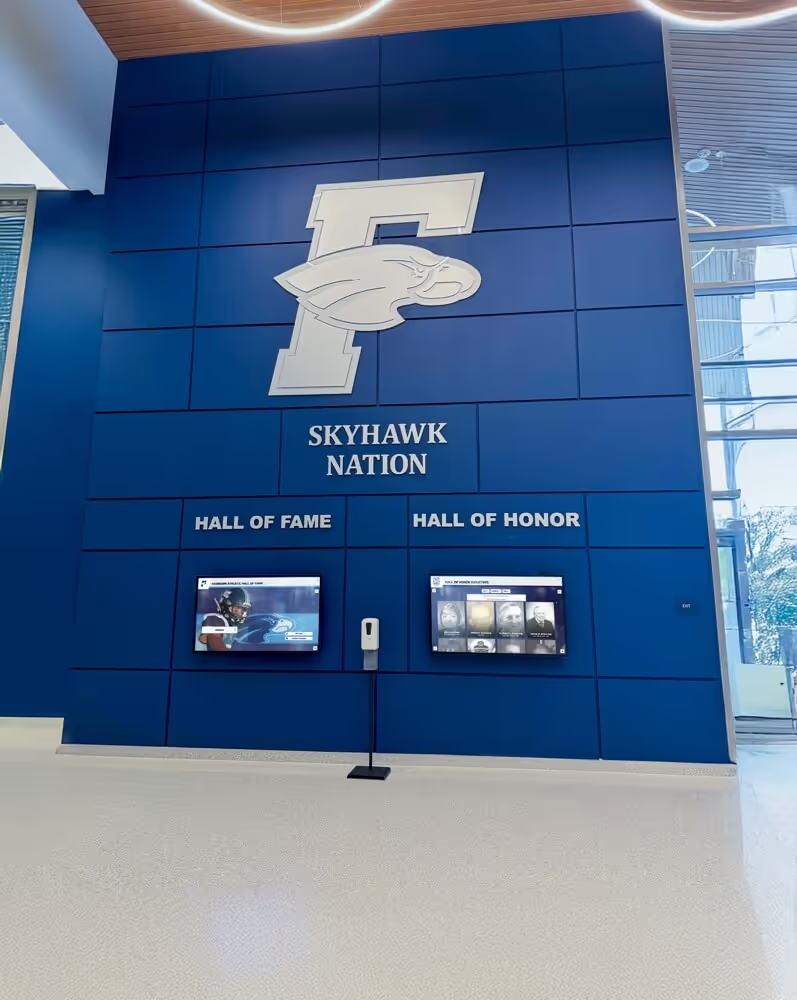
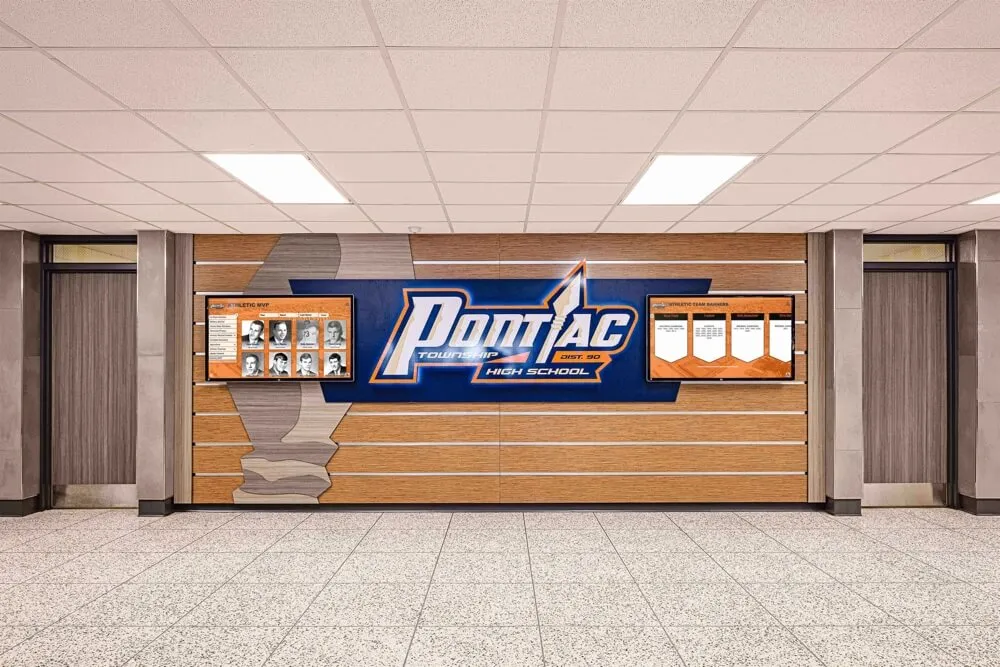
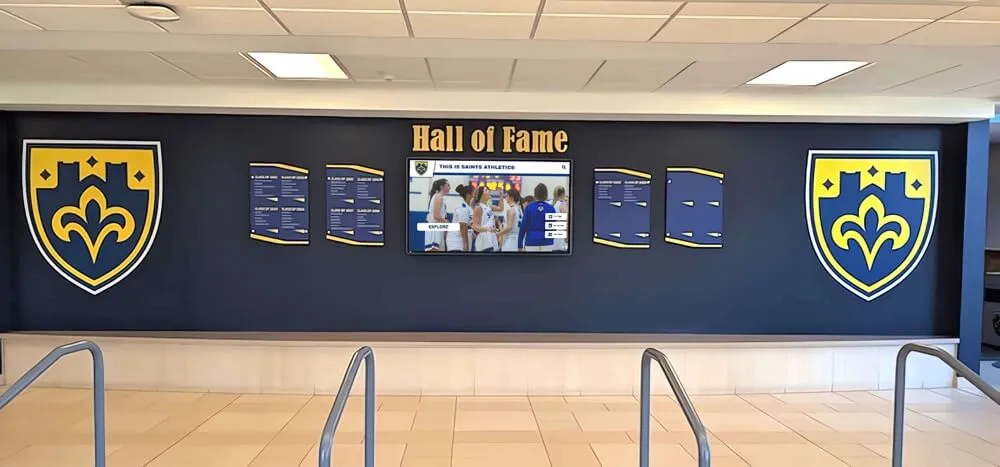
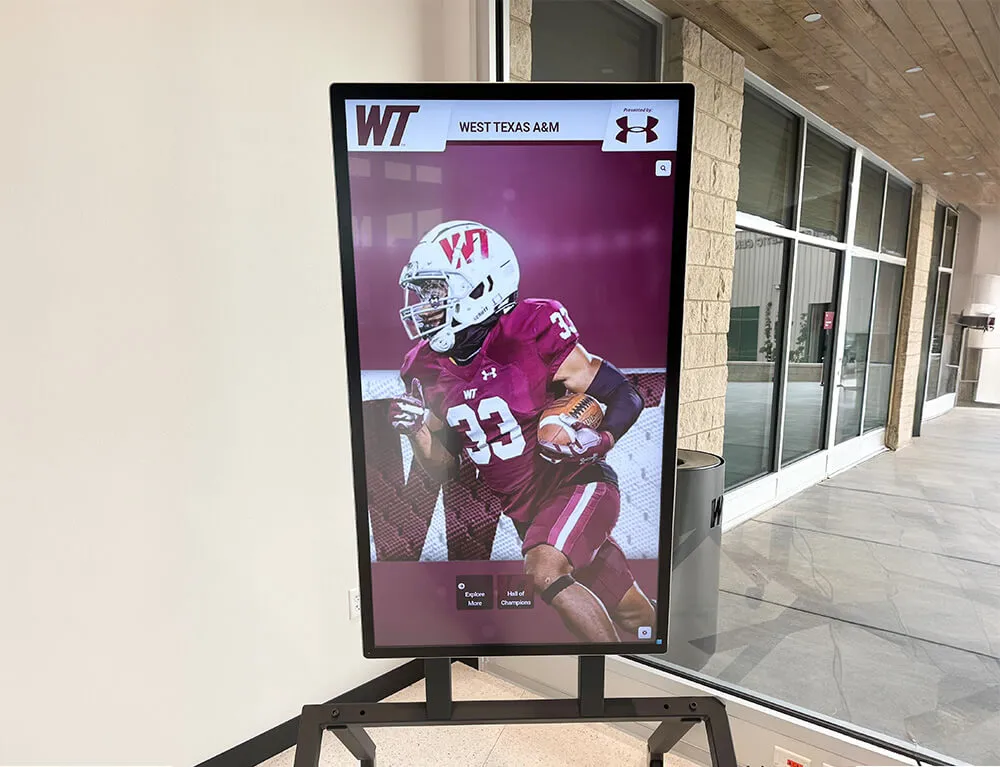
Source footage arrives in many formats—raw capture, broadcast files, and archival tapes—each requiring a distinct transcoding path before it reaches a display
The Hall of Fame Website Media Transcoding Settings Checklist
Work through all six sections in sequence. Complete each section before moving to the next. A setting skipped at section one creates a compatibility failure that surfaces at section six.
Section 1: Container Format
The container is the wrapper that holds video, audio, captions, and metadata in a single file. A mismatched container is the most common reason a correctly encoded video refuses to play in a browser or on kiosk hardware.
Recommended container: MP4 (.mp4)
MP4 with H.264 video is the most universally compatible container for web playback, touchscreen kiosks, and school network streaming. It plays natively in every major browser, on iOS and Android devices, and on Windows and macOS without additional codecs.
| Container | Best Use | Avoid When |
|---|---|---|
| MP4 | Web, kiosk, mobile, streaming | Never — universal default |
| WebM | Supplemental web delivery (VP9 or AV1 content) | Kiosk hardware running older Windows |
| MOV | Source file from Apple devices only | Web delivery or non-Apple kiosk |
| MXF | Broadcast production handoff only | Any public-facing display |
| AVI | Legacy archival storage only | Any new production or display |
Action: Convert every source file to MP4 before entering the hall of fame archive. Retain the original source file separately in cold storage. Never deliver a MOV or MXF file directly to a recognition platform.
Section 2: Video Codec Settings
The codec determines how video frames are compressed and decoded. A codec mismatch causes playback failures and black-screen errors on kiosk hardware even when the container looks correct.
Primary codec: H.264 (AVC)
H.264 is the standard for school recognition programs because it balances quality, file size, and hardware compatibility across the widest range of display types—including older kiosk hardware that may not support newer codecs.
| Setting | Recommended Value | Notes |
|---|---|---|
| Codec | H.264 (libx264) | Maximum compatibility across all delivery targets |
| Profile | High | Use Baseline only for mobile-only delivery |
| Level | 4.0 for 1080p / 3.1 for 720p | Match level to resolution |
| Preset | slow or medium | Slower preset produces better compression efficiency |
| CRF quality | 18–23 | 18 near-lossless; 23 standard web quality |
| Keyframe interval | 2–4 seconds | Required for seeking in longer tribute videos |
When to use H.265 (HEVC): If your kiosk hardware and CMS platform confirm H.265 decoder support, H.265 delivers equivalent quality at roughly half the H.264 file size—valuable for archiving ceremony recordings that exceed one hour. Verify hardware decoder support before committing to this codec for any delivery file.
When to use VP9 or AV1: Use only for WebM delivery as a supplement to MP4. Neither codec is appropriate as the primary archive format for school hall of fame programs due to inconsistent hardware support on kiosk devices.
Section 3: Resolution and Frame Rate
Resolution and frame rate determine how sharp and fluid video appears on each display type. Encoding at the wrong resolution wastes storage on files the display will downscale, or creates visible softness when a low-resolution file is stretched to fill a 1080p screen.
Resolution by display context:
| Display Context | Recommended Resolution | Aspect Ratio | Notes |
|---|---|---|---|
| Lobby touchscreen kiosk (1080p screen) | 1920 × 1080 | 16:9 | Match screen native resolution |
| Lobby touchscreen kiosk (4K screen) | 1920 × 1080 | 16:9 | 1080p sufficient unless kiosk is viewed from under 3 feet |
| School website embed | 1920 × 1080 primary + 1280 × 720 fallback | 16:9 | Deliver both; CMS or browser selects by connection speed |
| Projector (gymnasium or auditorium) | 1920 × 1080 | 16:9 | Match projector native; verify before ceremony |
| Social-share clip | 1280 × 720 or 1080 × 1080 | 16:9 or 1:1 | 1:1 crop for square social formats |
| Archival storage master | Source resolution or upscaled 4K | 16:9 | Master file only; never deliver this directly |
Frame rate: Encode at 29.97 fps for NTSC-origin footage (United States broadcast standard), 25 fps for PAL-origin footage, and 23.976 fps for cinema-style source material. Do not convert frame rates during transcoding unless the source contains mixed-rate segments—conversion introduces judder artifacts that are particularly visible in talking-head tribute interviews and slow-motion sports clips.
Athletic directors building comprehensive alumni engagement programs often receive video submissions from families spanning multiple decades. Confirming source frame rate before transcoding prevents the judder artifacts that degrade archival footage and make a decades-old highlight reel look like a production error.
Section 4: Bitrate Settings
Bitrate governs how much data the encoder uses per second of video. Too low, and motion blur and blocking artifacts appear in fast-moving highlight footage. Too high, and lobby kiosks with limited network connections buffer instead of playing.
Video bitrate targets:
| Resolution | Target Bitrate (ABR) | Peak Bitrate (VBR) | Use Case |
|---|---|---|---|
| 1080p H.264 | 8–12 Mbps | 16 Mbps | Kiosk and web tribute videos |
| 1080p H.265 | 4–6 Mbps | 8 Mbps | Long-form ceremony archives |
| 720p H.264 | 4–6 Mbps | 8 Mbps | Social clips and fallback web delivery |
| 480p H.264 | 1.5–2.5 Mbps | 4 Mbps | Low-bandwidth fallback only |
| 4K H.264 | 35–45 Mbps | 60 Mbps | Master archive storage only |
Encoding mode: Use two-pass variable bitrate (2-pass VBR) for tribute videos and ceremony recordings. Use constant bitrate (CBR) only for live-streaming exports where a consistent data rate is required by the streaming protocol. Do not use single-pass VBR for any public-facing display file—quality variance is unacceptable when a donor or inductee family watches a profile for the first time.
Network context matters: Kiosk hardware on a shared school Wi-Fi network during a high-attendance event (graduation, alumni weekend, athletic banquet) faces the same network contention as every other device in the building. Encode primary kiosk files at the lower end of the target range (8 Mbps for 1080p) so they remain playable during peak-load conditions.
Section 5: Audio Settings
Silent inductee video is a failure state that is often invisible during IT testing because desktop speakers are muted. Audio settings must be verified on the actual display hardware, not a workstation monitor.
| Setting | Recommended Value | Notes |
|---|---|---|
| Audio codec | AAC-LC | Universal compatibility; avoid MP3 in MP4 containers |
| Sample rate | 48,000 Hz | Standard for video production; avoid 44,100 Hz in video files |
| Bitrate | 192 kbps stereo / 128 kbps mono | 192 kbps minimum for tribute interviews with primary voice content |
| Channels | Stereo (2.0) | Downmix 5.1 surround to stereo before delivery |
| Loudness normalization | -14 LUFS integrated | Consistent volume level across all inductee videos in the archive |
Loudness normalization is mandatory. When a lobby kiosk auto-cycles through inductee highlight reels, inconsistent audio levels—one video at conversational volume, the next at broadcast peak—startle visitors and signal poor archive management. Normalize every file to -14 LUFS integrated loudness before uploading to the platform. HandBrake and FFmpeg both support LUFS-based normalization through a loudnorm filter.
Action: After transcoding, play the completed file on the target display hardware with speakers at typical lobby volume before approving it for the archive. This step cannot be skipped—a file that passes audio checks on a workstation may fail on kiosk hardware with a different audio driver configuration.
Reviewing touchscreen recognition display calibration practices alongside audio normalization during a single quality-control session saves a second visit to each kiosk and catches display configuration issues before the archive goes live.
Section 6: Caption and Subtitle Settings
Captions serve two purposes in a hall of fame recognition program: ADA accessibility compliance (WCAG 2.1 AA requires captions for all pre-recorded video with audio) and content discoverability (captioned video text is indexable by CMS platforms and search engines that support transcript ingestion).
Caption format by delivery context:
| Format | Recommended Use | Notes |
|---|---|---|
| SRT (.srt) | CMS upload, YouTube, most video platforms | Simplest format; use as the baseline deliverable |
| VTT (.vtt) | Web playback via HTML5 track element | Required for browser-native caption display |
| SCC (.scc) | Broadcast delivery only | Not needed for school hall of fame contexts |
| Burned-in (hardcoded) | Social-share clips only | Improves mobile autoplay readability; never apply to archival masters |
Caption timing standard: Captions must sync to within 100 milliseconds of spoken audio. Off-sync captions fail WCAG 2.1 AA timing requirements and create a disorienting experience for visitors who rely on them for comprehension. Verify caption sync by scrubbing through the video on the actual display device, not a preview window on a workstation where playback speed may differ.
Action: Deliver every inductee video file with a companion .srt file (minimum), a .vtt file for web delivery, and burned-in captions for any social-share excerpt. Store caption files in the same archive folder as the video master. A caption file separated from its video asset is effectively an inaccessible asset.
Programs that have established school archives policies should extend those policies to include caption file retention alongside the video master—file organization that isolates caption files from their video pairs creates a permanent accessibility gap in the archive.
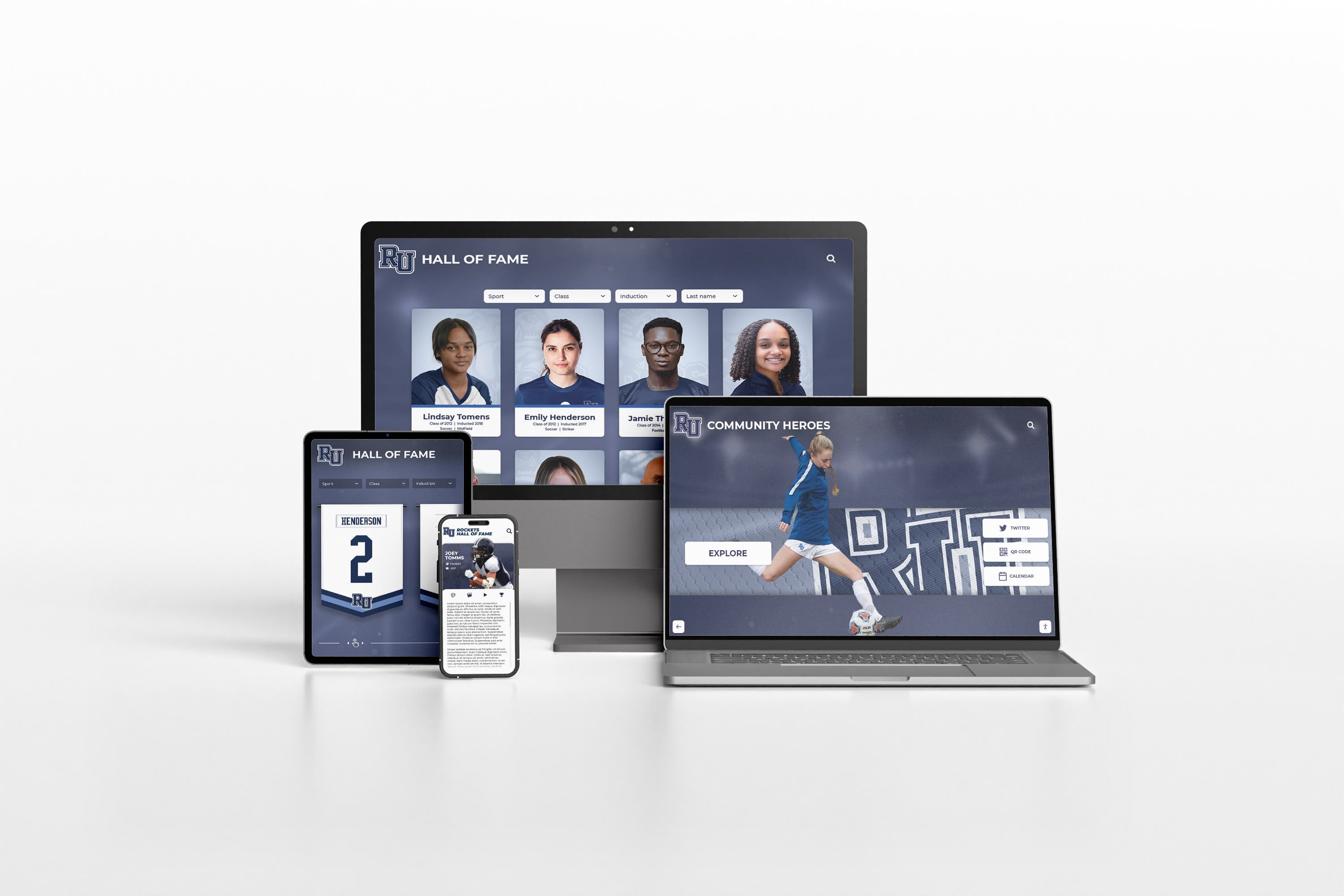
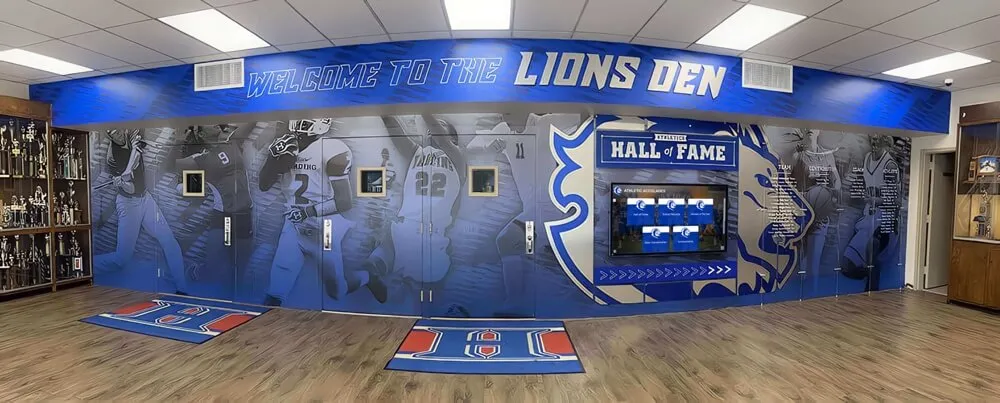
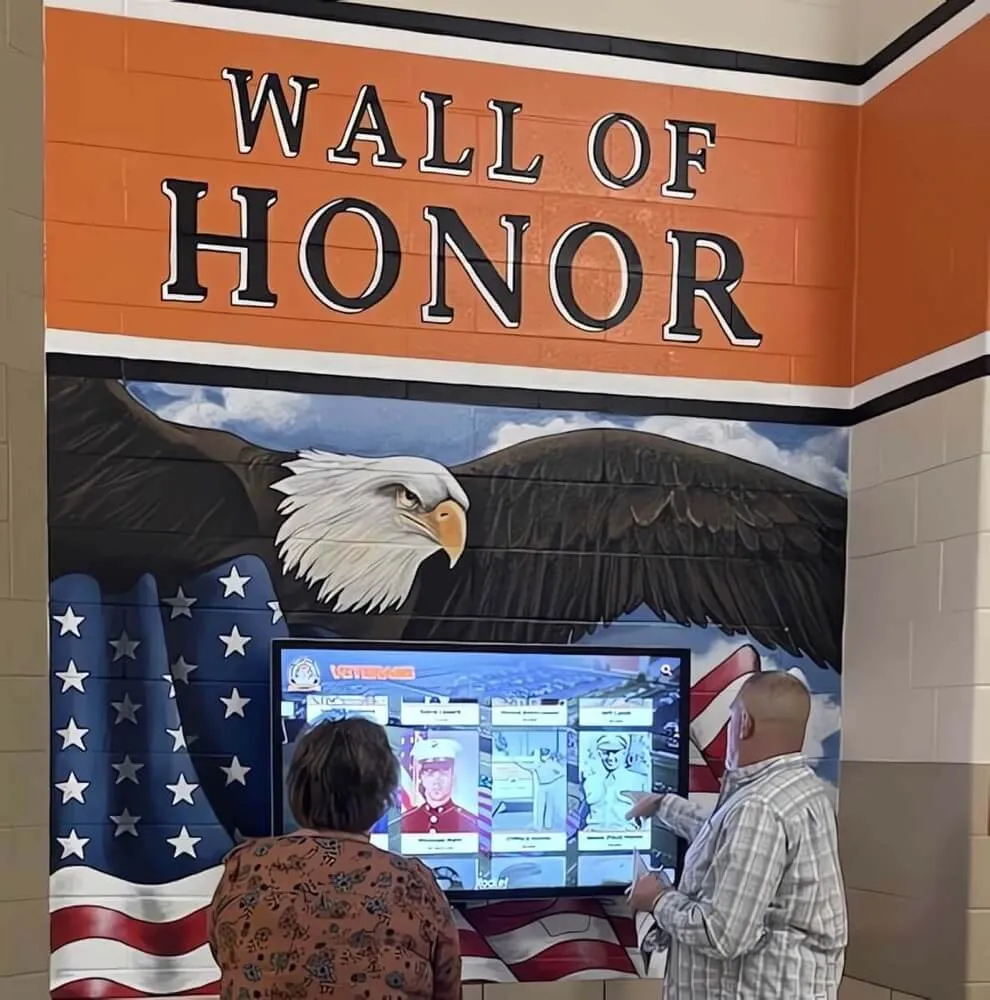
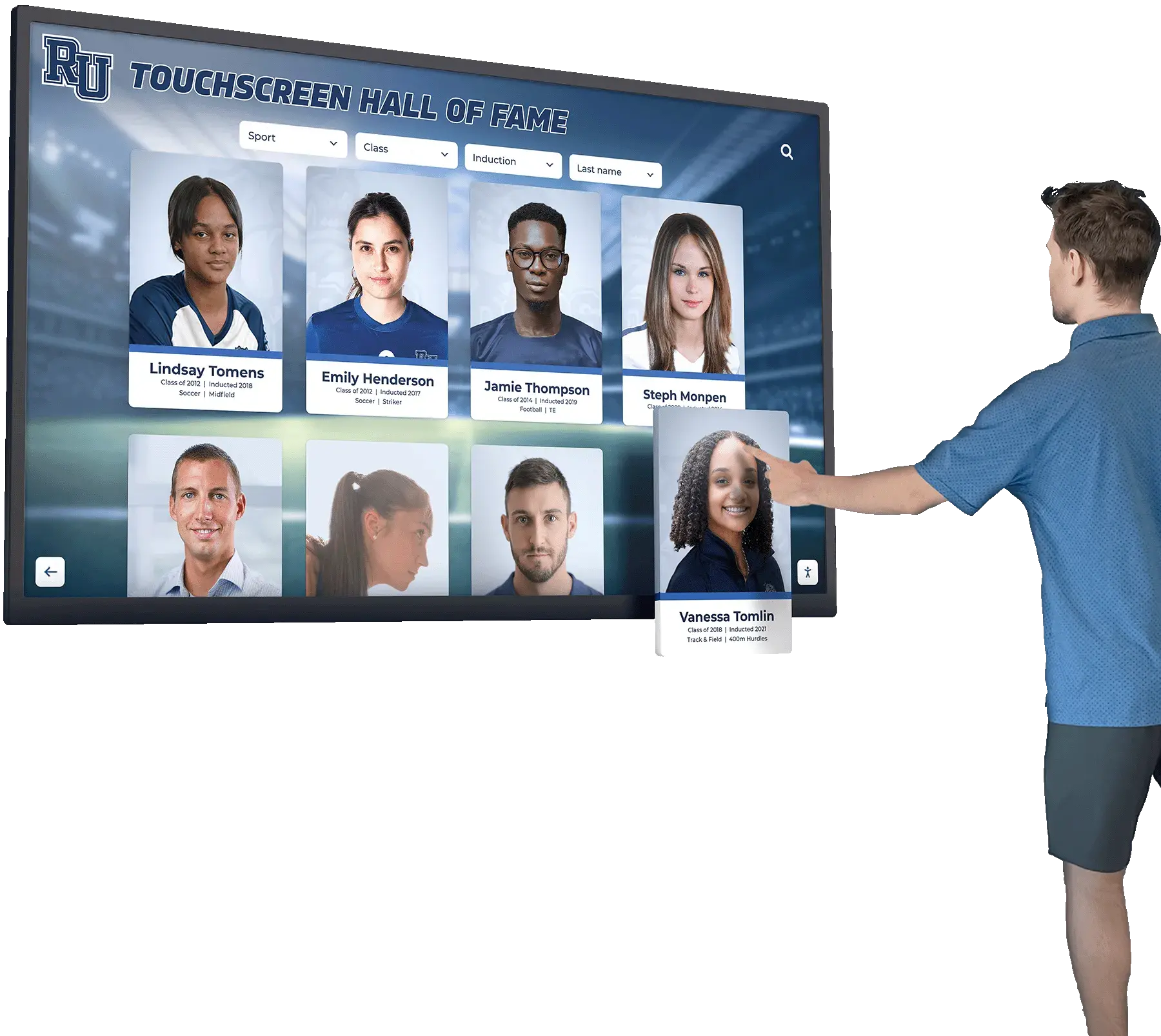
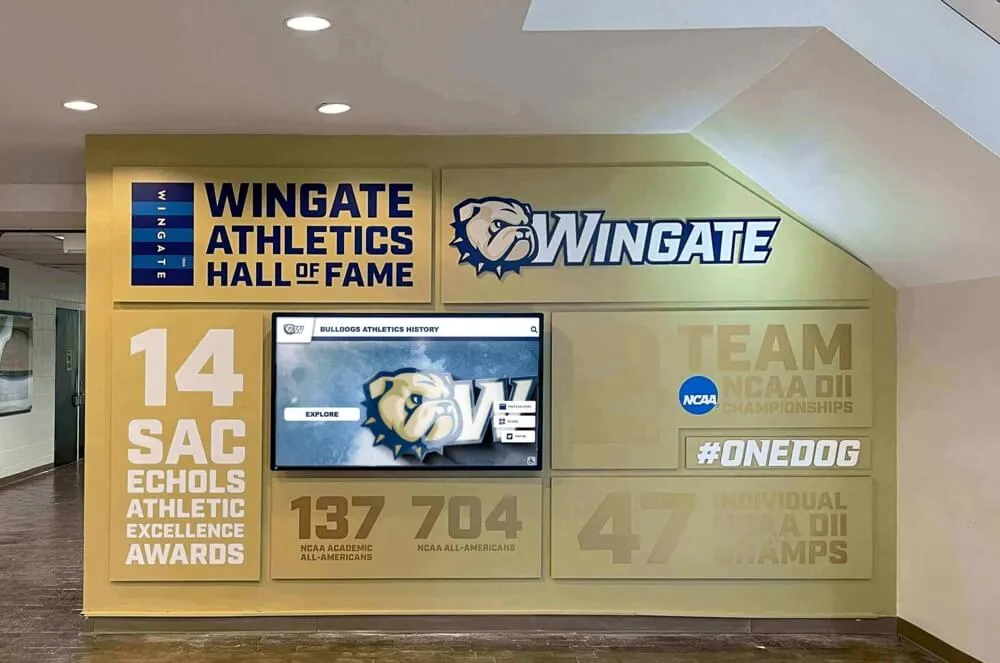
Consistent transcoding settings ensure inductee video loads and plays correctly whether a visitor is at a lobby kiosk, a school website, or a mobile device
Quick-Reference Transcoding Settings Table
Use this table as a one-sheet reference during every transcoding session. Print and post it in the media production area or share it with volunteers who process inductee video submissions.
| Setting | Standard Archive Value | Notes |
|---|---|---|
| Container | MP4 | Universal default; retain original source separately |
| Video codec | H.264 High Profile, Level 4.0 | Use H.265 only if hardware decoder confirmed |
| CRF quality | 18–23 | 18 near-lossless; 23 standard web quality |
| Resolution | 1920 × 1080 | Match display native; see table above for context variants |
| Frame rate | Match source (29.97 / 25 / 23.976) | Do not convert without cause |
| Video bitrate (1080p) | 8–12 Mbps ABR | Two-pass VBR preferred over single-pass |
| Keyframe interval | 2–4 seconds | Required for seeking in tribute and ceremony videos |
| Audio codec | AAC-LC | 48,000 Hz sample rate |
| Audio bitrate | 192 kbps stereo | Downmix surround to stereo before encoding |
| Loudness | -14 LUFS integrated | Normalize all archive files before upload |
| Caption format | SRT + VTT | Burned-in for social clips only; never on archival masters |
| Caption sync | Within 100 ms | Verify on target display hardware, not workstation |
Execution Timeline: Plan → Build → Launch → Refresh
Plan (8–12 Weeks Before Induction Ceremony)
- Audit all video assets received or anticipated: inventory source formats, resolutions, and durations across all inductee submissions
- Confirm kiosk hardware and CMS platform codec support; update the transcoding standard above to match your specific hardware
- Assign a single trained staff member or volunteer as the media transcoding lead with a backup contact
- Set up the archive folder structure:
/[inductee-name]/[video-type]/master/and/[inductee-name]/[video-type]/web-delivery/ - Distribute a video submission guide to inductees and their families explaining acceptable file types and preferred resolution for original submissions
Build (4–8 Weeks Before Ceremony)
- Transcode all collected video files using the quick-reference table above; never skip a file because it “looks fine” on a workstation
- Verify audio on target display hardware for every file—approval on workstation only is not sufficient
- Generate and sync caption files for every video asset with spoken content; validate timing on display hardware
- Upload draft-status files to the CMS; confirm playback on the actual kiosk and web player before committing to the publish queue
Launch (1–2 Weeks Before Ceremony)
- Secondary QC pass: a second staff member watches the first 30 seconds and the last 30 seconds of every uploaded file on the live display
- Verify caption display on the touchscreen—some kiosk browsers require a CSS override to render WebVTT captions correctly
- Set video content to live status in the CMS; enable auto-cycle settings for lobby loop content
- Send inductees a personal link to their profile—including their video—before the ceremony date so families can preview it and share with extended networks
Refresh (Post-Ceremony and Annual)
- Add ceremony recording clips to each inductee profile within two weeks of the ceremony date while the event is still recent
- Run a format audit of the full video archive annually; re-transcode any files that fail playback on updated display hardware or browser versions
- Review caption files for inductees whose biographical captions reference records or affiliations that may have been updated since the original publication
Athletic directors overseeing long-term archive management programs will find complementary workflow guidance in comprehensive athletic director resources that address institutional media management responsibilities alongside recognition programming—including how to document handoff procedures so that archive quality survives staff transitions.
Display Integration: Connecting Transcoded Video to Recognition Modules
Correctly transcoded video files are inputs. The display modules that deliver them to visitors are the outputs. This section maps the two together across your school’s recognition infrastructure.
Touchscreen Kiosk Video Modules
Most touchscreen kiosk platforms serve video in one of two modes: auto-play (video runs in a continuous lobby loop without visitor interaction) and on-demand (video plays when a visitor taps an inductee profile card). Each mode carries distinct transcoding considerations.
Auto-play lobby loop: Encode at CRF 18–20 to ensure crisp motion quality during continuous playback. The kiosk reads the same file thousands of times per year—quality degradation from aggressive lossy compression accumulates visually over long run periods. Limit loop clips to 30–90 seconds; longer files increase local storage requirements and extend cold-start load times.
On-demand profile video: Standard web delivery settings (CRF 20–23, 8–12 Mbps) apply. The CMS streams the file when a visitor taps a profile; local storage is not a constraint. Enable adaptive bitrate streaming if the platform supports it to serve lower-bitrate versions to kiosks on congested school networks during high-attendance periods.
Website and Web Platform Delivery
Recognition websites need two resolution variants for every inductee video: a 1080p primary and a 720p fallback. The HTML5 video element can use the <source> tag to serve the appropriate variant based on connection conditions, but most modern CMS platforms handle resolution selection automatically when both files are uploaded.
Ensure the web player you use supports VTT captions natively. If it does not, confirm whether burned-in captions on the 720p fallback file provide sufficient ADA coverage for your accessibility audit before publishing.
Projector and Auditorium Display
Ceremony video played through a projector or HDMI from a laptop requires a locally stored file rather than a streamed CMS file. Export a dedicated copy at 1080p CBR 12 Mbps from the same master—this avoids buffering in gymnasium environments where Wi-Fi is frequently congested during high-attendance ceremonies, reunions, and athletic banquets.
Donor Recognition and Trophy Display Areas
Donor center touchscreens that combine recognition video with giving-level displays or retired-number tributes often run on different hardware than athletic hallway kiosks. Confirm codec support separately and deliver a dedicated export rather than reusing the kiosk file. Schools building recognition programs across multiple touchpoints and occasions face the same format verification requirement for every new display context—hardware assumptions from one installation do not transfer to another.
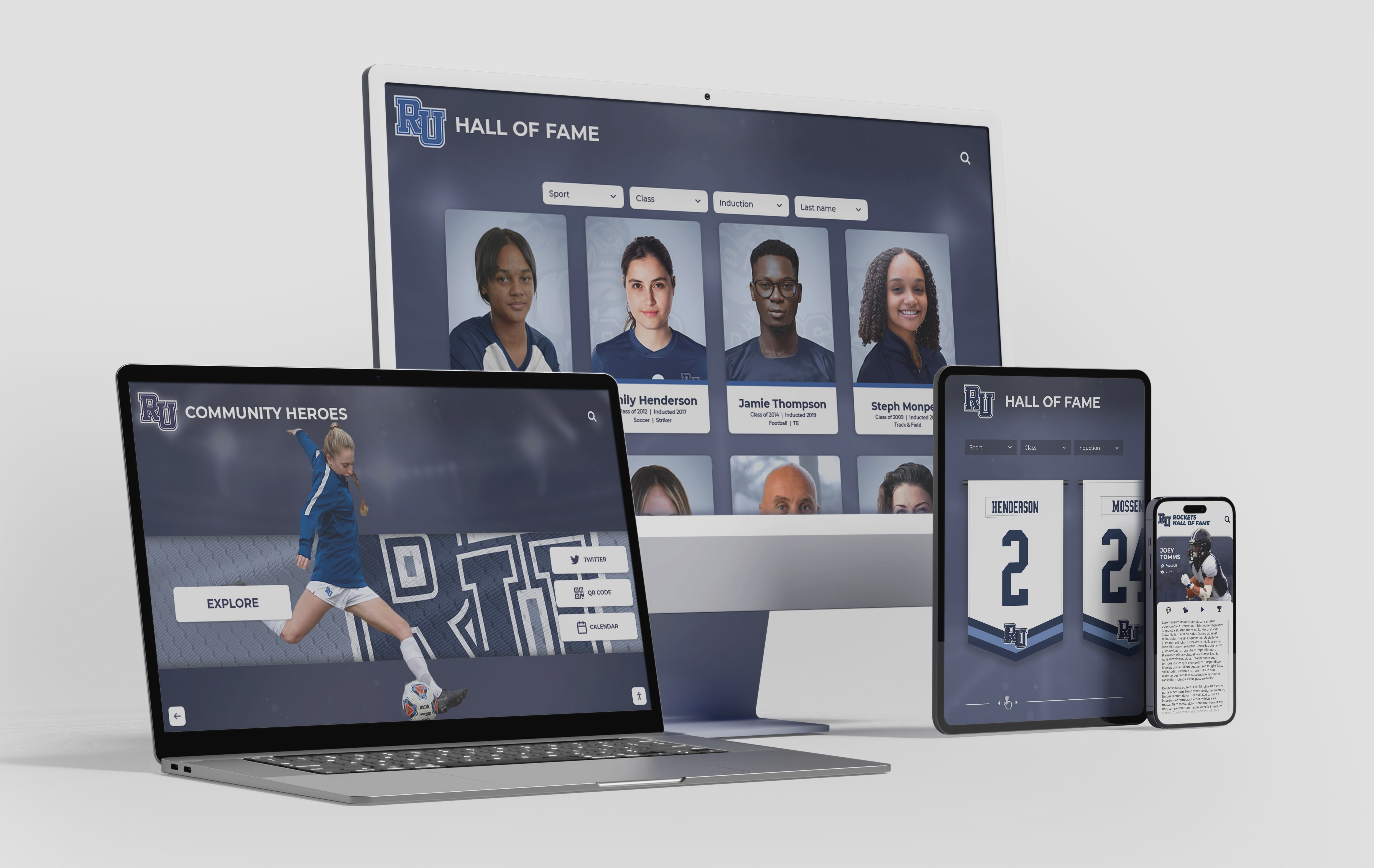
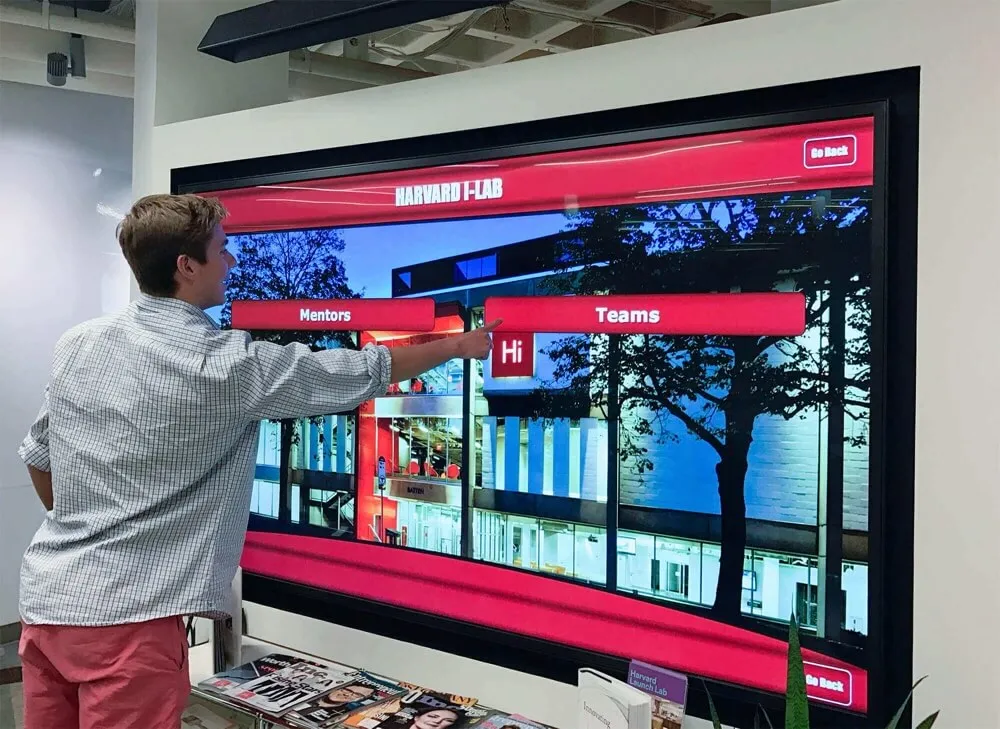
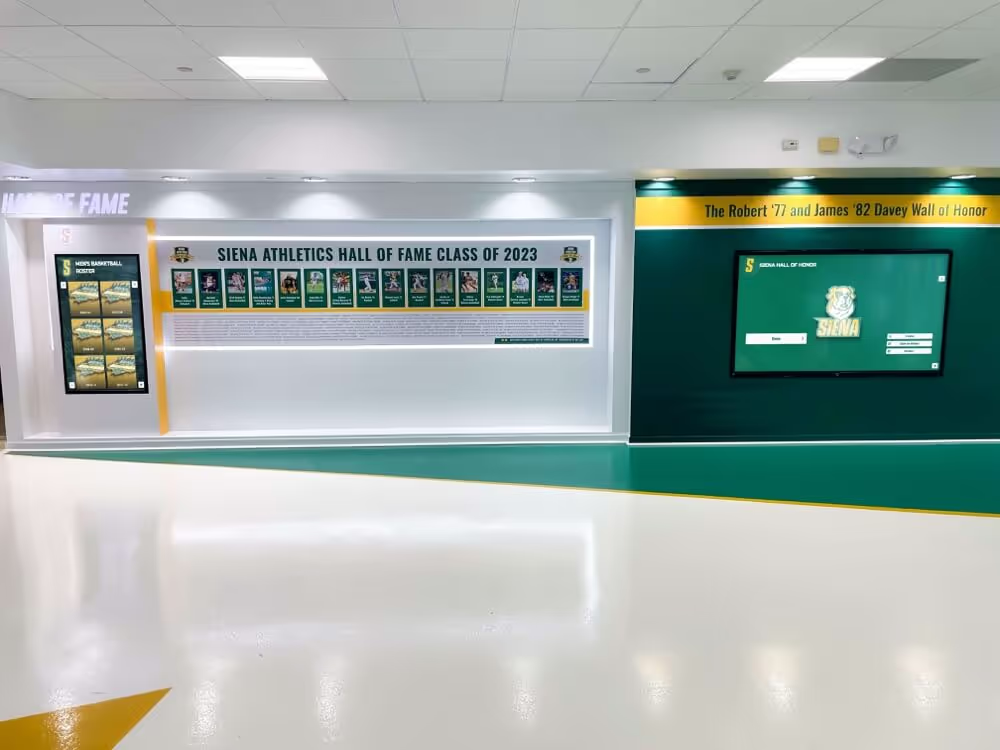
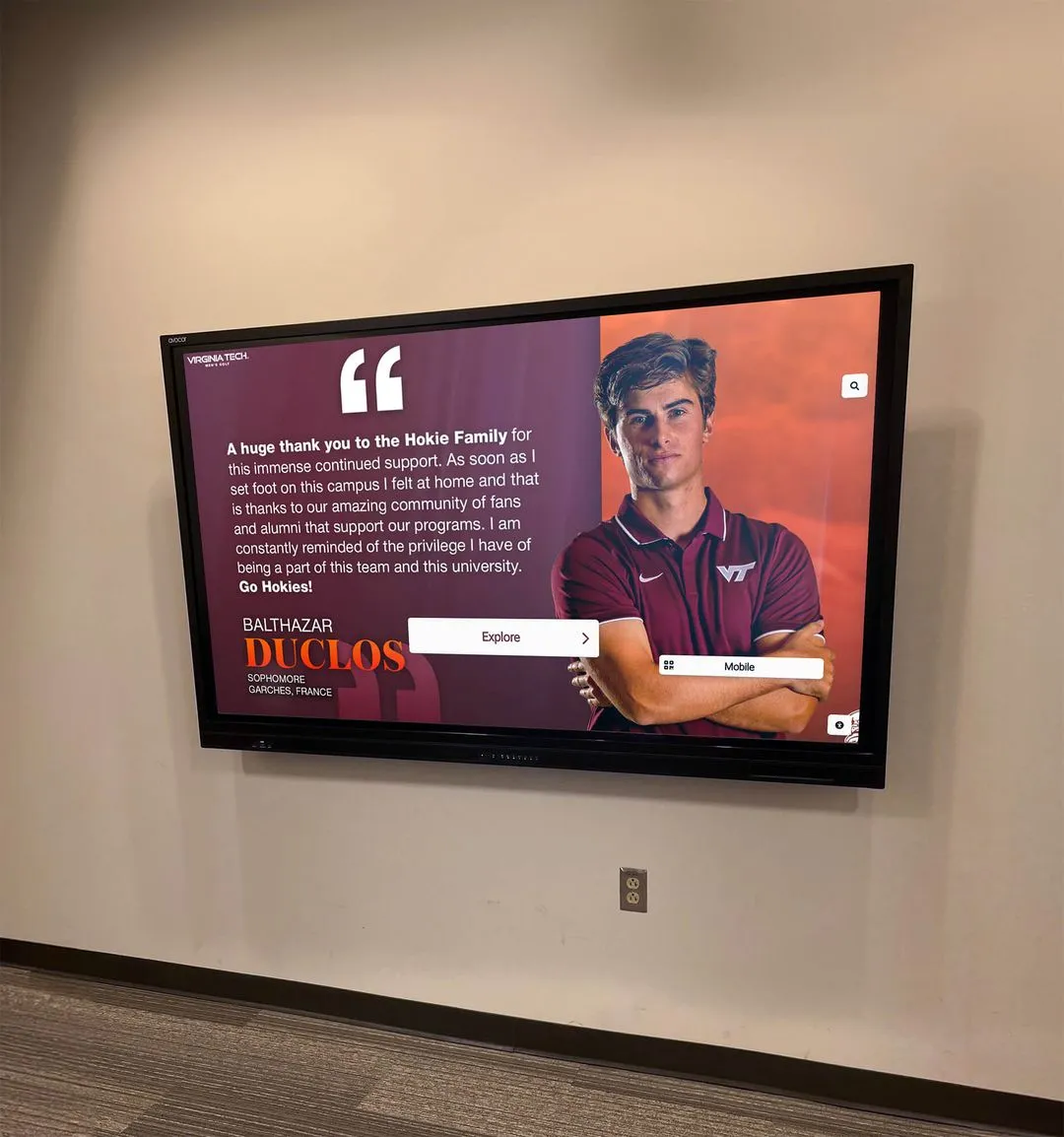
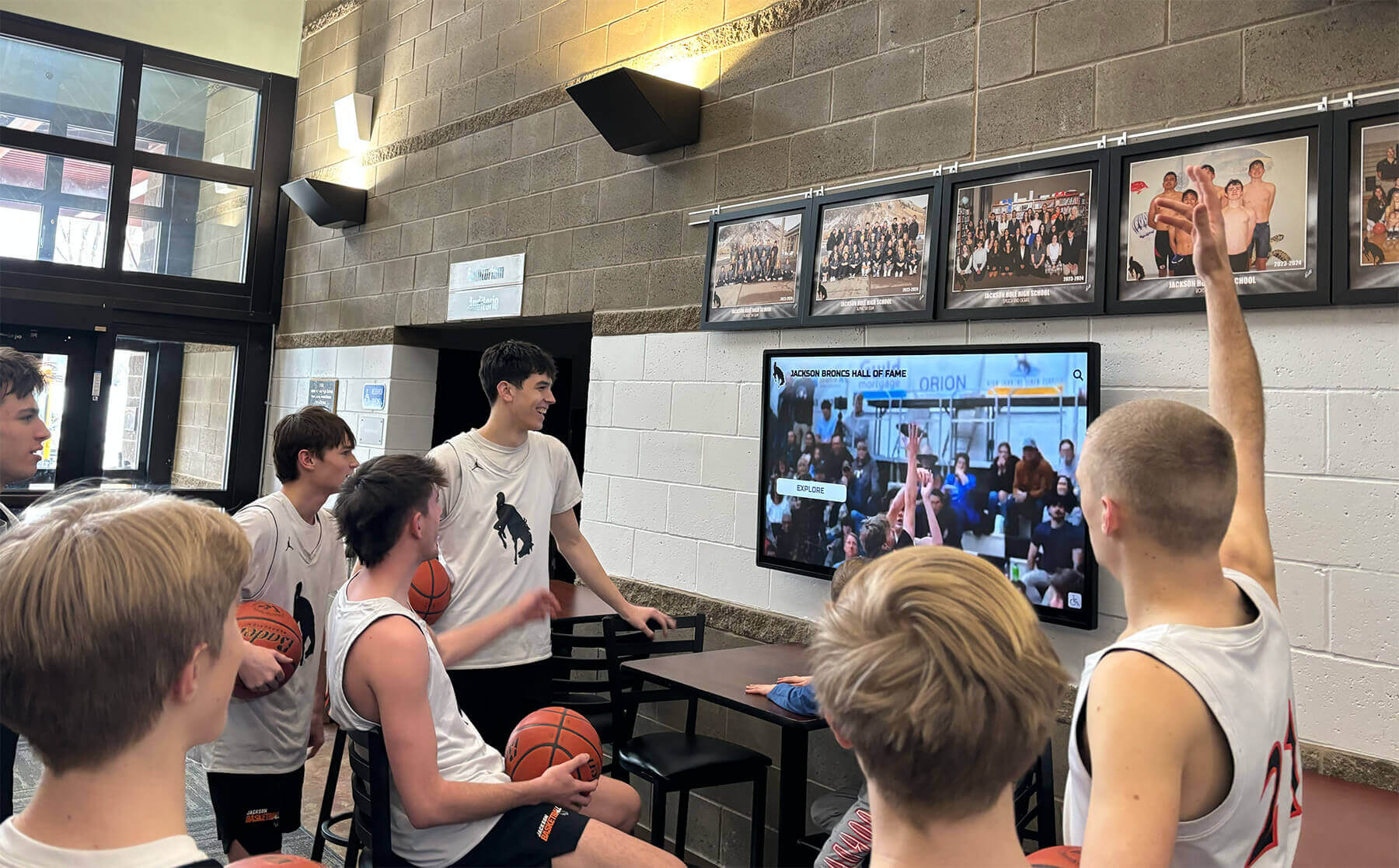
A single correctly transcoded master file can serve lobby kiosks, recognition websites, and mobile browsers when the settings align with each delivery context
Frequently Asked Questions
Q: What transcoding tool should we use for inductee video?
A: For non-technical staff, HandBrake (free and open-source) is the most accessible transcoding application—it provides preset profiles for H.264 web delivery and handles audio normalization with minimal configuration. For IT staff comfortable with command-line tools, FFmpeg offers complete control over every setting in this checklist. Both are free and available for Windows and macOS. Regardless of tool, the output settings in the quick-reference table above apply to both.
Q: Our oldest inductee footage is on VHS tape. Can we still use it?
A: Yes, but VHS requires a capture step before transcoding. VHS tape must be played through a capture device—a video capture card or a dedicated VHS digitizer—that outputs a digital file, typically an AVI or MOV at 640 × 480 resolution. Transcode that captured file using the standard MP4 H.264 workflow. The 480p output reflects the highest quality available from VHS source material. Apply noise reduction and color correction filters before transcoding if the capture is soft or discolored. The result will not match modern HD footage, but it is sufficient for archival display in historical browsing modules.
Q: How do we handle video submitted by inductee families in unknown formats?
A: Accept all formats and transcode at ingestion. Create a standard intake instruction sheet for families that requests video in the highest available resolution and asks them to avoid compressing files before submission—a Google Drive or Dropbox submission link handles large files without email attachment size limits. Transcode every received file through the checklist before it enters the archive. Never deliver a family-submitted file directly to a display platform in its original format.
Q: Does transcoding reduce video quality?
A: All lossy compression reduces quality by a small amount. For school recognition purposes, the quality difference at CRF 18–20 is visually imperceptible on a 1080p display. The critical practice is to transcode once from the original source file rather than repeatedly from a previously transcoded copy—each re-encode compounds quality loss. Store the original source file permanently and transcode a new delivery version whenever display requirements change rather than re-encoding an already-compressed file.
Q: Our CMS platform says it only accepts MP4. Are there format requirements within MP4 we need to meet?
A: Most CMS platforms that accept MP4 expect H.264 video with AAC audio—the standard settings in this checklist. Some older platforms require a specific MP4 profile (Baseline or Main) rather than High Profile. Check your platform’s upload documentation for required profile levels and update the Section 2 codec settings accordingly. High Profile is safe for all modern platforms; use Main Profile only when explicitly required.
Q: How do we handle video when an inductee’s family provides footage that includes other people?
A: Video that includes other identifiable people—teammates, coaches, or crowd members—may require separate rights considerations beyond transcoding. Establish a rights clearance workflow alongside your transcoding workflow, and do not publish footage of identifiable third parties without reviewing your institution’s media consent policies. Your transcoding checklist and your rights documentation workflow should run in parallel, not sequentially.
Measurement: Video Archive Quality Over Time
| Metric | How to Measure | Target |
|---|---|---|
| Playback success rate | Monitor CMS error logs and display hardware alerts monthly | Zero playback failures per 30-day period |
| Caption coverage | Count uploaded video files with companion caption files | 100% caption coverage before any public launch |
| Archive format compliance | Annual audit of all files against the quick-reference table | 100% compliance; flag and re-transcode non-compliant files |
| Loudness consistency | Spot-check LUFS readings on a random 20% file sample | All files within 2 LUFS of the -14 LUFS target |
| File size per minute | Average MB per minute across 1080p archive files | 60–90 MB per minute (consistent with 8–12 Mbps) |
| Visitor video engagement | CMS analytics: average video play duration per inductee profile | 60% or more of video duration completed per session |
Schools that build a measurable media archive program alongside their recognition governance structure—rather than treating video as an afterthought appended to the profile photo—find that video content consistently ranks as the highest-engagement element in every inductee profile view. The investment in a consistent transcoding standard pays dividends across every recognition cycle that follows.
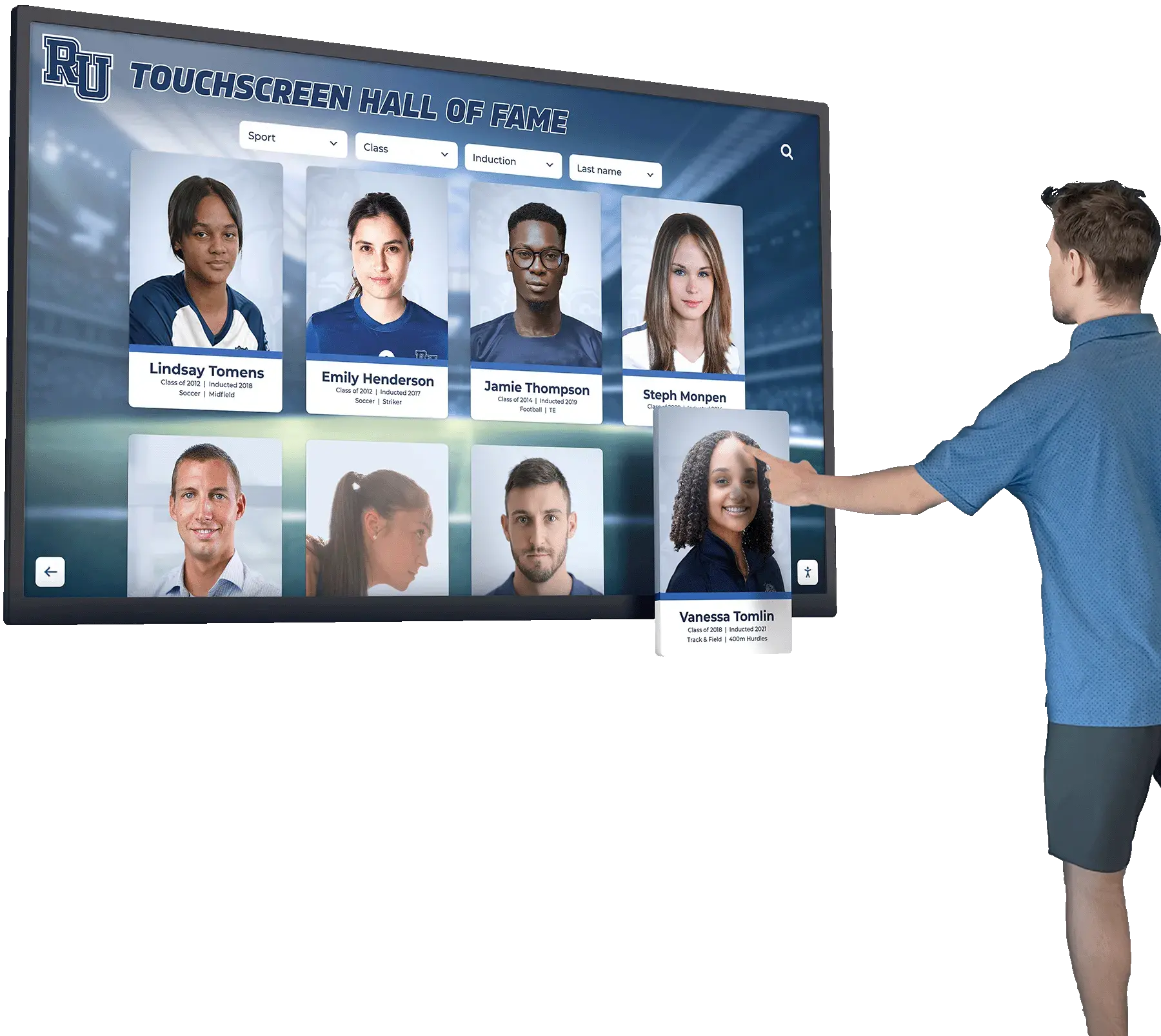
When inductee video is transcoded correctly the first time, visitors engage with profiles longer—and the archive serves every touchscreen, website, and projector without troubleshooting
Connecting Media Quality to a Lasting Recognition Archive
A hall of fame website media transcoding settings checklist is the operational layer between raw video footage and a recognition display that honors inductees with professional-quality media. The six sections above—container format, codec settings, resolution and frame rate, bitrate, audio, and captions—cover every technical decision point between a received video file and a published inductee profile that plays correctly on every device your school uses.
The checklist is also a handoff document. When the staff member who set up this year’s archive transitions to a new role, the settings table survives. When a new volunteer joins the media team mid-cycle, the checklist provides a complete technical brief without requiring institutional knowledge transfer. That continuity is the same value a well-governed recognition program provides to the community it honors: a permanent, reliable record that outlasts any single administrator’s tenure.
Schools building recognition archives that will serve alumni returning for reunions and families visiting for the first time in the same facility need media that loads instantly, plays cleanly, and presents each inductee with the quality their career deserves. A consistent transcoding standard makes that possible—once, for every file, across every display type in the building.
See Inductee Video in a Live Recognition Display
Rocket Alumni Solutions builds cloud-based digital hall of fame platforms designed to accept compliant video files, serve them on touchscreen kiosks and school websites, and keep every inductee profile accessible and searchable for decades. ADA-compliant WCAG 2.1 AA displays, unlimited inductee capacity, and remote CMS management are included.