Digital Hall of Fame Software Inventory Register: What School IT Should Track
- Home /
- Digital Hall of Fame Insights & Resources /
- Digital Hall of Fame Software Inventory Register: What School IT Should Track
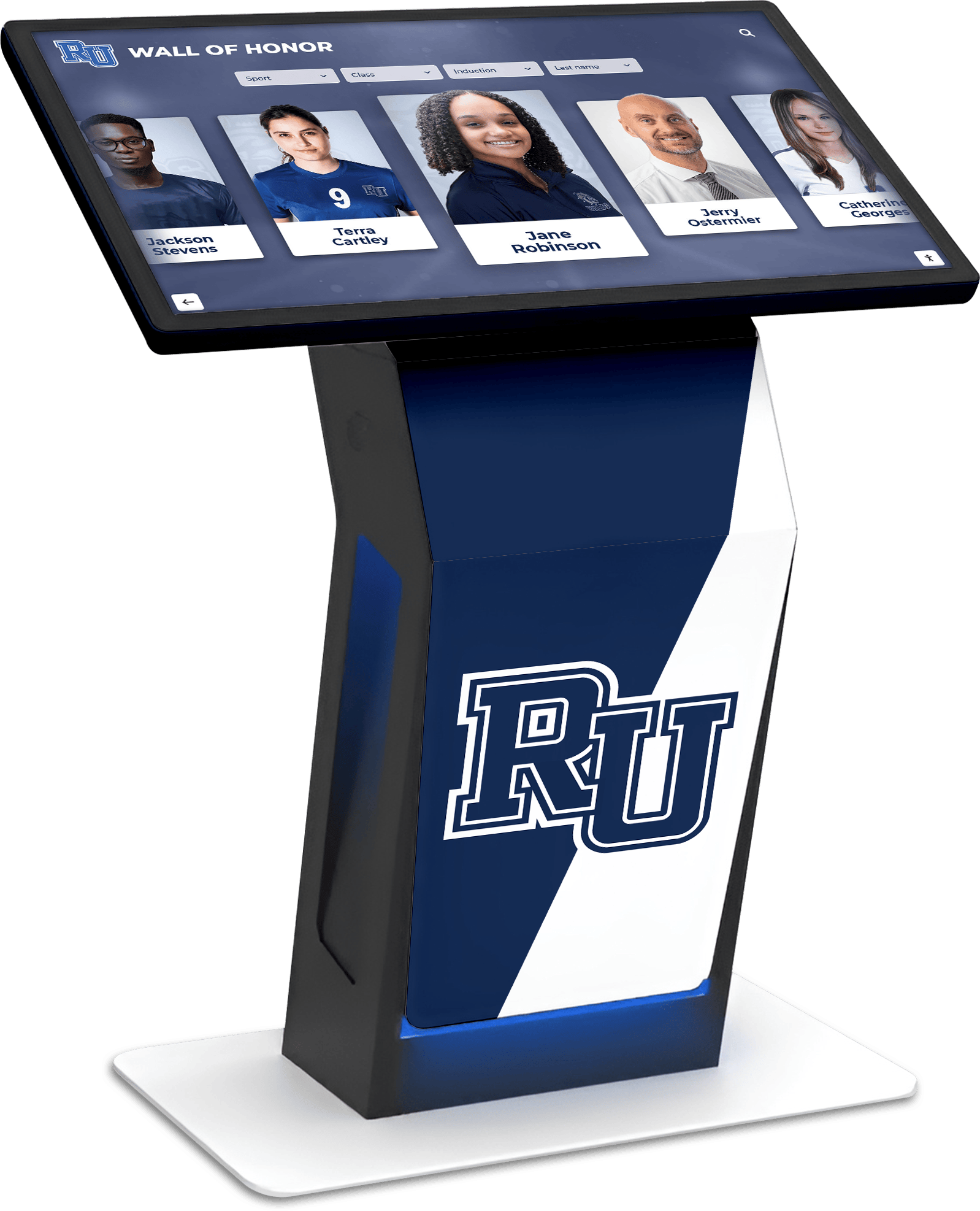
The Easiest Touchscreen Solution




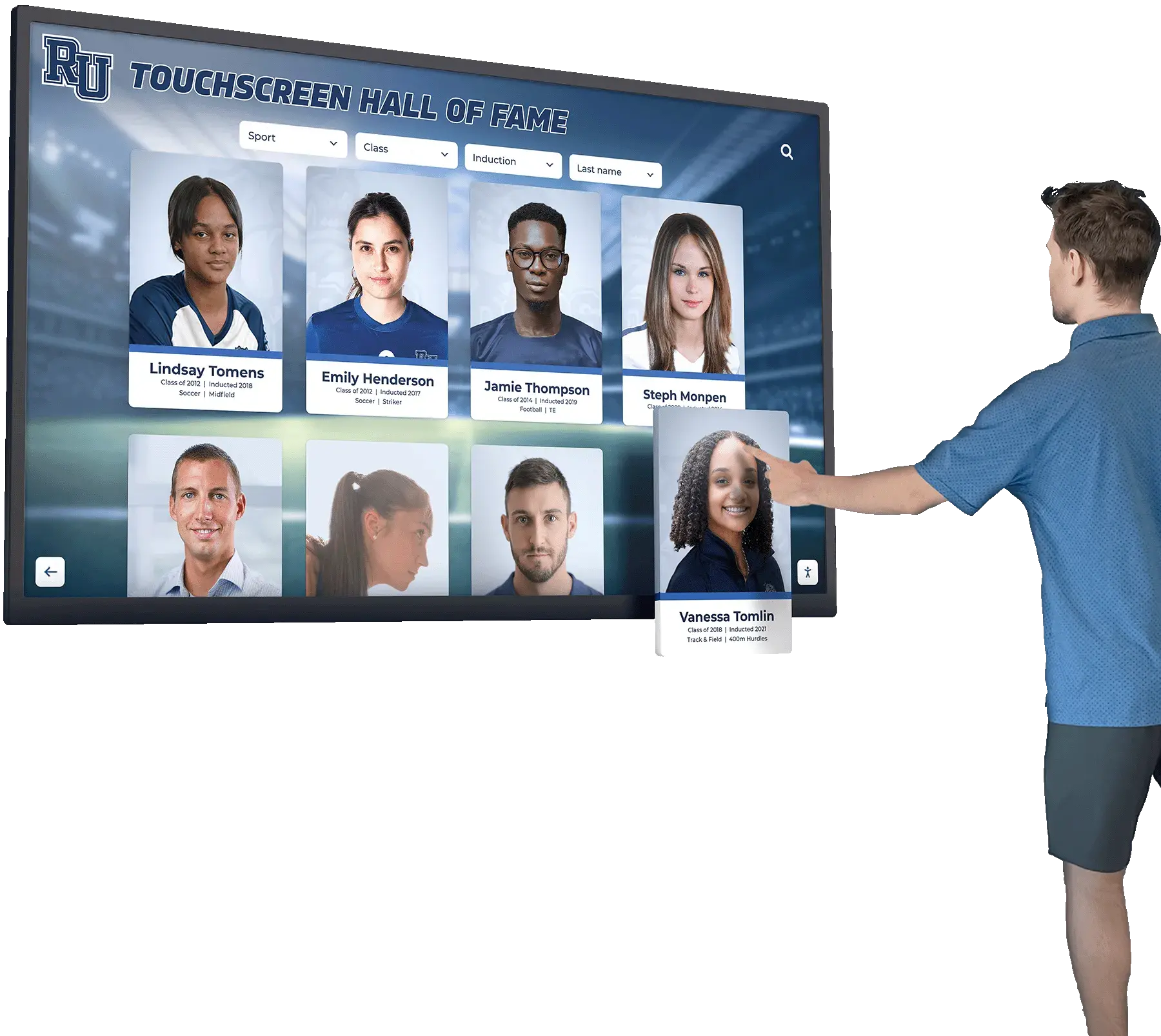
Live Example: Rocket Alumni Solutions Touchscreen Display
Interact with a live example (16:9 scaled 1920x1080 display). All content is automatically responsive to all screen sizes and orientations.
Intent: Define — A digital hall of fame software inventory register is a structured record that school IT departments maintain to document every software layer behind a touchscreen or digital display recognition system: the operating system, kiosk browser, display application, drivers, hardware integrations, API connections, license keys, version numbers, and named owners for each component. Keeping this register current ensures continuity through staff turnover, reduces mean time to resolution when a display goes offline, and gives IT a defensible audit trail at renewal time.
Most schools deploy a digital wall of fame or interactive trophy case and immediately focus on the content experience—who gets inducted, how profiles look, what statistics appear. That focus is correct. But within twelve months, the IT coordinator who configured the kiosk has moved on, the browser has received a silent update that broke kiosk lockdown, and nobody can remember which vendor holds the API key connecting the display to the cloud CMS. A software inventory register prevents every one of those failure modes before they reach game day.
This guide provides a field-by-field inventory template, a recommended review cadence, and practical notes connecting each register entry to the display and recognition workflows your staff runs every week.
When an athletic director asks IT to add a new sport to the recognition wall three days before homecoming, the fastest path from request to published content runs directly through a well-maintained software register. IT knows which CMS account to open, which API credentials govern the integration, and which browser version controls kiosk behavior—no archaeology required.

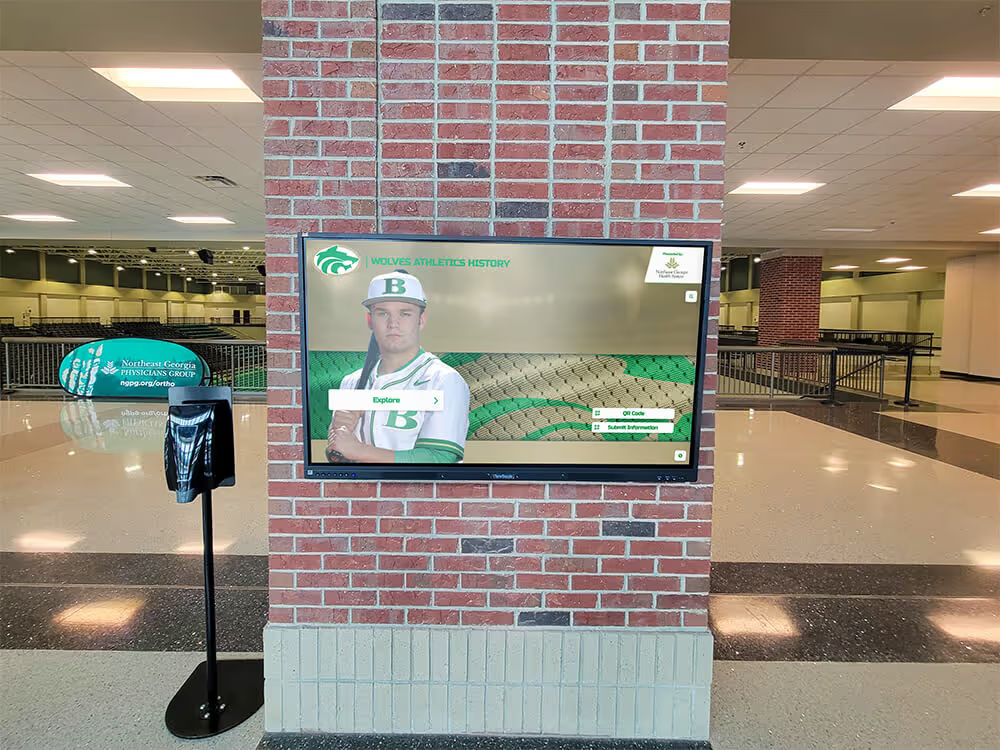
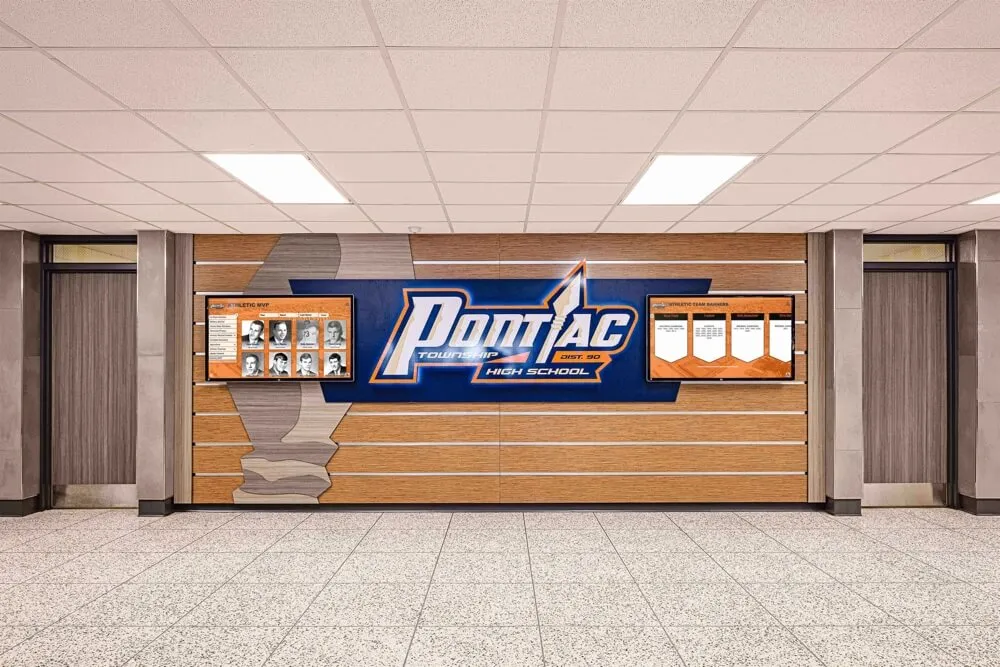
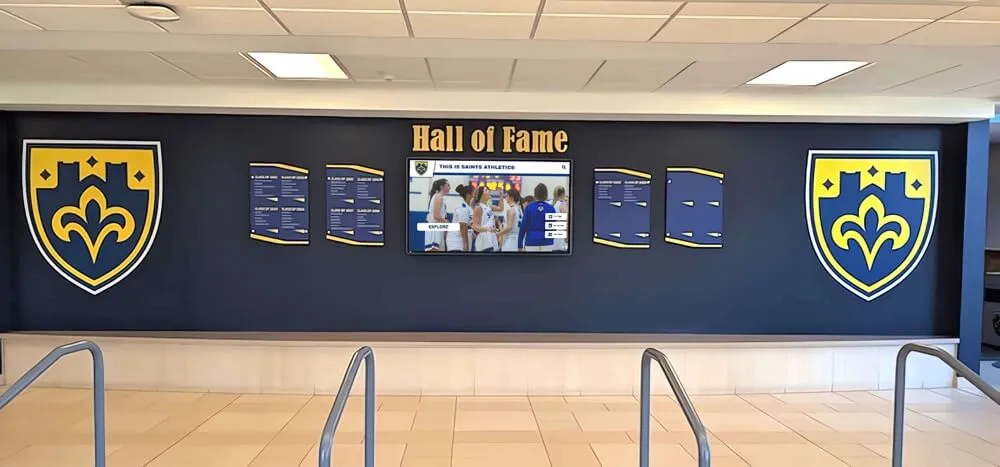
A maintained software inventory register is the IT foundation that keeps touchscreen recognition displays running reliably through staff transitions and software updates
Program Snapshot: What a Digital Hall of Fame Software Stack Contains
Before building your register, map the software layers that actually make up the system. Most school digital recognition installations include all of the following:
| Layer | What It Does | Example Products | Who Typically Owns It |
|---|---|---|---|
| Operating System | Hosts all other software; controls hardware access | Windows 10/11 LTSC, macOS, ChromeOS | IT Department |
| Kiosk Browser / Lockdown App | Restricts the display to approved content; prevents user escape | KioWare, SureLock, Guided Access (iOS), Chrome Kiosk Mode | IT Department |
| Display / Recognition Application | Serves inductee profiles, search, media, and CMS | Rocket Alumni Solutions, custom web app | AD Office / IT joint |
| Drivers | GPU, touch digitizer, USB peripherals | Manufacturer-provided; OS-bundled | IT Department |
| Cloud CMS Integration | Syncs content edits to the on-screen display | OAuth tokens, API keys, webhooks | Vendor + IT |
| Media / CDN Layer | Delivers high-resolution photos and video | Vendor-hosted or school-hosted storage | Vendor or IT |
| Network / VPN / Firewall Rules | Allows the kiosk to reach required endpoints | School firewall whitelist entries | Network Admin |
| License / Subscription | Authorizes ongoing use; governs feature access | Annual SaaS, per-device perpetual | Business Office + IT |
Documenting all eight layers—not just the visible display application—is what separates a software register from a simple vendor contact list.
The Digital Hall of Fame Software Inventory Register: Field-by-Field Template
Copy this table into your IT documentation system (ServiceNow, Notion, Google Sheet, or plain Markdown). Populate every field; leave none blank. “Unknown” is a valid entry that immediately flags a gap requiring follow-up.
Section 1: Operating System
| Field | Your Entry |
|---|---|
| OS Name and Edition | e.g., Windows 11 Pro 23H2 |
| Current Build / Patch Level | e.g., 22631.3880 |
| Last Verified Update Date | YYYY-MM-DD |
| Auto-Update Status | Enabled / Disabled / Managed via WSUS |
| License Type | OEM / Volume / Perpetual |
| License Key or KMS Server | (store in password manager; reference key name here) |
| License Expiry | YYYY-MM-DD or “Perpetual” |
| Owner (Name + Role) | e.g., Jane Smith, IT Coordinator |
| Next Scheduled Review | YYYY-MM-DD |
Section 2: Kiosk Browser / Lockdown Software
| Field | Your Entry |
|---|---|
| Product Name and Version | e.g., KioWare Lite 8.15 |
| License Tier | e.g., Per-Device, Site |
| Licensed Device Count | e.g., 3 |
| License Expiry | YYYY-MM-DD |
| Configuration File Location | e.g., \server\kiosk\config.xml |
| Permitted URL Whitelist (summary) | e.g., *.rocketalumnisolutions.com, *.halloffame-online.com |
| Blocked Feature List | e.g., right-click, task manager, address bar |
| Auto-Restart on Crash | Enabled / Disabled |
| Owner (Name + Role) | |
| Next Scheduled Review | YYYY-MM-DD |
Why this matters: A kiosk browser update that silently re-enables the address bar or task-manager hotkey turns a secure recognition display into an unsupervised public computer. Tracking version and configuration file location lets IT restore lockdown settings within minutes rather than hours. See how platform selection affects these risks in the best digital showcase platforms comparison at Digital Record Board.
Section 3: Display / Recognition Application
| Field | Your Entry |
|---|---|
| Product Name | e.g., Rocket Alumni Solutions Touchscreen |
| Version / Release Tag | e.g., v4.2.1 or “cloud-managed” |
| Deployment Model | SaaS (vendor-hosted) / Self-hosted / Hybrid |
| CMS Login URL | (reference password manager entry) |
| CMS Admin Account Email | |
| CMS Admin Account Owner | Name + Role |
| Secondary / Break-Glass Account | Name + contact |
| Content Last Audited | YYYY-MM-DD |
| Inductee Count (current) | e.g., 347 |
| Sports / Categories Configured | e.g., Football, Basketball, Volleyball, Academic |
| ADA / WCAG Compliance Setting | WCAG 2.1 AA / Not Configured |
| Scheduled Publishing Rules | e.g., New inductees publish first Friday of month |
| Owner (Name + Role) | |
| Next Scheduled Review | YYYY-MM-DD |
Section 4: Drivers and Hardware Integrations
| Field | Your Entry |
|---|---|
| Display Model | e.g., Samsung QM65R 65" Commercial |
| Touch Digitizer Manufacturer | e.g., Elo TouchSystems |
| Touch Driver Version | e.g., EloMT 6.9.0 |
| GPU Driver Version | e.g., NVIDIA 551.86 |
| USB / Serial Peripherals | e.g., barcode scanner (unused), card reader (n/a) |
| Driver Source URL | Manufacturer support page URL |
| Last Driver Update Date | YYYY-MM-DD |
| Owner (Name + Role) | |
| Next Scheduled Review | YYYY-MM-DD |
Outdated touch drivers are among the most common causes of intermittent touch failures on recognition walls. Keeping driver versions in the register means IT can cross-reference release notes during a trouble ticket without physical access to the device. For context on how physical and digital display components interact, see the hybrid donor display comparison at Best Touchscreen.
Section 5: API and Third-Party Integrations
| Field | Your Entry |
|---|---|
| Integration Name | e.g., Google Photos sync, District SSO, Athletic Database feed |
| API Endpoint URL | |
| Authentication Method | OAuth 2.0 / API Key / Basic Auth / None |
| Credential Storage Location | (password manager reference, NOT plaintext here) |
| Credential Expiry / Rotation Date | YYYY-MM-DD |
| Webhook or Polling Frequency | e.g., Real-time / Every 15 min / Manual |
| Last Tested Successfully | YYYY-MM-DD |
| Owner (Name + Role) | |
| Vendor Contact for This Integration | Name + email |
| Next Scheduled Review | YYYY-MM-DD |
Repeat one row per integration. A Rocket Alumni Solutions installation typically involves at least two: the cloud CMS API and any district identity provider (SSO). If your school syncs athletic records from a separate SIS, that connection needs its own row.
Section 6: Network and Firewall Rules
| Field | Your Entry |
|---|---|
| VLAN / Network Segment | e.g., VLAN 40 – AV Kiosks |
| Static IP or DHCP Reservation | IP address or DHCP hostname |
| Required Outbound Domains | e.g., *.rocketalumnisolutions.com, *.cloudflare.com |
| Required Outbound Ports | e.g., 443 (HTTPS), 1194 (OpenVPN if applicable) |
| Firewall Rule IDs | e.g., FW-RULE-0041, FW-RULE-0042 |
| Proxy / SSL Inspection Bypass | Yes / No; bypass rule ID if Yes |
| Content Filter Category Exceptions | e.g., “Social Media” category bypassed for Instagram feed |
| Owner (Name + Role) | Network Admin name |
| Next Scheduled Review | YYYY-MM-DD |
Network rule decay is common in K-12 environments where firewall hardware cycles every three to five years. Documenting rule IDs ensures migration projects carry kiosk exceptions forward automatically rather than discovering the display is offline after a summer infrastructure upgrade.
Section 7: Licenses and Subscriptions Master Summary
Consolidate all active licenses into a single summary table for business-office visibility:
| Component | Vendor | License Type | Annual Cost | Renewal Date | Auto-Renew | Business Office Contact |
|---|---|---|---|---|---|---|
| OS | Microsoft | Volume / OEM | — | — | — | |
| Kiosk Browser | Vendor | Per-device | $ | YYYY-MM-DD | Y/N | |
| Recognition Platform | Rocket Alumni Solutions | Annual SaaS | $ | YYYY-MM-DD | Y/N | |
| Touch Driver (if paid) | Elo / other | — | — | — | — | |
| CDN / Media Storage | Vendor-included / separate | — | — | — | — |
This summary prevents the most expensive IT failure mode in school recognition programs: a lapsed SaaS subscription that blacks out the display on the night of an induction ceremony.
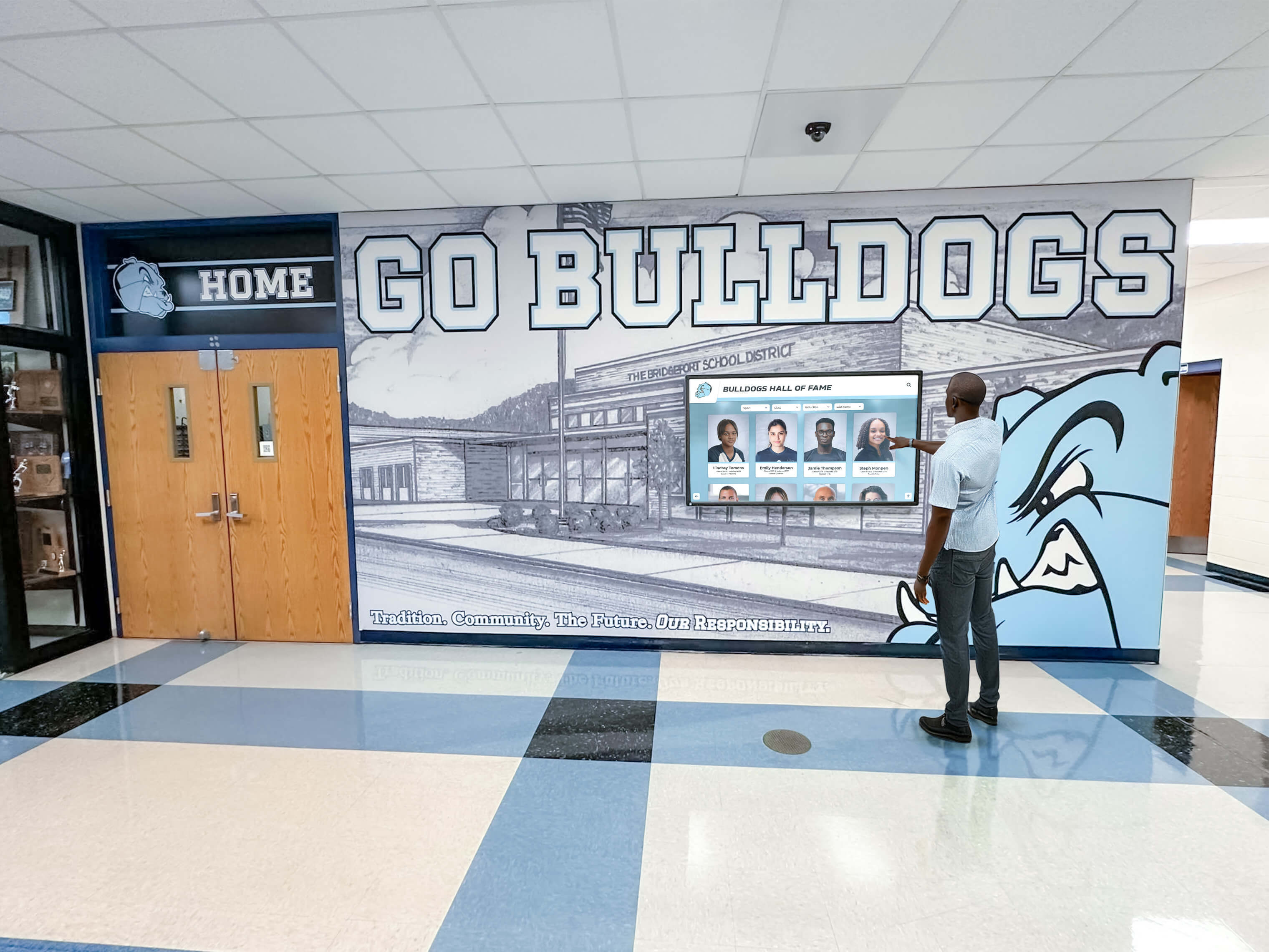
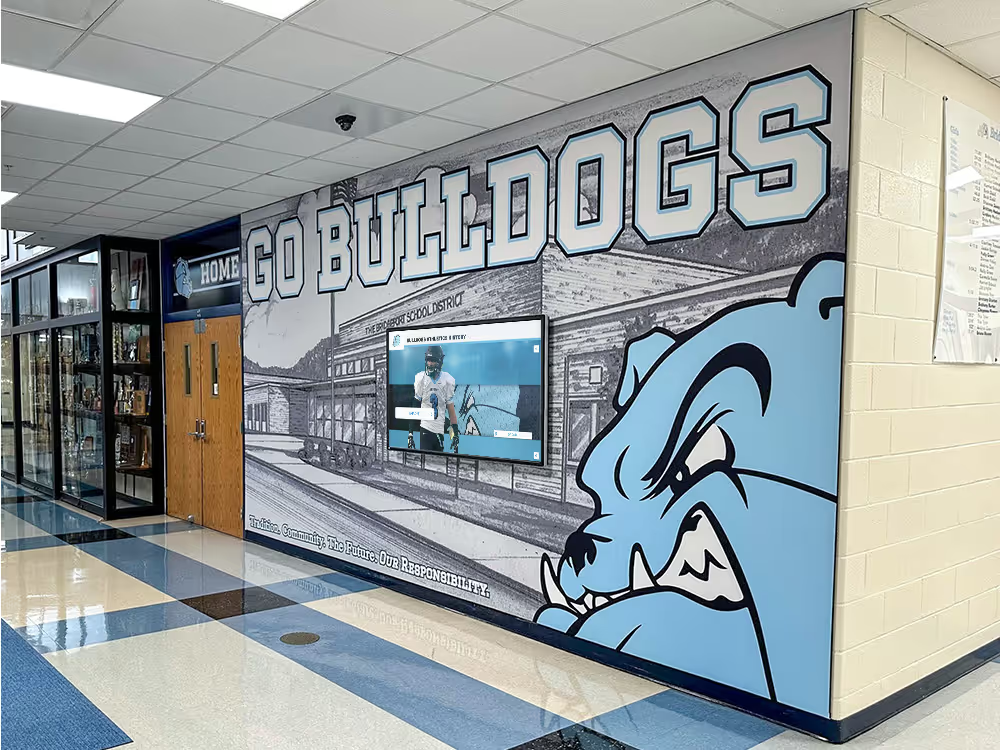
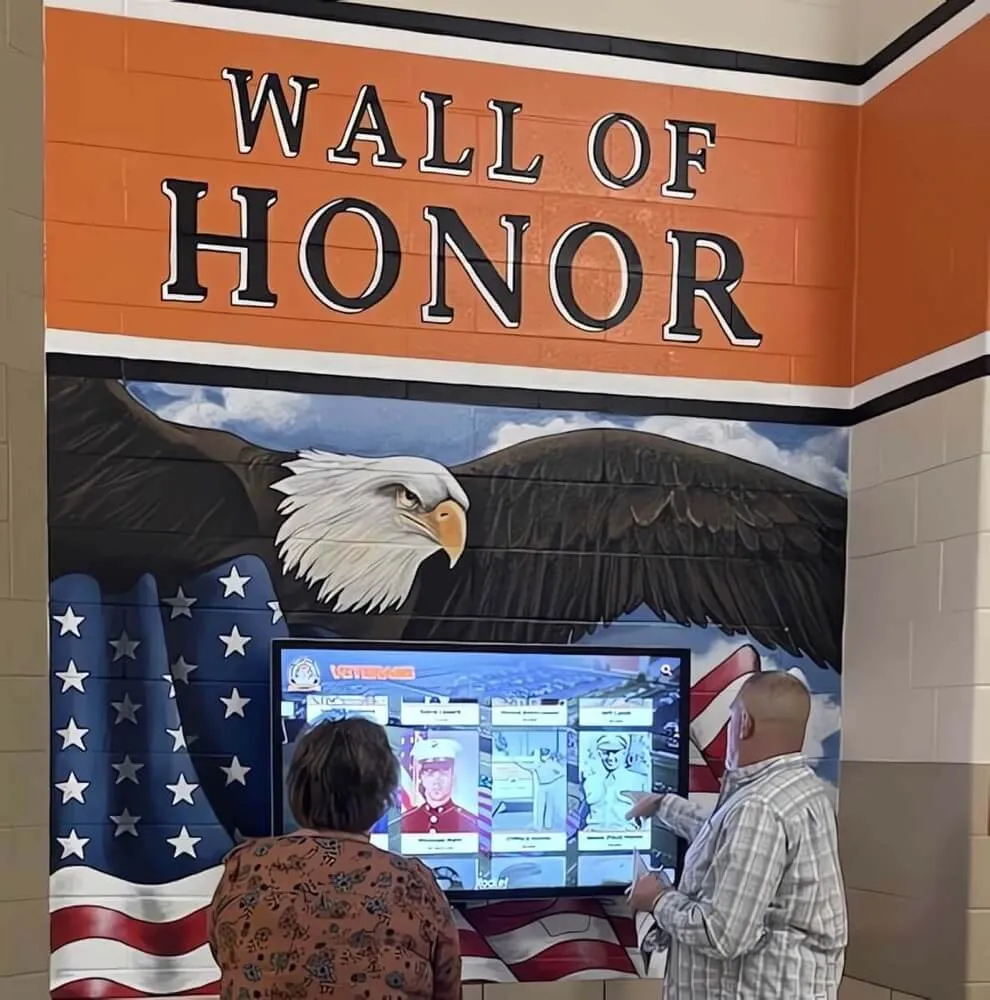
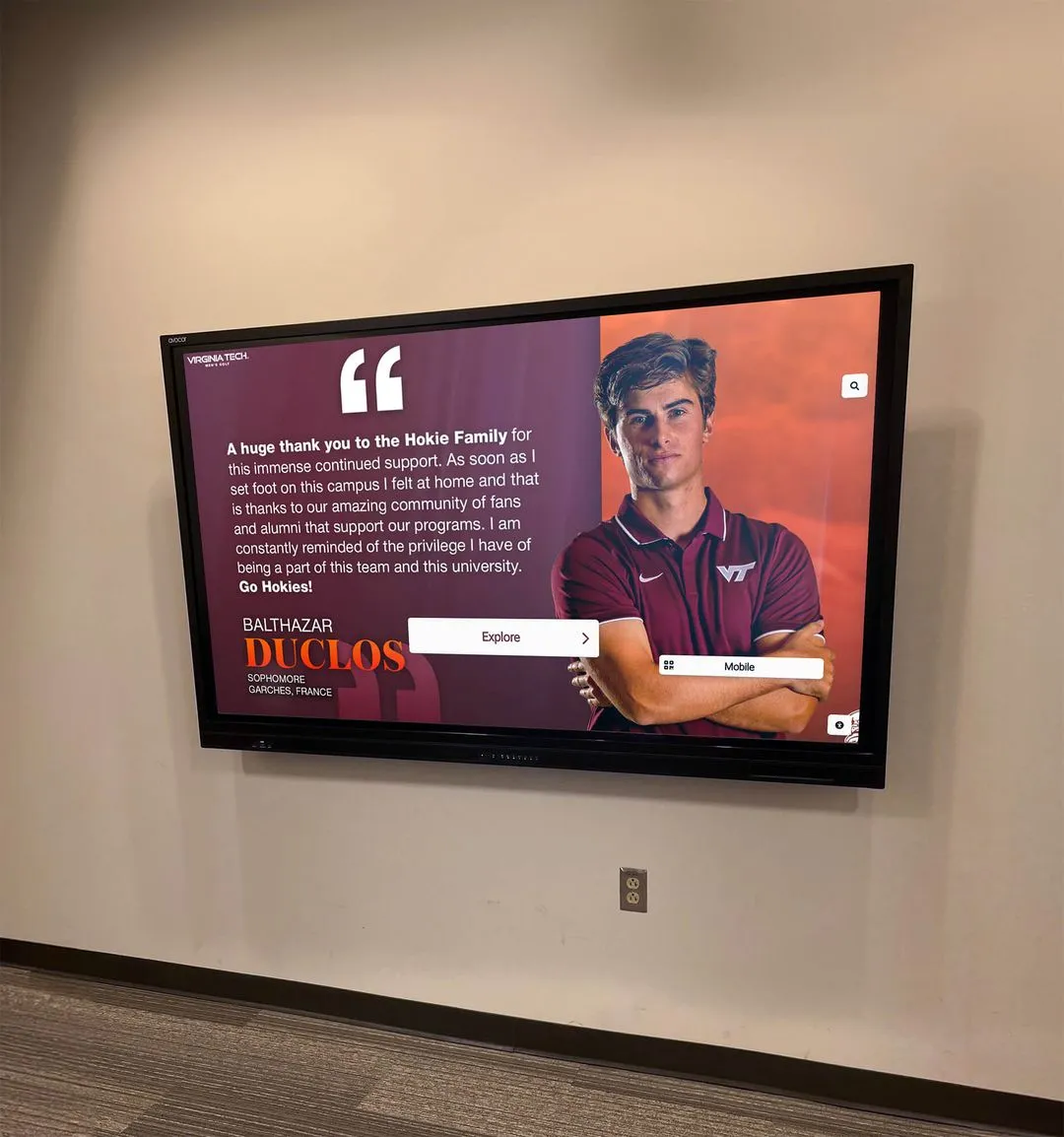
A software register behind every recognition display protects the student and athlete experiences that depend on it running reliably
Content Architecture: Connecting the Register to Recognition Workflows
The software register is not a filing exercise—it actively connects to the workflows that athletic directors, alumni coordinators, and communications staff run throughout the school year.
Inductee Addition Workflow
When the hall of fame committee approves new members, the path to published profiles touches at least four register items:
- CMS Login (Section 3) — staff authenticates to add profile data
- Media / CDN Layer (Section 3, Inductee Count field) — photos upload to the vendor-hosted or school-hosted storage endpoint
- API Integration (Section 5) — if the recognition platform pulls data from a school athletic database, the integration must be active and within its credential rotation window
- Scheduled Publishing Rule (Section 3) — the profile either publishes immediately or waits for the next scheduled release
If any of these four register entries is stale or undocumented, a well-intentioned staff member can spend hours on a task that should take fifteen minutes. For recognition coordinators thinking through ceremony logistics, the athlete name pronunciation guidance at Digital Awards Display is a useful companion resource for parallel ceremony planning.
Display Outage Triage
When a kiosk goes dark, a current register reduces mean time to resolution from hours to minutes:
- Check Section 6 (Network Rules) — is the display reaching its required domains?
- Check Section 2 (Kiosk Browser) — did a recent OS or browser update change lockdown behavior?
- Check Section 4 (Drivers) — is touch input still functioning, or only display output?
- Check Section 3 (CMS / API) — is the cloud application serving content, or has an API credential expired?
Without the register, each step requires logging into a different system with credentials that may live only in a departed employee’s memory. The AI data integrity advisory for digital hall of fame systems discusses broader platform reliability considerations worth reviewing alongside IT documentation practices.
Staff Transition Protocol
School IT experiences high turnover. A software register becomes mission-critical at every transition:
- Incoming IT staff inherit a documented system, not a mystery device
- Outgoing staff complete register updates as part of offboarding checklist
- Business office sees renewal dates without requiring IT interpretation
- Vendor support tickets reference exact version numbers rather than “whatever was installed”
Execution Timeline: Building and Maintaining the Register
Phase 1 — Initial Audit (Weeks 1–2)
Gather every software layer by physically accessing the kiosk device and interviewing the recognition platform vendor:
- Pull installed programs list from the OS
- Screenshot kiosk browser configuration panels
- Request API credential documentation from the recognition platform vendor
- Confirm firewall rules with the network administrator
- Pull license keys from the business office and email archives
Document every field, marking any gaps as “Unknown — follow up by [date].”
Phase 2 — Populate and Review (Week 3)
Enter all collected data into the register template above. For any “Unknown” entries, assign an owner and a deadline. Do not leave the audit phase without a clear path to completing each gap.
Phase 3 — Establish Review Cadence
| Trigger | Register Sections to Review |
|---|---|
| Quarterly (every 90 days) | API credential expiry dates (Section 5); kiosk browser version (Section 2) |
| Annually (before school year) | License renewal summary (Section 7); OS patch level (Section 1); driver versions (Section 4) |
| After any OS or browser update | Kiosk lockdown configuration (Section 2); touch driver compatibility (Section 4) |
| After staff transition | CMS admin accounts (Section 3); API credential owners (Section 5) |
| After firewall hardware replacement | Network rules and port exceptions (Section 6) |
| After vendor release notes | Display application version (Section 3); integration compatibility (Section 5) |
A quarterly 30-minute review of the full register catches the majority of expiry and version drift issues before they surface as display failures.
Display Integration: How the Register Supports Remote Management
Modern recognition platforms like Rocket Alumni Solutions operate primarily through cloud CMS interfaces, meaning many content changes—adding inductees, updating statistics, scheduling announcements—happen remotely without physical kiosk access. The register supports this model in three ways:
Remote Access Documentation
Section 3 of the register documents CMS login URLs and account credentials (by reference to a password manager, never in plaintext). When an athletic director calls IT from a remote location because a profile photo failed to display, IT can authenticate to the CMS, diagnose the issue, and resolve it without touching the physical device.
Scheduled Publishing Alignment
Section 3 records the scheduled publishing rules that govern when new content goes live. Rocket Alumni Solutions supports scheduled publishing for coordinated induction announcements, seasonal record board updates, and donor recognition refreshes. IT and the recognition coordinator must agree on these schedules and document them in the register to avoid conflicting updates. For guidance on how digital displays align with seasonal program cycles, see the sports season recap approach at Archival Displays.
ADA and WCAG Compliance Tracking
Section 3 includes the ADA/WCAG compliance setting. Rocket Alumni Solutions platforms target WCAG 2.1 AA—the standard for color contrast, text scaling, touch target sizing, and screen reader compatibility. The register records whether this setting is active and last audited, giving the school a documented compliance position for any accessibility review.
Unlimited Inductee Scalability
Because Rocket Alumni Solutions supports unlimited inductees, the inductee count field in Section 3 grows over time without triggering license renegotiation. IT should update this field at each quarterly review simply to give the business office an accurate picture of content scope—useful context when evaluating storage or bandwidth usage alongside the best digital showcase platform options.
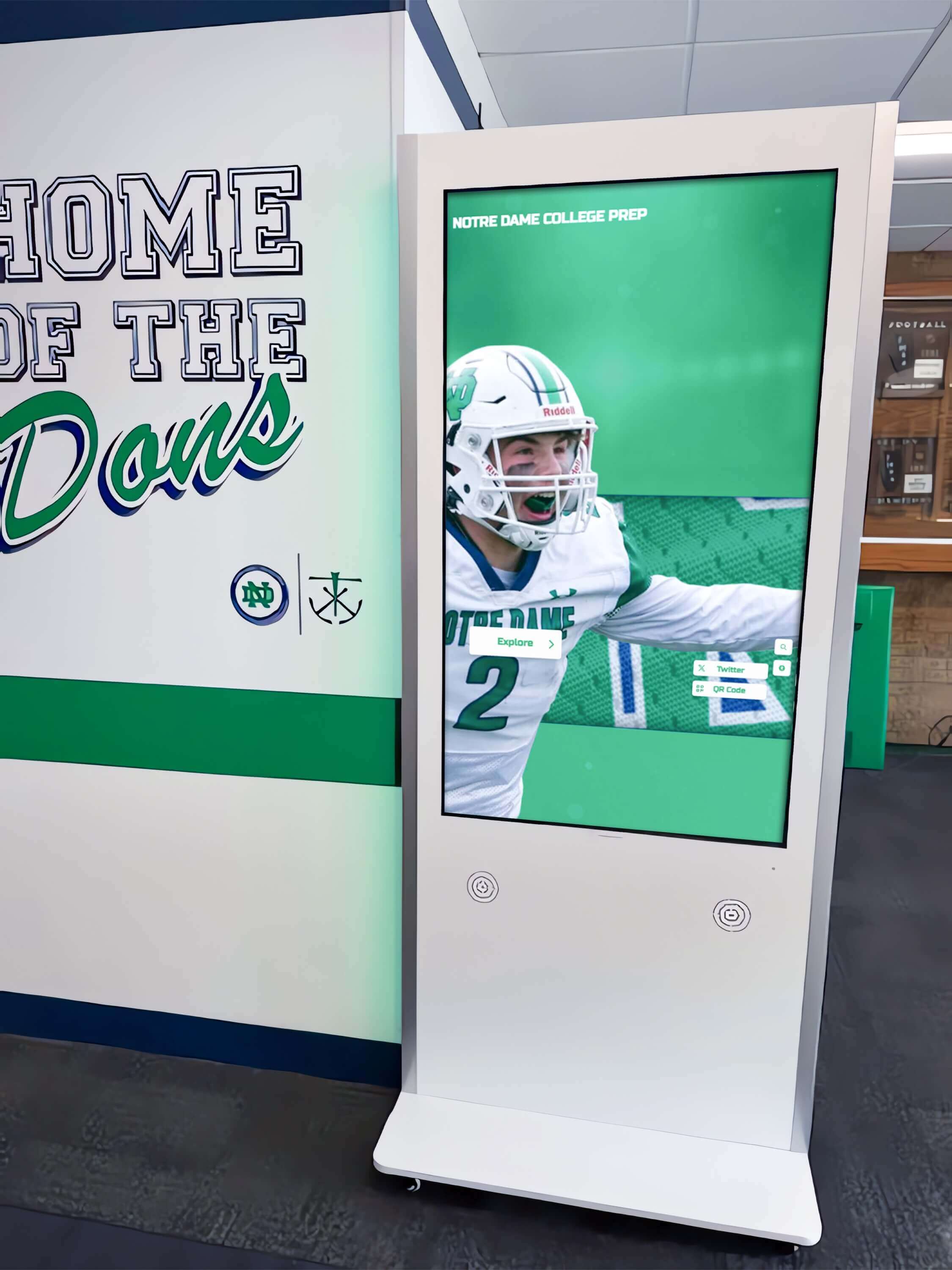
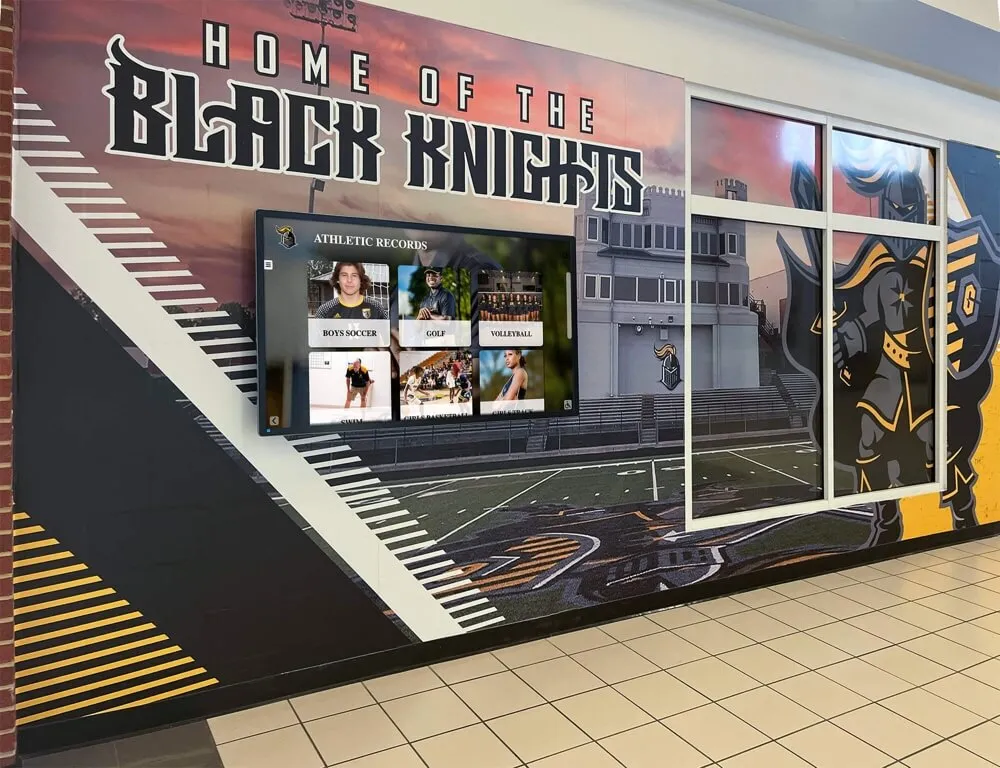
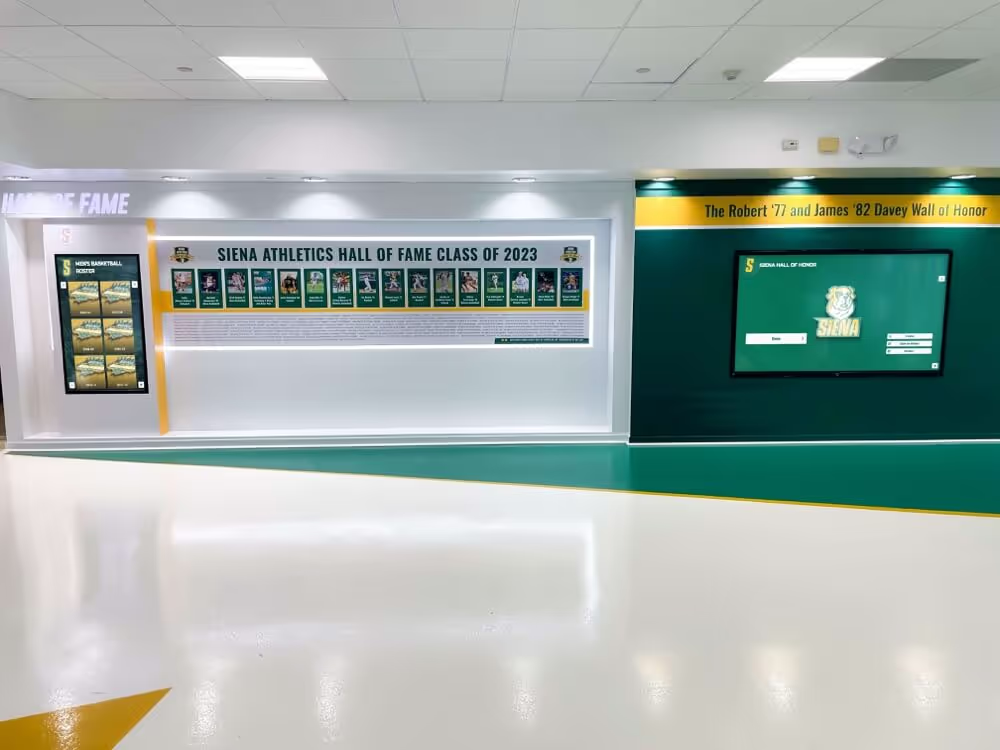
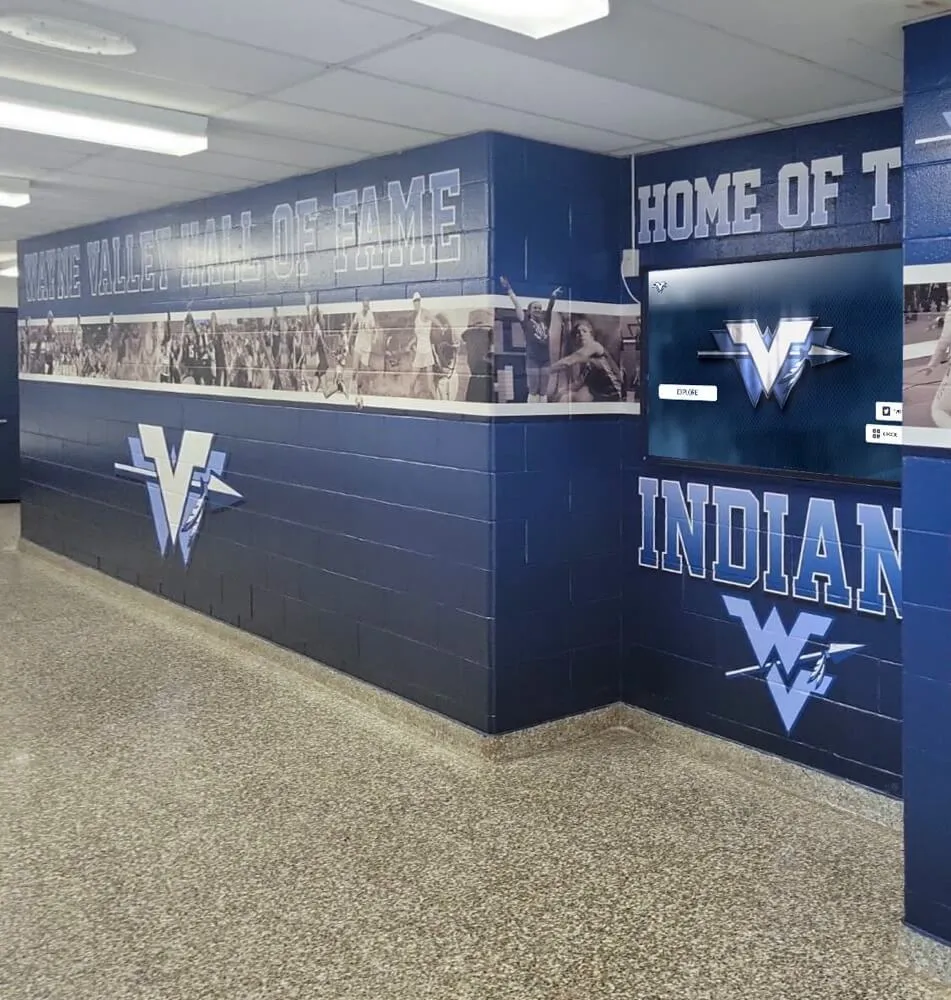
Cloud-managed recognition platforms reduce on-site IT burden while requiring clear documentation of CMS accounts, API credentials, and scheduled publishing rules
Reusable Artifact: IT Handoff Checklist for Digital Hall of Fame Systems
Use this checklist when onboarding a new IT contact or transferring recognition system ownership:
DIGITAL HALL OF FAME — IT HANDOFF CHECKLIST

□ Software inventory register shared and reviewed with incoming owner
□ OS license key transferred to password manager (reference added to Section 1)
□ Kiosk browser configuration file backed up to documented network location
□ CMS admin account updated to incoming owner's email
□ Secondary (break-glass) CMS account confirmed active
□ API credential rotation scheduled for within 30 days of transition
□ Vendor support contact and account number shared with incoming owner
□ Firewall rule IDs documented and verified still active
□ Touch driver version confirmed against manufacturer's current release
□ License renewal calendar invites sent to incoming owner and business office
□ Scheduled publishing rules reviewed with athletic director / recognition coordinator
□ Physical device location, power reset procedure, and remote access method documented
□ Next quarterly register review scheduled (date: _______________)
Print or paste this into your helpdesk ticket system as a standard offboarding task for any staff member with recognition system ownership.
Frequently Asked Questions
What is a digital hall of fame software inventory register?
A software inventory register for a digital hall of fame is a structured document that tracks every software component behind the recognition display: operating system, kiosk browser, display application, hardware drivers, API integrations, network rules, license keys, version numbers, and named owners. It functions as the authoritative reference IT staff use for maintenance, troubleshooting, and staff transitions.
How often should a school update its software inventory register?
Review API credentials and kiosk browser versions quarterly (every 90 days). Review the full register annually before the school year. Trigger an immediate partial review after any OS or browser update, staff transition, or firewall hardware replacement. A 30-minute quarterly review catches most issues before they cause display failures.
What software does a digital hall of fame kiosk typically run?
A typical school digital hall of fame kiosk runs an operating system (Windows, macOS, or ChromeOS), a kiosk lockdown browser or app (such as KioWare or Chrome Kiosk Mode), the display and recognition application (such as Rocket Alumni Solutions), manufacturer-provided touch and GPU drivers, and at least one cloud API integration connecting the on-screen display to the CMS where staff manage inductee content.
Who should own the digital hall of fame software inventory register?
Primary ownership belongs to IT, since the register covers OS, drivers, network rules, and credentials. Secondary ownership—specifically for the CMS account and inductee count fields—belongs to the athletic director, alumni coordinator, or recognition program lead. Both parties should review the document at the start of each school year and update their respective sections after any relevant change.
What happens if a license expires on a digital hall of fame display?
The consequence depends on the software layer. An expired kiosk browser license may disable lockdown features, exposing system controls to anyone who approaches the screen. An expired recognition platform subscription typically blacks out the display entirely or reverts it to a demo state. Either outcome is visible to students, families, and visitors in high-traffic hallways. The license summary table in Section 7 of the register, reviewed annually by the business office, prevents both scenarios.
How does a software register support ADA compliance for recognition displays?
The register documents the WCAG 2.1 AA compliance setting for the recognition application—a field that gives the school a documented compliance position. Rocket Alumni Solutions platforms are designed to meet WCAG 2.1 AA standards covering color contrast ratios, touch target sizing, text scaling, and keyboard navigation. Recording this in the register ensures the compliance setting is preserved across software updates and that the IT team can verify its status without navigating the full CMS interface.
Should API credentials be stored in the software inventory register?
No. The register should reference the credential by name and point to the password manager entry where the actual value is stored. Storing credentials in plaintext in a shared document creates a significant security exposure. The register should document who owns the credential, when it expires, and what the rotation schedule is—not the credential itself.
What is the relationship between a software inventory register and a vendor contact list?
A vendor contact list is a subset of a software register. The register includes vendor contact information as one field within a broader record that also covers version numbers, license keys, configuration file locations, network rules, and review cadences. A contact list alone cannot support a triage call at 7 PM before a home game when the display goes offline.
A complete digital hall of fame software inventory register is the document your IT team will reach for the moment something goes wrong—and the document that prevents most problems from happening in the first place. Schools that maintain it consistently protect both the technology investment and the recognition experiences that students, athletes, alumni, and families depend on throughout the year.
To see how a purpose-built recognition platform simplifies the software stack your register needs to track, request a free custom demo at Rocket Alumni Solutions and walk through the CMS, API integrations, and compliance settings with a specialist.
Live Example: Rocket Alumni Solutions Touchscreen Display
Interact with a live example (16:9 scaled 1920x1080 display). All content is automatically responsive to all screen sizes and orientations.