Digital Hall of Fame Reflow Accessibility Test at 400% Zoom
- Home /
- Digital Hall of Fame Insights & Resources /
- Digital Hall of Fame Reflow Accessibility Test at 400% Zoom
The Easiest Touchscreen Solution




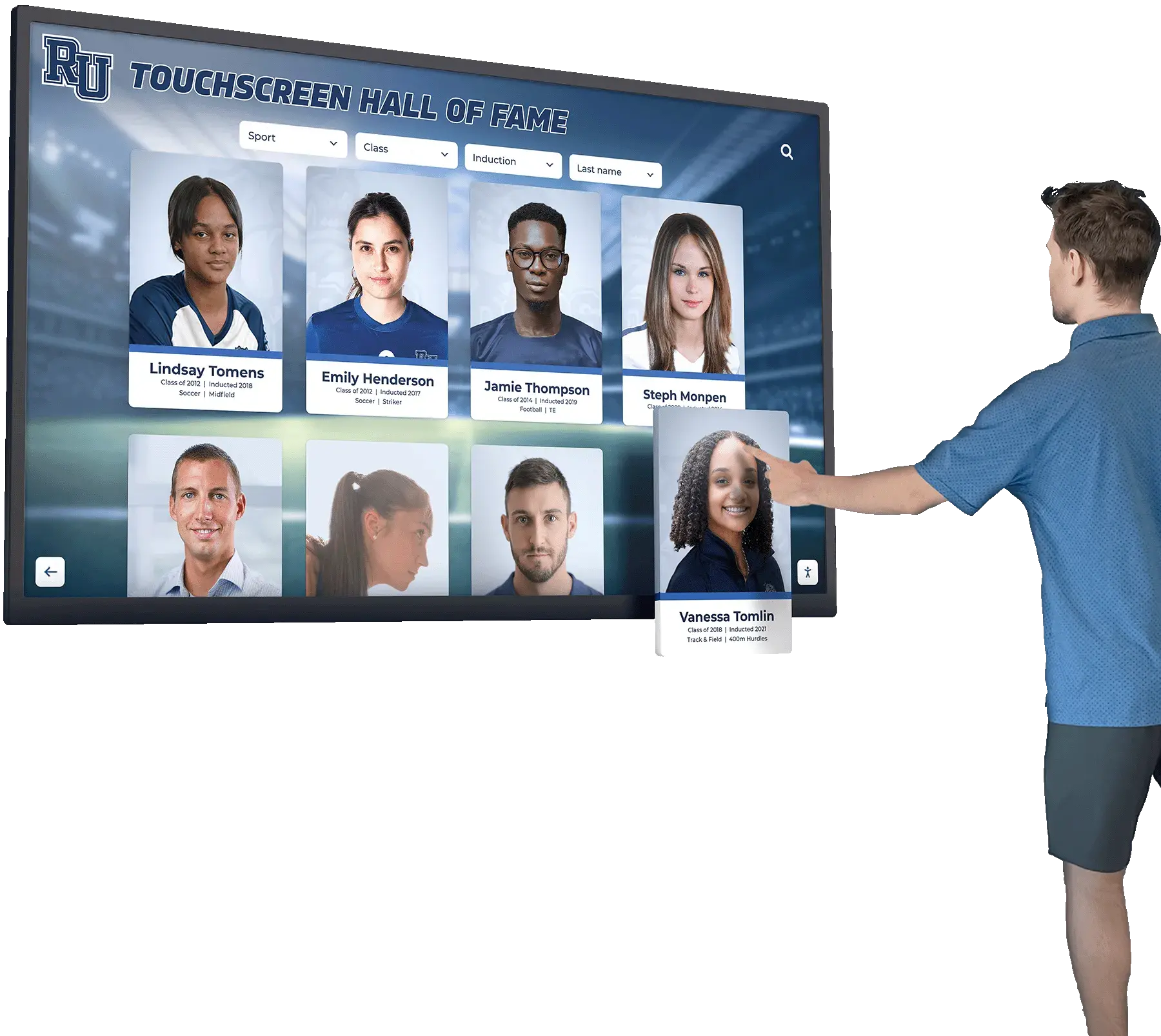
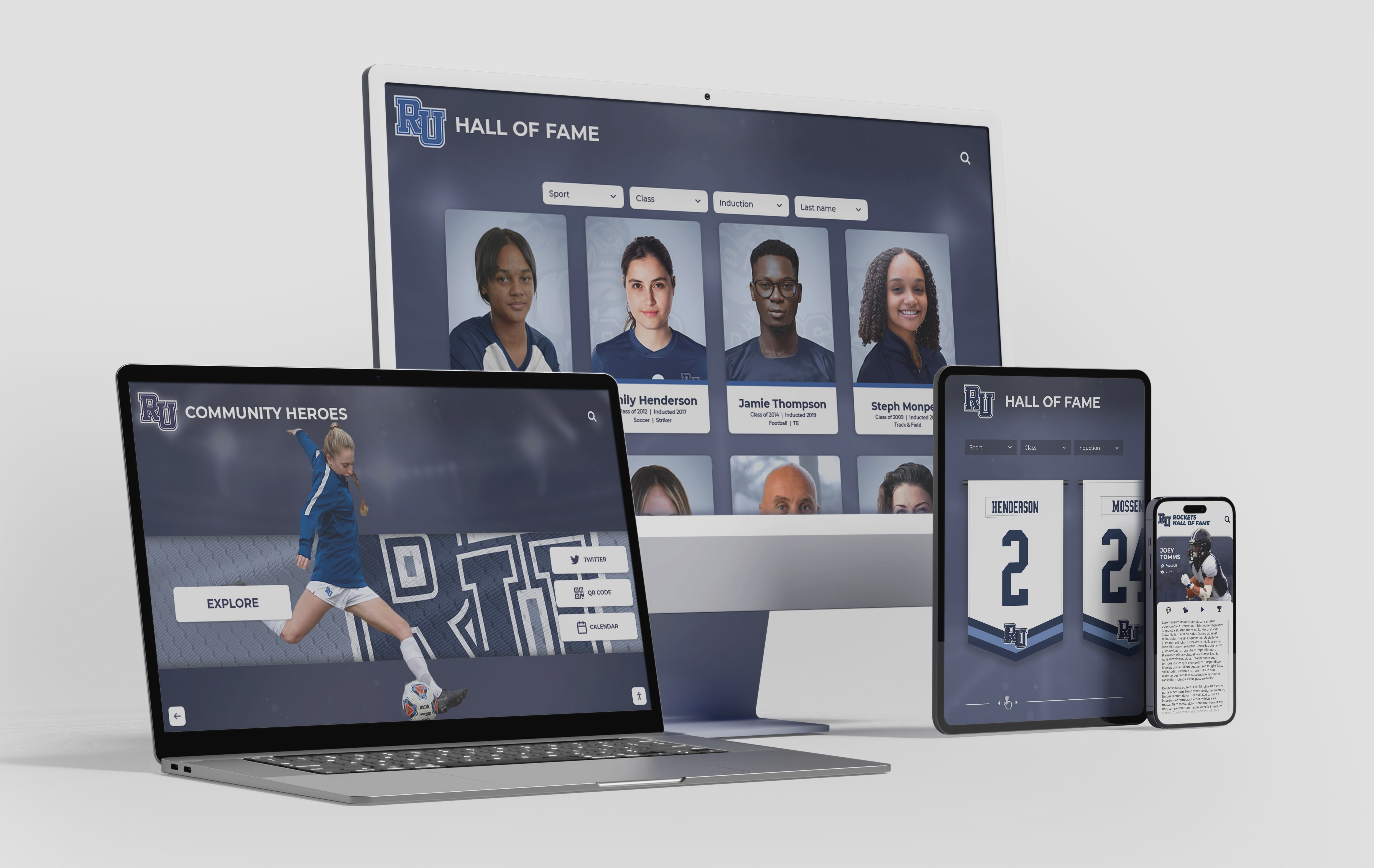
Live Example: Rocket Alumni Solutions Touchscreen Display
Interact with a live example (16:9 scaled 1920x1080 display). All content is automatically responsive to all screen sizes and orientations.
A digital hall of fame reflow accessibility test is the process of verifying that when a visitor magnifies your school’s recognition website to 400 percent zoom—equivalent to a 320 CSS pixel viewport width—every inductee profile card, search control, sport-category filter, navigation link, and media element rearranges into a single scrollable column without requiring the visitor to scroll horizontally to reach any content or control. WCAG 2.1 Success Criterion 1.4.10 Reflow (Level AA) establishes this behavior as a baseline accessibility requirement. For school athletic directors, administrators, IT staff, and recognition-program managers, the reflow test is one of the most measurable acceptance criteria available: either the page content reflows cleanly or it does not. This guide provides a complete step-by-step testing workflow, viewport configuration instructions, a reusable issue log template, and answers to the questions school teams ask most often when preparing a recognition website for low-vision users.
When a parent or alumnus with low vision visits your school’s athletic hall of fame website, their first instinct is to increase the browser zoom level until the text and images are large enough to read comfortably. A visitor who requires 400 percent magnification to see inductee name text or profile photos is not an unusual edge case—the CDC estimates roughly 12 million Americans have vision impairment—and they are members of the school community who have just as much reason to explore your recognition archive as any other visitor.
The problem is that many recognition sites, including professionally built ones, clip content off the right edge of the screen at high zoom levels. An inductee profile card that occupies one-third of the screen at 100 percent suddenly becomes wider than the visible viewport at 400 percent. A search bar that stretches full-width at 1440 pixels pushes navigation links off screen. A sport filter row becomes a horizontal carousel that requires sideways scrolling to reach the Basketball or Track categories. Each of these failures blocks the visitor from accessing content that is fully available to anyone viewing the page at a standard zoom level.

A reflow-compliant recognition website presents inductee profile cards, search controls, and navigation links in a single scrollable column at 400 percent zoom—the same content available to sighted visitors at standard magnification, reformatted for the narrow viewport produced by high magnification
Program Snapshot: Reflow Test Scope for School Hall of Fame Sites
Establish the test scope before opening a browser tab or changing any settings. The table below defines key parameters for schools at any stage of digital recognition, from a newly launched site to a long-running archive.
| Planning Element | Details |
|---|---|
| Primary Audience | Athletic directors, IT administrators, school web managers, facilities coordinators, accessibility compliance leads, recognition-program owners |
| What Is Being Tested | Reflow behavior of all page types in the digital hall of fame at 400% browser zoom: home/landing pages, sport-category index pages, individual inductee profile pages, search results, filter controls, and media lightboxes |
| WCAG Criterion | 1.4.10 Reflow — Level AA; supported by 1.3.4 Orientation — Level AA when kiosk displays are locked to landscape mode |
| Tools Required | Any modern desktop browser (Chrome, Firefox, Edge, or Safari); a keyboard; no paid extensions required |
| Time Investment | 45–60 minutes for a full audit of all page types; 10–15 minutes for a targeted re-check after a template, CSS, or layout change |
| Failure Definition | Any content, control, or navigation element that requires horizontal scrolling to view or activate at 400% zoom, or any element that is clipped, hidden, or overlapped such that it becomes invisible at 400% |
| Pass Condition | All content and controls remain visible and operable in a single vertical column at 400% zoom without horizontal scrolling, except for content whose two-dimensional layout is essential (data tables, maps, diagrams) |
| ADA Relevance | Public school recognition sites accessible to the community are subject to digital accessibility requirements; WCAG 1.4.10 Reflow at Level AA is part of the compliance baseline for educational institutions serving the public |
What Is WCAG 1.4.10 Reflow?
WCAG Success Criterion 1.4.10 Reflow states that content must not require two-dimensional scrolling—horizontal and vertical simultaneously—for vertical scrolling content that is equivalent to a width of 320 CSS pixels. The 320 CSS pixel threshold corresponds to a 1280-pixel-wide browser window zoomed to 400 percent: at that zoom level, the browser’s CSS pixel width is 320 pixels (1280 ÷ 4), and any responsive layout targeting 320-pixel widths must present the page as a single column.
The criterion does not prohibit horizontal scrolling in every circumstance. Content whose two-dimensional layout is considered essential to its meaning—a data table comparing inductee statistics across multiple columns, a geographic map, or a technical diagram—is exempt. However, no other element on the page may force horizontal scrolling. Navigation menus, profile cards, search inputs, filter buttons, call-to-action links, and footer content must all reflow cleanly.
For digital hall of fame platforms, the practical implication is that every CSS breakpoint, grid layout, flexbox row, and absolutely positioned element must be designed to collapse gracefully at 320 CSS pixels. The 400 percent zoom test is a fast, repeatable proxy for this requirement: if the page looks and behaves correctly at 400 percent zoom, it passes the criterion. If any content overflows the viewport edge or disappears behind clipping, the page fails.
Before running the steps below, pair this checklist with a recognition display color fringing test to confirm that both visual rendering quality and zoom behavior meet accessibility standards on your installed screens.
Content Architecture: Reflow Failure Zones on Hall of Fame Sites
A typical digital hall of fame website contains several layout patterns that are prone to reflow failures. Identifying these zones before testing helps you focus attention on the highest-risk elements.
| Failure Zone | Why It Fails at 400% Zoom | What Correct Reflow Looks Like |
|---|---|---|
| Multi-column inductee card grid | CSS grid or flexbox rows with fixed column widths do not collapse to a single column without explicit grid-template-columns: 1fr or flex-wrap at narrow breakpoints | One inductee card per row, stacked vertically; card width equals 100% of the viewport minus padding |
| Horizontal filter/tab row | Sport-category buttons displayed in a single horizontal row overflow the viewport at 320 CSS pixels when their combined width exceeds the viewport | Filter controls wrap to multiple rows, or the row becomes a vertically stacked list or a <select> dropdown at narrow widths |
| Full-width search bar with inline submit button | When the search field and the submit button share a single flex row, the combined width may overflow at 320 CSS pixels | Search input and button stack vertically, or the button appears below and full-width when the row would overflow |
| Fixed-width sidebar or filter panel | A sidebar with width: 280px or position: fixed pushes the main content area off screen at 320 CSS pixels | Sidebar collapses into a collapsible panel, a full-width accordion, or moves above the content column |
| Inductee profile hero section with side-by-side photo and bio | A two-column hero layout with a portrait photo alongside a biography block overflows at 320 CSS pixels | Photo appears above the biography in a single column; neither element clips or overlaps the other |
| Navigation header with logo and full link row | A header that displays logo, primary navigation links, and a search icon in a single row overflows at 320 CSS pixels | Navigation collapses to a hamburger menu or a full-width vertical list; logo and control remain visible |
| Lightbox or modal overlay | A media lightbox or video player modal with min-width values larger than 320 CSS pixels creates horizontal overflow within the overlay | Modal fills 100% of the viewport width with padding; close button remains visible within the overlay |
| Sponsor or donor ribbon | A horizontal marquee or fixed-width sponsor logo row overflows at 320 CSS pixels | Sponsor logos wrap to a grid or stack vertically; the ribbon container does not clip logos outside the viewport |
Execution Timeline: Step-by-Step Reflow Test at 400% Zoom
Step 1: Configure the Browser for 400% Zoom Testing
Open the recognition website in a desktop browser on a computer with a display resolution of at least 1280 × 1024 pixels. A wider monitor gives a more accurate result because the browser window must be at least 1280 CSS pixels wide before zooming for the 400 percent zoom level to produce a 320 CSS pixel viewport.
- Open the browser’s zoom control. In Chrome and Edge, navigate to Settings → Appearance → Page zoom or press Ctrl + Plus (Windows) / Cmd + Plus (macOS) to step up zoom incrementally.
- Set the zoom level to exactly 400%. Verify by checking the browser zoom indicator in the address bar or the Settings menu.
- Do not resize the browser window. The zoom change alone narrows the effective CSS pixel width. Resizing the window would alter the test conditions.
- Confirm the effective viewport width by opening browser DevTools (F12) and entering
window.innerWidthin the console. The result should be approximately 320 (±5 pixels depending on scrollbar width and OS scaling). - Enable the browser’s built-in accessibility tree panel for supplementary checks: in Chrome DevTools, open the Accessibility tab in the Elements panel.
Step 2: Test the Homepage or Landing Page
The home page typically contains the most complex layout: hero banners, featured inductee cards, call-to-action sections, and footer columns.
- Navigate to the root URL of the recognition website at 400% zoom.
- Scroll from the top of the page to the bottom using only vertical scrolling. Do not use horizontal scroll at any point.
- For each section, confirm that all text, images, buttons, and links are fully visible within the viewport width.
- Note any element that extends beyond the right or left edge of the visible area.
- Confirm the primary navigation collapses to a menu icon or a vertically stacked list.
- Confirm the hero banner image scales within its container rather than clipping to a fixed width.
- Confirm any featured inductee card row stacks vertically rather than overflowing horizontally.
- Record failures in the issue log template at the end of this guide.
Step 3: Test Sport-Category Index Pages
Category pages display a filtered subset of inductees organized by sport or era.
- Navigate to any sport-category index page (for example, the Football or Basketball inductee listing).
- Locate the sport-filter tab row or button group at the top of the content area.
- Confirm the filter controls do not overflow the right edge of the viewport. Each filter button or tab must be reachable by vertical scrolling alone.
- Confirm the inductee card grid collapses to a single-column layout. Each card should occupy the full available width.
- Activate one filter by pressing Enter or clicking a sport button. Confirm the layout remains single-column after filtering.
- Navigate to a decade or era selector if one is present. Confirm its controls are reachable without horizontal scrolling.
Step 4: Test Individual Inductee Profile Pages
Inductee profile pages are the highest-risk reflow surface because they typically combine a portrait photo, a biography block, a statistics table, a video player, and an action button row—all elements that expand in two dimensions.
- Navigate to any individual inductee profile page.
- Confirm the hero section—portrait photo and biography text—stacks vertically in a single column. The photo must appear above or below the text, not beside it, at 400% zoom.
- If a statistics table is present, confirm it either scrolls horizontally within its own container (acceptable for essential tabular data under the WCAG exception) or collapses to a readable single-column layout. The page itself must not scroll horizontally because of the table.
- Confirm any video embed scales within the viewport width. An
<iframe>or<video>element set towidth: 100%with a responsive aspect-ratio wrapper typically passes this check; a fixedwidth="560"attribute fails. - Confirm the action button row—share, print, download—stacks vertically or wraps to multiple lines rather than overflowing the viewport.
- Confirm the breadcrumb trail or back-navigation link is reachable without horizontal scrolling.
Inductee profiles are the pages that matter most to the families and alumni who visit a recognition archive. When those profiles reflow correctly at 400% zoom, a grandparent with low vision can read the full induction biography without assistance—the same recognition experience available to any other visitor.
Step 5: Test Search Input and Results
- Locate the search field. At 400% zoom, confirm the input and any accompanying submit button are visible without horizontal scrolling.
- Type a short search query (a common surname found in your inductee database). Press Enter or activate the submit control.
- On the search results page, confirm the result count or status message is visible in the single-column layout.
- Confirm each result card in the results list stacks vertically. An inductee card that spans two columns at standard zoom must collapse to a single column at 400% zoom.
- If a “no results” message appears, confirm that message is visible without horizontal scrolling.
For guidance on pairing this search visibility test with an announcement test that ensures screen readers hear search result updates, review the ARIA live region testing workflow covered in the linked accessibility series on this site.
Step 6: Test Media Lightboxes and Video Players
- If the profile page includes a portrait gallery or video thumbnail that opens a lightbox or modal overlay, activate it by pressing Enter or clicking.
- At 400% zoom, confirm the lightbox overlay fills the viewport width without horizontal overflow.
- Confirm the close button (typically an X in the corner) is visible within the viewport and does not extend beyond the right edge.
- Confirm any navigation arrows (Previous / Next image or video) are visible and operable without horizontal scrolling.
- Close the lightbox. Confirm the page returns to the previous position in the profile without a layout shift that pushes content outside the viewport.
Step 7: Test Touchscreen Kiosk Mode (If Applicable)
Schools that run a wall-mounted touchscreen recognition kiosk alongside the web directory should test whether the kiosk’s web content also reflowes at high magnification. Many kiosks offer a built-in browser accessibility zoom setting or an OS-level magnifier tool.
- Locate the accessibility or display settings on the kiosk’s operating system.
- Enable the operating system’s screen magnifier set to 400% or the nearest equivalent.
- Navigate through the same page types—home, category, profile—and confirm content remains visible within the magnified viewport.
- Pay particular attention to fixed-position overlay elements (persistent navigation bars, sponsor ribbons, and session-reset timers) that may not respond to OS-level magnification in the same way that browser zoom affects web content.
Reviewing the school recognition display HDMI-CEC configuration guide alongside this reflow test ensures your kiosk’s display hardware and software settings are both verified for accessible operation. For broader display hardware quality checks, the touchscreen recognition display color calibration log provides a complementary hardware verification checklist.
Display Integration: Connecting Reflow Compliance to the Recognition Platform
A digital hall of fame platform that natively generates responsive templates removes the largest source of reflow failures before a test is ever run. Rocket Alumni Solutions builds recognition sites and kiosk interfaces on a cloud CMS that uses fluid percentage-based grid layouts and mobile-first CSS—design decisions that ensure inductee profile cards, sport-category filters, and biography sections collapse to a single column at 320 CSS pixels by default.
When an administrator adds a new inductee record to the Rocket CMS, the platform’s template engine applies the same fluid layout logic to the new profile card, the search result entry, and the category index card without additional configuration. This means the reflow compliance established at site launch extends automatically to every new honoree added over the years—a critical capability for recognition archives that grow by dozens of inductees per class year.
Schools managing existing recognition displays can use the ADA notes in the Rocket platform’s scheduled publishing workflow to flag a reflow re-test after any template change. Districts operating multiple campuses can assign a single remote administrator to run a reflow spot-check across all campus sites from a single browser session, completing the seven-step test workflow above for all sites in under two hours. Recognizing youth athletes of the year and other honorees across multiple campus sites becomes more equitable when every site in the network meets the same reflow accessibility standard.
For programs that host both an athletic hall of fame and an academic honors archive on the same platform, the reflow test should cover both sections. Academic recognition pages—including Latin honors designations displayed in searchable graduate directories—carry the same WCAG 1.4.10 obligation as athletic profile pages. The seven-step test workflow above applies equally to both.
Issue Log Template: Reflow Test at 400% Zoom
Use this template to record every failure found during the test. Copy and paste into a spreadsheet or a school IT ticket system.
| # | Page URL | Page Type | Element Description | Failure Description | WCAG Criterion | Severity | Recommended Fix | Fix Owner | Verified |
|---|---|---|---|---|---|---|---|---|---|
| 1 | Home | 1.4.10 Reflow | High | ||||||
| 2 | Sport Category | 1.4.10 Reflow | High | ||||||
| 3 | Inductee Profile | 1.4.10 Reflow | High | ||||||
| 4 | Search Results | 1.4.10 Reflow | Medium | ||||||
| 5 | Media / Lightbox | 1.4.10 Reflow | Medium | ||||||
| 6 | Navigation Header | 1.4.10 Reflow | High | ||||||
| 7 | Footer | 1.4.10 Reflow | Low |
Severity guide:
- High — A content section or primary control is not reachable without horizontal scrolling; a low-vision visitor cannot access that part of the page.
- Medium — An element is partially clipped but its primary function remains accessible; visitor experience is degraded.
- Low — A decorative or secondary element overflows without affecting content access.
Measurement: Evaluating Reflow Test Results
After completing all seven steps, tally the results against the following benchmarks.
| Metric | Target | Action if Below Target |
|---|---|---|
| Pages with zero horizontal overflow | 100% of tested page types | Prioritize fixing navigation, profile, and search pages before category and footer pages |
| Filter controls fully accessible without horizontal scroll | 100% of filter rows and tab groups | Convert fixed-width filter rows to flex-wrap: wrap or a collapsible <details> element |
| Inductee profile cards single-column at 400% zoom | 100% of profile cards | Remove fixed grid-template-columns values; replace with grid-template-columns: 1fr below 400px breakpoint |
| Media embeds scaling within viewport | 100% of video and image lightboxes | Apply max-width: 100%; height: auto; to all <iframe> and <video> elements; use aspect-ratio wrappers |
| Navigation header collapsed | 100% of pages | Ensure hamburger menu or mobile nav is triggered at or before 480px viewport width |
| Re-test after fixes | All previously failing elements pass | Schedule re-test within two weeks of any CSS or template change |
Schools that run a sports banquet as part of their annual recognition program can present reflow test results alongside ceremony planning materials to demonstrate to families and community members that the online archive behind the celebration meets the same inclusivity standards as the in-person event.
Frequently Asked Questions
What exactly does “400% zoom” mean in the context of a reflow accessibility test?
400% zoom refers to the browser’s built-in page magnification control set to four times its default level. When a browser window is 1280 CSS pixels wide and zoom is set to 400%, the browser renders page content as if the viewport were 320 CSS pixels wide—the same effective width as a narrow smartphone screen. WCAG SC 1.4.10 Reflow uses 320 CSS pixels as its reference point because that width represents the minimum viewport size that content must support without requiring horizontal scrolling. The 400%-on-1280px formula is the standard test proxy for this criterion.
Is the reflow test different from a mobile-responsiveness test?
They test related but distinct behaviors. A mobile-responsiveness test confirms that a page renders acceptably on small-screen devices such as smartphones and tablets, typically in the 320–480px range. A WCAG 1.4.10 reflow test specifically confirms that all content is available without two-dimensional scrolling at the reference viewport width, from a desktop browser using zoom rather than a physical small device. The CSS breakpoints that make a site mobile-responsive often also produce reflow compliance, but the two tests use different tools and different pass-fail definitions.
Our inductee profile page has a statistics table with many columns. Does that have to reflow?
WCAG 1.4.10 includes an explicit exception for content whose two-dimensional layout is essential to its meaning. A statistics table comparing a career batting average, home runs, and RBIs across multiple seasons qualifies for this exception—the multi-column format is intrinsic to reading the data. The table may scroll horizontally within its own container. However, the table’s horizontal scrolling must be confined to the table element itself; the rest of the page must not scroll horizontally because of the table’s presence.
How often should we run a reflow test?
Run a full seven-step reflow test at site launch, after any redesign or template change, and after any update that modifies CSS layout, grid structure, or header/footer components. Run a targeted spot-check on specific page types after adding a new sport category, a new search filter, or a new media element type. Recognition platforms like Rocket Alumni Solutions that generate profile pages from a shared template only require re-testing when the template itself changes, not every time a new inductee record is added.
What tools help identify reflow failures faster?
The browser’s built-in DevTools provide the fastest identification path. In Chrome, open DevTools (F12), activate the Toggle device toolbar (the phone/tablet icon), and set a custom device viewport to exactly 320 × 568 pixels. This emulates the reference viewport width without changing the browser zoom level, allowing you to inspect element layouts and scroll behavior in the Element panel simultaneously. The free axe DevTools browser extension can identify some layout overflow issues as part of a broader accessibility scan, but automated tools cannot reliably detect reflow failures; manual verification with the seven-step workflow above remains the authoritative test.
Does a digital hall of fame kiosk need to pass the reflow test?
If the kiosk runs a web browser and displays web content—which most Rocket Alumni Solutions touchscreen kiosks do—then the underlying web pages are subject to WCAG 1.4.10 Reflow. The operating system’s magnifier tool provides a comparable test path on kiosks where the browser’s own zoom control may be restricted. Additionally, 1.3.4 Orientation (Level AA) applies when a kiosk locks its display to landscape mode: all content must remain usable in a single orientation. Verify both criteria when auditing kiosk installations.
Reflow Test Artifact: Pre-Test Page Inventory Checklist
Before running the seven-step test, complete this inventory to ensure all critical page types are covered. Copy and use it before each test session.
Pages to Test — Pre-Flight Checklist
- Home / landing page
- At least two sport-category index pages (high-inductee volume sports first)
- At least three individual inductee profile pages (one with video, one with statistics table, one with gallery)
- Search results page (active search query applied)
- Empty search results page (no-match query)
- Filter-applied category page (at least one filter active)
- Navigation header expanded state (if a “mega menu” is present)
- Footer at the bottom of a long profile page
- Any lightbox or modal overlay the site uses
- Kiosk mode (if applicable)
Browser Setup Checklist
- Browser window width is at least 1280 pixels before zooming
- Browser zoom is set to exactly 400%
-
window.innerWidthin DevTools console returns approximately 320 - Screen reader is not active (screen reader zoom and browser zoom interact differently; run ARIA tests separately)
- Browser cache is cleared to ensure latest CSS is loaded
For schools building or expanding a digital recognition program, the reflow accessibility test is one step in a broader compliance workflow that includes accessible names for icon buttons, ARIA live region announcements for search results, and breadcrumb navigation for inductee archives. Running the reflow test at each stage of platform development ensures low-vision visitors can explore the full recognition archive—from the first landing page to the deepest inductee biography—without encountering content that is beyond their reach.
To see a recognition platform built from the ground up to meet WCAG 1.4.10 Reflow and the full AA compliance suite, request your free custom demo from Rocket Alumni Solutions. Their team will show you how inductee profiles, sport-category navigation, search, and kiosk layouts behave at 400% zoom before a single profile is loaded.
Live Example: Rocket Alumni Solutions Touchscreen Display
Interact with a live example (16:9 scaled 1920x1080 display). All content is automatically responsive to all screen sizes and orientations.