Digital Hall of Fame Keyboard Trap Audit: A School Accessibility Checklist
- Home /
- Digital Hall of Fame Insights & Resources /
- Digital Hall of Fame Keyboard Trap Audit: A School Accessibility Checklist
The Easiest Touchscreen Solution




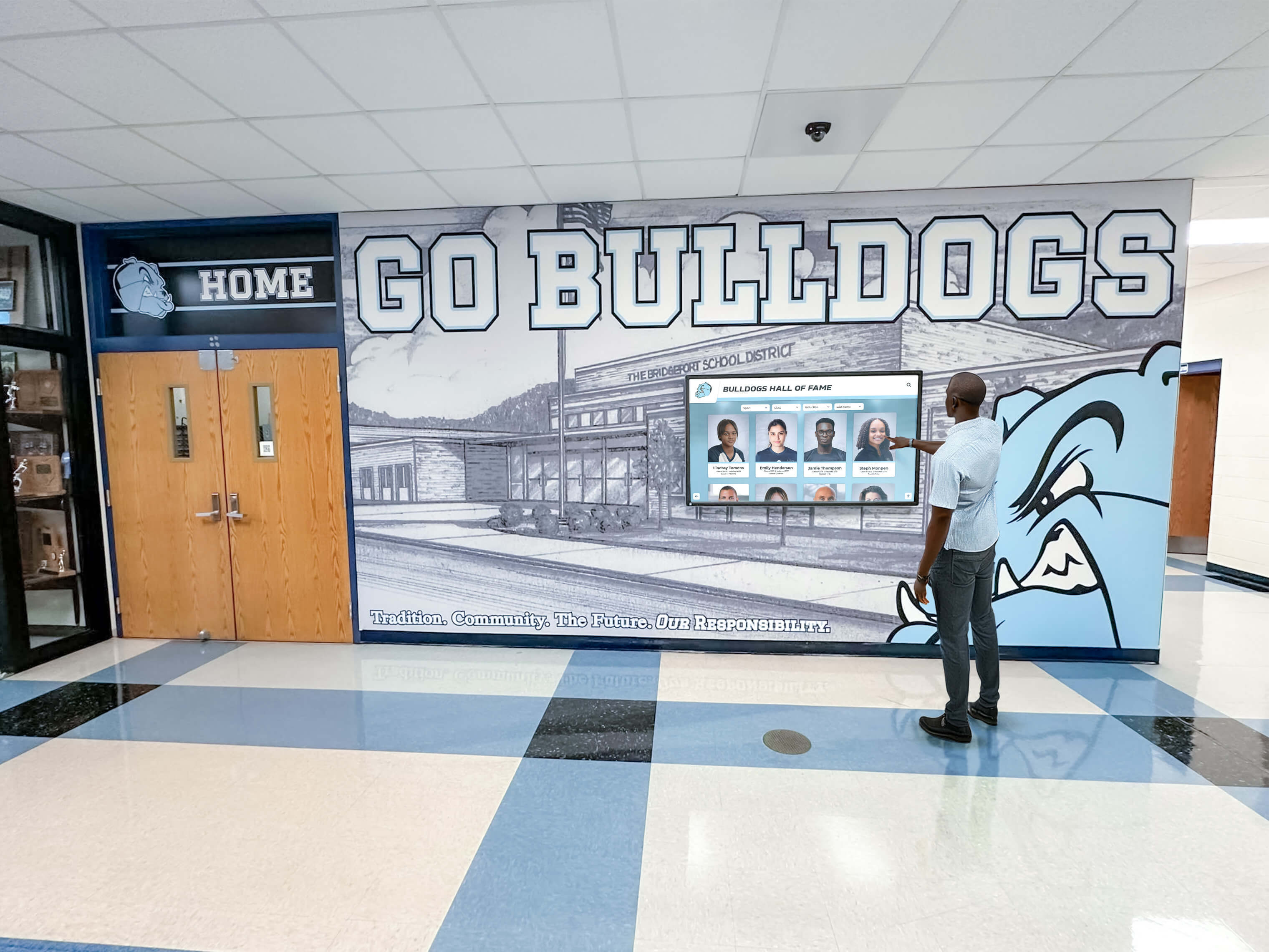
Live Example: Rocket Alumni Solutions Touchscreen Display
Interact with a live example (16:9 scaled 1920x1080 display). All content is automatically responsive to all screen sizes and orientations.
A digital hall of fame keyboard trap audit is the process of verifying that every interactive component on a school’s recognition website—video tribute players, inductee photo carousels, modal dialogs, year-range filter panels, and social sharing widgets—allows keyboard users to move focus in and then move focus out using only standard keyboard commands. A keyboard trap occurs when a visitor tabs into a component and cannot escape it without using a mouse or reloading the page. WCAG 2.1 Success Criterion 2.1.2 (No Keyboard Trap, Level A) prohibits this pattern on any publicly accessible web page, including digital hall of fame sites operated by public schools, alumni associations, and booster organizations. Because recognition platforms combine multiple embedded components in a single page view, the risk is higher than it appears: a single unmanaged modal or embedded video player can lock out every keyboard-only visitor who opens that page. This guide gives school administrators, athletic directors, IT staff, and recognition-program managers a complete audit workflow, a reusable issue log, and numbered remediation steps to identify and resolve every keyboard trap in a school recognition platform.
When a parent of a letter-winner opens your digital hall of fame on a library computer without a mouse, or when an alumnus with a motor disability uses a switch device to browse inductee profiles, the recognition experience depends on one baseline guarantee: focus that enters a component can also leave it. A video tribute that autoplays and captures Tab within the media player, or an inductee detail modal that opens without an Escape key handler, violates that guarantee silently—the visitor sees content but cannot navigate past it without closing the browser tab.
The digital hall of fame keyboard trap audit is the systematic check that confirms this guarantee holds across every interactive component on every page type in the recognition platform.

Every interactive component on a digital hall of fame—carousels, video players, modals, and filter panels—must allow keyboard focus to enter and exit freely; a keyboard trap audit confirms this requirement is met before a recognition program launches
Program Snapshot: Keyboard Trap Audit Scope for School Hall of Fame Sites
Map the audit scope before opening a browser or a developer tools panel. The table below defines the key parameters for schools at any stage of digital recognition, from a recently launched site to a multi-decade athletic archive.
| Planning Element | Details |
|---|---|
| Primary Audience | Athletic directors, IT administrators, school web managers, facilities coordinators, accessibility compliance leads, recognition-program owners |
| What Is Being Audited | Every interactive component on public-facing pages: inductee detail modals, video tribute players, photo carousels, sport-category filter panels, year-range pickers, nomination form dialogs, social sharing widgets, and expandable biography sections |
| WCAG Criterion | 2.1.2 No Keyboard Trap — Level A; supports 2.1.1 Keyboard — Level A; supports 2.4.3 Focus Order — Level A |
| Tools Required | A modern browser (Chrome, Firefox, or Edge), a physical keyboard, browser developer tools, and optionally NVDA (Windows, free) or VoiceOver (macOS, built-in) for screen-reader verification |
| Time Investment | 45–75 minutes for a full audit across all page types and component states; 15 minutes for a targeted spot-check after any component or theme update |
| Failure Consequence | Any keyboard visitor who activates a trapped component cannot continue navigating the site without reloading the page; the recognition experience is inaccessible from that point forward |
| Pass Condition | Every interactive component allows focus to be moved in via Tab and moved out via Tab, Shift+Tab, or Escape; where a non-standard key is required, the method is documented on screen |
| ADA Relevance | Public school recognition websites must meet digital accessibility standards; No Keyboard Trap at Level A is among the most foundational WCAG requirements because its failure completely blocks navigation |
What Is a Keyboard Trap on a Digital Hall of Fame Site?
A keyboard trap is any situation in which keyboard focus enters an interactive component but cannot exit it using the standard keyboard commands a visitor would reasonably expect: Tab (forward), Shift+Tab (backward), Escape (dismiss), and the arrow keys (navigation within a component). WCAG 2.1.2 allows components to require a non-standard key to exit—for example, pressing F6 to leave a rich text editor—provided the method is documented and visible to the user. For most hall of fame components, no non-standard key should be needed.
The following component types are the most common sources of keyboard traps on recognition platforms:
| Component Type | Why Traps Occur | WCAG 2.1.2 Requirement |
|---|---|---|
| Inductee detail modal | Modal opens but Escape key is not handled; focus is not constrained correctly and Tab cycles outside the modal without closing it | Escape must close the modal and return focus to the triggering element |
| Video tribute player | Embedded video player (YouTube, Vimeo, custom) captures Tab focus internally and does not release it to the surrounding page | Tab past the last player control must exit the player and continue to the next page element |
| Photo carousel / slider | Arrow-key navigation is active but Tab does not cycle out; or focus is programmatically reset to the first slide on each Tab press | Tab must reach the next focusable element after the carousel, not loop within it |
| Year-range date picker | Calendar grid captures all key presses, including Escape; no mechanism exits the picker without mouse click | Escape must close the picker and return focus to the date input field |
| Sport-category filter panel | Filter accordion opens and traps focus inside the expanded section; Tab does not exit the panel to the next page region | Tab from the last item in the panel must move focus to the next focusable element after the panel |
| Nomination / contact modal | Form dialog opens without a close button in the tab order, or close button is present but Escape does not work | Escape and a visible close button must both dismiss the dialog and return focus |
| Social sharing widget | Third-party widget captures Tab within its iframe; no keyboard path exits to the surrounding page | The iframe must not capture Tab permanently; a Tab from the last control inside the iframe must exit it |
| Expandable biography / accordion | Accordion panel expands and resets focus to the panel opener, creating a loop; or expanded content is not in the natural tab order | Expanded content must receive focus in document order; Tab from the last item in the expanded section must continue to the next element |
Schools selecting a recognition platform for the first time will find the review of top hall of fame tools for athletics, donors, and arts programs useful for understanding which platforms address keyboard accessibility at the component level versus only at the page structure level.
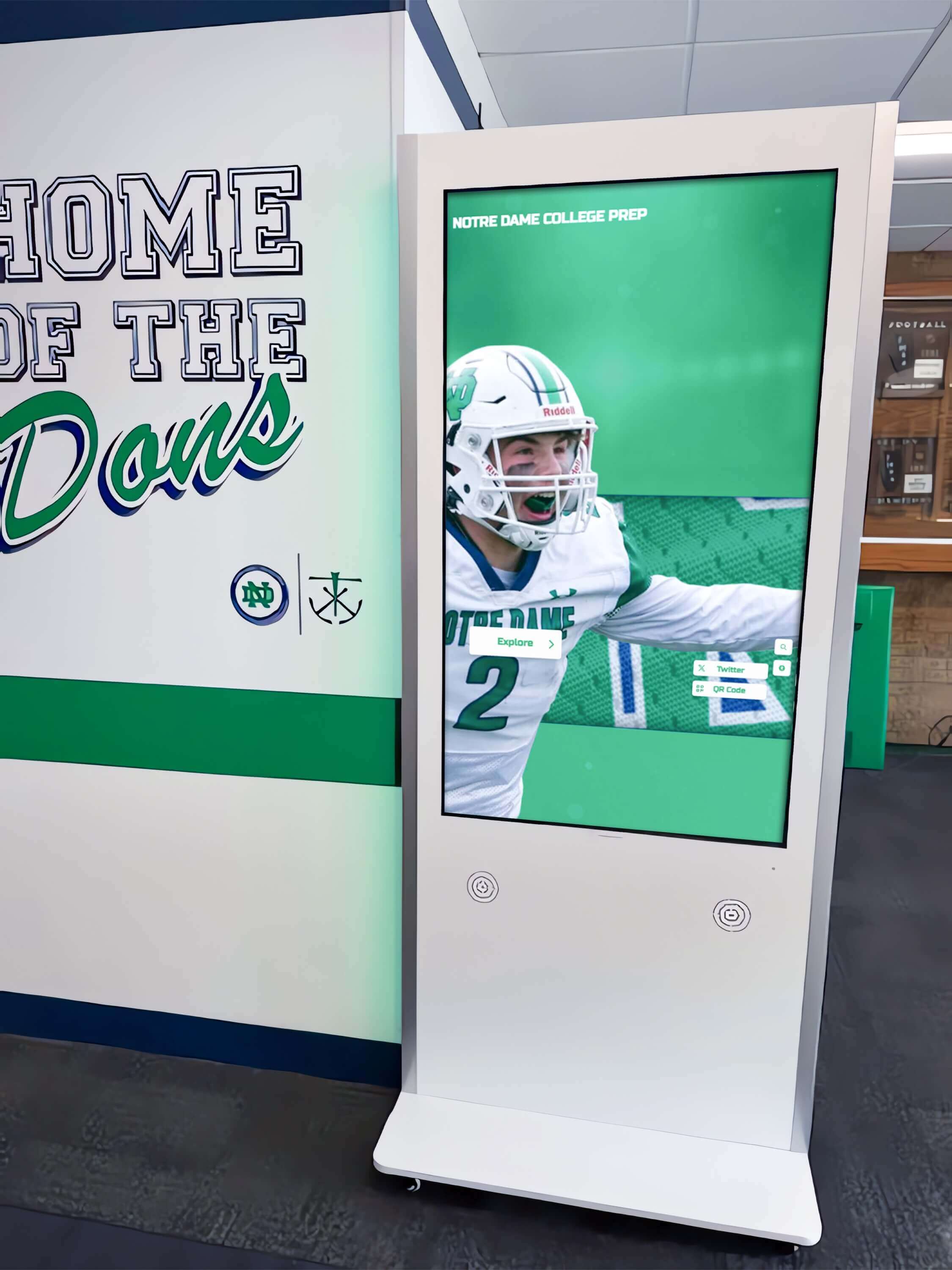
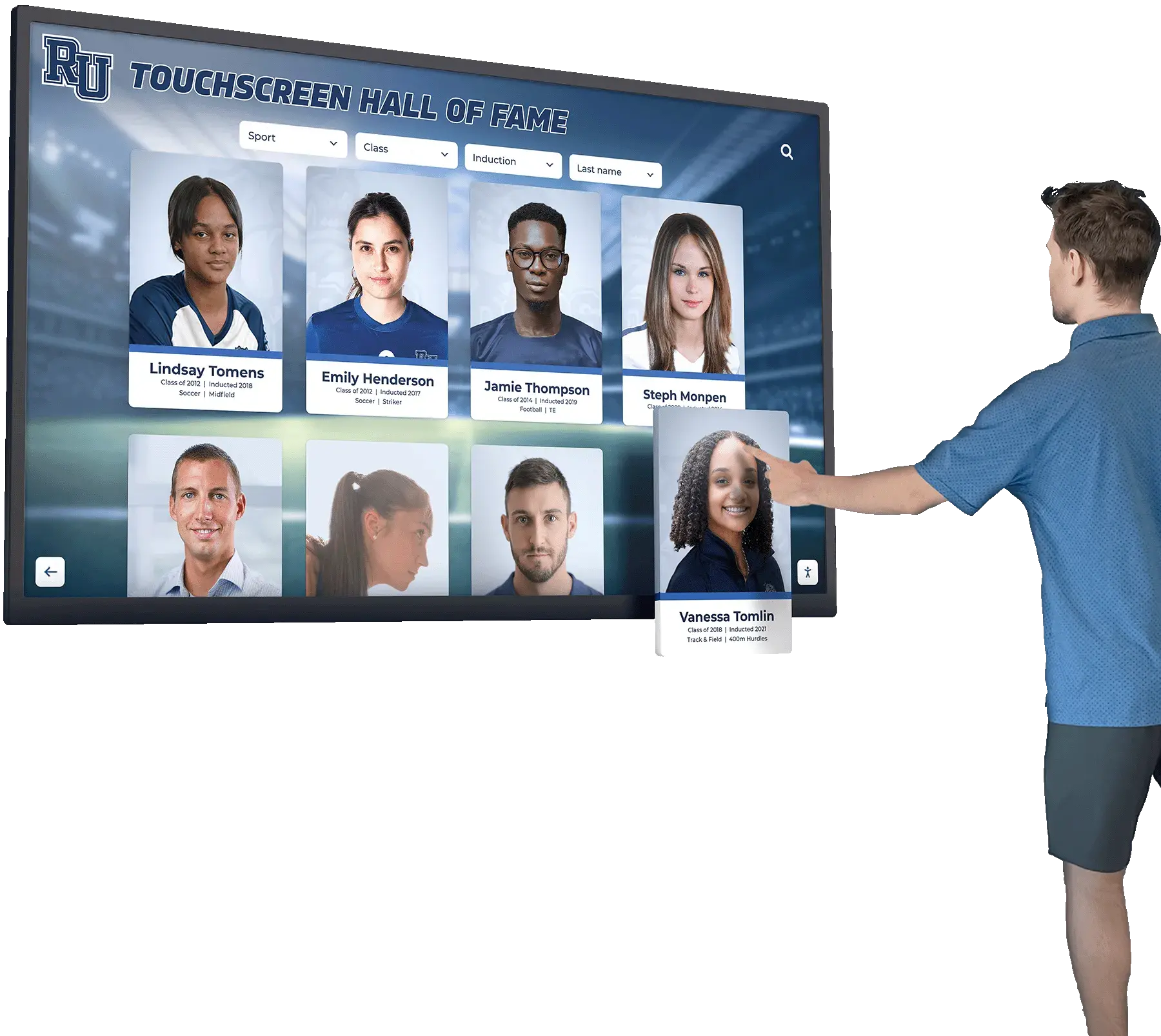
Each interactive panel on a hall of fame kiosk or web directory—sport filters, video tribute players, inductee detail modals—must pass keyboard trap testing to ensure visitors who navigate by keyboard can reach all content without getting stuck
Content Architecture: Where Keyboard Traps Live on Recognition Pages
A digital hall of fame platform distributes interactive components across four page types. The audit must cover each page type separately because component behavior may differ between templates, even when the underlying platform is the same.
Home / Landing Page
The home page typically includes a featured inductee carousel, a sport-category navigation bar, and a search field. Carousel components are the most frequent trap source on home pages: arrow-key navigation within the carousel slides captures keyboard input, and Tab from the last carousel control may loop back to the first slide rather than exiting to the search field or navigation below.
Sport-Category Index Pages
Index pages include filter panels for sport type, award level, era, and gender. Accordion-style filter panels are the primary trap risk: a visitor who expands a filter section and tabs through its checkboxes must be able to Tab past the last checkbox to reach the inductee card grid below—not loop back to the filter panel header.
Individual Inductee Profile Pages
Profile pages contain the densest component set: a photo gallery, a video tribute player, expandable biography and statistics sections, a social sharing widget, and sometimes a nomination or tribute submission form. Each of these components introduces a potential focus management gap. The embedded video player is the highest-risk element because third-party embeds (YouTube, Vimeo) apply their own internal focus management, which does not always align with the surrounding page’s Tab order.
Search Results Pages
Search results pages include a live search field, an active-filters summary, a result card grid, and pagination controls. These components carry lower keyboard trap risk than modal dialogs or video players, but the active-filters panel—if implemented as a floating chip bar that captures Tab—can still prevent keyboard visitors from reaching the result grid below it.
Schools expanding recognition programs to include digital signage and kiosk installations alongside web directories should also consider keyboard accessibility in those display environments. The digital signage and kiosk display ideas guide covers how display architectures affect interactive component design, which directly influences keyboard trap risk in browser-based kiosk deployments.
Step-by-Step Digital Hall of Fame Keyboard Trap Audit Workflow
Run the following steps in sequence. Complete each step on the home page before moving to interior pages. Document every finding in the issue log at the end of this guide.
Step 1: Establish a Baseline Tab Order on the Home Page
Open the recognition website in Chrome. Click the browser’s address bar to place focus outside the page, then press Tab repeatedly, without clicking the mouse, and observe the sequence of elements that receive keyboard focus. Count the total number of Tab presses required to reach the end of the page (when focus cycles back to the browser chrome).
Record the baseline tab order. A typical digital hall of fame home page should have a linear tab sequence: site logo → primary navigation links → search field → featured inductee carousel controls → sport-category filter links → inductee card grid links → pagination → footer links.
Any element that receives focus out of document order, or any point where pressing Tab does not advance focus to the next visible element, is a potential trap or focus management failure.
Step 2: Test the Inductee Detail Modal
Locate the first inductee card on the home or index page. Using only the keyboard, navigate focus to the card’s interactive element (its “View Profile” button or the card link itself) and press Enter to activate it. If activating the card opens an overlay modal rather than navigating to a new page, observe the following:
Does focus move into the modal? When the modal opens, focus should move automatically to the modal’s first focusable element—typically the close button or the modal heading. If focus remains on the triggering button behind the modal, the modal is not accessible by keyboard at all.
Does Tab cycle within the modal? Press Tab repeatedly inside the modal. Focus should cycle through only the elements inside the modal—close button, navigation arrows if present, profile link—and should not reach elements behind the modal (site navigation, inductee cards, footer links). If Tab exits the modal and reaches background elements, the modal is not containing focus correctly. This is an accessibility failure even though it is not a classic keyboard trap; background content is reached while the modal is open, creating a confusing navigation environment.
Does Escape close the modal and return focus? Press Escape. The modal must close and focus must return to the inductee card or button that originally triggered it. If Escape does nothing—or closes the modal but drops focus to the top of the page—this is a partial keyboard trap: the visitor is stuck in a broken focus state after dismissing the dialog.
Does Shift+Tab cycle backward within the modal? Press Shift+Tab from the first focusable element in the modal. Focus should move to the last focusable element inside the modal (typically the close button), not exit the modal to a background element.
Step 3: Test Embedded Video Players
Navigate to an inductee profile page that includes a video tribute embed. Using only Tab, move focus to the video player. Then:
- Press Tab repeatedly within the player’s controls: play/pause → volume → captions → full screen → share (controls vary by platform).
- After the last player control, press Tab once more. Pass condition: Focus exits the video player and moves to the next focusable element after the player on the page—typically a biography section or related inductee link. Fail condition: Focus loops back to the first player control, or Tab inside the player has no effect.
- Press Escape while focus is inside the player. For most third-party embeds, Escape exits full-screen mode but should not trap focus inside the player afterward.
- If the player is embedded in an
<iframe>, confirm Tab exits the iframe after the last control. Some iframe implementations return focus to the iframe element itself rather than advancing to the next page element—this creates an effective keyboard trap where the visitor can only escape by pressing Shift+Tab backward.
Step 4: Test Carousel and Slider Components
Navigate to any page that includes a photo carousel, featured inductee slider, or sport-highlight slideshow. Using only Tab, move focus to the carousel’s navigation controls:
- Arrow key navigation: If the carousel responds to arrow keys to advance slides, confirm that pressing Tab after the last carousel control exits the carousel and moves focus to the next page element—it must not loop focus back to the first slide or the carousel container.
- Autoplay: If the carousel autoplays, confirm that keyboard focus is not periodically reset to the carousel when a new slide advances. Autoplay that resets focus creates an unpredictable navigation environment, not a classic trap, but it fails 2.4.3 Focus Order.
- Pause controls: If the carousel autoplays, verify that a keyboard-accessible pause control is present and reachable before the carousel content. This applies to WCAG 2.2.2 (Pause, Stop, Hide), which overlaps with the keyboard interaction requirements.
Step 5: Test Filter Panels and Accordions
Navigate to a sport-category index page. Locate the filter panel (typically a sidebar or a collapsible filter bar above the results grid). Using only Tab, navigate into the filter panel:
- Expand a filter accordion if present. Confirm focus moves into the expanded content.
- Tab through all filter options inside the expanded section.
- After the last filter option, press Tab once more. Pass condition: Focus exits the filter panel and moves to the first inductee card in the result grid. Fail condition: Focus loops back to the first filter option or to the accordion toggle button.
- If the filter panel is a floating or sticky element, confirm that Tab from the last filter option does not become invisible (focus exists but no element is visually highlighted) due to the panel obscuring the next focusable element.
Step 6: Test Form Dialogs and Modals
If the recognition site includes a nomination form, contact form, or tribute submission form accessible via a modal dialog, repeat the modal testing from Step 2 on each form type:
- Open the form modal using only keyboard navigation.
- Confirm focus enters the form’s first field automatically.
- Tab through all form fields and buttons.
- Confirm Tab does not exit the modal to background content.
- Confirm Escape closes the modal (or a visible close button is in the tab order and activatable by Enter).
- Confirm focus returns to the triggering element after the modal closes.
Step 7: Verify All Fixes with a Screen Reader
After completing the keyboard-only tests above, repeat the most critical steps (modal focus management, video player Tab exit, filter panel exit) with NVDA active on Windows or VoiceOver active on macOS. Screen readers apply their own virtual cursor that can bypass keyboard trap defenses that work in keyboard-only mode; the combination test catches edge cases that Tab-only testing misses.
In NVDA, press Insert + F7 to open the Elements List and confirm that the modal, player, and filter components do not appear as nested document regions that the virtual cursor cannot escape.
Numbered Remediation Steps
When the audit identifies a keyboard trap or focus management failure, apply the following fixes in priority order. Complete the highest-severity items first—a modal that captures Tab indefinitely is more critical than a carousel that loops focus within its controls.
1. Add an Escape key handler to every modal dialog.
Every modal component must listen for the keydown event on the Escape key and respond by closing the modal and returning focus to the element that triggered it. The return-focus step is critical: without it, Escape closes the modal but drops the visitor at an unpredictable location in the page.
document.addEventListener('keydown', function(e) {
  if (e.key === 'Escape' && modalIsOpen) {
    closeModal();
    triggerElement.focus();
  }
});
2. Implement a focus trap inside open modals—not a keyboard trap. A modal dialog should confine Tab focus to its own focusable elements while open. This is not a keyboard trap; it is deliberate focus management that prevents background content from being reachable while a foreground dialog is open. Use a focus-trap library or manual implementation that:
- Intercepts Tab from the last focusable element in the modal and redirects it to the first.
- Intercepts Shift+Tab from the first focusable element and redirects it to the last.
- Releases the focus trap on modal close and returns focus to the triggering element.
3. Move focus into the modal on open.
When a modal opens, use element.focus() to move keyboard focus to the modal container (with tabindex="-1") or to the first focusable element inside it. Do not leave focus on the element that triggered the modal while the modal is visible.
4. Fix video player iframe Tab exit.
For third-party video embeds, add the iframe’s wrapping element to the natural document flow and ensure the element immediately after the iframe in the DOM is focusable. If the iframe’s own internal Tab management prevents exit, use tabindex on the container element after the iframe to create an explicit Tab stop outside the player.
5. Correct carousel Tab cycling.
In the carousel’s keyboard event handler, ensure that Tab from the last carousel control calls event.preventDefault() only for arrow keys used to advance slides—not for Tab. Tab should be allowed to propagate normally so it exits the carousel to the next page element.
6. Fix filter panel exit.
Ensure the DOM order of the filter panel places it before the result grid, and that Tab from the last filter control reaches the first result card naturally. If the filter panel is absolutely positioned (floating) and out of document flow, use tabindex ordering to create a logical exit path from the panel to the grid.
7. Add a visible close button to every dialog.
Every modal dialog must include a visible, keyboard-focusable close button—typically labeled “Close” or displaying an × with a descriptive aria-label="Close dialog"—as the first or last focusable element inside the modal. Relying on Escape alone is insufficient because some users operate keyboards that do not map Escape or use software that intercepts it.
8. Restore focus on component close.
When any overlay component closes—modal, video full-screen, expanded filter panel, social sharing dialog—focus must return to the element that opened it. Store a reference to the triggering element before the component opens and call .focus() on it when the component closes.
9. Test third-party widget iframes with the browser’s focus inspector.
For social sharing widgets and sponsor badge embeds delivered in iframes, open Chrome DevTools and use the Accessibility panel to inspect the iframe element. If the iframe has tabindex="-1", it is removed from the Tab sequence (acceptable). If it has no tabindex or tabindex="0", Tab can enter the iframe but may not exit—test by tabbing into the iframe and pressing Tab from the last visible control inside it.
10. Verify each fix in the browser before marking it resolved. After each code change is deployed to a staging or live environment, repeat the relevant audit step from the workflow above. Do not mark a finding resolved based on a code diff alone; a correctly coded fix in the template may not take effect if a CMS override or JavaScript bundle injects the component from a different source.
Execution Timeline: Plan, Audit, Fix, Verify
| Phase | Activities | Responsible Party | Cadence |
|---|---|---|---|
| Plan | Inventory all interactive components across every page template; identify components sourced from third-party embeds or iframes; coordinate with platform vendor for component-level keyboard documentation | Athletic director + IT lead | Once at platform launch; once after each major feature or theme update |
| Audit | Run the seven-step keyboard trap testing workflow across home, index, profile, and search pages; test each interactive component type in its open/closed and active/inactive states; document findings in the issue log | IT staff or web administrator | At launch; quarterly; immediately after any component library or theme update |
| Fix | Apply the ten numbered remediation steps in priority order; coordinate with platform vendor for framework-level fixes that affect all instances of a component across templates | Developer or platform vendor | Within 30 days of audit findings; within 48 hours if a keyboard trap completely blocks navigation to primary inductee content |
| Verify | Repeat keyboard-only Tab test and screen-reader focus check for each fixed component; confirm no regression in adjacent components | IT staff | Immediately after each fix is deployed to the live site |
| Document | Record audit date, components tested, findings by page type and component, fixes applied, and verification results; retain for accessibility compliance records | Administrative lead | Each audit cycle |
Schools evaluating digital recognition platforms before committing to a vendor should ask specifically about keyboard trap testing during the vendor’s QA process. The comparison of top digital hall of fame platforms for schools provides a practical feature-level framework for asking these questions before a purchase decision.

Selecting an inductee card to open a detail view is one of the most common keyboard interactions on a hall of fame platform—keyboard trap testing confirms that opening a profile modal and returning from it requires no mouse interaction
Issue Log Template: Keyboard Trap Audit
Use this template to record every finding during the audit. Copy it to a spreadsheet or IT ticket system and assign a fix owner for each item before beginning remediation.
| # | Page URL | Page Type | Component | Trigger Action | Observed Behavior | Expected Behavior | Severity | Recommended Fix | Fix Owner | Verified |
|---|---|---|---|---|---|---|---|---|---|---|
| 1 | Home | Inductee detail modal | Press Enter on inductee card | Escape does not close modal; focus remains inside | Escape closes modal; focus returns to card | Critical | Add Escape key handler; call triggerElement.focus() on close | |||
| 2 | Home | Featured carousel | Tab past last carousel control | Focus loops to first carousel slide | Focus exits to next page element | High | Remove Tab interception on last carousel control | |||
| 3 | Profile | YouTube video embed | Tab past last player control | Focus loops inside iframe | Focus exits iframe to next page element | High | Add focusable element after iframe in DOM | |||
| 4 | Index | Sport filter accordion | Tab past last filter checkbox | Focus loops to accordion toggle | Focus exits to first result card | High | Ensure filter panel precedes result grid in DOM; remove Tab interception | |||
| 5 | Profile | Nomination form modal | Open form modal; press Escape | Escape has no effect | Escape closes modal; focus returns to trigger | Critical | Add Escape handler; store and restore triggering element | |||
| 6 | Profile | Social sharing widget | Tab into iframe | Tab from last widget control stays in iframe | Tab exits iframe to next page element | High | Set tabindex="-1" on iframe or add explicit Tab stop after iframe | |||
| 7 | Profile | Biography accordion | Tab past last biography section link | Focus resets to biography toggle | Focus exits to next page element (related inductees) | Medium | Remove focus reset on accordion item Tab out | |||
| 8 | Search | Date/year-range picker | Open picker; press Escape | Escape has no effect | Escape closes picker; focus returns to date input | High | Add Escape key handler to picker component | |||
| 9 | Home | Modal close button | Open modal; Shift+Tab from first field | Focus exits modal to background | Focus wraps to last focusable element inside modal | High | Add focus trap: redirect Shift+Tab from first element to last element | |||
| 10 | Profile | Video player (full screen) | Exit full screen via keyboard | Focus drops to top of page | Focus returns to player | Medium | Call videoPlayerElement.focus() after full-screen exit |
Severity guide:
- Critical — A component opens and keyboard focus cannot exit without a mouse or a page reload; the page is completely inaccessible from that point forward for keyboard visitors.
- High — Focus management is broken but a workaround exists (e.g., press Shift+Tab to retreat, or reload the page); the recognition experience is significantly degraded.
- Medium — Focus exits correctly but returns to an unexpected location; navigation continuity is disrupted but the visitor can recover by pressing Tab from the new focus position.
- Low — Focus behavior is technically compliant but non-standard; documentation of the non-standard key is missing from the interface.
Display Integration: Keyboard Trap Risk on Web Directories vs. Kiosk Interfaces
Digital hall of fame installations commonly serve two display layers from the same content platform: a public web directory accessible from any device and a wall-mounted touchscreen kiosk in a school hallway, lobby, or trophy case. Keyboard trap requirements apply differently to each, though both depend on accessible component design at the platform level.
Web directory: The full WCAG 2.1.2 requirement applies. Any keyboard visitor who reaches the web directory—from a search engine result, a QR code scan from the physical trophy case, or a direct URL in a program booklet—depends on a trap-free keyboard navigation path. Modals, carousels, video players, and filter panels on the web directory must pass all seven steps of the audit workflow above.
Kiosk interface: Browser-based kiosk interfaces use the same HTML components as the web directory. On a touch-first kiosk, keyboard input is treated as secondary, but many schools attach keyboards for administrative access, and some visitors with motor disabilities connect keyboard devices via USB or Bluetooth. If the kiosk front-end uses the same component templates as the web directory, fixing keyboard traps on the web directory also fixes them on the kiosk. If the kiosk uses a separate template or JavaScript bundle, the audit must be run on the kiosk interface independently.
QR code entry points: Physical recognition installations—trophy cases, hallway murals, award display cases—frequently include QR codes that link to specific inductee profiles on the web directory. A visitor who scans a QR code lands on an interior profile page without passing through the home page. The profile page’s video player, biography accordion, and social sharing widget must all be trap-free for that visitor to navigate the site from that entry point.
Schools planning ceremonies that combine physical award presentations with digital display activations will find youth sports awards ideas useful for understanding which recognition formats create the most intensive digital component requirements. Ceremonies that include QR-linked inductee profiles or live search kiosks bring keyboard accessibility requirements directly into the event environment.
For alumni programs that host events alongside the digital recognition archive, alumni event programming ideas covers event formats that integrate digital hall of fame displays—each of which may introduce new interactive component types that require keyboard trap testing before the event.
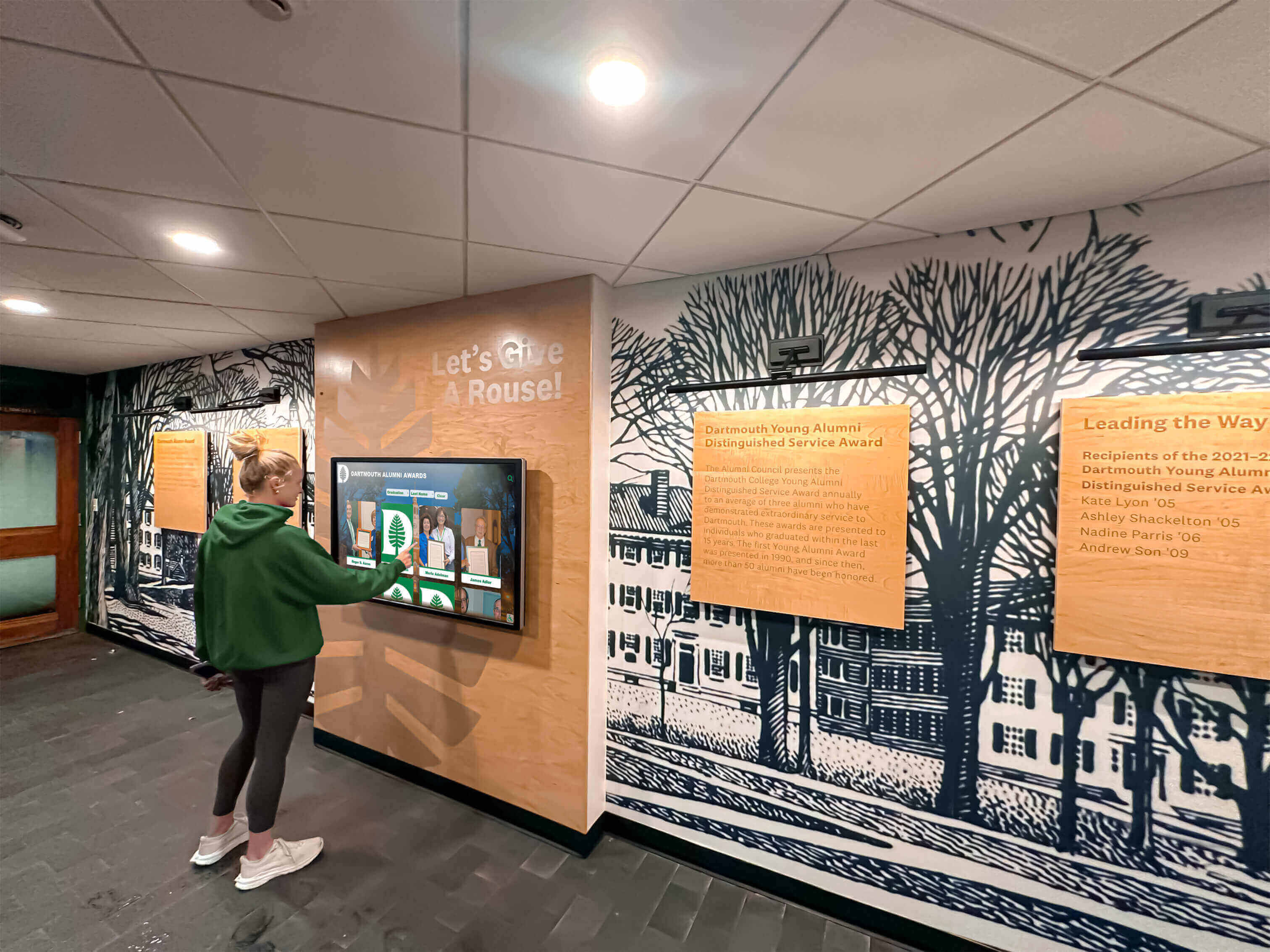
Students, alumni, and community members who navigate a hall of fame by keyboard—whether by necessity or preference—rely on trap-free focus management across every interactive component to complete their recognition experience
Measurement: Evaluating Keyboard Trap Audit Results
After completing the seven-step audit and applying remediation, measure outcomes against the following benchmarks.
| Metric | Target | Action if Below Target |
|---|---|---|
| Interactive components with no keyboard trap | 100% of all audited components across all page templates | Prioritize Critical and High findings; address modal Escape handling and video player Tab exit before carousel and accordion issues |
| Modals with correct Escape key behavior | 100% of modal and dialog components | Add Escape key handler and triggering-element focus restoration to every modal; verify by opening the modal and pressing Escape with no mouse involvement |
| Video players allowing Tab exit | 100% of embedded video players on profile pages | Test each third-party embed separately; contact the vendor if iframe Tab capture cannot be resolved at the page level |
| Filter panels allowing Tab exit to result grid | 100% of filter panel implementations on index and search pages | Confirm DOM order places filter panel before result grid; remove Tab interception on last panel control |
| Focus returned to triggering element on component close | 100% of components that open an overlay or expanded state | Store a reference to the triggering element before each component opens; verify by auditing focus position after each close action |
| Re-audit after theme or component update | All components pass within 30 days of any template or library update | Schedule keyboard trap spot-check within 48 hours of any component library or theme deployment |
The No Keyboard Trap criterion is binary at the component level: a component either allows keyboard exit or it does not. This makes the keyboard trap audit one of the most decisive accessibility checks available—a passing result means the recognition platform is navigable by keyboard from any entry point, and a failing result identifies exactly which component must be fixed.
Schools comparing recognition platform options should ask vendors to demonstrate keyboard trap compliance during a live session—opening a modal, escaping it, tabbing past a video player, and exiting a filter panel—rather than relying on written compliance statements. The review of leading hall of fame platforms provides a feature-comparison starting point for identifying which platforms address keyboard focus management as a standard capability versus a custom configuration.
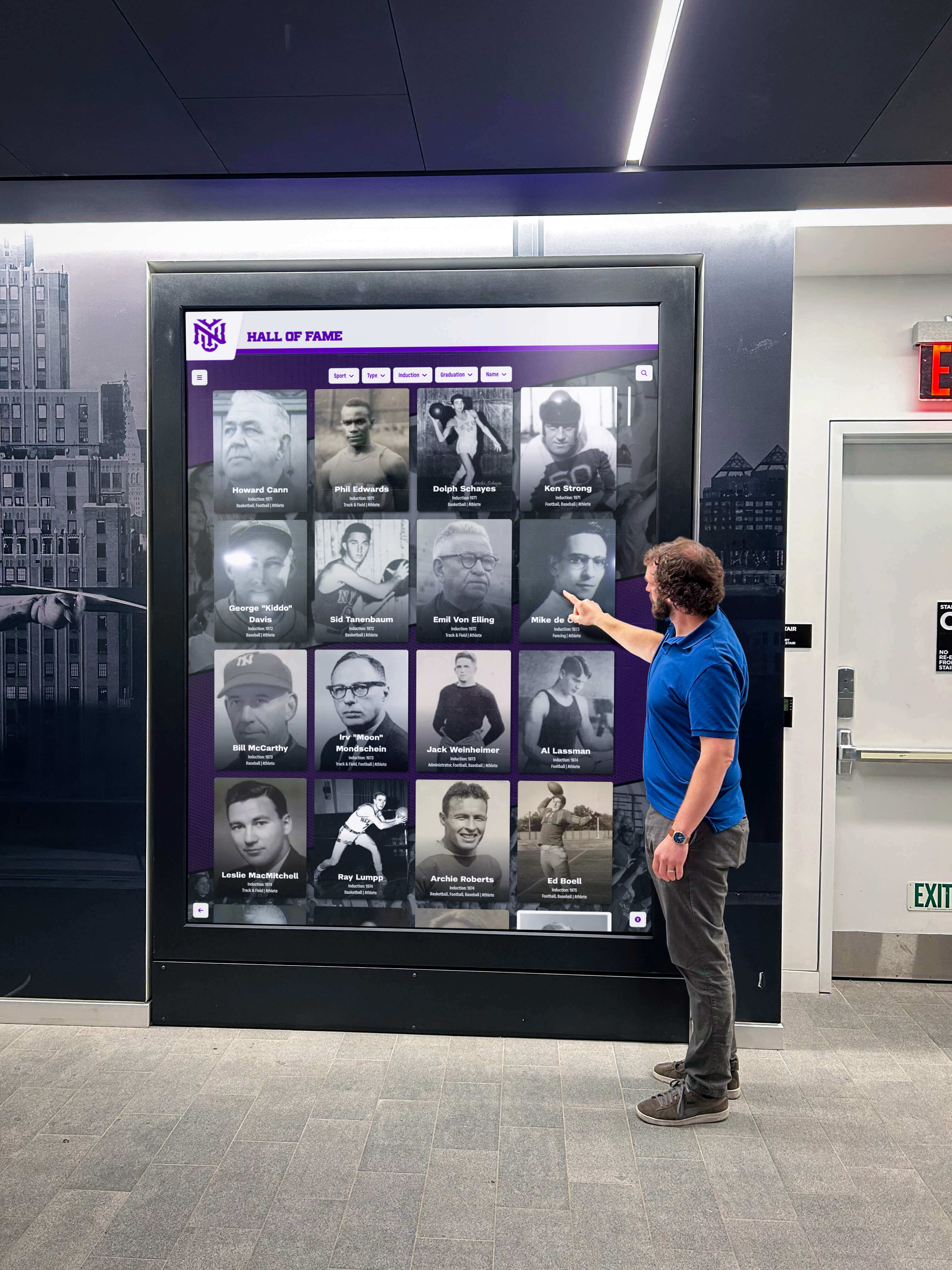
Recognition program administrators can confirm keyboard trap compliance in under 30 minutes using only a browser and a keyboard—the investment protects every visitor who relies on keyboard navigation from being locked out of inductee content
Frequently Asked Questions
What is a keyboard trap and how is it different from poor focus order?
A keyboard trap is a specific accessibility failure defined by WCAG 2.1.2: keyboard focus enters a component and cannot exit using Tab, Shift+Tab, Escape, or arrow keys. Poor focus order—defined by WCAG 2.4.3—is a separate failure in which focus moves in an unexpected or non-logical sequence but can still reach every interactive element with enough Tab presses. Both require remediation, but keyboard traps are more severe because they completely prevent navigation past the trapped component, while poor focus order allows navigation with additional difficulty. A digital hall of fame keyboard trap audit primarily targets 2.1.2 failures, though testing the same components also surfaces focus order issues.
Does the keyboard trap requirement apply to third-party components such as YouTube embeds?
Yes. WCAG 2.1.2 applies to the full page as presented to the visitor, including embedded third-party components. If a YouTube iframe on an inductee profile page captures Tab focus permanently, the page fails 2.1.2 regardless of whether the trap originates in Google’s code or the school’s template. The remediation options for third-party embeds are more limited (adding a focusable element after the iframe, or using an accessible video player replacement), but the obligation to provide a keyboard exit path belongs to the page owner.
Our hall of fame site uses a lightbox to display inductee photos. Is the lightbox a keyboard trap risk?
Lightbox components are one of the highest-risk components for keyboard trap failures. A correctly implemented lightbox must: (1) move focus into the lightbox when it opens, (2) confine Tab to lightbox controls while open (this is intentional focus containment, not a trap), (3) respond to Escape by closing the lightbox and returning focus to the image thumbnail that triggered it, and (4) allow Tab past the last lightbox control to exit if no Escape handler is present. Lightboxes that open and leave focus on the triggering element, or that close on Escape but drop focus to the top of the page, fail the audit.
How often should a school run a keyboard trap audit?
Run a full audit at platform launch, after any major theme or component library update, and quarterly as part of a standing accessibility maintenance schedule. Run a targeted spot-check within 48 hours of any deployment that modifies a modal, video player, carousel, or filter component. Platform updates—even minor version bumps in a component library—can change keyboard event handling in ways that introduce new traps without any visible change to the page.
Can automated accessibility scanners catch keyboard traps?
Automated scanners such as axe DevTools and WAVE can detect some keyboard trap indicators—for example, a modal dialog that does not have a visible close button in the tab order, or a component with onkeydown handlers that call event.preventDefault() on Tab. However, automated scanners cannot simulate the full keyboard navigation sequence—open a component, tab through its controls, observe whether Tab exits—that the manual audit workflow performs. Manual keyboard testing is the only definitive method for verifying that focus can both enter and exit every interactive component on the page.
What is the difference between a focus trap (for modals) and a keyboard trap (WCAG failure)?
A focus trap is a deliberate, accessibility-positive pattern: when a modal dialog is open, Tab focus is constrained to the modal’s interactive elements so that background content is not reachable while the foreground dialog is open. This is the correct behavior for modal dialogs and is required by the ARIA Authoring Practices Guide for dialog components. A keyboard trap is an accessibility failure: focus enters a component with no escape path. The difference is Escape: a correctly implemented modal focus trap always responds to Escape (and/or a visible close button) to release focus and close the dialog. A keyboard trap provides no such exit.
Reusable Artifact: Keyboard Trap Audit Checklist
Copy this checklist before each recognition platform launch, component library update, or quarterly accessibility review.
Modal Dialogs (Inductee Detail, Nomination Form, Photo Lightbox)
- Opening the modal moves keyboard focus into the modal automatically
- Tab cycles through only the modal’s focusable elements while the modal is open
- Shift+Tab from the first focusable element wraps to the last focusable element inside the modal
- A visible, keyboard-focusable close button is present inside the modal
- Pressing Escape closes the modal
- After the modal closes, focus returns to the element that triggered it
- Background page elements are not reachable by Tab while the modal is open
Video Players (YouTube, Vimeo, Custom Embeds)
- Tab enters the video player and focuses the first player control
- Tab from the last player control exits the player to the next page element
- Escape from inside the player does not trap focus within the player after execution
- Tab through an iframe player exits the iframe after the last control
Carousels and Sliders (Featured Inductees, Photo Galleries)
- Arrow keys advance slides; Tab does not loop within the carousel
- Tab from the last carousel control moves focus to the next page element
- Autoplay does not reset keyboard focus when a new slide advances
Filter Panels and Accordions
- Expanding an accordion moves focus to the expanded content
- Tab from the last item in the expanded section exits to the next page element
- Collapsing an accordion returns focus to the accordion toggle button
- Floating or sticky filter panels do not obscure the next Tab stop after the panel
Date Pickers and Year-Range Selectors
- Opening the picker moves focus into the calendar or range control
- Escape closes the picker and returns focus to the date input field
- Tab exits the picker after the last focusable control
Social Sharing and Third-Party Widgets
- Tab from the last widget control exits the widget (or its iframe) to the next page element
- No iframe permanently captures Tab focus
Global Verification
- All components pass Tab exit test in Chrome, Firefox, and Edge
- All modals pass Escape and focus-return test in NVDA (Insert + F7 confirms no orphaned landmark)
- All components pass Tab exit test in VoiceOver (Control + Option + U landmark check)
- No component requires a non-standard key to exit without on-screen documentation of that key
Connecting Keyboard Trap Compliance to the Full Accessibility Workflow
A keyboard trap audit is one layer of a complete digital hall of fame accessibility verification workflow. Schools that have completed this audit should pair it with the related checks that cover adjacent WCAG criteria: a skip link test confirms that keyboard visitors can bypass the site navigation header to reach inductee content directly; an ARIA landmark audit confirms that the page structure is navigable by region; an ARIA live region test confirms that search and filter updates are announced automatically to screen readers; and a reflow test at 400% zoom confirms that the recognition archive is usable at high magnification settings. Together these four audits cover the primary keyboard and screen-reader access requirements at WCAG Level A and AA.
Recognition programs that serve the full school community—current students, returning alumni, families of honorees, and community members who follow your athletics program—depend on a platform that is equally navigable for every visitor. A keyboard trap audit takes under 75 minutes using only a browser and a keyboard, requires no specialist tools for the initial sweep, and protects the recognition experience for every visitor who relies on keyboard navigation to browse inductee profiles, view video tributes, or submit a nomination.
Schools developing broader youth sports recognition programs alongside digital platforms will find youth sports awards planning resources useful for structuring the recognition categories that will populate the digital archive—the content planning and the accessibility audit can proceed on parallel tracks during a platform launch cycle.
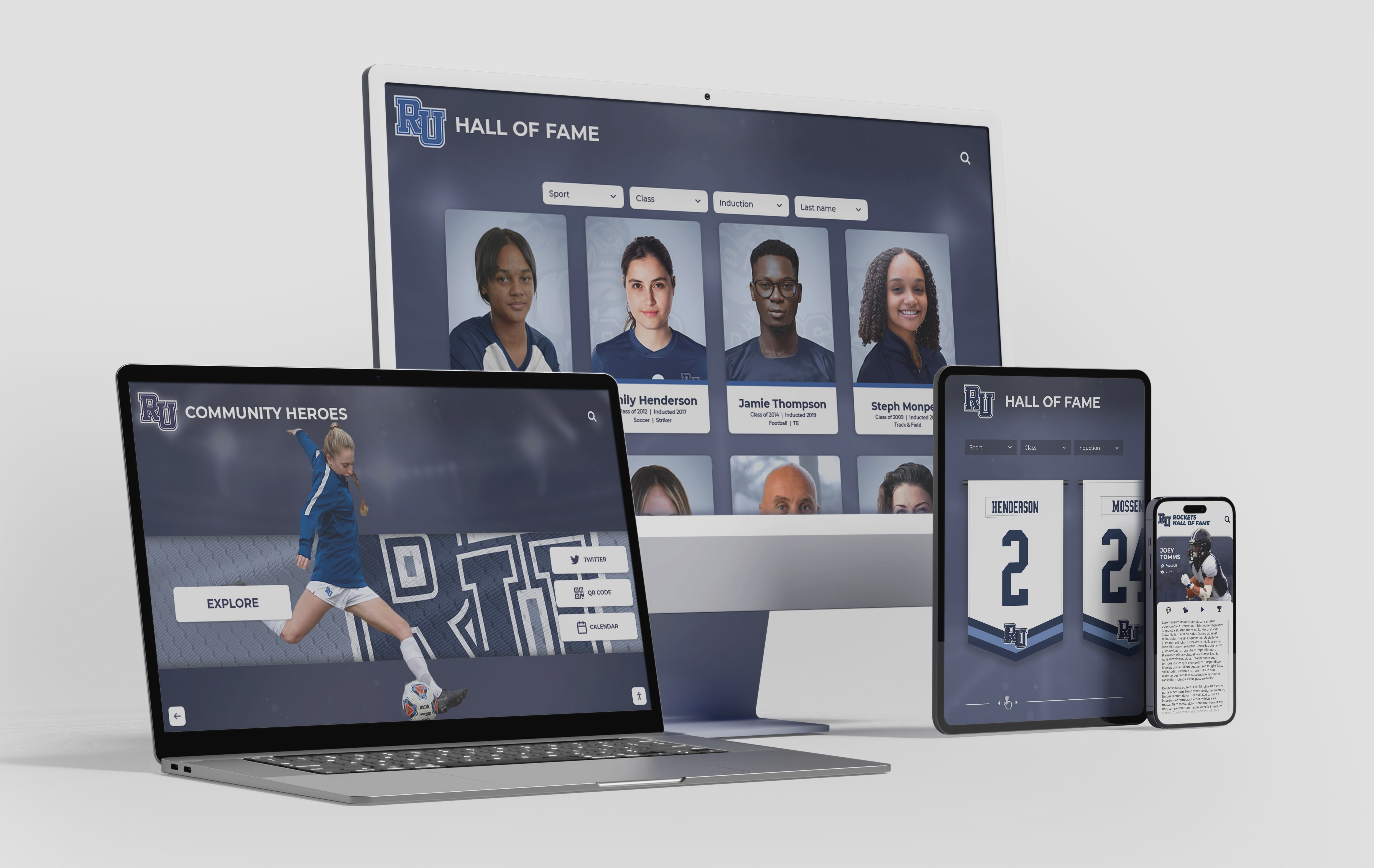
Because all device contexts—desktop, tablet, and mobile—render the same HTML components, a keyboard trap resolved on the desktop web directory is resolved on every viewport that loads the same template
For school recognition programs evaluating the full scope of digital hall of fame features that support accessible presentation of inductee content, the digital hall of fame tools overview for athletics and arts programs covers platform capabilities including accessibility infrastructure across multiple recognition categories.
See Rocket Alumni Solutions’ Keyboard-Accessible Hall of Fame Platform in Action
Request a live demonstration to see how Rocket’s recognition platform manages keyboard focus across inductee modals, video tribute players, and sport-category filters—with no keyboard traps—before any commitment.
Live Example: Rocket Alumni Solutions Touchscreen Display
Interact with a live example (16:9 scaled 1920x1080 display). All content is automatically responsive to all screen sizes and orientations.