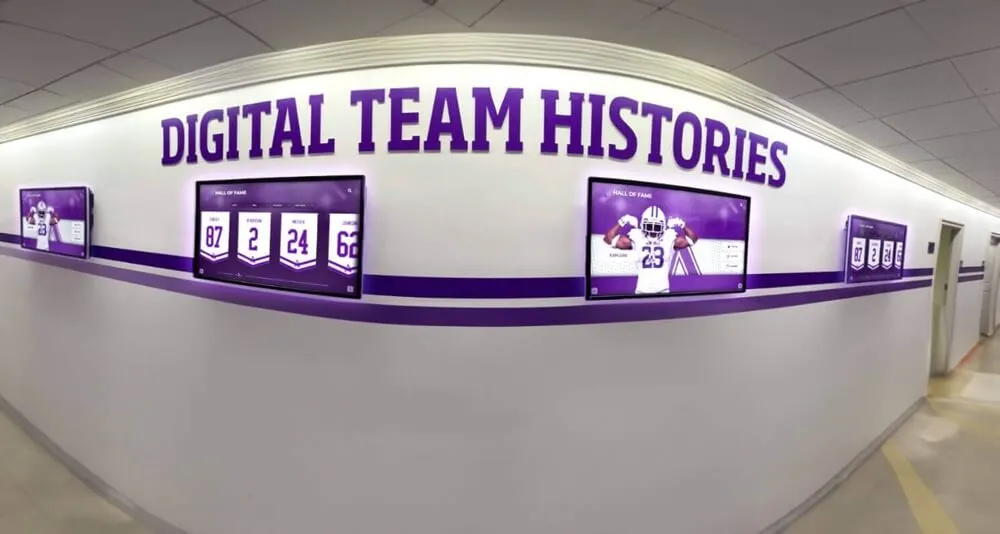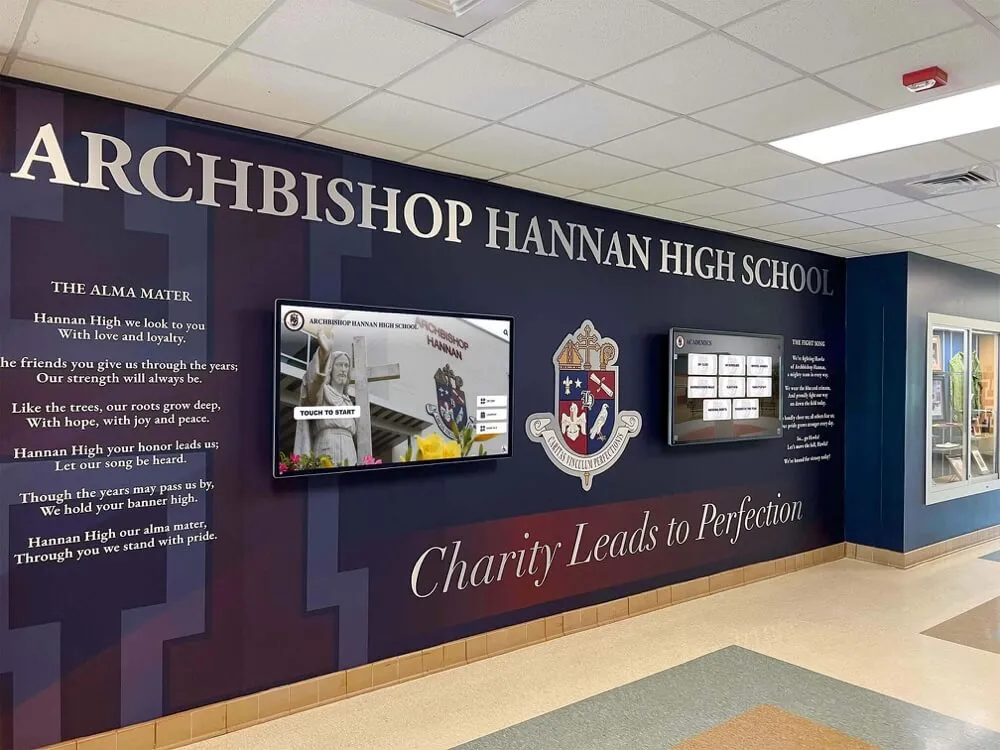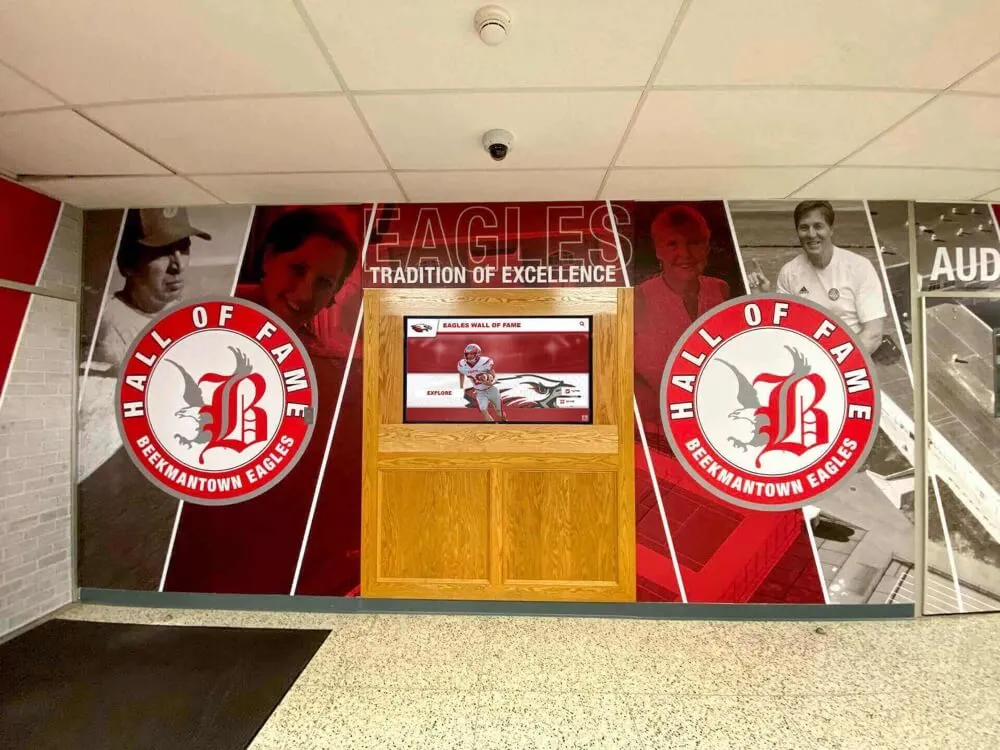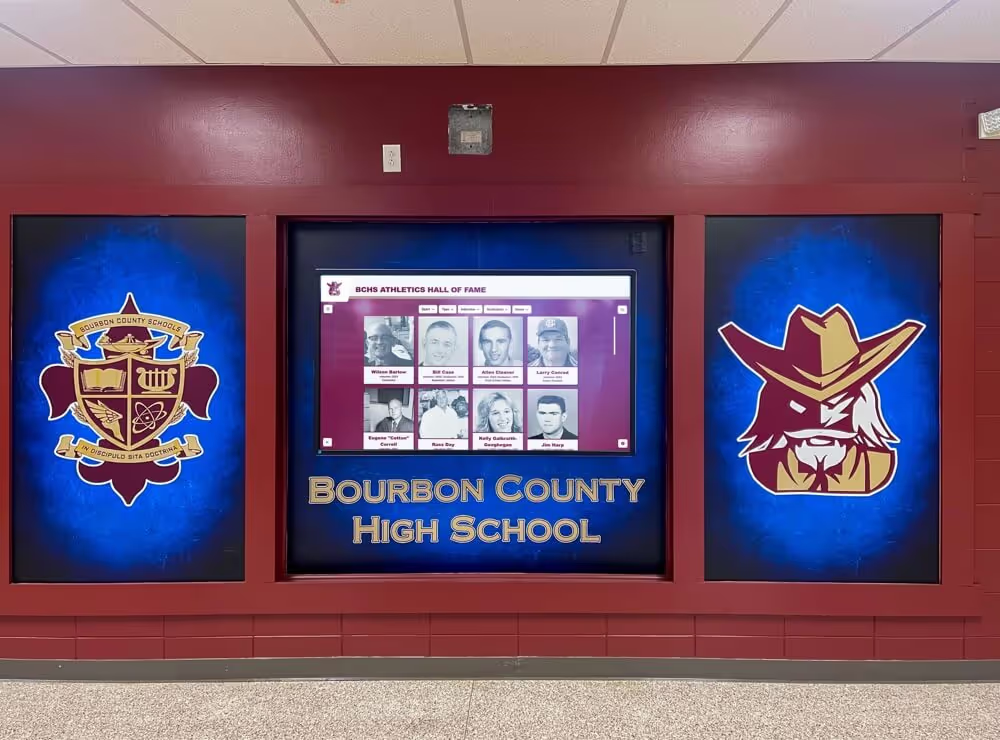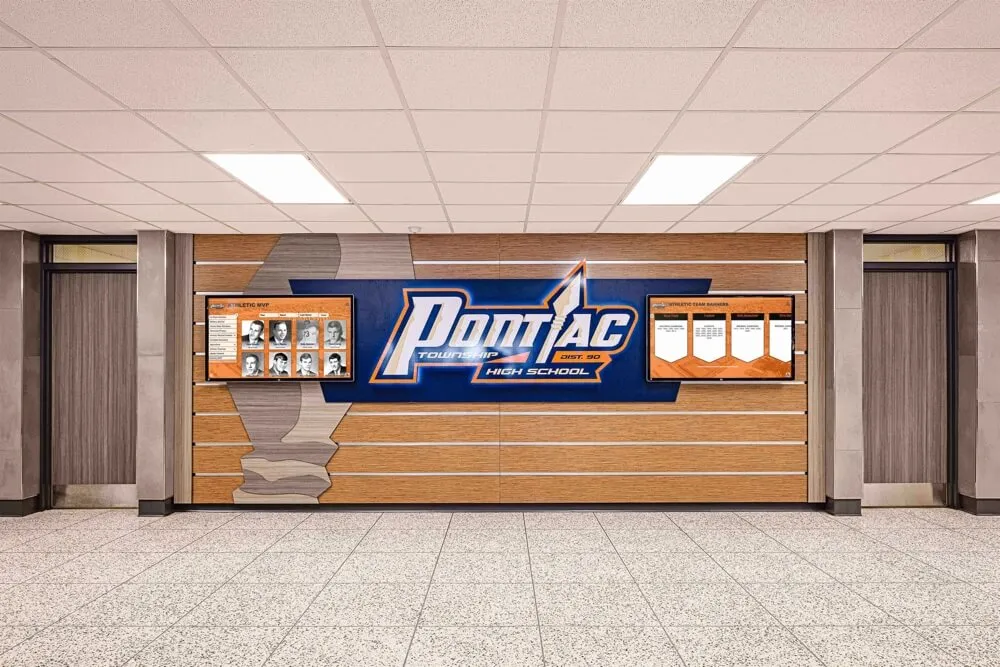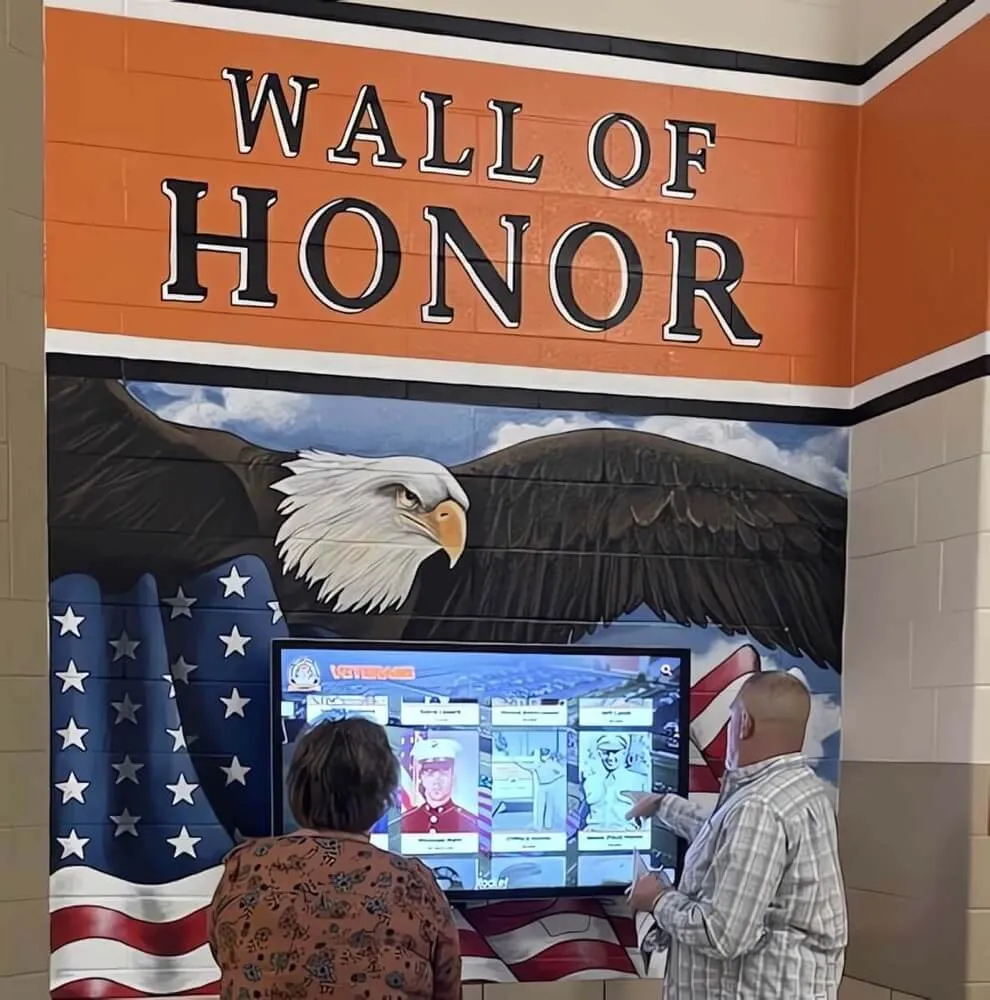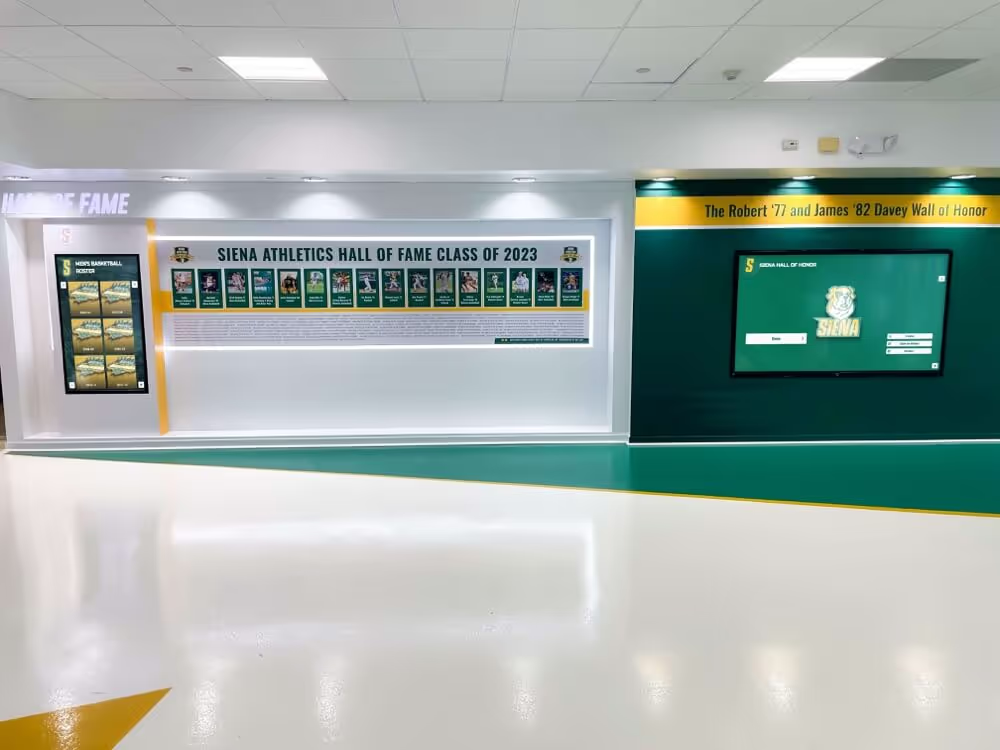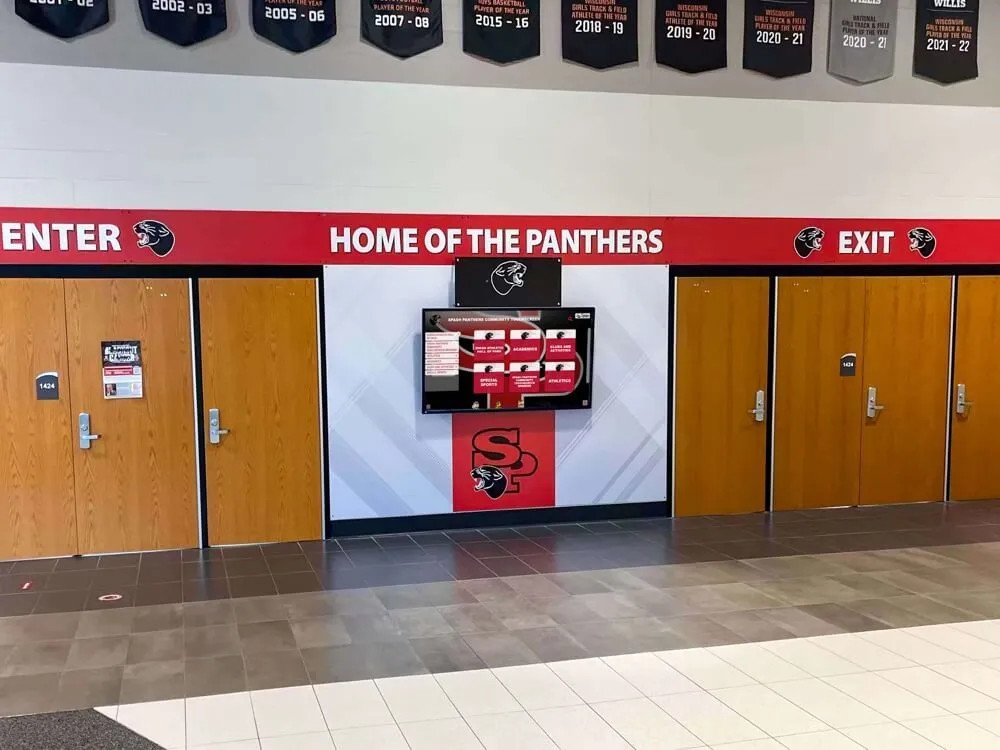




Every time a visitor types a name into your digital hall of fame kiosk or web directory, the system records what they asked for and whether it found something useful. That log is a direct record of community expectations — and of where the archive falls short. A monthly review of digital hall of fame internal search analytics turns that raw data into a prioritized action list: missing inductee profiles to create, metadata fields to fix, synonym gaps to close, and display navigation to adjust. This workflow shows athletic directors, archivists, and facilities teams exactly how to pull, categorize, and act on search data within a 60–90 minute monthly cycle.
Program Snapshot: Monthly Search Analytics Review
Map the scope of the review before pulling data. The table below defines the key parameters for schools at any archive stage.
| Planning Element | Details |
|---|---|
| Primary Audiences | Athletic directors, archivists, IT administrators, facilities coordinators, booster club leaders |
| Data Sources | Platform CMS search-log export, website analytics site-search report, kiosk event log |
| Review Frequency | Monthly for active archives; quarterly acceptable for installations under 200 profiles |
| Primary Signals | Zero-result queries, low-click queries, high-volume terms, repeated failed searches |
| Outputs | Missing-profile backlog, metadata correction queue, synonym additions, navigation adjustments |
| ADA Relevance | Zero-result rates are higher for keyboard-only and screen-reader users who rely on search rather than visual browse — gaps directly affect accessibility |
| Time Investment | 60–90 minutes per cycle once the process is established |
| Platform Requirement | CMS must expose a search-log export or integrate with a site analytics layer |
A review workflow that produces no outputs is just a report. The categorization step — matching each failed query to its root cause — is what converts a log into a work queue.
What Internal Search Logs Record — and Why They Matter
Every search performed on a digital hall of fame generates a data record that typically captures:
- The query string (what the visitor typed)
- The number of results returned
- Whether the visitor clicked through to any result
- Timestamp and session identifier (anonymous, not personally identifiable)
These four data points, accumulated over a month, reveal the gap between what visitors expect to find and what the archive actually surfaces. A zero-result rate above 5–8 percent in a school hall of fame signals real coverage or discoverability problems — not unreasonable visitor behavior.
Zero-result queries fall into three categories: the name exists in the archive but is spelled differently than visitors remember, the profile has never been created, or the search engine lacks the synonym mapping to connect the visitor’s query to the correct record. Each category requires a different response, which is why triage — not just report-pulling — is the core activity of the monthly review.

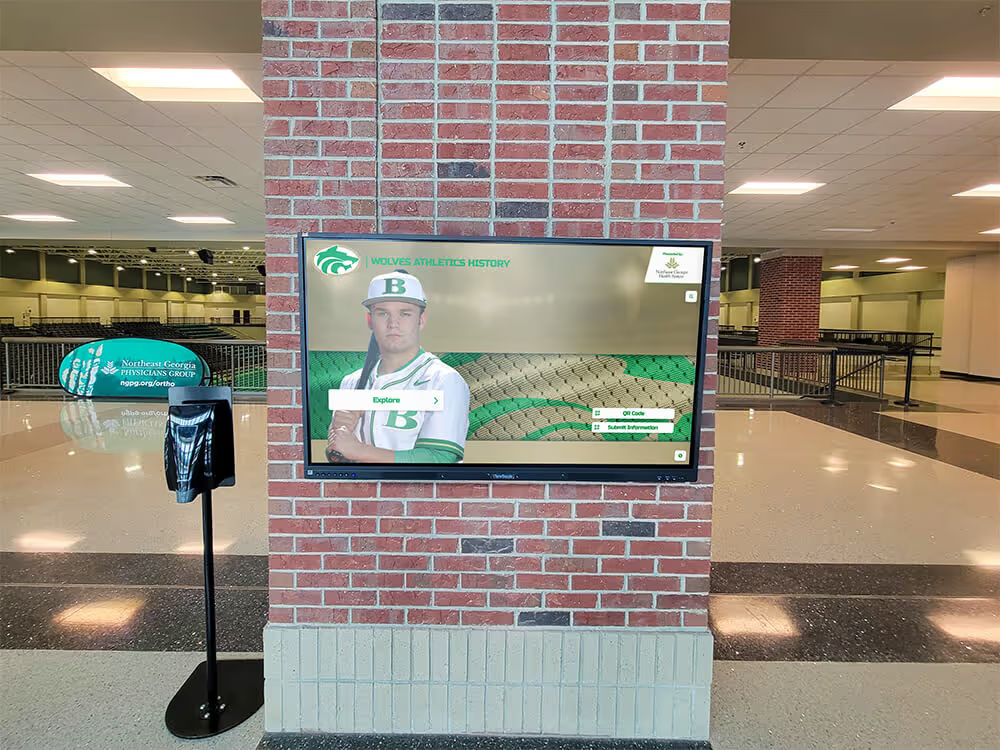
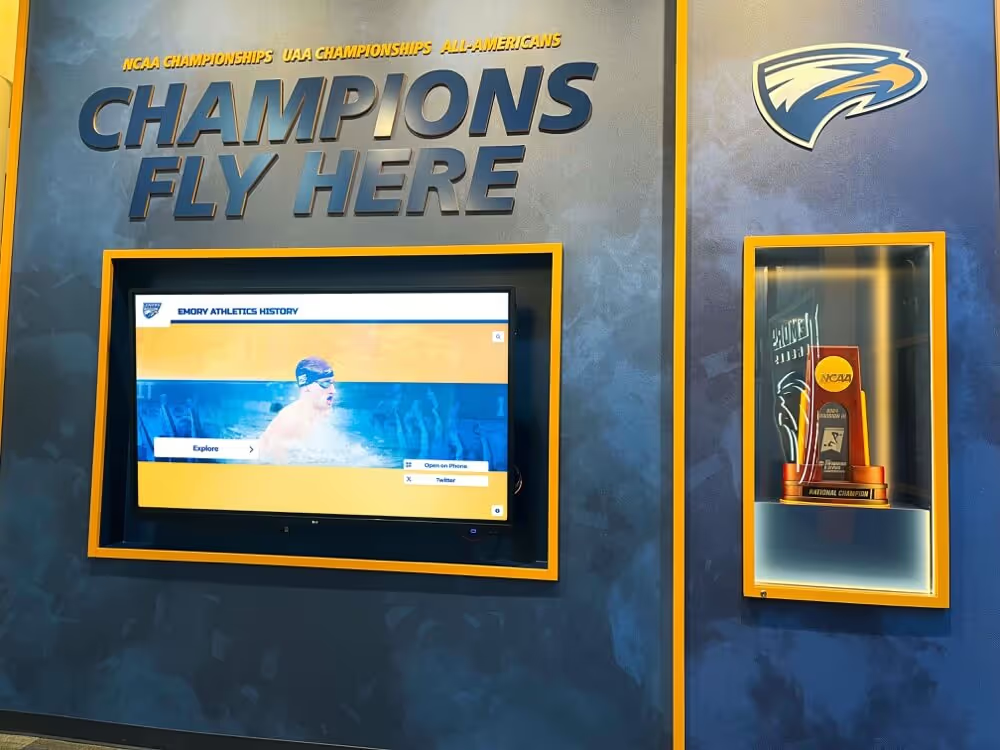
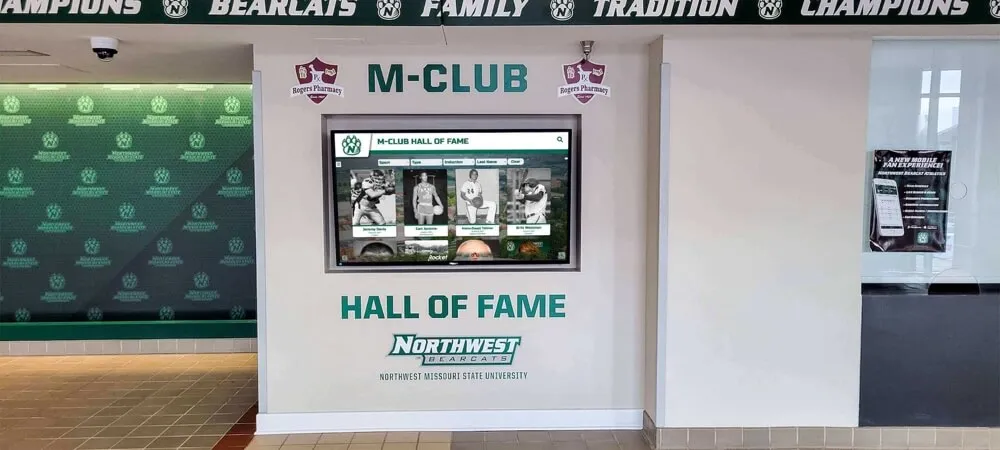
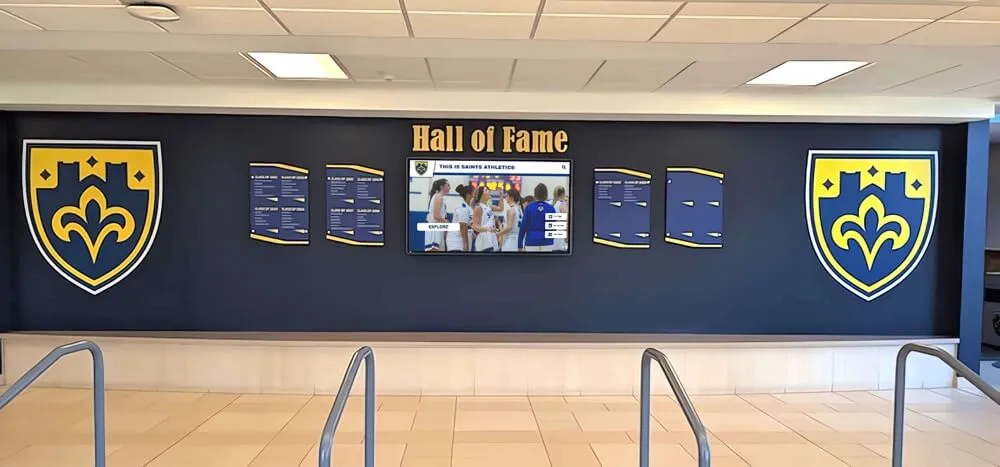
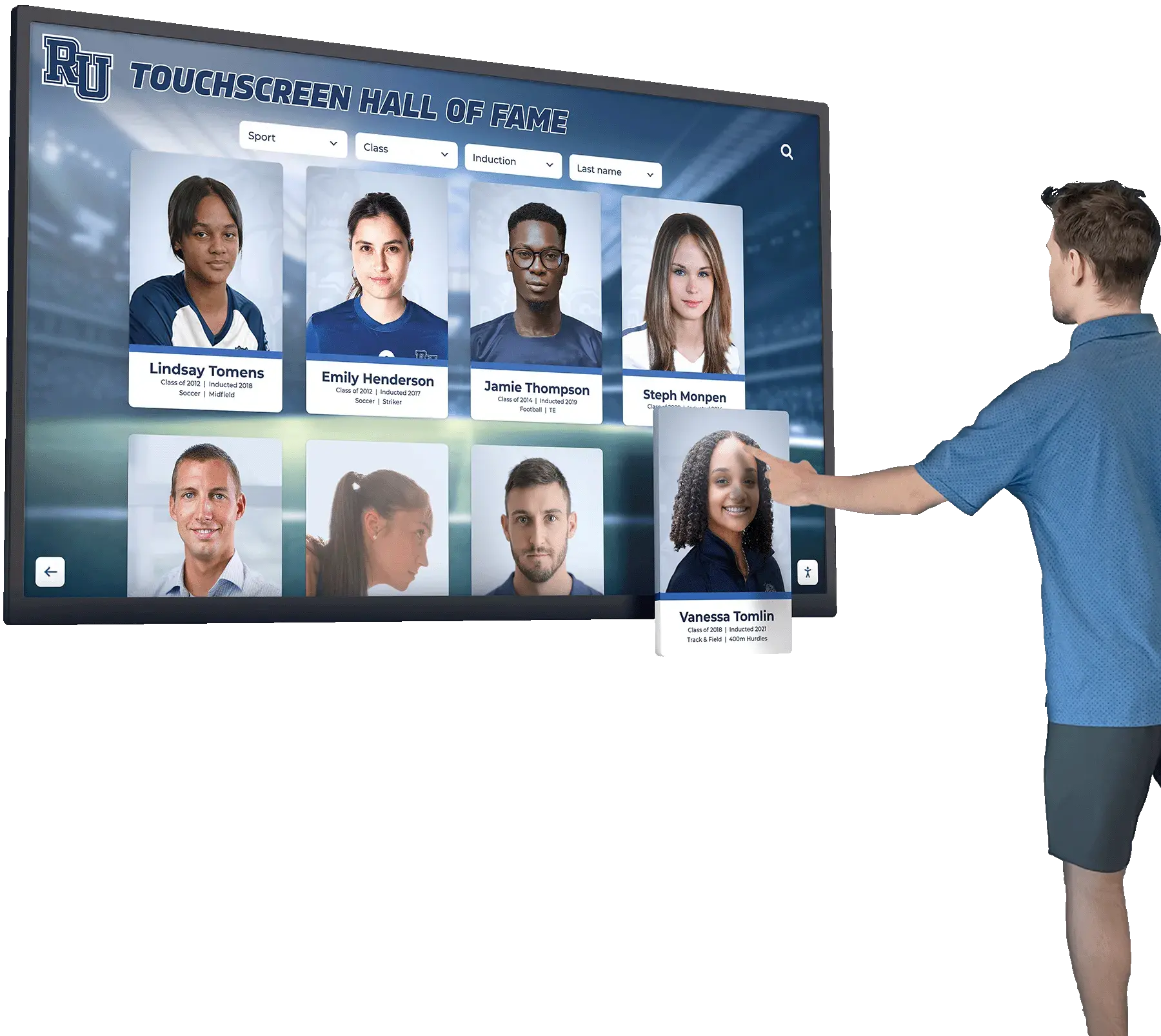
Every search a visitor initiates on the kiosk or web directory generates a data record — monthly review of those records surfaces the gaps that prevent visitors from finding the inductees they came looking for
Step-by-Step Monthly Review Workflow
Step 1: Pull the Search-Term Report
Export the full search log from your platform’s CMS or analytics dashboard for the previous calendar month. Most purpose-built digital hall of fame platforms include a search analytics report in the administration area showing:
- All queries submitted during the period
- Result count returned for each query
- Click-through count (sessions where the visitor opened a profile from search results)
If your platform does not surface this report natively, check whether it integrates with a site analytics layer such as Google Analytics 4 with site-search tracking enabled. For kiosk-only installations without web integration, request a search-event export directly from the platform vendor.
Export to a spreadsheet with three essential columns: query, results returned, clicks. Additional context — device type, session duration — can help clarify whether touchscreen visitors versus web visitors are driving distinct gap patterns.
Step 2: Categorize Each Query
Sort the export by results returned (ascending) to surface zero-result queries first. Apply the following category label to each unique query term:
| Category | Definition | Likely Cause |
|---|---|---|
| Zero-Result: Profile Missing | Query matches a name not present in the archive | Archive gap — inductee exists in community memory but profile not yet created |
| Zero-Result: Alias Gap | Query is a valid alternate for a profile that does exist | Missing nickname, maiden name, or alternate spelling in the profile |
| Zero-Result: Synonym Gap | Query is a valid sport or program name not mapped in the vocabulary | Synonym list incomplete — search engine cannot connect the term to indexed content |
| Zero-Result: No Match | Query is a visitor error or aspirational search with no archive equivalent | No action unless the same query recurs across multiple sessions |
| Results, No Clicks | Query returned profiles but visitor did not select any | Metadata is weak — profiles surface but are not convincing enough to open |
| High Volume, Low Click-Through | Query is popular but under-performing on engagement | Featured content or browse navigation gap |
Categorization is the most time-intensive step, but it is where the value is produced. A raw zero-result list is a problem log. A categorized list is a prioritized work queue.
Step 3: Resolve Zero-Result Queries
For each Profile Missing query, add the name to your inductee intake backlog. Repeated searches for a specific person are the most direct community signal that the individual deserves recognition. Share this list with your hall of fame selection committee — data-informed nominations are a more defensible process than committee memory alone.
For each Alias Gap query, open the relevant inductee profile and populate the nickname, maiden name, or alternate spelling field. In a well-configured platform this takes under two minutes per record. Digitizing old yearbooks for hall of fame display surfaces the historical nickname and maiden name data that makes alias population straightforward — yearbooks record what classmates actually called inductees, which is exactly what they will type decades later.
For each Synonym Gap query, add the term to the platform’s sport or program synonym list. Map “JV Cheer” to “Junior Varsity Cheerleading,” “B-Ball” to “Basketball,” and retired program names to their current equivalents. A well-maintained synonym list eliminates an entire failure category without requiring profile-by-profile edits.
Step 4: Fix Low-Engagement Queries
A query that returns results but generates no clicks is a metadata problem. The profiles surfaced in search results were not compelling enough for the visitor to open. Review each profile returned for that query:
- Is the name clearly displayed with the correct sport and class year?
- Is there a photo? Profiles without a photo have substantially lower click-through rates than profiles with one.
- Does the summary caption include the achievement that the visitor would recognize the inductee for?
- Is the inductee indexed under the sport or program term the visitor searched for?
Fix these fields in the CMS for each affected profile. Photo sourcing for older inductees is often the bottleneck. Coordinate with your archivist and confirm that your school’s athletic archive legal hold procedure covers photography and records retention, including any analytics exports from the search system itself.
Step 5: Close Navigation Gaps
When a sport or program name is searched at high volume — higher than any browse navigation filter receives — the browse experience is not doing its job. Visitors are using search as a workaround for a navigation gap rather than as a primary discovery tool.
Adjust your display navigation to surface the most-searched programs prominently. If “Cheerleading” ranks in the top five search queries every month, a dedicated program category or featured section in the browse filter prevents that traffic from falling entirely on the search function. Programs like cheer and spirit squads carry rich recognition traditions that generate sustained community interest — search volume confirms that interest is active, not nostalgic, and the browse navigation should reflect it.

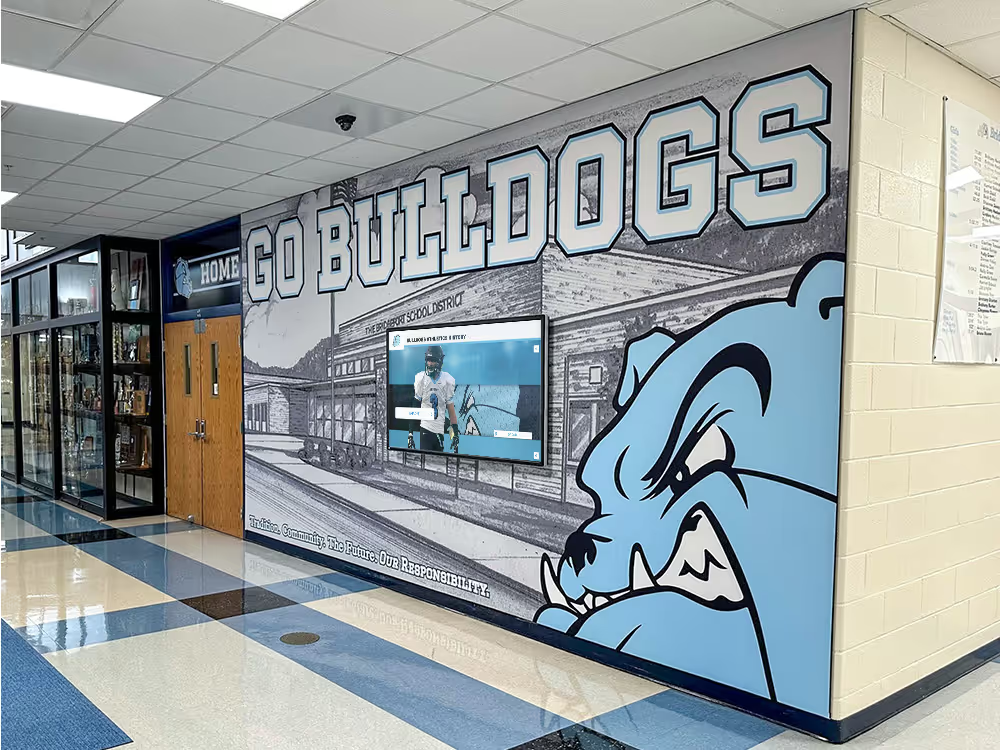
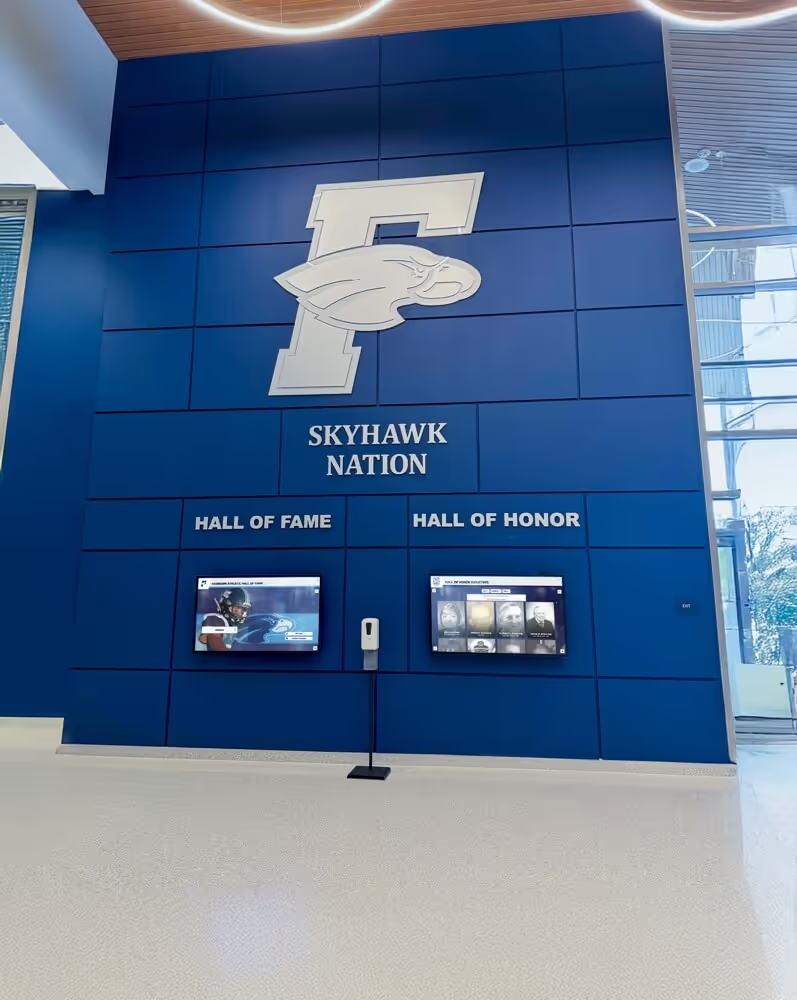
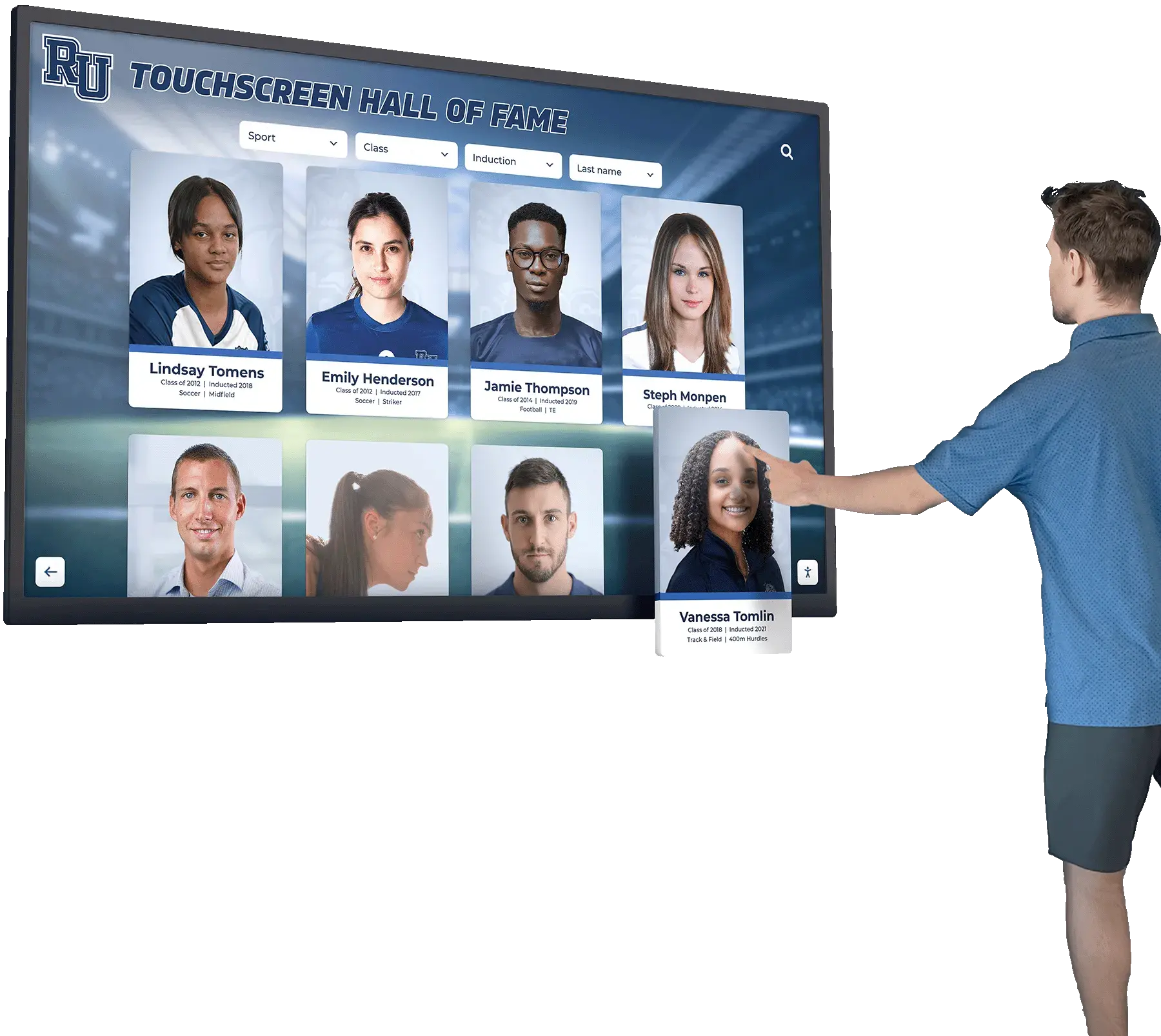
Search analytics reveal which inductees and programs visitors actively seek — that evidence should drive both alias field updates and touchscreen navigation design
Monthly Review Checklist (Copy-Paste Ready)
Use this checklist at each cycle to ensure no step is skipped:
[ ] Export previous month's search log from CMS or analytics layer
[ ] Sort by results returned (ascending) to surface zero-result queries
[ ] Categorize each zero-result query: Profile Missing / Alias Gap / Synonym Gap / No Match
[ ] Categorize each low-click query: Metadata Gap / Navigation Gap
[ ] Add Profile Missing names to inductee intake backlog
[ ] Populate alias and maiden name fields for Alias Gap profiles
[ ] Add new terms to sport/program synonym list for Synonym Gap queries
[ ] Update photo, caption, and sport fields for low-click profiles
[ ] Adjust browse navigation categories for high-volume uncategorized terms
[ ] Record zero-result rate and click-through rate for the month
[ ] Brief athletic director on nomination candidates surfaced by search data
Content Architecture: Mapping Search Signals to Display Modules
Search analytics data informs more than alias fields and synonym lists. Each signal type maps to a specific touchscreen or web display module:
| Search Signal | Recommended Display Action |
|---|---|
| Repeated search for a name with no profile | Add to nomination queue; consider a placeholder entry if the individual is clearly expected |
| Spike in searches for a specific sport category | Feature that sport on the kiosk home screen or landing panel |
| High volume for a donor or sponsor name | Verify donor recognition section is prominent; audit dedication plaque and digital tribute coverage |
| Repeated search for a specific graduating class year | Confirm all profiles from that class are indexed under the correct year; add a class-year browse filter if absent |
| High search for a program name with no category page | Add a category page and synonym mapping even if inductee profiles are still incomplete |
| Search immediately followed by a different search (pivot pattern) | Review both queries together — the visitor did not find what they needed and iterated |
Athlete profiles that appear repeatedly in zero-result searches are strong candidates for a spotlight treatment. Athlete-of-the-week recognition programs in high-traffic display areas can surface these profiles before visitors reach the search box — reducing search load while increasing the recognition impact for inductees whose community interest is already documented.
Sport programs that generate disproportionate search volume may need deeper content coverage. If baseball alumni searches outpace other categories consistently, audit whether the archive has comparable depth for baseball and youth sports award recipients relative to more prominently represented programs. Search volume is community evidence, not assumption.
Execution Timeline: Monthly Cadence
Build the review cycle into a standing calendar event with a defined sequence that keeps each activity in the right week:
| Week | Activity | Responsible | Tool |
|---|---|---|---|
| Week 1, Day 1 | Export previous month’s search log | Administrator | CMS analytics export |
| Week 1, Days 2–3 | Categorize all zero-result and low-click queries | Administrator or archivist | Spreadsheet |
| Week 1, Days 4–5 | Resolve alias and synonym gaps in CMS | Administrator | Profile editor, vocabulary editor |
| Week 2 | Prioritize missing profile backlog; assign photo sourcing tasks | Athletic director or archivist | Task tracker |
| Week 3 | Update metadata and add photos for low-click profiles | Administrator | CMS profile editor |
| Week 3 | Adjust browse navigation for high-volume uncategorized terms | Administrator | CMS layout editor |
| Week 4 | Verify zero-result rate improvement; record monthly KPIs | Administrator | Analytics dashboard |
| End of Month | Brief athletic director on nominations surfaced by search data | Administrator | Summary note |
The analytical and remediation work compresses into the first two weeks, leaving the final week for quality verification and stakeholder communication. Sixty to ninety minutes of focused categorization in Week 1 drives every downstream task.
Display Integration: Pushing Insights Back Into the CMS
Search analytics create a feedback loop only if the insights change what the display shows. The most direct integration path is the platform’s cloud CMS, which should allow administrators to:
- Update alias fields from a standard profile edit screen — well-configured platforms rebuild the search index automatically on save, without requiring a manual reindex request.
- Edit synonym mappings from a centralized vocabulary editor rather than profile by profile.
- Reorder or relabel browse navigation from a layout or navigation editor without developer involvement.
- Schedule featured-content updates to rotate high-search-volume inductees into prominent kiosk screen positions on a monthly cadence.
For touchscreen kiosk displays, the featured content position on the home screen — the screen every visitor sees before they interact — is the highest-leverage placement for analytics-informed updates. Rotating this position monthly based on search log evidence keeps the installation current without requiring a full content rebuild.
For lobby and hallway digital displays operating in passive looping mode, search analytics inform which program categories, class years, or inductee groups should cycle through the rotation more frequently. A dance team senior night and lobby display loop that runs during the relevant season keeps program-specific recognition visible when search interest is naturally highest — and search data confirms that interest is real rather than assumed.
Insights that reveal content needs beyond quick metadata fixes — such as a persistent search for an inductee whose records have never been digitized — should feed into a longer-term archive project. Sharing these findings through athletic department newsletters can recruit alumni directly, inviting them to contribute photos, corrections, and historical records for inductees they remember personally.
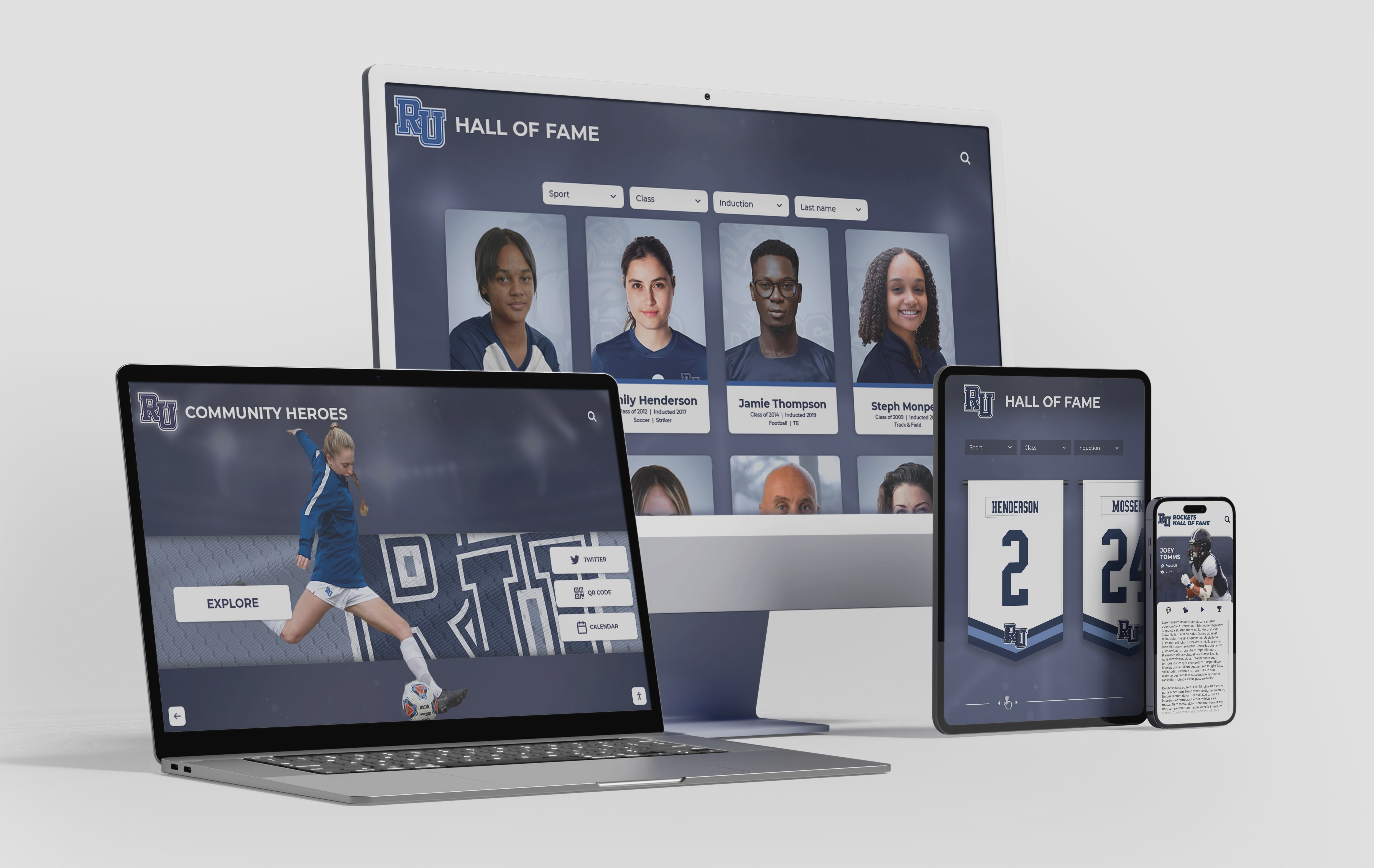
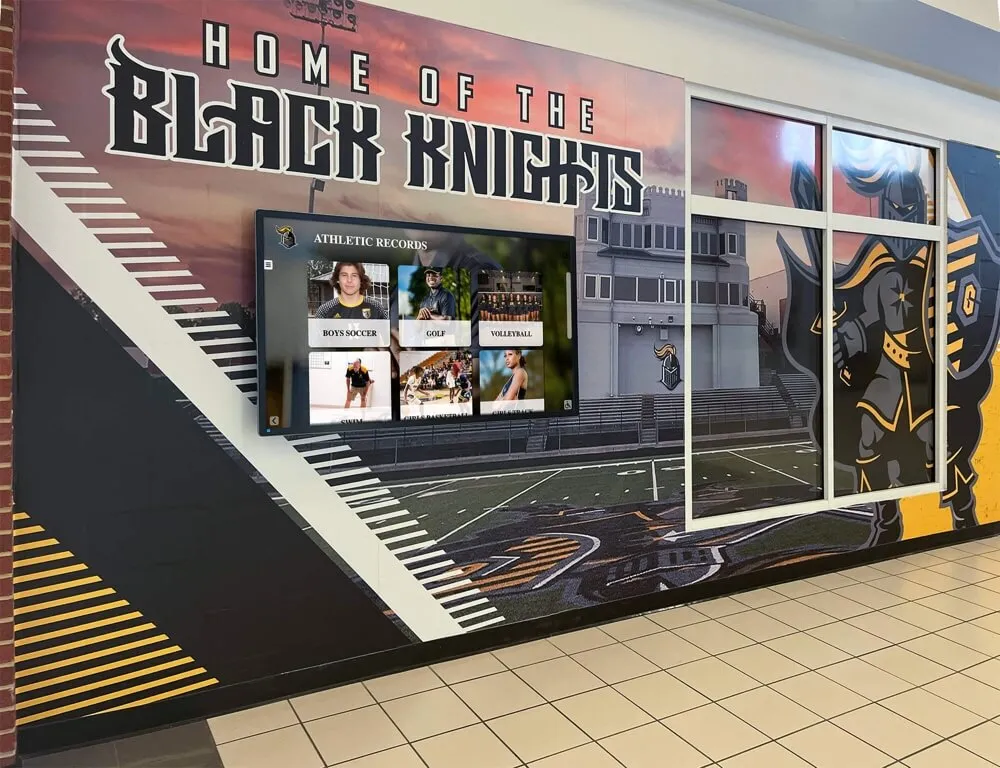
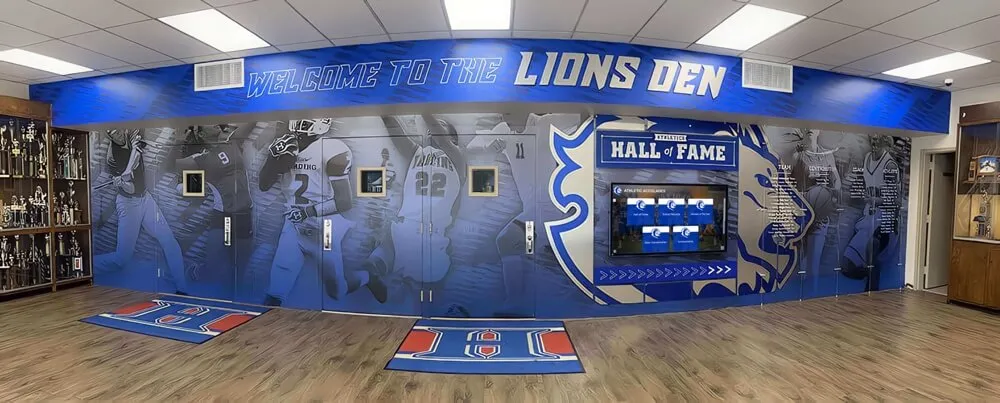
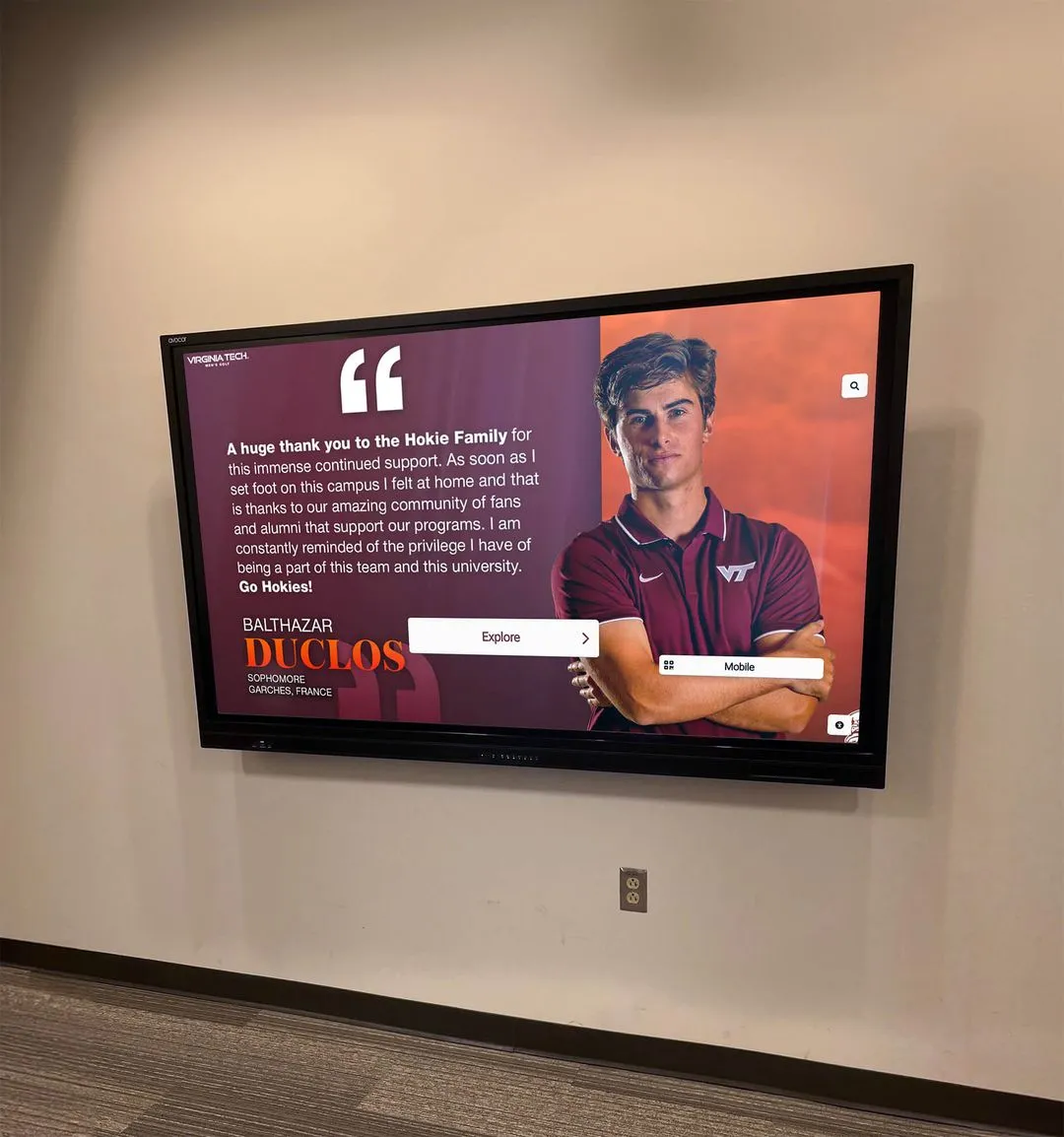
Digital hall of fame internal search analytics apply equally to kiosk and web directory formats — reviewing both channels together reveals whether the same gaps persist across all display contexts or are specific to one
Measurement Block: Tracking Search Analytics Improvement
After two to three monthly review cycles, compare performance against these baseline KPIs:
| Metric | Baseline Target | Strong Performance |
|---|---|---|
| Zero-result rate | Below 8% | Below 3% |
| Click-through rate (search to profile view) | Above 55% | Above 75% |
| Alias match rate (results returned via alias field) | Above 10% of search sessions | Above 25% of sessions |
| Repeat zero-result rate (same query failing again next month) | Below 20% of prior-month zero-result queries | Below 10% |
| Profile photo coverage | Above 70% of indexed profiles | Above 90% |
| Nomination candidates surfaced | At least 1 per quarter | 3–5 per quarter |
Set a threshold that triggers escalation: if the zero-result rate rises above 10% in any month, treat it as a signal that a significant batch of new search patterns has emerged — possibly driven by a reunion, a local news story, or a milestone sports anniversary bringing new visitors to the archive who are searching for specific individuals or eras.
Record KPIs in a simple monthly log alongside inductee count and profile completeness so leadership can see archive quality improving over time as a direct result of the review cycle.
Frequently Asked Questions
What if our digital hall of fame platform does not provide a search analytics report?
Most purpose-built platforms include search reporting in the administration dashboard. If yours does not, enable Google Analytics 4 site-search tracking on the web version of your directory — this captures query strings and result interactions without requiring platform changes. For kiosk-only installations, ask your vendor whether search event data is logged and whether it can be exported. If neither option exists, submit a feature request — search logging is standard infrastructure for any platform serious about archive management.
How long should search log data be retained?
Retain anonymized search query logs for at least 12 months to enable year-over-year comparison. Because search logs capture only query strings and anonymous session identifiers — no personally identifiable information — retention is straightforward from a privacy standpoint. Confirm with your school’s data governance policy whether analytics data falls under any district retention schedule.
How do we prioritize which zero-result queries to act on first?
Prioritize by frequency — queries appearing more than once in the same month represent at least two distinct visitors who did not find what they expected. After frequency, prioritize by recoverability: alias and synonym fixes take minutes; missing profiles requiring photo sourcing and biography writing take hours. Clear quick wins first to move the zero-result rate, then work through substantive content gaps in subsequent months.
Can search analytics help identify future hall of fame inductees?
Yes, and this is one of the most overlooked benefits of the monthly review. When a name appears repeatedly in search queries with no matching profile, it represents documented community interest in that individual’s recognition. Presenting these names to your selection committee as data-informed candidates is a more transparent process than relying solely on committee memory or informal nomination channels.
Does this workflow apply to both touchscreen kiosk and web directory formats?
The workflow applies to any digital hall of fame with a searchable interface. Kiosk and web search logs should be reviewed together: kiosk visitors often search for specific individuals at events, while web visitors may browse more broadly or search from a geographic distance. If your platform separates reporting by channel, run the categorization step for each separately and then merge into a single action queue before the remediation phase begins.
How quickly will zero-result rates improve after starting the review cycle?
Alias and synonym fixes take effect as soon as the changes are saved and the search index rebuilds — typically within minutes to a few hours depending on the platform. Profile creation takes longer because it involves content work, photo sourcing, and review. Most archives see zero-result rates drop meaningfully after the first two monthly cycles as the quick-win alias and synonym fixes accumulate.
Ready to put internal search data to work for your recognition program? Request your free custom demo to see how Rocket Alumni Solutions surfaces search analytics, supports alias fields and synonym configuration, and gives administrators the cloud CMS tools to act on every insight — without a development request.
A digital hall of fame that visitors cannot search effectively fails silently: the archive exists, but the recognition does not reach the people who came looking for it. Monthly review of digital hall of fame internal search analytics transforms search failure data into a prioritized queue that addresses missing profiles, weak metadata, and navigation gaps systematically rather than reactively. Assign the review to a consistent owner, track zero-result rate as a standing KPI, and treat repeated searches for names not yet in the archive as the community nominations they are. The result is a recognition program that reliably connects every visitor with the inductee they came to find.