



A digital hall of fame inline SVG award badge audit is the process of inspecting every SVG championship badge, award ribbon, conference emblem, and achievement graphic rendered directly in inductee profile HTML—not as a separate image file—and verifying that each one either exposes a clear, meaningful text equivalent through the SVG <title> element, an optional <desc> element, role="img", and aria-labelledby, or is explicitly silenced with aria-hidden="true" so assistive technology skips it without confusion. When a visitor using a screen reader opens an inductee profile to read about a championship season, a correctly marked inline SVG badge is announced as “2019 State Football Champions”; an unmarked SVG is announced as nothing, or as a long string of garbled path coordinates. This guide gives school athletic directors, recognition program owners, and their accessibility, IT, and archives partners the exact steps, decision tables, and code patterns to audit and correct every inline SVG award graphic in a school hall of fame platform.
Championship badges and award graphics are among the most meaningful visual elements on a digital hall of fame inductee profile. A shield marked “Three-Time Conference Champions,” a ribbon labeled “School Record,” or a banner reading “State Runners-Up 2017” communicates athletic history that a visitor with a visual impairment has every right to access as completely as a sighted visitor. Inline SVG is the format school recognition platforms increasingly use for these graphics because SVG scales without blurring, can be styled with CSS, and renders crisply on every screen—from a laptop browser to a hallway touchscreen kiosk. But unlike <img> elements, which have a single mandatory alt attribute, inline SVG accessibility depends on a pattern of several coordinated attributes and child elements that must all be present and correctly connected for the graphic’s meaning to reach a screen reader.
The digital hall of fame inline SVG award badge audit is the systematic check that confirms every badge exposes its meaning before visitors encounter silence.

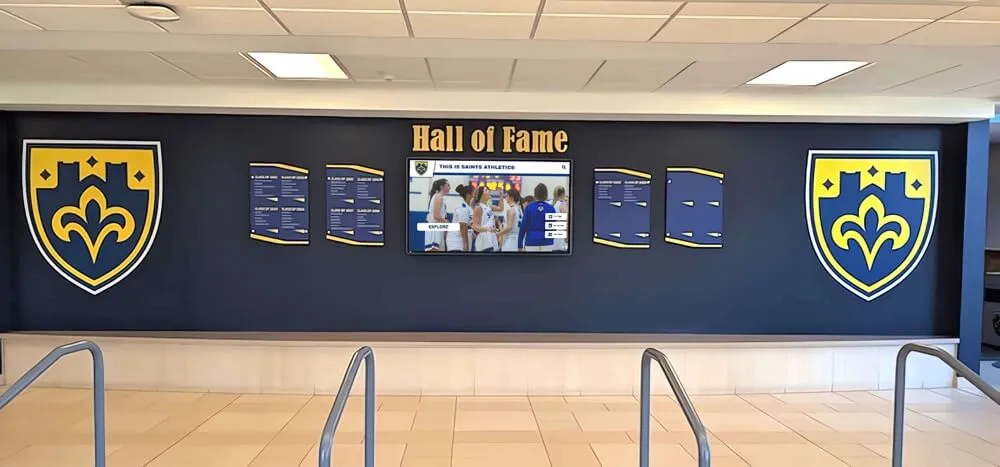
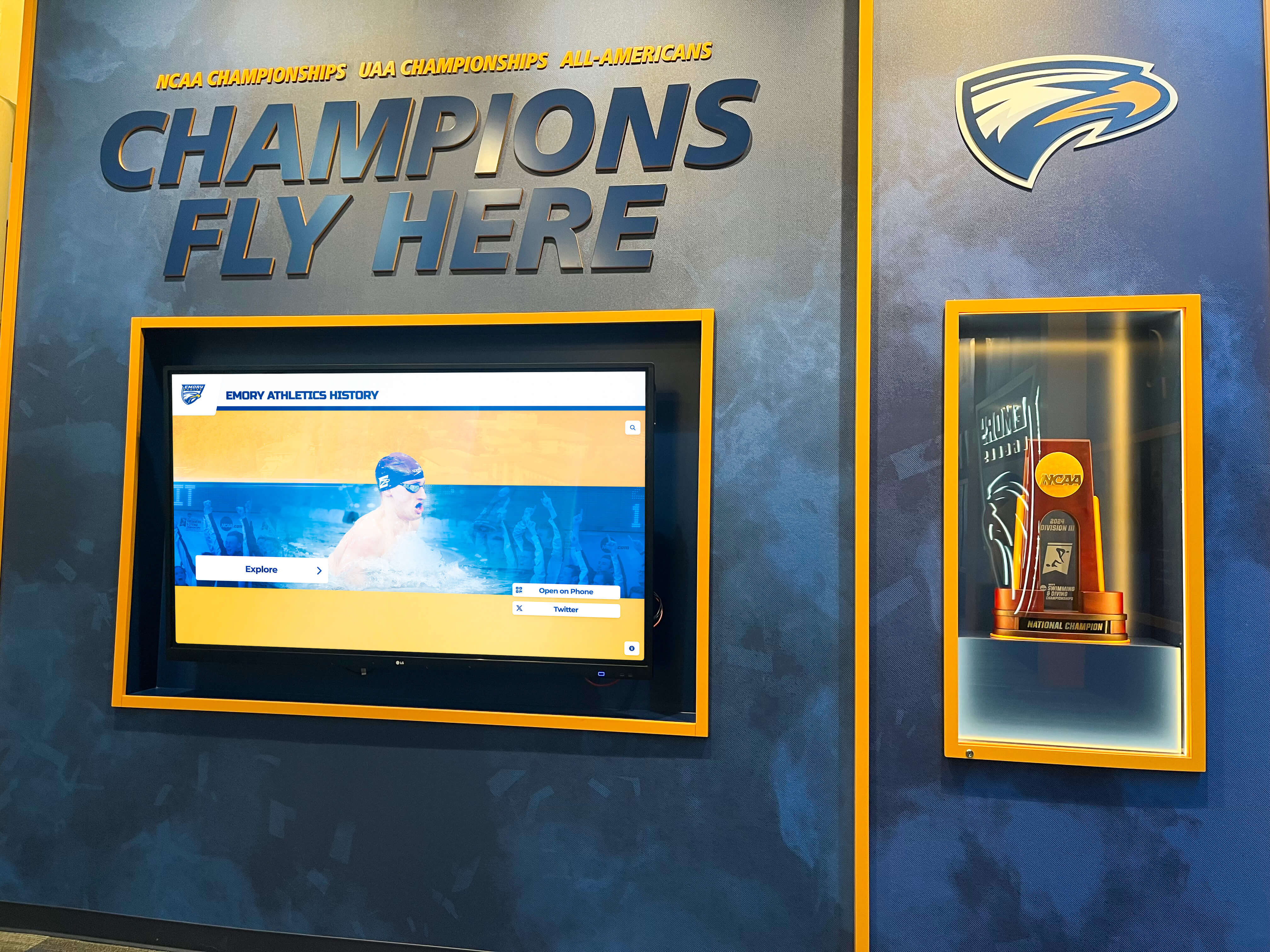
Championship displays represent the athletic achievement history that inline SVG award badges encode digitally on inductee profiles—each badge must communicate that history to every visitor, including those who navigate with screen readers or other assistive technology
Program Snapshot: SVG Award Badge Audit Scope for School Hall of Fame Sites
Define the audit scope before opening developer tools. The table below establishes the parameters for schools at any stage of digital recognition—from a recently launched platform to a multi-decade athletic archive with hundreds of inductee profiles.
| Planning Element | Details |
|---|---|
| Primary Audience | Athletic directors, recognition program owners, IT administrators, school web managers, accessibility compliance leads, archives and facilities partners |
| What Is Being Audited | Every inline <svg> element used as an informative award badge, championship emblem, achievement ribbon, or sport-record marker on inductee profile pages and sport-category index pages |
| WCAG Criterion | 1.1.1 Non-text Content — Level A; requires a text alternative for every non-text element that conveys information |
| Tools Required | Chrome DevTools Accessibility panel (built-in, free), axe DevTools browser extension (free tier), and at least one screen reader: NVDA (Windows, free) or VoiceOver (macOS, built-in) |
| Time Investment | 20–40 minutes to audit all badge types across one inductee profile template; 10 minutes for a targeted re-check after any badge or theme update |
| Failure Consequence | Screen-reader users hear silence or raw path data where championship badges appear; the athletic achievement history the badge represents is invisible to visitors who rely on assistive technology |
| Pass Condition | Every informative inline SVG badge exposes a meaningful accessible name through role="img" and aria-labelledby pointing to a <title> element with a unique id; every decorative SVG carries aria-hidden="true" |
| ADA Relevance | Public school recognition websites served to community members, alumni, and families—including visitors with visual impairments—are subject to digital accessibility requirements; WCAG 1.1.1 at Level A is the foundational criterion for non-text content |
What Makes an Inline SVG Badge Different from an <img> Award Graphic?
When a recognition platform displays a championship badge as an <img> tag, the accessibility requirement is a single alt attribute: <img src="championship-badge.svg" alt="2019 State Football Champions">. If the alt text is present and meaningful, the badge is accessible.
Inline SVG works differently. When SVG markup is placed directly in the HTML document—rather than loaded as a separate file through an <img> tag—the browser treats the SVG elements as part of the document’s own structure. A screen reader that encounters a <svg> element in the live DOM may announce its child elements individually, announce nothing, or announce path coordinate strings, depending on how the SVG is structured and which browser-and-screen-reader combination is in use. The alt attribute that works for <img> does not exist on <svg> elements.
The pattern that makes an inline SVG award badge reliably accessible across screen readers requires three coordinated pieces:
1. role="img" on the <svg> element signals to the browser’s accessibility API that this SVG should be treated as an image, not as a generic group of shapes. Without this role, screen readers may read through the SVG’s internal elements as if they were interactive controls or text nodes.
2. A <title> element as the SVG’s first child, with a unique id attribute, provides the short accessible name—the equivalent of an <img> element’s alt text. Per the MDN SVG <title> element reference, the <title> element is not visually rendered but is exposed to assistive technology. For SVG 1.1 backward compatibility, the <title> element should be the first child of its parent SVG element.
3. aria-labelledby on the <svg> element, pointing to the <title> element’s id, explicitly connects the SVG to its name in the accessibility tree. Many screen reader and browser combinations will not expose the <title> element’s text unless aria-labelledby references its id directly.
When a badge also conveys complex visual meaning that the <title> alone cannot capture—a multi-segment trophy icon encoding both a sport and a year, for example—an optional SVG <desc> element provides a longer description referenced separately by aria-describedby. The W3C WAI Complex Images tutorial outlines text-alternative strategies for graphics whose meaning cannot be captured in a short name alone; the <title> plus <desc> pattern for inline SVG follows the same principle.
Content Architecture: Badge Types on Inductee Profiles
Digital hall of fame inductee profiles typically contain several categories of inline SVG graphics. Not all are informative—some serve a purely decorative purpose and should be hidden from assistive technology rather than described. The audit must classify each SVG before deciding what remediation, if any, is required.
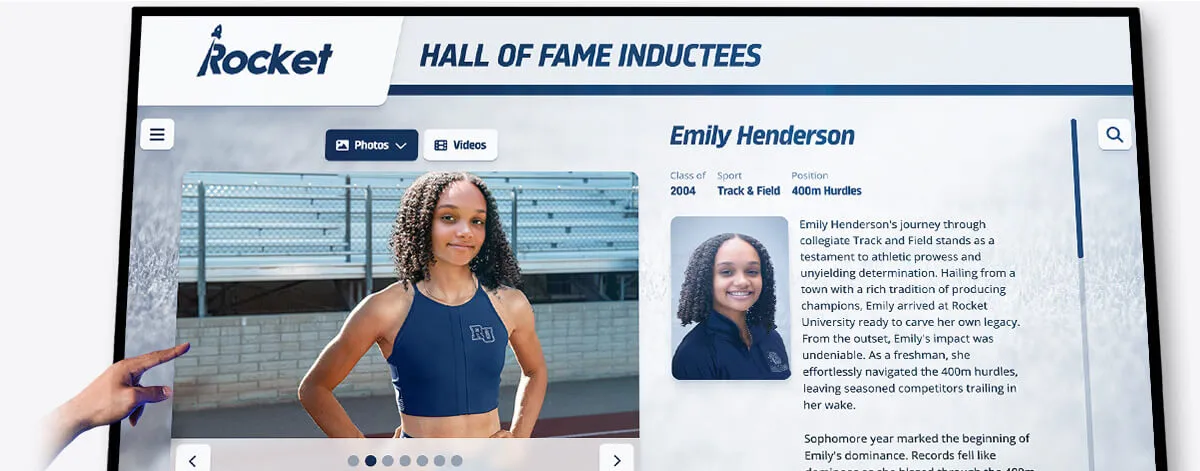
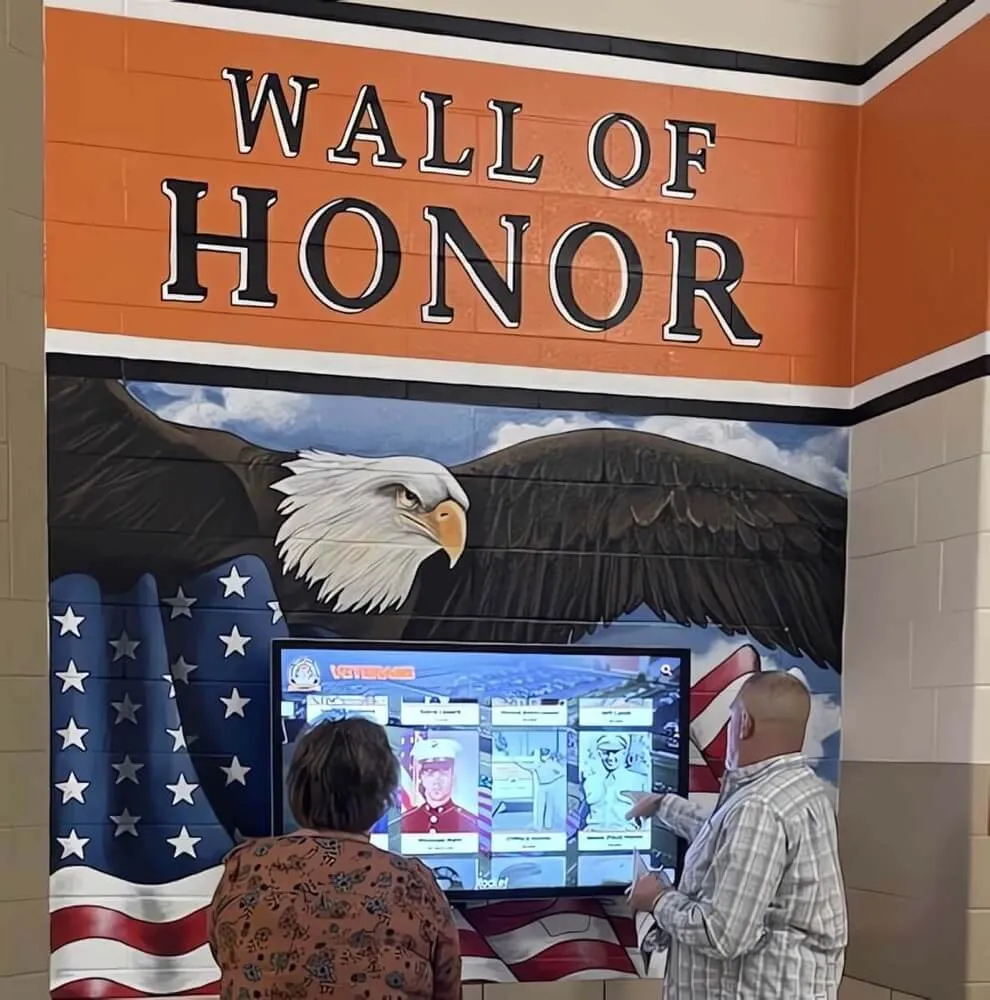
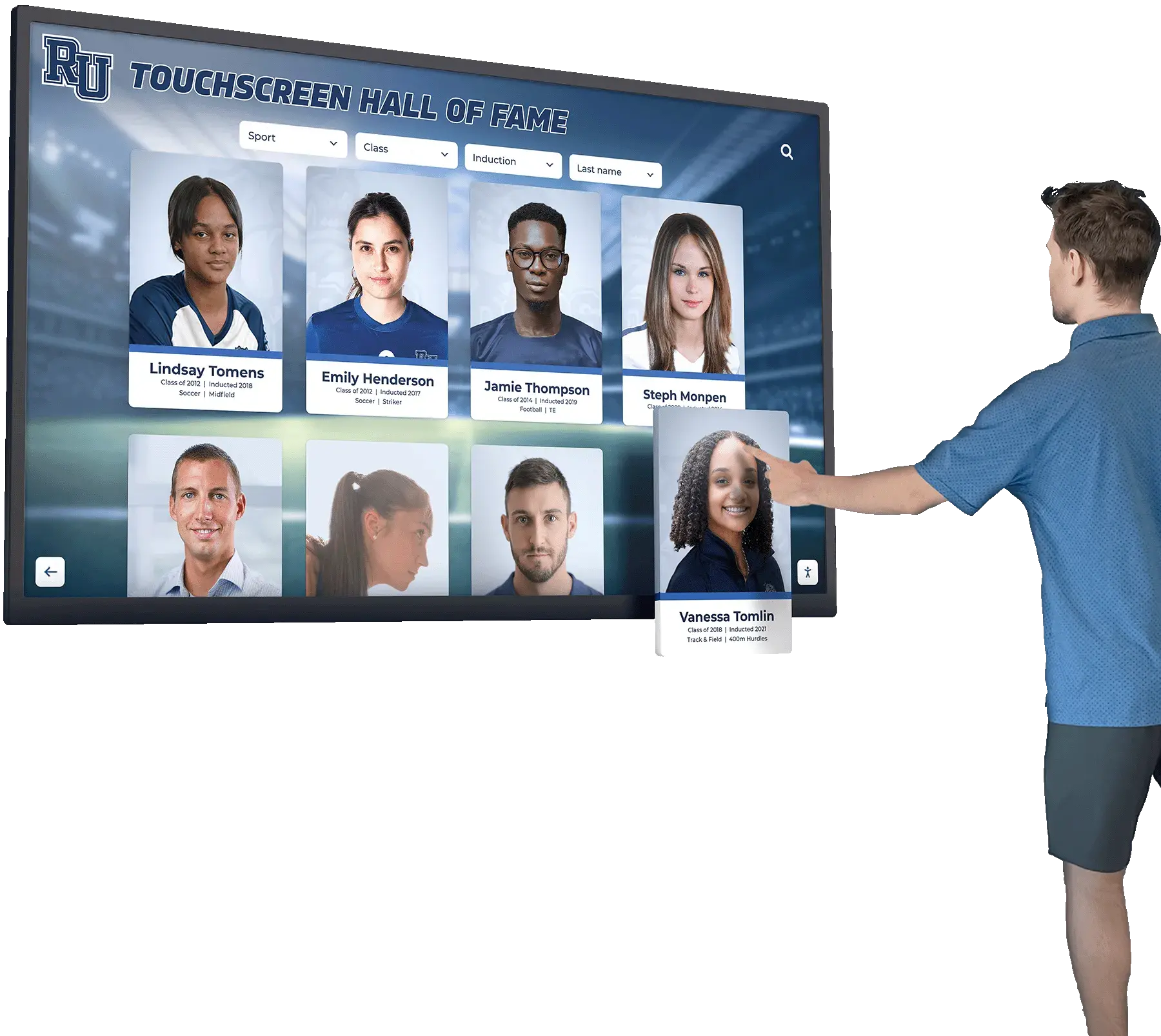
An individual inductee profile on a digital hall of fame touchscreen may display multiple inline SVG award badges—championship year badges, sport icons, and record markers—each of which must be classified as informative or decorative before determining the correct accessibility treatment
Informative SVG Badges (Require Accessible Text Equivalent)
These graphics communicate information about the inductee’s achievements, awards, sport, or recognition that is not available in adjacent visible text on the profile page:
- Championship year badges: A shield or ribbon SVG labeled “State Champions 2019” where the badge is the only place that championship is noted on the profile
- Conference or league championship emblems: A trophy SVG indicating conference membership and a championship result
- Award tier badges: A star or medal SVG indicating an inductee was a first-team all-state selection
- Record-achievement markers: A lightning bolt or banner SVG placed next to a statistic to indicate it is a school or state record
- Multi-sport or multi-year badge clusters: A group of SVG badges representing consecutive seasons of championship recognition for a team or individual athlete
Decorative SVG Graphics (Should Be Hidden from AT)
These graphics serve a visual purpose but convey no information that is not already present in text elsewhere on the page:
- Decorative dividers and section separators: Thin SVG lines or wave shapes between biography sections
- Background pattern fills: SVG patterns used as texture behind a profile photo or achievement section
- Repeated logo watermarks: An SVG school logo used as a repeated page background element
- Purely stylistic icon outlines: An SVG silhouette of a football used as a category section background with no identification function
Ambiguous Cases: The Same SVG Used Both Ways
The same SVG markup may function as an informative badge on one profile page and as a decorative background element on another. The audit must evaluate each instance in context. A trophy SVG that appears adjacent to the visible text label “Conference Champion” is decorative—the text already carries the information. The same trophy SVG that appears with no adjacent text label on a legacy profile page is informative and requires a text equivalent.
Step-by-Step Digital Hall of Fame Inline SVG Award Badge Audit
Run these steps on at least one inductee profile page that displays multiple award badges, and repeat on sport-category index pages that display badge clusters beside inductee card summaries.
Step 1: Inventory All Inline SVG Elements on the Profile Page
Open the inductee profile page in Chrome. Open DevTools (F12) and navigate to the Elements panel. Use Ctrl+F (Cmd+F on Mac) to search for <svg in the HTML. Count every inline SVG element and note its visual position on the page—inside an award badge section, a statistics row, a biography section divider, or a background layer.
Do not count SVG graphics delivered through <img src="badge.svg"> tags—those have their own alt attribute and are outside the scope of this inline SVG audit. Only SVG markup that appears directly in the page’s HTML document is in scope.
Step 2: Classify Each SVG as Informative or Decorative
For each SVG identified in Step 1, answer two questions:
- Does this SVG communicate information about the inductee’s achievements, awards, sport, or recognition that is not available in adjacent visible text?
- If this SVG were invisible, would a visitor miss any meaningful information about the inductee?
If both answers are yes, the SVG is informative and requires a text equivalent. If both answers are no, the SVG is decorative and should carry aria-hidden="true". Use the decision table below to classify each badge.
| SVG Badge Type | Adjacent Text Provides Same Info? | Classification | Required Treatment |
|---|---|---|---|
| “State Champions 2019” shield — only championship reference on the profile | No | Informative | role="img" + <title> + aria-labelledby |
| Trophy icon next to visible text “Conference Champion, 2021” | Yes | Decorative | aria-hidden="true" |
| “School Record” ribbon next to a statistics row | No | Informative | role="img" + <title> + aria-labelledby |
| Decorative wave divider between biography sections | No information to convey | Decorative | aria-hidden="true" |
| Sport badge (football icon) as only sport identification on the card | No | Informative | role="img" + <title> + aria-labelledby |
| Repeated school logo watermark background pattern | No information to convey | Decorative | aria-hidden="true" |
Step 3: Check role="img" on Informative SVGs
For each SVG classified as informative, inspect its opening <svg> tag in DevTools. Confirm the presence of role="img". Without this attribute, some screen readers treat the SVG as a generic group and traverse its internal path elements individually instead of reading the badge as a single named image.
In the DevTools Accessibility panel, select the SVG element and check the “Role” property. It should read “img.” If it reads “group” or “generic,” the role="img" attribute is missing or overridden.
Step 4: Check for a <title> Element as the First SVG Child
Expand the SVG element in the Elements panel. The first child element should be <title>. Confirm:
- The
<title>element is present - It is the first child of the
<svg>— not nested inside a<g>group or placed after graphical elements - It has a unique
idattribute — a value that does not appear on any other element on the page - Its text content is a meaningful, concise description of what the badge represents (for example, “2019 State Football Champions” rather than “trophy” or “badge-icon-1”)
If the <title> element’s id is not unique on the page — a common failure when the same badge template repeats for multiple inductees on a list page — the aria-labelledby reference will resolve to the wrong element for all but the first badge. Consider a hypothetical athletics hall of fame profile listing three championship seasons for a track athlete: if all three badge SVGs share the same <title id="champ-badge-title">, only the first badge’s aria-labelledby points to the correct title element. The second and third badges silently announce the first badge’s name. Every badge in a repeated set requires a distinct id — for example, "champ-badge-title-2019", "champ-badge-title-2021", and "champ-badge-title-2022".
Step 5: Check aria-labelledby on the SVG Element
On the opening <svg> tag, confirm the presence of aria-labelledby whose value matches the id of the <title> element identified in Step 4. The value must be an exact match — case-sensitive, no leading or trailing spaces.
In the DevTools Accessibility panel, select the SVG element and check the “Name” property. It should display the text content of the <title> element. If the “Name” property is empty, either aria-labelledby is missing, its value does not match the <title> id, or the <title> element itself is absent.
Correct pattern for a simple championship badge:
<svg role="img" aria-labelledby="state-champ-2019"
     xmlns="http://www.w3.org/2000/svg" viewBox="0 0 100 100">
  <title id="state-champ-2019">2019 State Football Champions</title>
  <!-- SVG path elements -->
</svg>
When a badge conveys complex meaning — a multi-element trophy graphic encoding sport, division, and year — add a <desc> element with its own unique id and reference it with aria-describedby:
<svg role="img"
     aria-labelledby="champ-badge-title-2019"
     aria-describedby="champ-badge-desc-2019"
     xmlns="http://www.w3.org/2000/svg" viewBox="0 0 100 100">
  <title id="champ-badge-title-2019">2019 State Football Champions</title>
  <desc id="champ-badge-desc-2019">Gold shield badge awarded for winning the Class 4A State Championship in the 2019 season</desc>
  <!-- SVG path elements -->
</svg>
Step 6: Check Decorative SVGs for aria-hidden="true"
For each SVG classified as decorative in Step 2, inspect its opening <svg> tag. Confirm the presence of aria-hidden="true". Without this attribute, a screen reader may traverse the SVG’s internal elements and announce SVG-specific content — element type names or, in some browser-AT combinations, path coordinate strings — that provides no useful information and disrupts the listening experience.
In the DevTools Accessibility panel, select the decorative SVG and confirm that the element and all its children are marked as hidden in the accessibility tree. If the SVG or any of its children appear as announced elements, add aria-hidden="true" to the root <svg> element.
Step 7: Verify with a Screen Reader on the Live Profile Page
Automated checks confirm the presence of attributes but cannot verify the quality of the text equivalent or the real visitor experience. Use NVDA (Windows) or VoiceOver (macOS) to navigate the inductee profile page and verify:
- Each informative badge is announced with a meaningful name when the screen reader reaches it during linear reading
- The announced name matches the
<title>element’s text content - No decorative SVGs produce any announcement
- No raw path coordinate strings or unintended SVG element names are announced during linear reading
- When a
<desc>element is present, it is announced as a description following the badge name (behavior varies by screen reader and browser; verify in at least two combinations, such as NVDA with Firefox and VoiceOver with Safari)
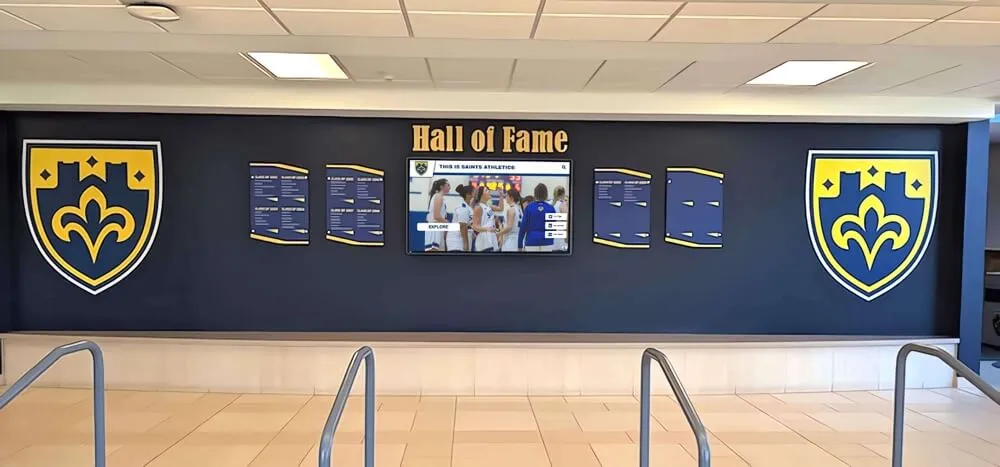
Shield-shaped award displays encode championship history visually; inline SVG badge graphics encode that same history digitally on inductee profiles and require accessible text equivalents so screen-reader users receive the complete achievement record
Execution Timeline: Plan, Audit, Fix, Verify
| Phase | Activities | Responsible Party | Cadence |
|---|---|---|---|
| Plan | Inventory all inductee profile templates and sport-category index page templates; list every inline SVG element type used for award badges, achievement markers, and decorative elements | IT lead or recognition platform administrator | Once at platform launch; once after each template or theme update that adds, removes, or modifies badge graphics |
| Audit | Run Steps 1–6 on all profile page templates; verify with screen reader in Step 7; document each SVG classification (informative or decorative), its current attribute state, and the specific failure type | IT staff or accessibility lead | At launch; after any template update touching badge graphics; at least annually |
| Fix | Add role="img", <title> with unique id, and aria-labelledby to all informative SVGs; add aria-hidden="true" to all decorative SVGs; update badge templates to generate unique id values per inductee when the same badge template renders for multiple inductees on a single page | Developer or recognition platform vendor | Within 14 days of audit findings; immediately if championship history is entirely inaccessible to screen-reader users |
| Verify | Re-run screen-reader navigation on the repaired profile template; confirm all informative badges announce correct names; confirm no decorative SVGs produce announcements; run axe DevTools to confirm no remaining 1.1.1 violations on badge elements | IT staff | Immediately after each fix is deployed to the live site |
| Document | Record audit date, profile templates tested, SVG elements audited, classification decisions, specific failures found, fixes applied with template file locations, and verification results | Administrative lead | Each audit cycle; retained for accessibility compliance records |
Athletic programs digitizing decades of championship records from physical archives — scanning photo negatives, converting print materials to digital inductee profiles — can reference the athletic archive photo negative scanning workflow for source preparation guidance. Scanned historical materials become the basis for the badge data and achievement graphics that require SVG accessibility treatment once they reach the digital platform.
Ready to see a recognition platform that builds SVG accessibility into its badge templates from the ground up?
Rocket Alumni Solutions builds hall of fame platforms with accessible championship badge graphics, WCAG 2.1 AA compliance, and structured inductee profiles that work for every visitor.
Display Integration: SVG Badge Accessibility Across Web Directories and Kiosk Interfaces
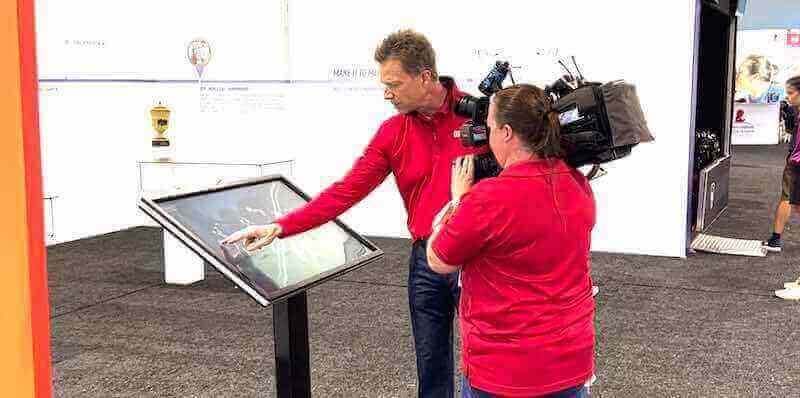
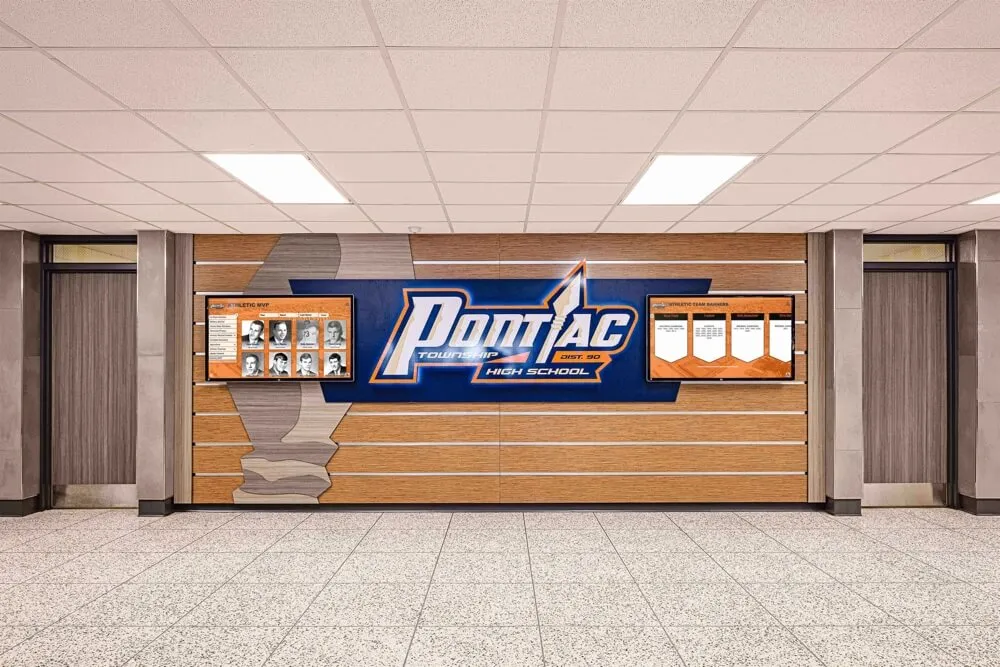
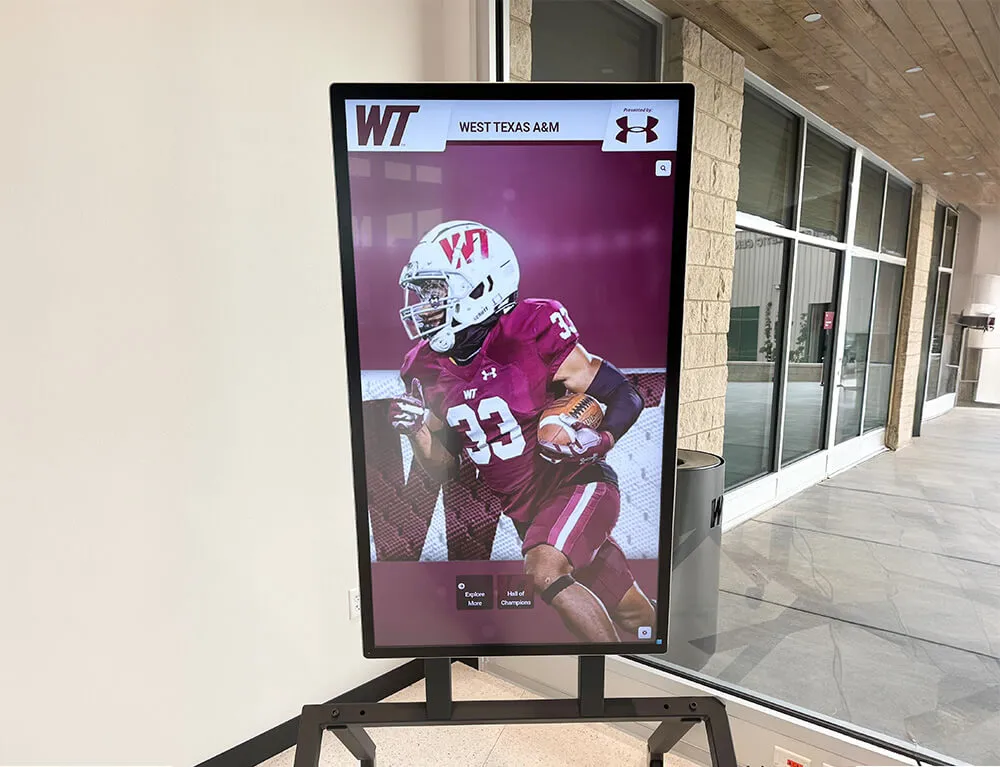
A school digital hall of fame platform typically delivers the same inductee profile template to two environments: a public web directory accessible from any device and browser, and a browser-based touchscreen kiosk mounted in a school lobby, athletic hallway, or trophy case area. SVG badge accessibility requirements apply to both.
Web directory: Visitors who navigate the web directory from home devices — parents of inductees, alumni, community members, reporters — may use screen readers, magnification software, or keyboard-only navigation. Informative SVG badges that are not accessible on the web directory are a public barrier for those visitors. Every badge that fails the audit is a failure for any visitor who relies on assistive technology.
Touchscreen kiosk: Touchscreen kiosk interfaces render the same HTML templates as the web directory. A visitor who arrives at a kiosk station with a Bluetooth keyboard, a switch device, or a paired screen reader should find the same accessible badge names that are available on the web directory. Because both interfaces share the same templates, fixing badge accessibility in the shared template resolves both environments simultaneously.
QR code entry points on physical award displays: Physical recognition installations in lobbies, trophy case areas, and athletic hallways frequently include QR codes linking to specific inductee profiles. A visitor who scans a QR code from a physical shield display or banner enters the platform at the inductee profile page directly, without navigating through the home page. The SVG badges on that profile must be accessible from the moment the page loads for any visitor who follows that QR path with assistive technology.
For schools that combine digital hall of fame screens with physical trophy case lighting infrastructure, the trophy case LED inrush current check guide addresses the electrical considerations for lighting upgrades in the same display areas where digital recognition screens and kiosk units are mounted — a useful reference when planning physical space changes that affect the display environment.
Recognition programs that generate award badge data from a structured database of athletic achievements should also confirm that the underlying records backing each badge are protected against unintended removal. The athletic awards database on-delete cascade policy guide addresses how relational database deletion rules affect award records linked to inductee profiles — a structural concern that directly affects whether the badge data displayed in SVG graphics remains accurate over time.
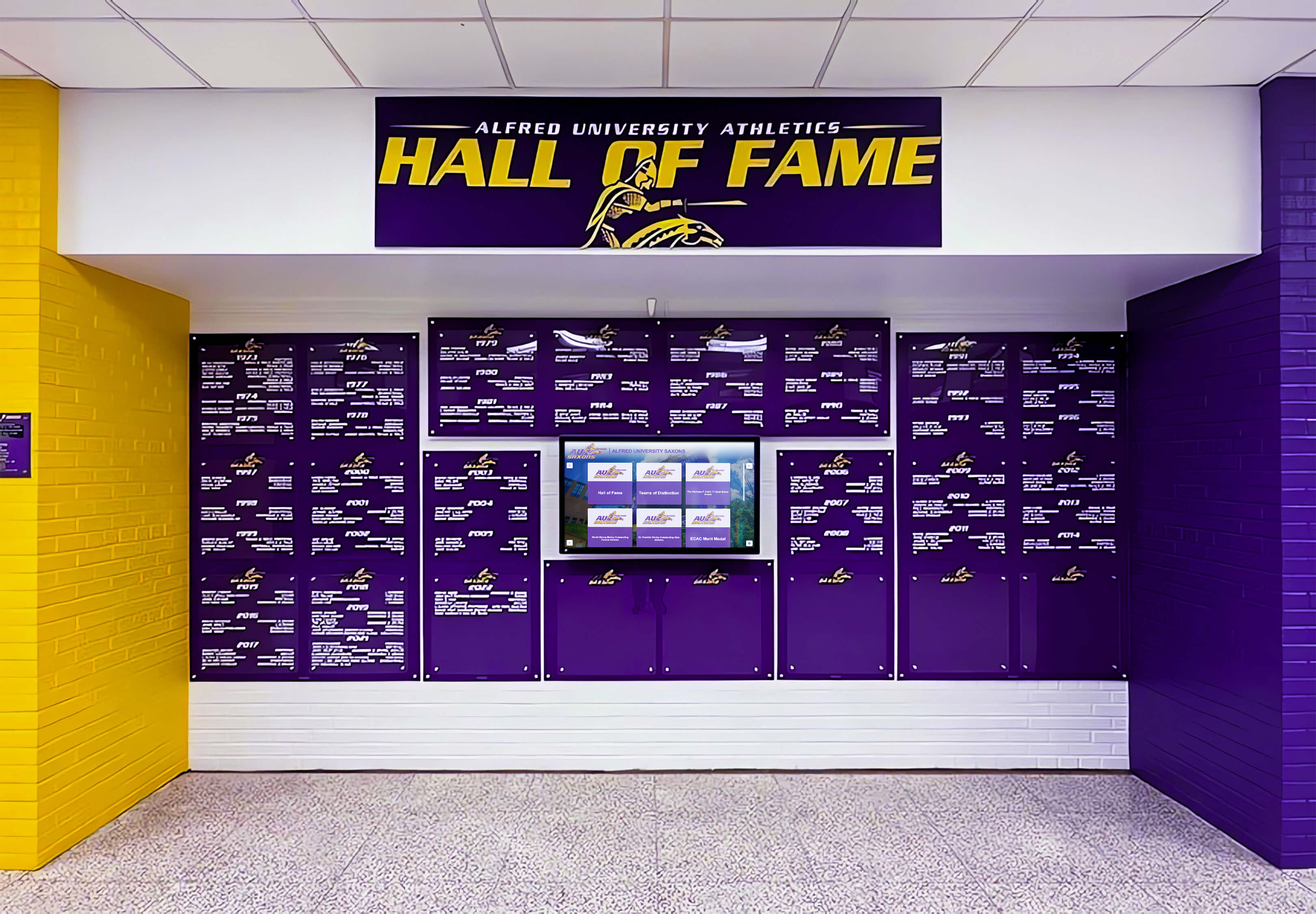
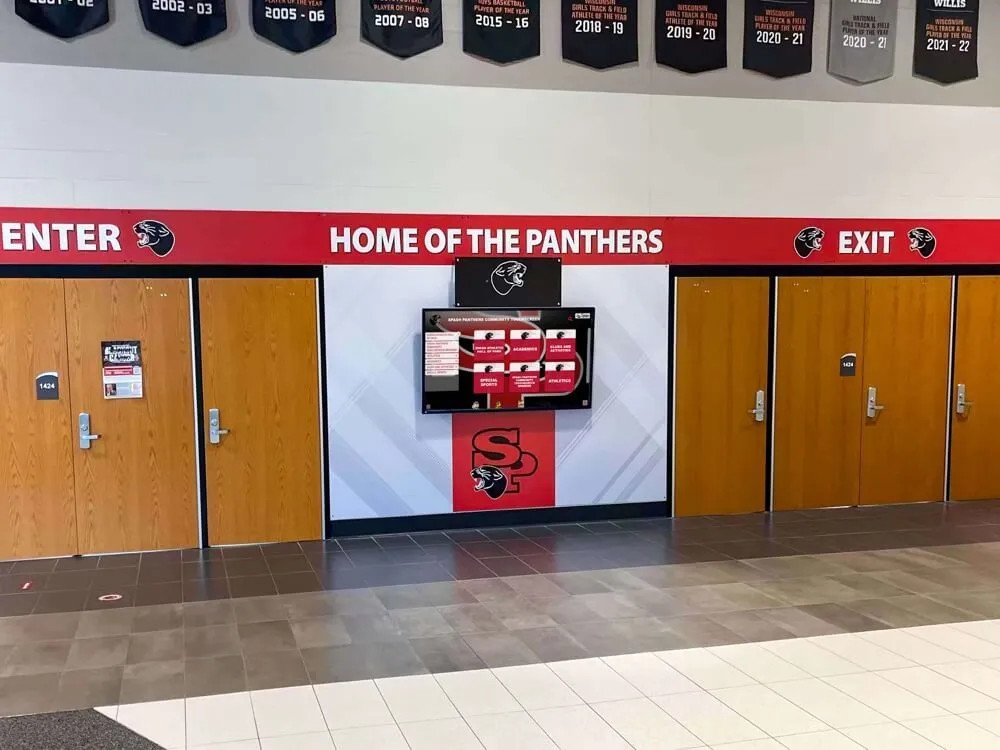
Digital hall of fame displays serve visitors across both web directories and on-site kiosk installations; SVG badge accessibility fixed in the shared template reaches every visitor in every access context
Acceptance Criteria: What a Passing SVG Badge Audit Looks Like
Use this table when handing specific verification tasks to IT, accessibility, or archives partners. Each row is a discrete, verifiable condition — pass or fail — with no judgment required from the school administrator reviewing results.
| Check | Pass Condition | Common Failure | Who Verifies |
|---|---|---|---|
Informative SVG carries role="img" | Accessibility panel Role property reads “img” | Role reads “group” or “generic”; attribute missing from <svg> tag | IT / developer |
<title> is first child of <svg> | <title> appears before any <g>, <path>, or other SVG child element | <title> absent; <title> nested inside a <g> group; <title> placed after graphical elements | Developer |
<title> has a unique id | No other element on the page shares the same id value | Static id in a repeated badge template generates duplicate IDs when multiple badges render on the same page | Developer |
<title> text is meaningful | Name describes the badge’s recognition (e.g., “2019 State Football Champions”) | Generic names such as “badge” or “icon”; empty <title>; placeholder or technical strings | Accessibility / content lead |
aria-labelledby references <title> id | Accessibility panel Name property shows <title> text; value is exact case-sensitive match to <title> id | Attribute missing; value misspelled or case-mismatched; references a non-existent id | IT / developer |
<desc> present when badge conveys complex meaning | Complex multi-element badges have <desc> with aria-describedby; simple badges may omit <desc> | Complex badge relies on <title> alone to convey multi-part information that requires a sentence to explain | Developer / accessibility lead |
Decorative SVGs carry aria-hidden="true" | Screen reader skips decorative SVG entirely; Accessibility panel shows element as hidden | Screen reader announces path data or SVG element names; aria-hidden absent on root <svg> element | IT / accessibility |
| Screen reader announces correct badge name | NVDA or VoiceOver announces the <title> text during linear reading | Silence; wrong text announced; path coordinate strings or element names announced | Accessibility / IT |
Measurement: Evaluating SVG Badge Audit Results
After completing the audit and applying fixes, measure outcomes against the following targets.
| Metric | Target | Action if Below Target |
|---|---|---|
Informative SVGs with correct role="img" | 100% of informative badge SVGs | Add role="img" to all informative SVG elements in the badge template; no exceptions |
Informative SVGs with <title> present as first child | 100% of informative badge SVGs | Add <title> as first child; ensure the badge template always generates a <title> element before any graphical content |
<title> IDs unique across the rendered page | 100% of <title> IDs unique within each page document | Modify the badge template to incorporate a unique per-inductee value — database ID, slug, or loop index — in each <title> ID |
aria-labelledby referencing <title> id | 100% of informative badge SVGs | Add aria-labelledby to all informative SVGs; verify exact ID match after any template change |
Decorative SVGs with aria-hidden="true" | 100% of decorative SVG elements | Add aria-hidden="true" to all decorative SVG elements; confirm screen reader produces no announcement |
| Screen-reader badge name quality | All announced names are meaningful descriptions of the badge’s recognition content | Review and revise <title> text content for any badge whose announced name is a generic label or technical string |
| Re-audit after template update | All targets remain at 100% after any badge, template, or theme change | Schedule SVG badge audit check as part of deployment verification for any update that touches badge or inductee profile templates |
Schools coordinating accessibility reviews across several recognition program categories — athletics, academics, fine arts — should integrate the SVG badge audit into a broader profile review cycle. The digital hall of fame language of parts audit for inductee profiles covers how semantic structure in inductee profile HTML — headings, lists, and labeled sections — is exposed to screen readers, a parallel concern to the graphic-level badge accessibility this guide addresses.
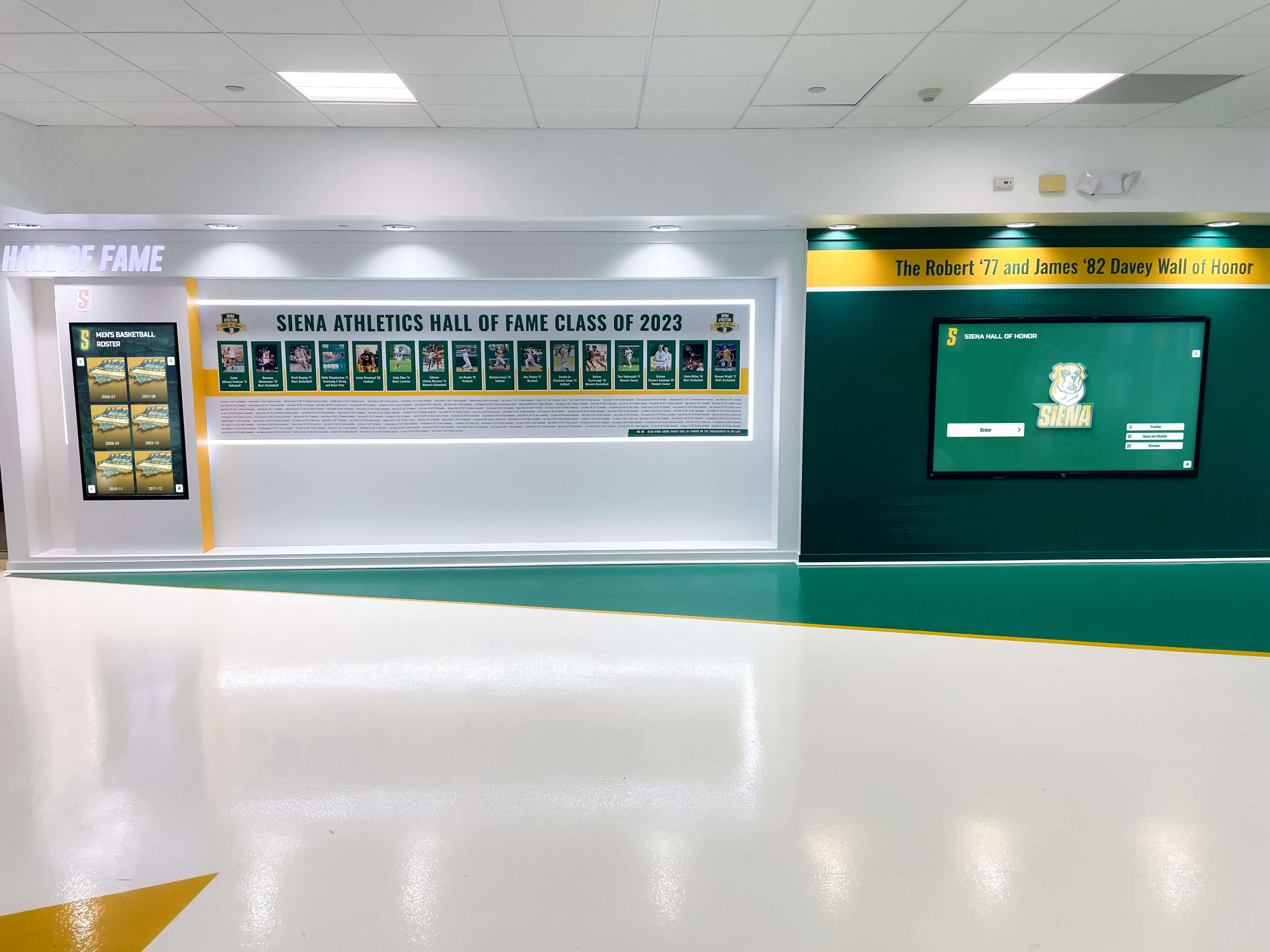
Hall of fame inductee recognition panels encode athletic achievement history that SVG badge graphics must convey equally to every visitor — a passing SVG badge audit confirms that history is accessible to all
Frequently Asked Questions
What is the difference between a <title> element and alt text for an inline SVG badge?
For <img> elements, the alt attribute provides the text alternative directly on the tag. For inline SVG elements, there is no alt attribute. The SVG <title> element serves the equivalent function — it contains the short text description of the graphic — but it requires two additional steps: assigning a unique id to the <title> element and referencing that id via aria-labelledby on the <svg> element. Without both steps, many screen reader and browser combinations do not expose the <title> text as the SVG’s accessible name.
Does role="img" replace the need for <title> and aria-labelledby?
No. role="img" signals to assistive technology that the SVG should be treated as an image — it prevents the screen reader from traversing the SVG’s internal elements individually — but it does not provide a name for that image. An SVG with role="img" and no aria-labelledby or aria-label still has no accessible name. The screen reader may announce “image” with no further description. All three pieces are required for a complete accessible badge: role="img", a <title> element with a unique id, and aria-labelledby referencing that id.
Should every SVG badge also have a <desc> element?
Not necessarily. The <desc> element is appropriate when the badge conveys meaning that a short <title> cannot fully capture — for example, a multi-tier championship badge that encodes both a sport category and a division level through visual structure that would require a sentence to explain. For a simple badge whose entire meaning fits in a concise title such as “2019 State Football Champions,” a <desc> element is optional. When used, <desc> must have its own unique id and be referenced in aria-describedby on the <svg> element.
What happens if the same SVG badge template renders for multiple inductees on a list page?
If the badge template generates a <title> element with a static id — the same value for every badge instance on the page — then every badge after the first carries a duplicate ID. The aria-labelledby references on badges two through the last resolve to the first badge’s <title> element, which contains a different inductee’s championship name. Every badge in the list announces the first badge’s name. The fix is to make the <title> id dynamic: incorporate the inductee’s database identifier or a unique loop index into the id value so each badge on the page has a distinct <title> id.
Our platform generates badge SVGs automatically from a CMS template. Can we add the title and aria attributes there?
Yes, and that is the recommended approach. A template-level fix adds the correct attributes to every badge rendered from that template in a single change. The template should generate a unique <title> id per inductee — typically by using the inductee’s database record ID or slug as part of the id value — and include role="img" and the matching aria-labelledby on the <svg> element. After the template fix is deployed, run the audit again to confirm that all rendered badges carry the correct attributes before marking the fix complete.
Does this audit apply to SVG files loaded through <img> tags?
No. SVG files loaded via <img src="badge.svg"> are treated as raster images by the browser’s accessibility layer; their accessible name comes from the alt attribute of the <img> element. The inline SVG audit in this guide applies only to SVG markup that appears directly in the HTML document. If your platform loads all badge graphics through <img> tags, verify instead that every badge <img> element has a non-empty alt attribute — a separate WCAG 1.1.1 check that does not require the <title> and aria-labelledby pattern.
How do we coordinate the SVG badge audit with broader recognition platform infrastructure reviews?
Schools simultaneously reviewing their digital recognition display infrastructure — DNS, network configuration, platform reachability — can align that work with the inline SVG audit timeline. The school recognition display DNS negative caching checklist covers the network configuration steps that affect whether auditors are testing the live platform or a stale cached version — relevant when the SVG template fix has been deployed and the audit team needs to confirm they are verifying the updated production template rather than a cached copy.
Reusable Artifact: SVG Award Badge Accessibility Checklist
Copy this checklist before each platform launch, badge template update, or annual accessibility review. Record results per badge template type — one entry covers all inductee profiles rendered from the same template.
Pre-Audit Setup
- Chrome DevTools open on an inductee profile page with multiple award badges visible
- axe DevTools extension installed and running on the same page (free tier)
- NVDA (Windows) or VoiceOver (macOS) available for screen-reader verification
- All badge SVG element types on the platform listed (championship year, sport category, award tier, record marker, decorative dividers, background patterns)
Classification
- Every inline SVG on the profile page classified as informative or decorative
- Classification decision documented with reason
- Ambiguous cases resolved against the decision table: does the SVG convey information not available in adjacent visible text?
Informative SVG Badges
-
role="img"present on all informative<svg>elements; DevTools Accessibility panel Role property reads “img” -
<title>element present as first child of each informative SVG -
<title>has a uniqueidvalue not shared by any other element on the rendered page -
<title>text is a meaningful description of the badge’s recognition content (not “badge,” “icon,” or a technical string) -
aria-labelledbyon<svg>element references the<title>element’sid— exact case-sensitive match - DevTools Accessibility panel Name property shows the
<title>text content for each informative SVG - Complex badges:
<desc>element present with uniqueidand referenced inaria-describedby
Decorative SVG Graphics
-
aria-hidden="true"present on all decorative<svg>elements - DevTools Accessibility panel shows decorative SVG and all children as hidden from the accessibility tree
- Screen reader produces no announcement when passing over decorative SVG during linear reading
Repeated Badge Templates on List Pages
- Badge template generates a unique
<title>idper inductee (uses database ID, slug, or loop index inidvalue) - No duplicate
<title>idvalues across all rendered badges on a single page
Screen-Reader Verification
- NVDA or VoiceOver announces correct badge name for each informative SVG during linear page reading
- Announced name is meaningful and matches
<title>text content - No raw path coordinate strings or SVG element type names announced
- No decorative SVGs produce any announcement
Post-Fix Verification
- axe DevTools scan returns no WCAG 1.1.1 violations on badge elements
- All pass conditions in the Acceptance Criteria table confirmed
- No regressions in adjacent profile page elements (biography text, statistics rows, related-inductees section)
Connecting SVG Badge Accessibility to the Full Platform Audit
The inline SVG award badge audit addresses one specific layer of digital hall of fame accessibility. Schools that have completed this check should pair it with the adjacent audits that cover related criteria. A duplicate-ID audit confirms that the id values used on SVG <title> elements do not conflict with identifiers used elsewhere on the same inductee profile page — a failure that causes aria-labelledby to resolve to the wrong element. An accessible name audit for icon buttons and search fields covers the separate category of interactive controls — play buttons, share buttons, filter toggles — whose accessible names are computed through aria-label and visible text rather than the SVG <title> pattern. A reflow test at 400% zoom confirms that badge graphics scale correctly at high magnification without overflow or loss of visual meaning.
Recognition programs that serve the full school community — current athletes, returning alumni, families of honorees, and community members who follow decades of athletic achievement — depend on a platform whose championship graphics are as carefully maintained as its visual design. An SVG award badge audit takes under 40 minutes for a complete inductee profile template, requires no specialist equipment beyond a free screen reader and browser extension, and ensures that every year of championship history encoded in a badge graphic reaches every visitor who opens the profile.
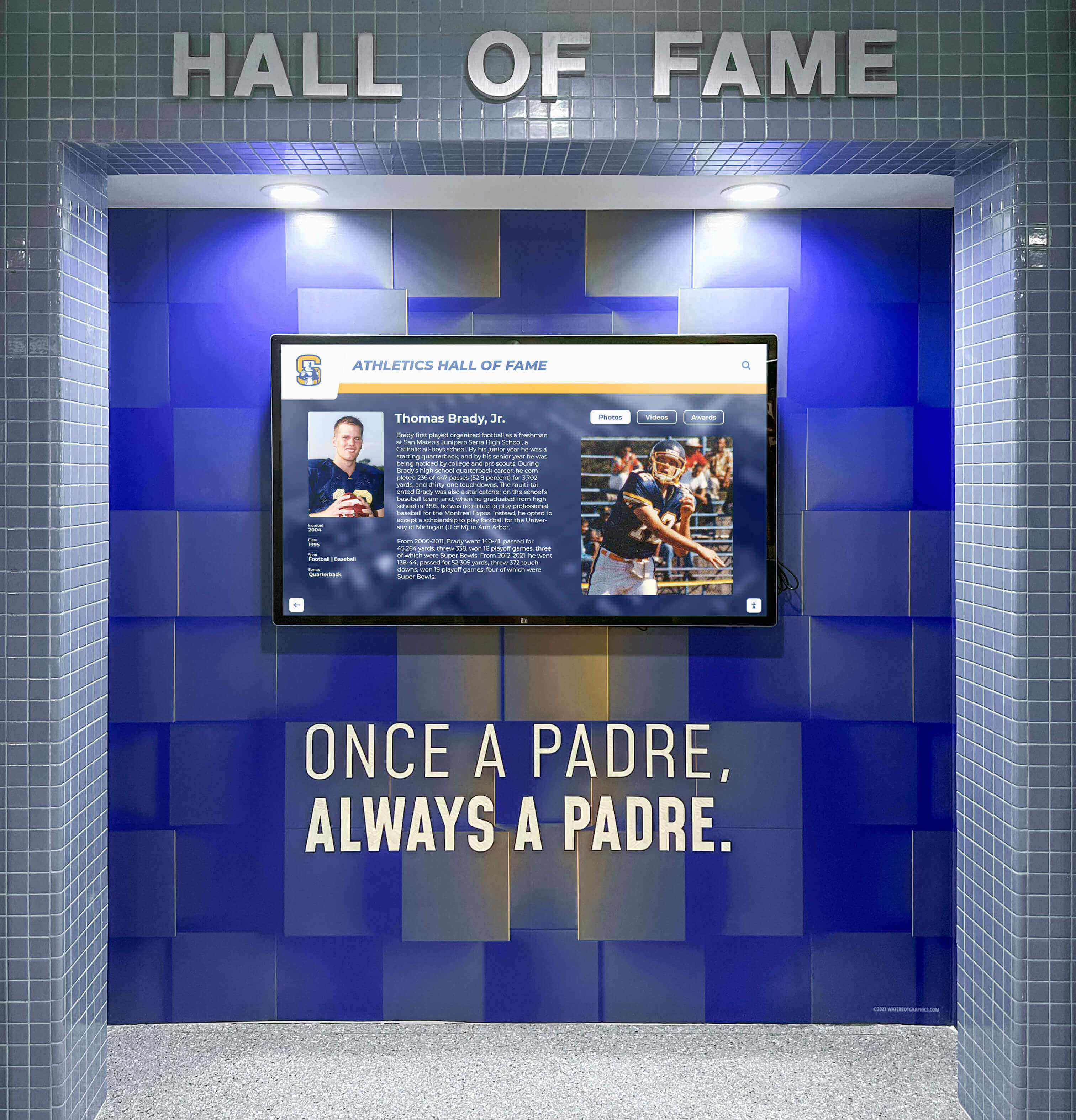
An inline SVG award badge audit completed before a digital hall of fame platform opens to the public protects championship history access for every visitor across every device, browser, and assistive technology combination
See Accessible Championship Badge Graphics on a Rocket Alumni Solutions Platform
Request a live demonstration to see how Rocket’s recognition platform builds properly structured SVG award badges, WCAG 2.1 AA accessibility compliance, and accessible inductee profiles that announce championship history correctly for every visitor — including those who rely on screen readers, keyboard navigation, or other assistive technology.