Digital Hall of Fame Identify Input Purpose Accessibility Audit
- Home /
- Digital Hall of Fame Insights & Resources /
- Digital Hall of Fame Identify Input Purpose Accessibility Audit
The Easiest Touchscreen Solution




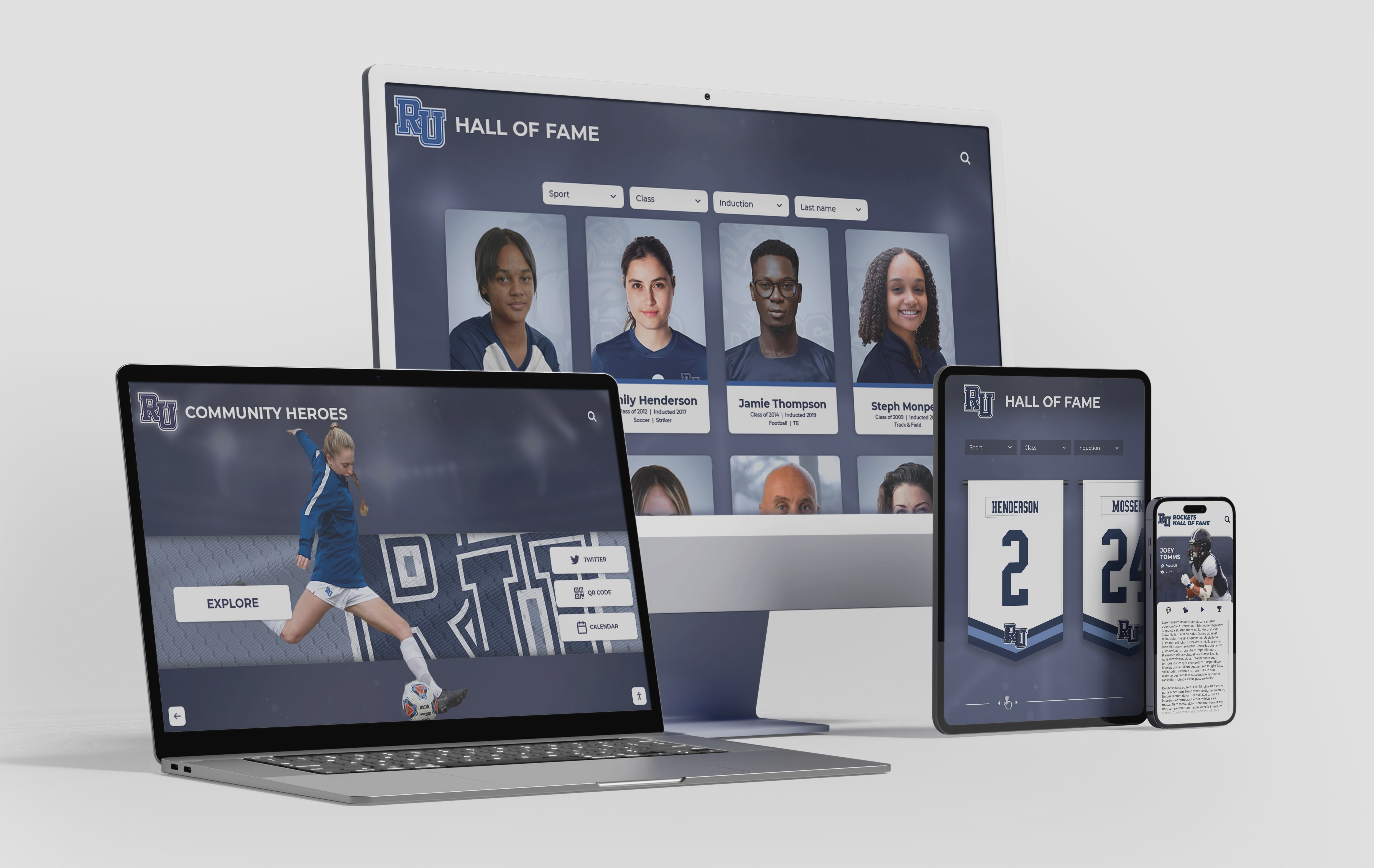
Live Example: Rocket Alumni Solutions Touchscreen Display
Interact with a live example (16:9 scaled 1920x1080 display). All content is automatically responsive to all screen sizes and orientations.
A digital hall of fame identify input purpose accessibility audit is the process of systematically verifying that every form field on a school recognition platform—across nomination forms, admin sign-in pages, and visitor inquiry screens—carries an HTML autocomplete attribute whose value matches a token defined in the WHATWG HTML specification, so that any browser, password manager, or assistive technology can programmatically determine the field’s purpose without reading its visible label. WCAG 2.1 Success Criterion 1.3.5 Identify Input Purpose (Level AA) requires this for all input fields that collect information about the user: the nominator’s name, email address, phone number, and school affiliation on a nomination form; the administrator’s username and current password on the CMS sign-in screen; and the visitor’s contact details on an inquiry or event-registration form. When autocomplete tokens are absent, incorrect, or explicitly suppressed with autocomplete="off", users who rely on browser autofill cannot populate fields automatically—a significant barrier for nominators with motor impairments who cannot type efficiently, for users with cognitive disabilities who use browser-based symbol augmentation tools that replace text labels with icons, and for any visitor whose assistive device depends on the browser’s knowledge of what a field is asking for to offer meaningful predictive assistance. For school administrators, athletic directors, IT staff, and recognition-program owners, this audit provides a targeted checklist, a complete field-mapping reference, and a step-by-step workflow to bring every form on the recognition platform into WCAG 1.3.5 compliance before the next induction season or community recognition event.
Every nomination form on a digital hall of fame platform asks nominators to provide information about themselves—their name, their school affiliation, their contact email—before collecting information about the nominee they are endorsing. That first block of fields, the nominator’s own contact details, is exactly the category of form field that WCAG 2.1 Success Criterion 1.3.5 Identify Input Purpose governs. The criterion does not ask recognition platforms to redesign their forms; it asks them to annotate existing input elements with a single attribute whose value comes from a published list of fewer than sixty tokens. The result of those annotations is that a visitor whose browser or device has previously stored a name, email address, or phone number can fill those fields automatically—and a visitor whose operating system augments form fields with symbols or icons specific to each field type receives a visual cue that reinforces what the label says.
A digital hall of fame identify input purpose accessibility audit is the targeted check that confirms those annotations are present, correct, and not suppressed anywhere on the platform before an induction-season surge in nomination submissions makes a gap in autocomplete coverage a frequent, documented barrier.

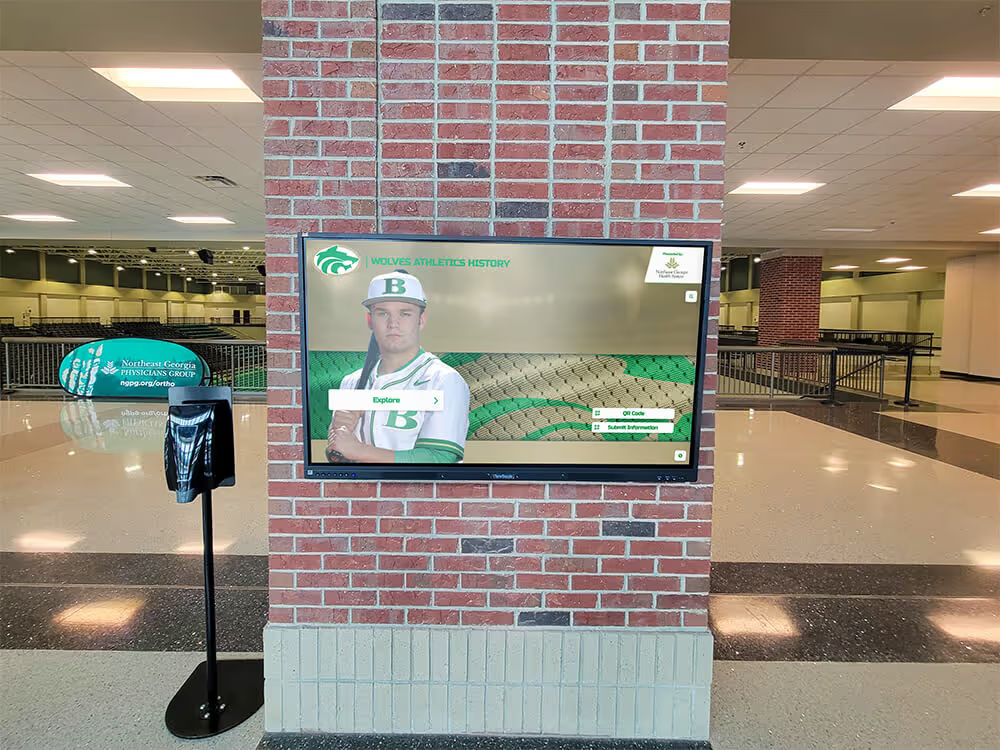
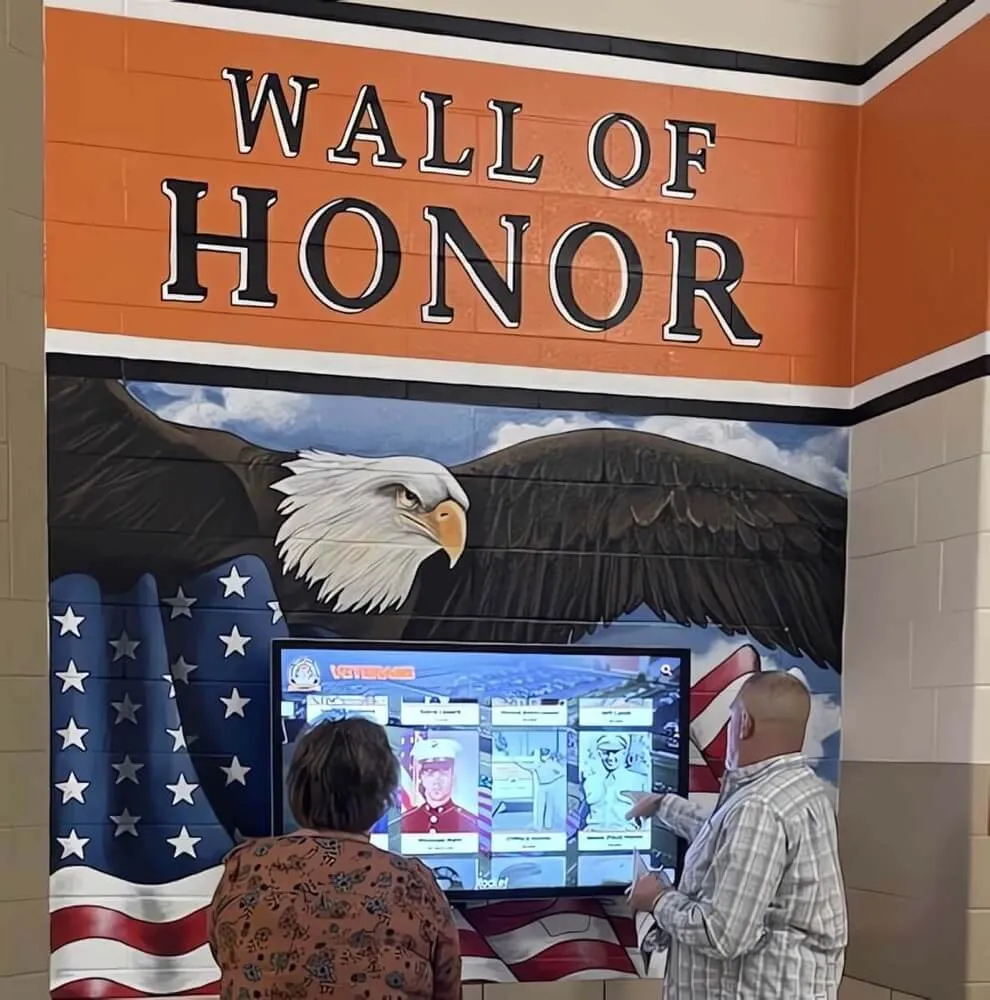
Nomination forms and admin sign-in pages on a digital hall of fame platform are accessed across every device type; WCAG 1.3.5 Identify Input Purpose requires that autocomplete tokens be present on all user-information fields so assistive technology can determine each field's purpose regardless of screen size or input method
Program Snapshot: Identify Input Purpose Audit Scope for School Hall of Fame Forms
Map the audit scope before inspecting a single field or opening a browser’s developer tools. The table below defines the key parameters for schools at any stage of digital recognition, from a recently launched nomination portal to a multi-decade athletic archive with annual induction cycles.
| Planning Element | Details |
|---|---|
| Primary Audience | Athletic directors, school web managers, IT administrators, accessibility compliance leads, alumni association leaders, recognition-program owners who manage nomination forms, admin sign-in pages, or visitor inquiry forms |
| What Is Being Audited | Every input field on the recognition platform that collects information about the user filling the form: nominator contact fields on nomination forms, administrator credentials on CMS sign-in and password reset screens, visitor contact fields on inquiry and event-registration forms |
| WCAG Criterion | 1.3.5 Identify Input Purpose — Level AA (WCAG 2.1); supports 1.3.1 Info and Relationships — Level A; 3.3.2 Labels or Instructions — Level A |
| Tools Required | Chrome or Firefox, Chrome DevTools Elements and Accessibility panels, the axe DevTools browser extension (optional), and a screen reader (NVDA for Windows, VoiceOver for macOS) for final announcement verification |
| Time Investment | 20–45 minutes for a full audit of all user-information fields across nomination forms, admin sign-in, and inquiry forms; 10 minutes for a targeted spot-check after any form template or CMS update that adds or reorders fields |
| Failure Consequence | Nominators who rely on browser autofill—including users with motor impairments, cognitive disabilities, or assistive input devices—cannot populate their contact details automatically; users whose operating system or browser augments fields with icons receive no icon for fields with missing or suppressed autocomplete tokens |
| Pass Condition | Every input field that collects information about the user has an autocomplete attribute whose value matches a token from the WHATWG HTML autofill specification; no field that collects user information carries autocomplete="off" or autocomplete="false" without a documented security justification and an accessible alternative path |
| ADA Relevance | Nomination forms on school recognition websites that serve the community—including alumni, parents, coaches, and students—are subject to digital accessibility requirements; WCAG 1.3.5 at Level AA is among the criteria addressed in WCAG 2.1 AA conformance, which many school districts reference in technology procurement |
What Is SC 1.3.5 Identify Input Purpose and Why Does It Matter for Hall of Fame Platforms?
WCAG 2.1 Success Criterion 1.3.5 Identify Input Purpose states: “The purpose of each input field collecting information about the user can be programmatically determined when the input field serves a purpose identified in the Input Purposes for User Interface Components section, and the content is implemented using technologies with support for identifying the expected meaning for form input data.”
In plain terms: if a field collects a person’s name, email, phone number, or any other value from the WCAG-defined list of user-information categories, the field’s HTML must communicate what it is asking for in a machine-readable way—not only through a visible label that a human can read, but through a structured attribute that software can read.
The Mechanism: The HTML autocomplete Attribute
The mechanism that SC 1.3.5 relies on is the HTML autocomplete attribute combined with the WHATWG HTML specification’s defined set of autofill field names. When a browser, assistive technology, or password manager encounters an <input> element and reads its autocomplete attribute, it receives an unambiguous signal about the field’s purpose—a signal that does not depend on the visible label’s language, phrasing, or proximity to the field.
This matters on a digital hall of fame platform for three distinct reasons:
Autofill for motor-impaired nominators. A nominator who uses voice-input software, a switch device, or a single-key keyboard can navigate to a nomination form and trigger the browser’s autofill feature to populate their name, email, and school affiliation in one action, rather than spelling out each character of a thirty-character name. Autofill works only when the browser can correctly identify the field’s purpose. Without autocomplete tokens, the browser may guess incorrectly—filling a “First Name” field with an email address, for example—or may offer no autofill at all.
Icon and symbol augmentation for cognitive accessibility. Some users with cognitive disabilities rely on browser extensions or operating system accessibility features that supplement text labels with icons: a person silhouette for a name field, an envelope for an email field, a telephone handset for a phone field. These tools depend on the autocomplete attribute to determine which icon to display. A field labeled “Your Name” with no autocomplete token displays no augmentation icon; the same field with autocomplete="name" displays the name icon, reinforcing the label for users who process visual symbols more easily than printed text.
Password manager compatibility for admin sign-in. School administrators who manage inductee records, publish ceremony photos, and update display content through a CMS sign-in page require autocomplete="username" and autocomplete="current-password" on the sign-in fields to enable password manager autofill. SC 1.3.5 overlaps with WCAG 2.2 SC 3.3.8 Accessible Authentication (Minimum) in this context: both criteria are satisfied when the correct autocomplete tokens are present and paste is not blocked.
The WCAG-Defined List: Which Fields Are in Scope?
SC 1.3.5 applies only to fields that collect information “about the user”—meaning the person filling in the form, not a third party. On a hall of fame nomination form, this means:
- In scope: Fields asking for the nominator’s own name, email, phone number, address, and organization
- Out of scope: Fields asking for the nominee’s name, sport, graduation year, athletic records, or any information that is not about the person submitting the form
This distinction is operationally useful: the longest section of a nomination form—the candidate’s biography, achievement list, and supporting documentation—is outside SC 1.3.5 scope. The audit focuses on the shorter nominator-identity block at the beginning of each form.
The following table maps the WCAG-defined input purpose tokens to the fields most commonly present on hall of fame platforms.
| Field Label (Typical) | WCAG Input Purpose Token | Notes |
|---|---|---|
| Full Name | name | Single-field name entry; use instead of separate first/last when the form uses one name field |
| First Name | given-name | Use when the form separates first and last name into two fields |
| Last Name | family-name | Paired with given-name when the form splits the name |
| Email Address | email | Required on all nomination forms; enables browser autofill and email validation |
| Phone Number | tel | Use tel-national when the form is school-district-specific and only serves domestic numbers |
| Organization / School | organization | Nominator’s school, district, or alumni association affiliation |
| Street Address | street-address | Used on event-registration forms that collect mailing address for ceremony invitations |
| City | address-level2 | Paired with state/province and postal code when full address is collected |
| State / Province | address-level1 | |
| ZIP / Postal Code | postal-code | |
| Username | username | Admin CMS sign-in username field; often the admin’s email address |
| Current Password | current-password | Admin CMS sign-in password field |
| New Password | new-password | Admin password reset form new-password field |
| One-Time Code | one-time-code | Multi-factor authentication code entry field on admin sign-in |
Fields that are not represented in this table—nominee sport, graduation year, award category, letter-of-recommendation body text—are outside SC 1.3.5 scope because they do not collect information about the user filling the form.
Pass and Fail Markup Patterns for Hall of Fame Form Fields
The following patterns illustrate correct and incorrect implementations for the field types most commonly audited on digital hall of fame platforms. Use these during code inspection to classify each finding before estimating remediation effort.
Pattern 1: Nomination Form Nominator Block — Complete and Correct (PASS)
This markup represents a fully compliant nominator contact block. The browser recognizes the purpose of each field and can offer autofill. An icon-augmentation tool can apply the correct symbol to each field.
<label for="nominator-name">Your full name</label>
<input type="text" id="nominator-name" name="nominator_name"
  autocomplete="name" />

<label for="nominator-email">Your email address</label>
<input type="email" id="nominator-email" name="nominator_email"
  autocomplete="email" />

<label for="nominator-phone">Your phone number</label>
<input type="tel" id="nominator-phone" name="nominator_phone"
  autocomplete="tel" />

<label for="nominator-org">Your school or organization</label>
<input type="text" id="nominator-org" name="nominator_org"
  autocomplete="organization" />
Why it passes: Each field’s autocomplete value matches a token from the WHATWG autofill specification. The browser can identify and fill all four fields from stored autofill data in a single interaction. A cognitive augmentation tool can apply name, email, phone, and organization icons to the respective fields.
Pattern 2: Nomination Form With No autocomplete Attributes (FAIL)
This is the most common failure on hall of fame platforms that use a CMS form builder or a third-party form plugin that generates input elements without autocomplete markup.
<label for="nominator-name">Your full name</label>
<input type="text" id="nominator-name" name="nominator_name" />

<label for="nominator-email">Your email address</label>
<input type="email" id="nominator-email" name="nominator_email" />
Why it fails: Neither field has an autocomplete attribute. The browser may attempt to guess the field’s purpose from the name attribute or the visible label text, but browser-guess behavior is inconsistent across implementations and not guaranteed to trigger autofill. A cognitive augmentation tool has no autocomplete value to map to an icon and displays no symbol. Screen reader users receive the field’s label text but no additional programmatic purpose signal.
Pattern 3: autocomplete=“off” on Nominator Fields (FAIL)
This failure occurs when a CMS template or form-builder configuration includes autocomplete="off" as a blanket setting—often inherited from a security template designed for payment or authentication forms.
<label for="nominator-email">Your email address</label>
<input type="email" id="nominator-email" name="nominator_email"
  autocomplete="off" />
Why it fails: autocomplete="off" explicitly instructs the browser not to autofill the field and signals that the field’s purpose should not be programmatically communicated to user agents. SC 1.3.5 requires that the purpose be determinable; autocomplete="off" defeats that requirement. This pattern is particularly damaging on nomination forms where the same nominator may submit multiple nominations in one session: each submission form presents the same contact fields, and each requires manual re-entry because autofill is blocked.
Pattern 4: Incorrect autocomplete Token (FAIL)
This failure occurs when a developer adds an autocomplete attribute but uses a value that does not match any defined token—either a custom value or a misspelling.
<label for="nominator-name">Your full name</label>
<input type="text" id="nominator-name" name="nominator_name"
  autocomplete="full-name" />
Why it fails: "full-name" is not a valid WHATWG autofill token. The correct token is "name". Browsers that encounter an unrecognized token treat the field as if autocomplete is not present. The field’s purpose is not programmatically determinable, and autofill does not trigger.
Pattern 5: Admin Sign-In With Correct Tokens (PASS)
<label for="admin-email">Email address</label>
<input type="email" id="admin-email" name="email"
  autocomplete="username" />

<label for="admin-password">Password</label>
<input type="password" id="admin-password" name="password"
  autocomplete="current-password" />
Why it passes: autocomplete="username" on the email field tells password managers that this field accepts a login identifier—enabling them to populate the field even though the input’s type is email. autocomplete="current-password" identifies the field as the sign-in password, distinguishing it from a new-password or confirmation field. Together these tokens enable complete password-manager autofill, satisfying both SC 1.3.5 and WCAG 2.2 SC 3.3.8.
Pattern 6: Split Name Fields With Correct Tokens (PASS)
<label for="nominator-first">First name</label>
<input type="text" id="nominator-first" name="first_name"
  autocomplete="given-name" />

<label for="nominator-last">Last name</label>
<input type="text" id="nominator-last" name="last_name"
  autocomplete="family-name" />
Why it passes: When a nomination form separates the nominator’s name into two fields, autocomplete="given-name" and autocomplete="family-name" are the correct tokens. Using autocomplete="name" on the first field and nothing on the last would cause the browser to fill the full name—including spaces and the last name—into only the first field, overflowing its visible character limit. Token specificity prevents this common autofill mismatch.
Content Architecture: Where Input Purpose Failures Occur on Hall of Fame Platforms
A digital hall of fame platform typically exposes user-information fields across four distinct surfaces. The audit must cover each surface independently because different page templates, form builders, and CMS modules each generate their own HTML with their own attribute defaults.
| Form Surface | Fields in SC 1.3.5 Scope | Common Failure Mode | Audit Priority |
|---|---|---|---|
| Nomination form — nominator block | Nominator’s name (full or split), email, phone, school/organization, mailing address if collected | CMS form builder outputs no autocomplete attributes; or a blanket autocomplete="off" is inherited from a payment-form template | Highest — most nominations fail here, and the barrier repeats with every submission |
| Admin CMS sign-in | Admin username (email), current password | Third-party authentication library outputs autocomplete="off"; custom sign-in form lacks tokens entirely | High — all content management operations depend on accessible sign-in |
| Admin password reset form | Email (step 1), new password, confirm new password | Password reset forms built separately from the sign-in page often omit autocomplete="new-password" on the new-password field | High — affects every admin who resets credentials after staff turnover or a security prompt |
| Visitor inquiry / event-registration form | Visitor’s name, email, phone, and optionally address for ceremony invitations | Inquiry forms added after platform launch often use a different plugin than the nomination form, each with its own autocomplete defaults | Medium — affects visitors who contact the recognition program or register for induction ceremony events |
| Kiosk on-site feedback form | Name, email if the kiosk collects visitor feedback | Kiosk HTML is often the same as the web directory, but a customized kiosk template may strip or override autocomplete tokens | Medium — kiosk keyboards are physical or on-screen; autofill benefit is reduced but not eliminated when an external keyboard is connected |
Schools that publish interactive announcement feeds alongside their inductee archives sometimes add a subscriber opt-in form to those announcement pages—a name and email subscription field that is squarely in SC 1.3.5 scope. Any newsletter or notification subscription field added to the recognition platform’s announcement or news section must carry autocomplete="name" and autocomplete="email" tokens.
Recognition programs that display academic All-American awards on digital screens alongside athletic inductees often add a separate nomination pathway for academic recognition. That pathway’s nominator-information block requires its own autocomplete token audit, independent of the athletic nomination form, because it may be built on a different template.
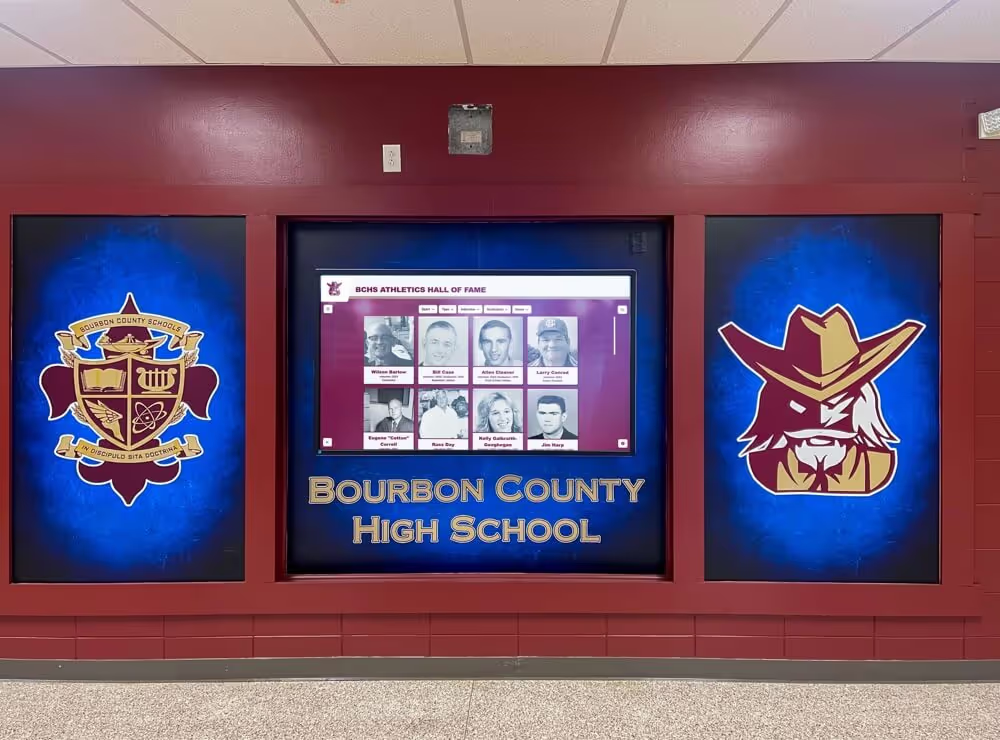
The digital recognition platform behind a school honor wall includes nomination forms, admin sign-in screens, and visitor inquiry forms that all collect user information; each must carry correct autocomplete tokens to pass a WCAG 1.3.5 Identify Input Purpose audit
Step-by-Step Digital Hall of Fame Identify Input Purpose Audit Workflow
Run the following steps in sequence for each form surface in the platform inventory. Document each finding with the page URL, field label, input element id or name attribute, the current autocomplete value (or absence), and the correct token that should replace it.
Step 1: Inventory All Form Surfaces Collecting User Information
Navigate through the recognition platform and list every page that presents a form collecting information about the person filling it in. Include:
- The main inductee nomination form—both the URL where it is publicly available and any preview URLs in the CMS staging environment
- Multi-step nomination form: note the URL or page-identifier for each step separately, because each step may be rendered by a different template
- The admin CMS sign-in page (URL may be on the vendor’s domain)
- The admin password reset flow (all steps, including the email-entry page and the new-password-creation page)
- Any visitor inquiry, contact, or event-registration form linked from the recognition platform’s public directory
- Any on-site feedback or kiosk inquiry form delivered through a browser interface
For each surface, record the URL and identify which technology generates the form HTML: the platform’s own templates, a third-party form builder (Typeform, Gravity Forms, Formstack), the CMS vendor’s authentication module, or a separate identity provider (Auth0, Google Workspace sign-in).
Step 2: Build the Field Inventory
For each form surface identified in Step 1, open the form in a browser and list every input field that appears in the nominator-information or user-information section. For each field, record:
- The visible label text
- The
<input>element’sidandnameattribute values - The
typeattribute value (text,email,tel,password) - The current
autocompleteattribute value (or “absent” if the attribute is not present) - The correct token from the WCAG-defined list based on the field’s purpose
Use the field-mapping table earlier in this guide to identify the correct token for each field. Confirm that fields collecting information about a third party—the nominee’s name, sport, and year—are out of SC 1.3.5 scope, and mark them “N/A” in the audit log.
Step 3: Inspect autocomplete Attributes in DevTools
In Chrome, open DevTools (F12) and navigate to the Elements tab. Select each in-scope input field in the element tree and inspect the rendered HTML to confirm the autocomplete attribute value. Do not rely on the page’s source HTML alone; confirm the rendered attribute in DevTools because some CMS frameworks and JavaScript form libraries modify autocomplete values at runtime.
For each field, classify the finding as one of:
- PASS — Correct WHATWG token present; field’s purpose is programmatically determinable
- FAIL: Absent — No
autocompleteattribute on a field that requires one - FAIL: Suppressed —
autocomplete="off"orautocomplete="false"on a field that requires a purpose token - FAIL: Invalid token — An
autocompletevalue that does not appear in the WHATWG autofill field list (e.g.,autocomplete="full-name",autocomplete="user_email",autocomplete="phone") - N/A — Field collects third-party information and is outside SC 1.3.5 scope
Step 4: Check for Runtime autocomplete Suppression
Some form libraries—particularly multi-step form builders and inline nomination widgets—suppress browser autofill by adding autocomplete="off" or autocomplete="new-password" to all fields at runtime, regardless of the HTML template. Even if the template source includes correct tokens, the rendered attribute value in DevTools may differ.
After inspecting the rendered HTML, trigger the form’s JavaScript by clicking into the first field and beginning to type a character. Then re-inspect the input’s autocomplete attribute in DevTools to confirm the value has not been changed by a JavaScript event handler. If the value changes after the first keystroke or focus event, the form library is overwriting the autocomplete token at runtime—a failure that requires a fix at the JavaScript layer, not the HTML template layer.
Step 5: Test Autofill in a Browser
Open the nomination form in a browser that has your test user’s name, email, phone number, and school name saved in autofill (Chrome’s built-in autofill, Bitwarden, or 1Password). Click into the first nominator-information field.
- If the browser displays an autofill suggestion dropdown, the field’s purpose is recognized. Select the suggestion and confirm all in-scope fields populate correctly.
- If no autofill suggestion appears after clicking into the first field, check whether autofill is enabled in the browser’s settings for this domain. If enabled but not triggering, the field’s
autocompletetoken is absent, invalid, or being suppressed at runtime. - Confirm that all nominator fields populate in one autofill action—not just the first field. A partial fill (only the name fills, not the email) indicates that adjacent fields are missing or have incorrect tokens.
- Repeat the test in Firefox to confirm cross-browser autofill consistency.
Record a pass if all in-scope fields fill correctly from a single autofill interaction in both Chrome and Firefox.
Record a failure if any field does not fill, fills with incorrect content (a wrong autofill category), or triggers no autofill suggestion at all.
Step 6: Test with a Cognitive Augmentation Extension
Install the Web Disability Simulator (available as a browser extension) or a similar tool that demonstrates how users with cognitive disabilities perceive a web page. Enable the “Dyslexia” or “Cognitive” simulation mode and navigate to the nomination form.
While cognitive augmentation tools use different mechanisms than WCAG 1.3.5 directly audits, this test provides a representative sample of how the autocomplete tokens contribute to a user’s ability to identify fields without relying solely on label text. Fields with correct tokens are more likely to receive browser-level symbol augmentation; fields without tokens will not.
For a definitive technical test of symbol augmentation, configure a user script or browser extension that maps autocomplete token values to icons and verify that each in-scope field displays its associated icon. This level of testing is recommended for platforms serving populations with known high rates of cognitive accessibility needs.
Step 7: Verify Admin Sign-In and Password Reset Fields
Navigate to the admin CMS sign-in page. Open DevTools and inspect the email/username field and the password field.
- Confirm the email/username field has
autocomplete="username"orautocomplete="email". - Confirm the password field has
autocomplete="current-password". - Trigger autofill with a password manager (Bitwarden, 1Password, or Chrome’s built-in manager with a test credential for this CMS domain). Confirm both fields populate from a single autofill action.
Navigate to the password reset flow.
- On the email-entry step, confirm
autocomplete="email"is present. - On the new-password-creation step, confirm
autocomplete="new-password"is present on the new password field and on any confirm-password field. - If a multi-factor authentication step is present, confirm
autocomplete="one-time-code"is on the code-entry field.
Record any field that fails the token inspection or the autofill trigger test.
Step 8: Run an Automated Scan as a Cross-Check
Open the axe DevTools browser extension and run a scan on each form page. Review findings in the “Best Practices” and “WCAG 2.1 AA” categories for autocomplete-related issues. Common axe rules that surface SC 1.3.5 failures include:
autocomplete-valid— flagsautocompleteattributes whose values are not valid WHATWG tokensinput-button-name— surfaces name-calculation failures that can coincide with missing tokenslabel— flags inputs without accessible names; while distinct from SC 1.3.5, a field without a visible label also cannot carry a meaningfulautocompleteannotation
Automated scans catch absent tokens and invalid token values. They cannot detect runtime token suppression (JavaScript overwriting autocomplete after load) or confirm that autofill actually works end-to-end—those require the manual steps above. Use the automated scan as a first-pass filter, not as a substitute for Steps 3 through 7.
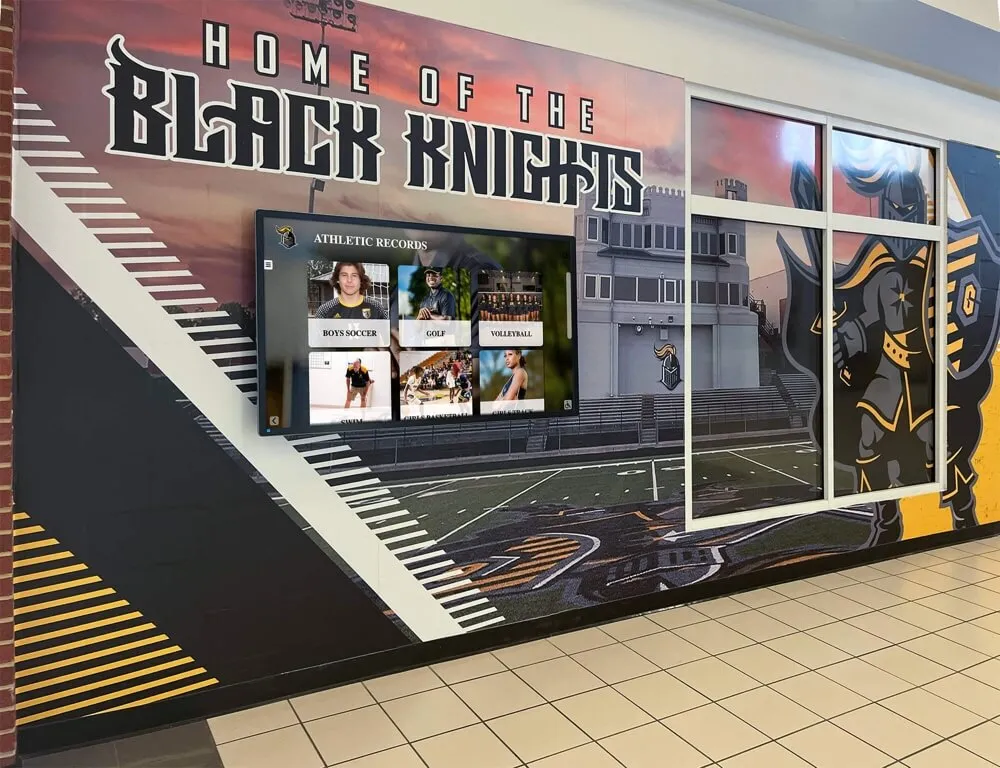
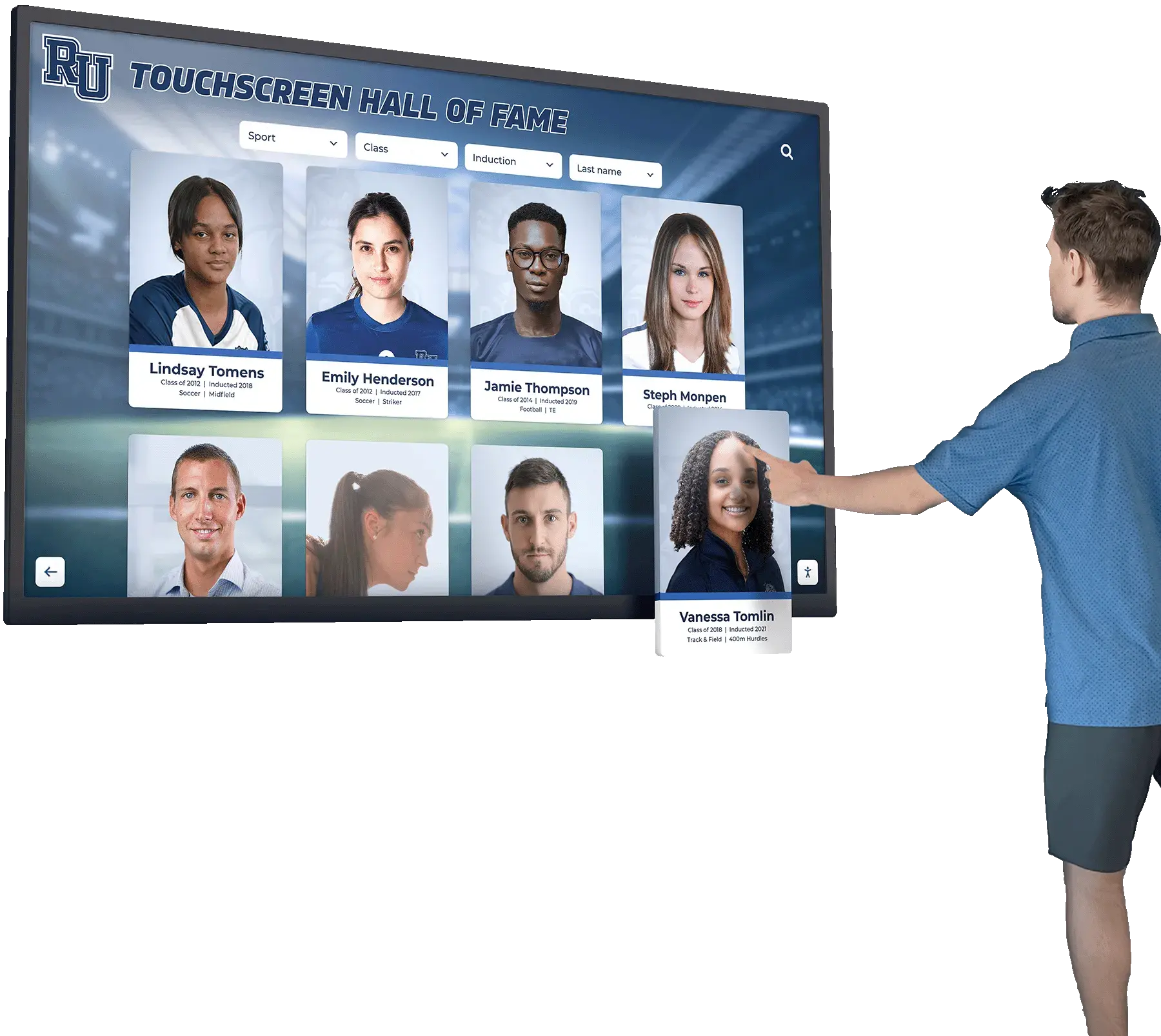
Nomination forms and inquiry inputs on school hallway kiosk interfaces draw from the same HTML templates as web directory forms; the WCAG 1.3.5 autocomplete token audit must verify both surfaces as part of a complete identify input purpose accessibility review
Execution Timeline: Plan, Audit, Fix, Verify
| Phase | Activities | Responsible Party | Cadence |
|---|---|---|---|
| Plan | Inventory all form surfaces collecting user information; identify which surfaces use platform-vendor templates versus third-party form builders or identity providers; note whether the CMS or form library is known to suppress autocomplete at runtime; confirm test user autofill data is saved in Chrome and Firefox for the audit domain | IT administrator + web manager | Once at platform launch; once after any form template update, CMS upgrade, form builder change, or identity provider migration |
| Audit | Run the eight-step workflow for each form surface in the inventory; build the field inventory matrix; classify each field as PASS, FAIL, or N/A; test autofill in Chrome and Firefox; run axe DevTools scan as a supplementary check | IT staff or accessibility coordinator | At platform launch; before each induction season or community recognition event; immediately after any nomination form, sign-in page, or multi-factor authentication update |
| Fix | Add correct autocomplete token to each FAIL: Absent field; replace autocomplete="off" with the correct token on FAIL: Suppressed fields (or provide a documented security exception with an accessible alternative); correct misspelled or invalid token values on FAIL: Invalid token fields; update JavaScript form library configuration if runtime suppression is detected | Developer or platform vendor | Within 48 hours for admin sign-in fields (complete authentication barrier); within 7 days for nomination form and inquiry form fields |
| Verify | Re-run Steps 3 through 5 from the audit workflow for each field that received a fix; confirm autofill triggers in Chrome and Firefox; confirm DevTools shows the correct rendered token after any JavaScript fix; re-run axe scan to confirm no remaining autocomplete-valid failures | IT staff | Immediately after each fix is deployed to the production platform |
| Document | Record audit date, platform and CMS version, form builder or identity provider name and version, fields tested by surface, findings by failure type, fixes applied with specific autocomplete token values and any JavaScript changes, and verification results | Administrative lead | Each audit cycle; retained for three years or the duration of the recognition program’s platform agreement |
Looking for a recognition platform that gets autocomplete right from the start?
Rocket Alumni Solutions’ digital hall of fame platform builds WCAG 1.3.5-compliant nomination forms and accessible admin sign-in into its core templates—so nominator autofill works out of the box, without your IT team adding tokens post-launch.
Display Integration: Identify Input Purpose Across Web Directory and Kiosk Contexts
Digital hall of fame installations serve two distinct interaction contexts for forms: the public web directory, where nominators submit candidates from their own devices at home or in an office, and the wall-mounted kiosk touchscreen, where visitors interact in person at a school facility. The SC 1.3.5 requirement applies to both, though the practical implementation differs.
Web directory (primary impact surface): Nomination forms on the web directory are submitted from the widest variety of devices and browsers. A nominator using Chrome on a Windows laptop with Bitwarden installed, a parent using Safari on an iPhone, and an alumni association coordinator using Firefox on macOS all access the same nomination form—each with their own autofill implementation that depends on the autocomplete attribute to function correctly. The web directory form is the highest-volume surface and the highest-impact location for SC 1.3.5 compliance.
For schools that also host interactive digital signage displays alongside their recognition platform, the same nomination form URL may be linked from QR codes on trophy cases and display murals. A nominator who scans a QR code in the athletic hallway and opens the form on their phone in Safari with autofill active will benefit from correct autocomplete tokens just as a desktop nominator would—and will encounter the same autofill barrier if the tokens are absent.
Physical kiosk (conditional impact): Physical kiosk touchscreens at school facilities typically use an on-screen keyboard as the primary input method. Browser autofill triggered by autocomplete tokens may not be available in all kiosk deployments, depending on the browser configuration and whether autofill is enabled in the kiosk profile. However:
- If the kiosk supports an externally connected physical keyboard, autofill may function when a visitor connects their keyboard.
- If an accessibility evaluator reviews the kiosk interface using an external keyboard and a screen reader, the absence of
autocompletetokens will produce a WCAG 1.3.5 failure documented during that review. - If the kiosk serves a school event where staff assist visitors with a connected keyboard—as is common at induction ceremonies where a recognition coordinator helps nominees fill out post-ceremony feedback forms—autofill from the coordinator’s browser profile would normally populate fields if the tokens are present.
Schools that use wall wraps and interactive displays in their facilities alongside digital hall of fame kiosks often route QR code scan traffic to mobile-optimized versions of the nomination form. Mobile Safari on iOS and Chrome on Android both support autocomplete-driven autofill; the same token requirements apply to mobile-optimized form templates.
Nomination form links from traditional award displays: Schools that maintain both physical award infrastructure—framed plaques, trophy cases, and traditional recognition walls—and digital platforms often link nomination forms from QR codes printed on memorial plaques and award displays. When a community member scans that QR code at a memorial tribute, they may open the form while using a screen reader or other assistive technology on their mobile device. Correct autocomplete tokens ensure their assistive tool can identify each field’s purpose and offer appropriate autofill assistance.
Cloud CMS updates and autocomplete integrity: Cloud-based recognition platforms that use a headless CMS or API-driven form rendering may regenerate form HTML on each CMS content deployment. If the form template includes correct autocomplete tokens in its configuration, a CMS update that changes a field’s name attribute or moves a field to a different step could inadvertently remove a token if the template is misconfigured. Step 4 of the audit workflow—re-inspecting autocomplete values after a JavaScript cycle—should be repeated after any CMS update that touches form field configuration.
Recognition programs that use athletic award exception approval forms as part of their administrative workflow may also expose a form to staff members submitting personal information. If those approval forms are delivered via the platform’s web interface, the submitter’s name and contact fields fall within SC 1.3.5 scope—and should be included in the platform’s nomination form audit pass, not treated as a separate administrative tool outside the accessibility review.

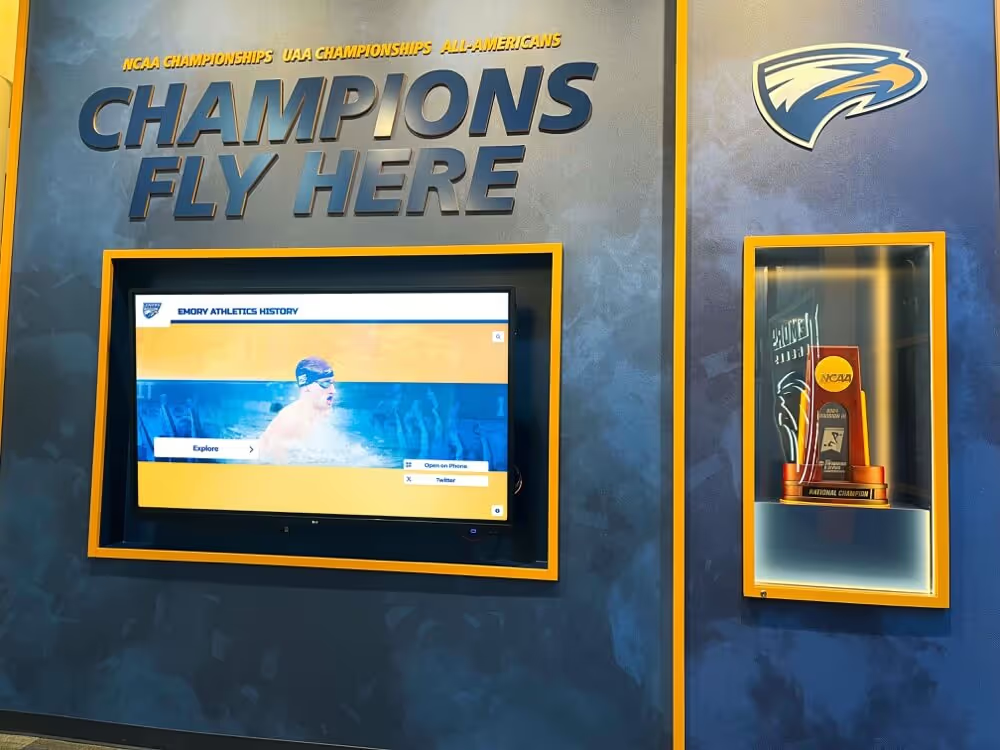
Students and alumni who access digital hall of fame nomination forms from campus touchscreens and personal devices benefit from correct autocomplete tokens that enable autofill—reducing the manual entry burden for every nominator regardless of the device or input method they use
Measurement: Evaluating Identify Input Purpose Audit Results
After completing the audit and applying any remediation, measure outcomes against the following benchmarks to confirm SC 1.3.5 compliance across all form surfaces.
| Metric | Target | Action if Below Target |
|---|---|---|
| In-scope fields with a valid autocomplete token | 100% of all user-information fields across nomination forms, sign-in pages, reset flows, and inquiry forms | Add the correct WHATWG token to each failing field; verify the rendered value in DevTools after deployment |
| Fields with autocomplete=“off” on user-information inputs | 0 fields — no user-information field should suppress autofill | Replace autocomplete="off" with the correct token; if a security justification exists (e.g., a legal hold for a specific data category), document the exemption and provide an accessible alternative path |
| Fields with invalid autocomplete token values | 0 fields — no autocomplete value that is not a WHATWG-defined token | Correct misspellings and custom values to the nearest matching token; review the WHATWG specification directly when uncertain about a specific field type |
| Autofill trigger success rate (Chrome, Firefox) | 100% of in-scope fields populate from a single autofill interaction in both browsers | Re-examine runtime JavaScript suppression if the DevTools token is correct but autofill does not trigger; consult the form library’s documentation for autofill compatibility settings |
| Admin sign-in password manager fill success | 100% — both username and current-password fields fill from password manager in a single interaction | Verify autocomplete="username" and autocomplete="current-password" are present; confirm paste is not blocked (supports WCAG 2.2 SC 3.3.8 simultaneously) |
| axe DevTools autocomplete-valid rule failures | 0 after remediation | Re-run axe scan on each form page after fixes are deployed; resolve any remaining autocomplete-valid findings before closing the audit cycle |
| Re-audit after any form or CMS update | All fields confirmed passing within 5 business days of any update that modifies form templates or field configuration | Include the SC 1.3.5 field-token checklist in the deployment verification checklist for the recognition platform’s form-related releases |
Frequently Asked Questions
Does SC 1.3.5 require autocomplete tokens on every input field in the nomination form?
No. SC 1.3.5 requires autocomplete tokens only on fields that collect information about the user filling the form—the nominator’s own contact details. Fields collecting information about the nominee, such as the nominee’s name, sport, graduation year, career statistics, or endorsement letter text, are outside the criterion’s scope. A nomination form’s longest section—the candidate profile—typically requires no autocomplete annotation to satisfy SC 1.3.5. The audit focuses on the nominator identification block at the beginning of the form.
Our nomination form is built with a third-party form builder (Gravity Forms, Typeform, or Formstack). Can we add autocomplete tokens through the builder’s interface?
It depends on the form builder. Gravity Forms allows autocomplete attributes to be added through each field’s advanced settings panel. Typeform’s embed SDK exposes limited HTML control; for Typeform, you may need to post-process the rendered iframe to add tokens, or switch to a WCAG-compliant alternative form builder for public nomination submissions. Formstack allows autocomplete to be set per field in enterprise plans. For any builder that does not support autocomplete configuration, check whether the builder exposes a JavaScript API that lets you add the attribute after render—this is the same runtime-injection approach used for other post-render attribute additions, and it must be verified with the Step 4 runtime inspection from the audit workflow.
What is the difference between autocomplete=“name” and autocomplete=“given-name” for a nominator’s name field?
Use autocomplete="name" when the nomination form uses a single field for the nominator’s full name. Use autocomplete="given-name" and autocomplete="family-name" on the first-name and last-name fields respectively when the form splits the name into two inputs. Using autocomplete="name" on a first-name-only field causes the browser to fill the entire full name—including the last name—into the first-name field, which overflows the field’s content and produces a mismatched data submission. Token specificity prevents this autofill mismatch.
Should we add autocomplete=“organization” for the nominator’s school name, even though “school” is not in the token list?
Yes. autocomplete="organization" is the correct token for any field collecting the nominator’s institutional affiliation—school, district, alumni association, or booster club. The WHATWG token list does not include a “school” token; organization covers organizational affiliation broadly. A browser that has the nominator’s school name stored as their autofill organization value will populate that field correctly when autocomplete="organization" is present.
Our platform vendor says they will add autocomplete tokens in a future release. What should we do in the meantime?
Document the missing tokens as an open finding and request a timeline from the vendor. Confirm that the vendor’s roadmap item specifically covers SC 1.3.5 and not just autofill as a feature improvement. In the interim, assess whether the platform allows school IT staff to modify form templates or inject attributes through a theme-level customization—even a thin JavaScript wrapper that adds autocomplete attributes post-render is a valid interim fix that can be removed once the vendor’s native solution is deployed. For the deeper table-header accessibility requirements on recognition platform data views, similar vendor-coordination timelines apply; bundling related accessibility remediation requests into a single vendor communication is often more efficient than separate tickets.
Does a nomination form submitted on a mobile device via a QR code require the same autocomplete tokens?
Yes. Mobile Safari on iOS and Chrome on Android both support autocomplete-driven autofill for user-information fields. A nominator who scans a QR code from a trophy case or a display wall and opens the nomination form on their iPhone benefits from the same autocomplete="name" and autocomplete="email" tokens as a desktop nominator. The QR code entry path is common at physical recognition events and is documented as a valid access scenario in platform design guides. Tokens that work for desktop browsers also work for mobile browsers; no mobile-specific annotation is required beyond the WHATWG tokens already in the HTML.
How does the identify input purpose audit relate to the deep link persistence behavior on hall of fame platforms?
The two audits address different layers of the same user journey. A digital hall of fame deep link persistence test confirms that a visitor who arrives via a direct URL or QR code link lands on the correct inductee profile or search result and that the platform’s URL state persists across navigation. The identify input purpose audit confirms that when that same visitor navigates to a nomination form—either directly or from an inductee profile’s “Nominate Someone” link—the form fields they encounter correctly communicate their purpose so autofill can assist with contact-detail entry. Both audits should be run during initial platform launch and after any URL routing or form template change.
Reusable Artifact: Identify Input Purpose Audit Checklist for Hall of Fame Form Fields
Copy this checklist before each platform launch, form template update, form builder upgrade, or annual WCAG 2.1 AA compliance review. Complete one checklist per form surface.
Pre-Audit Inventory
- All form surfaces collecting user information identified: nomination form (all steps), admin sign-in, admin password reset (all steps), visitor inquiry form, event registration form, kiosk feedback form
- Page URL or navigation path recorded for each form surface
- Technology generating each form identified: platform vendor template, third-party form builder, identity provider (Auth0, Google Workspace, Microsoft Entra)
- Test user autofill data saved in Chrome and Firefox for the audit domain: full name, email, phone, and organization
Field Inventory — Nomination Form (Nominator Block)
- Nominator full name field:
autocomplete="name"confirmed in DevTools (orgiven-name/family-nameif split) - Nominator email field:
autocomplete="email"confirmed in DevTools - Nominator phone field:
autocomplete="tel"confirmed in DevTools (if phone is collected) - Nominator school/organization field:
autocomplete="organization"confirmed in DevTools (if organization is collected) - Nominator street address field:
autocomplete="street-address"confirmed in DevTools (if address is collected) - No nominator-information field has
autocomplete="off"or an invalid token value - Nominee-information fields (nominee name, sport, year, records): marked N/A — outside SC 1.3.5 scope
Field Inventory — Admin Sign-In and Reset
- Admin email/username field:
autocomplete="username"confirmed in DevTools - Admin current password field:
autocomplete="current-password"confirmed in DevTools - Password reset email field:
autocomplete="email"confirmed in DevTools - New password field:
autocomplete="new-password"confirmed in DevTools - Confirm password field (if present):
autocomplete="new-password"confirmed in DevTools - MFA one-time code field (if present):
autocomplete="one-time-code"confirmed in DevTools
Field Inventory — Visitor Inquiry and Event Registration
- Visitor name field:
autocomplete="name"(orgiven-name/family-nameif split) confirmed - Visitor email field:
autocomplete="email"confirmed - Visitor phone field:
autocomplete="tel"confirmed (if collected) - Visitor organization field:
autocomplete="organization"confirmed (if collected)
Runtime Suppression Check
- Step 4 of audit workflow completed:
autocompleteattribute value in DevTools confirmed unchanged after JavaScript form initialization - No JavaScript event handlers detected on any in-scope field that overwrite
autocompleteat runtime
Autofill Trigger Verification
- Autofill triggered in Chrome: all nominator-information fields populate from a single autofill interaction
- Autofill triggered in Firefox: all nominator-information fields populate from a single autofill interaction
- Password manager autofill triggered in Chrome: admin sign-in username and password fields populate from a single fill interaction
Automated Scan Cross-Check
- axe DevTools
autocomplete-validrule: 0 failures on nomination form - axe DevTools
autocomplete-validrule: 0 failures on admin sign-in and reset pages - axe DevTools
autocomplete-validrule: 0 failures on inquiry and event-registration forms
Post-Fix Verification
- All FAIL: Absent fields re-inspected in DevTools; correct token confirmed after fix deployment
- All FAIL: Suppressed fields re-inspected;
autocomplete="off"confirmed removed or replaced - All FAIL: Invalid token fields re-inspected; correct WHATWG token confirmed
- Autofill re-tested in Chrome and Firefox after any JavaScript or template fix
- Password manager fill re-tested on admin sign-in after any authentication template change
- axe DevTools scan re-run; 0
autocomplete-validfailures confirmed
Connecting the Identify Input Purpose Audit to the Full Accessibility Workflow
A WCAG 1.3.5 Identify Input Purpose audit addresses the annotation layer of a digital hall of fame platform’s form fields. Schools that complete this audit should connect it to the adjacent form accessibility requirements that govern how those same fields behave during error handling, navigation, and multi-step submission.
A digital hall of fame redundant entry accessibility audit confirms that nominator contact information entered on step one of a nomination form is not requested again on step three—the same autocomplete tokens that enable autofill on step one can also inform the platform’s logic for carrying values forward to later steps, since both the token and the field’s name attribute can serve as keys for session-state transfer.
A digital hall of fame accessible authentication audit addresses the admin sign-in fields that SC 1.3.5 and WCAG 2.2 SC 3.3.8 both govern. The autocomplete="username" and autocomplete="current-password" tokens are the shared fix for both criteria on the sign-in screen: one token satisfies the “programmatically determinable purpose” requirement of SC 1.3.5 and simultaneously enables the password-manager mechanism of assistance required by SC 3.3.8.
A WCAG 2.2 AA accessibility compliance guide provides the cross-criterion audit map for teams building a complete conformance picture across every page and interaction on the recognition platform. The Identify Input Purpose audit for forms and the ARIA combobox audit for search suggestions are two of the targeted technical checks that feed into that broader compliance review.
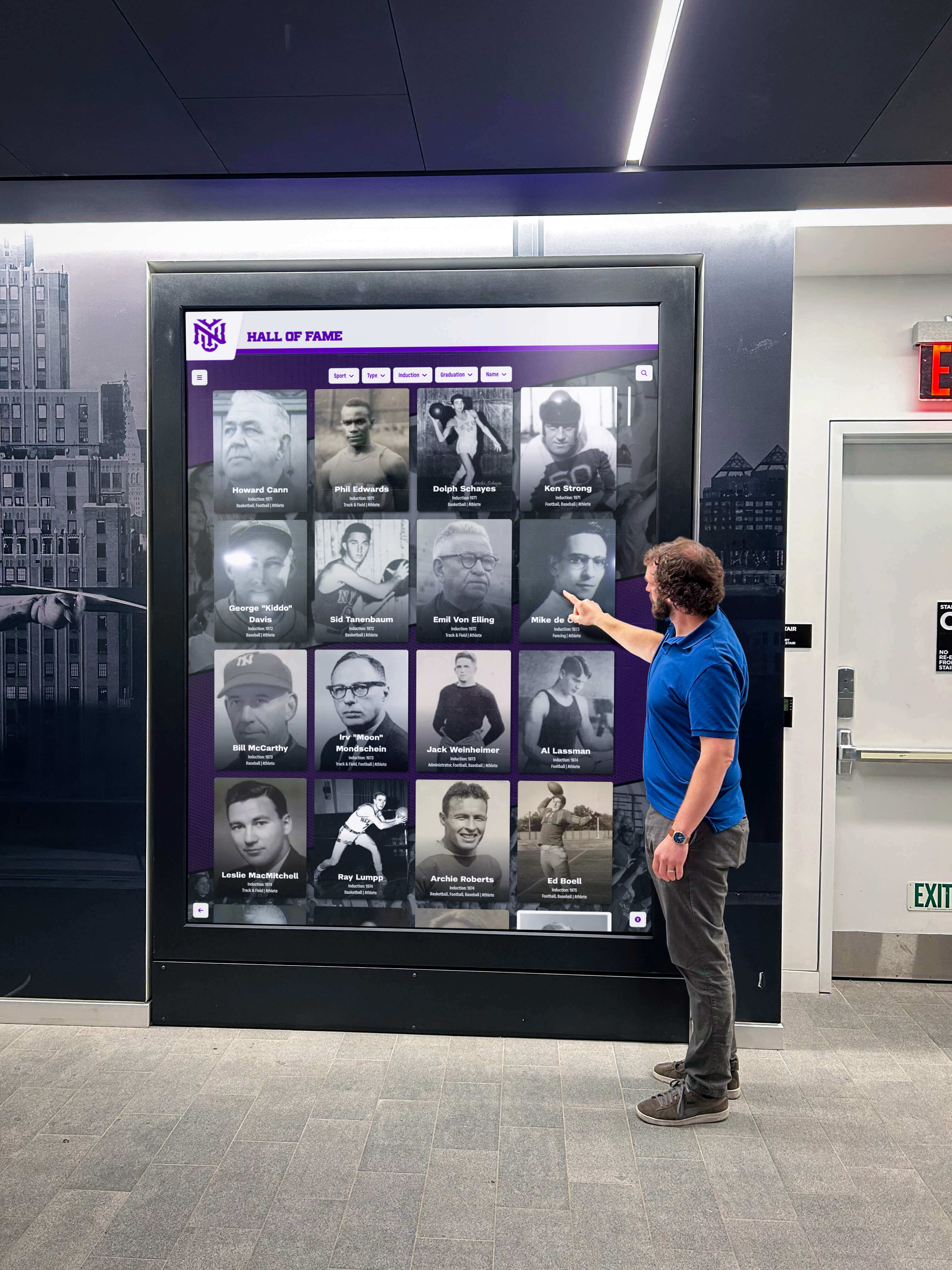
Every visitor who submits a nomination through a digital hall of fame platform—whether from a lobby interactive screen, a personal device at home, or a phone scanned from a physical display—benefits from correct autocomplete tokens that make the nominator identification block fast, accurate, and accessible
Recognition programs that honor athletes, coaches, scholars, and community contributors year after year accumulate nomination form submissions across many induction cycles. Each submission that succeeds is a nomination that the recognition program received; each autofill failure that causes a nominator to abandon a partially filled form is a nomination the program did not receive. Correct autocomplete tokens reduce abandonment for motor-impaired and cognitively disabled nominators—and for every nominator who values a fast, frictionless submission experience. The Identify Input Purpose audit is the targeted technical review that confirms those tokens are present, correct, and functioning before the next induction cycle opens nominations.
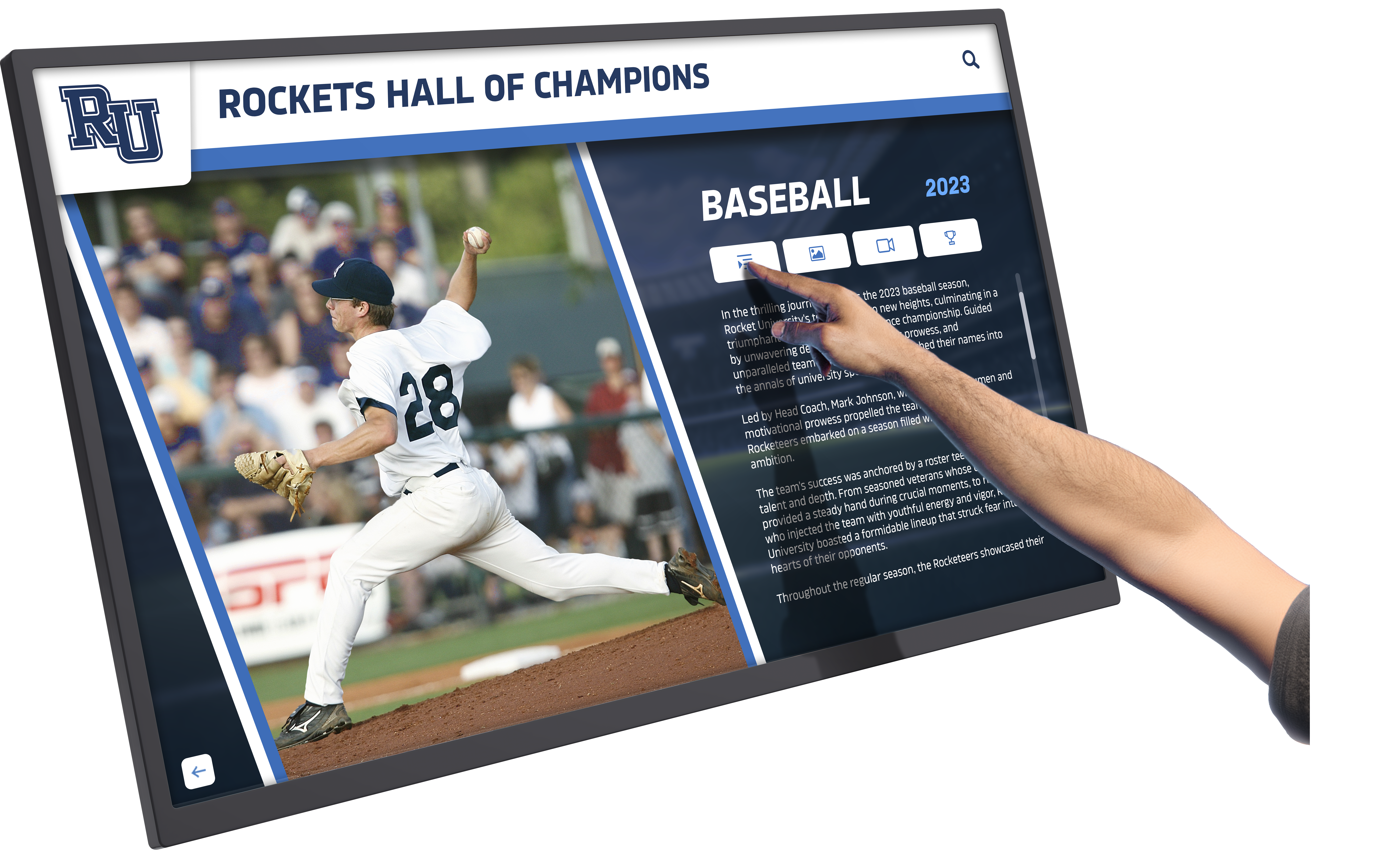
Nomination forms linked from digital hall of fame displays and inductee profiles must carry correct autocomplete tokens to pass a WCAG SC 1.3.5 audit—ensuring that every nominator, including those who rely on autofill or assistive input, can submit a complete nomination without barriers
See Rocket Alumni Solutions’ Accessible Nomination Platform in Action
Request a live demonstration to see how Rocket’s recognition platform delivers WCAG 1.3.5-compliant nomination forms with correct autocomplete tokens on every nominator-information field—so autofill works for every nominator, accessibility audits pass, and your induction season opens without barriers.
Live Example: Rocket Alumni Solutions Touchscreen Display
Interact with a live example (16:9 scaled 1920x1080 display). All content is automatically responsive to all screen sizes and orientations.