



A digital hall of fame HTML output audit is the process of inspecting every <output> element on recognition-summary panels and award-filter interfaces—confirming that each element correctly associates with its contributing input controls via the for attribute, binds to its form owner through the form attribute, carries an accessible label, resets to its defaultValue when the form is reset, and that its name and content are never submitted with a form. The <output> element, documented by MDN Web Docs, is the HTML element designed for displaying the results of a calculation or a user action—not a stored record, and not a value that travels with a form submission. When a school’s digital hall of fame uses an <output> element to display a filtered count of inductees matching selected criteria, the audit confirms that the element is associated correctly, resets predictably, and communicates its derived nature to every visitor, including those using assistive technology. This guide gives athletic directors, recognition-program staff, and school IT and vendor reviewers the decision table, numbered workflow, and reusable checklist to complete this audit before a misconfigured output element misrepresents calculated award summaries as authoritative eligibility data.
A school digital hall of fame recognition-summary panel is a common home for a calculated <output>. A staff member selects a sport from one dropdown and an induction decade from another; a JavaScript function reads both values, counts matching inductee records, and writes the result into an <output> element. That count is a derived summary of the current filter state. It tells the viewer how many records match the selected criteria at that moment. It is not a determination of who is eligible for nomination, and it is not a value that belongs in the next database write. The <output> element’s HTML semantics express exactly that: computed result, not submitted field.

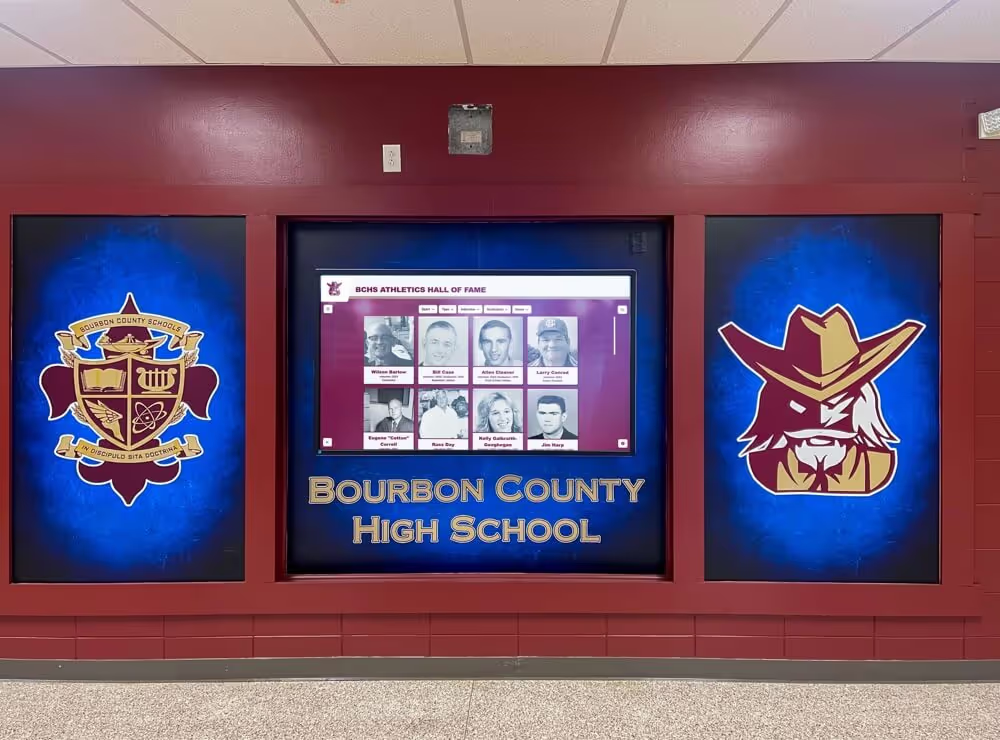
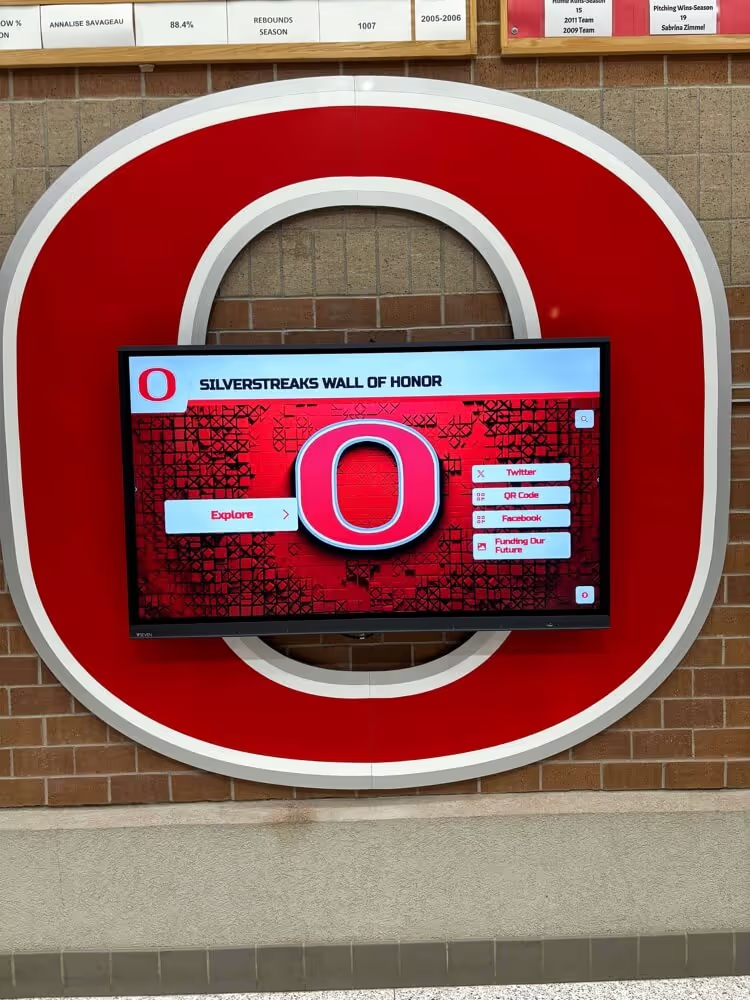
A school hall of fame recognition wall anchors the program that a digital summary panel supports—when a visitor filters inductees on screen, the calculated count must be semantically correct, associated with its inputs, and clearly distinguished from stored eligibility records
Program Snapshot: HTML Output Audit Scope for School Hall of Fame Sites
| Planning Element | Details |
|---|---|
| Primary Audience | Athletic directors, recognition-program staff, IT administrators, school web managers, recognition platform vendors and IT reviewers |
| What Is Being Audited | Every <output> element on recognition-summary panels, award-filter interfaces, and inductee-count displays across the hall of fame web directory and kiosk interfaces |
| WCAG Criteria | 1.3.1 Info and Relationships — Level A (semantic structure and associations); 4.1.2 Name, Role, Value — Level A (correct implicit role, accessible name, and value) |
| Authoritative Reference | MDN Web Docs: The Output element (<output>) |
| Tools Required | Chrome DevTools Elements and Console panels (built-in, free); NVDA (Windows, free) or VoiceOver (macOS, built-in) for live-region announcement testing |
| Time Investment | 20–35 minutes to audit all <output> elements across one complete recognition-summary template; 10 minutes for a targeted re-check after any filter or reset logic update |
| Failure Consequence | Screen-reader users do not receive the calculated count announcement; the output element is not associated with the inputs that produced it; form reset does not restore the default state; or staff misread a derived filter count as an authoritative eligibility record |
| Pass Condition | Every <output> carries a for attribute listing the contributing input IDs, a form attribute or ancestor <form> binding, an accessible label, a defaultValue matching its initial state, and no name or content submitted with the form |
| Data Scope Reminder | Calculated award counts on a recognition-summary panel are derived from current filter selections—they reflect how many records match a query at a given moment and do not constitute a nomination eligibility determination for any individual |
What the <output> Element Does on a Recognition Summary Panel
The <output> element is designed for one purpose: displaying the result of a calculation or a user interaction. MDN’s documentation places it in the “resettable form-associated element” content category—a designation that carries three important operational facts for anyone auditing a school hall of fame platform.
First, it is form-associated. An <output> element belongs to a form. That association can come from the element being a descendant of a <form> element, or from an explicit form attribute whose value matches the id of a <form> anywhere in the same document. The form association makes the element accessible through the form’s elements collection, which means scripts and vendor platform code can reference it by name.
Second, it is resettable. When a user or script triggers a form reset, the <output> element’s content is restored to its defaultValue—the text content the element held when the page first loaded or when defaultValue was last explicitly set. This is the mechanism that allows a “Clear filters” button to return the count panel to its original state without additional JavaScript logic.
Third, it is not submitted. The <output> element’s name and content are explicitly excluded from form submission data. No matter what name is assigned and no matter what calculated value is displayed, the content does not travel to the server when the associated form is submitted. This distinguishes <output> from every submittable form control—<input>, <select>, <textarea>—and makes it the correct element for a display-only result that should never be mistaken for user-entered data.
The for Attribute: Linking Output to Its Contributing Inputs
The for attribute on <output> takes a space-separated list of id values—each one the ID of an element whose value contributed to the calculation displayed. For a recognition-summary panel that filters by sport and decade, the association looks like this in a generic, school-owned custom recognition system:
<form id="award-filter">
<label for="sport-select">Sport</label>
<select id="sport-select" name="sport">
<option value="">All sports</option>
<option value="basketball">Basketball</option>
<option value="football">Football</option>
<option value="track">Track and Field</option>
</select>
<label for="decade-select">Induction Decade</label>
<select id="decade-select" name="decade">
<option value="">All decades</option>
<option value="1980s">1980s (example)</option>
<option value="1990s">1990s (example)</option>
<option value="2000s">2000s (example)</option>
</select>
</form>
<label for="award-count">Matching inductees</label>
<output id="award-count" name="award-count" for="sport-select decade-select" form="award-filter">Select filters above</output>
The for="sport-select decade-select" attribute communicates that both the sport selector and the decade selector contributed to the value shown. This association is semantic—it tells the browser and assistive technology which controls are related to the displayed result—but it does not create a visual connection on its own. The browser does not automatically update the <output> when the inputs change; that update requires JavaScript. The for attribute records the relationship; a script performs the calculation and sets the value.
Audit check. Inspect each <output> element in DevTools. Confirm that the for attribute is present and that every ID listed in it matches an actual element in the document. An ID listed in for that does not resolve to any element is a silent failure—the attribute has no effect, and the semantic association is broken.
The form Attribute: Associating Output With a Form Owner
The <output> element can appear anywhere in a document and still belong to a specific form. The form attribute accepts the id of any <form> in the same document, establishing the form-owner association regardless of DOM position. This is useful when the layout separates the filter controls from the summary panel—a common pattern on recognition dashboards where the output sits in a sidebar while the controls appear in a header or toolbar.
<form id="filter-controls">
<label for="era-select">Recognition Era</label>
<select id="era-select" name="era">
<option value="">All eras</option>
<option value="founding">Founding Class (example only)</option>
<option value="modern">Modern Era (example only)</option>
</select>
<button type="reset">Clear filters</button>
</form>
<output name="era-count" for="era-select" form="filter-controls">Select an era above</output>
When the user clicks “Clear filters” and the form resets, the <output> resets to its defaultValue (“Select an era above”) because the form attribute binds it to that form’s reset cycle—even though the <output> element sits outside the <form> element in the DOM.
Audit check. For each <output> that sits outside a <form> element in the DOM, confirm the form attribute is present and that its value matches an existing <form id>. An <output> with no ancestor <form> and no form attribute has no form owner—form reset will not affect it, and it will not appear in any form’s elements collection.
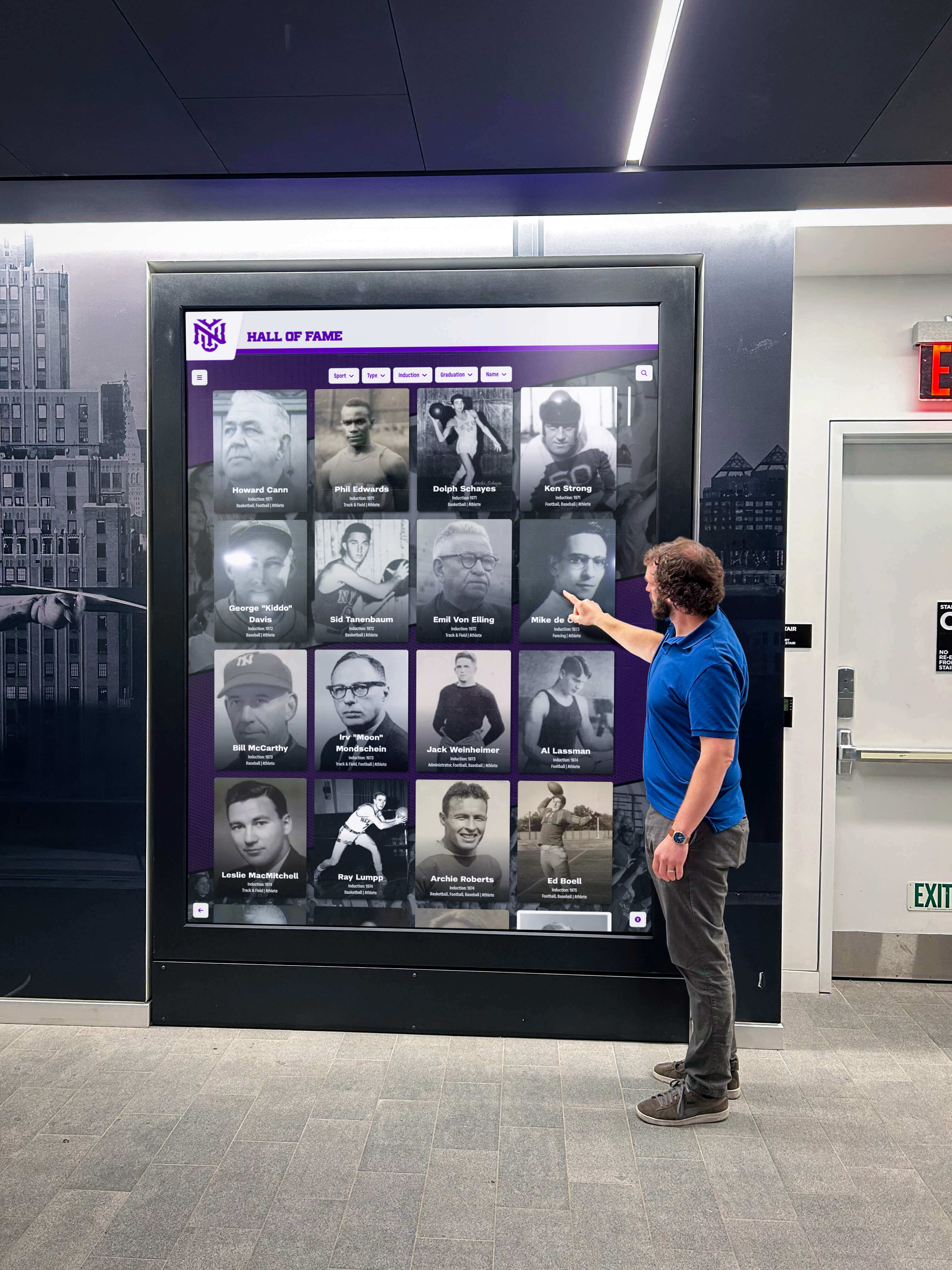
A visitor using a hall of fame interactive display relies on the recognition-summary panel to reflect their current selections—the calculated count must be semantically associated with its inputs and restore to its default state when filters are cleared
Label and Accessible Name for <output> Elements
The <output> element belongs to the “labelable” content category, which means it can be associated with a <label> element using the label’s for attribute or by wrapping the output inside the label. This is the standard mechanism for providing an accessible name—the text that assistive technology announces to identify the purpose of the element before stating its current value.
<label for="summary-output">Inductees matching your selections</label>
<output id="summary-output" name="summary-count" for="sport-select decade-select" form="award-filter">0</output>
The <label> supplies the accessible name. When assistive technology encounters the output element, it can announce the label text alongside the current value—providing context that “0” means zero inductees matched, not zero of something undefined.
Audit check. For each <output> element, confirm it has an accessible name. Acceptable methods include:
- A
<label>element with aforattribute matching the output’sid - An
<output>wrapped inside a<label>element - An
aria-labelattribute directly on the<output> - An
aria-labelledbyattribute pointing to an element whose text describes the output’s purpose
An <output> with no accessible name leaves a live-region announcement without context. A screen-reader user who hears a number read aloud with no label has no way to understand what that number counts.
value, defaultValue, and Form Reset
Understanding the distinction between value and defaultValue on an <output> element is essential for correctly auditing reset behavior on a recognition-summary panel.
value is the current text content of the element. Reading outputElement.value in JavaScript returns whatever text is currently displayed. Setting outputElement.value = "14 athletes" replaces the displayed content immediately.
defaultValue is the text content the element held when it was initially defined in the HTML, or the last value explicitly assigned via outputElement.defaultValue. On a form reset, the browser restores the element’s value to its defaultValue.
For a recognition-summary panel, this distinction has practical consequences:
| State | value | defaultValue |
|---|---|---|
| Page loads; output shows “Select filters above” | "Select filters above" | "Select filters above" |
| User selects Basketball + 1990s; JavaScript updates output | "8 athletes (example)" | "Select filters above" |
| User clicks “Clear filters” — form reset fires | "Select filters above" | "Select filters above" |
Script explicitly sets defaultValue to new initial text | New initial text | New initial text |
The values in the middle rows are illustrative examples only. Actual counts depend on the specific inductee records in a given school’s system.
Audit check. Load the recognition-summary panel in a browser. Open the DevTools Console and run:
document.querySelector('output').defaultValue
document.querySelector('output').value
Confirm the defaultValue matches the text that should appear when no filter is active. Then trigger a form reset—click the reset button, or run document.getElementById('award-filter').reset() in the console—and confirm that value returns to defaultValue. If the output does not reset, the element may lack a form association, or a script may have overwritten defaultValue unintentionally during a calculation update.
Output Content Is Not Submitted With the Form
This is the most frequently misunderstood property of <output>. Even though the element has a name attribute and belongs to a form, its name and content are never included in form submission data.
When the award-filter form is submitted—if it has any submission action—only the values of submittable controls travel to the server: the selected sport name, the selected decade. The <output> element’s current value does not. This exclusion is by design: the output is a derived display, not user-entered data, and it belongs only to the current browser session’s calculation state.
For a school recognition platform, this property reinforces the distinction between derived counts and stored records:
- Derived counts are what the
<output>displays—a filtered aggregate calculated from the current selection state, scoped to the current session. A count of matching athletes is a summary of records that satisfy a query at a given moment. - Stored records are the authoritative inductee database entries. Nomination eligibility, induction status, and official recognition records are determined by school policy and those stored records—not by a filter count.
A calculated award count on a recognition-summary panel never proves that any individual meets nomination criteria. It reflects how many stored records match a given query. Staff reviewing these counts should consult the underlying records directly before acting on any recognition decision.
When a school is documenting inductee artifacts for official archive purposes, the process of recording physical items before a display installation adds a layer of documentation that a digital filter count cannot substitute for. An athletic hall of fame accession form provides the structured intake process for documenting every artifact before display—a companion workflow to the digital summary that captures the authoritative record the <output> count only approximates.

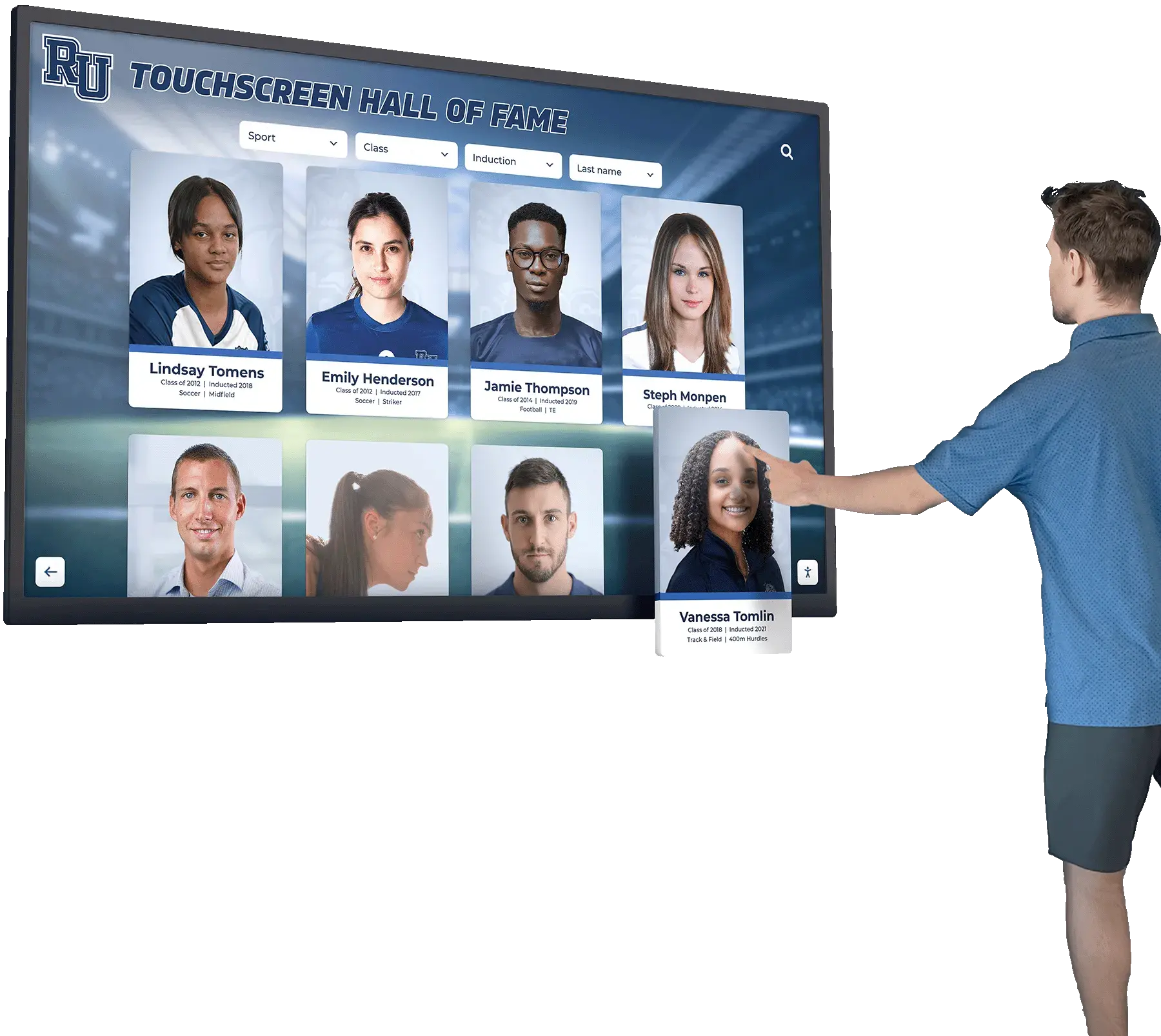
A visitor interacting with a hall of fame touchscreen filter sees a calculated count of matching inductees—that count is a derived summary of the current selection state, not a submission target, and is excluded from form submission data by the HTML specification
Decision Table: When to Use <output> on a Recognition Summary Panel
| Content Type | Correct Element | Reason |
|---|---|---|
| Calculated count of inductees matching current filter selections | <output> | Result of user-driven calculation; not submitted; resettable to defaultValue |
| User-entered search query text | <input type="text"> | Submitted with form; not a calculated result |
| Sport and decade filter selections | <select> | Submitted with form; user-entered values, not derived results |
| Static total inductee count that does not change based on user input | <p> or <span> | Not a calculated result; not form-associated; output semantics add no benefit |
| Progress indicator during a long search operation | <progress> | Represents completion state of a task, not a calculation result |
| Bounded statistic like a percentage | <meter> | Represents a scalar measurement within a defined range; distinct from a calculated count |
| Error message about a filter submission failure | <p role="alert"> or aria-live="assertive" region | Alerts are a distinct, assertive-precedence pattern; <output> carries role="status" (polite) by default |
| Nomination eligibility determination | Not an HTML element | Eligibility is a program policy decision backed by stored records—no HTML element represents that determination |
Browser Announcement Behavior: Implementation-Dependent
The <output> element carries an implicit ARIA role of status. Most browsers implement this by treating the element as an aria-live region with polite precedence—assistive technology announces updates to the <output> content after the user finishes their current interaction, without requiring focus to move to the output element.
This behavior is implementation-dependent. MDN’s documentation does not guarantee identical announcement timing, phrasing, or behavior across all browser and assistive-technology combinations. Before relying on live-region announcements from an <output> element in a school hall of fame platform, test and document what each combination actually produces:
- NVDA with Chrome on Windows
- VoiceOver with Safari on macOS
- VoiceOver on iOS (behavior may differ from desktop implementations)
- TalkBack on Android if the platform serves mobile visitors or kiosk touchscreen browsers
Do not document expected behavior from specification text. Record what each specific tested combination announced, when it announced, and what phrasing it used. The existence of role="status" on the element does not guarantee that any particular screen reader will announce the update in any particular way or at any particular moment.
Do not place actionable elements inside <output> content expecting their semantics to be announced. If a JavaScript update writes a link or a button into an <output> element, the live-region mechanism announces the text content of that update—it does not convey that a link or button is present, nor does it make those controls operable via the announcement. Any control a visitor needs to activate—a “View athletes” link, a “Reset filters” button—must exist in the document outside the <output> element, where assistive technology can find and operate it through normal focus navigation.
For school recognition displays on kiosk hardware, the latency between a user interaction and an <output> update involves both JavaScript execution time and the display’s own rendering pipeline. A touchscreen latency UX checklist for interactive displays provides a framework for identifying and reducing the delay between user input and visible response—relevant context when the <output> count update is one step in a kiosk interaction that must feel immediate to the visitor using it.

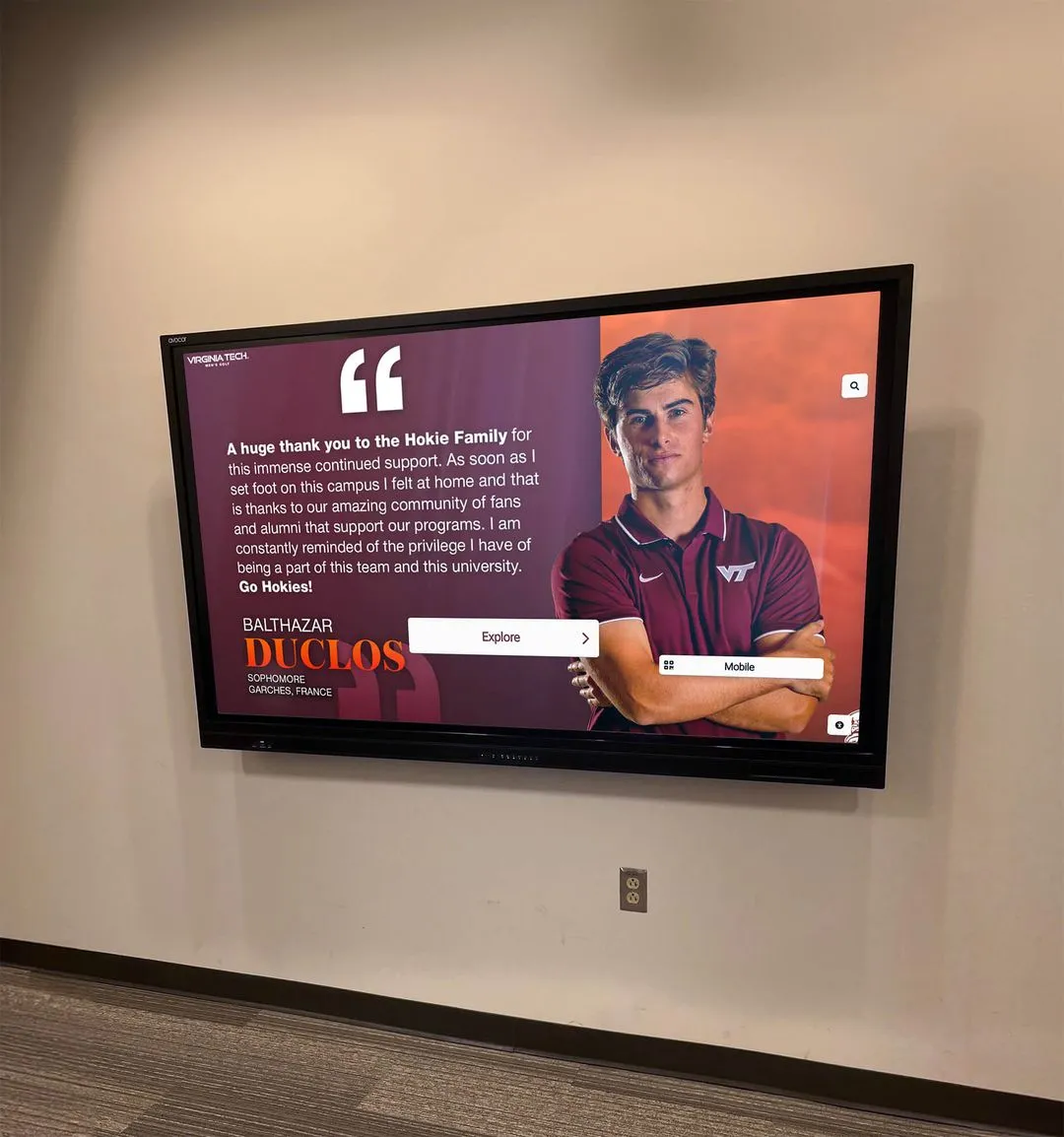
Hall of fame digital displays render recognition-summary panels where calculated output elements must be tested across browser and assistive technology combinations—announcement behavior should be recorded from direct observation, not assumed from specification text
Step-by-Step: Digital Hall of Fame HTML Output Audit
Run these steps on every template that contains an <output> element, including recognition-summary panels, award-filter sidebars, and any aggregate count displays integrated into the hall of fame directory or kiosk interface.
Step 1: Inventory All <output> Elements
Open the recognition-summary panel page in Chrome. Open DevTools (F12 or right-click → Inspect). In the Elements panel, use Ctrl+F (Cmd+F on Mac) to search for <output. List every instance found. For each, note: its location on the page, its name attribute value, the value of its for attribute, whether it has a form attribute, and the text currently displayed inside it.
Step 2: Verify for Attribute IDs Resolve to Real Elements
For each <output>, read the for attribute value. Each space-separated token is an element ID. In DevTools Console, run:
document.querySelector('output').getAttribute('for')
  .split(' ')
  .map(id => [id, document.getElementById(id)]);
Every pair must return a real element as the second value, not null. A null means the association is broken. Update the selector to match each <output> element found in Step 1 and verify each one.
Step 3: Confirm Form Owner Association
For each <output>:
- If it has a
formattribute, confirm the value matches an existing<form id>in the document. - If it has no
formattribute, confirm it is a descendant of a<form>element in the DOM. - If neither condition is true, the element has no form owner—flag it for remediation.
Step 4: Inspect Accessible Name
For each <output>, confirm an accessible name exists. Open the DevTools Accessibility panel (Elements → Accessibility tab in Chrome) and confirm the “Name” field shows meaningful text, not an empty value. Acceptable sources include a <label for> association, a wrapping label, an aria-label attribute, or aria-labelledby pointing to descriptive text.
Step 5: Test defaultValue and Reset Behavior
In DevTools Console:
const out = document.querySelector('output[name="award-count"]');
console.log('defaultValue:', out.defaultValue);
console.log('value:', out.value);
Adjust the selector to match the actual element’s name. Confirm defaultValue matches the intended initial state text. Then trigger a form reset via the reset button or:
out.form.reset();
Re-run the console check and confirm value has returned to defaultValue. Document the result.
Step 6: Confirm No Submission
Submit the associated form (or observe a form submission in the DevTools Network panel) and confirm that the <output> element’s name and value do not appear in the submission payload. The name assigned to <output> must not appear as a form field in the POST or GET parameters.
Step 7: Test Live-Region Announcement
With NVDA active on Windows (or VoiceOver on macOS), load the recognition-summary panel. Focus a contributing input (the sport selector or decade selector). Change the selected value. Listen for whether the screen reader announces the updated output content. Record:
- Whether an announcement occurred
- The screen reader and browser combination tested
- The approximate delay between the input change and announcement
- The exact text announced
Repeat with at least one additional screen reader or browser combination. Record each result separately.
Step 8: Confirm No Actionable Content Inside <output>
Inspect the current value and any dynamically injected content in each <output>. Confirm that no links, buttons, or other interactive elements are written into the output by JavaScript updates. If any are found, move them outside the <output> element so they are reachable through normal keyboard navigation and their semantics are announced correctly by assistive technology.
Execution Timeline: Plan, Audit, Fix, Verify
| Phase | Activities | Responsible Party | Cadence |
|---|---|---|---|
| Plan | Inventory all page templates containing <output> elements; identify every recognition-summary panel and award-filter interface; confirm which input IDs each output element should reference; document the intended defaultValue for each output | IT lead or recognition platform administrator | Once at platform launch; once after each template update |
| Audit | Run all eight audit steps on each output-containing template; verify for attribute ID resolution, form owner association, accessible name, defaultValue vs value distinction, reset behavior, non-submission, live-region announcement, and absence of actionable nested content | IT staff or recognition-content manager | At platform launch; after any filter logic or template update; at least annually |
| Fix | Add or correct for attributes; add or correct form attributes; add accessible labels; correct defaultValue text; remove actionable elements from inside <output> content and move them to document-accessible positions | Developer or recognition platform vendor | Within 14 days of identified failures |
| Verify | Re-run screen-reader announcement test; re-run DevTools console checks for defaultValue and reset; re-confirm no submission in network panel; confirm accessible name in Accessibility tree | IT staff | Immediately after each fix is deployed to the live site |
| Document | Record audit date, templates reviewed, output elements examined, pass/fail per check, fixes applied, and screen-reader test outcomes including combinations tested | Administrative lead | Each audit cycle |
Reusable Checklist: HTML Output Audit for School Hall of Fame Platforms
Copy this checklist before each platform launch, template update, or annual accessibility review. Complete one copy per template type containing <output> elements.
Pre-Audit Setup
- Chrome DevTools open on a live recognition-summary panel page
- NVDA (Windows) or VoiceOver (macOS) active for live-region testing
- All
<output>elements and theirnameattributes listed from DevTools inventory - All input IDs expected to contribute to each output’s calculation confirmed
for Attribute Association
- Every
<output>has aforattribute - Every ID in each
forattribute resolves to a real element in the document (none returnnull) - The IDs in
formatch the actual contributing inputs, not placeholder or stale IDs from a previous template version
Form Owner Association
- Every
<output>either has aformattribute matching an existing<form id>, or is a descendant of a<form>element - No
<output>exists without a form owner -
formattribute value matches an existing formidexactly (attribute matching is case-sensitive)
Accessible Name
- Every
<output>has an accessible name confirmed in the DevTools Accessibility panel - Accessible name is specific and meaningful (“Matching inductees,” not a generic label or empty string)
- Accessible name source confirmed: label element, wrapping label,
aria-label, oraria-labelledby
defaultValue and Reset
-
defaultValuematches the intended initial state text for each output -
valuereturns todefaultValueafter form reset is triggered - No script overwrites
defaultValueunintentionally during a calculation update - Reset behavior confirmed in the specific kiosk browser environment if applicable
Non-Submission Verification
- Form submission or network panel inspection confirms output
namedoes not appear in submission data - No
<output>name appears as a query parameter or POST field
Live-Region Announcement
- At least two browser/screen reader combinations tested; each result documented separately
- No announcement behavior is documented as guaranteed without having been directly observed in testing
- Screen reader and browser version tested are recorded alongside each result
Actionable Content
- No links, buttons, or interactive elements are written into
<output>content via JavaScript updates - All interactive controls related to the filter or summary pattern exist outside the
<output>element - Any “View athletes” or “Reset filters” controls are reachable through normal keyboard navigation
Data Scope
- A visible label or note near the summary panel indicates the count is a derived filter result
- No copy in the interface implies the count proves any individual’s nomination eligibility
Display Integration: Recognition-Summary Output on Web Directories and Kiosk Interfaces
Recognition-summary panels with <output> elements appear in two primary environments on a school hall of fame platform.
Web directory. The public-facing web directory is the most broadly accessed environment. Visitors arrive on any browser and assistive technology combination. Live-region announcements from <output> elements are most critical here, because web directory visitors include alumni and community members who depend on screen readers and keyboard navigation for full access. The audit steps for for attribute resolution, form owner association, and accessible name all apply with full force to this environment.
Touchscreen kiosk. Browser-based kiosk interfaces typically run a locked-down browser in a fixed viewport. The <output> element’s reset behavior is especially relevant here: a kiosk session may be shared by multiple visitors, and clearing filters between sessions requires that the form reset restores the summary panel to its defaultValue without a full page reload. Test reset behavior explicitly in the kiosk browser environment, not only in a standard desktop browser.
Kiosk displays also introduce power-management considerations that affect how the recognition-summary panel behaves over time. Screen wake-lock state can interact with page visibility in ways that affect whether JavaScript update loops writing to <output> elements continue running across display sleep and wake cycles. A review of school recognition display screen wake-lock release and reacquisition behavior provides a complementary testing framework for confirming that kiosk interfaces remain responsive over time.
Physical hall of fame installations that accompany the digital kiosk often include trophy cases and archival photograph displays. When digitizing older materials to complement the online recognition directory, the condition of archival photographs introduces a separate documentation requirement. Documenting albumen photograph cracking before athletic archive digitization covers the intake process for fragile photograph formats—a workflow that parallels the digital audit in its emphasis on documenting the state of a record before acting on it.
Similarly, physical trophy hardware sharing space with digital displays may require its own inspection protocols. Condition and handling guidance for historic school trophies with mother-of-pearl inlays addresses parallel physical-record maintenance that schools managing both analog and digital recognition assets must track alongside their HTML output audits.

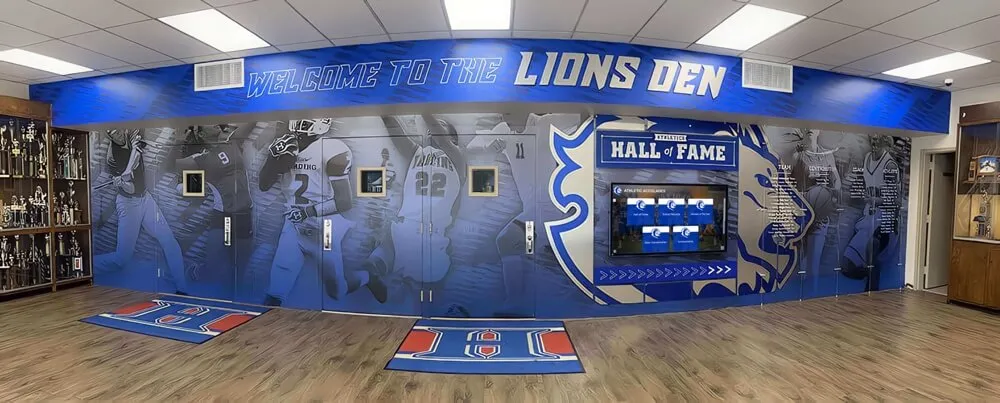
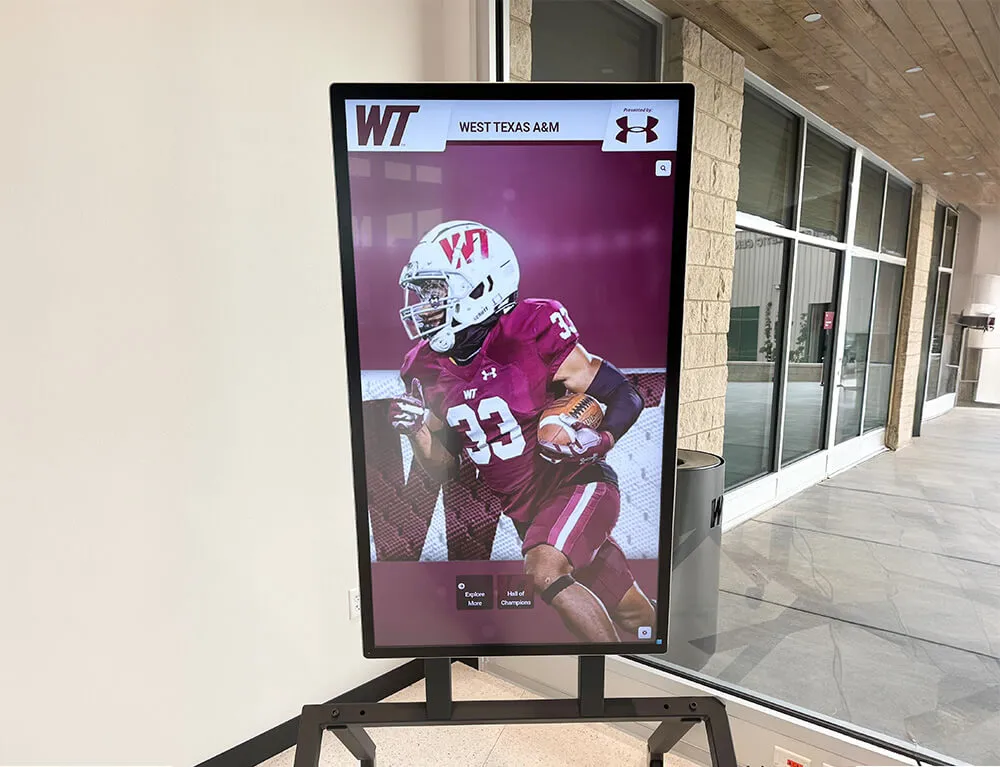
A school hallway combining a permanent recognition mural with a live digital display illustrates the environment where calculated output counts must be semantically correct, accessible, and clearly distinguished from authoritative records displayed on permanent installations
Frequently Asked Questions
Why does <output> have a name attribute if its value is not submitted with the form?
The name attribute allows the element to be accessed through the form’s elements collection in JavaScript—form.elements['award-count'] returns the output element. This is useful for scripts that need to read or reset the output programmatically without querying the DOM directly. The name participates in the elements API but has no effect on form submission data. MDN’s documentation explicitly states that the <output> element’s name and content are not submitted when the form is submitted.
What happens if defaultValue is not set explicitly and the element starts empty?
The defaultValue of an <output> element is determined by its initial text content in the HTML markup. If the element is written as <output>Select filters above</output>, then defaultValue is “Select filters above.” A form reset restores the element to that text. If a script changes the content via .value without ever setting .defaultValue, the element resets to the original markup text—which may be empty if the element was written as <output></output>. Audit the initial markup to confirm that defaultValue reflects the intended post-reset state before deploying the template.
Can we rely on <output> announcing updates automatically to all screen readers?
No. Most major browsers implement <output> as a live region with polite precedence, derived from its implicit ARIA role of status. However, announcement timing, phrasing, and behavior vary across screen reader and browser combinations. Always test with the specific combinations most relevant to your visitor population. Document what each combination actually announces rather than relying on specification text as a guarantee of behavior.
Can we place a “View matching athletes” link inside the <output> content when the count updates?
No. Live-region announcements deliver text content only. A link written inside an <output> update will be announced as text—assistive technology will not convey that a link is present, and keyboard users cannot tab to a link inside a live-region update as they would a normal document link. Place the “View matching athletes” link outside the <output> element in the document, where it is reachable through normal focus navigation and its role as a link is announced correctly.
Does an <output> element outside the <form> element need a form attribute?
Yes. An <output> element that is not a descendant of any <form> element must have a form attribute whose value matches the id of an existing <form> in the same document. Without a form owner, the element is not associated with any form—form reset will not affect it, and it will not appear in any form’s elements collection. The for attribute still resolves its listed IDs regardless of form owner status, but reset behavior and elements-collection access both require a form association.
Do calculated award counts from an <output> element represent nomination eligibility?
No. A calculated count displayed in an <output> element reflects the number of stored records that match the current filter criteria at a given moment. It is a derived aggregate, not an eligibility determination. Nomination eligibility is a program policy decision backed by the school’s official recognition criteria and stored inductee records. Staff should consult the underlying records directly before acting on any recognition decision—a filter count is a navigational aid, not an authoritative answer.
Connecting the Output Audit to the Broader Accessibility and Records Program
The <output> audit addresses the calculated-result layer of a school hall of fame platform—the display elements that show visitors how their filter selections map to the recognition database. Schools that complete this check are ready to pair it with adjacent audits that govern the elements feeding into the output.
An accessible-name audit on the contributing <select> elements confirms that every dropdown whose ID appears in an <output for> attribute has a proper <label> association—because a labelless input means the output is connected to a control that assistive technology cannot identify by purpose. A duplicate-ID audit confirms that the IDs listed in every <output for> attribute exist exactly once in the document—because a duplicate ID causes only the first matching element to be resolved, silently breaking the association for any subsequent occurrence. A form-reset integration test confirms that the complete filter interface—inputs, output, and reset button—behaves as a cohesive unit across the kiosk browser and the public web directory.
A recognition program that pairs correct HTML output structure with verified data produces filter summaries that serve every visitor—the alumnus navigating with a screen reader, the staff member resetting a kiosk between sessions, the IT reviewer confirming form submission payloads do not include display-only fields. The output audit takes under an hour for a complete recognition-summary template. That hour ensures the calculated count is correctly attributed to its inputs, correctly associated with its form, correctly reset to its initial state, and clearly identified as a derived result—not a stored record, and not a nomination determination.
See Accessible Recognition-Summary Panels Built for School Hall of Fame Programs
Request a live demonstration to see how Rocket Alumni Solutions structures recognition-filter interfaces—including calculated display output, accessible form controls, and WCAG 2.1 AA compliance—before any commitment.