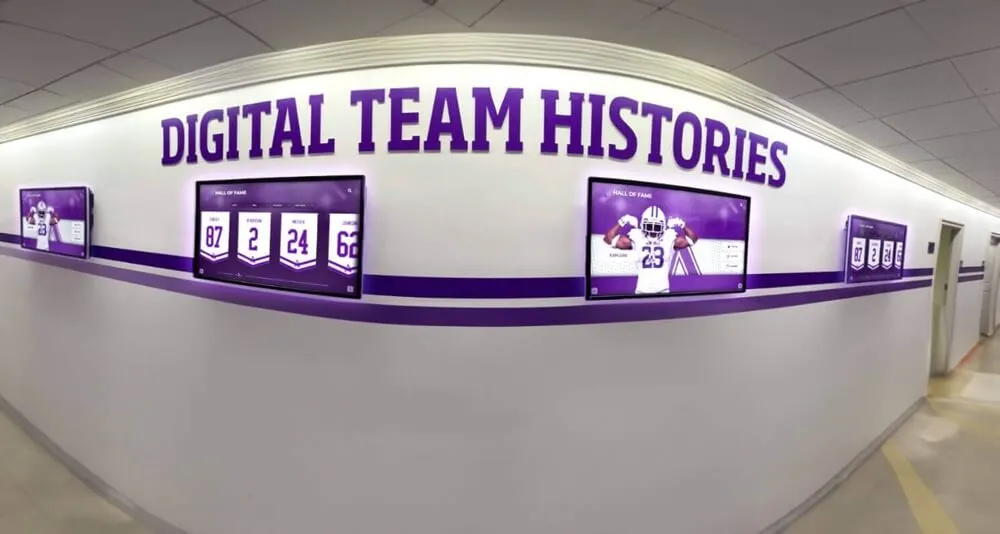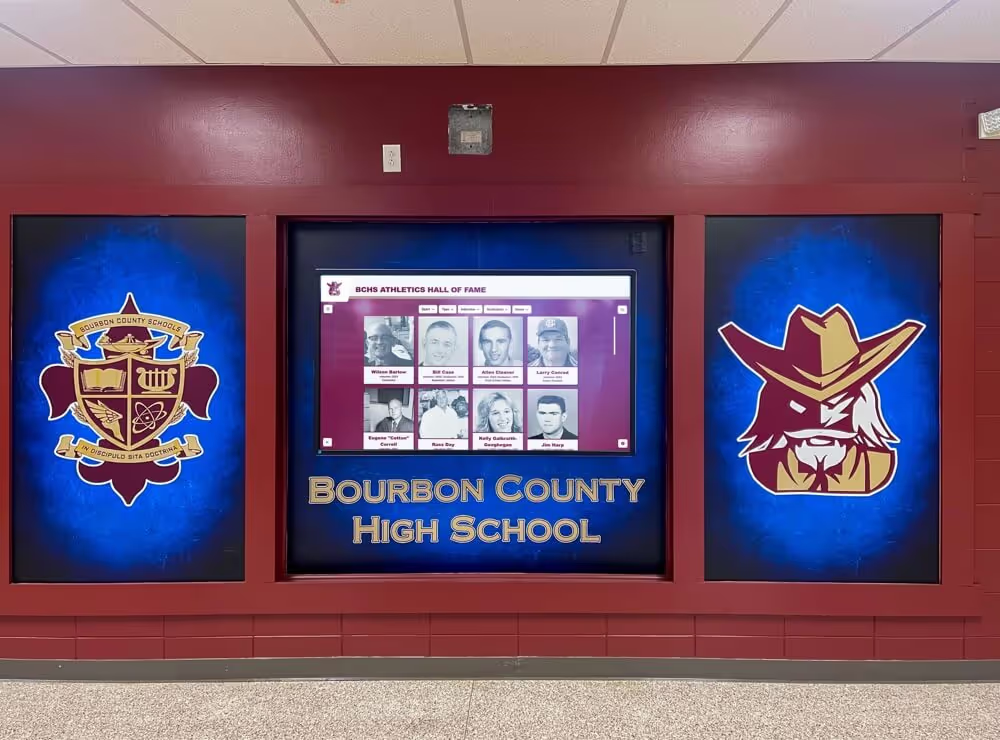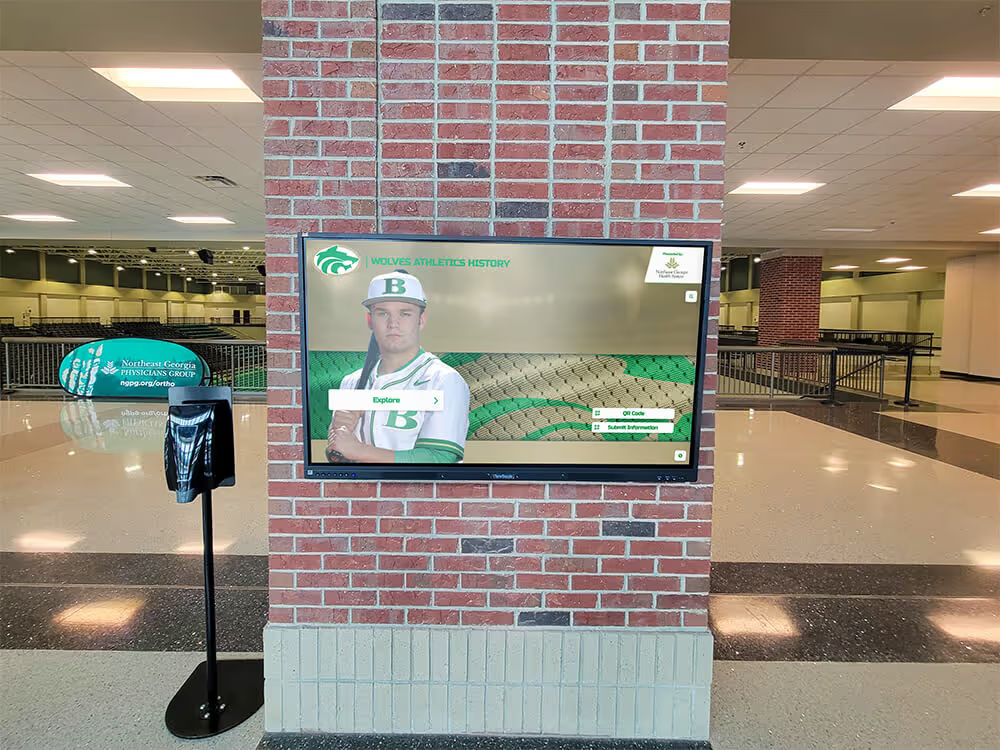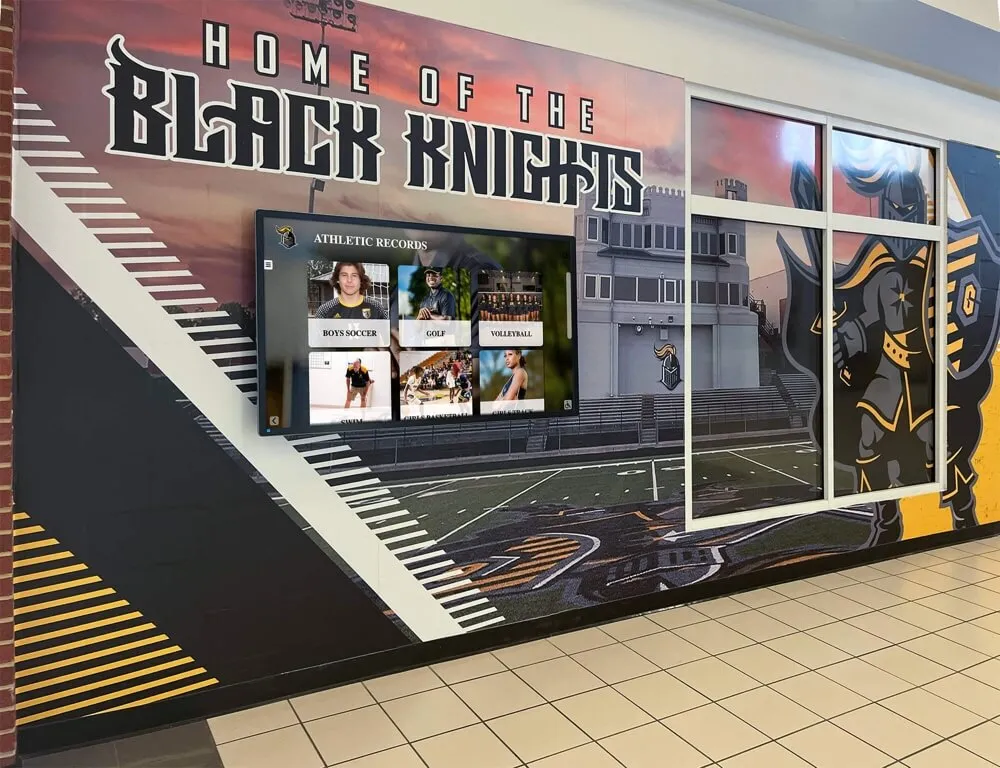




A digital hall of fame HTML meter audit is the process of inspecting every <meter> element and every custom widget carrying role="meter" on inductee profile and statistics pages—verifying that each one represents a scalar measurement within a genuine, known range, carries a properly associated label that assistive technology can announce, provides a visible numeric equivalent so visitors do not depend on the gauge graphic alone, and uses min, max, low, high, and optimum attribute values that reflect the real domain of the sport statistic rather than arbitrary numbers chosen to enable a colored gauge. The native HTML <meter> element—defined by the WHATWG HTML Living Standard—is designed for gauges like free throw percentage or batting average, where the bounds are fixed by the rules of the sport. It is not designed for download progress bars, interactive sliders, or any statistic whose ceiling rises as an athlete continues their career. When a school recognition platform places a <meter> on an inductee profile without a valid range, the gauge misleads screen-reader users—who receive a value without reliable context—and sighted visitors who may read the color coding as a normative judgment about a historical achievement. This guide gives athletic directors, recognition program owners, IT staff, and accessibility leads the steps, decision tables, and code patterns to audit every meter element on a digital hall of fame before a misused gauge undermines the record it was meant to honor.
Athletic statistics are the backbone of a school hall of fame inductee profile. A football quarterback’s career completion percentage, a swimmer’s personal-best improvement ratio, a basketball center’s free throw rate—these numbers tell the story of a career in a form that alumni, families, and current student-athletes can interpret at a glance. When a recognition platform presents these statistics as gauge graphics using the HTML <meter> element, it adds a visual layer of meaning: the filled portion of the gauge shows where the stat falls within a defined range. That visual layer is powerful when the range is real and the label is clear. It is misleading when the range is invented, the label is absent, or the number alone would communicate more honestly than a colored bar.
The digital hall of fame HTML meter audit is the structured check that confirms every gauge on a school’s recognition platform is doing what it claims—representing a genuine bounded measurement with full accessibility support—and that any statistic without a justified range has been replaced by plain, readable text.

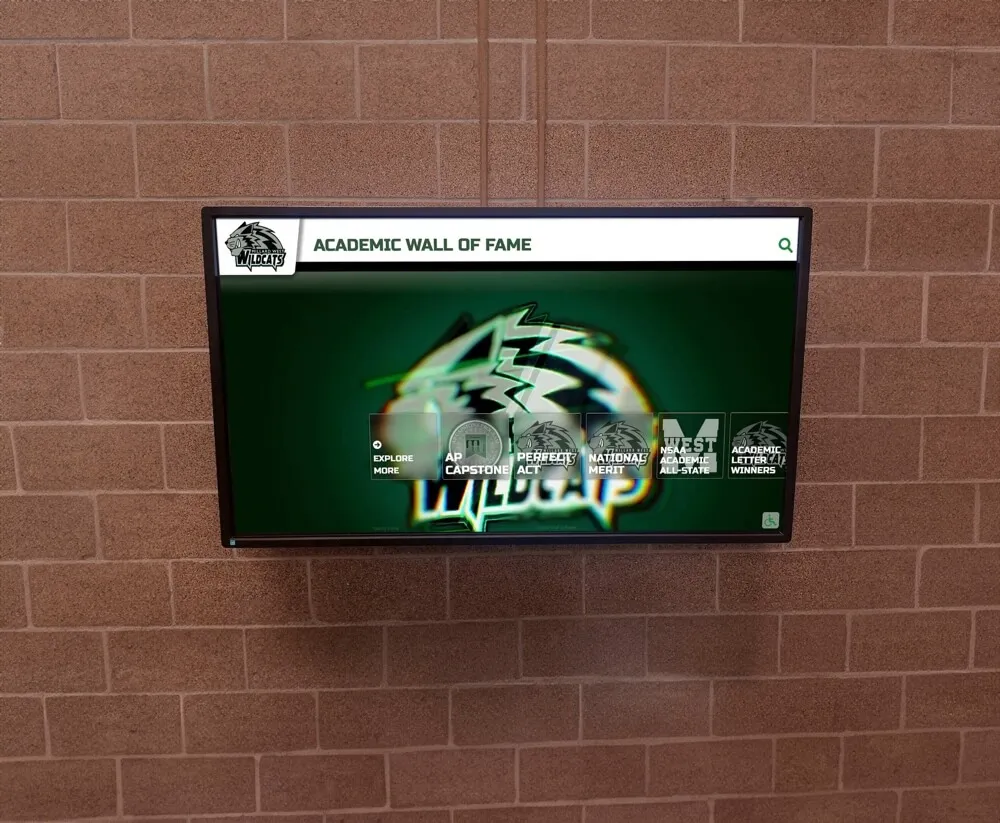
Athletic statistics on digital hall of fame inductee profiles—displayed on hallway screens and web directories alike—require meter elements that represent genuine bounded ranges, carry accessible labels, and provide visible text equivalents for every visitor
Program Snapshot: HTML Meter Audit Scope for Digital Hall of Fame Sites
Define the scope before opening developer tools. The table below establishes the parameters for a meter audit at any stage of a school’s recognition program.
| Planning Element | Details |
|---|---|
| Primary Audience | Athletic directors, recognition program owners, IT administrators, school web managers, accessibility compliance leads, archives partners |
| What Is Being Audited | Every <meter> element and every element carrying role="meter" on inductee profile pages, career statistics sections, and sport-category summary pages |
| WCAG Criteria | 1.3.1 Info and Relationships — Level A (accessible name requirement); 1.1.1 Non-text Content — Level A (text equivalent); 4.1.2 Name, Role, Value — Level A (correct role and attribute values) |
| Authoritative References | WHATWG HTML Living Standard: the meter element; WAI-ARIA 1.2: meter role |
| Tools Required | Chrome DevTools (built-in, free), axe DevTools browser extension (free tier), and NVDA (Windows, free) or VoiceOver (macOS, built-in) |
| Time Investment | 30–45 minutes to audit all meter elements across one inductee profile template; 15 minutes for a targeted re-check after any statistics layout update |
| Failure Consequence | Screen-reader users receive a meter value without a label or meaningful range context; gauge color coding implies normative judgment about historical athlete performance without any disclosed standard; stats with no real ceiling appear with an arbitrary maximum that misleads both sighted and assistive-technology users |
| Pass Condition | Every <meter> element represents a genuinely bounded statistic, carries an accessible name via <label> or aria-labelledby, provides a visible numeric text equivalent, and uses min/max values grounded in the real numeric domain of the statistic; any statistic without a justified range is displayed as plain labeled text |
| ADA Relevance | Digital hall of fame web directories accessible to the public school community—alumni, families, community members—are subject to digital accessibility requirements; WCAG 1.3.1 and 4.1.2 at Level A are the foundational criteria for form controls and custom widgets on publicly accessible recognition pages |
When Does an Athlete Statistic Qualify for a <meter> Element?
Not every number on an inductee profile is a candidate for a gauge. The <meter> element is appropriate when a statistic has all of the following characteristics.
A fixed, known lower bound. Most sport statistics have a natural floor of zero. A free throw percentage cannot fall below 0%.
A fixed, known upper bound that is not contextual or career-dependent. A free throw percentage cannot exceed 100%. A batting average in baseball cannot exceed 1.000. These ceilings are set by the rules of the sport, not by the athlete’s career length or a comparison with other players.
A scale on which the value’s position within the range conveys additional meaning. Seeing that a player’s free throw percentage sits at the 72% mark within a 0–100 range tells the visitor something about relative performance. A number that conveys no additional meaning from its position within a range does not benefit from gauge display.
If a statistic fails any of these three tests, it should be displayed as plain text—a labeled number—rather than as a <meter> element. Using an arbitrary maximum (setting max="500" on a career points total where the actual maximum is unknown) is not an acceptable workaround. A scale without a meaningful upper bound produces a gauge that communicates nothing reliable, and may imply that an accomplished inductee’s career total is unremarkable simply because the invented ceiling was set too high.
The table below provides guidance for common school athletic statistics.
| Statistic | Natural Bounds? | Suitable for <meter>? | Notes |
|---|---|---|---|
| Free throw percentage | 0%–100% | Yes | Bounds fixed by sport rules; value within range conveys meaning |
| Batting average | .000–1.000 | Yes | Well-established domain; display as decimal with min=0, max=1 |
| Field goal percentage | 0%–100% | Yes | Same rationale as free throw percentage |
| Serve-in percentage (tennis) | 0%–100% | Yes | Bounded by sport mechanics |
| Win percentage (team record) | 0%–100% | Yes | Only meaningful for a complete season or career, not mid-season |
| Career points scored | 0—no ceiling | No | No known maximum; display as plain labeled number |
| Career assists or rebounds | 0—no ceiling | No | No meaningful upper bound for gauge display |
| Career games played | 0—no ceiling | No | No natural ceiling; plain text preferred |
| Season rushing yards | 0—no ceiling | No | Maximum varies by season length and competition level |
| GPA on a school’s 4.0 scale | 0.0–4.0 | Conditional | Only if the school explicitly defines the 4.0 maximum as the display scale and the stat is part of academic recognition, not sport stats |
Recognition programs that use rubrics to evaluate and score athletic achievements often establish bounded criteria where <meter> might apply to rubric subscores. An athletic awards rubric that scores leadership, sportsmanship, stats, and display eligibility may define each criterion on a 0–10 or 0–100 scale. If your platform displays those rubric subscores on a profile page, each subscore has a defined range and could be presented with a meter—provided the label clearly identifies the criterion and a visible text equivalent is present.
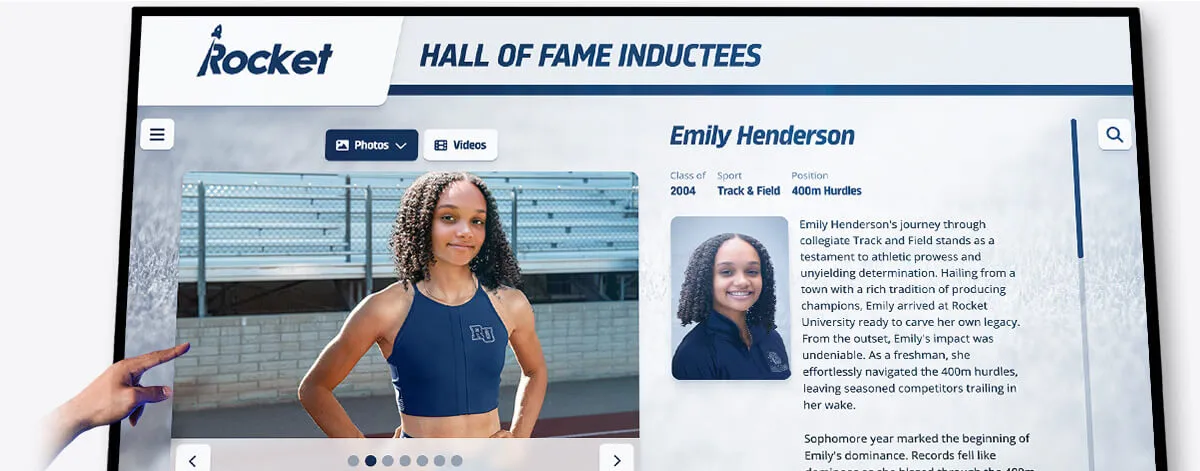
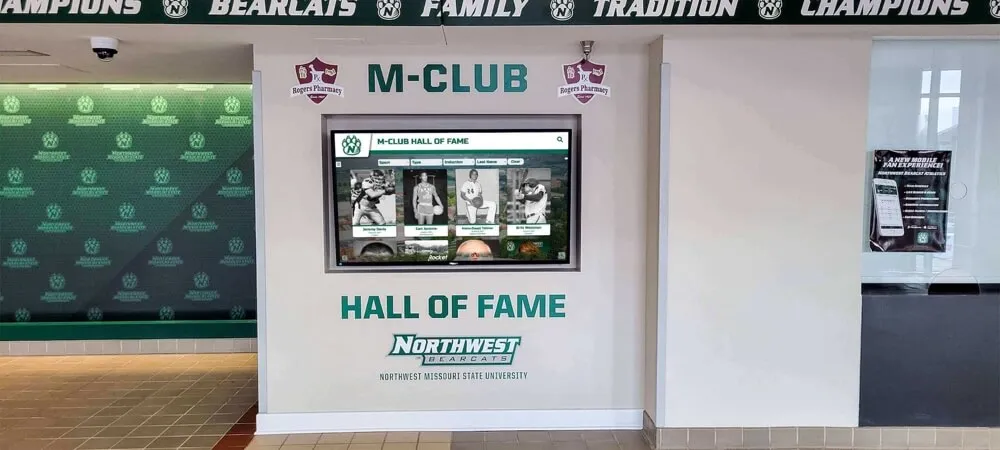
Track and field athlete profiles may display bounded statistics like qualifying rates or performance percentages—these are candidates for meter elements only when the range is genuinely fixed and the label is accessible to screen-reader users
Content Architecture: How Meter Elements Appear on Inductee Profiles
A digital hall of fame platform typically presents statistics in one or more structural patterns. The audit must identify which pattern each meter element follows and whether that pattern supports accessibility.
Pattern 1: Labeled meter in a definition list. A <dl> element pairs <dt> labels with <dd> values. When a <meter> appears inside a <dd>, the <dt> provides the visual label but is not automatically connected to the meter for assistive technology. A <label> element or aria-labelledby pointing to the <dt> element’s id is required.
Pattern 2: Meter in a table cell with column header. A statistics table uses <th> column headers and <td> data cells. A <meter> inside a <td> can receive its accessible name from the <th> if aria-labelledby on the meter explicitly references the <th> element’s id. Without this reference, the meter has no accessible name from the table structure alone.
Pattern 3: Custom role="meter" widget. Some platforms use <div> or <span> elements styled as gauge bars with role="meter" added for ARIA semantics. These require all ARIA attributes explicitly: role="meter", aria-valuenow, aria-valuemin, aria-valuemax, and an accessible name via aria-label or aria-labelledby. Unlike native <meter> elements, these custom widgets receive no browser defaults and must be entirely hand-coded for accessibility correctness.
Pattern 4: Meter with no adjacent text. The most common failure pattern: a <meter> element or custom gauge bar with no visible number beside it. The gauge fill level is the only information conveyed. Screen-reader users receive a brief announcement of the value; sighted visitors with color vision differences may read the gauge differently than intended. Adding the numeric value as visible text beside or below the gauge resolves both concerns.
Step-by-Step Digital Hall of Fame HTML Meter Audit
Run these steps on at least one inductee profile page that displays career statistics with gauge graphics, and repeat on any sport-category summary page that renders meter elements for multiple inductees in a grid.
Step 1: Inventory All Meter Elements and Role-Meter Widgets
Open the inductee profile page in Chrome. Open DevTools (F12 or right-click → Inspect). In the Elements panel, use Ctrl+F (Cmd+F on Mac) to search for <meter. Count each native meter element. Then search for role="meter" to identify custom widgets using ARIA role assignment. Note the visual context of each: which statistic it displays, whether a label is visible, and whether a text equivalent appears beside the gauge.
Step 2: Determine Whether Each Statistic Has a Justified Bounded Range
For each meter element, identify the statistic it represents. Ask: does this statistic have a natural, fixed maximum set by the rules of the sport or an explicitly disclosed program standard? If yes, note the actual lower and upper bounds. If no natural maximum exists, the meter element is unsuitable for this statistic—record it for replacement with plain text.
A hypothetical example for illustration: consider an inductee profile showing “Career Touchdown Passes” as a gauge with max="500". A ceiling of 500 touchdowns may far exceed what any player at that school has ever achieved—it is an arbitrary number, not a natural bound. This statistic should be displayed as a plain labeled number, not a gauge.
Step 3: Check for an Accessible Name
For each meter element, select it in the DevTools Elements panel and open the Accessibility pane (More Tools → Accessibility). Look at the “Name” property. It should contain the text of the statistic’s label—for example, “Free Throw Percentage.” If the Name property is empty, the meter has no accessible name and fails WCAG 4.1.2.
Confirm that the accessible name comes from one of these correct sources:
- A
<label>element with aforattribute matching the meter’sidattribute aria-labelledbyon the meter element referencing theidof a visible label element on the pagearia-labelon the meter element with the label text written directly in the attribute value
A <label> element using the for/id association is the recommended pattern. It creates both an accessible name for assistive technology and a semantically connected label for sighted visitors.
Correct example:
<label for="ft-pct-stat">Free Throw Percentage</label>
<meter id="ft-pct-stat" min="0" max="100" value="72.3">72.3%</meter>
<span aria-hidden="true">72.3%</span>
Missing label (failure):
<meter min="0" max="100" value="72.3">72.3%</meter>
Step 4: Validate the min, max, and value Attributes
Inspect the min, max, and value attributes on each meter element. Confirm:
minmatches the natural lower bound of the statistic (0 for most sport statistics)maxmatches the natural upper bound of the statistic (100 for percentages; 1.000 for rates expressed as decimals; or the sport-defined ceiling)valuecontains the actual statistic for this inductee
The WHATWG HTML Living Standard specifies that if min is omitted it defaults to 0, and if max is omitted it defaults to 1. For a free throw percentage displayed as a decimal (0.723), omitting min and max produces a correct 0–1 scale. For a percentage displayed as a whole number (72.3), max="100" must be explicitly set—otherwise the browser treats 72.3 as 7,230% of the default 0–1 scale and the gauge renders as fully filled for any value above 1.
Step 5: Evaluate low, high, and optimum Threshold Attributes
These optional attributes affect how some browsers color-code the gauge. Values below low may render in a “low” color zone; values above high may appear in a “high” zone; the optimum attribute indicates the preferred value and shifts which zone reads as favorable. These color changes carry no meaning to screen readers and are not reliably rendered across all browsers.
For an inductee profile, threshold attributes carry an additional concern: they imply a normative judgment about a historical athletic stat. A free throw percentage of 60% flagged as “low” by red coloring may misrepresent a genuinely strong historical performance in context or era. If your platform uses these thresholds, confirm that the standards they encode are explicit, documented, and appropriate for the sport and era displayed. If no such standard exists, omit low, high, and optimum entirely—the gauge renders in a neutral style and implies no implicit judgment about the inductee’s record.
Step 6: Verify a Visible Text Equivalent
A gauge alone—even a labeled, correctly ranged one—is insufficient for all visitors. Browser rendering of <meter> elements varies across operating systems and high-contrast modes. The text inside the <meter> element (between the opening and closing tags) is a fallback for browsers that do not support the element natively; it is not displayed by supporting browsers. A visible text equivalent must be a separate element—a <span>, a <p>, or a table cell—placed adjacent to the meter with the actual numeric value and unit.
Step 7: Test with a Screen Reader on the Live Profile Page
Navigate to the inductee profile page with NVDA on Windows or VoiceOver on macOS active. Tab through the statistics section or use arrow keys in reading mode. For each meter element, confirm the screen reader announces the accessible name and the current value.
NVDA with Chrome typically announces: “Free Throw Percentage, meter, 72.3.” If the announcement omits the label, the meter lacks an accessible name. If the announced value does not match the visible text, the value attribute may not match the displayed number.
When a decimal value is less intuitive to hear—a batting average of “0.287” announced as “point 2 8 7” rather than a complete phrase—consider adding aria-valuetext="0.287 batting average" on a custom role="meter" widget to provide a more natural screen reader announcement. Note that aria-valuetext behavior on native <meter> elements varies by browser and screen reader combination; test before relying on it.
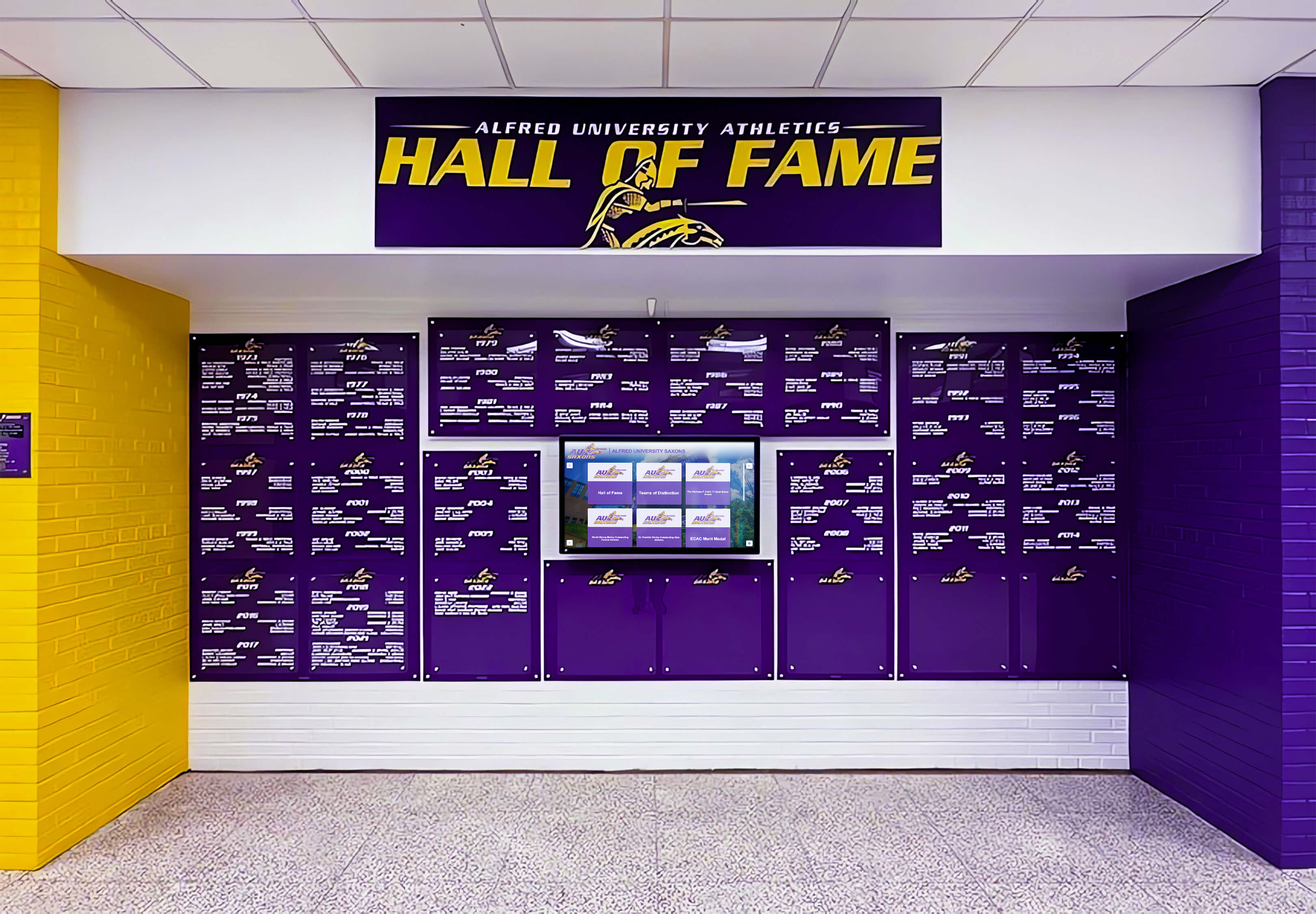
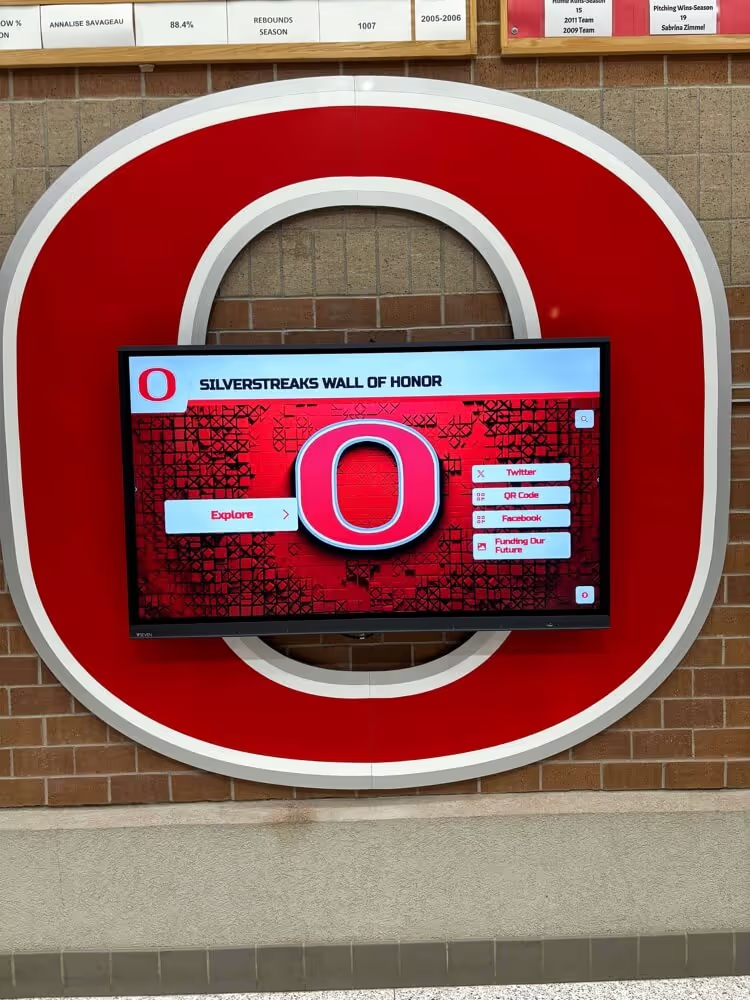
Structured inductee profile displays present career statistics that may include meter elements—each must carry a justifiable range, a visible text equivalent, and an accessible name that screen-reader users receive in full
Execution Timeline: Plan, Audit, Fix, Verify
| Phase | Activities | Responsible Party | Cadence |
|---|---|---|---|
| Plan | Identify all inductee profile templates that include statistics sections; list every element type used for gauge displays (native <meter>, custom role="meter" widgets, CSS progress bars); determine which statistics on those templates have genuine bounded ranges | IT lead or recognition platform administrator | Once at platform launch; once after each template or statistics layout update |
| Audit | Run all seven audit steps on one complete inductee profile page; verify accessible names, min/max values, text equivalents, and screen-reader announcements; document each meter by statistic name, attribute values, accessible name source, and pass/fail status | IT staff or accessibility coordinator | At platform launch; after any statistics or layout template update; at least annually |
| Fix | Add <label> or aria-labelledby to all unlabeled meters; correct min/max values to match the statistic’s genuine domain; add visible text equivalents beside all gauges; replace meters used for unbounded statistics with plain labeled text; remove unjustified low/high/optimum attributes | Developer or recognition platform vendor | Within 14 days of identified failures; immediately if statistics sections are inaccessible to screen-reader users |
| Verify | Re-run screen-reader navigation on the repaired profile template; confirm all meters announce correct name and value; confirm text equivalents are visible; run axe DevTools to confirm no remaining WCAG violations on meter elements | IT staff | Immediately after each fix is deployed to the live site |
| Document | Record audit date, profile templates reviewed, statistics elements audited, pass/fail results per element, fixes applied, and verification outcomes; retain for accessibility compliance records | Administrative lead | Each audit cycle |
Schools maintaining large multi-decade athletic archives should ensure the underlying statistic data feeding meter elements is protected from degradation over time. Historical stat records sourced from physical program books and scanned documents can become corrupted or lost without active verification processes. The athletic archive bit rot detection checklist describes fixity checking and recovery workflows for schools managing long-term digital records—a data integrity concern that directly affects whether the values displayed in meter elements on inductee profiles remain accurate.
Rocket Alumni Solutions vs. Static and Manual Recognition Options
When a school considers how to manage meter accessibility on an inductee profile platform, the approach chosen affects who is responsible for auditing and maintaining the markup.
Managed platform (Rocket Alumni Solutions): With a vendor-managed recognition platform, the HTML templates, statistics display patterns, and accessibility markup are controlled by the platform provider. The school’s role in the meter audit is to confirm with the vendor whether <meter> elements are used in statistics sections, whether those elements are labeled and ranged correctly, and what the vendor’s testing protocol covers. Conversations centered on the acceptance criteria in this guide provide a structured basis for that confirmation. The school does not directly edit template code, but can request that identified gaps be resolved through the platform’s support process.
Static or manually maintained recognition sites: Schools that build and host their own recognition HTML pages—or use a generic CMS without a dedicated hall of fame module—are responsible for all template-level decisions. The school’s IT team or web administrator can apply the full seven-step audit directly to the source markup. This approach requires more staff time for the initial audit and for subsequent template corrections, but gives the school direct control over every attribute value and label pattern.
In both cases, the decision about whether a given statistic qualifies for a <meter> element rests on the same test: does the statistic have a genuine, fixed upper bound set by sport rules or a disclosed program standard? If not, the gauge should not be used regardless of platform.
Schools evaluating recognition platforms as part of a broader modernization effort can review how platforms compare on core capabilities and feature sets. The 10 Best Hall of Fame Tools for Athletics, Donors, Arts, and History offers a reference overview of the tool landscape for schools building or upgrading recognition programs.
Display Integration: Meter Elements Across Web Directories and Physical Installations
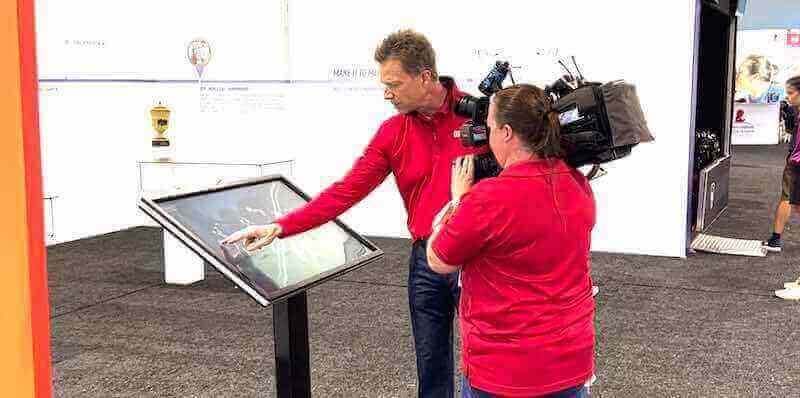
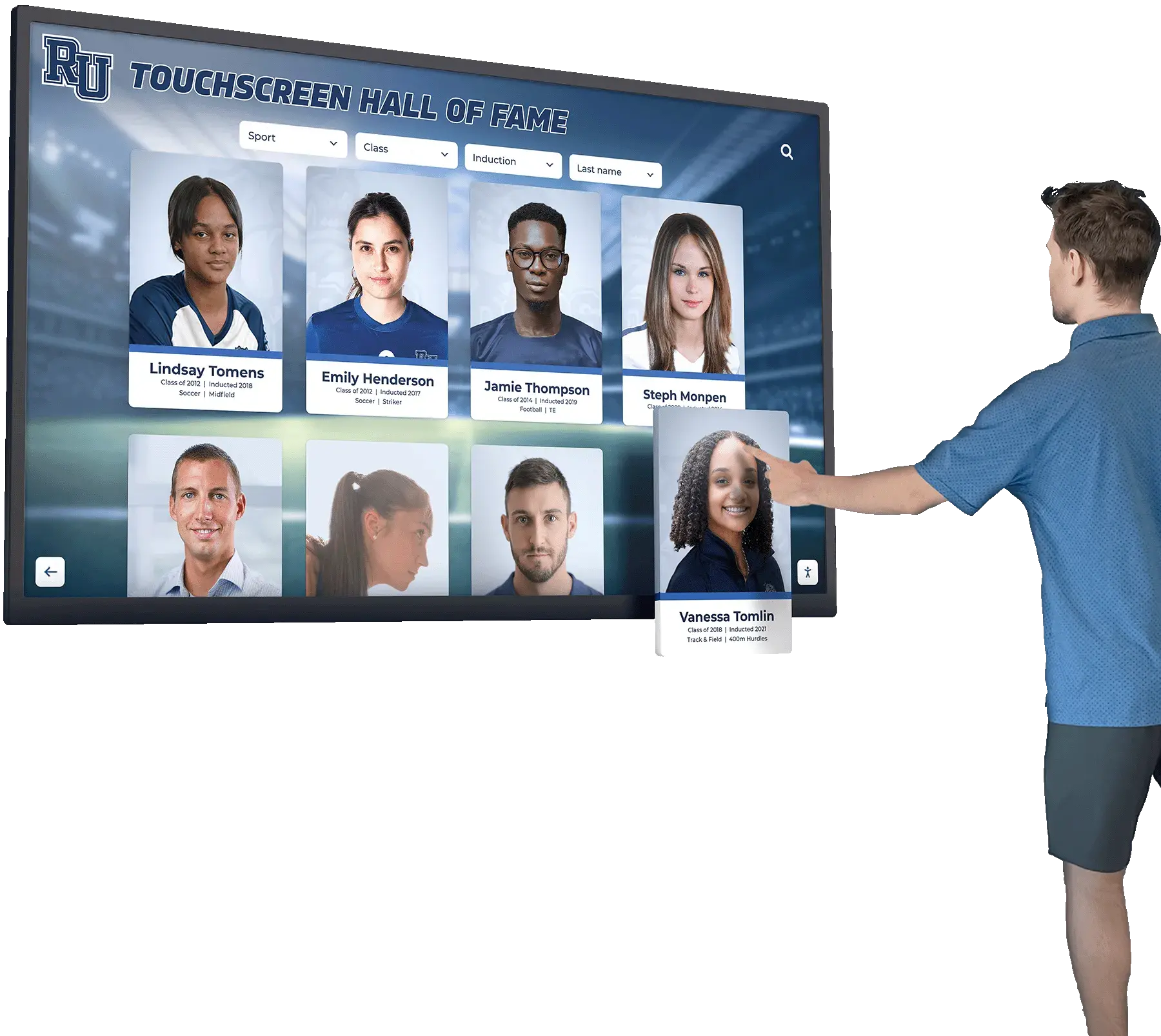
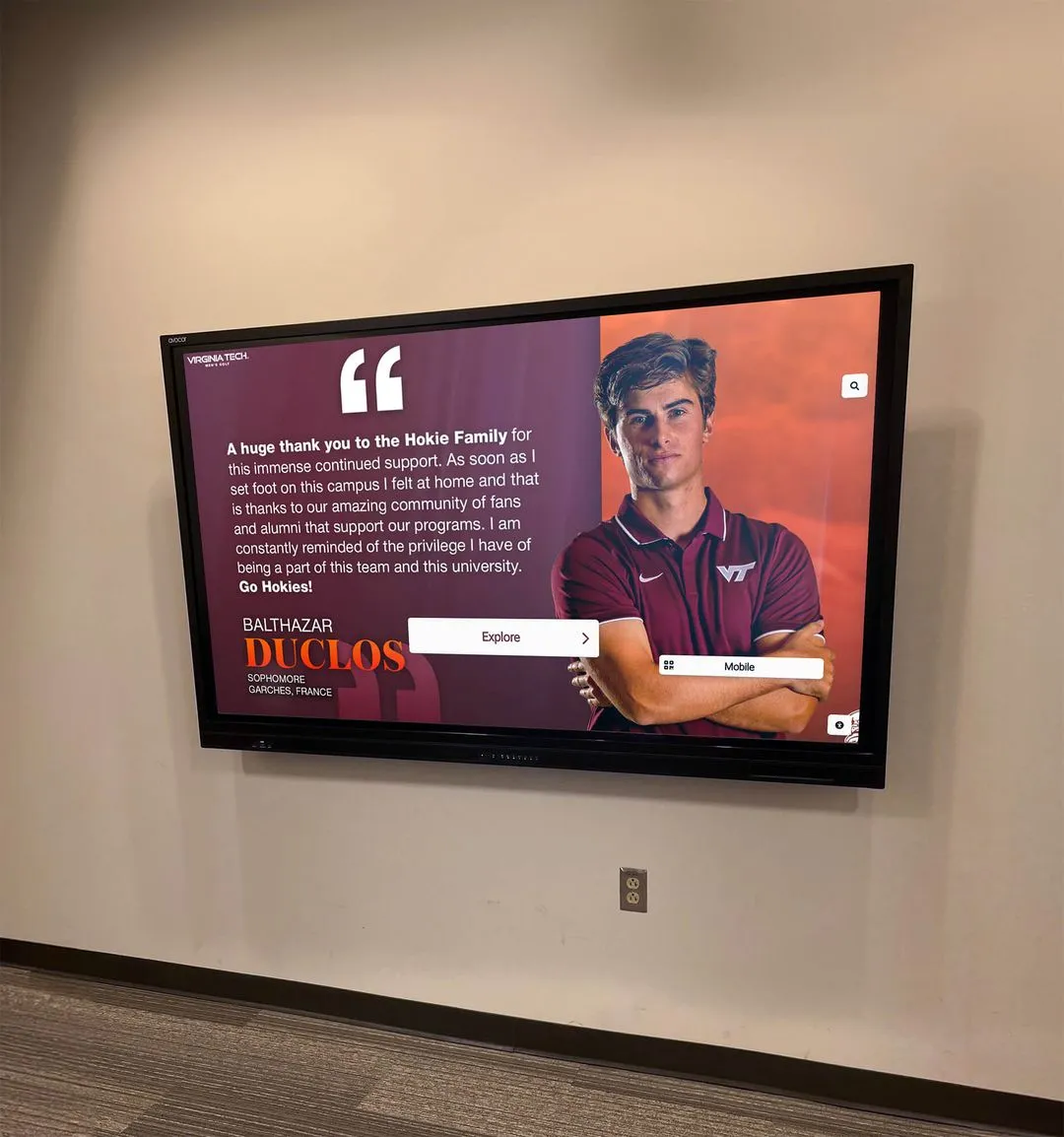
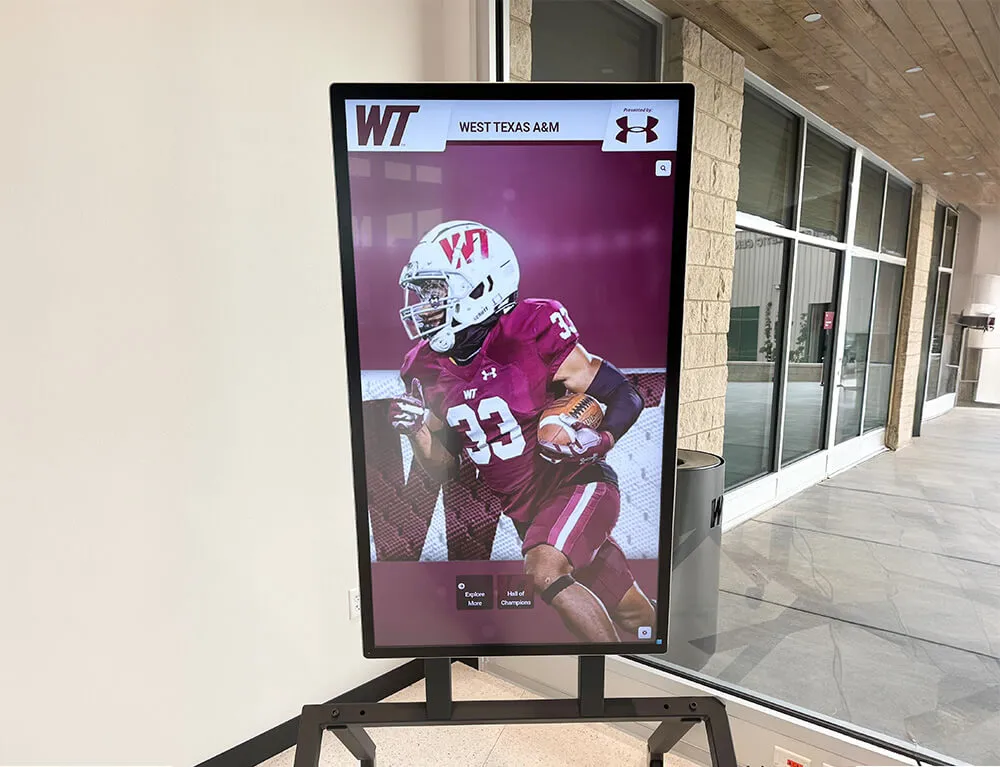
A school digital hall of fame typically serves inductee profile content in two environments: a public web directory accessible from any device and browser, and a browser-based touchscreen kiosk mounted in a school lobby or athletic hallway.
Web directory: Visitors who access the web directory from home or mobile devices—alumni, families, community members—may use screen readers, screen magnification software, or keyboard-only navigation. A <meter> element that lacks an accessible name or text equivalent creates a barrier for any visitor relying on assistive technology. The web directory carries the broadest accessibility obligation and should be the primary test environment for the meter audit.
Touchscreen kiosk: Touchscreen kiosk interfaces render the same HTML templates as the web directory in most recognition platform architectures. A visitor who navigates the kiosk with a connected keyboard or screen reader encounters the same meter markup. Because templates are shared, fixing meter accessibility in the web directory template resolves the kiosk interface simultaneously.
QR code entry to profile pages: Many school recognition installations mount QR codes on physical trophy cases and display walls, linking directly to inductee profiles. A visitor who scans a QR code from a physical hallway display lands on the inductee profile page directly. If that visitor uses a screen reader on their mobile device, the <meter> elements on the profile must be accessible from the first page load.
Schools that are modernizing trophy case installations alongside digital directory launches may find the digital trophy case guide for schools making the switch useful for understanding the transition from physical display cases to digital recognition infrastructure—a context in which the HTML accessibility of the digital directory becomes newly important. Physical display cases and digital directories exist in the same school environment; for schools that maintain both, the trophy case humidity control guide for protecting awards, photos, jerseys, and documents addresses the environmental preservation of physical recognition materials in cases that may sit adjacent to or incorporate digital screens.

Physical hall of fame wall installations and digital web directories often share the same inductee profile templates—meter element accessibility fixes applied to the shared web template benefit visitors in both the online directory and the browser-based kiosk interface
Acceptance Criteria: What a Passing Meter Audit Looks Like
| Check | Pass Condition | Common Failure | Who Verifies |
|---|---|---|---|
| Statistic has a genuine bounded range | Statistic’s ceiling is set by sport rules or an explicit, disclosed standard—not by an arbitrary max value | Career totals (points, assists, yards) displayed as gauges with invented maximum values | Recognition program lead / IT |
<meter> carries an accessible name | DevTools Accessibility pane “Name” field shows the statistic label; name comes from <label>, aria-labelledby, or aria-label | Name field empty; label is adjacent text with no programmatic connection to the meter element | IT / developer |
min and max values match the statistic’s domain | min equals the natural lower bound; max equals the sport-defined ceiling (100 for percentages, 1 for decimal rates) | Default max="1" retained for a whole-number percentage; arbitrary max set for an unbounded stat | Developer |
value matches the inductee’s actual statistic | Value attribute equals the numeric stat shown in adjacent visible text | Static placeholder value in template not replaced per inductee; value attribute and visible number differ | Developer / IT |
| Visible text equivalent is present | Numeric stat appears as visible text adjacent to the gauge in a separate element | Gauge-only display; statistic visible only as the meter fill level | Developer |
low/high/optimum thresholds are meaningful or absent | Thresholds reflect a documented sport standard or are omitted; no arbitrary normative judgment implied | Thresholds set without a documented basis; historical stat labeled “low” without justification | Recognition program lead |
| Screen reader announces name and value | NVDA or VoiceOver announces the statistic label, “meter,” and value (for example: “Free Throw Percentage, meter, 72.3”); value matches visible text | Silence; only value announced with no label; wrong value announced | IT / accessibility |
| Unbounded stats replaced with plain text | Stats without a natural ceiling appear as labeled numbers, not gauges | Career points displayed as a half-filled <meter max="1000"> with an invented ceiling | Developer / IT |
Measurement: Evaluating Meter Audit Outcomes
| Metric | Target | Action if Below Target |
|---|---|---|
| Meter elements representing genuinely bounded statistics | 100% of meter elements have a sport-rules-based or explicitly disclosed upper bound | Replace meters on unbounded stats with labeled plain text; do not substitute with a larger arbitrary max |
| Meter elements with an accessible name | 100% of meter elements | Add <label> with for attribute or aria-labelledby to all unlabeled meters; re-verify with Accessibility pane |
Meter elements with correct min and max values | 100% of meter elements | Correct min/max to match the stat’s genuine domain; retest after correction |
| Meter elements with visible text equivalent | 100% of meter elements | Add visible numeric text beside each gauge; confirm it stays in sync with the value attribute |
low/high/optimum thresholds justified or absent | 100% of meters with threshold attributes have documented performance standards; 0% arbitrary thresholds | Remove thresholds lacking documented justification; document the standard for any retained |
| Screen-reader name and value announcement accuracy | All meters announce correctly across NVDA + Chrome and VoiceOver + Safari | Investigate: missing accessible name, wrong value attribute, or screen reader/browser incompatibility |
| Re-audit after template update | All targets remain at 100% after any statistics layout or template change | Schedule meter audit as part of deployment verification for any update touching statistics display patterns |
Frequently Asked Questions
What is the difference between <meter> and <progress> for athletic statistics?
The <progress> element represents completion of a task—how much of something is done, typically toward a finish point. The <meter> element represents a scalar measurement within a known range where the value’s position has meaning beyond simple completion. A free throw percentage is a measurement (where does this athlete’s rate fall within the possible 0–100% range?), not a progress indicator (how close is the athlete to some finish target?). The WHATWG HTML Living Standard explicitly states that <meter> is not the correct element for progress bars. Using <progress> for a career batting average confuses the semantics; using <meter> for a loading indicator does the same.
Do we need to set low, high, and optimum on every meter element?
No. All three attributes are optional. When omitted, the gauge renders in a neutral style and implies no normative judgment about where the value falls within the range. For historical athlete statistics on a hall of fame profile, omitting these thresholds is usually the safest choice unless your program has a documented standard for what constitutes low, adequate, or excellent performance for a specific statistic in a specific sport and era. If such a standard exists and is relevant to the recognition program, you may include the thresholds and document the basis for them alongside the profile.
How does a screen reader announce a <meter> element?
Announcement behavior varies by screen reader and browser combination. NVDA with Chrome typically announces the accessible name followed by “meter” and the current value: “Free Throw Percentage, meter, 72.3.” VoiceOver on macOS announces the name and value in a similar pattern. Screen readers do not interpret the low, high, and optimum threshold colors or convey the relative position within the range beyond the raw value. This is why a visible text equivalent matters: the screen reader announces the number, and sighted visitors read both the number and the gauge position.
Can we use role="meter" on a <div> instead of a native <meter> element?
You can, but doing so requires setting all ARIA attributes explicitly: role="meter", aria-valuenow (required), aria-valuemin, aria-valuemax, and an accessible name via aria-label or aria-labelledby. The native <meter> element is strongly preferred because browsers provide built-in accessibility API mapping. A custom role="meter" widget requires the developer to maintain these mappings manually. If aria-valuenow is not updated when the displayed value changes, the screen reader announces a stale value. Use the native element unless the platform’s template architecture requires a custom widget for visual reasons that cannot be addressed with the native element.
What should we do if an inductee profile shows the same statistic across multiple seasons?
Repeat instances of the same statistic type (free throw percentage for season 1, season 2, season 3) each need their own labeled meter element. If all three meters share the same aria-labelledby reference pointing to a single “Free Throw Percentage” label, the label is technically correct but does not distinguish between seasons. Add season-specific information to the accessible name: “Free Throw Percentage, 2018–19” for one meter and “Free Throw Percentage, 2019–20” for the next. Without this distinction, a screen-reader user navigating three identically labeled meters cannot determine which season’s data is being announced.
Reusable Artifact: HTML Meter Accessibility Checklist for Athletic Profiles
Copy this checklist before each platform launch, statistics template update, or annual accessibility review. Record results per profile template type.
Pre-Audit Setup
- Chrome DevTools open on an inductee profile page with statistics gauges visible
- axe DevTools extension installed and running (free tier)
- NVDA (Windows) or VoiceOver (macOS) available for screen-reader verification
- List of all statistics displayed as gauge elements on the platform’s profile template
Statistic Qualification
- Each statistic displayed as a
<meter>has a natural, fixed upper bound set by sport rules or a documented, disclosed standard - No career total statistics (points, assists, yards, games played) are displayed as gauge elements
- No statistic with an invented or arbitrary maximum is displayed as a
<meter>
Accessible Name
- Every
<meter>element has an associated<label>usingfor/idpairing, or carriesaria-labelledbyoraria-label - DevTools Accessibility pane “Name” field shows the statistic label text for each meter element
- Multiple meters for the same statistic across different seasons carry season-specific names
Attribute Values
-
minis set to the natural lower bound of the statistic (0 for most sport statistics) -
maxis set to the sport-rules ceiling (100 for percentages; 1 for decimal rates; or the explicit disclosed maximum) -
valuematches the inductee’s actual numeric statistic and matches the visible text equivalent - Default
min="0"andmax="1"have been reviewed—if the statistic is a whole-number percentage,max="100"is set explicitly
Threshold Attributes
-
low,high, andoptimumattributes are omitted unless a documented performance standard justifies them - When threshold attributes are present, the basis for them is documented (sport-specific, era-specific, and disclosed)
- No threshold attributes imply normative judgment about historical athlete performance without a disclosed standard
Visible Text Equivalent
- Every
<meter>element has the actual numeric value visible as adjacent text in a separate element outside the<meter>tags - The visible text value matches the
valueattribute and includes the unit where appropriate (72.3%, 0.287)
Screen-Reader Verification
- NVDA or VoiceOver announces the statistic label and numeric value for each meter during linear page reading
- Announced value matches the visible text equivalent
- For
role="meter"custom widgets:aria-valuenow,aria-valuemin,aria-valuemaxare all present and correct
Post-Fix Verification
- axe DevTools returns no WCAG 1.3.1 or 4.1.2 violations on meter elements
- All pass conditions in the Acceptance Criteria table confirmed on the live site
- Unbounded statistics confirmed as plain labeled text with no gauge elements
Connecting the Meter Audit to the Broader Recognition Platform
The HTML meter audit addresses one specific layer of digital hall of fame accessibility. Schools that have completed this check should pair it with the adjacent audits that cover related criteria. A duplicate-ID audit confirms that id values used on <label> elements and <meter> elements do not conflict when the same profile template renders for multiple inductees on a statistics comparison page. An ARIA live region test addresses the search and filter interfaces that may dynamically update which statistics sections are displayed on screen. A reflow test at 400% zoom confirms that gauge graphics scale without overflow when a visitor increases text size significantly.
A recognition program that honors athletic careers with accurate, accessible statistics—numbers that screen-reader users hear announced with the same label and value that sighted visitors read—extends the same respect to every visitor that it extends to every inductee. The HTML meter audit takes under an hour for a complete profile template and requires no equipment beyond a free screen reader and browser extension. The result is a statistics display that tells each athlete’s story faithfully to every person who visits the profile, regardless of how they access it.
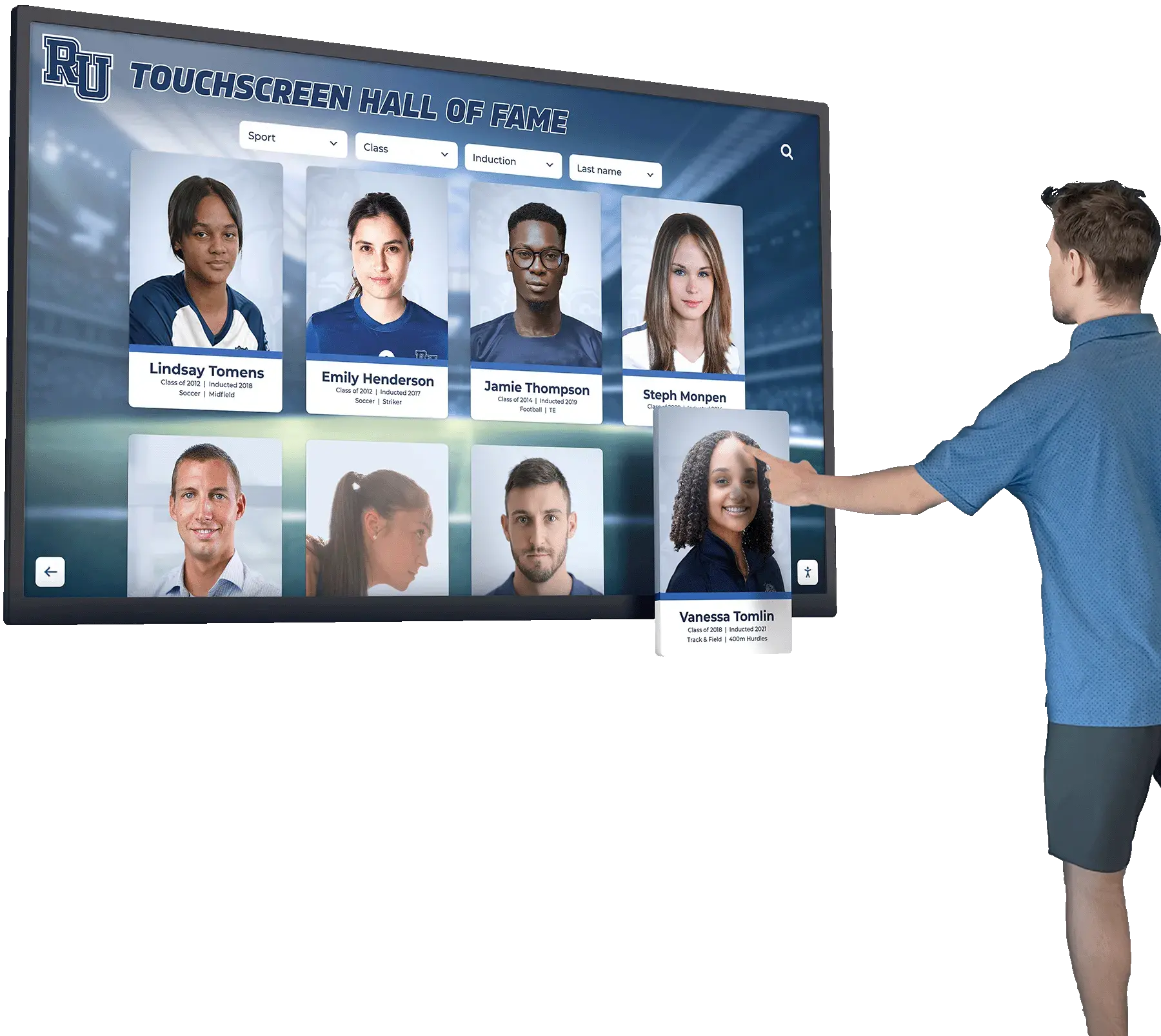
Whether a visitor browses inductee profiles on a lobby touchscreen or a home device, the career statistics displayed—including any meter-based gauges—must be accessible to every visitor through correct labels, bounded ranges, and visible text equivalents
See Accessible Inductee Profiles and Career Statistics on a Rocket Alumni Solutions Platform
Request a live demonstration to see how Rocket’s recognition platform structures inductee profiles, career statistics displays, and WCAG 2.1 AA accessibility compliance—before any commitment.