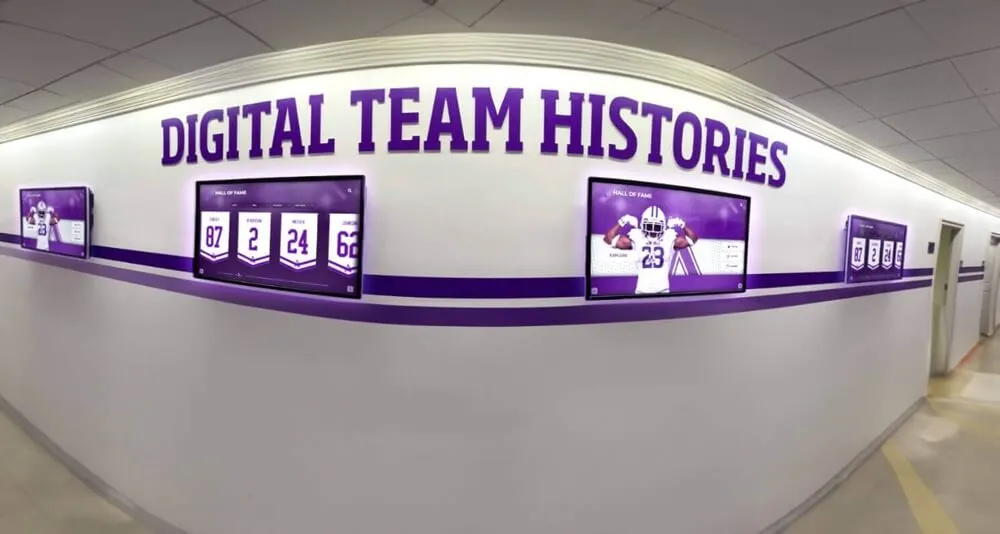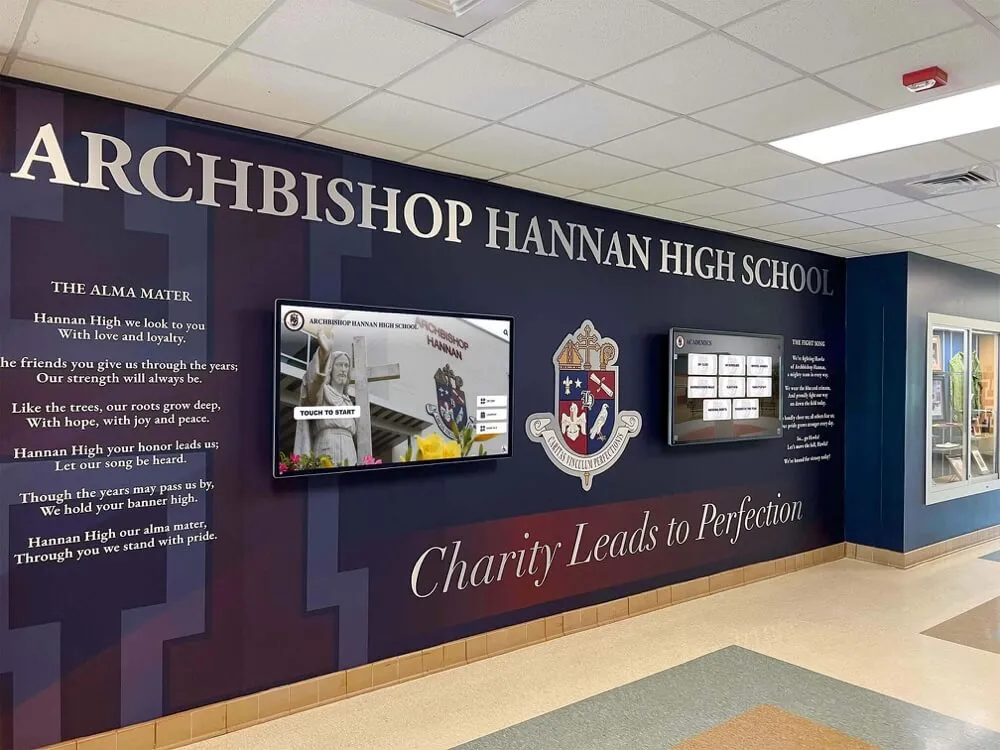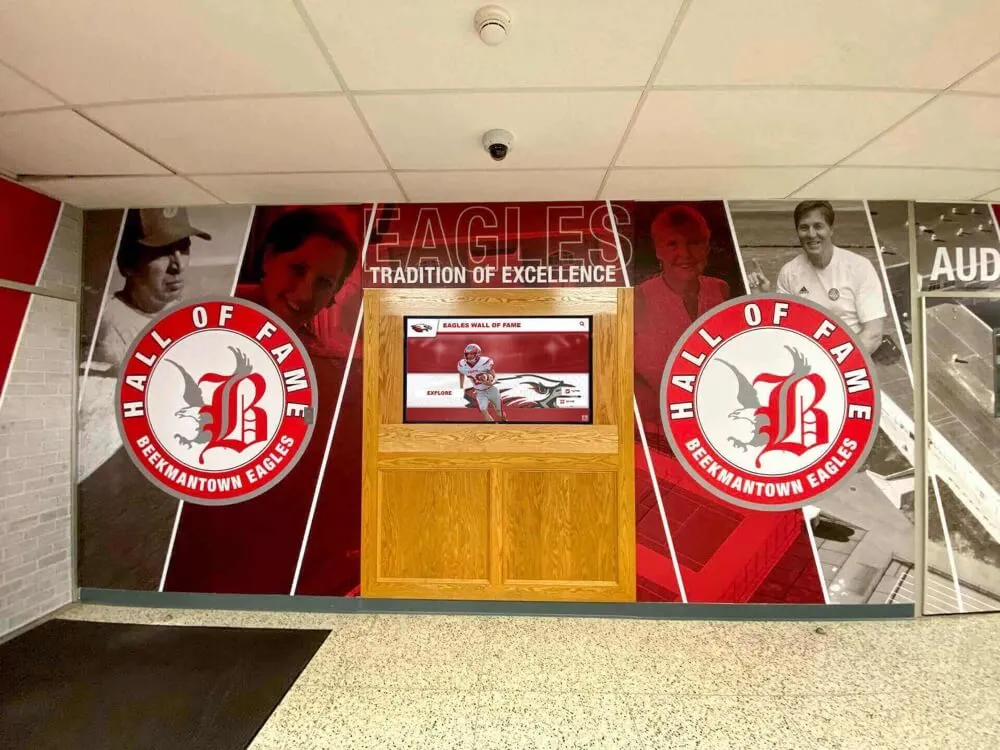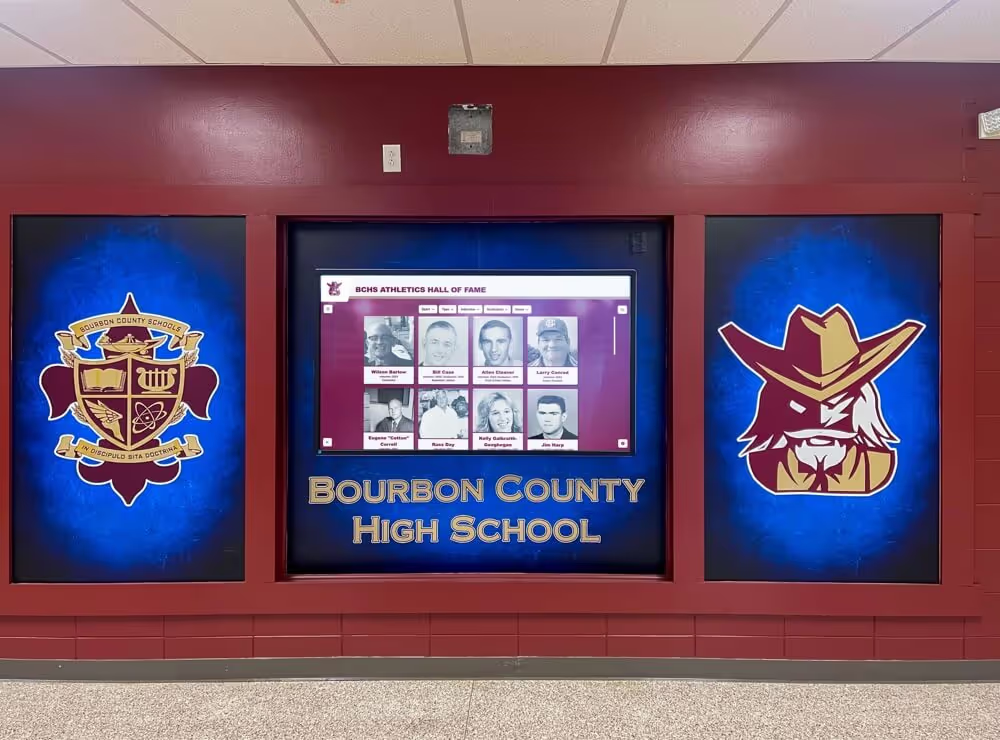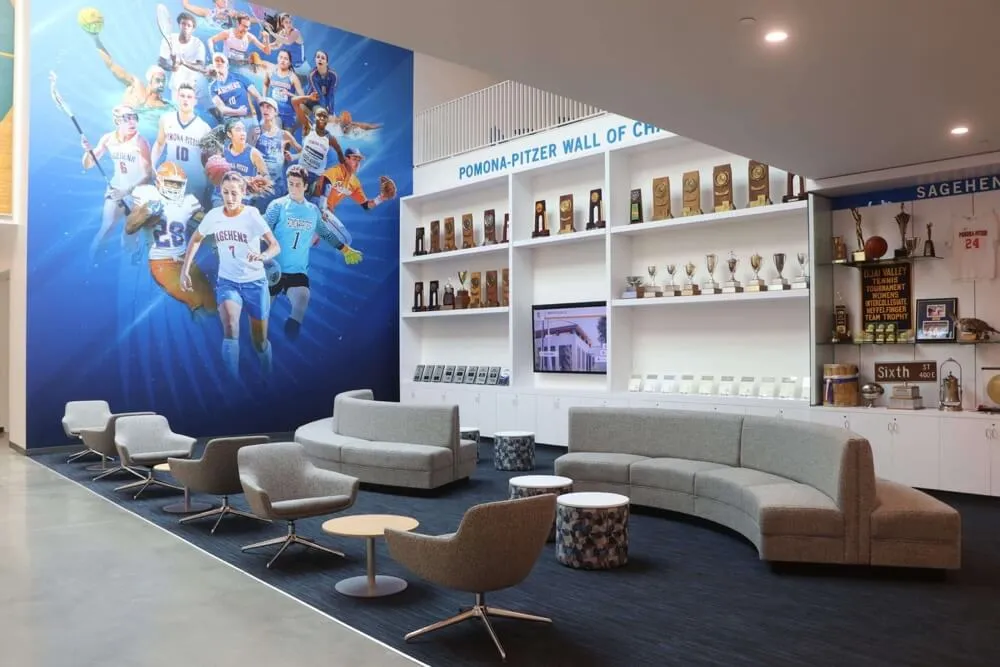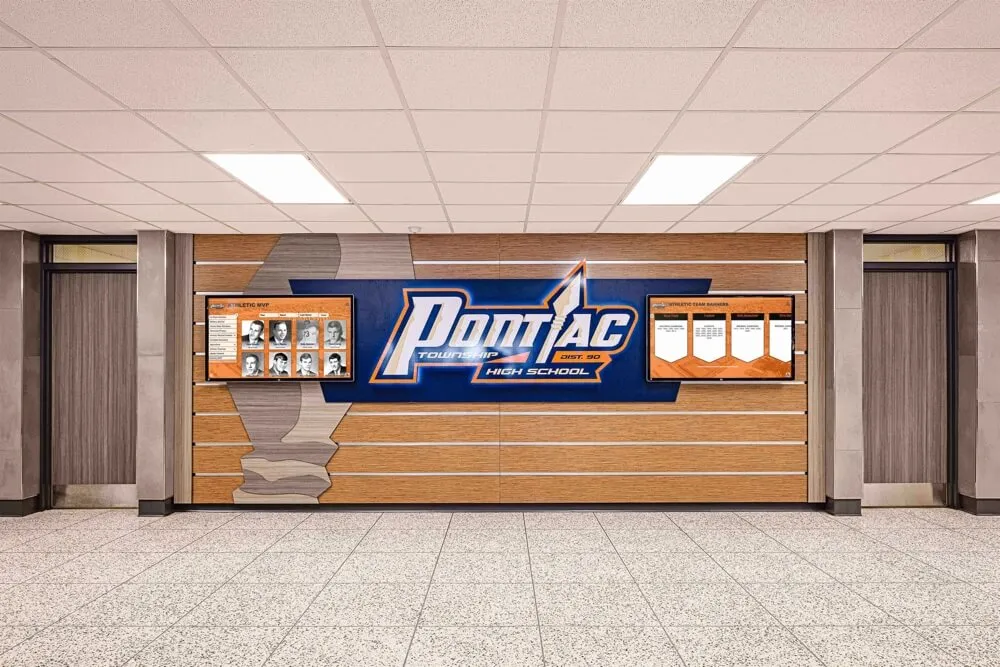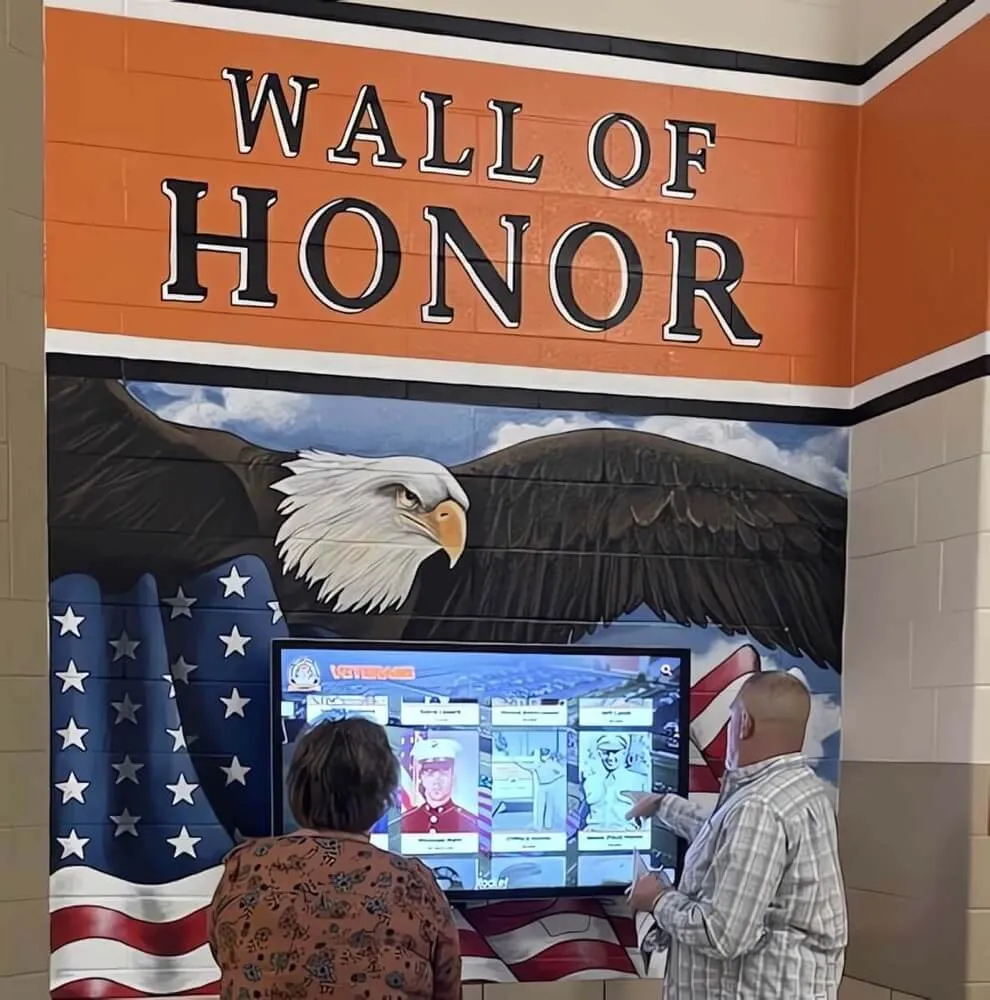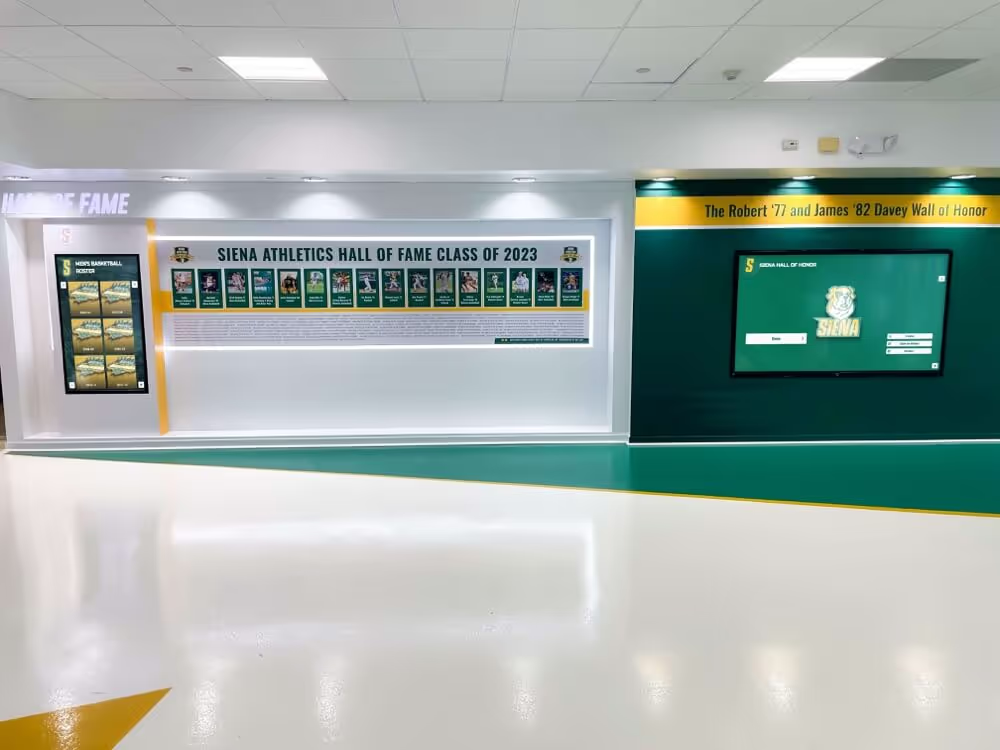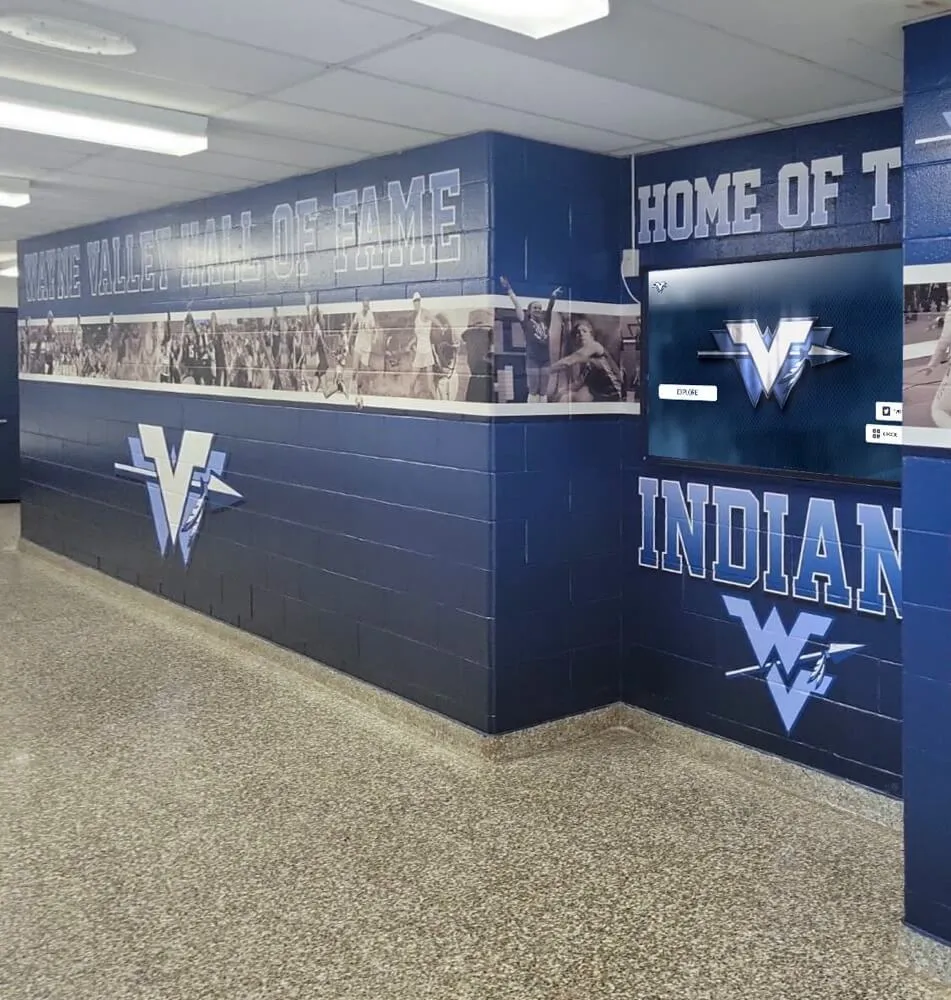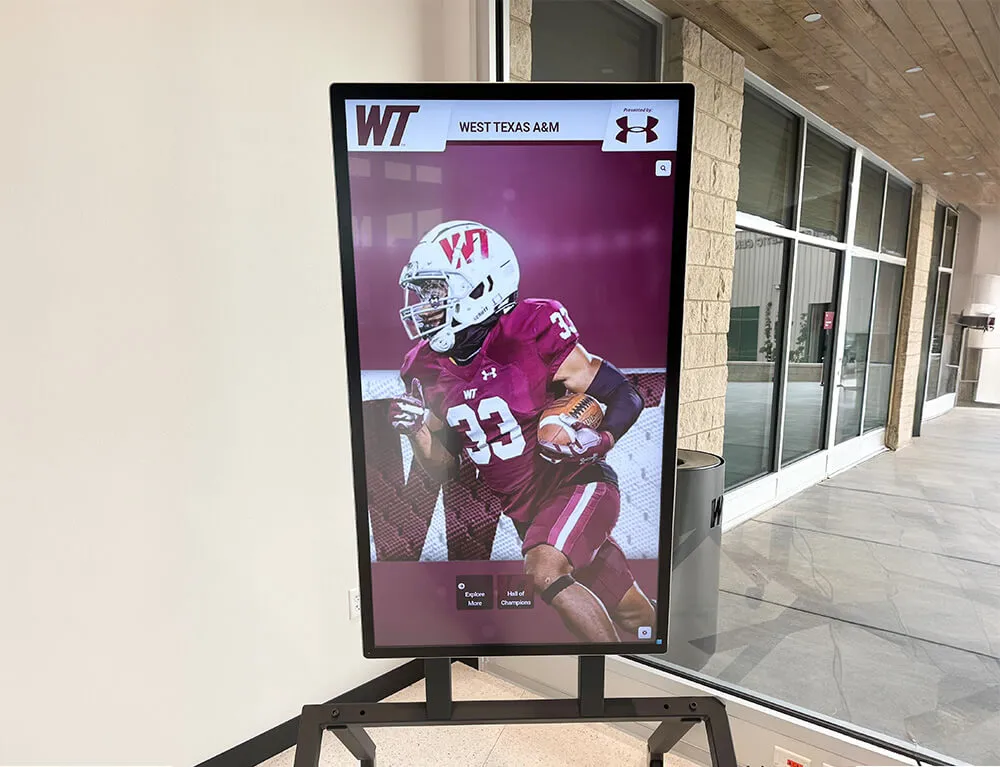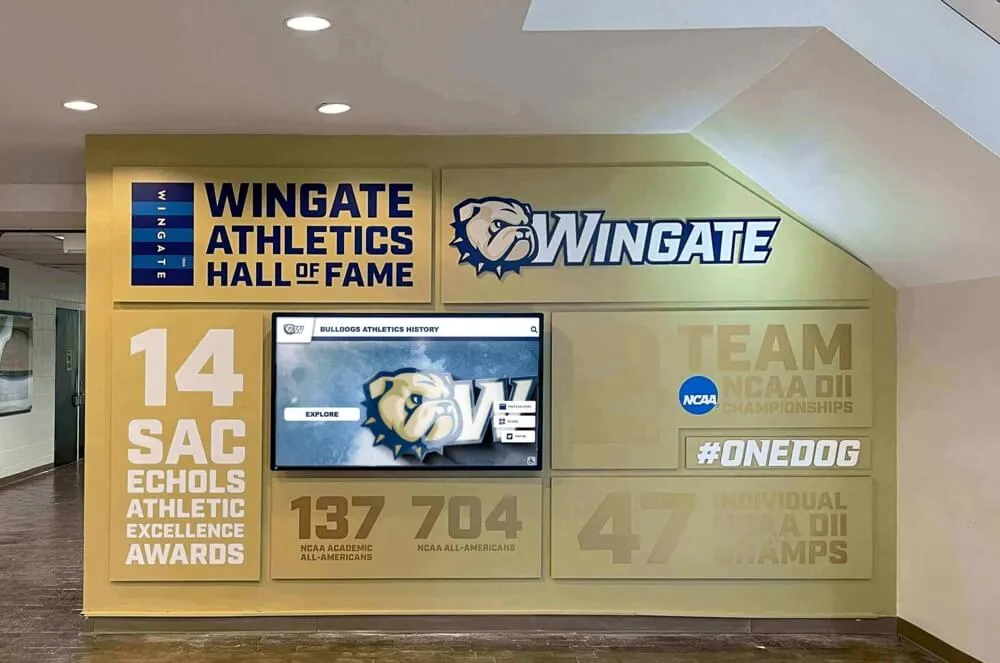




Schools that launch a digital hall of fame without planned search filters almost always regret it. Once an archive holds 200 or more inductee profiles, visitors cannot find a specific athlete or scholar without scrolling through every card manually — and most will not. Faceted search filters solve this by letting visitors narrow results instantly by sport, graduation class, induction year, or award category. This guide walks through how to design, build, and maintain a digital hall of fame faceted search filter system that scales alongside a growing recognition archive and works consistently across touchscreen kiosks and web platforms alike.
Program Snapshot: Digital Hall of Fame Faceted Search Filters
Before building any filter interface, map out the scope of your recognition program and the filter dimensions your visitors will need most. The table below provides a planning baseline for schools at any stage of implementation.
| Planning Element | Details |
|---|---|
| Primary Audiences | Students, alumni, parents, visiting families, athletic directors, archivists |
| Filter Purpose | Let visitors narrow a growing inductee database by meaningful category without browsing every profile |
| Core Filter Dimensions | Sport or activity, graduation class year, induction year, award or honor category, gender division |
| Secondary Filter Dimensions | Position or role, sport season, decade inducted, academic vs. athletic recognition |
| Content Management | Filter values are drawn from structured data fields populated when each inductee profile is created |
| Display Contexts | Touchscreen kiosk, wall-mounted display, school website, mobile web |
| ADA Considerations | Touch targets minimum 44×44 px, sufficient color contrast (WCAG 2.1 AA), reach-range-compliant mounting for interactive kiosks |
| Refresh Cadence | Filters update automatically as new inductee profiles are added; no manual reconfiguration required |
A filter taxonomy built on clean, consistent data fields delivers a searchable hall of fame that grows in usefulness over time — rather than becoming harder to navigate as the archive expands.
What Are Faceted Search Filters in a Hall of Fame Context?
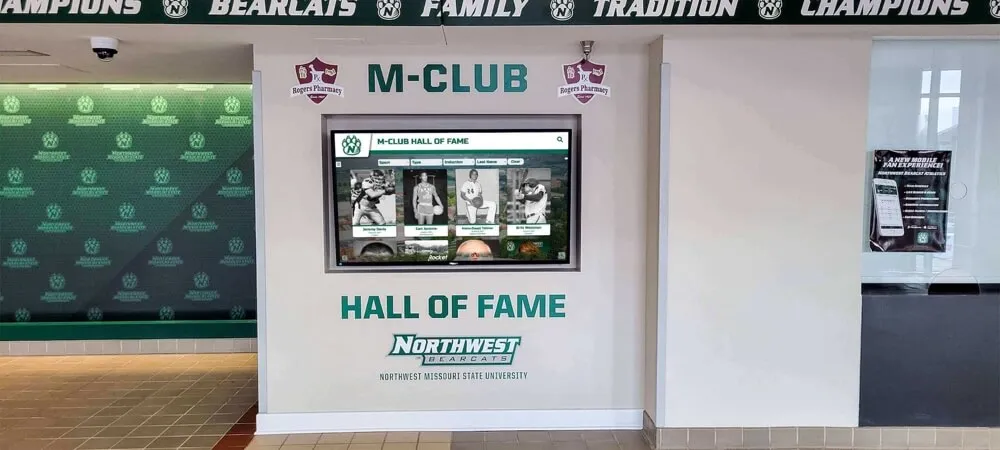
Faceted search allows visitors to apply multiple independent filters simultaneously and see results update in real time. In a retail or e-commerce context, this is how shoppers filter by size, color, and price at the same time. In a digital hall of fame, the same principle applies to inductee profiles: a visitor can filter to “Women’s Track — Class of 2004 — State Champions” and immediately see only the profiles matching all three criteria.
The key distinction between a faceted filter system and a simple keyword search is that faceted filters present known, valid categories — visitors browse and select rather than type and guess. For a hall of fame with hundreds of inductees spanning decades, this structured discovery approach dramatically improves the likelihood that visitors find the person they are looking for, especially when they remember only one or two details about an inductee.

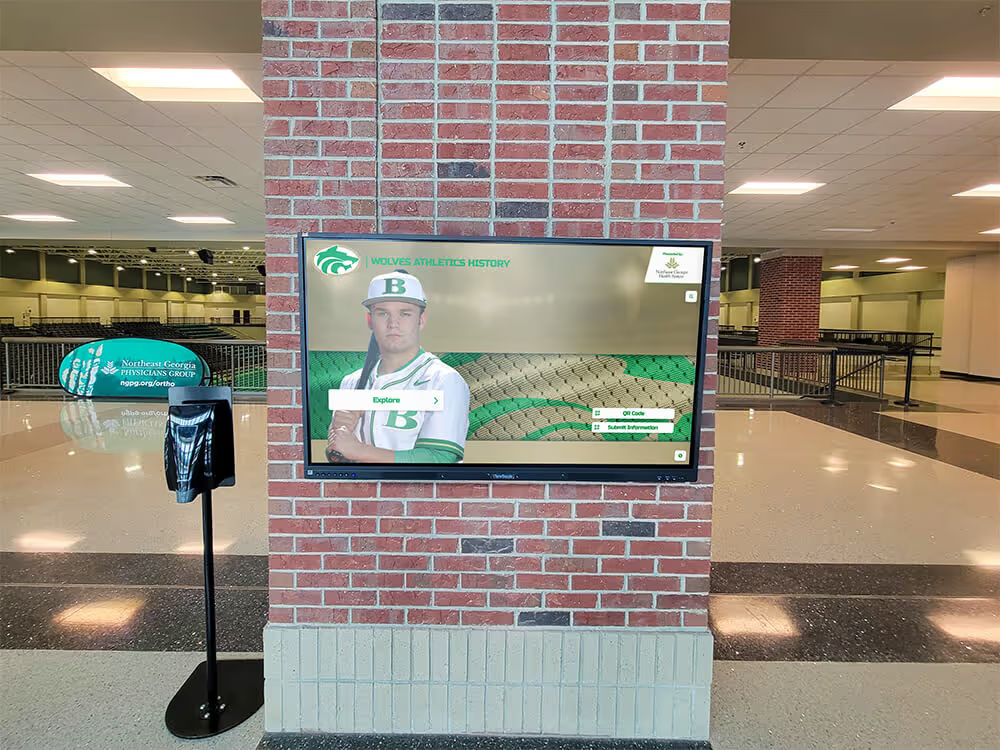
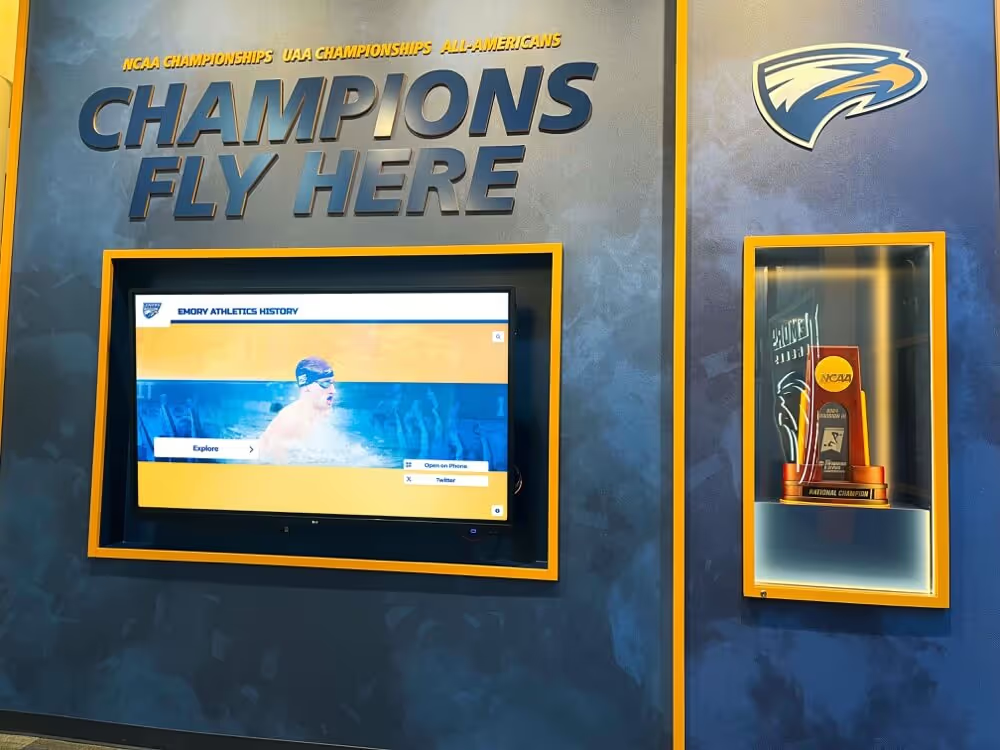
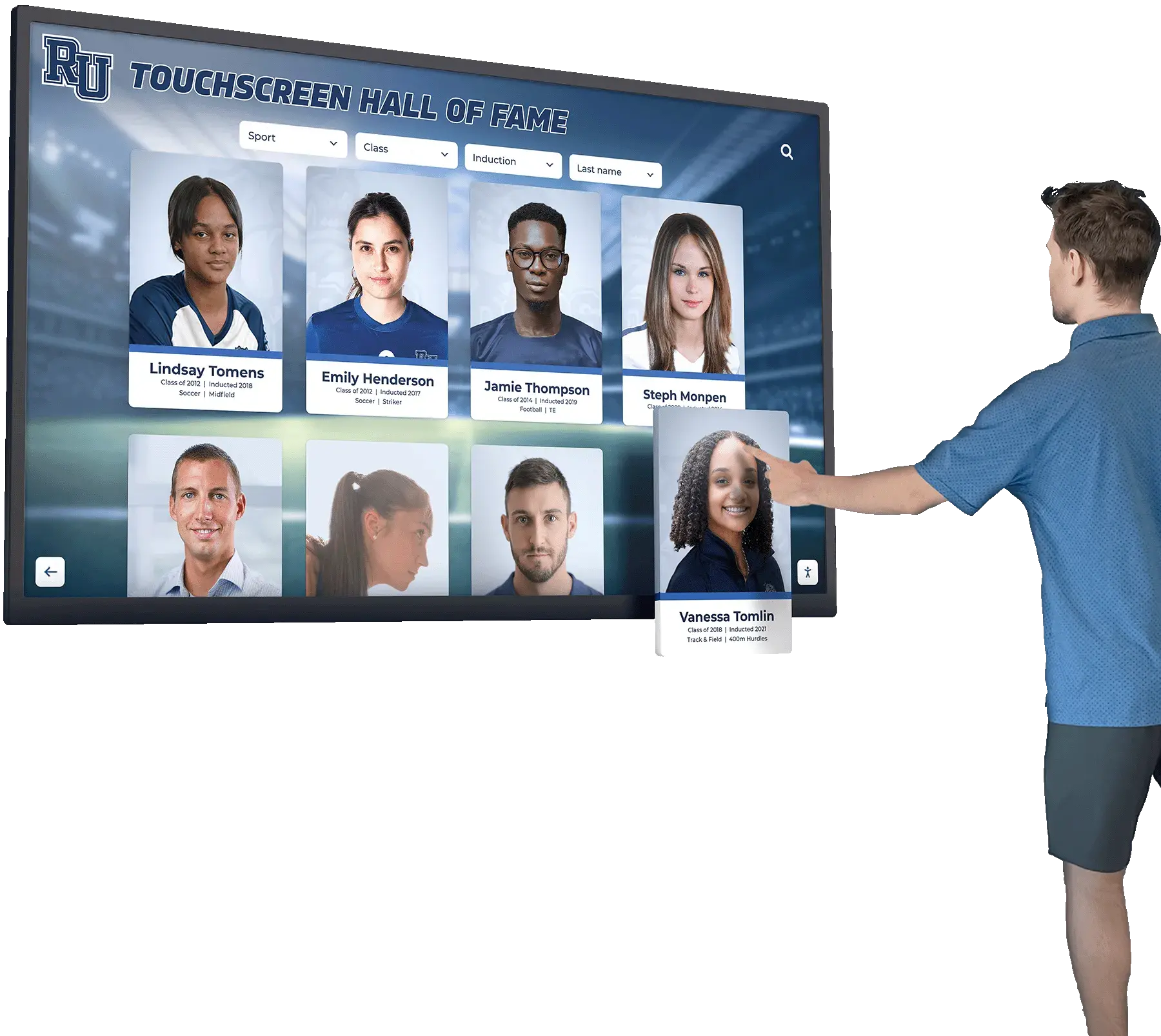
Faceted search filters let visitors select from predefined categories — sport, year, award — and surface matching inductee profiles instantly without requiring keyword input
Core Filter Dimensions for a School Hall of Fame
Not every hall of fame needs every possible filter. Start with the dimensions that reflect how your community naturally thinks about inductees. The following categories cover the majority of school recognition programs.
1. Sport or Activity
This is the most common filter dimension and the one visitors reach for first. Organize entries around your program’s actual roster of sports and activities — do not abbreviate or combine programs that your community treats as distinct.
| Category Type | Examples |
|---|---|
| Team sports | Football, Basketball (Boys), Basketball (Girls), Baseball, Softball, Soccer, Volleyball, Wrestling, Lacrosse, Field Hockey |
| Individual sports | Swimming, Track & Field, Cross Country, Tennis, Golf, Gymnastics |
| Non-athletic recognition | Academic Achievement, Performing Arts, Fine Arts, Community Service, Leadership |
| Coaching and staff | Head Coach, Assistant Coach, Athletic Director, Support Staff |
Avoid creating a catch-all “Other” category — it tells visitors nothing and tends to accumulate inductees who deserved more specific recognition. If your program recognizes band directors or drama coaches, name those categories explicitly.
2. Graduation Class Year
Class year is the filter most alumni and reunion visitors reach for. They want to see who from their graduating class has been inducted. This filter should reference the inductee’s graduation year from your institution — not the year they were inducted.
Present class years as a dropdown or scrollable list in reverse chronological order so recent classes appear first. For archives stretching back several decades, consider grouping older classes by decade to keep the list manageable.
3. Induction Year
Induction year is distinct from class year and serves a different audience. Athletic directors and program administrators use this filter to review which inductees were recognized in a specific ceremony. Parents of recent honorees use it to find their student’s cohort. Media relations staff use it to pull complete class lists for press releases.
Maintain induction year as a separate data field from graduation class year — they should never be merged into a single field, even if the inductee was honored the same year they graduated.
4. Award or Honor Category
Some recognition programs use a tiered or multi-category award structure. Common distinctions include Hall of Fame, Wall of Honor, Distinguished Alumni, Scholar-Athlete Award, Lifetime Achievement, and Coaches’ Award. If your school uses multiple tiers, surface them as a filter dimension so visitors can browse by honor level.
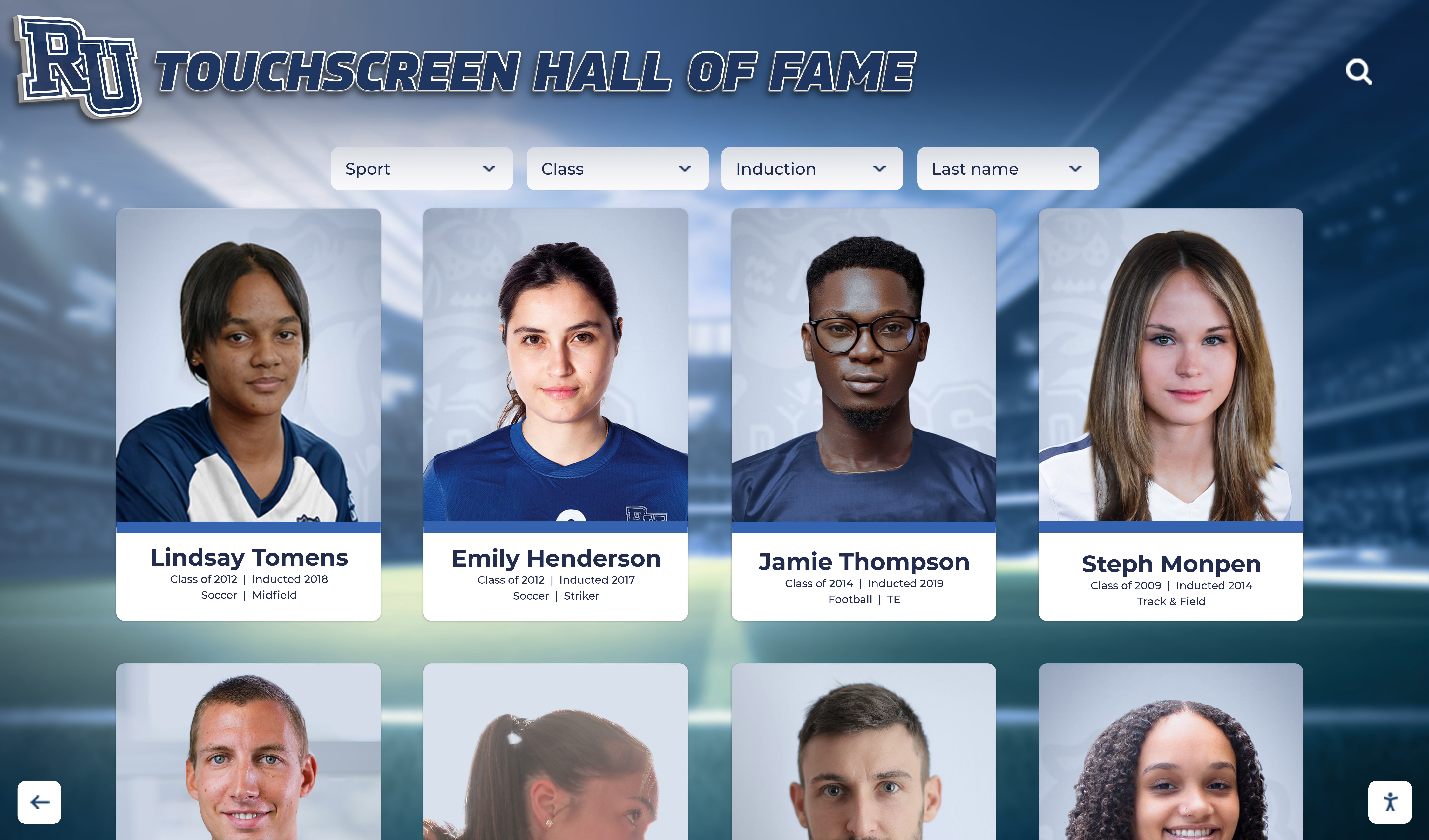
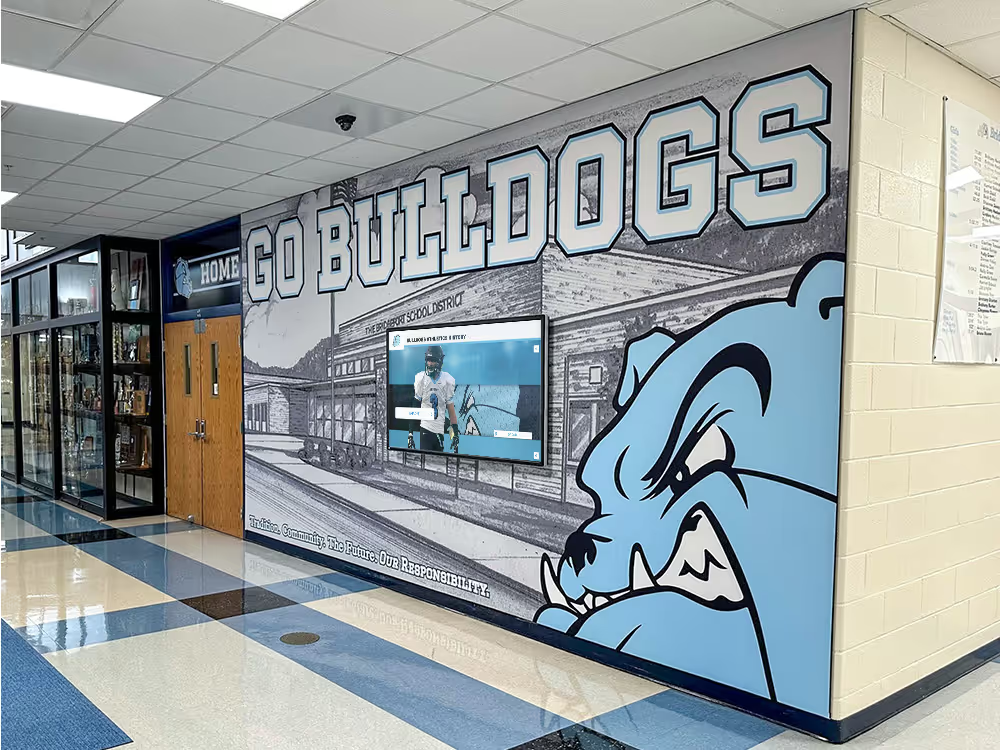
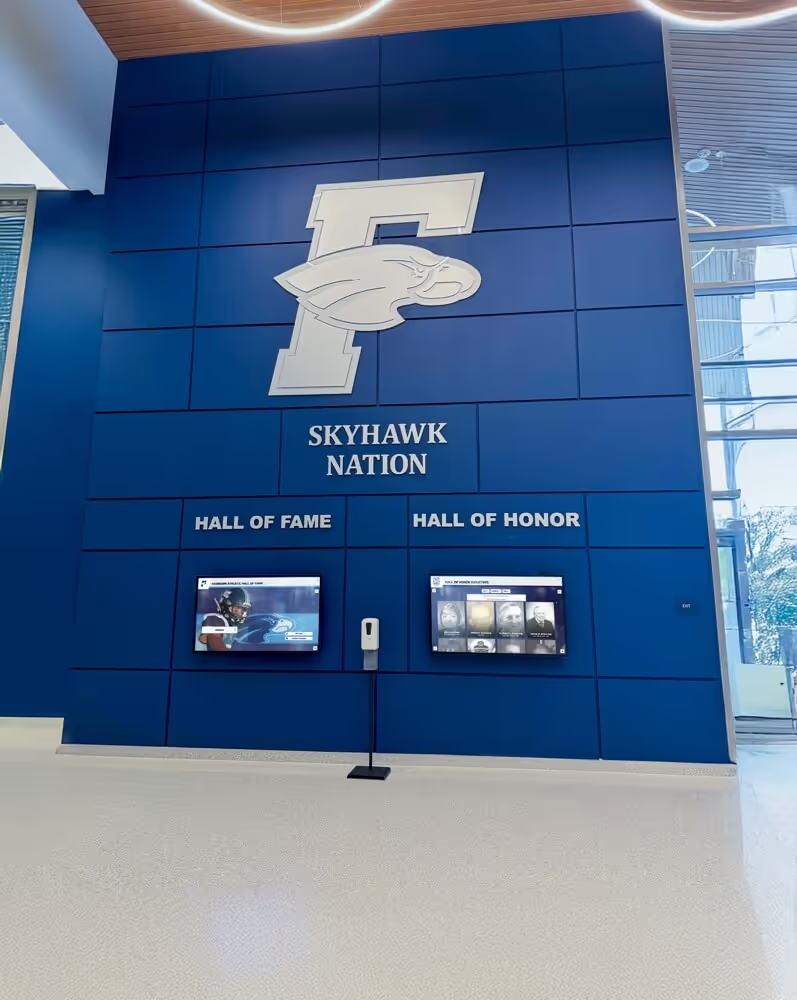
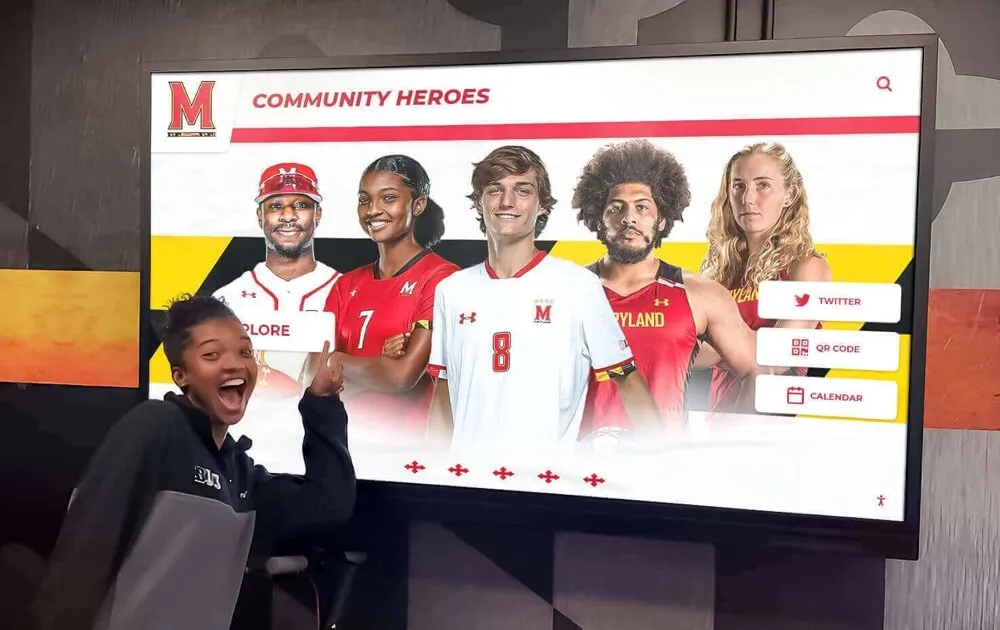
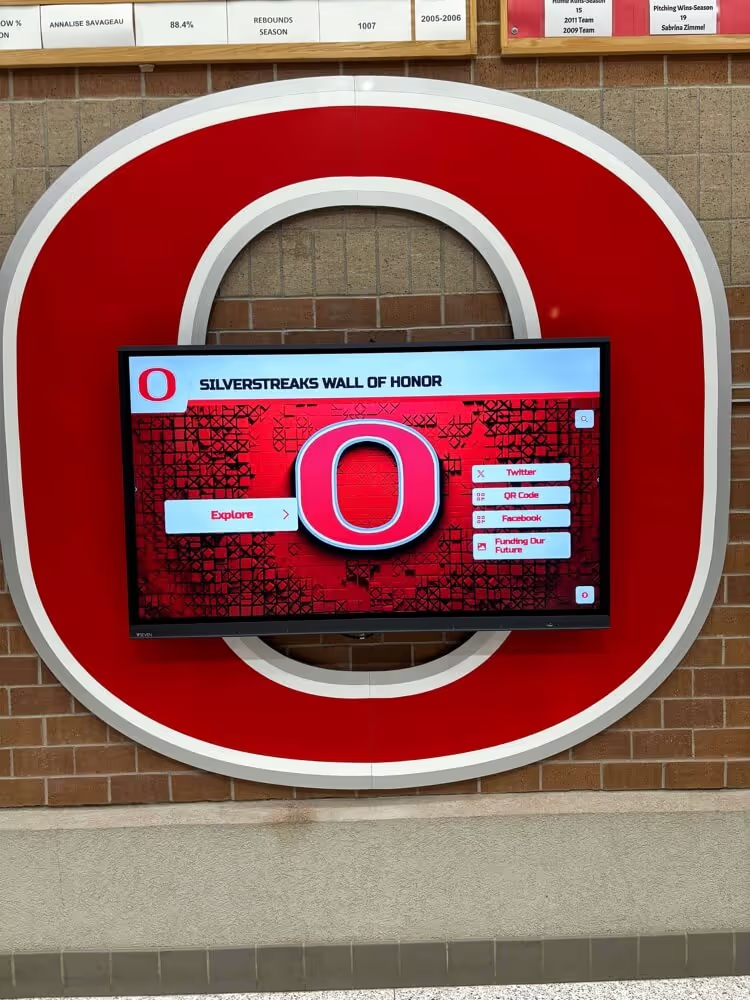
A well-structured inductee grid becomes genuinely discoverable when visitors can filter by sport, class year, and award category — reducing browsing time from minutes to seconds
5. Gender Division
For schools with distinct men’s and women’s programs in the same sport, a gender filter prevents cluttered results. A visitor looking for the women’s basketball honorees should not have to scroll past every men’s basketball profile to find them. Implement this as a simple toggle (All / Men’s / Women’s) rather than a separate dropdown to keep the interface light.
6. Era or Decade
For archives spanning more than 30 years, a decade filter gives casual visitors an intuitive way to explore inductees from a specific era without needing to know an exact graduation year. This works particularly well on touchscreen kiosks in alumni gathering areas where visitors browse casually rather than search with a specific person in mind.
Alumni gathering area design considerations cover how to position interactive displays so that era-browsing becomes a natural part of the visitor experience.
Content Architecture: Mapping Filters to Data Fields
Faceted search filters are only as good as the underlying data. Each filter dimension requires a corresponding structured data field in the inductee profile record. If sport names are entered inconsistently — “B-Ball” in one record and “Boys’ Basketball” in another — your filter will treat them as two separate categories and split results unpredictably.
Required Data Fields per Inductee Profile
| Filter Dimension | Data Field Type | Entry Method | Consistency Rule |
|---|---|---|---|
| Sport or activity | Dropdown (controlled vocabulary) | Selected from master list | Never type-in; always select |
| Graduation class year | 4-digit numeric year | Entered at profile creation | Validate: 1900–current year |
| Induction year | 4-digit numeric year | Auto-populated from ceremony date | Auto-fill on publish |
| Award category | Dropdown (controlled vocabulary) | Selected from master list | Add new categories at admin level only |
| Gender division | Toggle or dropdown | Selected from master list | Required field; no blank entries |
| Era or decade | Derived field | Auto-calculated from induction year | No manual entry needed |
The most important rule in this table is the use of controlled vocabulary for sport and award category fields. Administrators must select from a predefined list — they should not type a sport name freehand. Every typed variation becomes its own filter value, fragmenting results and making the filter interface confusing.
Relationship Mapping for Multi-Sport Inductees
Some inductees compete in multiple sports or receive honors across multiple categories. Your platform should support multi-value tagging so that a two-sport athlete appears in results for both sports when either sport is filtered. Avoid duplicate profile records — one profile per inductee, with multiple sport tags assigned.
Athletic hall of fame planning for school administrators covers how to structure recognition tiers and multi-sport recognition criteria before configuring your platform’s data fields.
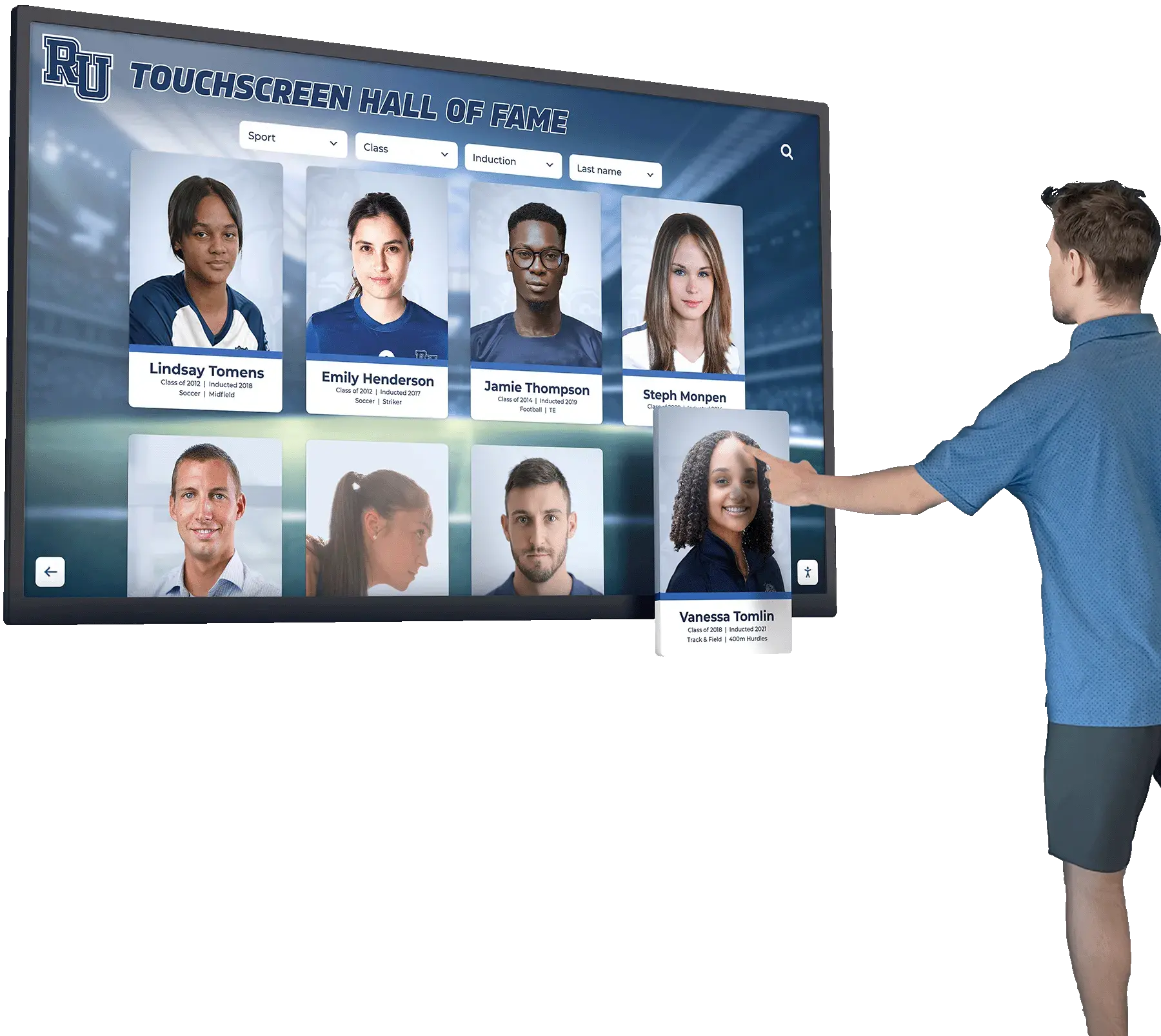
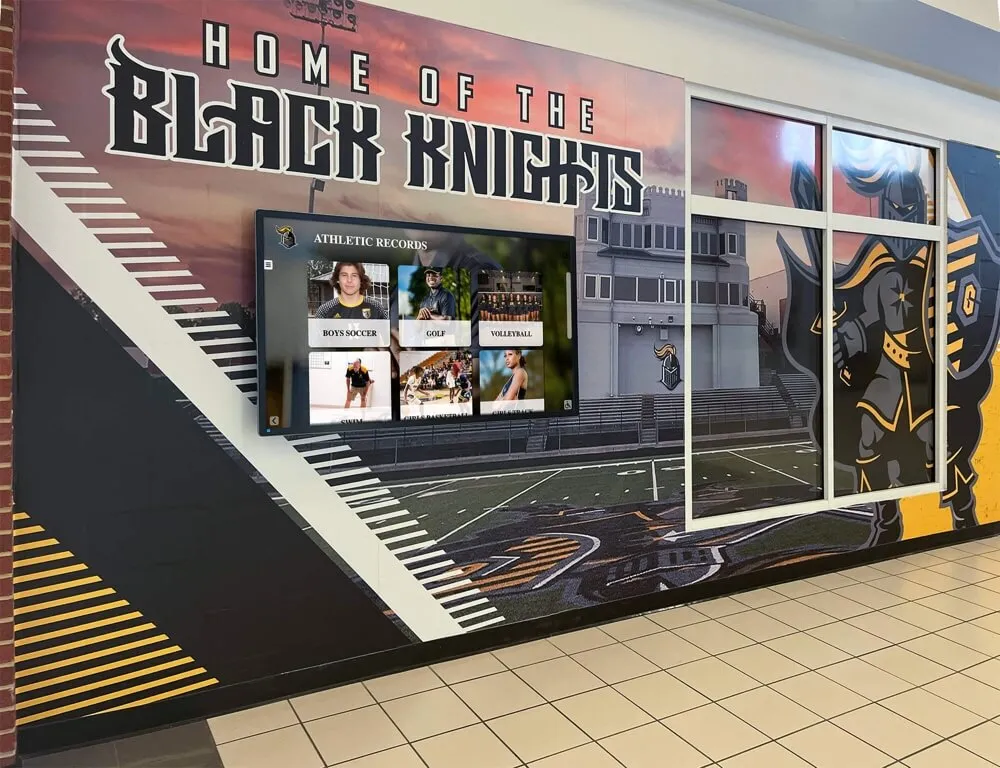
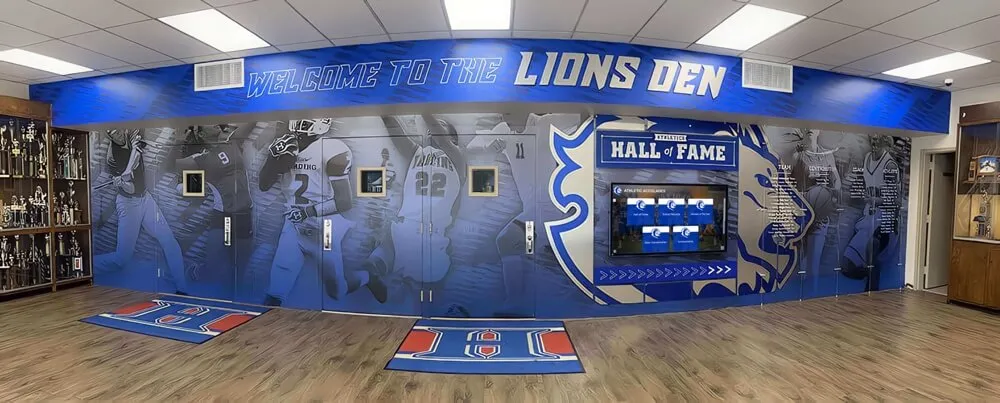
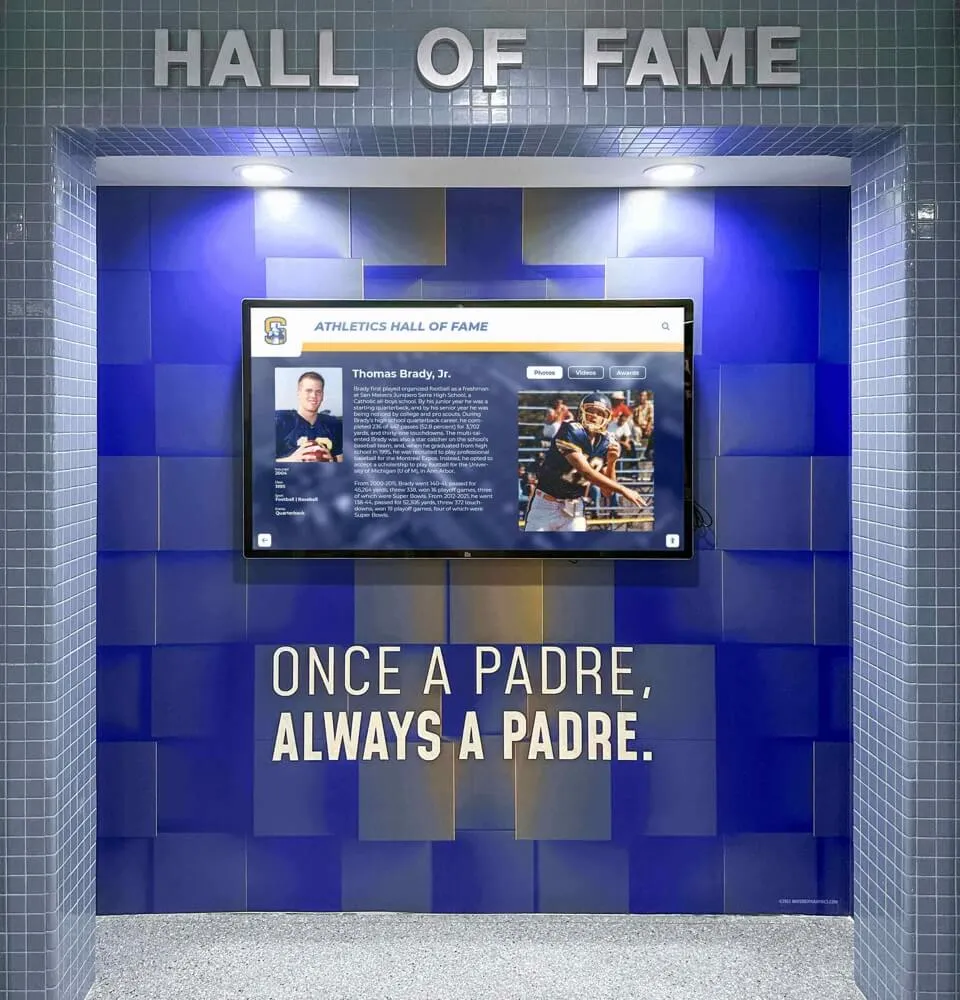
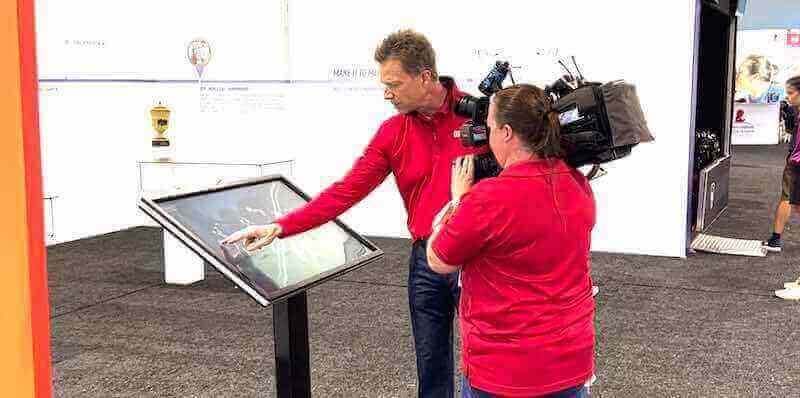
Visitors navigating a touchscreen kiosk should be able to reach any inductee's profile within two or three taps — faceted filters are the mechanism that makes this possible as the archive grows
Planning Your Filter Taxonomy: Seven Steps
Follow this sequence to design a filter system your team can build, maintain, and expand over time.
Step 1: Audit your inductee database before building filters. List every sport, award category, and recognition tier that currently appears in your records. Identify inconsistencies — alternate spellings, abbreviations, combined categories that should be split. Resolve these in a clean master vocabulary list before configuring any filter fields.
Step 2: Define the controlled vocabulary for each filter dimension. For sport and award category fields, document every valid entry in a shared reference document. Include the exact spelling, capitalization, and abbreviation policy. This becomes the onboarding reference for any staff member who creates or edits inductee profiles.
Step 3: Decide which filters appear at the top level vs. secondary level. Top-level filters appear immediately visible on the filter panel. Secondary filters appear in a collapsed “More filters” section. Limit top-level filters to three or four dimensions — sport, class year, induction year, and award category are the most universal. Decade and gender work well as secondary filters.
Step 4: Map every filter to a specific data field in your CMS. Confirm that your digital hall of fame platform supports each filter dimension as a queryable data field. Platforms built specifically for recognition archives — unlike generic digital signage software — typically include these fields as standard. Generic content management systems may require custom development to support multi-dimensional filtering.
Step 5: Define the default display state. Decide how inductees are sorted and displayed when no filters are applied. Reverse induction year (most recent first) is a common default, as it surfaces the newest honorees for returning visitors. Alphabetical works better for archives where visitors browse for specific names. Give administrators the ability to configure this default without developer involvement.
Step 6: Establish data entry protocols before adding new profiles. Train every staff member who enters inductee profiles on the controlled vocabulary rules before they create their first record. A single training session covering the dropdown conventions and field definitions prevents the bulk of data inconsistency problems. Document the protocols in a written reference that new staff can consult.
Step 7: Plan a quarterly data audit cycle. Schedule a calendar reminder for quarterly review of filter values. Check for new entries that deviated from controlled vocabulary, consolidate any duplicate categories, and verify that recently added profiles are tagged correctly. Fifteen minutes of quarterly review prevents years of accumulated inconsistency.
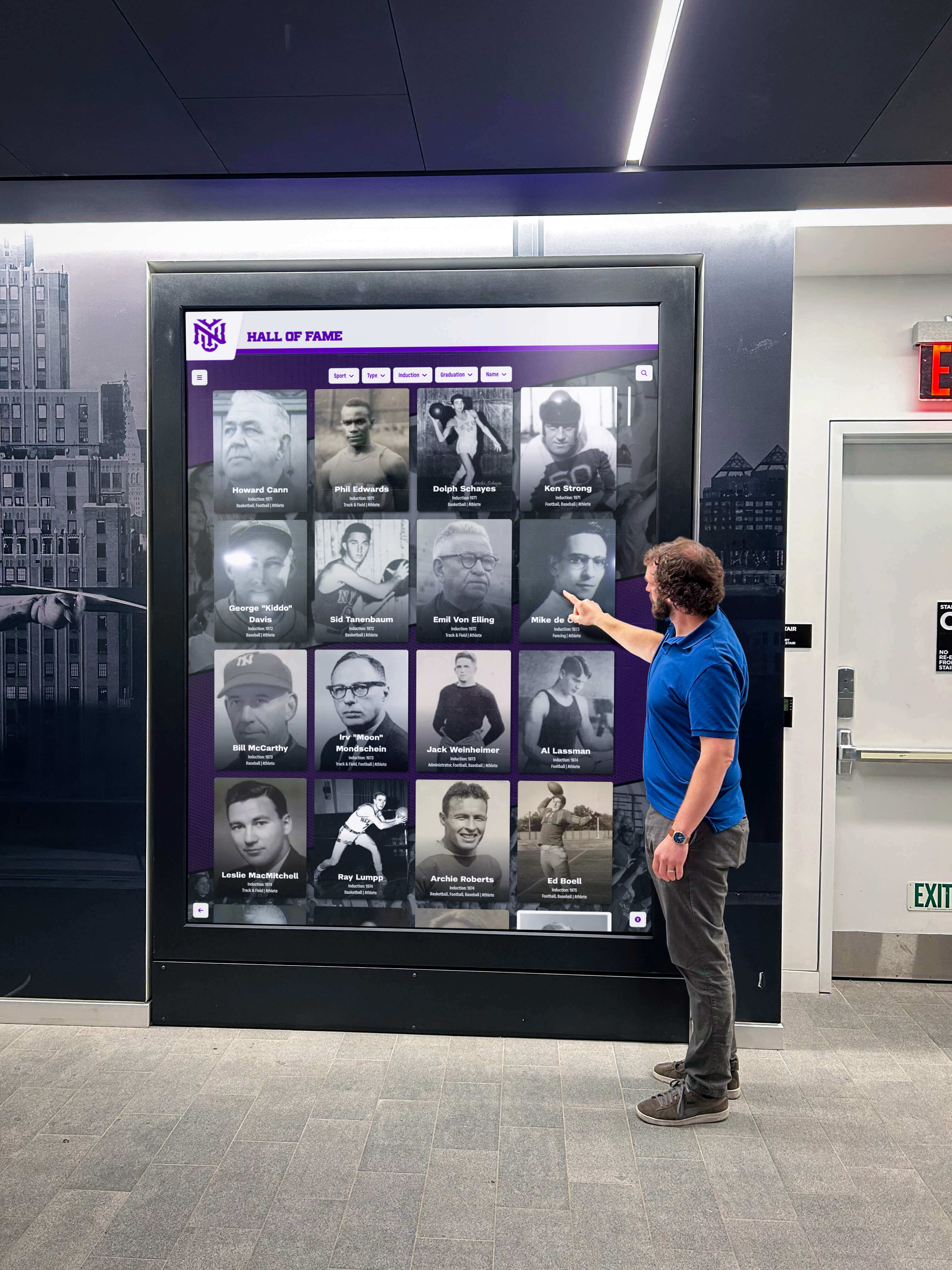
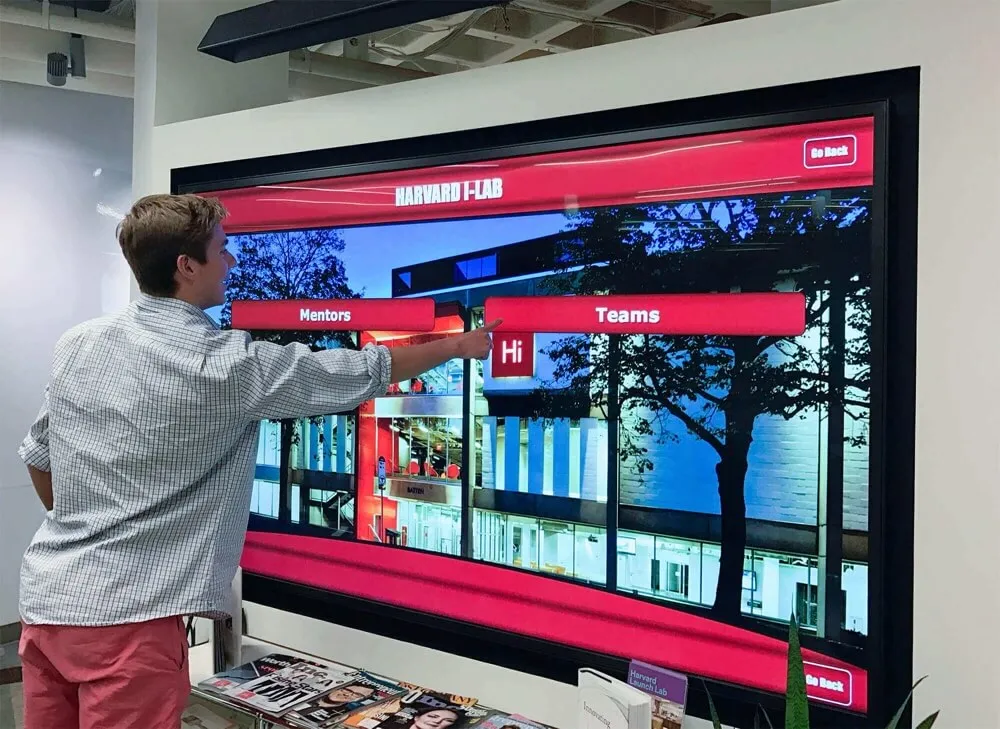
A well-planned filter system requires almost no visitor instruction — category labels should be self-explanatory and filter interactions should respond in under a second on touchscreen hardware
Execution Timeline: Plan → Build → Launch → Refresh
Phase 1: Plan (Weeks 1–3)
Gather your inductee data and audit existing records for inconsistencies. Document the controlled vocabulary for sport and award category fields. Identify which filter dimensions matter most for your community — prioritize based on how staff and visitors describe inductees in conversation. Consult with your athletic director and school archivist to capture every program that has ever produced inductees.
Assess whether your current platform supports faceted filtering natively. Platforms built specifically for digital halls of fame typically include this capability; generic signage or website tools often do not. If your platform lacks native filter support, evaluate purpose-built alternatives before investing time in configuring a workaround.
Athletic archive and file format planning is useful during this phase to ensure the data you are migrating from existing records (spreadsheets, printed programs, yearbooks) is structured consistently before import.
Phase 2: Build (Weeks 4–10)
Configure filter fields in your CMS using the controlled vocabulary lists developed in Phase 1. Backfill existing inductee profiles with accurate sport, class year, induction year, and award category values. Assign this backfill task to a staff member or archivist who knows your program history — accuracy matters more than speed at this stage.
Test the filter interface with real inductee data before any public launch. Run scenarios representative of how visitors actually search: “show me all women’s track inductees,” “show me everyone inducted in 2018,” “show me scholar-athletes from the class of 2010.” Verify that each filter produces the expected results.
Phase 3: Launch (Weeks 11–12)
Introduce the filter interface during a higher-visibility event — a home athletic contest, an alumni night, or an open house — where visitors are already engaged and likely to explore. Post brief instructional signage near touchscreen kiosks for the first few weeks. Ask a student ambassador or athletic staff member to demonstrate the filters during the launch event.
Announce the new search capability through school communications, athletic department newsletters, and alumni channels. Many alumni who attended events in prior years and struggled to find specific inductees will return specifically to use the improved search. Ideas for recognition events that draw alumni back can inform how you frame the hall of fame filter launch as a community event rather than just a software update.
Phase 4: Refresh (Ongoing)
Run the quarterly data audit described in Step 7 of the planning sequence. Add new inductee profiles immediately following each induction ceremony — do not let profile entry lag behind the ceremony by weeks or months. Visitors who attended an induction ceremony will search for the new honorees within days. Update the controlled vocabulary list when a new sport or award category is added to your program, so that filter consistency is maintained from the first profile entered in the new category.
Display Integration: Filter UX on Touchscreen and Web
Touchscreen Kiosk Design Principles
On a touchscreen kiosk in a hallway or lobby, filter controls must work reliably for visitors with no prior instruction. Follow these design principles:
- Make filter categories visible without scrolling. The filter panel should display your top-level dimensions — sport, class year, induction year — without requiring visitors to scroll to find them.
- Show the active filter state clearly. When a visitor selects “Football,” the filter chip or button should show a visually distinct selected state so they know the filter is active.
- Display result counts next to filter options. Showing “(24)” next to Football tells visitors how many inductees they will see before tapping — this prevents confusion when a filter returns a very small result set.
- Provide a clear “Reset Filters” control. Place this in a consistent location — top right of the filter panel — so visitors can start over without confusion.
- Confirm ADA touch target sizing. Individual filter buttons must meet the minimum 44×44 pixel touch target standard. On a 43-inch kiosk, this translates to approximately half an inch — large enough for casual use by visitors of all ages.
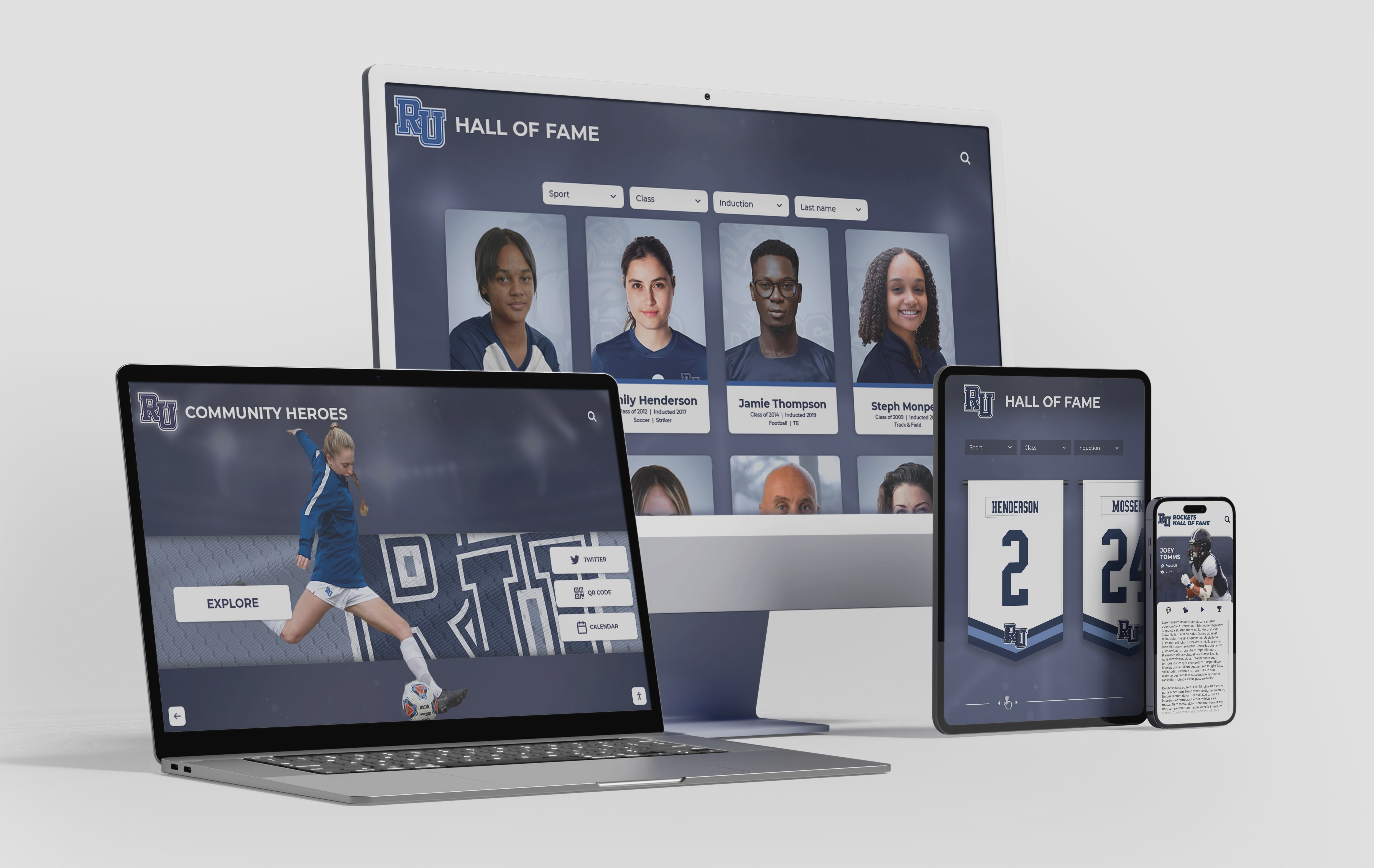
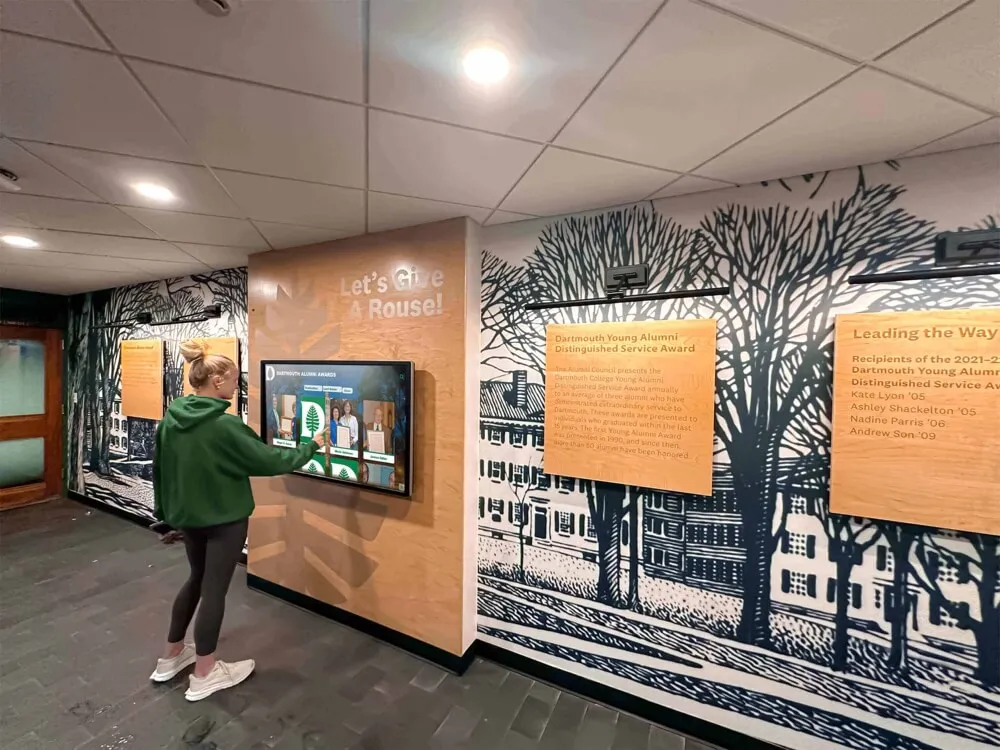
Filter systems designed for touchscreen kiosks should translate cleanly to mobile web — visitors who search on a kiosk at an event will often return later on their phone
Web Platform Considerations
For the web version of your hall of fame, faceted filters should appear in a persistent sidebar or a collapsible filter panel depending on screen width. On mobile, a collapsible panel that slides in from the side keeps the inductee grid the visual focus while still providing access to filters. Ensure that filtered URL states are bookmarkable — a visitor who finds the 2003 women’s basketball inductees should be able to share that filtered view directly.
Digital signage and display features for school environments covers how to ensure that touchscreen kiosk software and web platforms share consistent content — so the filter experience a visitor has at a physical display matches what they find when they return to the school’s website.
Measurement: How to Know Your Filters Are Working
Track these metrics after launch to evaluate filter effectiveness and identify where to improve:
| Metric | What It Tells You |
|---|---|
| Filter usage rate | Percentage of sessions that use at least one filter; below 30% suggests filters are hard to find or understand |
| Most-used filter dimensions | Which categories visitors reach for first; informs which filters to prioritize at the top level |
| Filter combinations | Which pairs or triples of filters appear together; reveals common visitor search patterns |
| Zero-result searches | Filter combinations that return no inductees; may signal data entry gaps or needed new categories |
| Session depth after filtering | Average profiles viewed per session after a filter is applied; higher numbers indicate the filter is helping visitors find what they want |
| Search-to-profile rate | How often a keyword search immediately follows a filter; high rates suggest visitors needed filters to get close but still could not find a specific person |
Review these metrics quarterly alongside the data audit. Patterns in filter usage often reveal missing categories — if visitors frequently filter by sport and then immediately type a name into keyword search, it may mean your sport filter is not granular enough, or that visitors are looking for a specific inductee who has not yet been added to the archive.
Frequently Asked Questions
How many filter dimensions should a digital hall of fame start with?
Start with three: sport or activity, graduation class year, and induction year. These three dimensions cover the majority of how visitors naturally describe inductees — “the quarterback from 2001” translates directly to football + class of 2001. Add award category and gender division once you have confirmed that your data fields are consistently populated. Adding more filters before the data is clean creates a confusing experience where filters return unexpected results.
Should class year and induction year always be separate filters?
Yes, always keep them as separate fields and separate filters. Class year refers to when the inductee graduated from your institution; induction year refers to when they received the hall of fame honor. Conflating them creates confusion for visitors and breaks the usefulness of both filters. Alumni searching by their reunion class year expect to see classmates, not inductees from a random ceremony year.
Can faceted search filters work on both a touchscreen kiosk and a school website?
Yes — purpose-built digital hall of fame platforms serve both surfaces from the same underlying database. The same inductee records that power the kiosk filter interface are published to the web with an equivalent filter panel. This means data entered once appears consistently across touchscreen and web without any duplication of effort. First-day and milestone recognition displays for schools illustrates how a single recognition content system can reach multiple display contexts simultaneously.
What should happen when a filter combination returns zero results?
The interface should display a friendly zero-state message with a suggestion to broaden the search — for example: “No results for Women’s Cross Country — Class of 1988. Try removing one filter or browsing all Cross Country inductees.” Log zero-result filter combinations and review them in your quarterly data audit. They are often the clearest signal that an inductee was tagged incorrectly or that a graduating class has not yet been fully added to the archive.
How do you handle inductees who earned recognition in multiple sports?
Assign multiple sport tags to the single inductee profile rather than creating duplicate records. The filter should return the inductee when either sport is selected. Rocket Alumni Solutions supports multi-value tagging at the profile level, so a two-sport honoree appears in both the baseball and wrestling filtered views without duplicating the profile. This is one of the capabilities that separates purpose-built recognition platforms from general-purpose CMS tools.
Ready to build a digital hall of fame with fully configured sport, class year, award, and induction year filters? Request your free custom demo to see how Rocket Alumni Solutions supports faceted search filters, controlled vocabulary data fields, touchscreen and web display, and the ongoing content management that keeps a growing archive discoverable for every visitor.
A digital hall of fame that visitors cannot search is a collection, not a resource. Faceted filters — planned deliberately, backed by clean controlled-vocabulary data, and designed for both touchscreen and web contexts — transform an inductee archive into something a student can explore in thirty seconds and an alumnus can return to for decades. The planning work is front-loaded: define your vocabulary, configure your fields, train your staff, and audit your data quarterly. After that, the filters work silently in the background, making every new inductee immediately discoverable the moment their profile is published.