



A digital hall of fame details summary audit is the process of examining every native <details> and <summary> element used as an expandable biography disclosure on your school’s recognition site—verifying that each <summary> carries a label that tells a visitor what biography will expand before they open it, that Enter and Space toggle the disclosure correctly, that the browser and assistive technology announce the expanded or collapsed state, that the open attribute reflects actual visibility, and that any use of the name grouping attribute behaves as intended when multiple bios appear on the same page. The <details> element—described in the MDN HTML Reference for the details element—is the browser’s native disclosure widget: no custom JavaScript is required for basic toggle behavior, and no ARIA accordion roles should be layered on top of it redundantly. This guide gives athletic directors, recognition-program owners, and the IT and archival staff responsible for school hall of fame platforms a step-by-step workflow, an acceptance evidence table, and a focused FAQ for auditing expandable inductee biography disclosures before each recognition season.
When a school’s digital hall of fame directory lists dozens of inductees—athletes, coaches, and contributors spanning decades of school history—showing every full biography simultaneously creates a page that is overwhelming to scroll and slow to load. Many recognition platforms address this by wrapping each inductee’s extended biography in an expandable disclosure: the visitor sees the inductee’s name and perhaps their sport and graduation year, then activates a control to reveal the full career narrative. If that control is built with the native <details> and <summary> elements, the browser handles the show/hide logic without a line of JavaScript, and assistive technology receives the expanded and collapsed states automatically through the browser’s accessibility API.
A digital hall of fame details summary audit is the check that confirms this native behavior is working correctly—that the summary label tells the visitor whose biography will appear before they expand it, that keyboard users can open and close the disclosure without a mouse, that screen readers announce the state change, and that no redundant ARIA attributes are silently overriding the native semantics the browser already provides.

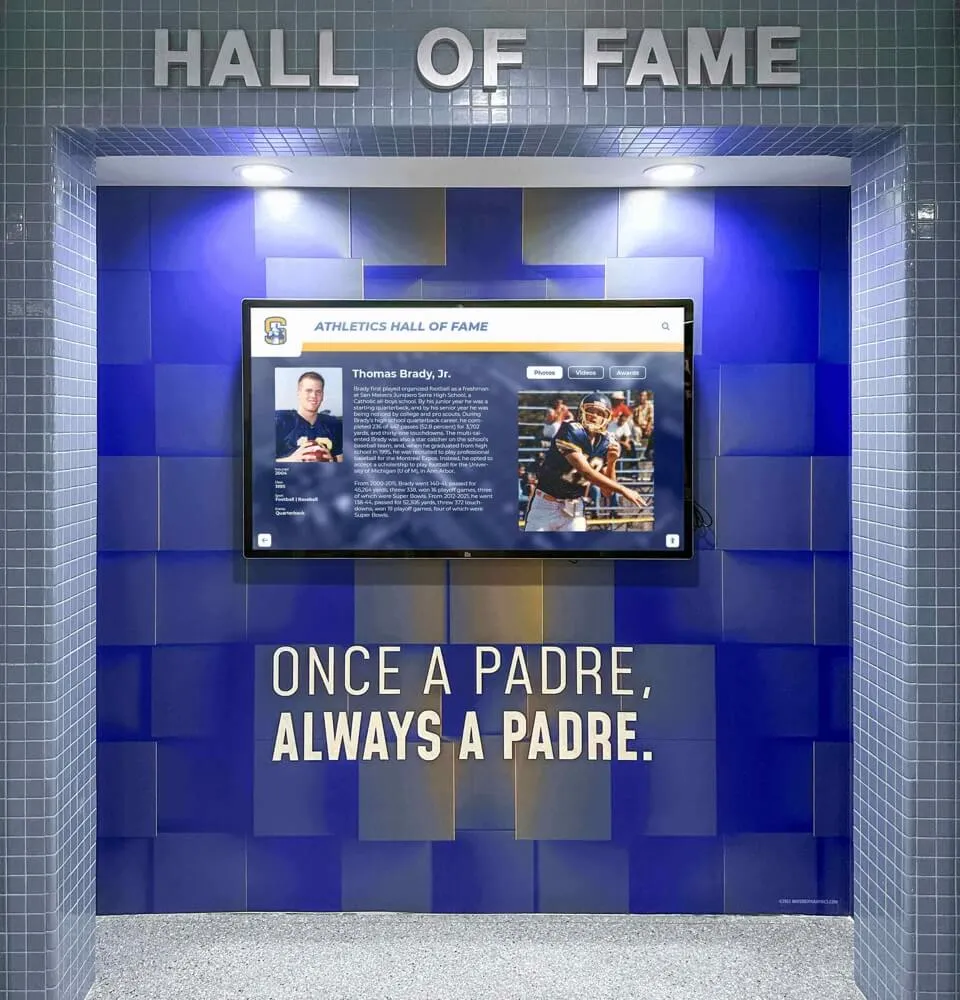
A digital hall of fame biography directory accessed from desktop, tablet, or mobile must present expandable inductee profiles—built with native details and summary elements—that work correctly for every visitor regardless of device or assistive technology
Program Snapshot: Details and Summary Audit Scope
Define the full audit scope before opening a browser or screen reader. The table below establishes the parameters for a details and summary audit at any stage of a school recognition program.
| Planning Element | Details |
|---|---|
| Primary Audience | Athletic directors, recognition program owners, IT administrators, school web managers, accessibility compliance leads, archives partners |
| What Is Being Audited | Every <details> element and its associated <summary> element on inductee profile pages, roster directory pages, and any biography index page that presents expandable content for multiple inductees |
| Authoritative References | MDN: The Details disclosure element; MDN: The Summary disclosure summary element |
| WCAG Criteria | 4.1.2 Name, Role, Value — Level A (correct role, accessible name, state); 2.1.1 Keyboard — Level A (all functionality operable by keyboard); 1.3.1 Info and Relationships — Level A (state conveyed through semantics, not only visually) |
| Tools Required | Chrome or Firefox with DevTools Accessibility panel (built-in, free); NVDA on Windows (free) or VoiceOver on macOS (built-in); keyboard without a mouse |
| Time Investment | 30–45 minutes for an initial audit of all biography disclosures on one directory template; 15 minutes for a targeted re-check after any template or biography content update |
| Failure Consequence | Screen-reader users cannot determine whose biography will appear before expanding; keyboard users cannot open or close biography disclosures; expanded/collapsed state is not announced; redundant ARIA overrides suppress native browser announcements |
| Pass Condition | Every <summary> carries a label naming the inductee and their context; Enter and Space toggle the disclosure; screen reader announces the expanded or collapsed state; open attribute is present when the biography is visible and absent when it is not; redundant role="button" and aria-expanded attributes are absent from native elements |
| ADA Relevance | Public school recognition websites accessible to alumni, families, and community members carry digital accessibility obligations; biography disclosure widgets that cannot be navigated by keyboard or that suppress state announcements create barriers for visitors using assistive technology |
What the Native <details> and <summary> Elements Provide
The <details> element is a browser-native disclosure widget. When a browser encounters this element without the open attribute, it collapses the content inside it—making that content invisible and unreachable by keyboard—and renders only the element’s <summary> child as a visible, activatable control. When the visitor activates the summary (by clicking, pressing Enter, or pressing Space), the browser adds the open attribute to the <details> element, reveals the hidden content, and emits a toggle event. When the visitor activates the summary again, the browser removes open, hides the content, and emits another toggle event.
As described in the MDN documentation for the summary element, the <summary> element has an implicit ARIA role of button and is focusable by default. The browser exposes its expanded or collapsed state through the accessibility API automatically—no aria-expanded attribute is required on the native <summary> element. Adding aria-expanded manually to a native <summary> creates a risk: if the JavaScript managing that attribute falls out of sync with the browser’s native open state, the screen reader announces the wrong state. The correct behavior is to trust the browser’s native semantics and not add attributes the browser already provides.
The disclosure widget the browser builds from <details> and <summary> has three characteristics relevant to a hall of fame biography audit:
First: The <summary> text is the only content visible when the disclosure is collapsed. The rest of the biography—career narrative, statistics, award list, coaching tenure—is hidden until the visitor expands the disclosure. This makes the summary text the most consequential labeling decision on a biography directory page. If the summary reads “Read more” instead of “Jordan Ramirez biography” or “Jordan Ramirez, Baseball, Class of 1994,” a screen-reader user navigating through summaries on a page of 40 inductees hears “Read more, collapsed, button” forty times in a row with no way to identify whose biography each disclosure contains.
Second: Content inside a collapsed <details> element is not reachable by keyboard. Any links, buttons, or form controls inside the biography that are hidden by the disclosure cannot receive keyboard focus until the visitor expands the disclosure. This is correct and expected behavior. However, it means the audit must confirm that the summary itself is reachable by Tab and that it responds to Enter and Space—otherwise keyboard users cannot reach the biography content at all.
Third: The name attribute on <details> creates an exclusive group. When two or more <details> elements on the same page share the same name attribute value, the browser treats them as a group and closes other open disclosures when a new one is opened—like a set of radio buttons applied to biography panels. This behavior changes the user experience for visitors reading inductee bios sequentially. If the grouping is intentional (the program wants one biography open at a time), the attribute is correct. If it was added without this purpose in mind, a visitor who opens two biographies to compare them will find the first one closing automatically—a confusing and inaccessible experience.
Step-by-Step Digital Hall of Fame Details and Summary Audit
Run these steps on the biography directory page that presents the most inductees simultaneously. Repeat on any sport-category page or decade-filtered view that uses the same template.
Step 1: Inventory All <details> and <summary> Elements on the Page
Open the biography directory page in Chrome or Firefox. Open DevTools (F12). In the Elements panel, search for <details to identify every disclosure widget on the page. For each <details> element, note:
- The text of the associated
<summary>child - Whether the
<details>element carries theopenattribute on initial load - Whether the
<details>element carries anameattribute
Record the total count of disclosure widgets. If the page renders more inductees than are visible in the initial viewport—because the list loads additional inductees on scroll—scroll to load the full list before completing the inventory. Audit all instances, not only those visible without scrolling.
Step 2: Evaluate the Summary Label for Each Disclosure
For each <summary> element, read the text content and ask: can a visitor who hears only this text, in isolation, identify whose biography this disclosure contains?
A summary that passes this test names the inductee specifically. Examples of passing summary text for a biography disclosure:
- “Jordan Ramirez biography”
- “Jordan Ramirez — Varsity Baseball, Class of 1994”
- “Read Jordan Ramirez’s full profile”
A summary that fails this test omits the inductee’s name entirely. Common failure patterns:
- “Read more”
- “View biography”
- “Expand”
- “+”
A summary that includes only the inductee’s name with no additional context is acceptable for most hall of fame implementations, but a summary that adds sport, year, or role (“Jordan Ramirez, Head Football Coach, 1987–2003”) makes it easier for a visitor scanning a long list to identify profiles without expanding each one.
Headings inside the <summary> element—for example, <summary><h3>Jordan Ramirez</h3></summary>—are permitted by the HTML specification and can help a screen-reader user navigate biography summaries using heading navigation (the H key in NVDA Browse mode). Test that the heading level is appropriate to the page’s existing heading hierarchy and does not skip levels. A heading inside <summary> contributes to the page’s outline, so <h3> inside a <summary> that appears under an <h2> section is correct; <h3> inside a <summary> that appears under an <h4> section breaks the heading order.
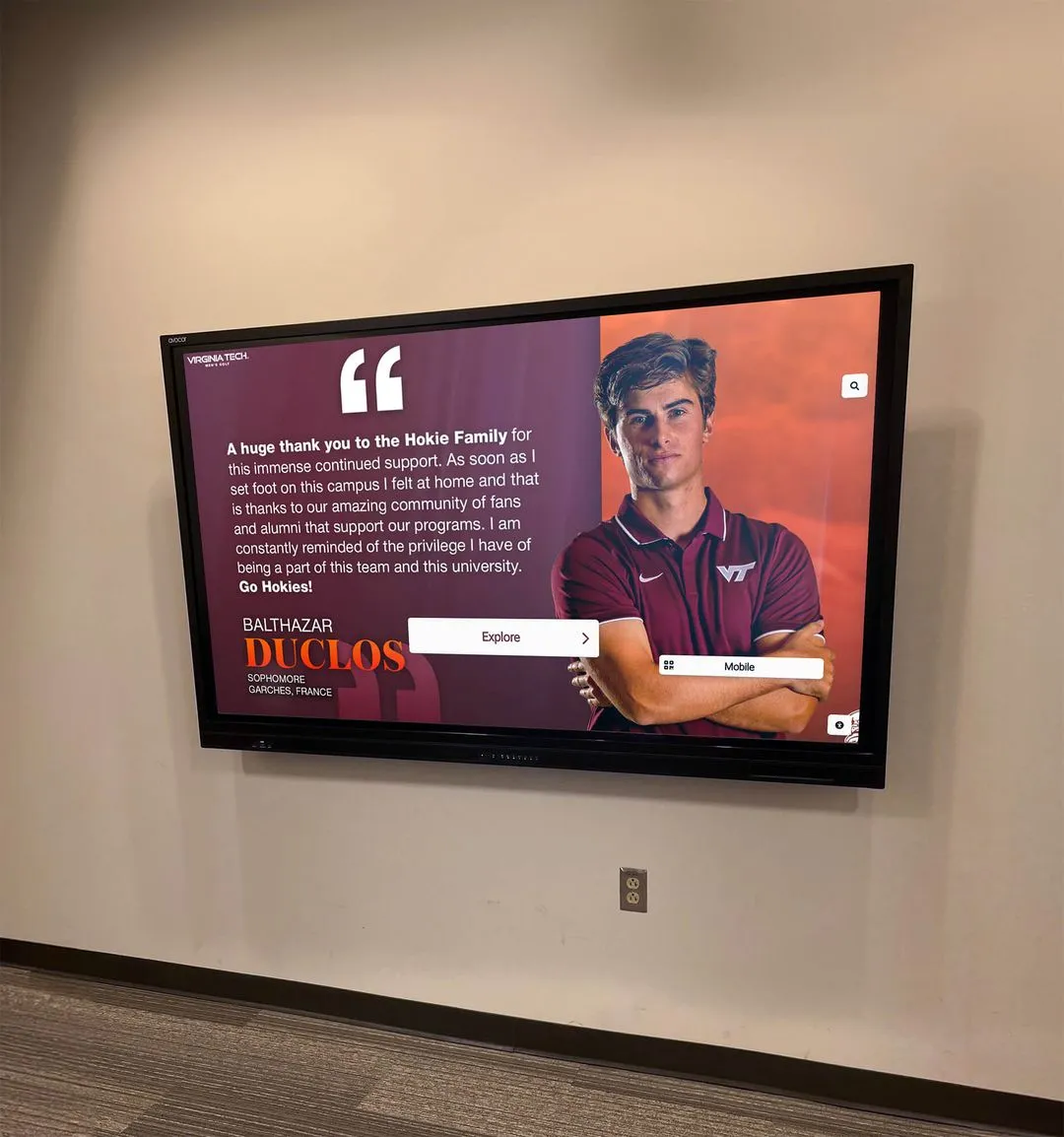
Students, alumni, and family members navigating an inductee biography directory use the summary label to identify whose profile each expandable disclosure contains—a label that names only "Read more" fails every visitor who cannot see the adjacent inductee card
Step 3: Test Keyboard Toggle Behavior
Without using a mouse, Tab through the page until a <summary> element receives focus. Confirm that:
Tab reaches the summary. If Tab skips over all biography summaries, the
<details>elements have been modified in a way that removes the native focusability of<summary>. Check fortabindex="-1"on the summary element and remove it.Enter expands the disclosure. Press Enter on the focused summary. The disclosure should expand immediately—biography content should become visible below the summary. If Enter has no effect, a script may be overriding the default behavior with
event.preventDefault(). Identify and correct the override.Space also expands the disclosure. Press Space on the same focused summary (collapse it first if it is open). Space should also toggle the disclosure. Both keys must work; some implementations incorrectly bind only Enter while allowing the browser’s default Space behavior to scroll the page instead.
Enter or Space collapses an open disclosure. With the disclosure expanded, press Enter or Space again. The disclosure should collapse, hiding the biography content.
Focus remains on the summary after toggle. After expanding or collapsing, keyboard focus must remain on the
<summary>element. If focus moves elsewhere after toggle, a script is interfering with the browser’s native behavior.
Step 4: Verify the open Attribute Reflects Actual State
In DevTools Elements panel, inspect a <details> element after expanding it. The open attribute should appear in the HTML. Collapse the disclosure and confirm that open is removed from the element’s attribute list.
If the open attribute does not change when the disclosure is toggled, the biography content is likely being shown and hidden by a CSS class toggle or a JavaScript style.display change rather than through the native <details> mechanism. In that case, the browser does not manage the expanded/collapsed state semantics. A screen reader may not announce the state change at all, or may announce “button” with no state information, because the element has been effectively bypassed.
A <details> element with open in its initial HTML renders with the biography content visible on page load. This is the correct pattern for a “default open” biography—for example, the featured inductee’s profile on a recognition ceremony landing page. Verify that any <details> element carrying open on initial load is intentional and that the visual state matches (the biography content is visible, not hidden by CSS).
Step 5: Check for Redundant ARIA Attributes
Inspect each <summary> and <details> element in the DevTools Elements panel. Look for the following attributes. Each one listed below is redundant on a native <details> or <summary> element and should be removed unless a documented reason exists for its presence:
role="button"on<summary>: The<summary>element has an implicit role ofbutton. Addingrole="button"explicitly is redundant and may suppress the browser’s built-in state announcements in some screen reader and browser combinations.aria-expandedon<summary>: The browser manages the expanded/collapsed state through theopenattribute on<details>. Addingaria-expandedto<summary>creates a second state declaration that may conflict with the browser’s native state if the attribute is not updated in perfect sync with theopenattribute.role="group"orrole="region"on<details>: The<details>element has an implicit ARIA role ofgroup. Adding another role overrides this and changes the semantics announced to screen readers.aria-hidden="true"on biography content inside<details>when closed: The browser hides content inside a closed<details>from assistive technology automatically through the accessibility API. Addingaria-hidden="true"to the content is redundant and may interfere with correct state reporting when the disclosure opens.
Step 6: Evaluate name Attribute Grouping
If any <details> elements on the page carry a name attribute, identify all elements that share the same name value. Confirm that the grouping is intentional by asking the recognition program team: is it acceptable for a visitor to have only one inductee biography open at a time?
If the grouping is intentional, verify that the behavior is predictable: opening biography B while biography A is already open should automatically close biography A, and the visitor should not lose their reading position in biography A’s content without warning. For long biography texts, the automatic close may disorient a visitor who was partway through reading. Consider whether the grouping is appropriate for the content length in this specific implementation.
If the grouping was not intentional, remove the name attribute from all affected <details> elements to restore independent toggle behavior.
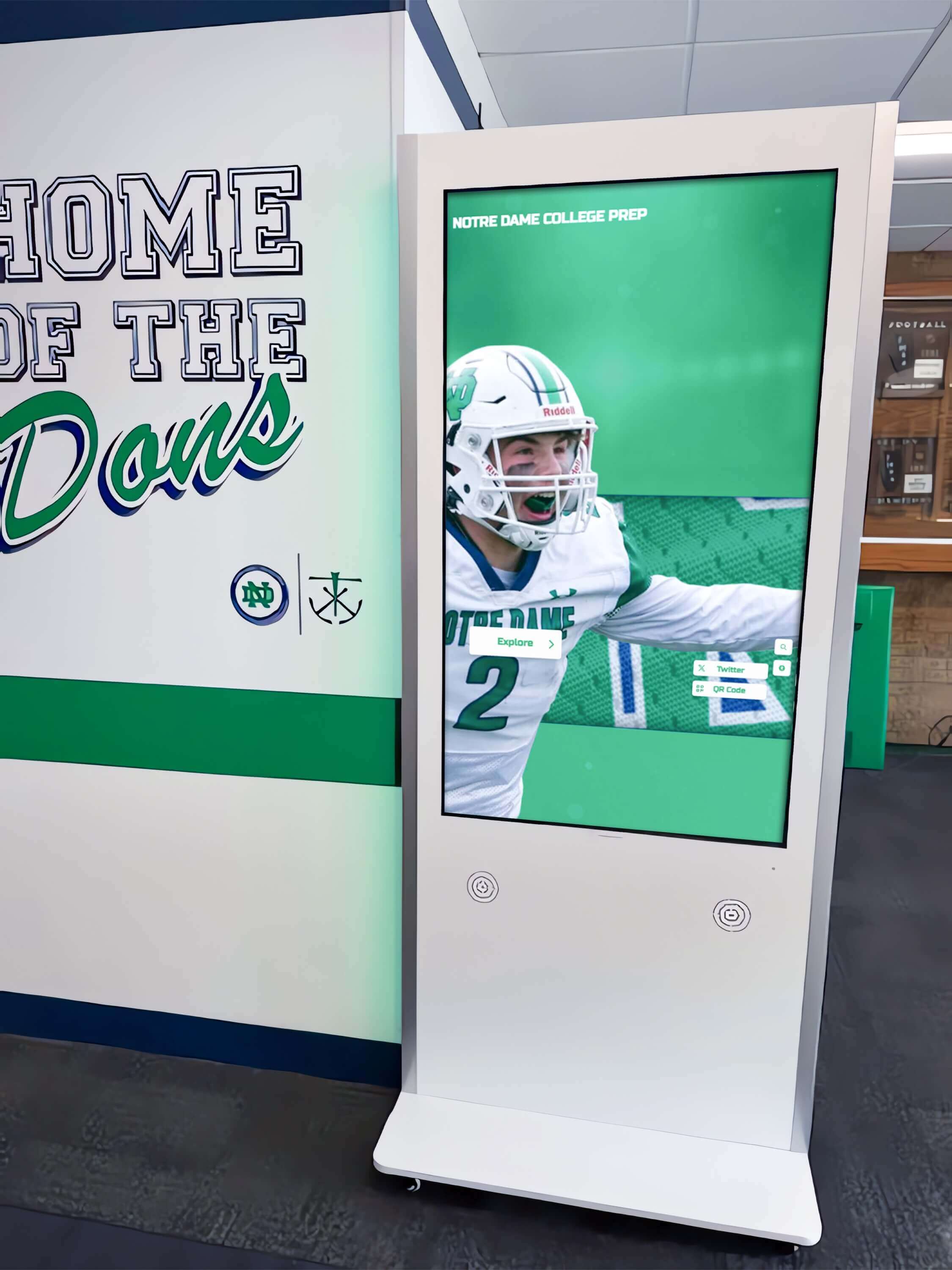
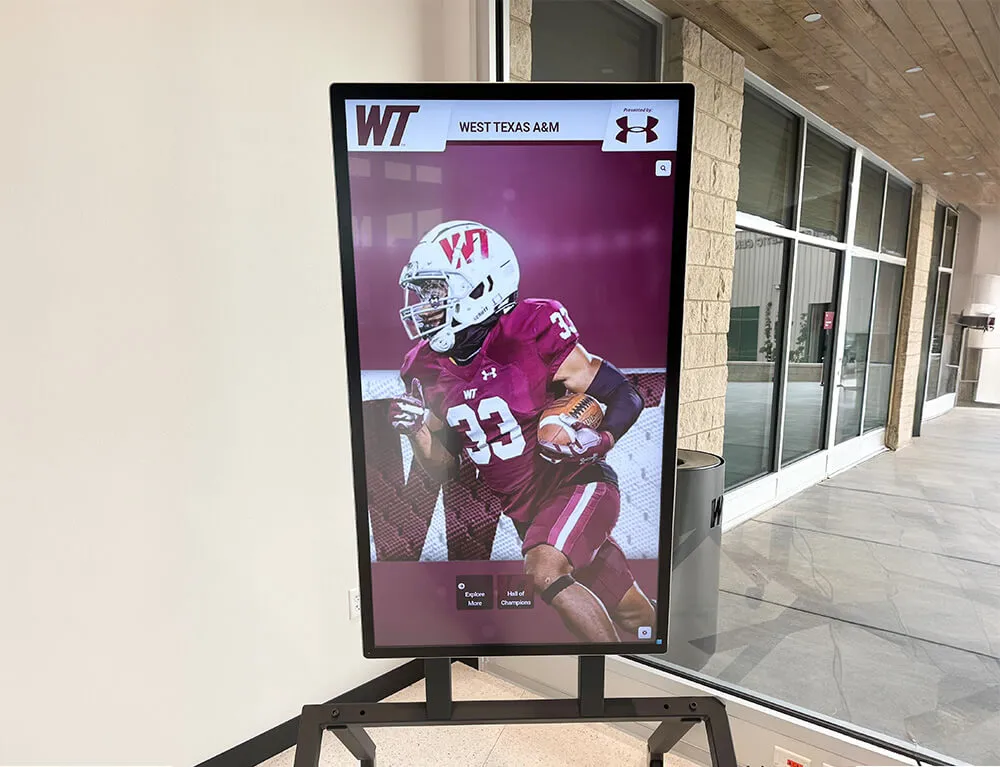
A hallway kiosk presenting expandable inductee biography panels must serve every visitor who approaches the screen—including those navigating by keyboard or using a connected assistive device—with correctly labeled and keyboard-accessible details disclosures
Step 7: Test with a Screen Reader on the Live Biography Directory
With NVDA on Windows (free download) or VoiceOver on macOS (built-in), navigate to the biography directory page. Use Tab to move through the page and focus successive biography summaries.
What a passing announcement sounds like in NVDA with Chrome: “Jordan Ramirez biography, collapsed, button” — or, if the summary contains a heading — “Jordan Ramirez, heading level 3, collapsed, button.” After pressing Enter: “Jordan Ramirez biography, expanded, button.” After pressing Enter again: “Jordan Ramirez biography, collapsed, button.”
Common failure announcements to investigate:
- “Read more, collapsed, button” forty times — summary labels do not identify inductees; fix the summary text.
- “Jordan Ramirez biography, button” with no “collapsed” or “expanded” — the browser’s native state is not reaching the accessibility API, or
aria-expandedis overriding it incorrectly; removearia-expandedfrom the<summary>and verify theopenattribute toggles correctly in the DOM. - Silence after pressing Enter — a script is overriding the default toggle behavior; investigate
event.preventDefault()calls on the summary’s click or keydown handler. - “Jordan Ramirez biography, button, group” — a
role="group"orrole="region"attribute has been added to the<details>element; remove it.
Test with VoiceOver on macOS as a second verification. VoiceOver interacts with native <details> and <summary> elements using a distinct announcement pattern from NVDA. Confirm that VoiceOver also announces expanded and collapsed states correctly. If one screen reader announces state changes correctly but another does not, the issue may be browser-specific; note the combination and test the fix in both environments before closing the audit.
Execution Timeline: Plan, Audit, Fix, Verify
| Phase | Activities | Responsible Party | Cadence |
|---|---|---|---|
| Plan | Inventory all pages in the recognition directory that use <details> and <summary> for biography disclosures; confirm with the program team which biography disclosures should be grouped with the name attribute and which should be independently toggleable; list any known custom JavaScript modifications to the native toggle behavior | IT lead or recognition platform administrator | Once at initial platform audit; once after any biography layout or template update |
| Audit | Run all seven audit steps on the biography directory with the largest inductee count; document each <summary> label, keyboard behavior, open attribute state, redundant ARIA attributes, and screen-reader announcement outcomes per inductee panel | IT staff or accessibility coordinator | At platform launch; after any biography template or CMS update; at least annually before each recognition season |
| Fix | Update summary labels to name the inductee explicitly; remove role="button", aria-expanded, and other redundant ARIA from native elements; correct scripts that override browser default keyboard behavior; add or remove name attributes per the intentional grouping decision; restore the open attribute mechanism where it has been bypassed | Developer or recognition platform vendor | Within 14 days of identified failures; immediately if biography disclosures are unreachable by keyboard |
| Verify | Re-run screen-reader navigation on the repaired biography directory template; confirm all summaries announce inductee name and state; confirm Tab, Enter, and Space all behave correctly; run axe DevTools to confirm no WCAG 4.1.2 violations on disclosure elements | IT staff | Immediately after each fix is deployed to the live site |
| Document | Record audit date, biography pages reviewed, <details> elements audited, summary labels before and after, redundant ARIA attributes removed, and screen-reader test outcomes; retain documentation for accessibility compliance records | Administrative lead | Each audit cycle |
Maintaining long-term inductee biography archives requires more than accessible HTML patterns. Schools that digitize historical profiles from paper yearbooks and program books must also protect those records against digital degradation. The athletic archive bit rot detection and recovery checklist describes fixity verification workflows for schools managing decades of inductee data—a data integrity concern that directly affects whether the biography content that expands from a <details> disclosure remains accurate over time.
Acceptance Criteria: Evidence and Test Table
Use this table to record the outcome of each check. The pass condition column defines the minimum standard for a production biography directory. The “School Acceptance Criterion” column describes a proposed standard that schools can adopt as their internal requirement; it is not an official WCAG standard.
| Check | Pass Condition | School Acceptance Criterion | Common Failure | Who Verifies |
|---|---|---|---|---|
| Summary label names the inductee | <summary> text identifies the inductee by name before the biography is expanded | Every summary contains the inductee’s full name and at least one additional identifier (sport, class year, or role) | “Read more” or “Expand” used as summary text across all biography disclosures | Recognition program lead / IT |
| Keyboard focus reaches summary | Tab moves focus to each <summary> element in logical page order | All biography summaries reachable by Tab without skipping any | tabindex="-1" on <summary> removes it from tab order | IT / developer |
| Enter toggles the disclosure | Pressing Enter on a focused <summary> expands and collapses the biography | Enter toggles correctly in Chrome, Firefox, and Safari on both Windows and macOS | Script calls event.preventDefault() on Enter; biography does not open | Developer |
| Space toggles the disclosure | Pressing Space on a focused <summary> expands and collapses the biography | Space toggles correctly; page does not scroll instead | Space key scrolls the page; script does not prevent Space default; biography does not open | Developer |
open attribute reflects actual state | open appears in <details> HTML when biography is visible; absent when collapsed | DevTools Elements panel shows open toggling correctly with each keyboard or mouse activation | Biography is shown/hidden by CSS class, not by open; browser state mismatch | IT / developer |
No redundant aria-expanded on <summary> | <summary> element carries no aria-expanded attribute | Accessibility pane shows state from browser native API, not from a manually set attribute | aria-expanded="false" present; becomes stale when script fails to update it | Developer |
No role="button" on <summary> | <summary> carries no explicit role attribute; implicit role is “button” | DevTools Accessibility pane shows role as “button” from native semantics | role="button" added; may suppress collapsed/expanded state in some browsers | Developer |
| Screen reader announces expanded state | NVDA or VoiceOver announces “expanded” after Enter on a collapsed summary | Expanded announcement confirmed in NVDA + Chrome and VoiceOver + Safari | State change announced by none of the tested screen reader / browser combinations | IT / accessibility |
| Screen reader announces collapsed state | NVDA or VoiceOver announces “collapsed” on a collapsed summary | Collapsed announcement confirmed before and after toggling in all test combinations | No “collapsed” in announcement; visitor cannot distinguish open from closed summaries | IT / accessibility |
name grouping is intentional | All <details> elements with shared name values are intentionally grouped; program team has confirmed the exclusive-open behavior is desired | Intentional grouping is documented; biography page behavior matches the documented intent | name attribute added by template default with no intentional grouping; bios close unexpectedly | Recognition program lead |
| Focusable content unreachable when closed | No link, button, or form control inside a closed <details> is reachable by Tab | Keyboard cannot reach content inside collapsed biographies; content is visible and reachable only after expanding | CSS positions bio content as visible but <details> is used for the wrapper; content accessible when it should not be | Developer |
Display Integration: Where Biography Disclosures Appear on School Recognition Platforms
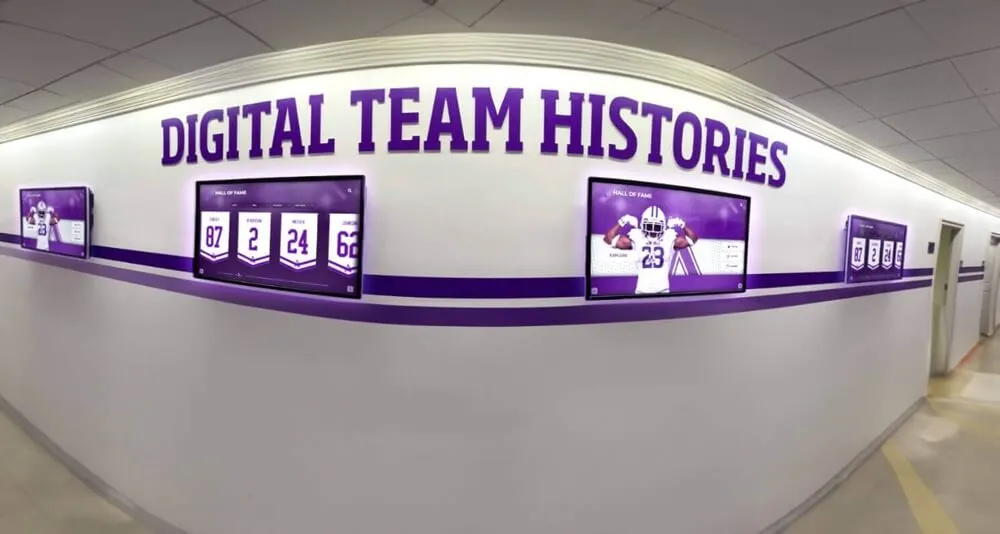
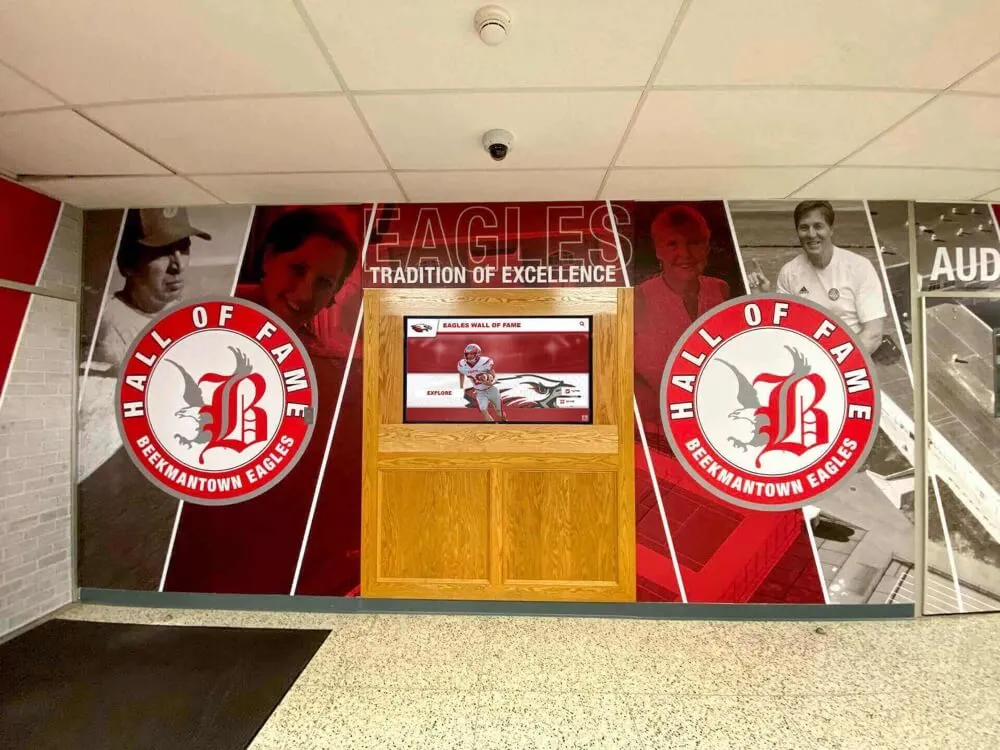
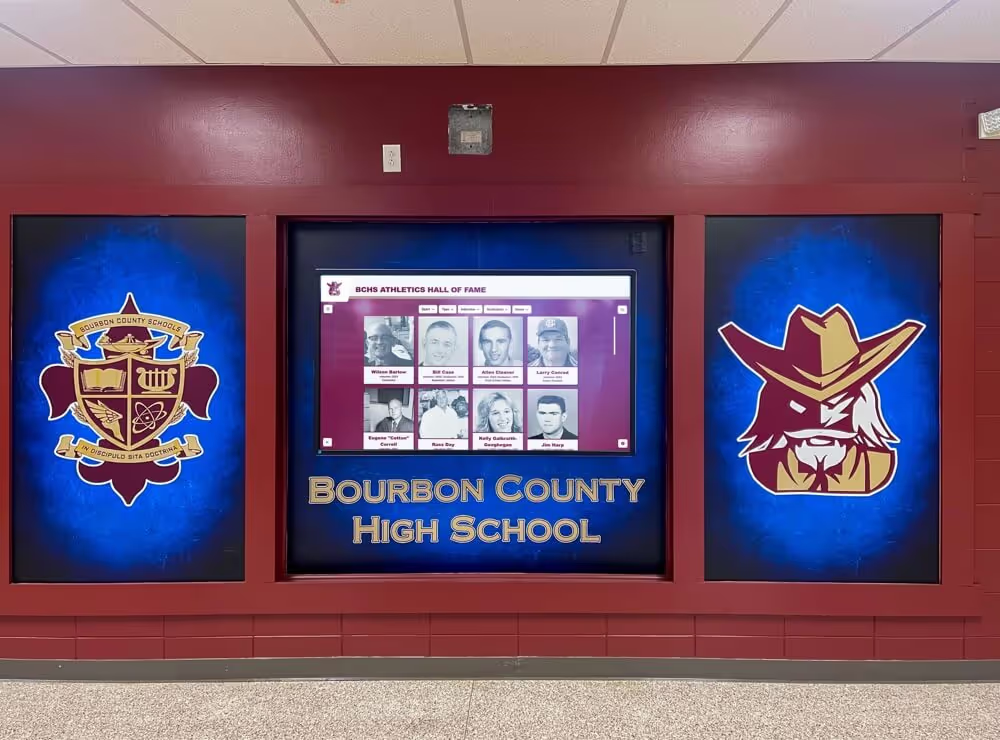
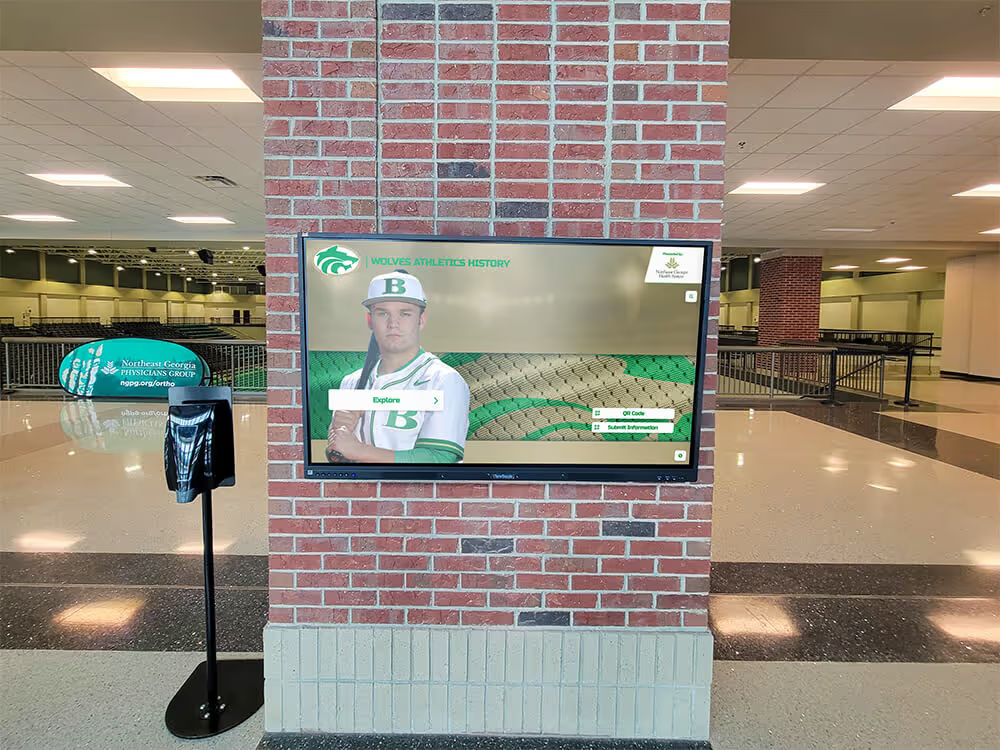
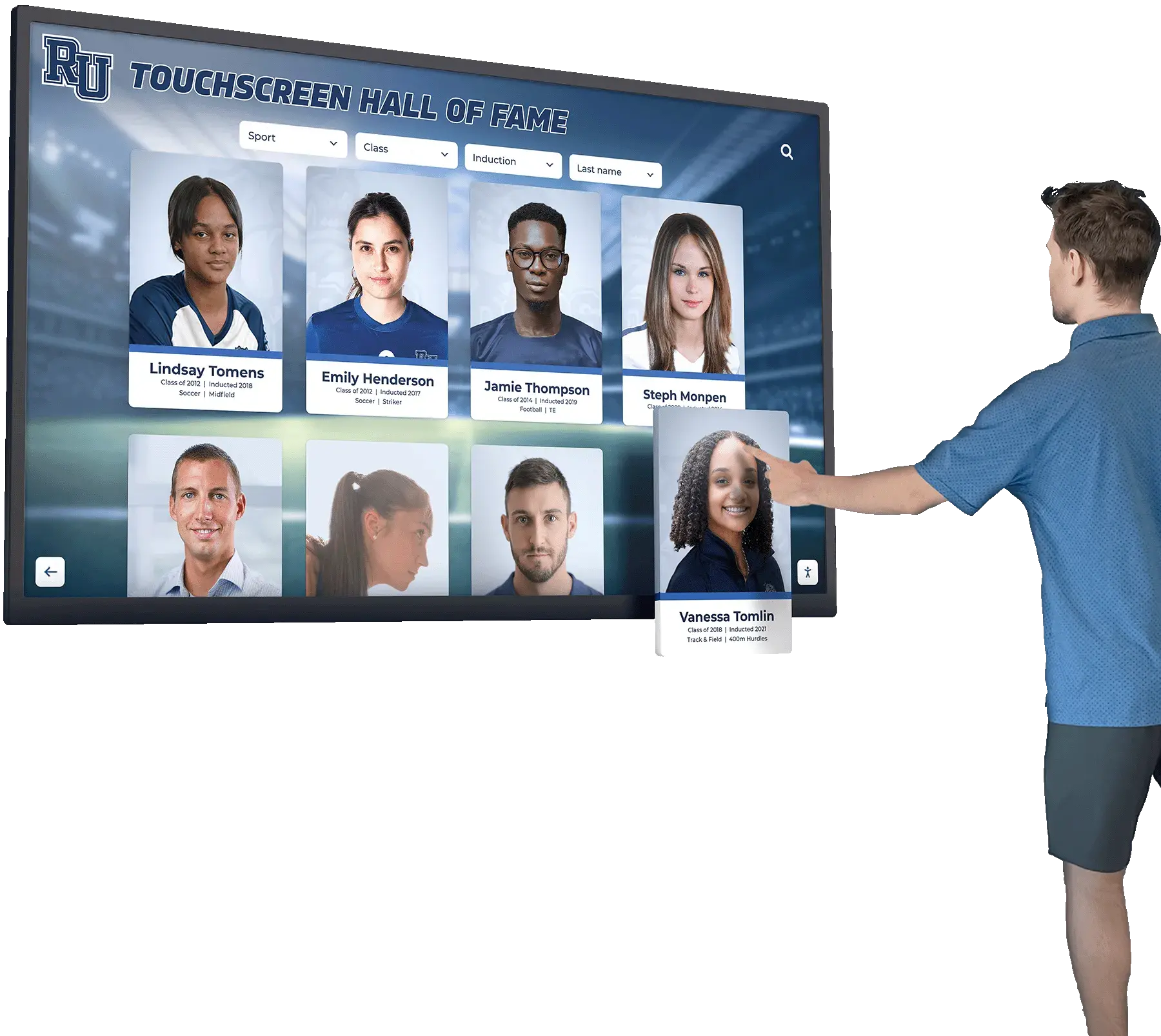
A school digital hall of fame typically presents biography disclosures in two environments: a public web directory accessed from any browser or device, and a browser-based touchscreen kiosk mounted in a school lobby, athletic hallway, or trophy corridor.
Web directory: Alumni and families who access the recognition directory from home, school, or a mobile device may use screen readers, screen magnification software, or keyboard-only navigation. A <details> biography disclosure that lacks an accessible summary label or cannot be toggled by keyboard creates a direct barrier for these visitors. The web directory is the primary test environment for the details and summary audit.
Touchscreen kiosk: Touchscreen kiosk interfaces frequently use the same HTML templates as the web directory. A visitor who connects a keyboard or an assistive device to the kiosk encounters the same <details> markup. Because templates are typically shared, fixing a summary label or removing a redundant aria-expanded in the web directory template also repairs the kiosk interface.
QR code entries to biography pages: Many school recognition installations mount QR codes on trophy cases and display walls, linking visitors directly to an inductee’s biography page. A visitor who scans a QR code from a physical hallway display and uses a screen reader on their phone will encounter the <details> biography disclosure on the first page they see. The summary label is the first text they hear about the inductee—before they have any visual context from the card layout.
Schools making the transition from physical trophy cases to digital recognition directories should understand the accessibility implications of the web platform they are adopting. The digital trophy case guide for schools making the switch to digital recognition covers the broader context of this transition, including how digital platforms expand the scope of inductee biography content beyond what physical plaques can carry—making accessible, expandable biography disclosures more important, not less.

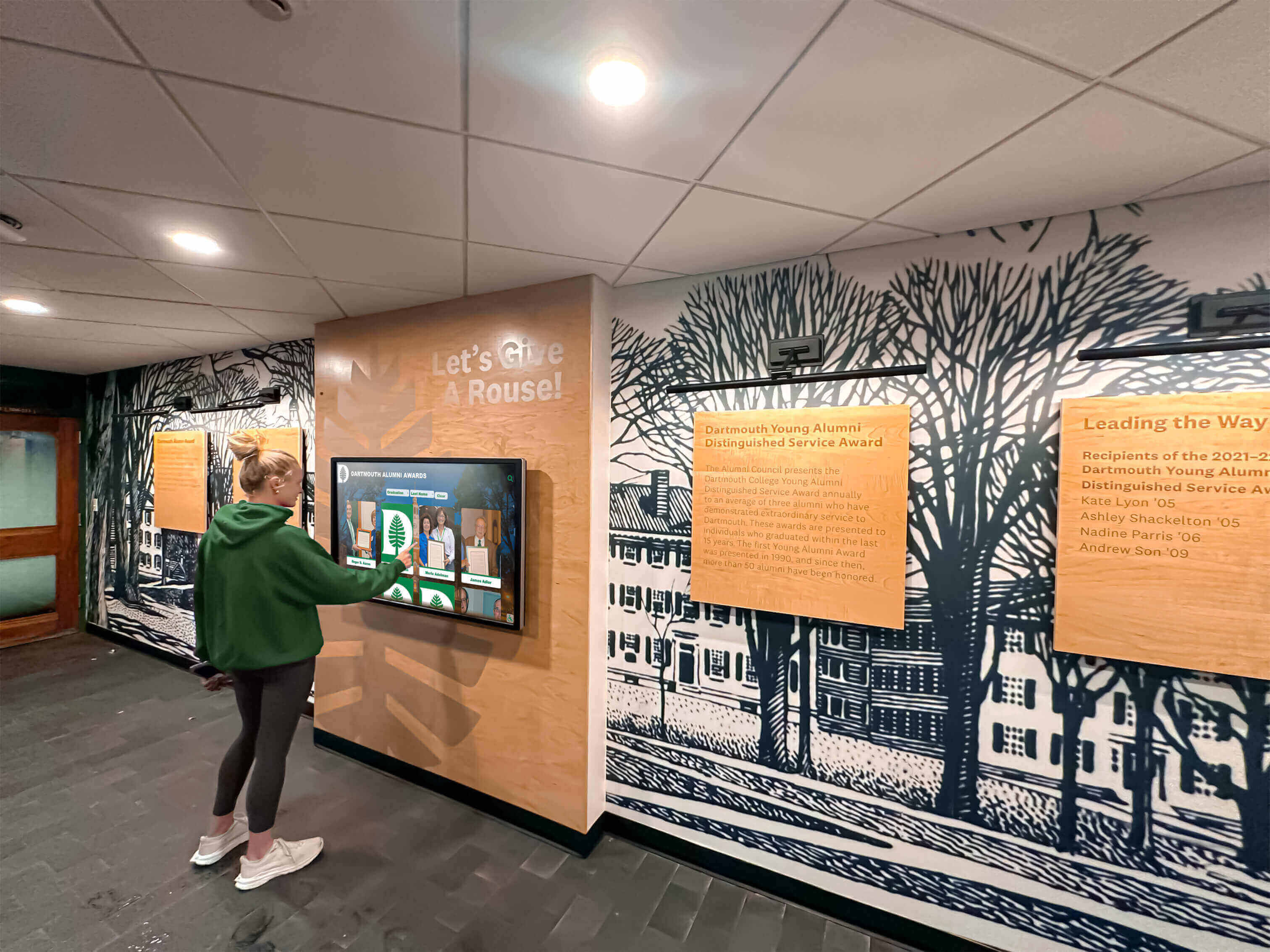
Campus lobby touchscreen kiosks serving inductee biography directories must present expandable disclosures that are navigable by keyboard, announce expanded and collapsed states to screen readers, and carry summary labels that identify each inductee before the biography is opened
Physical trophy cases that coexist with digital recognition directories represent a preservation challenge as well as a display one. For schools that maintain both physical and digital inductee records, the environmental conditions of the physical installation affect the longevity of the underlying source materials. The trophy case humidity control guide for protecting school awards, photos, jerseys, and documents addresses the environmental standards that protect physical inductee materials—materials that may be the only primary source for the biography content shown in a <details> disclosure on the digital platform.
Comparing Approaches: Native <details> vs. Custom Accordion Components
Some recognition platform implementations use custom accordion components—<div> elements with JavaScript toggle logic and manual ARIA management—instead of native <details> and <summary> elements. Understanding the difference shapes the audit’s scope and the remediation path when failures are found.
Native <details> and <summary>: The browser manages toggle behavior, open attribute state, keyboard handling for Enter and Space, and the accessibility API announcement of the expanded and collapsed state. The developer must provide a meaningful <summary> label, avoid adding redundant ARIA, and confirm that no JavaScript overrides the browser’s default behavior. The audit confirms that the browser’s native semantics are intact.
Custom accordion with ARIA: A <div> or <button> element with role="button", aria-expanded, and a JavaScript toggle function replicates the behavior the browser provides natively. The developer must set aria-expanded="false" on initial render, update it to aria-expanded="true" when the content opens, manage the hidden attribute or CSS display property on the biography panel, and trap focus or allow natural flow as appropriate. Every attribute the browser would provide natively must be supplied and maintained manually.
Applying custom accordion ARIA to elements that are already native <details> and <summary> creates conflicts rather than improvements. If your platform has added aria-expanded to a native <summary> element, that attribute will be announced alongside the browser’s native state in some screen reader and browser combinations. In others, the manually set attribute will shadow the browser’s value. Neither outcome is consistent or predictable. The correct approach on a native <details> element is to remove the redundant ARIA and rely on the browser’s built-in announcement.
Schools evaluating which recognition platform to adopt—and whether that platform uses native HTML elements or custom component libraries—can consult comparative tool reviews to understand the landscape. The 10 best hall of fame tools for athletics, donors, arts, and history reviews options across a range of school and institutional recognition program types.
Frequently Asked Questions
Why does NVDA not always announce “expanded” or “collapsed” on a <details> element?
NVDA’s announcement behavior for native <details> and <summary> elements has varied across browser and NVDA version combinations. NVDA with Chrome has historically provided the most consistent expanded and collapsed announcements for these elements. If NVDA with Firefox or Internet Explorer does not announce state, this may reflect a known browser or NVDA behavior rather than a coding error. Test the specific combination the school’s recognition platform recommends or supports, and document the behavior observed. If the primary target environment (school computer lab, kiosk browser) uses a combination where state announcements are unreliable, consider supplementing the summary with static text that includes the inductee’s name prominently, so that even a state-less announcement provides useful identifying information.
Should <summary> contain a heading element, a plain text string, or both?
Both approaches are valid HTML. A <summary> that contains only plain text—“Jordan Ramirez biography”—is focusable and announces correctly. A <summary> that contains a heading element—<summary><h3>Jordan Ramirez</h3></summary>—also announces correctly and additionally contributes the inductee’s name to the page’s heading outline, allowing screen-reader users to jump between biography summaries using heading navigation shortcuts (H in NVDA Browse mode). For a directory listing many inductees, the heading-inside-summary pattern is often more useful. Confirm that the heading level is consistent with the page’s heading hierarchy before adopting this pattern across a biography directory.
Can a <details> element be open by default for a featured inductee?
Yes. Adding the open attribute directly to the <details> element in the HTML renders the biography content visible and accessible on page load. No JavaScript is needed to open a disclosure by default. The screen reader will announce “expanded” when focus reaches that summary. If you use the name grouping attribute and one <details> carries open by default, that element will be the initially open disclosure in the group; activating another will close it automatically.
Is the name grouping attribute widely supported in browsers?
The name attribute for exclusive <details> grouping is a relatively recent addition to the HTML specification. Browser support has grown over time, but schools should verify current support data for the browsers used by their target visitors before relying on the exclusive-open behavior as a primary navigation pattern. If browser support is incomplete in the target environment, opening a second biography while a first is already open may not close the first—and the page may allow multiple biographies open simultaneously even when the intent was exclusive-open.
What happens when a visitor uses keyboard navigation inside an open biography?
Once a <details> disclosure is expanded, all content inside it—text, links, buttons, images with alt text—is part of the normal reading flow and reachable by Tab and arrow keys. A visitor who has expanded a biography and Tabbed into the content inside it can read it using standard keyboard and screen-reader navigation. When they finish reading and Tab past the last focusable element inside the biography, focus moves to the next focusable element in the page—typically the summary of the next inductee’s biography. This is the expected behavior and requires no additional intervention.
Should we audit biography disclosures on the school’s athletics awards evaluation rubric pages as well?
If your athletics awards rubric is published on a recognition page that also uses <details> disclosures to show criteria or scoring breakdowns, yes—apply the same audit steps to those elements. An athletic awards rubric that scores leadership, sportsmanship, stats, and display eligibility may present multiple criteria in a single page; if those criteria are wrapped in disclosure widgets, accessible summary labels and keyboard toggle behavior are equally important for evaluators and committee members as for biography directory visitors.
Reusable Artifact: Details and Summary Audit Checklist for Biography Directories
Copy this checklist before each platform launch, template update, or annual accessibility review. Assign a second reviewer to the screen-reader verification section.
Pre-Audit Setup
- Chrome or Firefox DevTools open on the biography directory page with the largest inductee count
- NVDA (Windows) or VoiceOver (macOS) available for screen-reader verification
- Keyboard without a mouse for all interaction testing
- List of all
<details>elements on the page (from DevTools Elements search for<details)
Summary Label Audit
- Every
<summary>contains the inductee’s full name - No
<summary>uses generic text (“Read more,” “View biography,” “Expand,” or “+”) without a name - Headings inside
<summary>elements are at the correct level for the page heading hierarchy - Summary labels are unique across all biography disclosures on the page
Keyboard Behavior
- Tab reaches every
<summary>element; none are skipped - Enter expands and collapses each biography disclosure
- Space also expands and collapses each biography disclosure (page does not scroll instead)
- Keyboard focus remains on
<summary>after each toggle
open Attribute and State
-
openattribute appears on<details>in DevTools when biography is visible -
openattribute is absent from<details>in DevTools when biography is collapsed - No biography content is shown or hidden by CSS class toggle instead of the
openmechanism
Redundant ARIA Check
- No
<summary>carriesaria-expanded - No
<summary>carriesrole="button"or any other explicit role attribute - No
<details>carriesrole="group"orrole="region"overriding the native role - No
aria-hidden="true"is applied to biography content inside<details>
name Grouping
- Every
<details>with anameattribute has been reviewed; exclusive-open behavior is intentional and confirmed by the program team -
<details>elements without an intentional grouping purpose carry nonameattribute
Focusable Content
- Tab cannot reach any link, button, or form control inside a collapsed
<details>element - All focusable content inside an expanded biography is reachable by Tab in logical order
Screen-Reader Verification
- NVDA with Chrome announces inductee name + “collapsed” + “button” for a closed summary
- NVDA with Chrome announces inductee name + “expanded” + “button” after pressing Enter to open
- VoiceOver on macOS announces equivalent expanded and collapsed state information
- No summary announces only “button” with no name and no state
Post-Fix
- axe DevTools returns no WCAG 4.1.2 or 2.1.1 violations on
<details>and<summary>elements - All pass conditions in the Acceptance Criteria table confirmed on the live biography directory
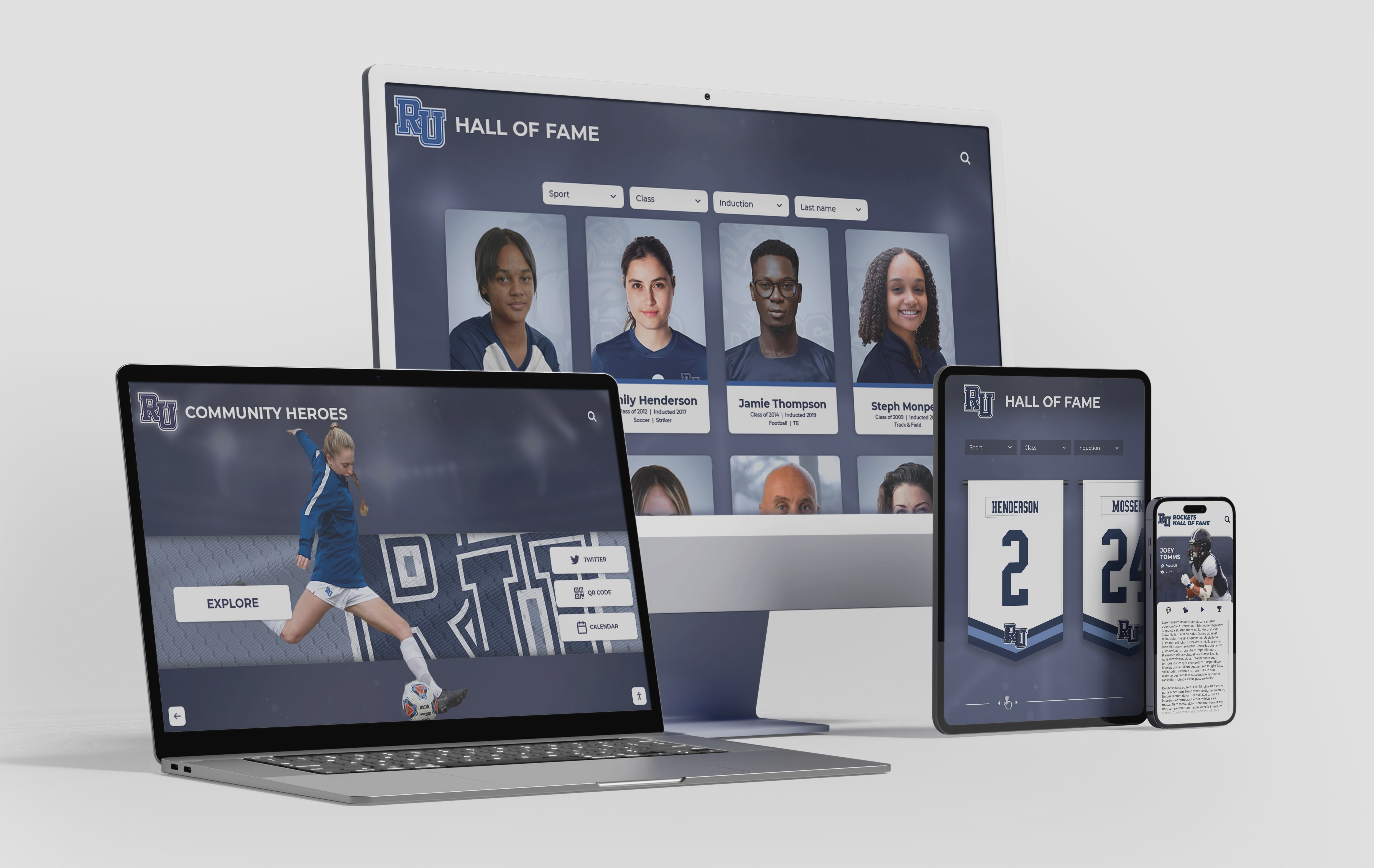
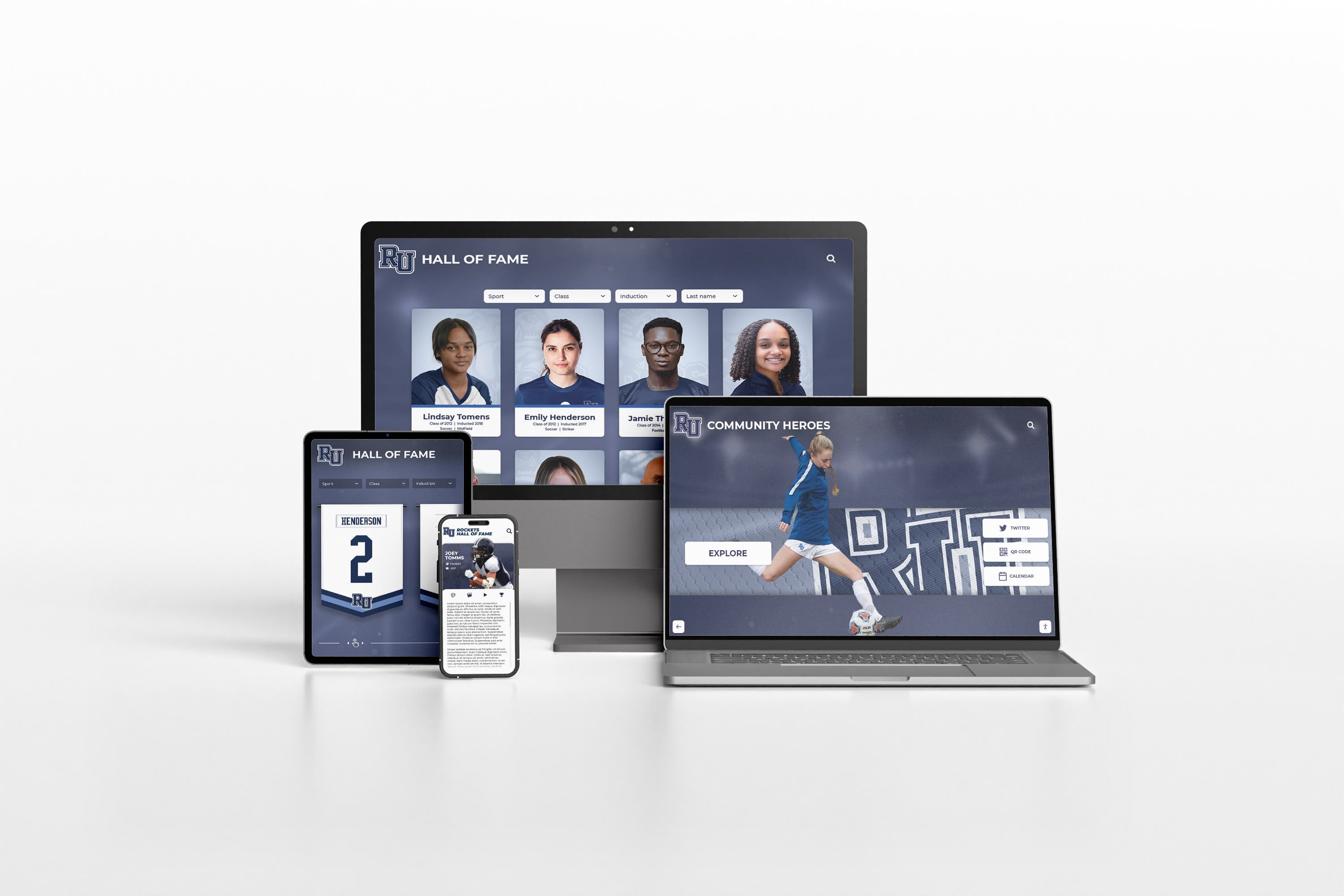
A hall of fame biography directory accessible across devices—from desktop browsers to mobile phones—must present expandable inductee profiles built on native details and summary elements that carry accurate summary labels, toggle correctly by keyboard, and announce state changes to screen readers on every device
Connecting the Details and Summary Audit to the Broader Recognition Platform
The biography disclosure audit addresses one specific layer of the recognition platform’s accessibility. Schools that have completed this check should pair it with audits of adjacent behaviors. An ARIA live region audit confirms that search and filter result counts—announced after a visitor filters the biography directory by sport or decade—are reaching screen-reader users without requiring focus to move. An ARIA modal audit confirms that inductee dialogs triggered from profile cards correctly trap focus and announce dialog boundaries. A heading-order audit confirms that headings inside <summary> elements and within biography content do not break the overall page outline that screen-reader users rely on for orientation.
A recognition program that allows every visitor—including alumni with visual impairments, parents with physical disabilities, and community members who use keyboard navigation—to read the biography of an inductee they are searching for is honoring the same spirit of recognition that motivated the hall of fame program in the first place. The native <details> and <summary> elements make this possible without complex custom code. The details and summary audit takes under an hour for a complete biography directory template and requires no tools beyond a free screen reader, a keyboard, and a browser. The result is a biography disclosure experience that delivers every inductee’s story to every visitor who comes looking for it.
Schools that are formalizing their inductee data alongside this accessibility work may find it valuable to verify the underlying biography records for factual accuracy. The hall of fame biography fact-check checklist covering names, dates, teams, and honors provides a structured verification workflow that complements the technical disclosure audit—ensuring that the biography content that expands from a correctly implemented <details> element is as accurate as it is accessible.
See Accessible Inductee Biography Displays on a Rocket Alumni Solutions Platform
Request a live demonstration to see how Rocket’s recognition platform structures expandable inductee profiles, biography directories, and WCAG 2.1 AA accessibility features—before any commitment.