Digital Hall of Fame ARIA-Roledescription Audit for Custom Touchscreen Controls
- Home /
- Digital Hall of Fame Insights & Resources /
- Digital Hall of Fame ARIA-Roledescription Audit for Custom Touchscreen Controls
The Easiest Touchscreen Solution





Live Example: Rocket Alumni Solutions Touchscreen Display
Interact with a live example (16:9 scaled 1920x1080 display). All content is automatically responsive to all screen sizes and orientations.
A digital hall of fame ARIA-roledescription audit is the process of examining every custom widget on your school’s recognition touchscreen and web directory to determine whether the aria-roledescription attribute has been applied appropriately—and, where it has been applied, whether it preserves the base ARIA semantics that screen-reader users depend on to navigate and operate the interface. The aria-roledescription attribute allows developers to replace the default role announcement (such as “button,” “slider,” or “tab”) with a human-readable description that better reflects the widget’s purpose in context. On a digital hall of fame platform, a sport-filter carousel might carry aria-roledescription="inductee category selector" instead of the default “group” announcement, or a decade-range draggable control might carry aria-roledescription="era selector" instead of “slider.” The WAI-ARIA specification is explicit: aria-roledescription must be used sparingly, only when the native or mapped role description is genuinely inadequate for the widget’s context, and never in a way that removes the behavioral cues—“press Space to activate,” “use Arrow keys to navigate”—that screen readers derive from the base role. A digital hall of fame ARIA-roledescription audit is the structured workflow that maps every custom touchscreen widget to a clear “use,” “revise,” or “remove” decision for its role description, so that visitors who rely on NVDA, JAWS, VoiceOver, or TalkBack can understand what each control does and how to operate it.
Custom touchscreen controls on school recognition platforms are rarely simple buttons or links. A hall of fame installation might include a sport-category carousel that behaves like a tab list, a decade selector that behaves like a slider, an inductee profile card that behaves like an interactive grid cell, or a fullscreen media viewer that behaves like a dialog—each potentially carrying a aria-roledescription that overrides what the screen reader would otherwise announce. When those overrides are accurate, they reduce confusion for screen-reader users who might not intuitively connect “group” with a visually obvious category picker. When those overrides are inaccurate, redundant, or written in jargon, they actively mislead assistive technology users about how to operate the control.
A digital hall of fame ARIA-roledescription audit catches both failure modes before a visually impaired alumnus, parent, or community member encounters them—whether on the public web directory or at a hallway kiosk during an induction ceremony.

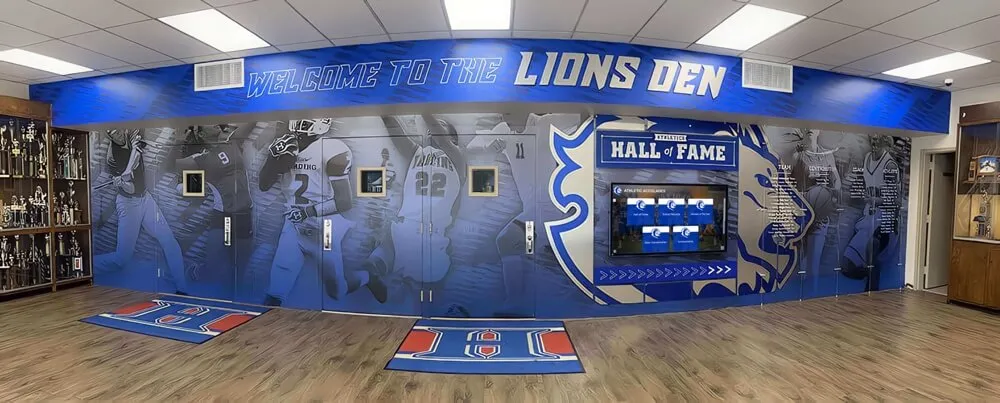
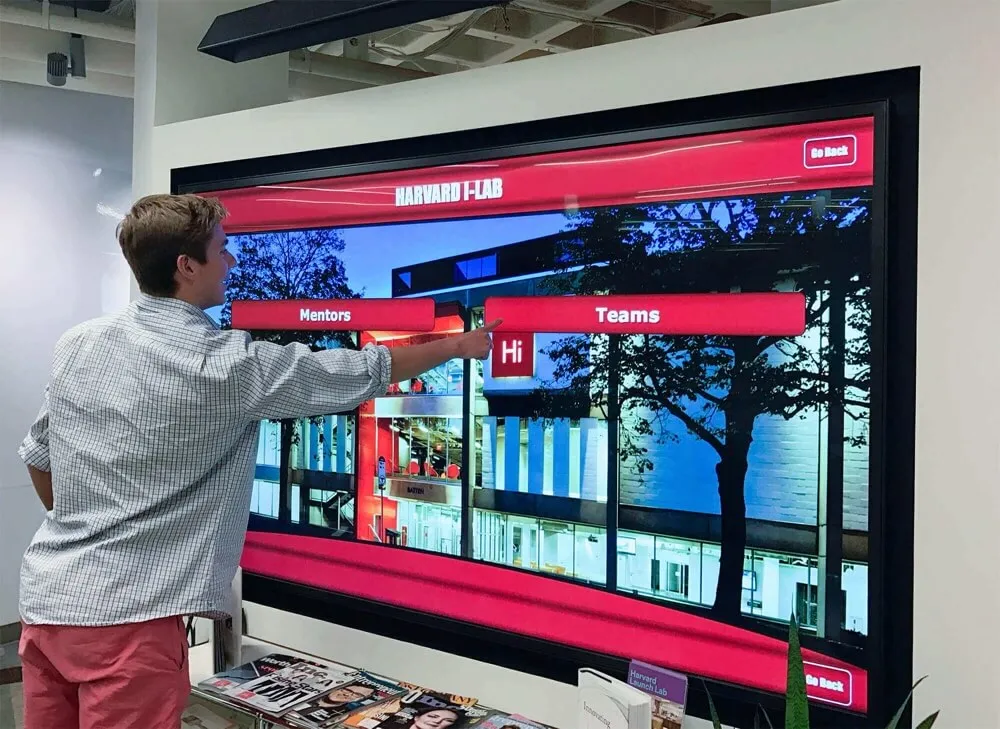
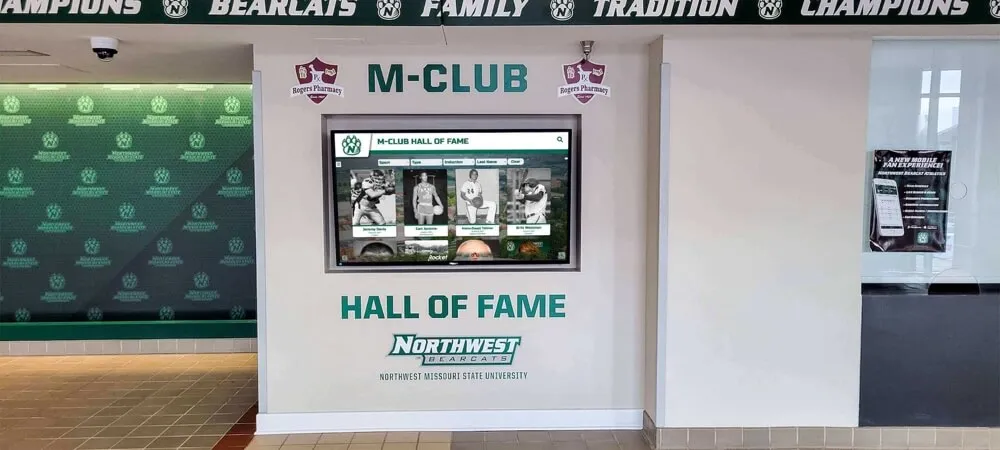
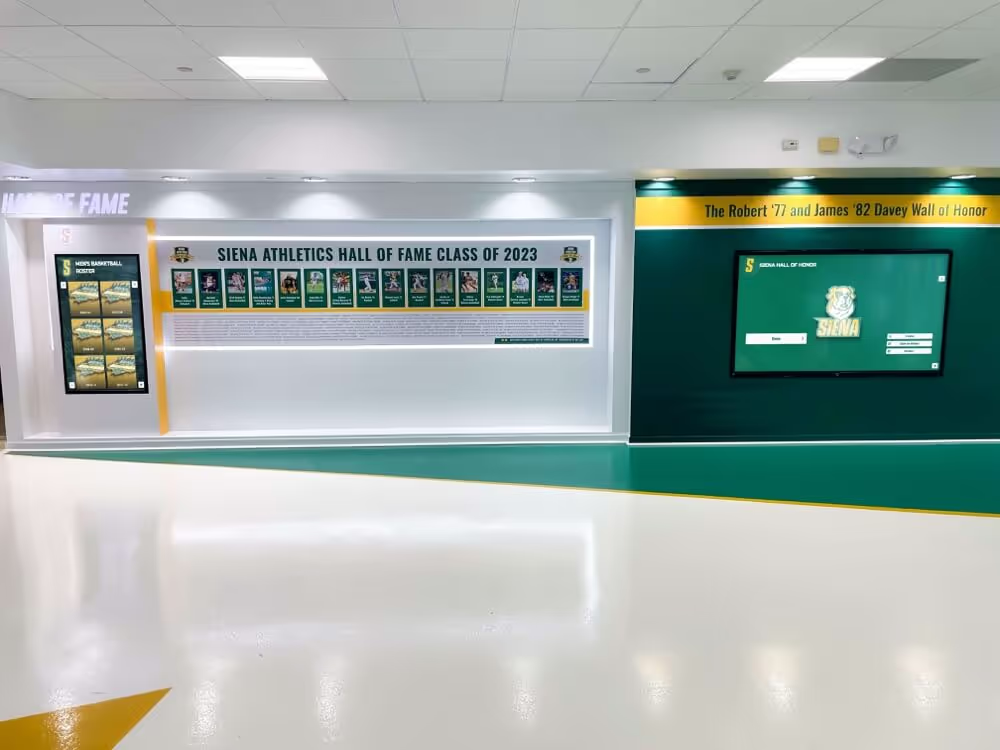
Every custom interactive widget on a digital hall of fame touchscreen—from inductee profile cards to sport-category carousels—is a candidate for an ARIA-roledescription audit that confirms whether its role description is accurate, necessary, and safe
Program Snapshot: ARIA-Roledescription Audit Scope for School Hall of Fame Platforms
Define the full audit scope before opening a browser or screen reader. The table below covers schools at every stage of digital recognition.
| Planning Element | Details |
|---|---|
| Primary Audience | Athletic directors, IT administrators, school web managers, accessibility compliance leads, recognition-program owners who maintain custom touchscreen or web-based inductee displays |
| What Is Being Audited | Every custom widget on the recognition platform that carries an aria-roledescription attribute, and every custom widget that lacks one but uses a role whose default announcement is misleading for its actual context |
| WCAG Criteria | 4.1.2 Name, Role, Value — Level A; 1.3.1 Info and Relationships — Level A; 2.1.1 Keyboard — Level A; the WAI-ARIA 1.2 specification’s aria-roledescription usage constraints apply directly |
| Tools Required | Chrome or Firefox with DevTools Accessibility panel, NVDA (Windows, free) or VoiceOver (macOS, built-in), the axe DevTools browser extension for structural checks, and a screen reader speech log for transcription |
| Time Investment | 30–50 minutes for an initial audit of all custom widgets; 15 minutes for a targeted re-check after any widget markup or ARIA attribute change |
| Failure Consequence — Misleading | A screen-reader user encounters a aria-roledescription that accurately names the widget but removes the behavioral cue (“use Arrow keys”) that the base role would provide; the visitor does not know how to operate the control |
| Failure Consequence — Redundant | A aria-roledescription restates what the base role already communicates (“button — click button”), adding verbal noise without improving comprehension |
| Failure Consequence — Absent but Needed | A custom widget built from a <div> with role="group" has no aria-roledescription; screen readers announce “group,” which provides no context for a sport-category carousel the visitor must navigate |
| Pass Condition | For every custom widget, the role description—whether native or overridden—accurately reflects the widget’s purpose, preserves behavioral cues from the base ARIA role, and is confirmed as correctly announced by at least two screen reader and browser combinations |
| ADA Relevance | Public school recognition sites accessible to alumni, parents, and community members carry digital accessibility obligations; WCAG 4.1.2 at Level A requires that all UI components expose correct name, role, and value to assistive technology |
What Is aria-roledescription and Why Does It Matter for Custom Touchscreen Widgets?
aria-roledescription is a WAI-ARIA attribute that replaces the human-readable role description a screen reader would normally announce for an element. When a screen reader encounters a <div role="slider">, it typically announces “slider” or “adjustable” as part of the element’s full accessible name sequence. If the developer adds aria-roledescription="era selector", the screen reader announces “era selector” in place of “slider.”
The WAI-ARIA specification permits this substitution for one specific purpose: when the platform-provided role description (the word “slider,” “button,” “tab”) is so generic that it fails to communicate the widget’s purpose in the application’s domain, and a more specific description would genuinely help the visitor understand what the control does. This exception is intentionally narrow. The specification explicitly warns that overuse of aria-roledescription degrades the screen-reader experience by replacing familiar interaction cues with unfamiliar application-specific vocabulary.
For digital hall of fame platforms, three constraints govern safe use:
Constraint 1 — The base role must remain valid. aria-roledescription does not change the widget’s ARIA role; it only changes what the screen reader reads aloud as the role description. If the base role is role="slider", screen readers still generate the keyboard interaction hints for a slider (Arrow keys, Home, End) even when a custom role description is announced. Removing the role attribute while adding aria-roledescription produces an element with no role semantics—just a custom label applied to a generic container. This is a critical failure pattern.
Constraint 2 — Role descriptions must not be used as accessible names. An accessible name answers “what is this control called?” A role description answers “what kind of control is this?” They serve different purposes. A decade-range slider named “Graduation years” with aria-roledescription="era selector" produces the full announcement: “Graduation years, era selector.” Using aria-roledescription="Graduation years era selector" collapses both into the role description and leaves the element without a distinct accessible name—producing “era selector, era selector” or similar noise.
Constraint 3 — The role description must not remove behavioral cues. If the custom role description is so different from the underlying role that the visitor cannot infer how to operate the control, the override fails its purpose. A <button> with aria-roledescription="honor entry" may cause a screen-reader user to not realize they should press Space or Enter to activate it, because “honor entry” does not sound like a button. The simpler fix—an accurate accessible name—usually serves the visitor better than a role description override.
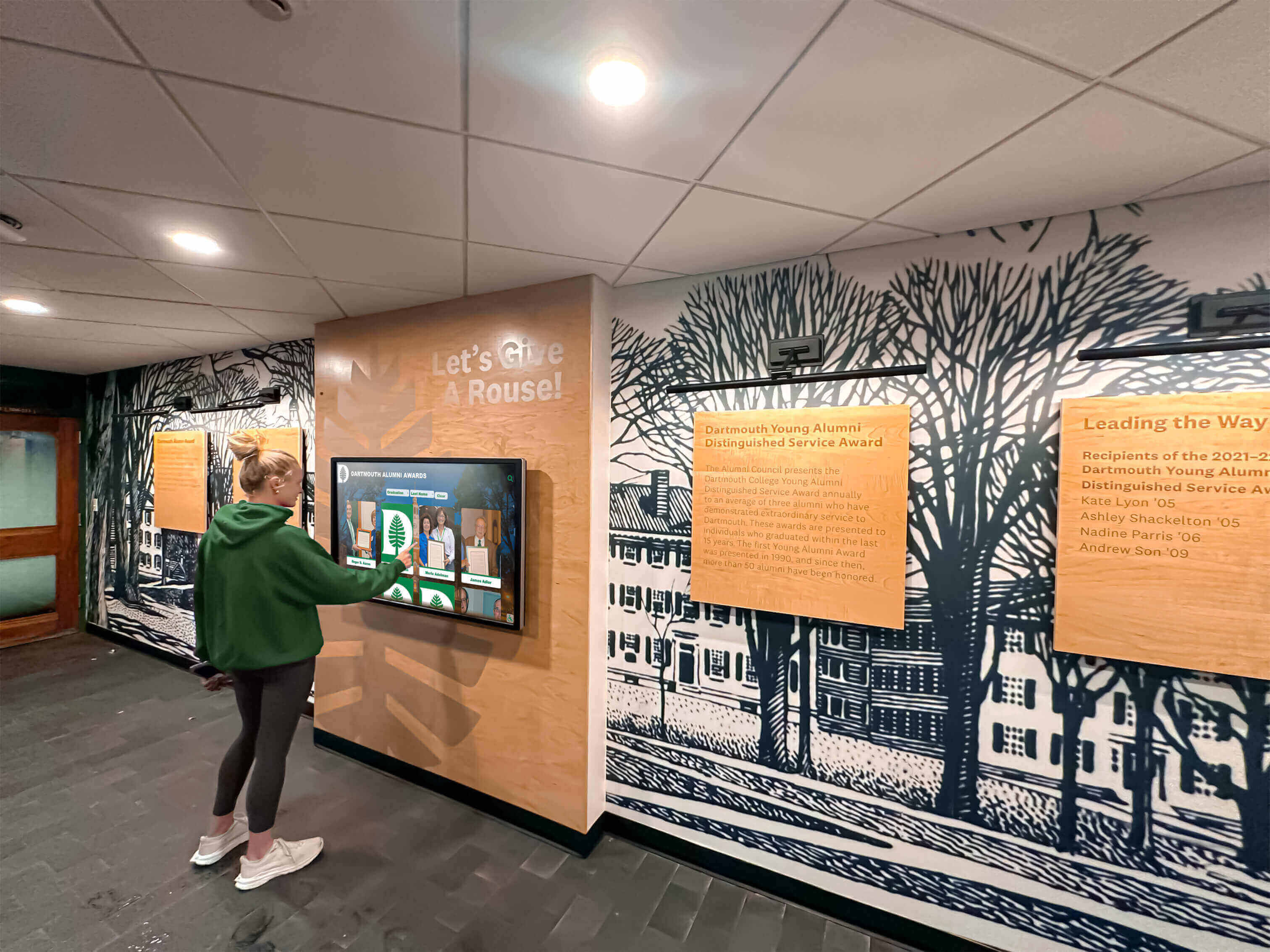
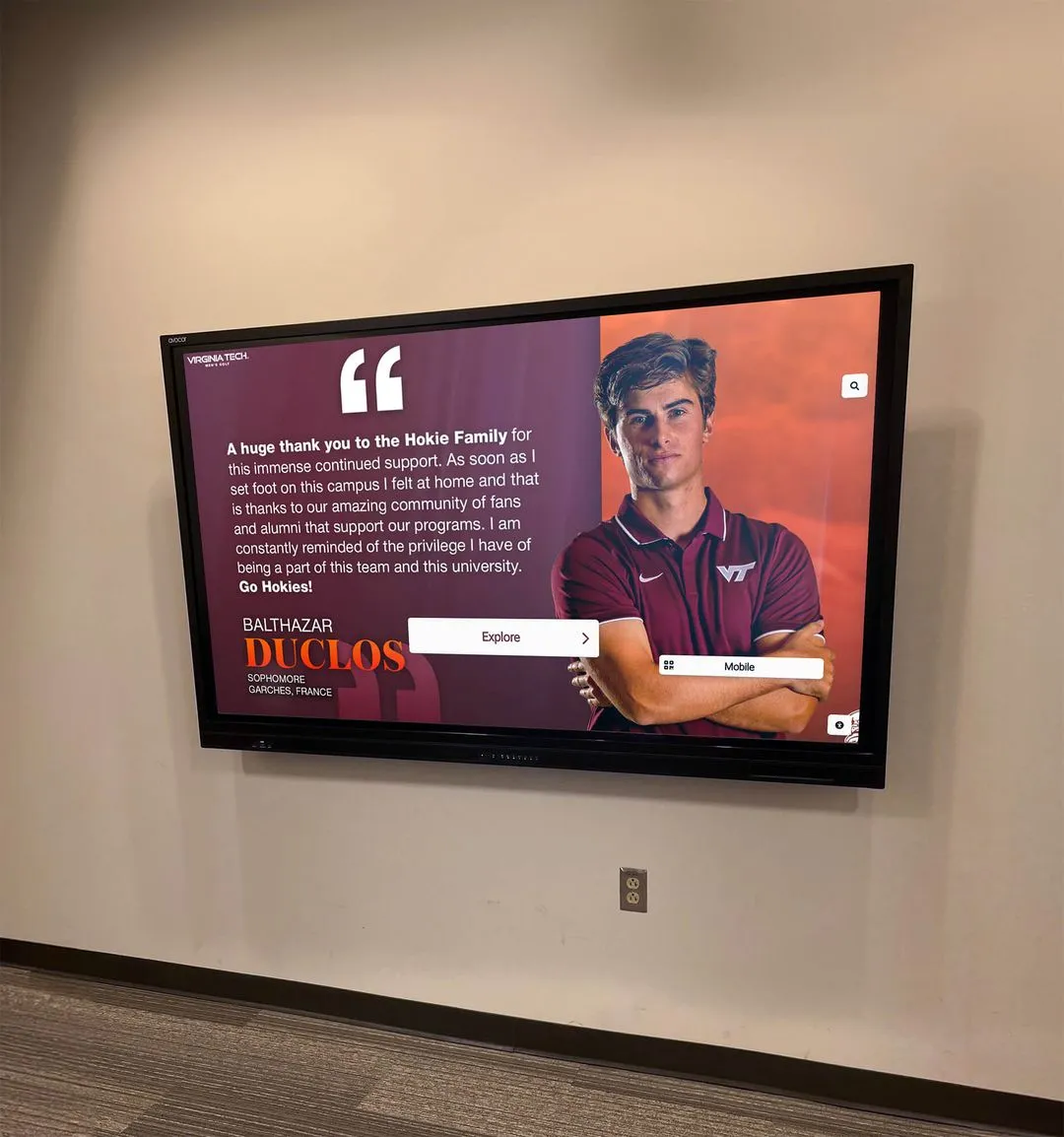
Visitors who rely on screen readers to navigate a school's digital hall of fame touchscreen depend on role descriptions that accurately convey what each custom widget does—without obscuring the behavioral cues their assistive technology derives from the base ARIA role
Content Architecture: Widget-to-Roledescription Decision Table
The central output of a digital hall of fame ARIA-roledescription audit is a use, revise, or remove decision for every widget. The table below covers the custom widget types most commonly found on school recognition platforms.
| Widget Type | Base Role | Has aria-roledescription? | Decision | Rationale |
|---|---|---|---|---|
| Sport-category filter buttons (individual) | role="radio" in a radiogroup, or <button> | No — leave absent | Leave absent | “Radio button” or “button” correctly communicates the widget type; a descriptive accessible name on each button (“Football filter”) is the correct mechanism |
| Sport-category carousel container | role="group" or role="tablist" | Optional — use if “group” is genuinely unclear | Use sparingly: aria-roledescription="sport category filter" | If the platform uses role="group" and visitors cannot infer purpose, a role description reduces ambiguity; omit entirely if the carousel uses role="tablist" (already understood) |
| Decade-range slider | role="slider" | No — leave absent | Leave absent | “Slider” accurately describes the control type; the accessible name (“Graduation decade”) provides all necessary context |
| Inductee profile card (interactive) | role="article" or role="gridcell" | No — leave absent | Leave absent | “Article” and “gridcell” are recognizable roles; a well-formed accessible name per card is sufficient |
| Fullscreen media viewer | role="dialog" | No — leave absent | Leave absent | “Dialog” is a well-understood role with clear keyboard behavior (Escape to close); a role description override would obscure this |
| Swipeable inductee gallery | role="region" or custom composite | Optional — use if base role is “region” | Use only when base role is “region”: aria-roledescription="inductee gallery" | “Region” alone is insufficiently specific for a swipeable gallery; if the gallery uses role="listbox" or role="grid", omit |
| Year-range dual-handle slider | role="slider" on each handle | No — leave absent | Leave absent | Both handles are sliders; differentiate them through accessible names (“Start year,” “End year”), not role descriptions |
| “Back to top” floating action button | <button> | No — leave absent | Leave absent | “Button” is correct; adding aria-roledescription="scroll control" would remove the Space/Enter activation cue |
| Inductee statistics scorecard | role="table" or role="region" | No — leave absent | Leave absent | Native table semantics are well-understood; override adds no value and risks disrupting row/column navigation |
| Sport-switcher tab strip | role="tablist" with role="tab" children | No — leave absent | Leave absent | Tab semantics are explicitly defined in ARIA and well-supported; no override is needed or appropriate |
| “View full profile” expandable panel trigger | <button> with aria-expanded | No — leave absent | Leave absent | “Button, collapsed” / “button, expanded” correctly describes the state; a role description override on a disclosure widget is almost always harmful |
| Custom carousel navigation dots | role="button" or native <button> | No — leave absent | Leave absent | Accessible names (“Go to slide 1,” “Go to slide 2”) provide the required context; role description overrides on navigation dots create confusion |
For most custom widgets on a school hall of fame platform, the correct outcome of an ARIA-roledescription audit is leave absent. The attribute’s narrow valid use case—a composite widget whose base role is so generic that the role description genuinely aids comprehension—applies to fewer widgets than many implementations assume. Schools building award display programs that include interactive digital components should ask their platform vendor to list every element that carries aria-roledescription and apply the decision table above to each one before launch.
Step-by-Step Digital Hall of Fame ARIA-Roledescription Audit Workflow
Step 1: Inventory Every Custom Widget on the Platform
Open the recognition platform’s web directory. Navigate through every interactive element that is not a standard HTML control (<button>, <a>, <input>, <select>) — these are your custom widget candidates. For each custom widget, record:
- The element’s HTML tag (usually
<div>or<span>) - Its
roleattribute value - Its
aria-roledescriptionattribute value (or “absent” if missing) - Its accessible name (from
aria-label,aria-labelledby, or visible label text) - Its visual purpose in the interface
This inventory becomes the scope of the audit. A typical school recognition platform has between four and twelve custom widget types. The kiosk interface may have different widgets from the web directory if it uses a separate theme or layout.
Step 2: Open the Accessibility Tree for Each Widget
In Chrome DevTools, open the Elements panel and select each custom widget. Switch to the Accessibility tab in the right-hand panel. Examine the full accessibility properties for the element:
- Role: What role does the browser map to this element?
- Name: What accessible name does the element carry?
- Description: Is there an
aria-descriptionoraria-describedbyvalue? - Roledescription: What does the browser report as the role description? If
aria-roledescriptionis present, its value appears here. If absent, the browser displays the default human-readable role description for the mapped role.
Record the browser-reported role description for every custom widget. This is exactly what a screen reader will announce as the role part of the element’s full accessible description sequence.
Step 3: Apply the Decision Table
For each widget in the inventory, compare its aria-roledescription value against the decision table above. Classify each widget as one of three outcomes:
Correct — leave absent: The widget has no aria-roledescription, and the base role description is sufficient given the widget’s accessible name. No action required.
Correct — appropriate override: The widget has aria-roledescription, the base role is a generic container role (“group,” “region”), and the custom description meaningfully improves comprehension without removing behavioral cues. No action required.
Remediate — remove or revise: The widget has aria-roledescription that is redundant (restates the base role), misleading (describes the wrong widget type), used on a well-understood interactive role (button, slider, tab), or written in developer jargon rather than plain language a visitor would understand.
Record the classification and the specific remediation action for each widget that requires attention.
Step 4: Verify Announcement Behavior with a Screen Reader
For every widget with an aria-roledescription (present or recommended), verify the actual screen-reader announcement before and after any proposed change. Activate NVDA or VoiceOver, navigate to the widget using Tab or arrow keys, and transcribe the full announcement verbatim.
The correct announcement sequence for a custom widget follows this pattern:
[Accessible name], [role description], [state if applicable]
For example, a sport carousel container with aria-label="Filter by sport" and aria-roledescription="sport category filter" should produce:
Filter by sport, sport category filter
If the announcement omits the accessible name, the role description is present but the accessible name is missing. If the announcement doubles the role description (“sport category filter, sport category filter”), aria-roledescription has been incorrectly applied to an element that also carries role="group" whose default description is the same string. Both failures require remediation.
Step 5: Confirm Behavioral Cues Are Preserved
After the screen reader announces the role description, press the keyboard keys associated with the widget’s base role to confirm behavioral cues are not lost:
role="slider"with a custom role description: Arrow keys should still move the slider value, and Home/End should jump to min/max. Confirm the screen reader announces the new value on each Arrow key press.role="tab"with a custom role description: Arrow keys should still cycle through tabs. Confirm tab selection is announced.<button>(if a role description was added): Enter and Space should still activate the button. Confirm activation is announced.
If keyboard behavior works but the screen reader does not announce state changes (slider value, tab selected/unselected), the aria-roledescription may have inadvertently interfered with state announcement. This is a screen-reader-specific behavior that must be tested, not assumed.
Schools considering installations that also serve ceremony guests, reunion visitors, and donor audiences—such as recognition programs featured at end-of-season banquets—should include ARIA-roledescription verification in pre-event accessibility checks, since kiosk demos at high-profile events are exactly the moment when screen-reader failures become most visible.
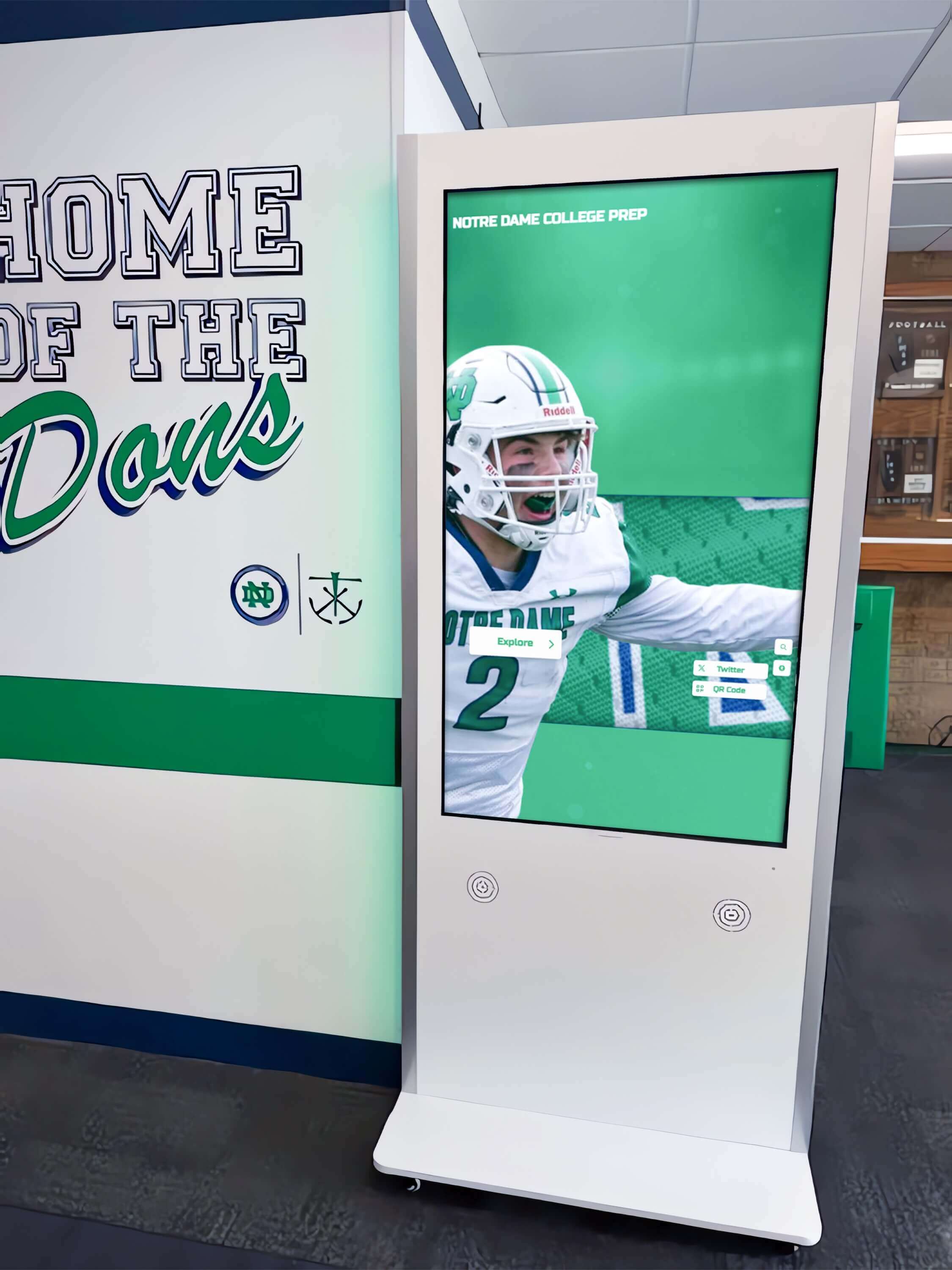
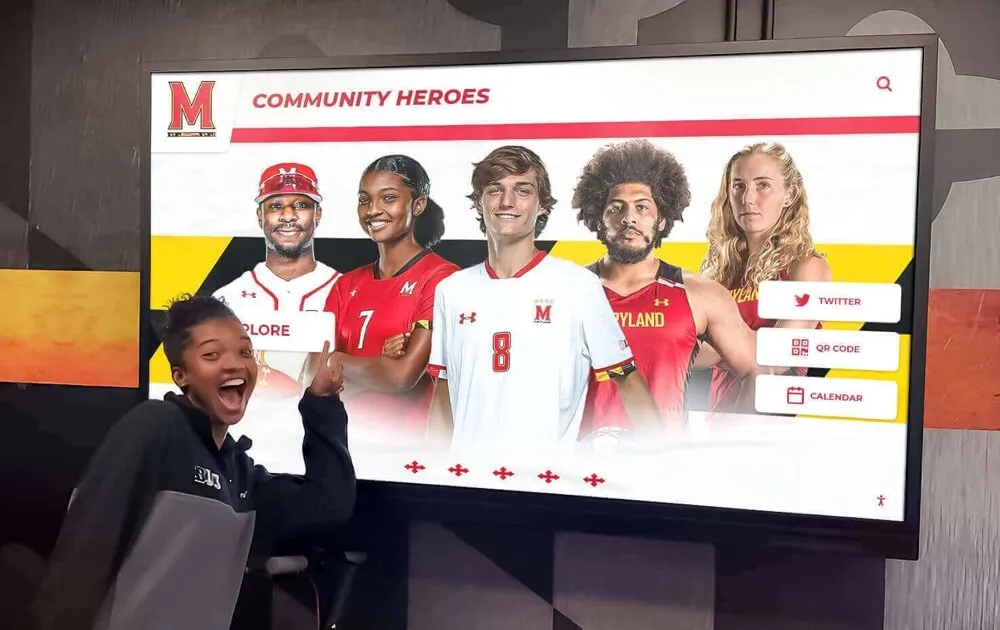
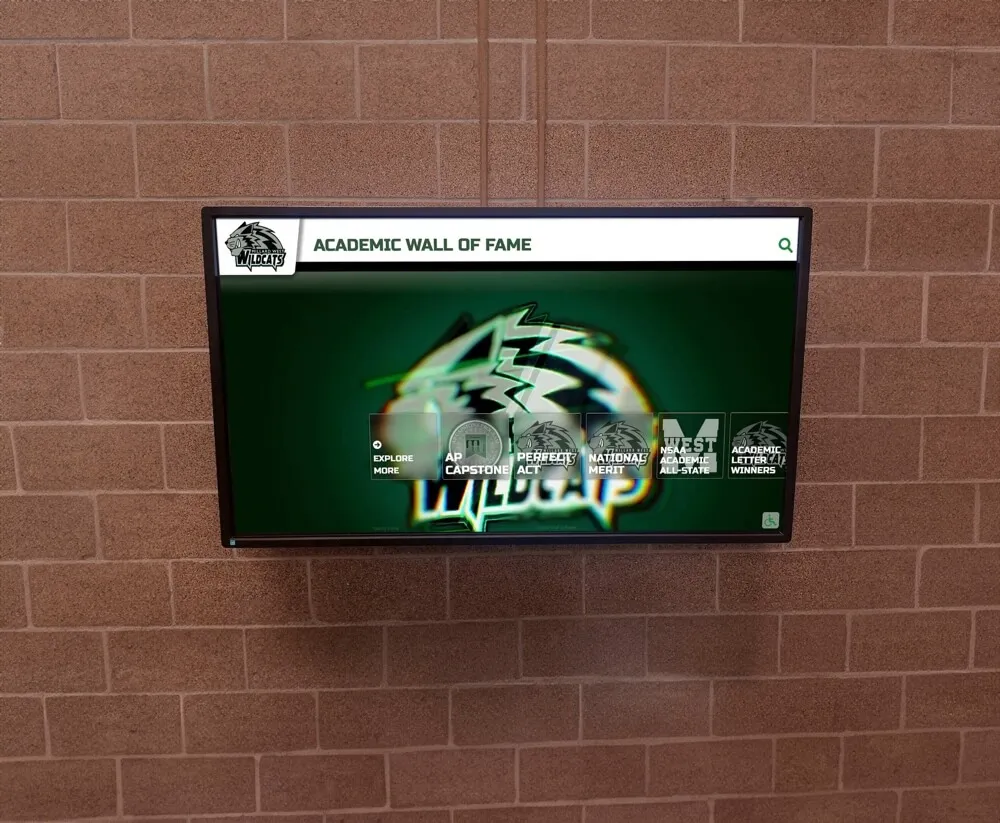
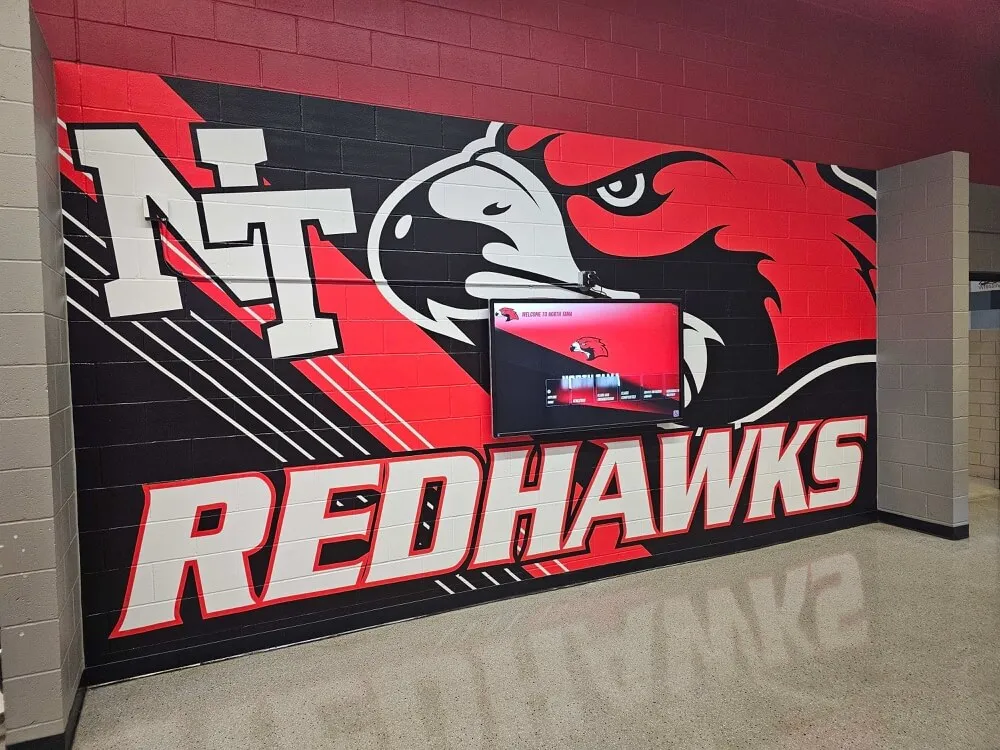
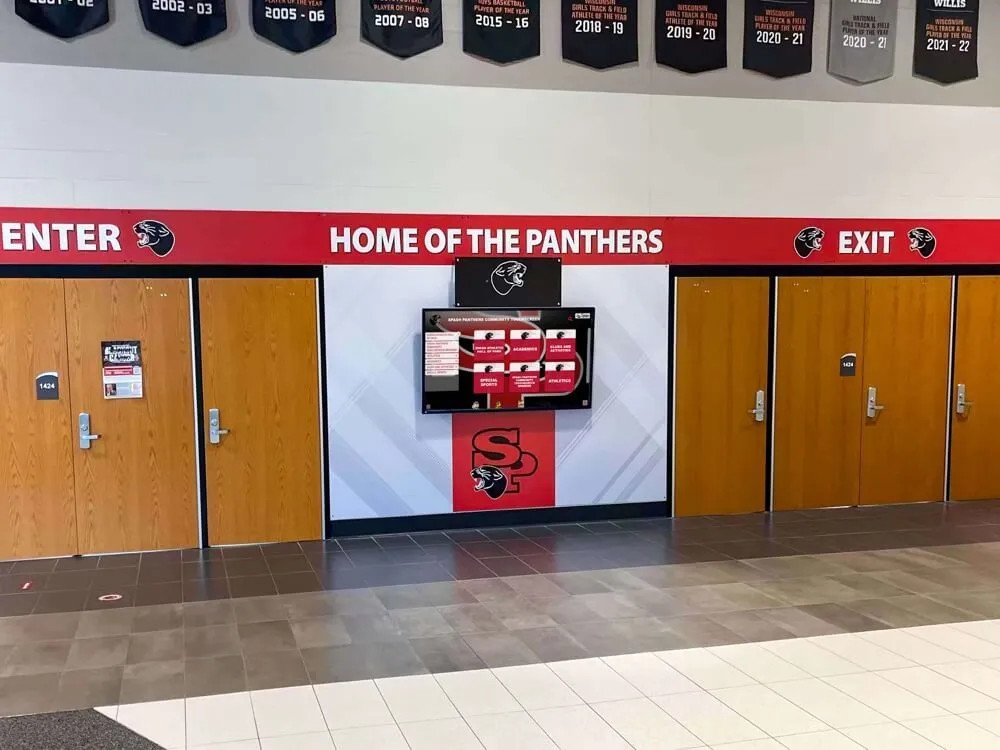
Sport-category navigation controls on hallway kiosks are among the custom widget types most likely to carry an aria-roledescription—the audit determines whether the override is accurate, necessary, and safe for screen-reader users
Step 6: Implement and Re-verify Remediations
For widgets classified as “Remediate — remove,” delete the aria-roledescription attribute from the element’s HTML. The base role description resumes. Re-run the screen-reader verification from Step 4 to confirm the base role is announced correctly and all behavioral cues are intact.
For widgets classified as “Remediate — revise,” update the aria-roledescription value to plain language that describes the widget’s purpose without using developer terminology (“carousel,” “widget,” “module”) and without restating the base role. Re-run Step 4 and Step 5.
Removing an unnecessary aria-roledescription — before and after:
<!-- Before: aria-roledescription on a standard button adds noise, not value -->
<button
  type="button"
  aria-roledescription="honor entry activator"
  aria-label="View John Williams profile"
>
  View Profile
</button>

<!-- After: accurate accessible name; no role description override needed -->
<button
  type="button"
  aria-label="View John Williams profile"
>
  View Profile
</button>
Appropriate aria-roledescription on a generic container widget:
<!-- Appropriate use: base role is "group," which is too generic for a swipeable gallery -->
<div
  role="group"
  aria-roledescription="inductee photo gallery"
  aria-label="Football inductee photos"
>
  <!-- gallery items here -->
</div>

<!-- The screen reader announces: "Football inductee photos, inductee photo gallery" -->
<!-- Behavioral cues from "group" are minimal, so the override does not remove meaningful interaction hints -->
Incorrect use on a slider — removes behavioral cues:
<!-- Before: aria-roledescription on a slider is unnecessary and potentially confusing -->
<div
  role="slider"
  aria-roledescription="graduation era control"
  aria-label="Graduation decade"
  aria-valuemin="1980"
  aria-valuemax="2024"
  aria-valuenow="2000"
  tabindex="0"
>
</div>

<!-- After: accessible name provides context; "slider" is already understood -->
<div
  role="slider"
  aria-label="Graduation decade"
  aria-valuemin="1980"
  aria-valuemax="2024"
  aria-valuenow="2000"
  tabindex="0"
>
</div>

<!-- The screen reader announces: "Graduation decade, slider, 2000" -->
<!-- Arrow key hints and value announcements are preserved from the base role -->
Execution Timeline: Plan, Audit, Fix, Verify
| Phase | Activities | Responsible Party | Cadence |
|---|---|---|---|
| Plan | Inventory all custom widgets on the web directory and kiosk interface; request aria-roledescription attribute list from the platform vendor if source code is not directly accessible; map each widget to the decision table | Athletic director + IT lead | Once at platform launch; once after any UI component library update or theme change |
| Audit | Run Steps 1–5 for every widget in the inventory; classify each as Correct or Remediate; document base role, aria-roledescription value, announcement transcription, and behavioral cue verification result | IT staff or accessibility coordinator | At platform launch; before each induction season; within 48 hours of any widget, ARIA, or JavaScript framework update |
| Fix | Remove aria-roledescription from all widgets where the base role description is sufficient; revise role descriptions that are jargon-heavy or misleading; verify that all base roles remain valid after changes | Developer or platform vendor | Within 14 days of audit completion; immediately before a community archive launch, induction ceremony, or digital display reveal event |
| Verify | Re-run Steps 4–5 for each remediated widget in NVDA + Chrome and VoiceOver + Safari; confirm the full announcement sequence is accurate and behavioral cues are intact; update the widget inventory with verified pass status | IT staff | Immediately after each fix deployment; quarterly thereafter |
| Document | Retain the widget inventory with final classifications, announcement transcriptions, and verified decisions as the baseline for future audits; note the screen-reader versions used for verification | Administrative lead | Each audit cycle; retained for three years or the duration of the platform agreement |
Schools managing recognition installations across multiple buildings—athletics hallways, alumni centers, gymnasium lobbies—often deploy the same platform theme across all locations. A single ARIA-roledescription audit of the shared theme applies to every installation, but IT staff should confirm that venue-specific customizations (sport filters, award categories) have not introduced additional custom widgets that bypass the shared theme’s audited markup.
Display Integration: Role Description Accuracy Across Web Directory and Kiosk Interfaces
The ARIA-roledescription audit applies to both the public web directory and the physical kiosk interface, but the failure consequences and implementation contexts differ.
Web directory: Every alumnus, parent, and community member who accesses the recognition site from a personal device may have a screen reader active. The full widget inventory must be audited for the web directory first. Because web directories are accessible from any device and any network, they carry the broadest accessibility obligation and the highest probability of a screen-reader user encountering custom widget markup.
Kiosk interface: If the kiosk is delivered through a browser-rendered HTML interface—common for cloud-based recognition platforms—the same aria-roledescription markup applies whenever a keyboard or screen reader is connected. Kiosk-specific widget types (fullscreen inductee spotlight mode, QR code generation panel, social sharing overlay) may not appear in the web directory and must be audited separately. Schools planning school awards nights and digital recognition ceremonies where the kiosk is demonstrated to guests should include kiosk widget verification in the pre-event checklist.
QR code entry points: Visitors who scan a QR code from a dedication plaque or donor recognition installation to reach a pre-filtered inductee view may encounter custom widgets in a state they cannot fully control—the sport or award filter is already applied, and the visitor must navigate within the constrained result set. Custom widgets in the pre-filtered state (an active filter chip, a narrowed gallery, a selected tab) must announce their active state correctly alongside any aria-roledescription, or screen-reader users will not understand the filter context they have entered.
CMS-driven content updates: Recognition platforms that use a cloud CMS to add inductee records can sometimes change widget markup when the CMS updates the result template. A template update that reorganizes the filter controls may inadvertently add or remove aria-roledescription from a widget that was previously audited as Correct. After any CMS update that touches the search result template, filter controls, or inductee gallery layout, re-run the widget inventory check (Step 1) to confirm that no new role descriptions have been introduced or removed without review.
Digital history archive platforms that share a codebase with hall of fame recognition systems often carry the same custom widget patterns across multiple applications. An aria-roledescription change made in the shared component library propagates to every application that uses the library—ensuring the audit scope explicitly includes shared components prevents a fix in one application from silently breaking another.
ARIA-Roledescription Audit Checklist
Copy this checklist before each platform launch, widget update, component library upgrade, or quarterly accessibility review. Complete one pass per custom widget type. A checked row confirms the widget’s role description is Correct.
Widget Inventory and Classification
- All custom widgets on the web directory and kiosk interface have been inventoried (tag, role, aria-roledescription value, accessible name)
- Every widget with
aria-roledescriptionpresent has been classified as Correct (appropriate override) or Remediate (redundant, misleading, or unnecessary) - Every custom widget without
aria-roledescriptionhas been confirmed as Correct (base role sufficient) or Remediate (base role too generic; a role description would improve comprehension) - No widget carries
aria-roledescriptionon a well-understood interactive role (button, slider, tab, dialog, combobox, checkbox, radio) - No widget uses
aria-roledescriptionas a substitute for an accessible name (the role description describes the widget type, not the widget’s label)
Markup Correctness
- Every element with
aria-roledescriptionalso carries a valid ARIAroleattribute (the base role must be present; role descriptions without a base role produce an unsupported combination) - No
aria-roledescriptionvalue restates the default role description of the base role (“button — activatable button,” “slider — adjustable”) - No
aria-roledescriptionvalue is a generic developer term: “widget,” “component,” “module,” “carousel,” “container” - All
aria-roledescriptionvalues are plain language a non-technical visitor would recognize as a description of a control type
Behavioral Cue Preservation
- For every
role="slider"widget with a role description: Arrow keys still move the slider value; the new value is announced after each key press - For every
role="tab"widget with a role description: Arrow keys still cycle through tabs; selected/unselected state is announced - For every
role="group"orrole="region"widget with a role description: Child interactive elements are reachable by keyboard and announced independently of the container’s role description - No
aria-roledescriptionoverride has caused a state announcement (expanded/collapsed, selected/unselected, checked/unchecked) to be suppressed
Announcement Verification
- NVDA + Chrome (Windows): announcement sequence for each custom widget is “[Accessible name], [role description], [state]” with all three parts present
- VoiceOver + Safari (macOS): announcement sequence confirmed for each custom widget
- No widget produces a doubled role description (e.g., “sport category filter, sport category filter”) from conflicting
aria-roledescriptionand base role description - No widget announces only a role description without an accessible name
Post-Update Checks
- After any component library or theme update: re-run the widget inventory to confirm no new
aria-roledescriptionattributes were introduced - After any CMS template update that touches filter controls, gallery layout, or inductee cards: re-run Step 2 of the audit workflow for affected widget types
- After any ARIA library upgrade: re-test behavioral cue preservation for all custom composite widgets
Assistive Technology Test Cases
These concrete test cases confirm that the most common custom widget patterns on school recognition platforms behave correctly with the two primary screen reader and browser combinations.
| Widget | Test Action | NVDA + Chrome Expected | VoiceOver + Safari Expected | Pass? |
|---|---|---|---|---|
| Sport-category filter (with role description “sport category filter”) | Tab to the widget container; listen for announcement | “[Accessible name], sport category filter” | “[Accessible name], sport category filter” | Confirm both |
| Sport-category filter (child button — Football) | Tab to the Football button; listen | “Football, button” (no role description on child) | “Football, button” | Role description must not cascade to children |
| Inductee gallery (with role description “inductee gallery”) | Tab to the gallery container | “[Name], inductee gallery” | “[Name], inductee gallery” | Confirm both |
| Year-range slider (no role description) | Tab to slider; listen; press Right Arrow | “Graduation decade, slider, [value]” then “[new value]” on arrow press | “Graduation decade, adjustable, [value]” | Value change must announce |
| Profile card — expandable (button, no role description) | Tab to “View profile” button | “View [Name] profile, button” | “View [Name] profile, button” | No role description noise |
| Sport-switcher tab strip (no role description on tabs) | Arrow Right through tabs | “[Tab name], tab, [N] of [M], tab list” | “[Tab name], tab [N] of [M]” | Role semantics from tablist must be intact |
| Fullscreen media viewer (dialog, no role description) | Open dialog; listen | “[Dialog title], dialog” | “[Dialog title], web dialog” | Escape-to-close cue must be available |
Schools managing recognition programs that include athletics and senior night traditions across multiple sports often feature sport-specific filter controls alongside sport-agnostic search. Each sport-category widget type should be verified independently in the AT test case table, since filter implementations vary across sport sections of the platform.
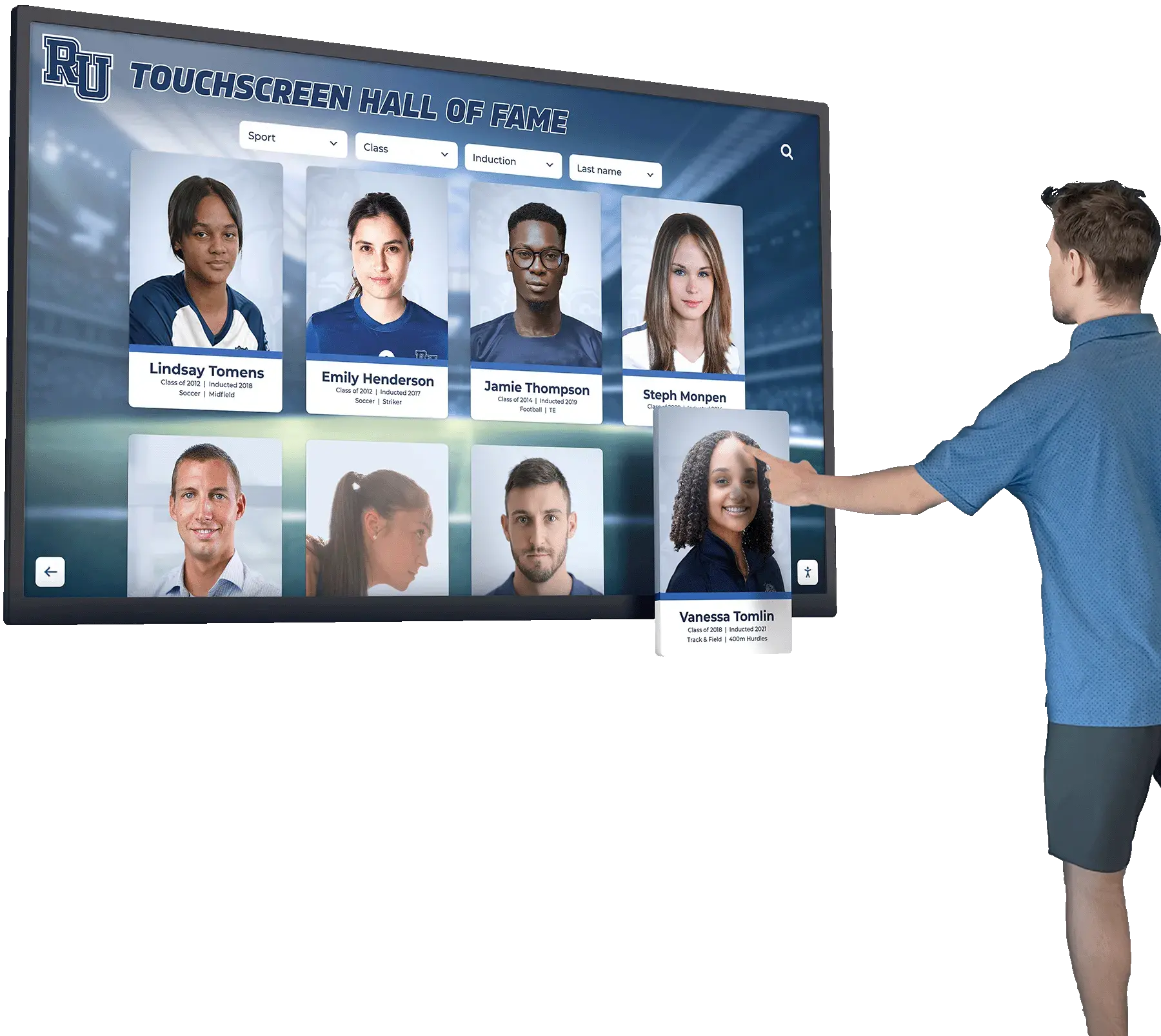
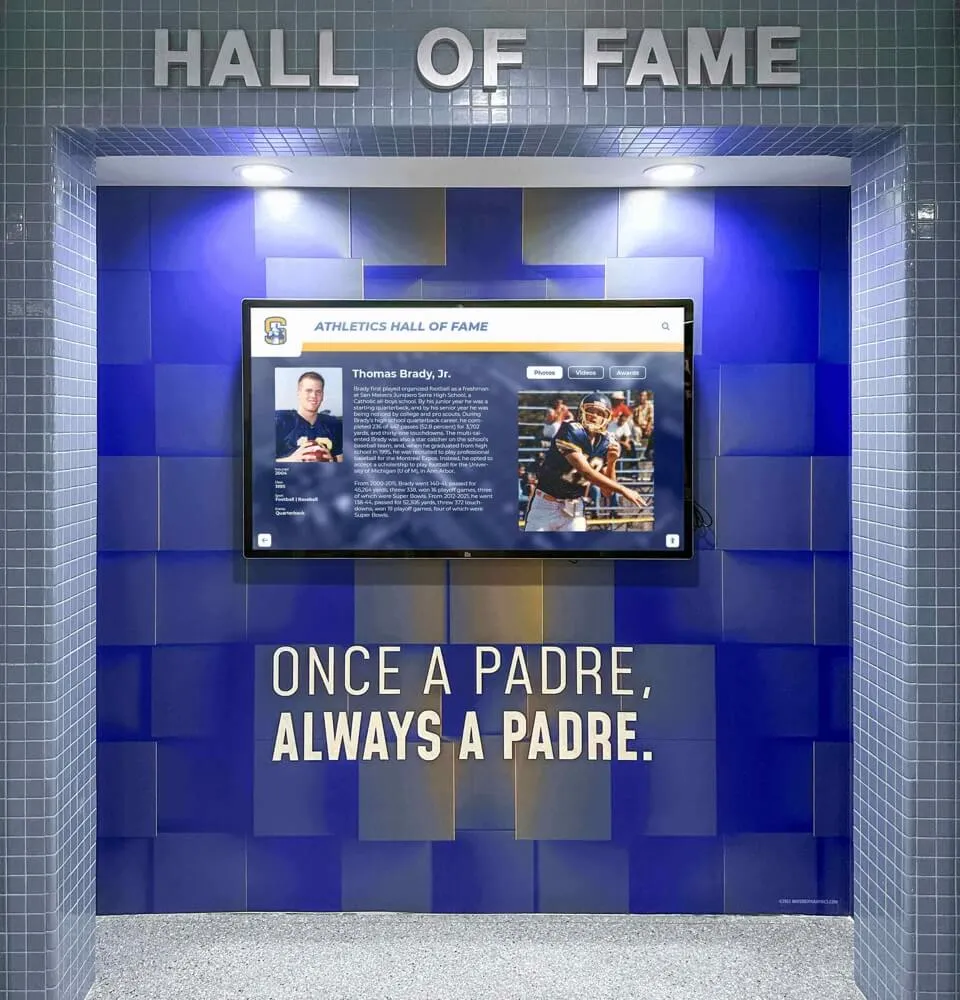
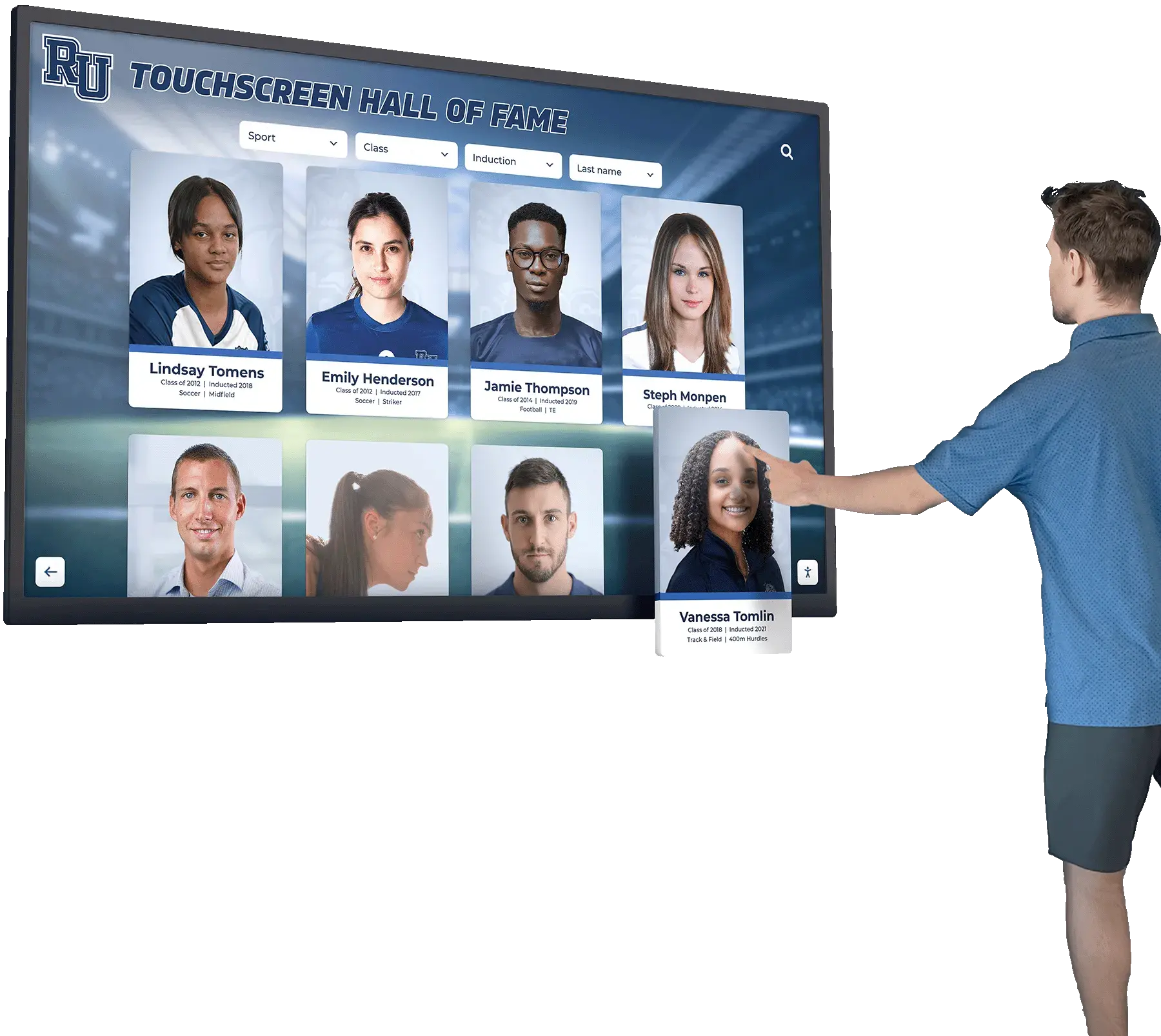
Digital hall of fame touchscreen widgets—including sport-category filters, inductee galleries, and profile card interactions—must each be verified with a screen reader to confirm that role descriptions are accurate, necessary, and non-destructive to keyboard interaction cues
Measurement: Indicators of Role Description Quality
| Signal | Target | How to Measure |
|---|---|---|
| Widgets with aria-roledescription present | As few as needed; ideally zero on standard interactive roles | Count elements carrying the attribute in DevTools; flag any on button, slider, tab, dialog, combobox, checkbox, or radio roles |
| Role description accuracy rate | 100% of present role descriptions are classified Correct | Count Correct-classified widgets with role descriptions vs. total widgets with role descriptions after audit |
| Behavioral cue preservation rate | 100% — no role description override suppresses a state announcement or keyboard interaction | Manual AT test for every widget with a role description; no failures in the test case table |
| Announcement sequence completeness | “[Name], [role description], [state]” — all three parts present for every custom widget | NVDA speech log transcription; VoiceOver caption panel review |
| Remediated widgets per audit cycle | Trending toward zero as the platform matures and the widget set stabilizes | Count Remediate-classified widgets per audit cycle; track over time |
| Post-update regression rate | 0 — no previously Correct widget regresses to Remediate after a platform update | Re-run widget inventory and AT verification after every update; compare against prior audit baseline |
The print stylesheet checklist for digital hall of fame displays is a complementary audit artifact that governs how recognition content renders in non-interactive contexts. The ARIA-roledescription audit governs how interactive widgets are announced in assistive technology contexts. Both belong in the same pre-launch and pre-event verification package.
Frequently Asked Questions
What is the difference between aria-roledescription and aria-label?
aria-label provides an accessible name for an element—it answers the question “what is this control called?” aria-roledescription provides a custom role description—it answers the question “what kind of control is this?” Both are announced by screen readers, but in distinct positions in the accessible description sequence: name first, then role. A sport-category carousel container might carry aria-label="Filter inductees by sport" (the name) and aria-roledescription="sport category filter" (the role). Using aria-roledescription to supply what should be an accessible name is a common misuse that leaves the element without a distinct name while cluttering the role description with name-level content.
Can aria-roledescription be used on any element, or only on custom widgets?
The WAI-ARIA specification restricts aria-roledescription to elements that have an explicit or inherited ARIA role that is not generic or none. In practice, this means it can be applied to any element with a meaningful role attribute. However, the specification also states that aria-roledescription must not be used to describe the same concept that the element’s role already communicates. For most standard HTML elements and most ARIA roles, the default role description is already clear—“button,” “slider,” “tab,” “dialog” are all familiar terms for screen-reader users. The appropriate use cases are composite widgets using generic container roles (“group,” “region”) where the widget’s purpose cannot be inferred from the role name alone.
What happens if we add aria-roledescription to a button?
The screen reader announces the custom role description in place of “button.” This removes the word “button” from the announcement, which screen-reader users rely on to know that pressing Space or Enter will activate the element. Some users may still attempt activation using those keys based on context clues, but others—particularly less experienced screen-reader users—may not. The recommendation is unambiguous: do not apply aria-roledescription to <button> elements or elements with role="button". Use an accurate accessible name to differentiate the button’s purpose; preserve “button” as the role description.
How do we handle a platform vendor that has already shipped aria-roledescription on several widget types?
Request the vendor’s ARIA implementation documentation and present the widget inventory from Step 1 of the audit workflow. For each Remediate-classified widget, provide the specific decision from the decision table (remove or revise) and the rationale. Platform vendors with accessibility teams can typically resolve aria-roledescription misuse quickly—removing the attribute is a one-line HTML change, not a structural redesign. If the vendor uses a shared component library, removing the attribute from the library propagates the fix to every application. Document the vendor’s response and the verified outcome in the audit record.
Does the audit apply to kiosk interfaces that do not typically connect a screen reader?
Yes. The audit applies for two reasons. First, an accessibility evaluation of a school’s digital recognition installation—whether conducted by a district technology coordinator or an external auditor under a state or federal compliance review—will typically connect a keyboard and screen reader to the kiosk browser and evaluate the widget announcement behavior. Second, many platforms deliver the kiosk interface through the same HTML codebase as the web directory. A aria-roledescription mistake in the shared codebase affects both interfaces simultaneously. Resolving the finding on the web directory automatically corrects it on the kiosk in these architectures.
How often should we repeat the ARIA-roledescription audit?
Run a full audit at platform launch and before each induction season. Run a targeted widget inventory check—covering only the widget types touched by the update—within 48 hours of any component library upgrade, theme change, or CMS template modification that affects filter controls, gallery markup, or inductee card structure. A brief re-check requires only Steps 1 and 2 of the workflow (inventory and DevTools inspection) unless a screen-reader regression is suspected, in which case Steps 4 and 5 are needed as well.
What if two widgets on the same page have the same aria-roledescription value?
Two widgets with the same role description value (“inductee gallery”) are acceptable if both are genuinely the same widget type and the role description is accurate for both. The concern arises if visitors navigate between the two and hear identical role description announcements—they may not be able to distinguish the widgets by role description alone. In that case, the accessible names of the two widgets must be distinct enough to differentiate them. If they are not, one or both names need revision, independent of the role description question.
Connecting Role Description Quality to Recognition Program Accessibility
A digital hall of fame that carries aria-roledescription on every custom widget—because a developer added the attribute whenever a control seemed “non-standard”—produces a screen-reader experience where familiar, reliable role announcements are replaced by application-specific vocabulary on every interaction. A visually impaired alumnus who visits the recognition archive regularly must relearn the terminology for each new platform version, rather than relying on the stable, cross-platform semantics that screen-reader software and ARIA roles are designed to provide.
A digital hall of fame that carries aria-roledescription nowhere—because no developer ever considered the attribute—may leave visitors who encounter a swipeable gallery or a grouped filter section hearing only “group” with no indication of the widget’s purpose. Both failure modes are real, and neither requires sophisticated tooling to detect or fix.
The ARIA-roledescription audit is a targeted, repeatable check that takes 30–50 minutes with free tools and produces a documented widget inventory that can be shared with platform vendors, retained for compliance records, and updated after every platform change. Its output is not a list of WCAG violations—it is a clear use, revise, or remove decision for every custom widget on the platform, grounded in the WAI-ARIA specification’s own constraints on when role description overrides are appropriate.
Schools that maintain growing inductee archives—covering decades of athletics, academic honor, and performing arts recognition—will add new filter dimensions and widget types with each program expansion. Starting with a complete widget inventory and a clear decision table ensures that each new widget introduced to the platform is evaluated by the same standard as every widget already in production.
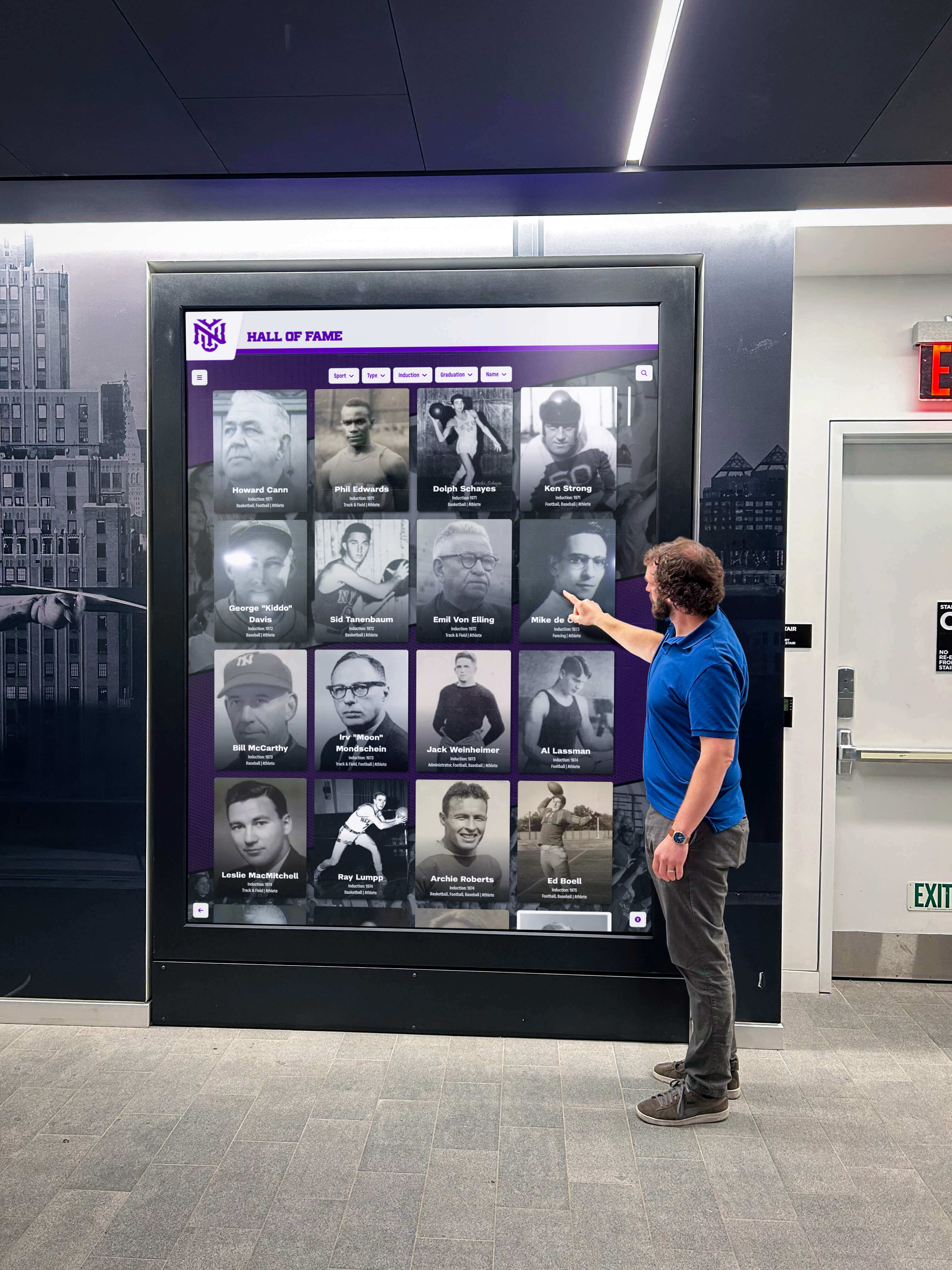
Every visitor who interacts with a hall of fame lobby display—including visitors who rely on screen readers to navigate custom widgets—deserves role descriptions that are accurate, plain-language, and never a substitute for the behavioral cues that standard ARIA roles provide
Rocket Alumni Solutions’ digital hall of fame platform is built to WCAG 2.1 AA standards, which includes correct name, role, and value requirements for all interactive components. The platform’s custom widgets are implemented using standard ARIA roles with accurate accessible names, minimizing the need for aria-roledescription overrides and ensuring that screen-reader users receive familiar, reliable role announcements across every search, filter, and gallery interaction. Remote CMS management allows IT staff to update inductee records and filter categories without redeploying the site, and the platform’s component architecture supports ARIA-roledescription audits without requiring source code access from the school’s IT team.
See Rocket Alumni Solutions’ Accessible Hall of Fame Widgets in Action
Request a live demonstration to see how Rocket’s recognition platform implements custom touchscreen controls with correct ARIA semantics—standard roles, accurate accessible names, and sparing use of role description overrides—so every visitor to your school’s hall of fame can navigate confidently with any assistive technology.
Live Example: Rocket Alumni Solutions Touchscreen Display
Interact with a live example (16:9 scaled 1920x1080 display). All content is automatically responsive to all screen sizes and orientations.