Digital Hall of Fame ARIA Landmark Audit for Inductee Navigation
- Home /
- Digital Hall of Fame Insights & Resources /
- Digital Hall of Fame ARIA Landmark Audit for Inductee Navigation
The Easiest Touchscreen Solution




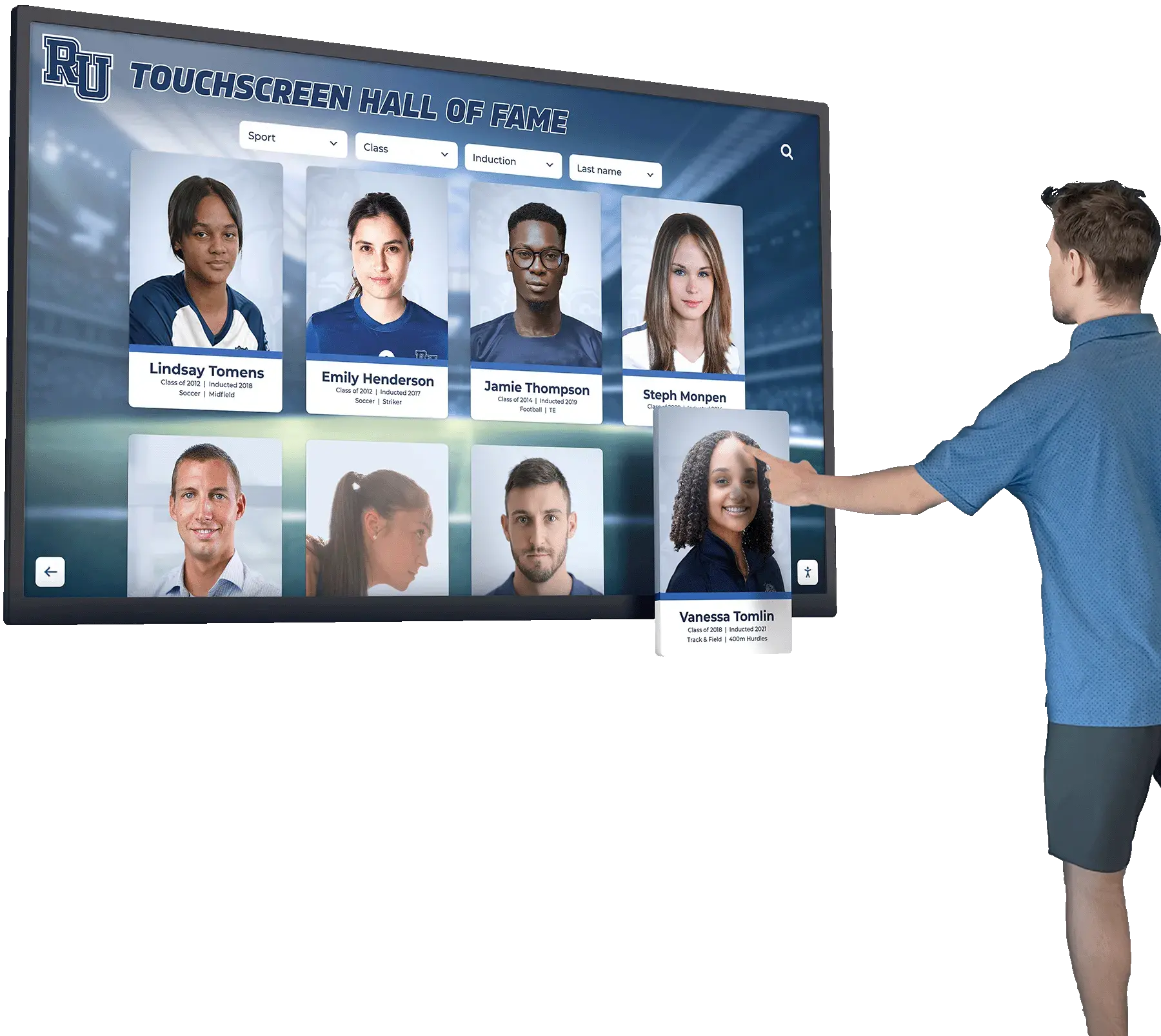
Live Example: Rocket Alumni Solutions Touchscreen Display
Interact with a live example (16:9 scaled 1920x1080 display). All content is automatically responsive to all screen sizes and orientations.
A digital hall of fame ARIA landmark audit is the process of verifying that your school’s recognition website uses HTML sectioning elements and ARIA landmark roles to divide the page into named regions—navigation, main content, search, and supporting sections—so that screen-reader users can jump directly to any region without tabbing through every element on the page. WCAG 2.1 Success Criterion 1.3.1 (Info and Relationships, Level A) requires that structure conveyed visually be available programmatically; properly labeled landmark regions are the mechanism that fulfills this requirement for page-level structure. On a digital hall of fame platform, meaningful landmarks protect the recognition experience for every visitor who uses NVDA, JAWS, VoiceOver, or TalkBack to navigate inductee profiles, sport-category pages, and search results. This guide gives school administrators, athletic directors, IT staff, and recognition-program managers a complete screen-by-screen audit table, numbered remediation steps, and a reusable issue log to complete in under one hour.
When a blind alumnus opens your school’s athletic hall of fame website using a screen reader, the first thing they typically do is not tab from the top of the page—they open the screen reader’s landmark list and jump directly to the section they want. In NVDA, that action is the D key to cycle through regions or the R key to reach the first landmark. In VoiceOver on macOS, it is the Web Rotor landmark menu. The ability to jump is only possible when the page actually exposes landmarks, and on many recognition sites, the landmarks are either absent, unlabeled, or structured in a way that forces the visitor to wade through a sponsor ribbon and an announcement bar before reaching the inductee roster.
A digital hall of fame ARIA landmark audit answers a single foundational question: does every meaningful section of your recognition website have a landmark role that a screen reader can discover and announce?

ARIA landmark regions allow screen-reader users to jump directly to the inductee navigation, search field, or profile content on a digital hall of fame display—without tabbing through every element on the page
Program Snapshot: ARIA Landmark Audit Scope for School Hall of Fame Sites
Map the scope of the audit before opening any tools. The table below defines key parameters for schools at any stage of digital recognition, from a newly launched site to a long-running archive.
| Planning Element | Details |
|---|---|
| Primary Audience | Athletic directors, IT administrators, school web managers, facilities coordinators, accessibility compliance leads, recognition-program owners |
| What Is Being Audited | ARIA landmark roles and HTML sectioning elements across all page types: home/landing page, sport-category index pages, individual inductee profile pages, search results, and kiosk interface |
| WCAG Criteria | 1.3.1 Info and Relationships — Level A; 2.4.1 Bypass Blocks — Level A; 4.1.2 Name, Role, Value — Level A |
| Tools Required | Chrome DevTools Accessibility panel (free, built-in); NVDA screen reader (Windows, free) or VoiceOver (macOS, built-in); optionally, the WAVE browser extension (free tier) |
| Time Investment | 45–60 minutes for a full audit across all page types; 10–15 minutes for a targeted re-check after any template or layout change |
| Failure Consequence | Screen-reader users cannot jump to navigation, search, or inductee content regions directly—they must tab from the top of every page on every visit |
| Pass Condition | Every meaningful page section is wrapped in a landmark element and, where multiple instances of the same role appear, carries a unique accessible label |
| ADA Relevance | Public school recognition websites are subject to digital accessibility requirements; WCAG 2.4.1 Bypass Blocks at Level A requires a mechanism to skip repeated navigation, which landmarks fulfill |
What Are ARIA Landmarks?
An ARIA landmark is an HTML element or attribute that defines a named region of a page, making that region directly reachable from a screen reader’s landmark navigation menu. WCAG 2.4.1 (Bypass Blocks) requires that pages include a mechanism to skip repeated content blocks; properly implemented landmarks are the standard fulfillment for this requirement on complex pages like digital hall of fame platforms.
There are eight landmark roles. Six map directly to native HTML5 sectioning elements; two are ARIA-only:
| Landmark Role | HTML Element Equivalent | Purpose on a Hall of Fame Site |
|---|---|---|
banner | <header> (when top-level) | School name, logo, primary navigation links |
navigation | <nav> | Sport-category navigation, breadcrumb trail, pagination |
main | <main> | Inductee roster, profile content, search results |
search | <search> (HTML) or role="search" | Keyword search field and submit button |
complementary | <aside> | Sidebar filters, related inductees, sponsor ribbon |
contentinfo | <footer> (when top-level) | Site footer with legal, contact, and social links |
form | <form> with accessible name | Nomination forms, contact forms |
region | <section> with accessible name | Named content blocks with no other matching role (e.g., “Featured Inductees of the Year”) |
The key principle is that a region landmark is only exposed when its parent <section> carries an accessible name via aria-label or aria-labelledby. A bare <section> without a label is not announced as a landmark in most screen readers. This is the single most common gap on hall of fame sites that otherwise use modern HTML5 sectioning.
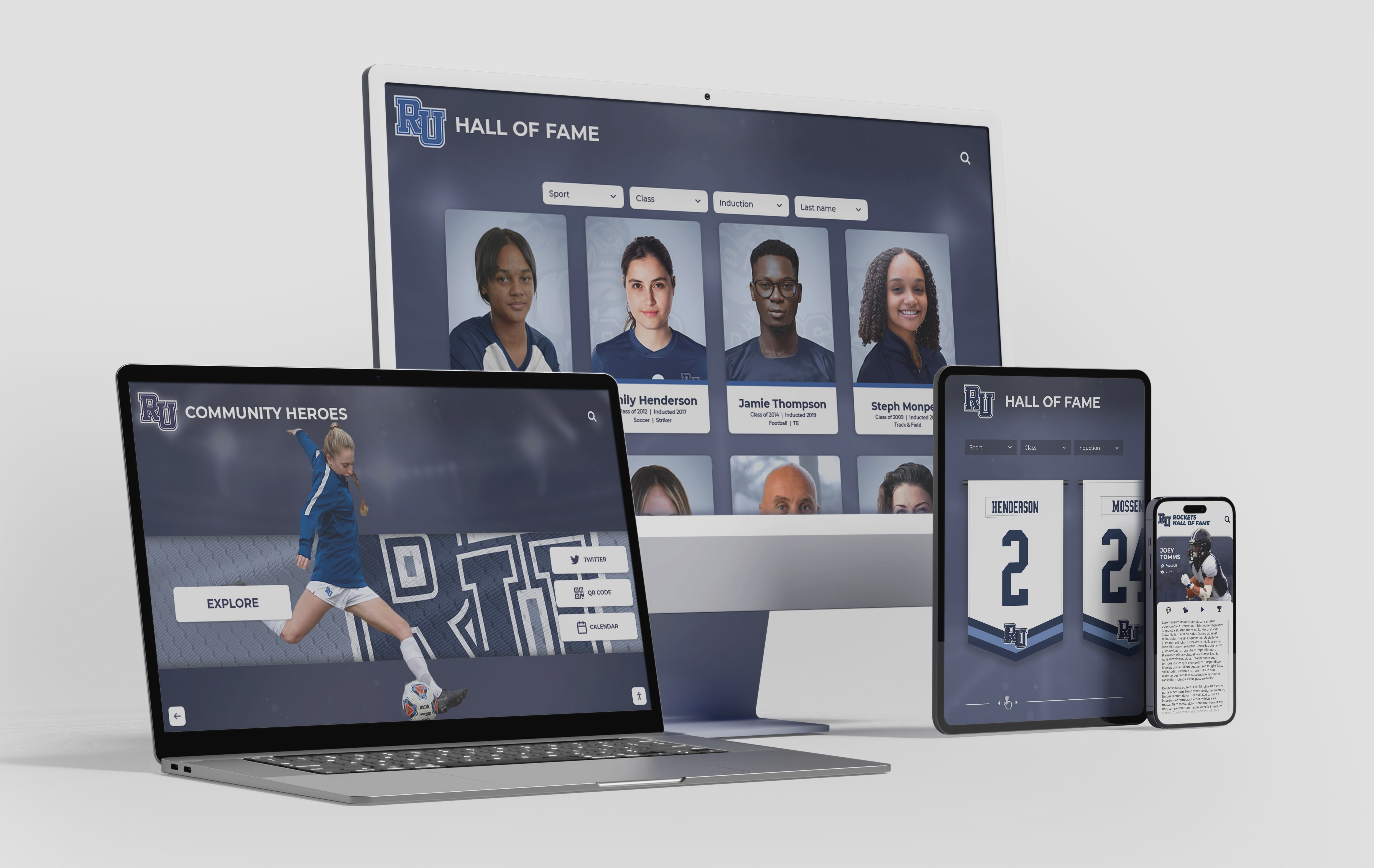
A multi-page digital hall of fame platform contains at least five distinct landmark region types per page—each must carry the correct role and, where duplicated, a unique accessible label
Screen-by-Screen Landmark Audit Table
Run this audit on each page type in sequence. For each row, confirm the landmark exists in the DOM, that a screen reader announces it, and that the accessible label (if required) is present and meaningful.
Home / Landing Page
| Page Section | Required Landmark | Accessible Label Required | Common Failure | Pass Condition |
|---|---|---|---|---|
| School logo and primary nav | banner (via <header>) | No — only one banner per page | <div class="header"> with no role | <header> wraps logo and nav; screen reader announces “banner” |
| Primary site navigation | navigation (via <nav>) | Yes if multiple <nav> exist | Bare <div> used instead of <nav> | <nav aria-label="Primary"> wraps main nav links |
| Featured inductee carousel | region (via <section aria-label="...">) | Yes — label the section | <section> with no aria-label; not exposed as landmark | <section aria-label="Featured Inductees"> wraps carousel |
| Keyword search bar | search (via <search> or role="search") | No — only one expected | <form> with no role; search region not landmarked | <search> or <form role="search"> wraps input and button |
| Main inductee content area | main (via <main>) | No — only one main per page | <div id="content"> with no role | <main> wraps all primary inductee content |
| Sponsor or donor ribbon | complementary (via <aside>) | Yes if multiple <aside> exist | <div class="sponsor-bar"> with no role | <aside aria-label="Sponsors"> wraps ribbon |
| Site footer | contentinfo (via <footer>) | No — only one per page | <div class="footer"> with no role | <footer> wraps legal, contact, and social links |
Sport-Category Index Pages
| Page Section | Required Landmark | Accessible Label Required | Common Failure | Pass Condition |
|---|---|---|---|---|
| Sport-category navigation tabs | navigation | Yes — label it distinctly from primary nav | Both site nav and sport tabs share <nav> with no label | <nav aria-label="Sport Categories"> wraps sport tab row |
| Active filter status | region | Yes | Filter status displayed in a <div> outside any landmark | <section aria-label="Active Filters"> or role="status" for dynamic updates |
| Inductee card grid | main | No | Card grid floated outside <main> | All inductee cards rendered inside <main> |
| Decade or year-range filter panel | complementary | Yes | Filter sidebar has no landmark role | <aside aria-label="Filter by Era"> wraps decade controls |
| Pagination controls | navigation | Yes — label it to distinguish from sport nav | Second <nav> with no aria-label | <nav aria-label="Inductee Pages"> wraps prev/next controls |
Individual Inductee Profile Pages
| Page Section | Required Landmark | Accessible Label Required | Common Failure | Pass Condition |
|---|---|---|---|---|
| Breadcrumb trail | navigation | Yes | Breadcrumb rendered in a <div> | <nav aria-label="Breadcrumb"> wraps breadcrumb list |
| Profile hero (photo + biography) | main | No | Hero rendered outside <main> | Hero section is inside <main> |
| Career statistics table | region | Yes | Stats table sits in a bare <div> with no label | <section aria-label="Career Statistics"> wraps stats table |
| Video tribute / media player | region | Yes | <div class="video-wrapper"> with no role | <section aria-label="Tribute Video"> wraps media embed |
| Related inductees sidebar | complementary | Yes | Sidebar rendered after <footer> outside any landmark | <aside aria-label="Related Inductees"> inside page structure |
| Social share / action buttons | region or include inside main | Yes if a separate <section> | Icon button row floated outside all landmarks | Action bar inside <main> or <section aria-label="Share This Profile"> |
Search Results Pages
| Page Section | Required Landmark | Accessible Label Required | Common Failure | Pass Condition |
|---|---|---|---|---|
| Search input (on results page) | search | No | Results page duplicates search field in a bare <form> | <search> or <form role="search"> wraps search field on results page |
| Result count / status message | Inline in main; use role="status" for dynamic updates | No | Result count in a <span> outside main | Result count rendered inside <main> with role="status" and aria-live="polite" |
| Result card list | main | No | Card list rendered in a <div> beside <main> | All result cards inside <main> |
| Search filter sidebar | complementary | Yes | Sidebar floated with no <aside> | <aside aria-label="Search Filters"> wraps filter panel |

When inductee profile cards live inside a properly labeled main landmark, screen-reader users can jump directly to the roster and begin browsing without tabbing through site navigation and search controls first
Execution Timeline: Step-by-Step Landmark Audit Workflow
Step 1: Inspect the DOM for Landmark Elements
Open the recognition website in Chrome. Right-click any page section and select Inspect. In the Elements panel, press Ctrl + F (Windows) or Cmd + F (macOS) and search for each semantic element:
- Search for
<header— confirm one top-level<header>exists and wraps the logo and primary navigation. Note any<header>elements inside article or section contexts (these do not create abannerlandmark). - Search for
<nav— count how many<nav>elements are present. If more than one, confirm each carries a uniquearia-labelattribute. A site with primary navigation, sport tabs, breadcrumbs, and pagination has four<nav>elements; all four need distinct labels. - Search for
<main— confirm exactly one<main>element exists. A page with two<main>elements fails 4.1.2. - Search for
role="search"or<search— confirm the search bar is wrapped in a search landmark. If neither is present, the search region is not landmarked. - Search for
<aside— confirm the filter sidebar and sponsor ribbon carry<aside>elements witharia-label. - Search for
<section— for every<section>, confirm it carries anaria-labeloraria-labelledby. Bare sections are not exposed as landmarks. - Search for
<footer— confirm one top-level<footer>exists after<main>.
Record each finding—present, missing, or mislabeled—in the issue log at the end of this guide.
Step 2: Use Chrome DevTools Accessibility Panel
- With the Elements panel open, click any element you want to inspect.
- Open the Accessibility tab in the right-hand panel (you may need to expand it from the tab row).
- The Accessibility panel shows the element’s computed role, accessible name, and its position in the accessibility tree.
- Navigate to the site’s
<header>,<nav>,<main>,<aside>,<footer>, and each<section>element in sequence. - For each, confirm the Role field shows the expected landmark role and the Name field is not empty for roles that require a label.
- A
<section>without anaria-labelwill show Role: generic in Chrome’s accessibility tree—this confirms it is not exposed as a landmark.
Step 3: Verify Landmarks with a Screen Reader
A DOM inspection confirms landmark markup exists; a screen reader test confirms screen readers actually announce it.
- Install NVDA (Windows, free from nvaccess.org) or enable VoiceOver on macOS (Command + F5).
- Open Chrome and navigate to the home page of the recognition site.
- In NVDA, press Insert + F7 to open the Elements List. Select Landmarks from the dropdown. A correctly structured home page should list: banner, navigation (Primary), search, main, navigation (Sport Categories), complementary (Sponsors), contentinfo.
- In VoiceOver, open the Web Rotor (Control + Option + U), then arrow left or right to the Landmarks category. Confirm the same regions appear.
- Navigate to the inductee profile page. Repeat the landmark list check. Confirm main, navigation (Breadcrumb), region (Career Statistics), region (Tribute Video), complementary (Related Inductees), and contentinfo are all listed.
- For each landmark in the list, press Enter (NVDA) or select it (VoiceOver) to jump to that region. Confirm the screen reader lands at the correct element and announces the correct label.
Step 4: Test Landmark Navigation by Keyboard Shortcut
- With NVDA active, press D to move forward through landmarks one at a time. Press Shift + D to move backward.
- Tab through the following sequence: banner → navigation (Primary) → search → main → navigation (Sport Categories) → complementary → contentinfo. Confirm each jump lands in the correct section.
- Navigate to a sport-category index page and repeat. Confirm the sport-tab navigation is announced distinctly from the primary navigation.
- Navigate to a search results page. Confirm the search landmark is present and distinct. Confirm the result card list is inside the main landmark.
- Navigate to an inductee profile page. Confirm jumping to the main landmark lands at the hero section (portrait and biography), not at the navigation or sponsor ribbon.
Step 5: Test Multiple-Instance Landmark Labels
This step specifically tests the accessible label on landmarks that appear more than once.
- Open the sport-category index page.
- Open the NVDA landmark list (Insert + F7 → Landmarks).
- Confirm the list shows two navigation landmarks with distinct labels—for example, “navigation Primary” and “navigation Sport Categories”—not two unlabeled entries both announced as “navigation.”
- If the landmark list shows two identical “navigation” entries with no distinguishing label, the labels are absent or duplicated.
- On the inductee profile page, confirm region landmarks carry distinct labels—“Career Statistics” and “Tribute Video” should appear as separate named regions, not two generic “region” entries.
Step 6: Audit the Kiosk Interface (If Applicable)
Schools that operate a wall-mounted touchscreen recognition kiosk alongside the web directory should audit the kiosk interface separately. Most Rocket Alumni Solutions kiosk interfaces are delivered through a web browser, so the same landmark audit applies.
- On the kiosk, connect a keyboard or access the browser’s developer tools remotely.
- Run the landmark inspection steps above for the kiosk’s home screen, the sport-navigation screen, and a sample inductee profile screen.
- Note that kiosk interfaces often simplify the page structure relative to the web directory—confirm that simplification does not eliminate the main and navigation landmarks entirely, leaving the kiosk content in an unlandmarked flat structure.
For comprehensive kiosk accessibility verification, pair this landmark audit with a recognition display hardware testing protocol to confirm both software landmark structure and display rendering quality meet accessibility standards for your installation.
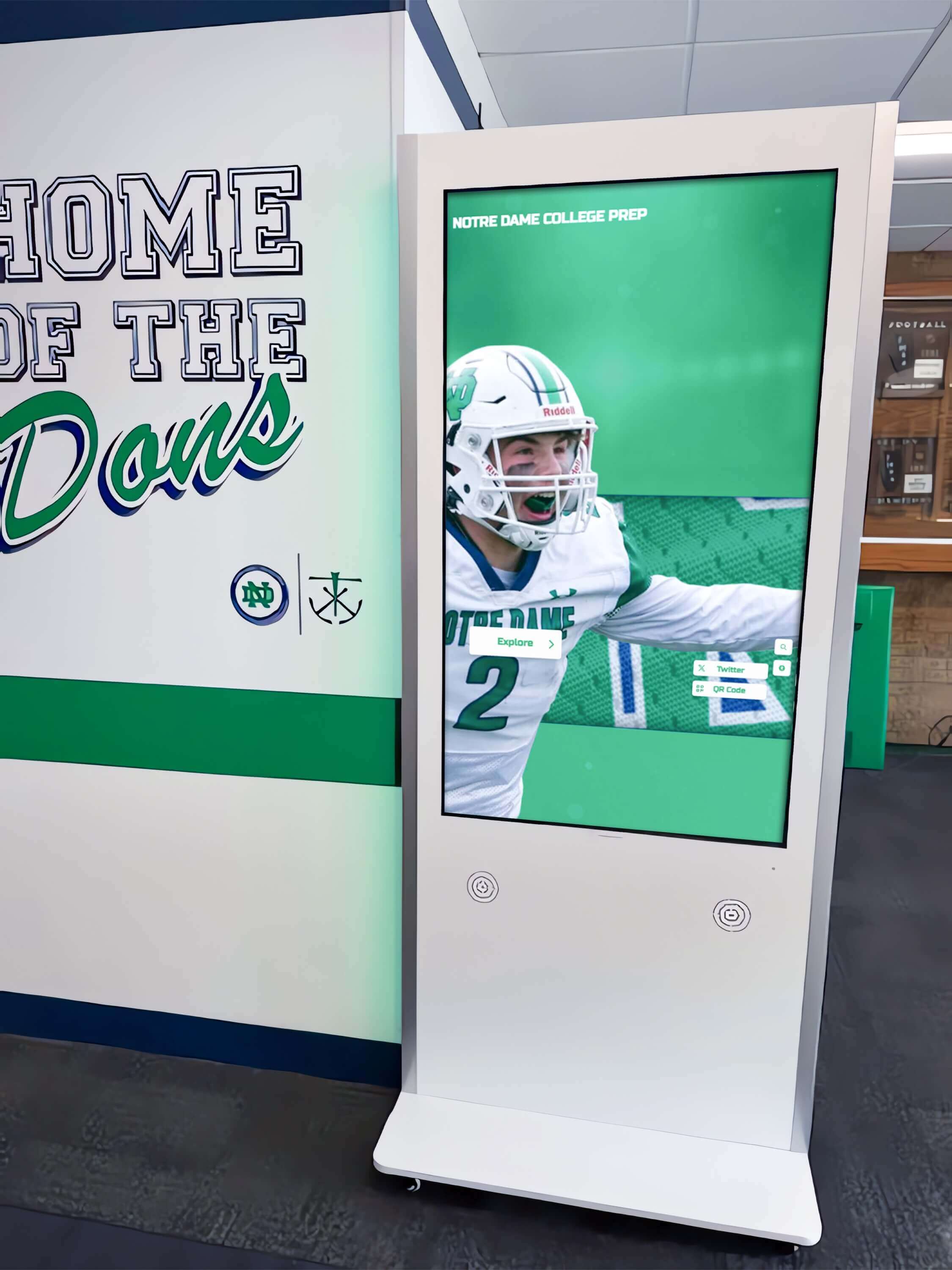
Kiosk interfaces that display sport-category navigation and inductee profiles must expose the same ARIA landmark structure as the web directory—the main, navigation, and search regions must be present and labeled for visitors who connect assistive technology
Numbered Remediation Steps
When the audit identifies missing or mislabeled landmarks, apply the following fixes in priority order. Address missing landmark roles before addressing label quality; a landmark with an imperfect label is still navigable, while a missing landmark is completely invisible to landmark navigation.
1. Add <main> to the primary content area.
If the inductee roster, profile content, or search results are wrapped in a <div id="content"> or <div class="page-body"> with no <main>, replace the outer wrapper with <main> (or add role="main" if the HTML structure cannot be changed). This is the highest-impact single fix: the main landmark is the destination most screen-reader users jump to first.
2. Wrap all navigation elements in <nav>.
Replace <div class="nav">, <div class="breadcrumb">, <div class="pagination">, and <div class="sport-tabs"> with <nav> elements. Do not use <nav> for non-navigational link lists (such as a footer link group that is already inside <footer>).
3. Add aria-label to every <nav> element.
A page with more than one navigation region must label each one. Recommended labels:
- Primary site navigation:
aria-label="Primary" - Sport-category tabs:
aria-label="Sport Categories" - Breadcrumb trail:
aria-label="Breadcrumb" - Inductee pagination:
aria-label="Inductee Pages"
4. Add role="search" or <search> to the search form.
Wrap the search input and submit button in <form role="search"> (or the HTML <search> element in browsers that support it). Do not apply role="search" to the <input> itself—apply it to the form container.
5. Replace bare <section> elements with labeled <section> elements.
For every <section> that is meant to function as a navigable landmark region, add a descriptive aria-label:
- Featured inductees:
<section aria-label="Featured Inductees"> - Career statistics:
<section aria-label="Career Statistics"> - Tribute video:
<section aria-label="Tribute Video"> - Class of year listing:
<section aria-label="Class of [Year] Inductees">
If a <section> is not a meaningful navigable region—for example, a decorative divider—remove it or replace it with a <div> to avoid generating an unnamed, opaque landmark.
6. Wrap filter panels and sponsor ribbons in <aside>.
Replace <div class="sidebar"> and <div class="sponsor-bar"> with <aside aria-label="Filter by Sport"> and <aside aria-label="Sponsors"> respectively. Where both appear on the same page, confirm each carries a distinct label.
7. Wrap the site footer in <footer>.
Replace <div class="footer"> with <footer>. Confirm the <footer> is a direct child of <body> or <main> (not nested inside <article> or <section>), so it generates the contentinfo landmark.
8. Confirm <header> placement.
Replace <div class="header"> with <header>. Confirm the <header> is a direct child of <body>—when nested inside <article>, <section>, or <main>, a <header> does not generate the banner landmark.
9. Remove duplicate <main> elements.
A page must contain exactly one <main> element. If a CMS injects a second <main> around a content block, change the inner element to a <div> or a named <section>.
10. Verify the fix with a screen reader before marking it complete. After each code change, reload the page in Chrome with NVDA running and open the landmark list (Insert + F7). Confirm the fixed landmark appears with the correct role and label before moving to the next item.
Content Architecture: Landmark Map for a Complete Hall of Fame Site
A complete digital hall of fame platform contains the following landmark structure across its major page types. Use this map to guide remediation planning and to validate that your platform’s theme generates the expected structure by default.
| Page Type | Expected Landmark Sequence | Notes |
|---|---|---|
| Home / Landing | banner → navigation (Primary) → search → main → navigation (Sport Categories) → complementary (Sponsors) → contentinfo | Sport-category tabs may be inside main if they filter content on the home page; they still require a labeled <nav> |
| Sport-Category Index | banner → navigation (Primary) → main → navigation (Sport Categories) → navigation (Inductee Pages) → complementary (Filter by Era) → contentinfo | Navigation (Sport Categories) may precede main or be inside main depending on layout |
| Inductee Profile | banner → navigation (Primary) → navigation (Breadcrumb) → main → region (Career Statistics) → region (Tribute Video) → complementary (Related Inductees) → contentinfo | Breadcrumb nav must be labeled to distinguish it from primary nav |
| Search Results | banner → navigation (Primary) → search → main → complementary (Search Filters) → navigation (Inductee Pages) → contentinfo | The search landmark on the results page allows returning to the search field from landmark navigation without scrolling |
| Kiosk Home Screen | navigation (Sport Categories) → main → search | Kiosk interfaces simplify the landmark structure but must retain at minimum main and navigation |
Schools evaluating recognition platforms for the first time will find a useful comparison of platform feature sets—including accessibility infrastructure—in the review of top hall of fame tools for athletics and donor programs. The landmark structure supported by a platform’s default theme is a reliable indicator of its broader accessibility maturity.
When comparing recognition approaches, the digital hall of fame display versus traditional trophy case analysis covers how digital platforms carry accessibility obligations—including landmark structure—that physical trophy cases do not.
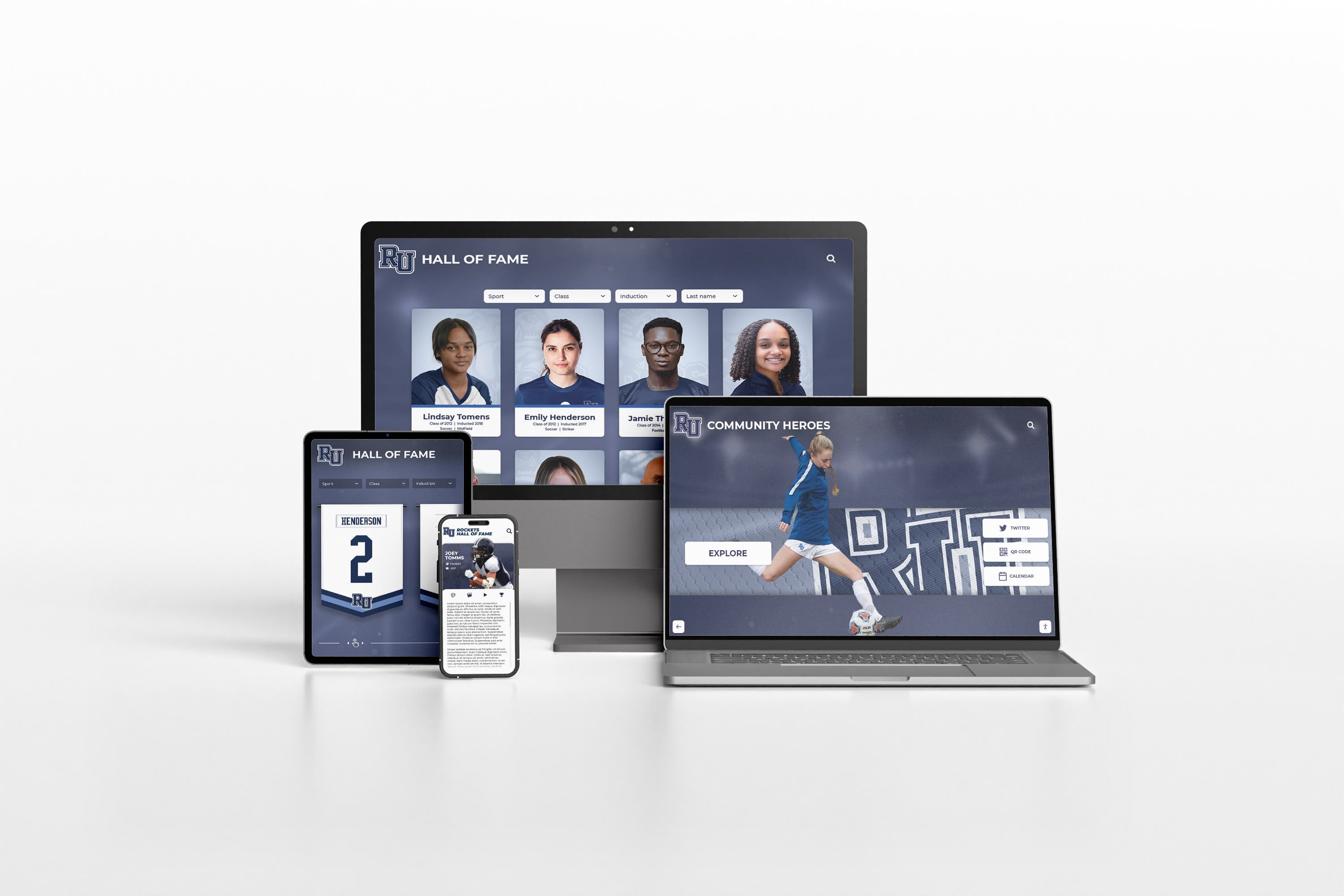
ARIA landmark regions must be present and labeled correctly on every device context—desktop, tablet, and mobile—because the underlying HTML serves all viewports from the same source
Display Integration: Connecting Landmark Compliance to the Recognition Platform
A digital hall of fame platform that generates page HTML from a shared template propagates landmark compliance (or its absence) to every page in the archive. This is a critical architectural point for school recognition programs: if the platform’s default theme wraps the inductee roster in a bare <div> instead of <main>, then every inductee profile, every sport-category index, and every search results page fails the landmark audit—automatically, for every honoree ever added.
Rocket Alumni Solutions builds recognition websites and kiosk interfaces using semantic HTML templates that include <header>, <nav>, <main>, <aside>, and <footer> elements by default. Navigation regions carry aria-label attributes for the primary navigation and breadcrumb trail, and inductee profile pages include named <section> regions for statistics and media content. When a school administrator adds a new inductee class through the cloud CMS, the new profile pages inherit the same landmark structure as every existing page—no per-page accessibility configuration is required.
For schools managing legacy recognition sites built on older themes or CMS frameworks, the landmark remediation steps above can be applied as a targeted HTML and CSS patch without a full redesign. Most landmark fixes are additive—replacing a <div> with a semantically equivalent <nav> or <aside> does not change visual layout and does not require CSS changes. The fix is in the element type and the aria-label attribute, not in the visual presentation.
Schools building academic recognition components alongside athletic recognition—including donor recognition walls and alumni display programs—should apply the same landmark structure to academic and donor pages, not only athletic inductee pages. The audit workflow above applies without modification to any searchable recognition directory, regardless of whether it covers athletics, academics, performing arts, or institutional history.
For programs launching a new recognition initiative and looking for visual assets and templates to accompany the digital platform, school social media graphics and AI design resources can support the launch materials while the digital platform’s landmark structure is being verified. For milestone recognition events such as graduations, graduation slideshow templates provide a complementary presentation layer alongside the accessible online archive.
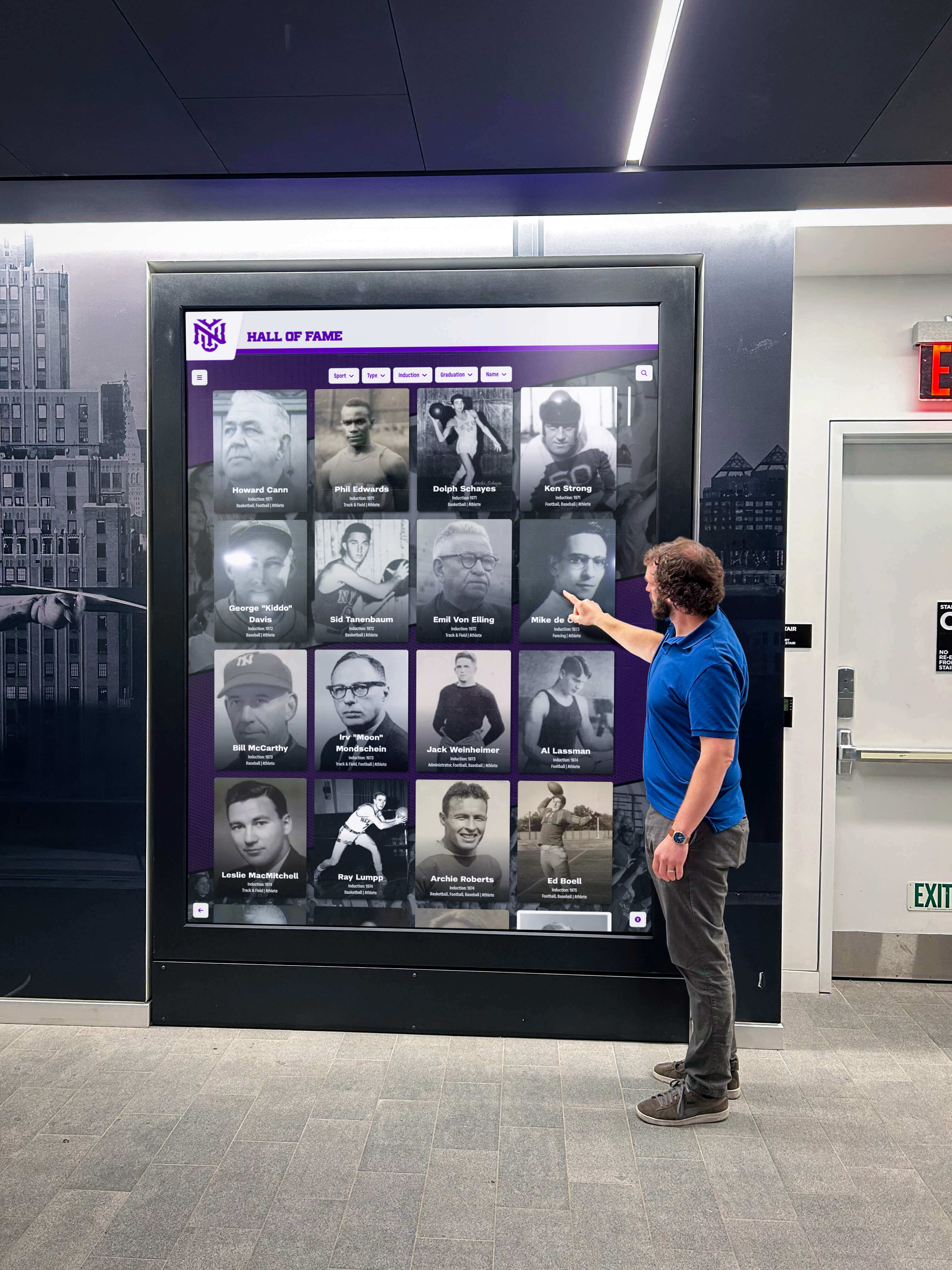
Lobby recognition displays and web directories serve visitors of all abilities—ARIA landmark structure ensures every visitor can navigate directly to the section they want without assistive-technology workarounds
Issue Log Template: ARIA Landmark Audit
Use this template to record every finding during the audit. Copy it to a spreadsheet or a school IT ticket system and assign a fix owner before beginning remediation.
| # | Page URL | Page Type | Section Description | Expected Landmark | Actual Markup Found | Accessible Label Present | Severity | Recommended Fix | Fix Owner | Verified |
|---|---|---|---|---|---|---|---|---|---|---|
| 1 | Home | Primary navigation | <nav aria-label="Primary"> | <div class="nav"> | No | High | Replace <div> with <nav aria-label="Primary"> | |||
| 2 | Home | Inductee card grid | <main> | <div id="content"> | N/A | High | Replace <div> with <main> | |||
| 3 | Home | Search bar | <form role="search"> | <form> with no role | N/A | High | Add role="search" to form element | |||
| 4 | Home | Sponsor ribbon | <aside aria-label="Sponsors"> | <div class="sponsors"> | No | Medium | Replace <div> with <aside aria-label="Sponsors"> | |||
| 5 | Sport Category | Sport-tab row | <nav aria-label="Sport Categories"> | <nav> with no label | No | High | Add aria-label="Sport Categories" to <nav> | |||
| 6 | Inductee Profile | Breadcrumb | <nav aria-label="Breadcrumb"> | <div class="breadcrumb"> | No | Medium | Replace <div> with <nav aria-label="Breadcrumb"> | |||
| 7 | Inductee Profile | Career statistics | <section aria-label="Career Statistics"> | <section> with no label | No | Medium | Add aria-label="Career Statistics" to <section> | |||
| 8 | Inductee Profile | Tribute video | <section aria-label="Tribute Video"> | <div class="video-wrap"> | No | Medium | Replace <div> with <section aria-label="Tribute Video"> | |||
| 9 | Search Results | Filter sidebar | <aside aria-label="Search Filters"> | <div class="filters"> | No | Medium | Replace <div> with <aside aria-label="Search Filters"> | |||
| 10 | All pages | Site footer | <footer> | <div class="footer"> | N/A | High | Replace <div> with <footer> |
Severity guide:
- High — A primary navigation, main content, or search region is not landmarked; screen-reader users cannot jump to essential page areas.
- Medium — A secondary region (sidebar, breadcrumb, statistics block) is not landmarked; landmark navigation is reduced but primary content remains reachable.
- Low — A landmark exists but carries a generic or non-descriptive label; navigation is possible but requires additional context.
Execution Timeline: Plan, Audit, Fix, Verify
| Phase | Activities | Responsible Party | Cadence |
|---|---|---|---|
| Plan | Identify all page types in the recognition platform; confirm whether the CMS theme includes semantic HTML elements; coordinate with IT or platform vendor | Athletic director + IT lead | Once at platform launch; once after each major theme or template update |
| Audit | Run the six-step landmark inspection workflow across home, sport-category, profile, and search pages; document findings in the issue log | IT staff or web administrator | At launch; quarterly; immediately after any CMS theme change |
| Fix | Apply the ten numbered remediation steps in priority order; coordinate with platform vendor for template-level fixes | Developer or platform vendor | Within 30 days of audit findings; immediately before a public launch or community recognition event |
| Verify | Repeat screen-reader landmark list check (NVDA Insert + F7) after each fix; confirm all expected landmarks appear with correct roles and labels | IT staff | Immediately after each fix is deployed to the live site |
| Document | Record audit date, tools used, findings by page type, fixes applied, and re-verification results; retain for compliance records | Administrative lead | Each audit cycle |
Schools planning an academic recognition program launch alongside athletic recognition should include the landmark audit in the pre-launch checklist for both sections. The presidential academic fitness award guide for school administrators outlines the full scope of academic recognition a school may need to display online—all of that content requires the same landmark infrastructure as the athletic hall of fame.
To see how recognition platforms handle broader accessibility compliance beyond landmarks, the WCAG 2.2 AA accessibility compliance guide provides a useful framework for evaluating the full AA criteria set that school recognition programs should target. Schools can request a live platform demonstration to verify landmark structure alongside color contrast, keyboard navigation, and ARIA live regions before any commitment.
Measurement: Evaluating Landmark Audit Results
After completing the six-step audit and applying remediation, measure outcomes against the following benchmarks.
| Metric | Target | Action if Below Target |
|---|---|---|
| Page types with all required landmarks present | 100% of tested page types | Prioritize home page, inductee profile, and search results pages before category pages |
| Navigation landmarks with distinct accessible labels | 100% of <nav> elements | Add unique aria-label to every <nav> before re-testing |
Named <section> elements exposed as region landmarks | 100% of content sections intended to be navigable | Add aria-label to every <section> that should be a landmark; replace <section> with <div> for purely structural sections |
| Search landmark present on all search-containing pages | 100% of pages with a search field | Add role="search" to the form wrapper on every page where search appears |
| Landmark list completeness confirmed by screen reader | NVDA landmark list matches expected landmark map for each page type | Investigate discrepancies between DOM inspection and screen reader output; some older screen-reader versions have known landmark support gaps |
| Re-audit after template changes | All landmarks pass after any theme or CMS template update | Schedule landmark spot-check within 48 hours of any template deployment |
Landmark compliance is binary for each element—a region either has a correctly labeled landmark role or it does not. Unlike color contrast, which admits borderline cases, a <div> replacing <main> is a clear failure regardless of its visual appearance. This makes the landmark audit one of the most reproducible and verifiable accessibility tests available, and one of the fastest to remediate once the issues are identified.
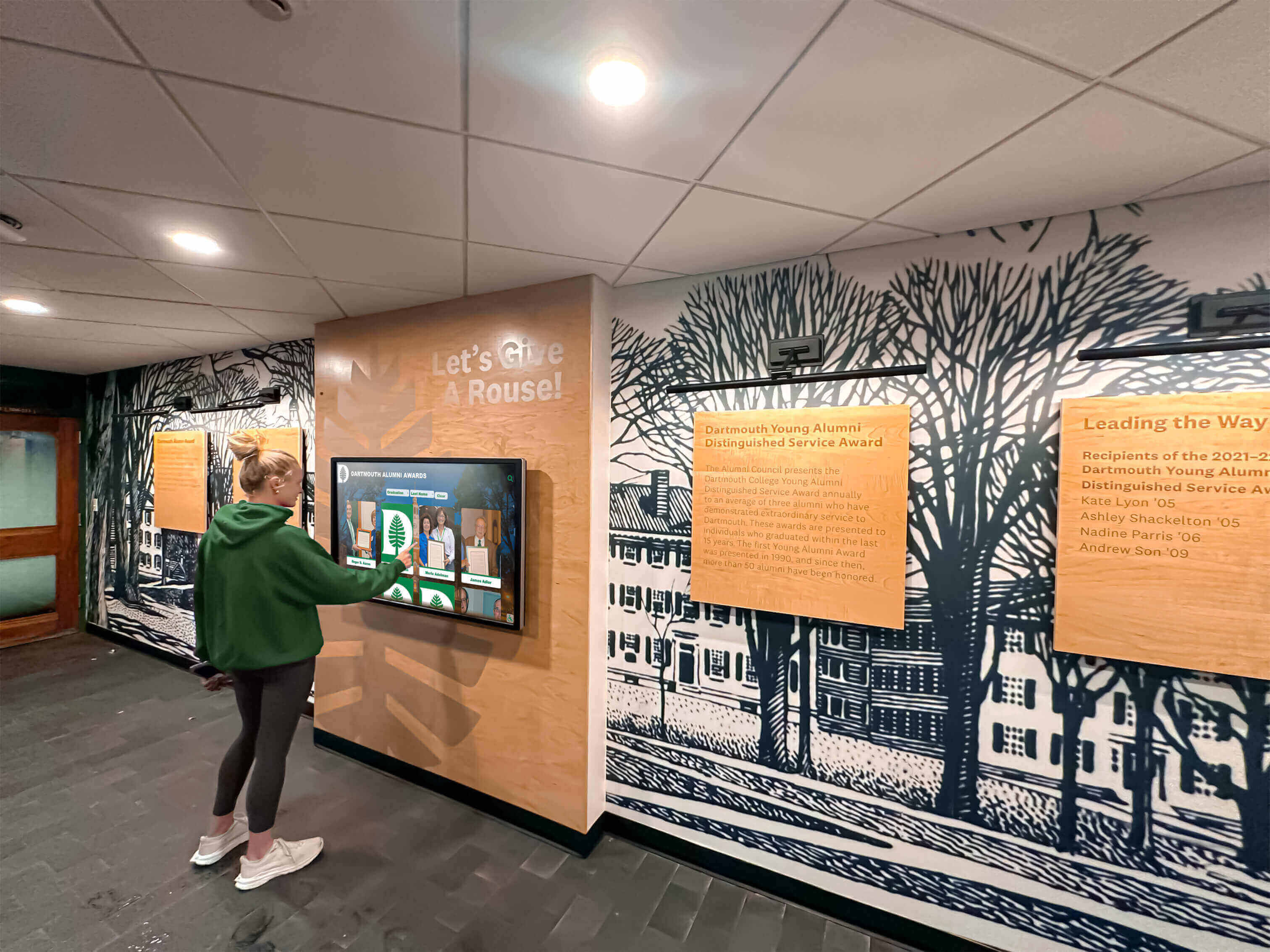
When ARIA landmark regions are correctly implemented, students and alumni using assistive technology can navigate a digital hall of fame as efficiently as any other visitor—jumping directly to the section they want without tabbing through every element
Frequently Asked Questions
What exactly is an ARIA landmark and why does it matter for hall of fame navigation?
An ARIA landmark is an HTML element or attribute that defines a named region of a page—such as <nav>, <main>, <aside>, or <footer>—that screen-reading software can enumerate and jump to directly. On a digital hall of fame site, landmarks matter because the page is dense: a typical home page has a site header, primary navigation, a search bar, a featured inductee carousel, a sport-category tab row, an inductee card grid, a sponsor ribbon, and a footer. Without landmarks, a screen-reader user must tab through every element from the top of the page every time they visit. With landmarks, they open the landmark list and jump to “main” or “search” in one keystroke.
Does using HTML5 sectioning elements automatically create ARIA landmarks?
Most HTML5 sectioning elements generate landmark roles automatically when used correctly: <header> generates banner, <nav> generates navigation, <main> generates main, <aside> generates complementary, and <footer> generates contentinfo. The critical exception is <section>: a <section> element generates a region landmark only when it carries an accessible name via aria-label or aria-labelledby. A bare <section> with no label is not exposed as a landmark in most screen readers. This is the most common gap on hall of fame sites built with modern HTML5 frameworks that use <section> extensively but omit labels.
How many ARIA landmarks should a typical inductee profile page have?
A well-structured inductee profile page should have seven to ten landmarks: one banner, one to two navigation regions (primary nav plus breadcrumb), one main, two to four region sections (career statistics, tribute video, award history, photo gallery), one complementary (related inductees or sidebar), and one contentinfo. The exact count depends on the platform’s feature set. What matters is that every meaningful navigable section has a landmark role and, where a role appears more than once, a distinct accessible label.
What is the difference between aria-label and aria-labelledby for landmark naming?
Both attributes provide an accessible name for a landmark, but they work differently. aria-label accepts a plain text string written directly on the element: <nav aria-label="Sport Categories">. aria-labelledby references the ID of another element on the page whose text content becomes the accessible name: <nav aria-labelledby="sport-nav-heading">. Use aria-label when no visible heading is present or when the heading text is not specific enough to distinguish the landmark. Use aria-labelledby when a visible heading already describes the section—this way the label stays in sync with the visible text if the heading changes. Either approach is valid; consistency within the platform is the practical goal.
Do kiosk interfaces have the same landmark requirements as the web directory?
If the kiosk interface is delivered through a web browser—which is the case for most recognition platform kiosks—then the HTML-based landmark requirements apply. In practice, kiosk interfaces often simplify the page structure, which can either help or hurt landmark compliance: a simplified layout may eliminate redundant navigation landmarks (reducing label-conflict risk) but may also eliminate the search or main landmark if the simplification is too aggressive. Run the landmark audit on the kiosk interface separately from the web directory, even if they share an underlying codebase.
Can automated accessibility scanners detect landmark failures?
Automated scanners such as WAVE and axe DevTools can identify some landmark issues—particularly pages with no landmark regions at all, or pages missing a <main> element. They can also flag unlabeled duplicate navigation regions. However, automated scanners cannot determine whether the landmark structure is semantically appropriate for the page content—for example, whether a statistics block should be a named region or whether it belongs inside main without a separate landmark. Manual inspection and screen-reader verification remain necessary for a complete landmark audit, especially for the named <section> pattern that scanners often miss.
Reusable Artifact: Landmark Pre-Launch Checklist
Copy this checklist before each recognition platform launch or template update.
Global Landmark Structure
- Exactly one
<header>as a direct child of<body>(generatesbanner) - Exactly one
<main>per page (generatesmain) - Exactly one
<footer>as a direct child of<body>(generatescontentinfo) - Every
<nav>element carries a uniquearia-label - Every
<section>intended as a navigable region carriesaria-labeloraria-labelledby - Every
<aside>carries a uniquearia-label - The search form carries
role="search"or uses the<search>element
Page-Specific Checks
- Home page: landmark list includes banner, navigation (Primary), search, main, complementary (Sponsors), contentinfo
- Sport-category page: navigation (Sport Categories) is distinct from navigation (Primary)
- Inductee profile page: region (Career Statistics) and region (Tribute Video) appear in landmark list
- Search results page: search landmark is present on the results page, not only on the home page
- Breadcrumb navigation:
<nav aria-label="Breadcrumb">is distinct from primary and sport navigation - Pagination:
<nav aria-label="Inductee Pages">is labeled and distinct from other navigation regions
Screen Reader Verification
- NVDA landmark list (Insert + F7) matches expected landmark map for home page
- NVDA landmark list matches expected landmark map for inductee profile page
- VoiceOver Web Rotor landmark list matches expected map for both page types
- Jumping to each landmark via keyboard shortcut (D in NVDA) lands at the correct section
- No duplicate unlabeled navigation landmarks appear in the list
For school recognition programs that are expanding to cover academic honorees, donor walls, and multi-decade alumni archives, landmark structure becomes a site-wide infrastructure requirement—not a single-page fix. Every searchable directory, every filterable roster, and every profile page in the platform must expose the correct landmark structure for the full recognition archive to be accessible. Pairing this landmark audit with an ARIA live region test for search and filter updates and a reflow accessibility test at 400% zoom creates a comprehensive accessibility verification workflow covering structure, dynamic announcements, and visual layout across the same platform.
Recognition programs that serve the full school community—including the families of current students, returning alumni, and community members who follow your athletic program from a distance—depend on a platform that is equally navigable for every visitor. An ARIA landmark audit takes under one hour using free tools and protects the recognition experience for every visitor who relies on landmark navigation to reach your inductees.
See Rocket Alumni Solutions’ Accessible Hall of Fame Platform in Action
Request a live demonstration to see how Rocket’s recognition platform structures landmark regions across inductee profiles, sport-category navigation, and search results—before any commitment.
Live Example: Rocket Alumni Solutions Touchscreen Display
Interact with a live example (16:9 scaled 1920x1080 display). All content is automatically responsive to all screen sizes and orientations.