Digital Hall of Fame ARIA Activedescendant Audit for Search Suggestions
- Home /
- Digital Hall of Fame Insights & Resources /
- Digital Hall of Fame ARIA Activedescendant Audit for Search Suggestions

The Easiest Touchscreen Solution




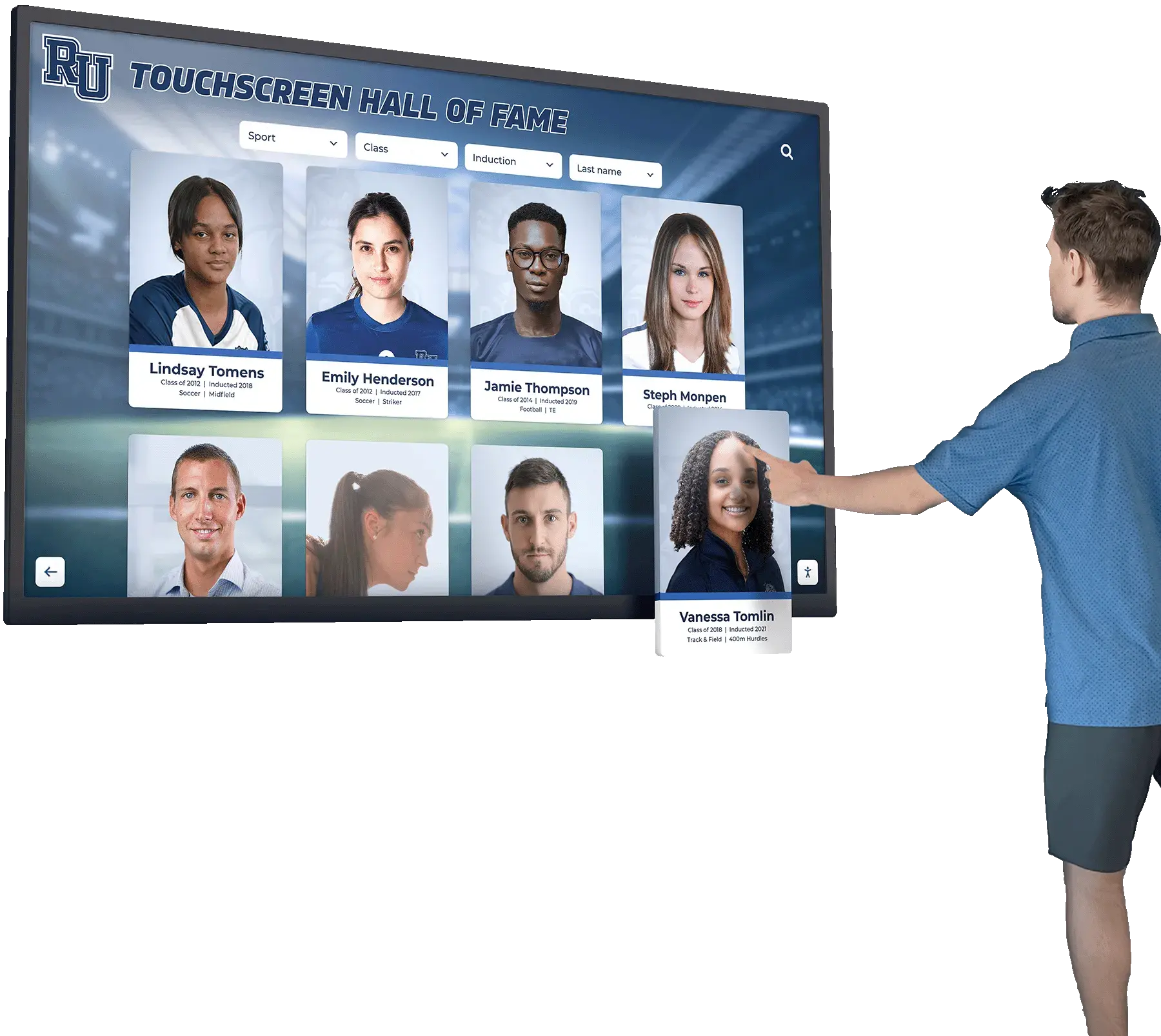
Live Example: Rocket Alumni Solutions Touchscreen Display
Interact with a live example (16:9 scaled 1920x1080 display). All content is automatically responsive to all screen sizes and orientations.
A digital hall of fame ARIA activedescendant audit is the process of verifying that when a visitor types into your school recognition site’s inductee search box and a list of name suggestions appears, the browser’s accessibility API correctly communicates which suggestion is currently highlighted to any connected screen reader—without ever moving keyboard focus away from the input field the visitor is typing in. The mechanism that enables this communication is the aria-activedescendant attribute: a property placed on the combobox input that points to the id of whichever suggestion option the user has navigated to with the Arrow Down or Arrow Up key. When aria-activedescendant is absent, misconfigured, or not updated by JavaScript as arrow-key navigation moves through the suggestion list, screen-reader users receive no announcement of the highlighted item—they press the Down Arrow and hear silence, with no way to know whether suggestions appeared or which one would be selected if they pressed Enter. For school administrators, athletic directors, IT staff, and recognition-program managers, this failure means that any visitor relying on NVDA, JAWS, VoiceOver, or TalkBack to search your inductee archive—by athlete name, sport, or graduation year—cannot use the search suggestion feature at all. This guide provides a complete audit workflow, pass and fail markup patterns for every common implementation scenario, an assistive-technology compatibility test table, and a reusable checklist for pre-launch and post-update verification.
Screen-reader focus management inside a combobox is one of the most technically specific accessibility requirements a recognition platform’s search feature must satisfy. Sighted visitors using a mouse or touch see a dropdown list and click the suggestion they want. Keyboard users see the same list and navigate it by pressing Arrow Down to move the visual highlight, then pressing Enter to select. The underlying mechanism that makes this work for screen-reader users is entirely different: the screen reader cannot see the visual highlight—it reads only what the accessibility API reports, and for combobox search suggestions, the API’s source of truth is aria-activedescendant.
A digital hall of fame ARIA activedescendant audit is the targeted test that confirms this attribute is correctly implemented, correctly updated by JavaScript during keyboard navigation, and correctly announced by the screen readers your school community uses—before an inductee search fails silently for a visually impaired alumnus, parent, or student during an induction ceremony livestream or an alumni weekend archive visit.

When a visitor navigates search suggestions on a digital hall of fame display using Arrow keys, aria-activedescendant on the combobox input is the attribute that tells the screen reader which suggestion is currently highlighted
Program Snapshot: ARIA Activedescendant Audit Scope for Inductee Search Comboboxes
Map the audit scope before opening a browser or screen reader. The table below defines key parameters for schools at any stage of digital recognition—from a recently launched platform to a multi-decade athletic archive with hundreds of inductee records.
| Planning Element | Details |
|---|---|
| Primary Audience | Athletic directors, IT administrators, school web managers, accessibility compliance leads, recognition-program owners who maintain an inductee search feature |
| What Is Being Audited | Every combobox search interaction on the recognition platform: the main inductee search field, any sport-filtered search, the inductee name lookup on nomination forms, and any search autocomplete present on kiosk interfaces |
| WCAG Criteria | 4.1.2 Name, Role, Value — Level A; 2.1.1 Keyboard — Level A; 1.3.1 Info and Relationships — Level A; 4.1.3 Status Messages — Level AA |
| Tools Required | Chrome or Firefox, a physical keyboard, NVDA (Windows, free) or VoiceOver (macOS, built-in), Chrome DevTools Accessibility panel, and optionally the axe DevTools browser extension |
| Time Investment | 20–40 minutes for a full audit of all combobox search interactions; 10 minutes for a targeted re-test after any search JavaScript or autocomplete library update |
| Failure Consequence | Screen-reader users who type in the inductee search field and press Arrow Down receive no announcement of the highlighted suggestion; they cannot use keyboard navigation to select an autocomplete result |
| Pass Condition | When the user presses Arrow Down inside an open suggestion list, the screen reader announces the highlighted option’s text within one second; aria-activedescendant on the combobox input is updated to the id of the highlighted option on every arrow-key press |
| ADA Relevance | Public school recognition websites accessible to the community—including alumni, parents, and prospective students—are subject to digital accessibility requirements; WCAG 4.1.2 at Level A requires that all UI components expose name, role, and value to assistive technology, which aria-activedescendant enables for combobox suggestions |
What Is aria-activedescendant and Why Does It Matter for Inductee Search?
aria-activedescendant is an ARIA property that solves a fundamental focus-management problem in composite widgets: how do you let a screen reader know which item inside a popup list is currently “active” when keyboard focus must stay on the container element—not on the list item itself—so the user can keep typing?
In a standard HTML link or button, the browser moves DOM focus to the element when the user activates it, and the screen reader announces whatever the focused element’s accessible name is. That model works for linear tab navigation. It does not work for a search suggestion combobox, where:
- The user is typing in an
<input>field - A suggestion list appears below the input
- The user presses Arrow Down to highlight a suggestion
- The suggestion should be announced—but focus must remain on the
<input>so the user can continue editing the search term or press Escape to dismiss the list
aria-activedescendant solves this by staying on the container (the <input>) and pointing to the id of the currently highlighted descendant (the <li role="option"> inside the suggestion list). The screen reader reads the attribute on the focused container and uses the referenced element’s accessible name as the announcement—without the browser ever moving DOM focus away from the input field.
The Three Attributes That Work Together
A correctly implemented search suggestion combobox on a digital hall of fame platform requires three ARIA attributes working in coordination on the input element:
role="combobox" declares that the input is a combobox—a composite widget that controls an associated popup list. Screen readers that encounter role="combobox" know to watch for aria-expanded and aria-activedescendant updates.
aria-expanded communicates whether the suggestion list is currently visible. When the user begins typing and suggestions appear, JavaScript must update aria-expanded from "false" to "true" on the input element. When the user presses Escape or selects a suggestion, it must revert to "false". Without this, some screen readers announce the presence of a popup but cannot determine whether it is open.
aria-activedescendant points to the id of the highlighted suggestion option. When no option is highlighted (the suggestion list just opened and nothing is yet selected by arrow key), aria-activedescendant should either be absent or empty. When the user presses Arrow Down and the first suggestion becomes highlighted, JavaScript must set aria-activedescendant="[id-of-first-option]" on the input. Each subsequent Arrow Down press must update the value to the next option’s id.
Two additional attributes complete the combobox pattern:
aria-haspopup="listbox" tells the screen reader what type of popup the combobox controls—a listbox (vertical list of selectable options). This helps screen-reader users form an accurate mental model before pressing Arrow Down.
aria-controls (or aria-owns) identifies which element in the DOM is the popup listbox. Some screen-reader implementations use this to proactively read the listbox structure before the user begins navigating.
Pass and Fail Markup Patterns for Hall of Fame Search Comboboxes
The following patterns illustrate correct and incorrect implementations across the common scenarios a digital hall of fame ARIA activedescendant audit will encounter. Use these during code inspection to classify each finding before measuring remediation effort.
Pattern 1: Complete and Correct Combobox Implementation (PASS)
This markup represents a fully compliant search suggestion combobox for an inductee search field. When the user types “Williams” and presses Arrow Down to navigate to the second suggestion, aria-activedescendant is updated to "suggestion-2" and the screen reader announces “Marcus Williams — Basketball, 2 of 3.”
<label for="inductee-search">Search inductees</label>
<input
  type="text"
  id="inductee-search"
  role="combobox"
  aria-expanded="true"
  aria-haspopup="listbox"
  aria-autocomplete="list"
  aria-controls="suggestions-listbox"
  aria-activedescendant="suggestion-2"
/>
<ul id="suggestions-listbox" role="listbox" aria-label="Inductee suggestions">
  <li role="option" id="suggestion-1" aria-selected="false">
    Marcus Thompson — Football
  </li>
  <li role="option" id="suggestion-2" aria-selected="true">
    Marcus Williams — Basketball
  </li>
  <li role="option" id="suggestion-3" aria-selected="false">
    Marcus Johnson — Track and Field
  </li>
</ul>
Why it passes: aria-activedescendant on the input points to the id of the currently highlighted option. The screen reader reads the focused input element, finds aria-activedescendant="suggestion-2", retrieves the text content of #suggestion-2, and announces it. DOM focus never leaves the input. The user can press Escape to close the list and continue editing their search term.
Pattern 2: Missing aria-activedescendant (FAIL)
This is the most common failure on hall of fame platforms that use a custom or third-party autocomplete library without auditing its ARIA output.
<input type="text" id="inductee-search" autocomplete="off" />
<ul class="suggestions-dropdown">
  <li class="suggestion-item">Marcus Thompson — Football</li>
  <li class="suggestion-item highlighted">Marcus Williams — Basketball</li>
  <li class="suggestion-item">Marcus Johnson — Track and Field</li>
</ul>
Why it fails: The input has no role="combobox", no aria-expanded, no aria-activedescendant. The suggestion list has no role="listbox". The highlighted item has no role="option" and no id. The screen reader sees a plain text input and a decorative list with no semantic relationship to the input. When the user presses Arrow Down, nothing is announced—the screen reader has no attribute to read, no id to reference, and no mechanism to detect that the highlighted item changed.
Pattern 3: aria-activedescendant Present but Not Updated by JavaScript (FAIL)
This failure occurs when a developer adds the initial ARIA attributes but does not wire up the JavaScript to update aria-activedescendant as the user presses arrow keys.
<input
  type="text"
  id="inductee-search"
  role="combobox"
  aria-expanded="true"
  aria-haspopup="listbox"
  aria-activedescendant="suggestion-1"
  aria-controls="suggestions-listbox"
/>
<ul id="suggestions-listbox" role="listbox">
  <li role="option" id="suggestion-1">Marcus Thompson — Football</li>
  <li role="option" id="suggestion-2">Marcus Williams — Basketball</li>
  <li role="option" id="suggestion-3">Marcus Johnson — Track and Field</li>
</ul>
Why it fails: aria-activedescendant is hard-coded to "suggestion-1" and never changes. When the user presses Arrow Down to move the visual highlight to the second item, aria-activedescendant still points to "suggestion-1". The screen reader announces “Marcus Thompson — Football” regardless of where the visual highlight is. If the user presses Enter expecting to select the visually highlighted second item, the platform may select the wrong inductee—or the JavaScript selection handler that reads aria-activedescendant to determine the selection will select the wrong item.
Pattern 4: aria-activedescendant References a Non-Existent ID (FAIL)
This failure occurs after a platform update changes suggestion id attributes without updating the JavaScript that writes aria-activedescendant.
<input
  type="text"
  role="combobox"
  aria-expanded="true"
  aria-activedescendant="inductee-option-2"
/>
<ul role="listbox">
  <li role="option" id="suggestion-2">Marcus Williams — Basketball</li>
</ul>
Why it fails: aria-activedescendant="inductee-option-2" references an element with id="inductee-option-2", but the actual option’s id is "suggestion-2". No element with id="inductee-option-2" exists in the DOM. The screen reader cannot resolve the reference and either announces nothing or announces the input’s own label again. The visual highlight may work correctly, but the screen-reader announcement is broken.
Pattern 5: Focus Moved to the Option Instead of Using aria-activedescendant (FAIL for Comboboxes)
This pattern moves DOM focus from the input to each suggestion option as the user presses arrow keys—an approach that works for standalone listboxes but is incorrect for combobox search suggestions.
<!-- On Arrow Down, JavaScript calls suggestion-1.focus() -->
<input type="text" id="inductee-search" />
<ul id="suggestions-listbox" role="listbox">
  <li role="option" id="suggestion-1" tabindex="0">Marcus Thompson — Football</li>
  <li role="option" id="suggestion-2" tabindex="-1">Marcus Williams — Basketball</li>
</ul>
Why it fails for comboboxes: When DOM focus moves to suggestion-1, the user’s cursor leaves the input field. Any additional typing is now lost—the user cannot edit “Thompson” to “Thomas” after selecting a suggestion to inspect it. The ARIA combobox pattern requires that DOM focus remain on the input, with aria-activedescendant communicating the current option, so the user can continue editing the search term at any point during suggestion navigation.
Assistive-Technology Compatibility Test Table
Different screen-reader and browser combinations announce aria-activedescendant changes differently. Run this test matrix against the inductee search combobox on your platform to confirm compatibility across the most common combinations used by your school community.
| Screen Reader | Browser | Arrow Down Announcement | aria-activedescendant Support | Notes |
|---|---|---|---|---|
| NVDA 2023+ | Chrome | Announces option text + position (“2 of 5”) | Full | Most common combination for Windows users; test first |
| NVDA 2023+ | Firefox | Announces option text; may omit position count | Full | Secondary Windows test; behavior matches Chrome in most implementations |
| JAWS 2023+ | Chrome | Announces option text + “selected” if aria-selected=“true” | Full | Used in some school district accessibility tools; verify aria-selected on highlighted option |
| JAWS 2023+ | Edge | Announces option text | Full | Edge is common in Windows school environments; equivalent to Chrome behavior |
| VoiceOver | Safari (macOS) | Announces option text; position count varies by implementation | Full | Primary macOS test; ensure listbox has aria-label for proper context |
| VoiceOver | Chrome (macOS) | Reduced support for some ARIA patterns | Partial | VoiceOver + Chrome combinations may not announce all aria-activedescendant updates; Safari is the authoritative macOS test |
| TalkBack | Chrome (Android) | Announces option text | Full | For visitors who browse the hall of fame site on a mobile device |
| VoiceOver | Safari (iOS) | Announces option text | Full | For visitors who scan a QR code from a physical display and open on iPhone |
Key testing note: NVDA with Chrome is the authoritative Windows test. VoiceOver with Safari is the authoritative macOS test. Confirm both before marking the audit complete.
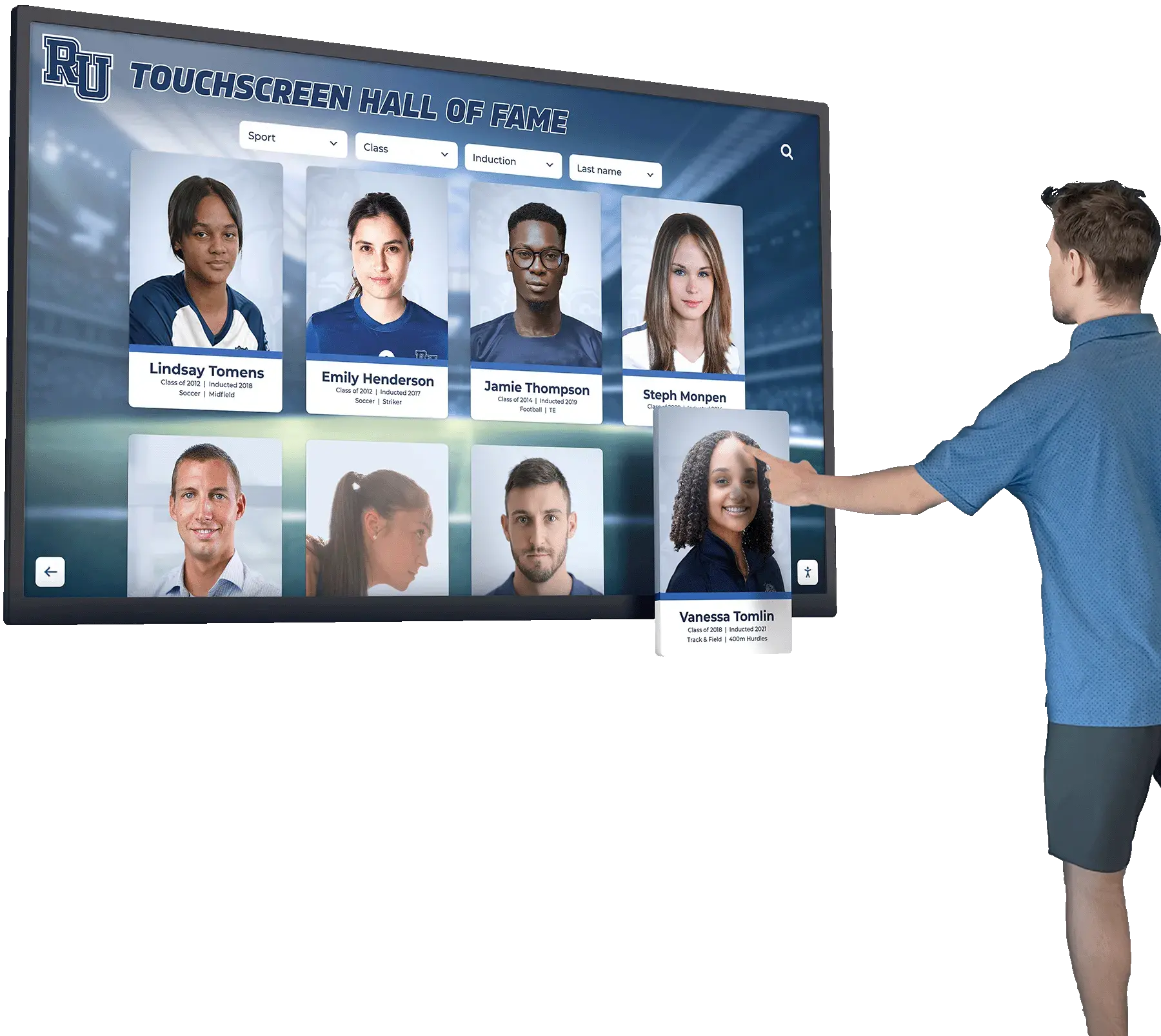
Visitors using screen readers on hall of fame touchscreens and web directories depend on aria-activedescendant updates to navigate search suggestions; the assistive-technology test table confirms compatibility across all major combinations
Content Architecture: How aria-activedescendant Maps to Hall of Fame Search Modules
A digital hall of fame web directory typically offers several search entry points, each of which may implement a combobox suggestion pattern. The ARIA activedescendant audit must cover every instance separately—different page templates, different JavaScript autocomplete libraries, and different input contexts each require individual verification.
| Search Module | Combobox Context | aria-activedescendant Required | Common Implementation Risk |
|---|---|---|---|
| Global inductee name search | Main keyword search bar on the roster page | Yes — primary audit focus | Third-party autocomplete library may not output ARIA roles; verify library configuration |
| Sport-filtered search | Search field scoped to a specific sport category page | Yes | Same library as global search but filtered dataset; test both the generic and sport-filtered variants |
| Inductee profile lookup on nomination forms | Name lookup field that checks for existing inductees before submission | Yes | Nomination forms are often built separately from the public directory; confirm ARIA attributes are included in the form template |
| Decade or year-range combobox | Dropdown that accepts typed input as well as click selection | Yes if the control accepts typed input; No if it is a pure click-only <select> | Custom year-range widgets sometimes add role="combobox" without completing the full ARIA pattern |
| Award-type combobox filter | Filter field that suggests award categories as the user types | Yes | Often implemented as a tag-input control; aria-activedescendant implementation varies significantly across tag-input libraries |
| Kiosk on-screen keyboard search | Search input on the physical touchscreen kiosk interface | Yes if delivered via browser-rendered HTML | Most kiosk deployments access the same HTML as the web directory; the same markup applies |
Schools building recognition programs that include searchable class officer and student leader archives—like a digital showcase for high school class officers—will typically add the same combobox search pattern to those sections. Each searchable module added to the platform creates a new aria-activedescendant audit item that must be checked independently when the module launches.
For recognition programs that include interactive announcement feeds alongside inductee archives, the search combobox pattern may also appear in those sections if visitors can search by announcement type or author name. The audit scope should include all combobox instances across the full platform, not only the primary inductee roster search.
Step-by-Step Digital Hall of Fame ARIA Activedescendant Audit Workflow
Run the following steps in sequence for each combobox search interaction in the platform inventory. Document each finding with the page URL, search module name, failure pattern number from the markup examples above, and the specific attribute or attribute value that needs correction.
Step 1: Inventory All Combobox Search Interactions
Navigate through the recognition platform’s web directory and note every text input that produces a suggestion dropdown when typed into. Include:
- The main inductee name search field on the roster or directory page
- Any sport-specific or filtered search field on category pages
- Name lookup fields on nomination forms or event registration pages
- Year or decade selectors that accept typed input
- Award-type or category filter fields that suggest values as you type
- Any search field on the physical kiosk interface if delivered through a browser
Record the URL of each page containing a combobox and the CSS selector or id of the input element. This inventory becomes the audit scope checklist.
Step 2: Inspect the Combobox Input Attributes
For each combobox identified in Step 1, open Chrome DevTools (F12), navigate to the Elements tab, and select the search input element. In the Styles or Properties panel, verify the following attributes:
- Confirm
role="combobox"is present on the<input>element. - Confirm
aria-expandedis present. Its value should be"false"before the user types and"true"after suggestions appear. - Confirm
aria-haspopup="listbox"is present. - Confirm
aria-controls(oraria-owns) is present and its value matches theidof the suggestion list element. - Check whether
aria-activedescendantis present. Note its current value (it may be empty or absent when no suggestion is highlighted).
Record a structural failure if role="combobox", aria-expanded, or aria-haspopup is absent—these are prerequisites for aria-activedescendant to function correctly, and their absence indicates a more fundamental ARIA combobox pattern gap.
Step 3: Inspect the Suggestion List Attributes
Select the suggestion list element in DevTools (the <ul> or <div> that appears below the input when suggestions are shown). Verify:
- Confirm
role="listbox"is present on the suggestion list container. - Confirm
aria-labelis present on the listbox to provide context—for example,aria-label="Inductee suggestions". - Select one suggestion item. Confirm
role="option"is present on each<li>or suggestion item element. - Confirm each suggestion item has a unique
idattribute. Note theidformat (e.g.,"suggestion-1","inductee-option-3").
Record a structural failure if any suggestion item lacks a unique id—without id values, aria-activedescendant on the input has nothing to reference.
Step 4: Trigger Suggestions and Inspect aria-activedescendant Live Updates
Type a common name in the search field (a first name likely to match multiple records, such as “John,” “Mike,” or “Sarah”). After suggestions appear:
- Inspect the input element in DevTools again. Confirm
aria-expandedchanged from"false"to"true". - Confirm
aria-activedescendantis present on the input. At this point, before pressing any arrow key, it may be empty or absent—this is acceptable. - Press the Down Arrow key once.
- Inspect the input element immediately. Confirm
aria-activedescendantnow contains theidof the first suggestion item. - Press Down Arrow again.
- Inspect again. Confirm
aria-activedescendantnow contains theidof the second suggestion item. - Press Down Arrow until you reach the last suggestion, then press Down Arrow once more. Confirm behavior: either the focus wraps to the first suggestion, or stops at the last one—both are acceptable, but the
aria-activedescendantvalue must always match the visually highlighted option. - Press Up Arrow. Confirm
aria-activedescendantmoves to the previous option’sid. - Press Escape. Confirm
aria-expandedreturns to"false"on the input, andaria-activedescendantis cleared.
Record a dynamic failure if aria-activedescendant does not update after each arrow-key press, if the value references an id that does not match the visually highlighted item, or if aria-expanded does not revert to "false" after Escape.
Step 5: Test with a Screen Reader
Activate a screen reader (NVDA on Windows, VoiceOver on macOS). Navigate to the hall of fame search page.
- Tab to the search input field. The screen reader should announce the field’s accessible name (e.g., “Search inductees, combobox, collapsed”).
- Type a search term. Listen for two announcements: one confirming you are typing, and one indicating that suggestions are now available. Some screen readers announce “combobox expanded” or “list appeared” when
aria-expandedchanges to"true". - Press Arrow Down. Listen for the announcement of the first suggestion. It should include the suggestion text—for example, “John Adams, Football, 1 of 4.” You should not need to move keyboard focus away from the input to hear this announcement.
- Press Arrow Down again. The screen reader should announce the second suggestion immediately.
- Press Enter on a highlighted suggestion. The screen reader should confirm the selection—the input field should populate with the selected inductee name, and if the platform navigates to a profile page, the screen reader should announce the new page.
Pass condition: Each arrow-key press produces an immediate screen-reader announcement of the highlighted suggestion, without focus leaving the input field.
Fail condition A: No announcement occurs on Arrow Down. aria-activedescendant is absent, not updated, or references a non-existent id.
Fail condition B: The screen reader announces the same suggestion on every Arrow Down press. aria-activedescendant is set initially but not updated by JavaScript as navigation continues.
Fail condition C: Focus leaves the input field on Arrow Down. The JavaScript is moving DOM focus to suggestion items rather than using aria-activedescendant. The user can no longer type in the search field without clicking back into it.
Fail condition D: The screen reader announces the input’s label on every Arrow Down press instead of the suggestion text. aria-activedescendant is present but points to an id that does not exist in the DOM, causing the screen reader to fall back to the focused element’s own label.
Step 6: Verify the DevTools Accessibility Panel
In Chrome DevTools, open the Accessibility tab (not the Elements tab). With the combobox input selected in the Elements tree, the Accessibility panel shows the computed ARIA properties the browser’s accessibility API exposes. After pressing Arrow Down during a live test (with suggestions open), confirm:
role: comboboxexpanded: trueactivedescendant:shows the text of the highlighted option (Chrome resolves theidreference and shows the referenced element’s name)
If the Accessibility panel shows activedescendant: (none) while a suggestion is visually highlighted, the aria-activedescendant attribute is not present or not being updated by JavaScript—a definitive failure that does not require a screen reader to confirm.
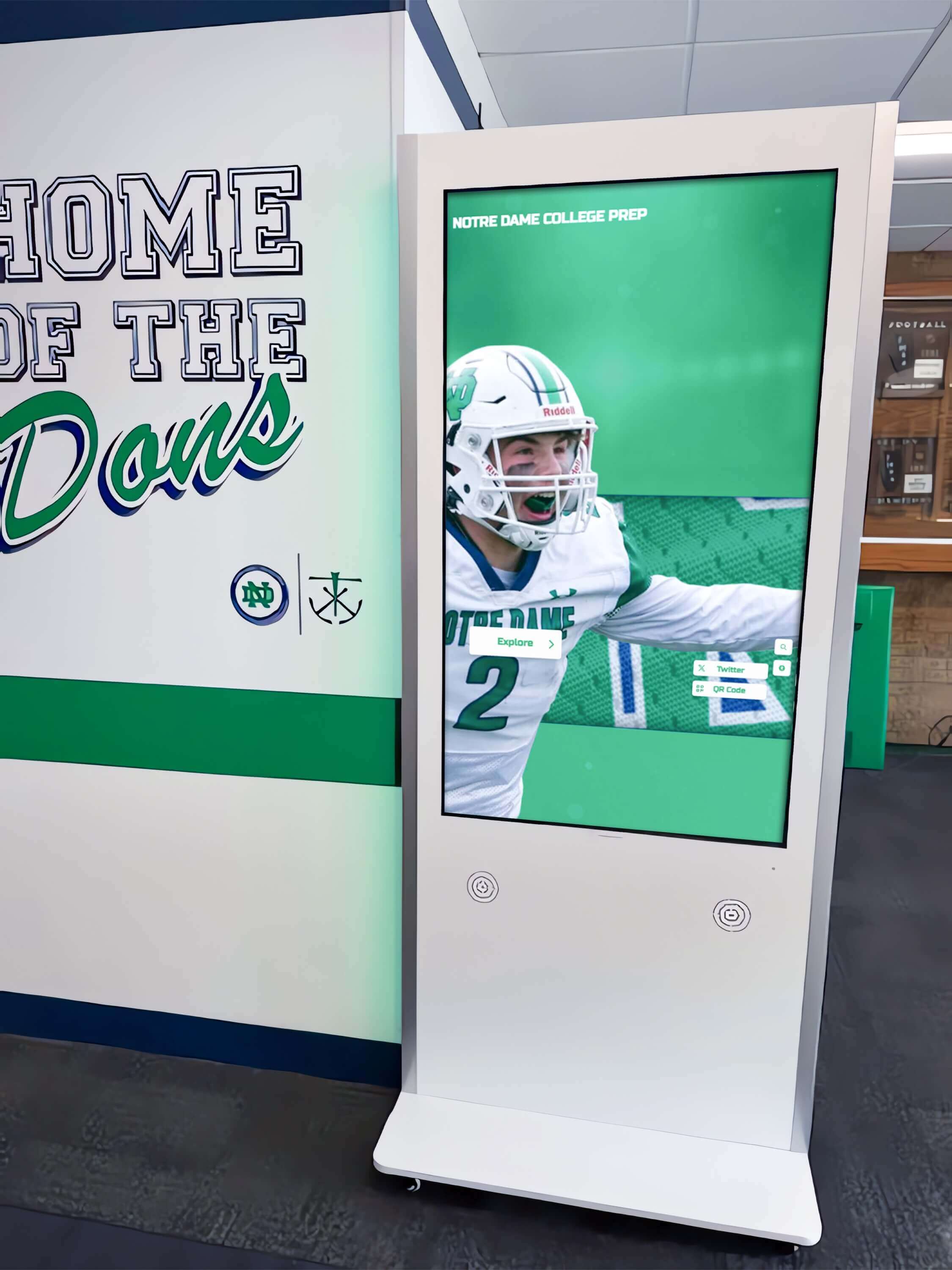
Search comboboxes on school hallway digital hall of fame kiosks and web directories both require aria-activedescendant to be correctly implemented and updated—the DevTools Accessibility panel confirms the attribute without needing a screen reader connected
Execution Timeline: Plan, Audit, Fix, Verify
| Phase | Activities | Responsible Party | Cadence |
|---|---|---|---|
| Plan | Inventory all combobox search interactions across web directory, nomination forms, and kiosk interface; identify the JavaScript autocomplete library or custom implementation in use; confirm whether the platform vendor’s documentation addresses ARIA combobox compliance | IT administrator + web manager | Once at platform launch; once after any search feature update, autocomplete library upgrade, or CMS template change |
| Audit | Run the six-step workflow on each combobox in the inventory; document findings by failure pattern (Pattern 2–5 from this guide); confirm ARIA attribute presence and JavaScript update behavior in DevTools; validate with screen-reader announcement test | IT staff or accessibility coordinator | At platform launch; before each induction season or community recognition event; immediately after any search JavaScript or autocomplete library update |
| Fix | Add role="combobox", aria-expanded, aria-haspopup, and aria-controls to the input element; add role="listbox" to the suggestion list; add role="option" and unique id to each suggestion item; update JavaScript arrow-key handler to write the active option’s id to aria-activedescendant on the input; update JavaScript to clear aria-activedescendant and set aria-expanded="false" on Escape and on selection | Developer or platform vendor | Within 48 hours for complete failures (no announcement on Arrow Down); within 7 days for partial failures (announcement present but inconsistent) |
| Verify | Re-run Steps 4 and 5 from the audit workflow for each combobox that had a failure; confirm aria-activedescendant updates in DevTools and screen-reader announcements in NVDA + Chrome and VoiceOver + Safari | IT staff | Immediately after each fix is deployed to the production platform |
| Document | Record audit date, platform version, autocomplete library version, combobox locations tested, failure patterns found, fixes applied with specific attribute values and JavaScript changes, and verification results | Administrative lead | Each cycle; retained for three years or the duration of the recognition platform agreement |
Looking for a recognition platform that handles combobox accessibility correctly from day one?
Rocket Alumni Solutions’ digital hall of fame platform builds ARIA-compliant search interactions into its core design—so the inductee search combobox announces highlighted suggestions to screen-reader users without requiring your IT team to patch ARIA attributes post-launch.
Display Integration: aria-activedescendant Across Web Directory and Kiosk Contexts
Digital hall of fame installations typically include a public web directory accessible from any device and a wall-mounted kiosk touchscreen in a lobby or athletic hallway. The aria-activedescendant requirement applies to both layers wherever a combobox search interaction exists, though the practical accessibility impact differs.
Web directory (highest impact): The web directory is the primary surface where screen-reader users encounter the inductee search combobox. Any alumnus, parent, or community member who visits the recognition site from a personal device—including visitors using NVDA, JAWS, or VoiceOver—will interact with the combobox on this interface. The ARIA activedescendant audit delivers its highest practical value here.
For recognition programs that maintain fullscreen kiosk app interfaces alongside the public web directory, the kiosk browser typically renders the same HTML as the web directory. This means a combobox implementation that passes the web directory audit will generally pass on the kiosk as well—but the reverse is not guaranteed if the kiosk runs a stripped or customized version of the HTML template.
Physical kiosk (conditional impact): Most school hall of fame kiosks do not have a screen reader or external keyboard connected during typical visitor use. Touch navigation is the primary input method. However, kiosk accessibility requirements extend to users who bring their own assistive devices: a visitor who connects a refreshable braille display via USB, a staff member who connects a keyboard to navigate the kiosk during content management, or an accessibility evaluator performing a compliance review of the kiosk interface. The USB HID compatibility requirements for recognition displays that apply to physical kiosk hardware also interact with software accessibility: if the kiosk supports an externally connected keyboard and the browser responds to keyboard events, aria-activedescendant must function correctly with that keyboard input.
QR code entry from physical displays: Many hall of fame installations include QR codes on trophy cases, wall murals, and award plaques that link directly to inductee search pages. When a visitor scans a QR code using a phone that has a screen reader active (VoiceOver on iOS, TalkBack on Android), they land directly on the search-enabled directory page. The aria-activedescendant implementation must function on mobile browsers: TalkBack with Chrome on Android and VoiceOver with Safari on iOS are both valid test targets for QR-code–sourced visitors.
Cloud CMS updates and combobox integrity: Recognition platforms that use a cloud content management system to add inductee records without redeploying the site can inadvertently affect combobox behavior if a CMS update modifies the suggestion dataset structure. If the JavaScript that populates suggestion items generates id attributes dynamically from the inductee database (for example, id="inductee-{database-id}"), a CMS update that changes database id formats will break the id references that aria-activedescendant relies on. The audit’s Step 4 (live JavaScript inspection) should be repeated after any inductee dataset migration or CMS update that changes how suggestion items are rendered.
For recognition programs that power soccer team history and alumni displays alongside multi-sport hall of fame archives, a filtered search combobox scoped to a specific sport is a common UI pattern. Each sport-specific filter creates its own combobox instance, and each must be audited independently—the ARIA implementation for the football archive search and the soccer archive search may use the same JavaScript library but render different HTML id namespaces that require separate verification.
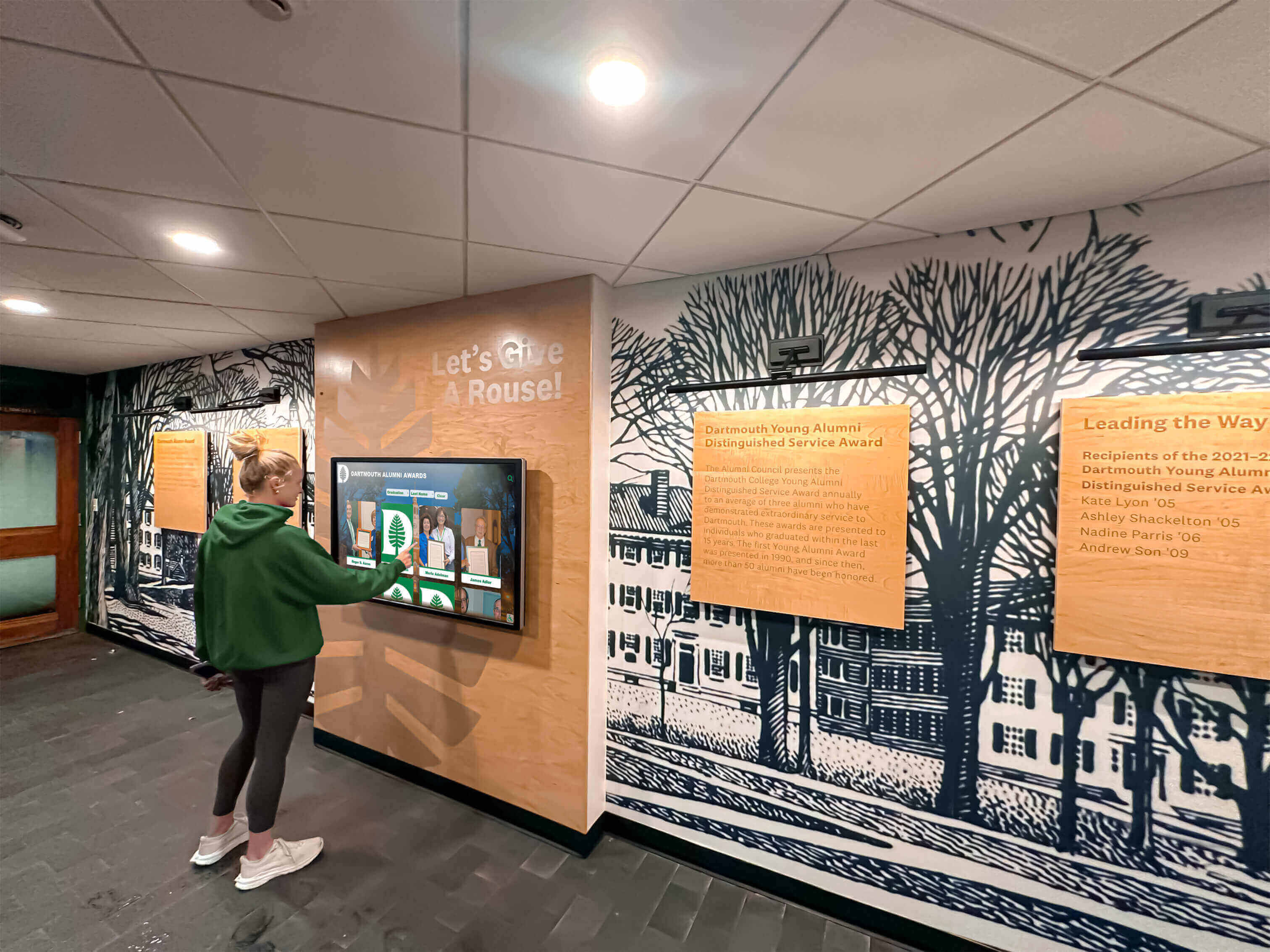
Whether a visitor uses the inductee search on a school hallway touchscreen or the public web directory, aria-activedescendant must correctly communicate the highlighted suggestion to any connected screen reader or braille display
Measurement: Evaluating ARIA Activedescendant Audit Results
After completing the audit and applying any remediation, measure outcomes against the following benchmarks to confirm the combobox search interaction is fully accessible.
| Metric | Target | Action if Below Target |
|---|---|---|
| Combobox inputs with complete ARIA pattern | 100% of all search inputs have role="combobox", aria-expanded, aria-haspopup, aria-controls | Add missing attributes to the input element; if using a third-party autocomplete library, configure or replace it with one that outputs the full ARIA combobox pattern |
Suggestion items with unique id attributes | 100% of all role="option" elements have a unique id in the DOM | Update the JavaScript that generates suggestion items to write a unique id (using inductee record ID or index) to each rendered option element |
aria-activedescendant updated on each arrow-key press | 100% of combobox instances update aria-activedescendant on every Arrow Down and Arrow Up press | Update the keyboard event handler to write the active option’s id to aria-activedescendant on every navigation keystroke |
aria-activedescendant references a valid DOM ID | 100% — the attribute value always matches an id that exists in the DOM | Audit id generation logic after any inductee dataset or template update; add a runtime assertion in development that logs a warning when aria-activedescendant references a non-existent element |
| Screen-reader announcement on Arrow Down | Confirmed in NVDA + Chrome and VoiceOver + Safari | Re-run Steps 5 and 6 of the audit workflow; if DevTools Accessibility panel confirms the attribute but the screen reader is silent, check for known ARIA combobox bugs in the specific browser-screen reader combination and apply any documented workarounds |
| DOM focus stays on input during suggestion navigation | 100% — no arrow-key press moves DOM focus from the <input> to a suggestion <li> | Remove tabindex from suggestion items; replace any element.focus() calls in the arrow-key handler with aria-activedescendant updates on the input |
aria-expanded reverts to "false" on Escape and selection | 100% — the attribute is "false" whenever the suggestion list is not visible | Add aria-expanded="false" update to the Escape key handler, the click handler on suggestion items, and the blur handler on the input |
Frequently Asked Questions
What is the difference between aria-activedescendant and moving DOM focus to the suggestion item?
Both approaches can make a suggestion announcement to a screen reader, but they serve different use cases. aria-activedescendant keeps DOM focus on the combobox input while the screen reader reads the referenced option—this is the correct pattern for search suggestions, because it allows the user to continue typing after pressing Arrow Down. Moving DOM focus to the suggestion item (calling element.focus() on the <li>) removes focus from the input, which means the user cannot type more characters without clicking back into the field. The ARIA Authoring Practices Guide specifies the aria-activedescendant approach for combobox patterns. Use DOM focus movement only for standalone listboxes where the user selects from a list without an associated text input.
Our platform uses a third-party autocomplete library. Does that mean we cannot audit aria-activedescendant?
The library controls the rendered HTML and the JavaScript behavior, but the audit steps are the same: inspect the aria-activedescendant attribute in DevTools, confirm it updates on arrow-key presses, and verify the announcement with a screen reader. Most popular autocomplete libraries—including Accessible Autocomplete (by DWP), Downshift, and React ARIA ComboBox—output the full ARIA combobox pattern when configured correctly. Libraries that do not expose ARIA options in their configuration may require either a configuration flag to enable ARIA output, a wrapper that adds the missing attributes after render, or replacement with an accessible alternative. The audit tells you which case applies to your platform’s specific library version.
Should aria-activedescendant be present before the user presses any arrow key?
No. When the suggestion list first appears (the user has typed enough characters to trigger suggestions, and aria-expanded has changed to "true"), aria-activedescendant should be absent or empty—no suggestion is yet highlighted. The first Arrow Down press should highlight the first suggestion and set aria-activedescendant to that suggestion’s id. Some implementations pre-select the first suggestion automatically when the list opens; this is acceptable as long as the screen reader announces the pre-selected item and the user can still press Escape to dismiss the list and continue editing their search term without the pre-selected suggestion being inserted.
What happens to aria-activedescendant when the user selects a suggestion and the list closes?
When the user presses Enter on a highlighted suggestion or clicks a suggestion with a mouse, the JavaScript should clear aria-activedescendant (set it to an empty string or remove the attribute) and set aria-expanded="false" on the input simultaneously. The suggestion list should be hidden or removed from the DOM. The input field should contain the selected inductee name or search term. The screen reader should announce the selected name as it is inserted into the input field—most screen readers announce the input’s new value when it changes programmatically.
Does the aria-activedescendant audit apply to mobile app versions of a hall of fame platform?
If the mobile interface is a web app delivered through a browser (a common architecture for cloud-based recognition platforms), the same HTML-based ARIA requirements apply. TalkBack with Chrome on Android and VoiceOver with Safari on iOS are the mobile screen-reader targets. Native mobile app combobox implementations use the platform’s own accessibility APIs (Android AccessibilityService, iOS UIAccessibility) rather than ARIA—the equivalent audit for native apps is outside WCAG scope but follows parallel principles. Most school recognition platforms deliver a responsive web app rather than a native app, making the WCAG ARIA combobox pattern the applicable standard for mobile as well.
Can automated accessibility scanners detect aria-activedescendant failures?
Partially. axe DevTools and WAVE can detect a missing role="combobox" on a text input that controls a visible suggestion list, a missing role="listbox" on the suggestion container, and missing role="option" on suggestion items. They can flag aria-activedescendant references to non-existent id values. However, automated scanners cannot simulate arrow-key presses and verify that aria-activedescendant is updated correctly during keyboard navigation—that requires the manual DevTools inspection and screen-reader listening test described in Steps 4 and 5 of this guide. The manual steps are essential and cannot be replaced by automated tools for this particular audit.
Our platform shows a “loading” spinner while suggestions fetch from the server. Should aria-activedescendant be set during loading?
No. While suggestions are loading, the suggestion list is either not visible or contains a single non-selectable status item (“Loading suggestions…”). aria-activedescendant should be absent during this state—there is nothing to reference. The loading state should be communicated through a separate live region (a role="status" element that announces “Loading inductee suggestions”) rather than through aria-activedescendant. Once suggestions have loaded and the list is populated with selectable options, aria-activedescendant becomes relevant when the user presses Arrow Down.
Reusable Artifact: ARIA Activedescendant Audit Checklist for Inductee Search Comboboxes
Copy this checklist before each platform launch, autocomplete library update, inductee dataset migration, or quarterly accessibility review. Complete one checklist per combobox search interaction in the platform inventory.
Pre-Audit Inventory
- All combobox search interactions identified: main search, sport-filtered search, nomination form name lookup, year/decade selector, award-type filter
- Page URL and input element
idor CSS selector recorded for each combobox - JavaScript autocomplete library name and version identified (or custom implementation noted)
- Test inductee names identified that return 3–5 suggestions (for arrow-key navigation testing)
Structural Attributes — Input Element
-
role="combobox"present on the<input>element -
aria-expanded="false"present before suggestions appear; updates to"true"when suggestions are visible -
aria-haspopup="listbox"present on the<input>element -
aria-controlspresent; its value matches theidof the suggestion list element -
aria-autocomplete="list"present (indicates the autocomplete behavior to screen readers)
Structural Attributes — Suggestion List
-
role="listbox"present on the suggestion list container element -
aria-labelpresent on the listbox (e.g.,aria-label="Inductee suggestions") -
role="option"present on each suggestion item element - Each suggestion item has a unique
idattribute that exists in the DOM - No
tabindexon suggestion items (focus must not move to items via arrow-key navigation)
Dynamic JavaScript Behavior
-
aria-activedescendantabsent or empty before any arrow-key press -
aria-activedescendantset to the first option’sidafter the first Arrow Down press (DevTools confirmed) -
aria-activedescendantupdated to the second option’sidafter the second Arrow Down press (DevTools confirmed) -
aria-activedescendantupdated correctly for each subsequent Arrow Down and Arrow Up press -
aria-activedescendantreferences a valididthat exists in the DOM at all times during navigation -
aria-activedescendantcleared andaria-expandedset to"false"after Escape key press -
aria-activedescendantcleared andaria-expandedset to"false"after selection (Enter or click) - DOM focus remains on the
<input>element throughout arrow-key navigation (not moved to suggestion items)
Screen-Reader Announcement Verification
- NVDA + Chrome (Windows): Arrow Down announces first suggestion text
- NVDA + Chrome (Windows): Each subsequent Arrow Down announces the next suggestion
- VoiceOver + Safari (macOS): Arrow Down announces first suggestion text
- VoiceOver + Safari (macOS): Each subsequent Arrow Down announces the next suggestion
- Announcement occurs without moving keyboard focus away from the search input
- No duplicate announcement (suggestion not read twice from both the live region and aria-activedescendant)
DevTools Accessibility Panel Verification
- With combobox input selected and suggestion list open:
role: comboboxshown -
expanded: trueshown when list is visible -
activedescendant:shows the text of the highlighted option (resolved by Chrome from theidreference) - After Escape:
expanded: falseandactivedescendant: (none)shown
Post-Fix Verification
- All structural attribute failures re-verified in DevTools after fixes deployed
- JavaScript update behavior re-verified with live arrow-key navigation in DevTools
- Screen-reader announcement re-confirmed in NVDA + Chrome and VoiceOver + Safari after fixes
- Audit checklist updated with pass status and fix description for each previously failing item
Connecting the ARIA Activedescendant Audit to the Full Accessibility Workflow
An aria-activedescendant audit addresses one of the highest-impact interaction patterns in a digital hall of fame platform—the search experience that every visitor uses to find a specific inductee quickly. Schools that have completed this audit should connect it to the broader ARIA and keyboard accessibility workflow across the recognition platform.
A digital hall of fame ARIA live region test confirms that search result counts and filter changes are announced to screen-reader users automatically—a complementary requirement that operates alongside aria-activedescendant in the search interaction sequence. Live regions handle the “how many results were found” announcement; aria-activedescendant handles “which suggestion is highlighted.” Both must pass for the full search experience to be accessible.
A digital hall of fame keyboard trap audit confirms that focus does not become stranded inside the suggestion list, a filter panel, or a video modal after the user interacts with them. The combobox pattern’s requirement that focus remain on the input element is closely related: a combobox that moves focus to suggestion items creates a focus trap risk if the Escape key handler does not correctly return focus to the input. A keyboard trap audit run alongside the ARIA activedescendant audit catches both issues in the same testing session.
A digital hall of fame ARIA landmark audit confirms that the <search> landmark (or <form role="search">) wrapping the combobox input is correctly declared—ensuring screen-reader users can navigate directly to the search region from the screen reader’s landmark menu before they begin typing. The landmark provides the navigation entry point; aria-activedescendant manages the experience once the user is inside it.
For recognition programs that use interactive touchscreen recognition features across facilities and campus environments, the combination of landmark navigation, live region announcements, and correct combobox ARIA attributes forms the complete accessibility foundation for the search experience—each audit reinforces the others.
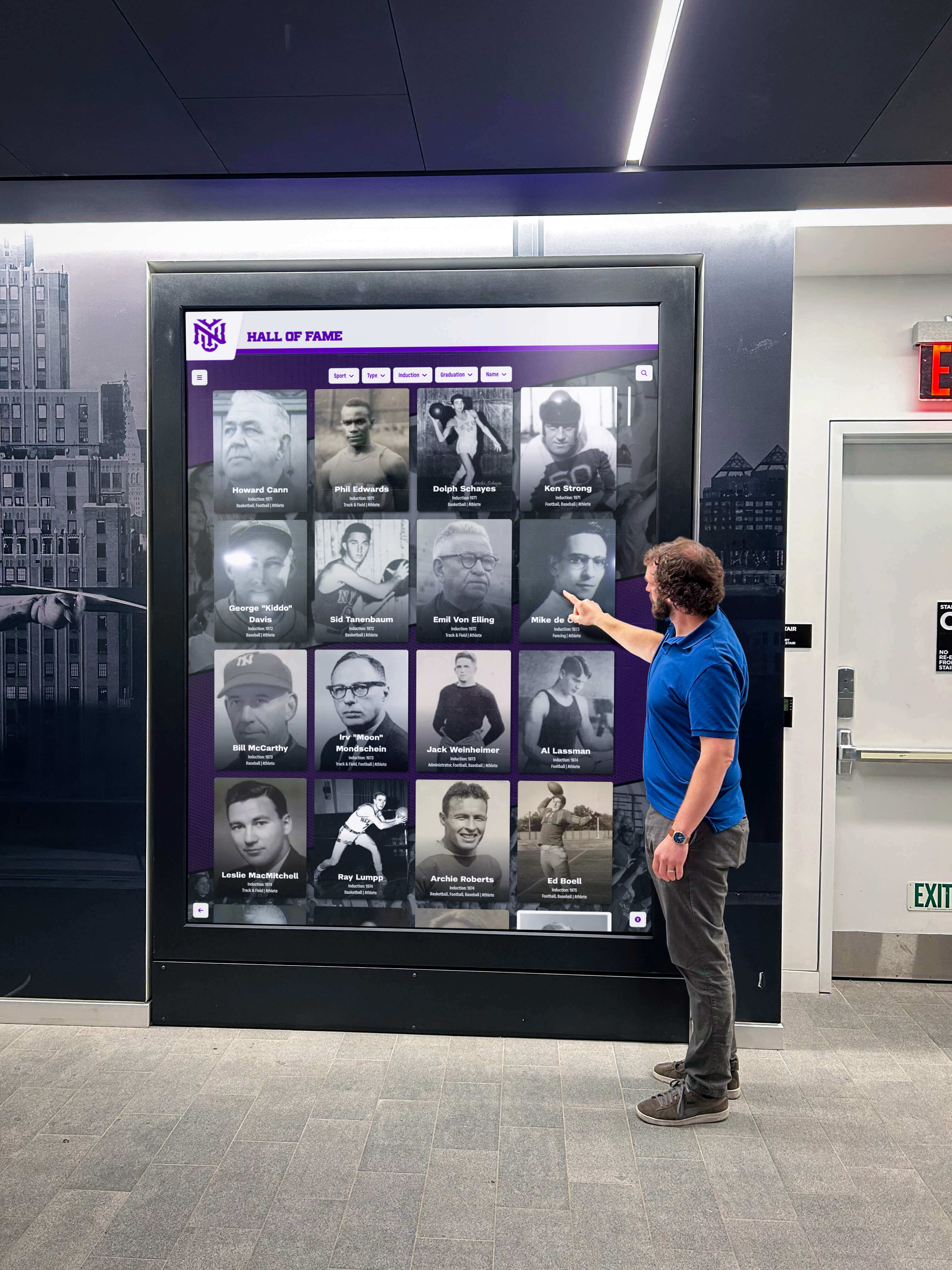
The inductee search experience on a digital hall of fame platform depends on correctly implemented aria-activedescendant, live regions, and keyboard handling working together—each accessibility audit in the sequence strengthens the others
Recognition programs that honor decades of athletes, coaches, and community contributors generate inductee archives that grow with each class. As the archive grows, so does the importance of search—and the importance of search accessibility. A combobox that announces highlighted suggestions correctly ensures that every visitor who uses a screen reader can find a specific honoree as efficiently as a sighted visitor clicking through the suggestion list. The ARIA activedescendant audit is the technical verification that makes that equity demonstrable and repeatable across every platform update.
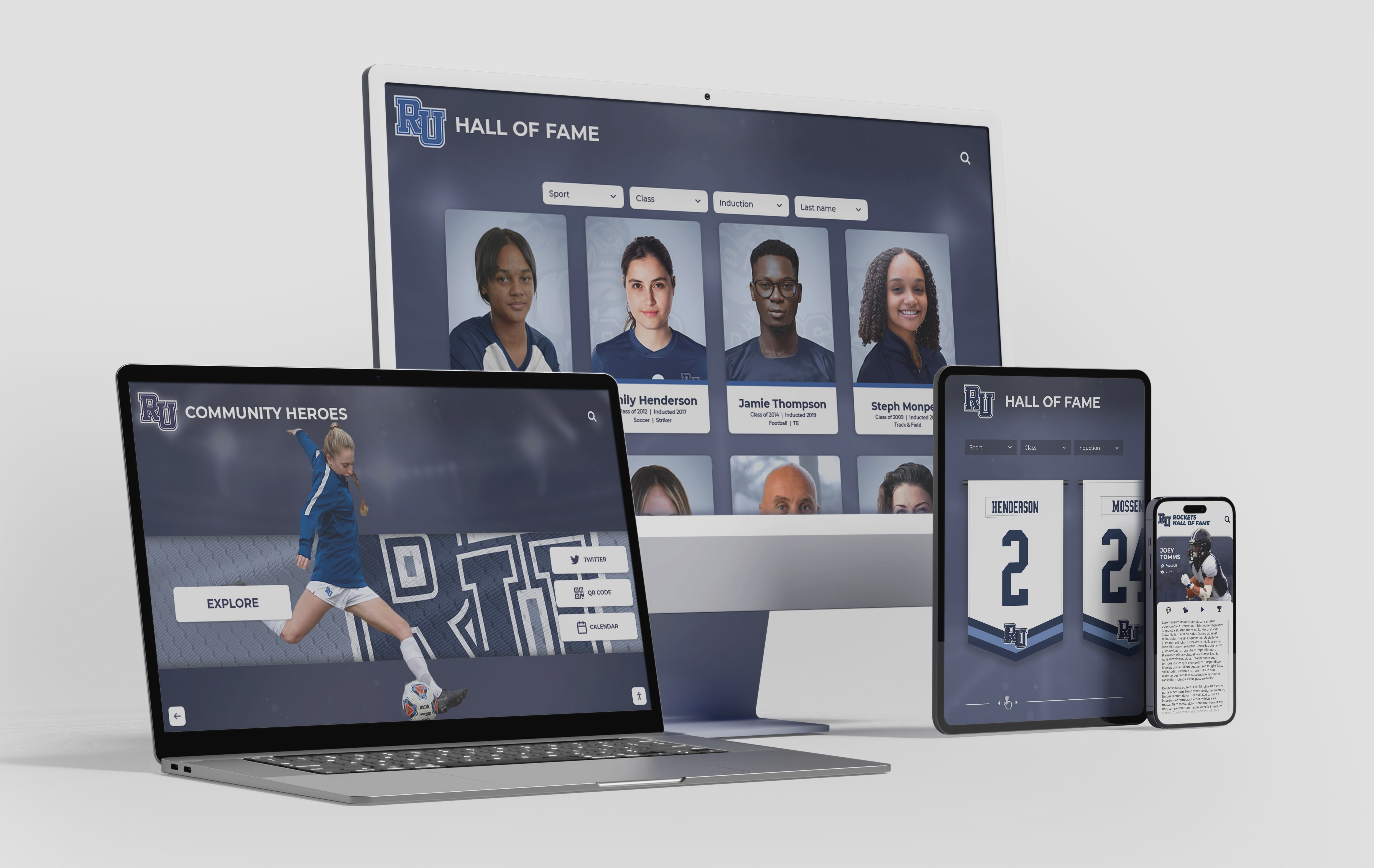
A digital hall of fame web directory serving hundreds of inductee records across multiple devices depends on a correctly implemented aria-activedescendant combobox for every visitor who relies on a screen reader to search and navigate the archive
See Rocket Alumni Solutions’ Accessible Inductee Search in Action
Request a live demonstration to see how Rocket’s recognition platform delivers a fully ARIA-compliant search combobox—with correct aria-activedescendant behavior, screen-reader–tested suggestion announcements, and WCAG 2.1 AA keyboard navigation—so every visitor to your school’s hall of fame can find the inductees they’re looking for.
Live Example: Rocket Alumni Solutions Touchscreen Display
Interact with a live example (16:9 scaled 1920x1080 display). All content is automatically responsive to all screen sizes and orientations.