Digital Hall of Fame Accessible Authentication Audit: A WCAG 2.2 Checklist for Admin Sign-In
- Home /
- Digital Hall of Fame Insights & Resources /
- Digital Hall of Fame Accessible Authentication Audit: A WCAG 2.2 Checklist for Admin Sign-In
The Easiest Touchscreen Solution




Live Example: Rocket Alumni Solutions Touchscreen Display
Interact with a live example (16:9 scaled 1920x1080 display). All content is automatically responsive to all screen sizes and orientations.
A digital hall of fame accessible authentication audit is the process of systematically verifying that every step of the admin sign-in experience for a school recognition platform—username and password fields, CAPTCHA challenges, multi-step verification screens, and session-timeout re-authentication prompts—does not require a cognitive function test as the sole means of access, and that all authentication controls support password manager autofill, clipboard paste, and assistive input methods. WCAG 2.2 introduced Success Criterion 3.3.8 Accessible Authentication (Minimum) at Level AA, which prohibits recognition platforms from requiring users to solve puzzles, memorize distorted text sequences, or perform other purely cognitive challenges during sign-in without also providing an accessible alternative or a mechanism to assist the user—such as password manager compatibility or a copy-paste–enabled input field. For school administrators, athletic directors, IT staff, and recognition-program owners, this criterion has a direct operational consequence: every person authorized to update inductee records, publish video tributes, manage donor recognition modules, or push content to a wall-mounted kiosk must be able to sign into the CMS. If any one of those users relies on a password manager, a keyboard-only workflow, or assistive technology that performs automated field completion, an authentication barrier that a sighted mouse user never encounters becomes a complete block to content management. This guide provides a complete audit workflow, detailed pass and fail examples for each relevant WCAG 2.2 criterion, a test matrix covering password managers, paste support, and cognitive-function challenges, and a reusable checklist that schools can attach to their annual accessibility review.
The admin sign-in screen for a digital hall of fame CMS is the gateway through which athletic directors publish induction ceremony photos, IT staff rotate display content across kiosk screens, and recognition-program owners update inductee biographies before alumni weekend. Because that screen sees daily use by a small, known set of authorized users rather than thousands of anonymous visitors, it can quietly accumulate accessibility barriers that go unnoticed for years—an autocomplete="off" attribute added to block browser-saved passwords, a JavaScript paste-prevention handler added to a password field after a security concern was raised without understanding the accessibility cost, or a third-party CAPTCHA widget deployed without verifying whether it offers an accessible alternative.
WCAG 2.2 Success Criterion 3.3.8 Accessible Authentication (Minimum) (Level AA) makes those barriers a compliance failure. Any CMS sign-in that schools are responsible for deploying or procuring must now pass this criterion alongside the contrast, keyboard, and focus-appearance standards that many recognition programs have already audited.
The digital hall of fame accessible authentication audit is the systematic check that confirms the sign-in path meets every applicable WCAG 2.2 authentication criterion before the next induction season or campus-wide recognition initiative launches.

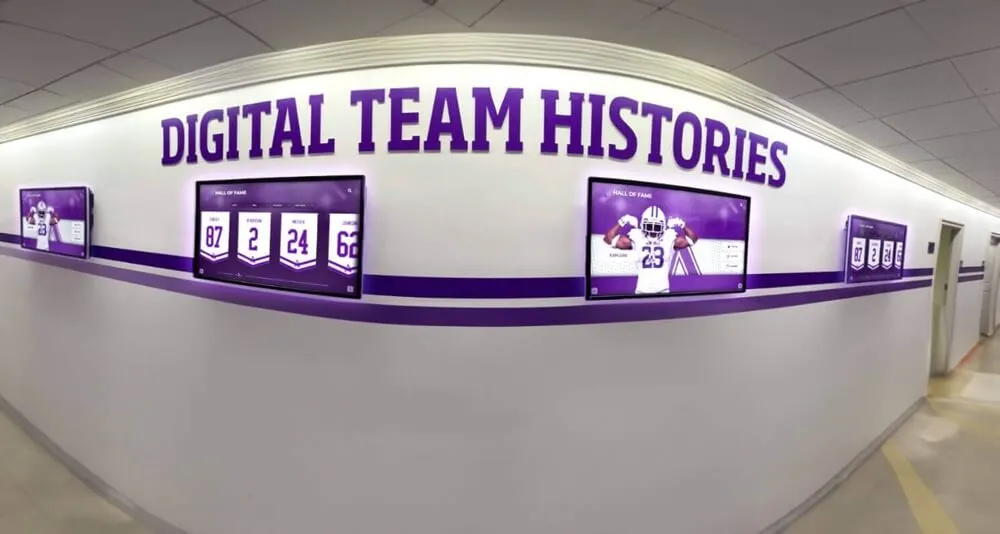
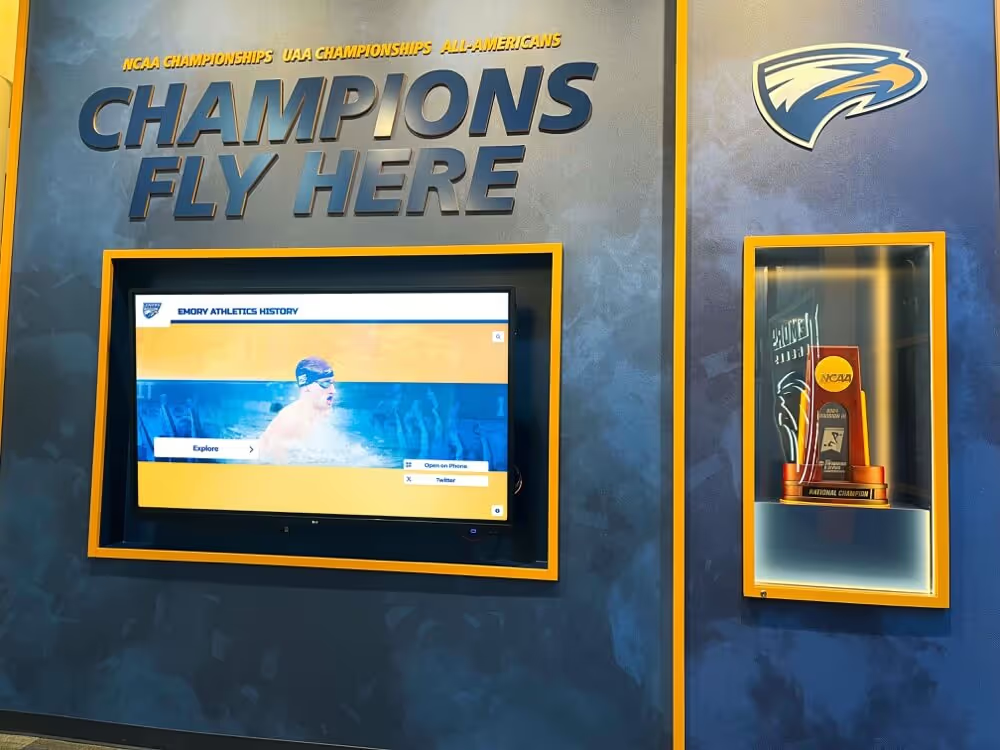
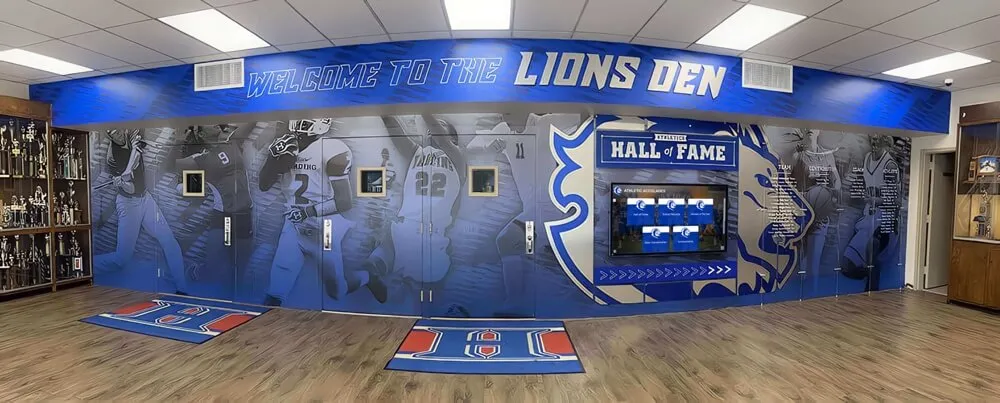
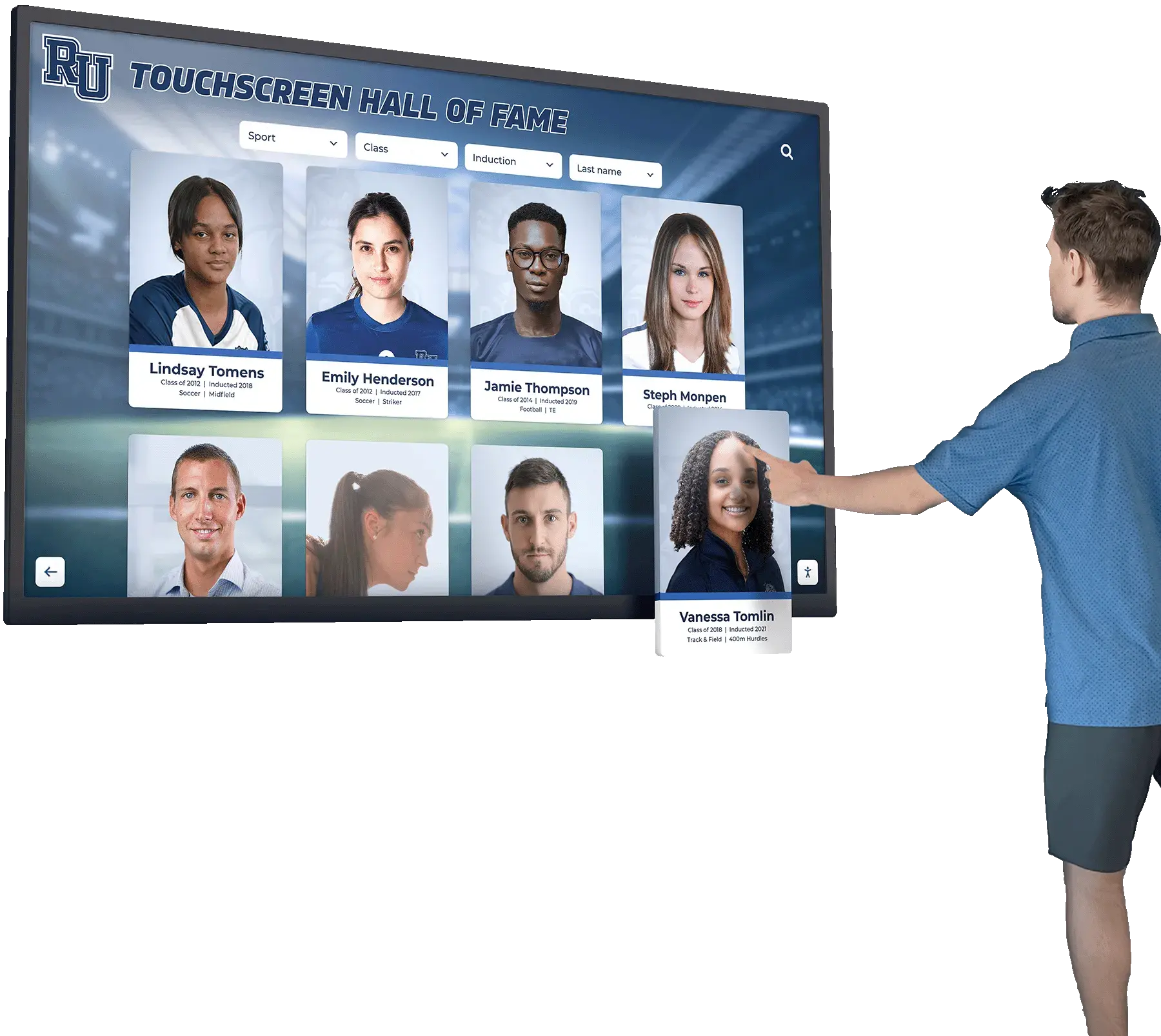
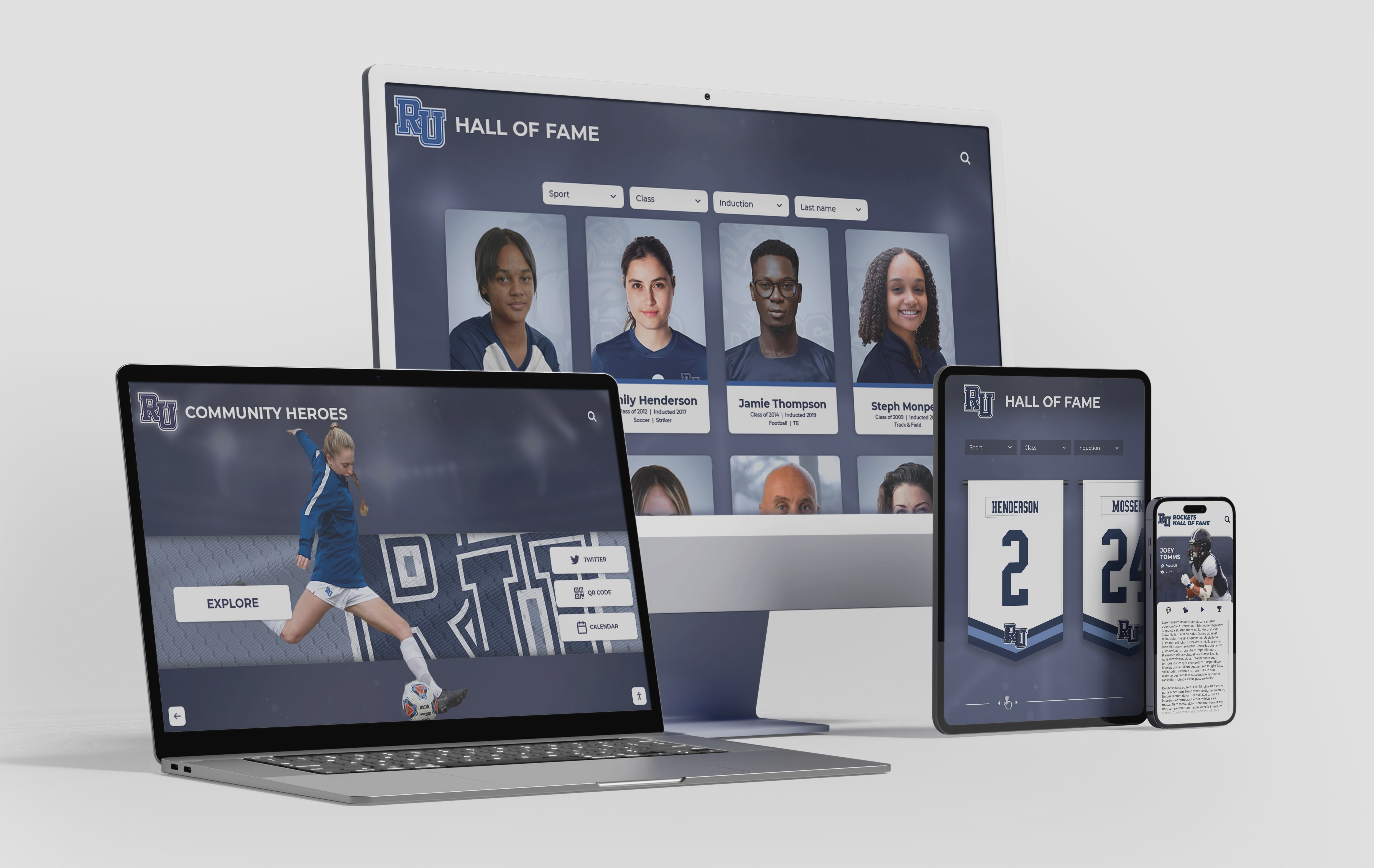
Admin staff access digital hall of fame content management systems across multiple devices; a WCAG 2.2 accessible authentication audit confirms that sign-in works for every authorized user regardless of device, input method, or assistive technology
Program Snapshot: Accessible Authentication Audit Scope for School Hall of Fame Admin Sign-In
Map the audit scope before opening a browser or developer tools. The table below defines the key parameters for schools at any stage of digital recognition, from a platform launched last year to a multi-decade athletic archive that recently migrated to a cloud CMS.
| Planning Element | Details |
|---|---|
| Primary Audience | Athletic directors, IT administrators, school web managers, facilities coordinators, accessibility compliance leads, recognition-program owners who manage CMS access credentials |
| What Is Being Audited | Every authentication screen accessible to school staff: username/password sign-in page, multi-step verification flows, session-timeout re-authentication prompts, password reset forms, and any CAPTCHA or bot-prevention challenge presented during the sign-in sequence |
| WCAG Criteria | 3.3.8 Accessible Authentication (Minimum) — Level AA (WCAG 2.2); 3.3.7 Redundant Entry — Level A (WCAG 2.2); 1.3.5 Identify Input Purpose — Level AA; 4.1.3 Status Messages — Level AA; 2.4.11 Focus Appearance — Level AA |
| Tools Required | A modern browser (Chrome, Firefox, or Edge), a physical keyboard, a password manager (Bitwarden free tier is sufficient for testing), Chrome DevTools, a WCAG contrast checker, and optionally a screen reader (NVDA for Windows, VoiceOver for macOS) |
| Time Investment | 30–60 minutes for a full sign-in audit across all authentication screens and states; 15 minutes for a targeted re-test after any authentication library update, CMS upgrade, or third-party CAPTCHA integration |
| Failure Consequence | Authorized admin users who rely on password managers, keyboard-only workflows, or assistive input cannot sign in to manage inductee records, publish recognition content, or update kiosk displays without a workaround that may require external help |
| Pass Condition | Authentication does not require a cognitive function test as the only path; password manager autofill succeeds on the username and password fields; clipboard paste is not blocked; login errors are programmatically announced; focus indicators on all sign-in controls meet SC 2.4.11 |
| ADA Relevance | CMS interfaces procured or operated by public school districts to manage publicly serving recognition platforms are subject to digital accessibility standards; WCAG 2.2 SC 3.3.8 at Level AA is part of the WCAG 2.2 AA conformance target that many districts reference in procurement requirements |
What Is Accessible Authentication Under WCAG 2.2?
WCAG 2.2 Success Criterion 3.3.8 Accessible Authentication (Minimum) (Level AA) states: “A cognitive function test (such as remembering a password or solving a puzzle) is not required for any step in an authentication process unless that step provides at least one of the following: a second authentication method that does not rely on a cognitive function test; a mechanism is available to assist the user in completing the cognitive function test.”
Understanding what this criterion requires—and what it does not require—prevents over-remediation and identifies the actual failures that need fixing.
What Is a Cognitive Function Test?
A cognitive function test is any authentication challenge that depends on the user’s ability to perform a mental task unaided. The most common examples on school CMS platforms are:
- Remembering a password: Typing a memorized password from memory, without assistance from a password manager or copy-paste mechanism, requires recalling a specific character sequence—a cognitive function.
- Solving a math or logic CAPTCHA: A challenge that displays “What is 7 + 14?” or asks the user to sequence images in a specific logical order requires computation or reasoning.
- Reading and transcribing distorted text: Classic image-based text CAPTCHAs that display letters and numbers in a distorted image require the user to perceive and recall the sequence without any mechanical assistance.
- Identifying which images match a category: A grid-based CAPTCHA that asks the user to “select all images containing a traffic light” requires object recognition—but this is explicitly listed as an exception in SC 3.3.8 at the Minimum level.
The Two Permitted Paths Through Cognitive Authentication
SC 3.3.8 does not prohibit password-based authentication. It requires that when cognitive authentication is used, at least one of two conditions is met:
Path 1 — Provide an alternative authentication method. If the primary sign-in is password-based, offer a complementary method that does not rely on memorization: a magic link sent to a registered email address, a hardware security key (WebAuthn/passkey), or a “Sign in with Google” federated login connected to the school’s Google Workspace account. The alternative does not need to replace the password field; it needs to exist as a working option on the same sign-in screen.
Path 2 — Provide a mechanism to assist. Allow the user to complete the cognitive task without relying solely on memory. For password fields, this means supporting password manager autofill (via correct autocomplete attributes and no paste blocking) and not prohibiting clipboard paste. A user whose password is stored in a password manager is assisted by that manager—they do not need to remember the password; the manager does it for them.
Both paths can coexist. A sign-in screen that supports password manager autofill AND offers a magic-link alternative satisfies SC 3.3.8 twice over.
The Minimum vs. Enhanced Distinction
SC 3.3.8 (Level AA) is titled “Accessible Authentication (Minimum).” WCAG 2.2 also includes SC 3.3.9 Accessible Authentication (Enhanced) at Level AAA, which removes the object-recognition and user-provided-content exceptions and requires that no cognitive function test appear at any authentication step, regardless of alternatives. Schools targeting WCAG 2.2 AA conformance must meet 3.3.8; those seeking enhanced conformance must meet 3.3.9.
Pass and Fail Examples for Hall of Fame Admin Authentication
The following concrete examples illustrate how each common authentication pattern maps to a pass or fail result under WCAG 2.2 SC 3.3.8 and adjacent criteria. Use these during the audit to classify each finding before measuring remediation effort.
SC 3.3.8 — Accessible Authentication (Minimum)
| Authentication Pattern | Result | Explanation |
|---|---|---|
Username and password fields with autocomplete="username" and autocomplete="current-password"; no paste restriction | PASS | Password manager can autofill both fields; the cognitive task (remembering the password) is assisted by a mechanism |
Username and password fields with autocomplete="off" on both fields; JavaScript blocks paste in the password field | FAIL | All mechanisms of assistance are blocked; the user must type both values from memory with no tool support |
Password field with autocomplete="off" but clipboard paste is permitted | FAIL | autocomplete="off" prevents password manager autofill, and while paste is allowed, a user still must have the password available in the clipboard; paste alone does not constitute a full mechanism of assistance without some way to access the credential without memorizing it |
| Math CAPTCHA (“enter the sum of 9 + 13”) with no alternative | FAIL | Requires cognitive computation as the sole path; no alternative or mechanism of assistance is provided |
| Image-based text CAPTCHA (distorted letters) with an audio alternative that speaks the characters | PASS | The audio alternative provides a mechanism to assist users who cannot perceive the visual text |
| Object-recognition CAPTCHA (“select all images with a bicycle”) with no alternative | PASS (Minimum) | Object recognition is an explicit exception in SC 3.3.8 at the Minimum level; it may still be a usability barrier for users with cognitive disabilities |
| Object-recognition CAPTCHA (“select all images with a bicycle”) with no alternative | FAIL (Enhanced) | SC 3.3.9 removes the object-recognition exception; any cognitive function test without an alternative fails the Enhanced criterion |
| Password-only sign-in with a “Sign in with Google” magic-link alternative on the same screen | PASS | An alternative authentication method is provided that does not rely on a cognitive function test |
| Two-factor authentication requiring the user to copy a time-based one-time password from an authenticator app | PASS | The user retrieves the TOTP from the app rather than memorizing it; the mechanism of assistance (the authenticator app) is external to the website but is user-controlled and generally accepted under SC 3.3.8 |
SC 3.3.7 — Redundant Entry (Level A, WCAG 2.2)
| Pattern | Result | Explanation |
|---|---|---|
| Admin enters email on sign-in step 1; step 2 (email verification code entry) does not re-ask for the email address | PASS | Email entered once is not required again in the same session |
| Admin enters email on sign-in step 1; password reset step 2 asks for the email again | FAIL | The email was already collected in the same session; requesting it a second time violates SC 3.3.7 unless the system has a functional reason it cannot auto-populate the field |
| Admin enters school district name on a CMS profile setup page; the profile confirmation step re-asks for the district name | FAIL | Same information requested twice in the same session without auto-population |
SC 1.3.5 — Identify Input Purpose (Level AA)
| Pattern | Result | Explanation |
|---|---|---|
Username field has autocomplete="username"; password field has autocomplete="current-password" | PASS | The field’s purpose is programmatically determinable; password managers and browsers can identify and fill the fields correctly |
Both fields have autocomplete="on" (generic value) | PARTIAL PASS | Technically valid but "on" provides less precision than "username" and "current-password"; some password managers may not fill correctly |
Both fields have no autocomplete attribute | FAIL | The purpose cannot be programmatically determined; browsers and password managers must guess the field’s purpose from the name attribute alone, which is unreliable |
Password field has autocomplete="off" | FAIL | Explicitly disables purpose identification and prevents autofill |
SC 4.1.3 — Status Messages (Level AA)
| Pattern | Result | Explanation |
|---|---|---|
Failed login displays “Incorrect email or password” as visible text AND announces it via aria-live="assertive" or role="alert" | PASS | Screen reader users are notified of the authentication failure without receiving focus to the error region |
Failed login displays visible error text but no aria-live region or role="alert" | FAIL | Screen reader users do not receive the error notification unless they happen to navigate to that region; they may not know why sign-in did not proceed |
| Account locked message is injected into the page but focus is not moved and no live region is present | FAIL | A critical authentication status—account locked—is not communicated to non-visual users |
Content Architecture: Where Authentication Barriers Occur on Hall of Fame Admin Platforms
A school recognition platform’s authentication surface spans more screens than the primary sign-in page. The audit must cover each authentication context separately because different screens are often rendered by different components—the initial sign-in may use the platform vendor’s authentication service, while a password reset may use a third-party identity provider, and session-timeout re-authentication may use an inline modal.
Primary Sign-In Screen
The primary sign-in screen is the most frequently audited but not always the most carefully maintained. The common authentication barriers at this level:
autocomplete suppression. Platform themes and custom CSS frameworks sometimes include autocomplete="off" on form elements as a blanket security measure inherited from older web development guides. This is no longer recommended security practice—modern password managers generate and store strong unique passwords that improve security, and blocking their use does not prevent credential theft from server breaches or phishing. Removing autocomplete="off" and replacing it with the specific token values "username" and "current-password" enables password manager filling and satisfies both SC 3.3.8 and SC 1.3.5.
Paste blocking. Some sign-in implementations attach a JavaScript onpaste event listener to the password field and call event.preventDefault(), believing this prevents users from pasting credentials that could have been obtained by phishing. In practice, a phished credential is equally dangerous whether typed or pasted. The National Cyber Security Centre (UK) explicitly recommends allowing password pasting. Blocking paste from a password field removes a key mechanism of assistance under SC 3.3.8 and introduces significant friction for password-manager users whose workflow involves copying a generated password and pasting it into the field when autofill does not trigger automatically.
Missing or insufficient focus indicators on sign-in fields. Sign-in forms frequently carry focus-appearance failures inherited from the broader CMS theme. An admin who navigates to the email field using Tab must see a visible focus indicator meeting WCAG 2.2 SC 2.4.11. A complete digital hall of fame focus appearance audit addresses focus indicator standards across all interactive components, including sign-in form fields.
CAPTCHA Challenges
CAPTCHA challenges appear at the sign-in stage or, on some platforms, as a secondary challenge triggered by multiple failed login attempts. The audit must test CAPTCHA accessibility in both contexts:
First-attempt CAPTCHA (preventive). If a CAPTCHA is shown to every admin user on every sign-in—before any failed attempt—the accessibility barrier is constant. Every admin user who cannot complete the CAPTCHA unassisted is blocked from managing recognition content.
Triggered CAPTCHA (after multiple failures). If CAPTCHA appears only after a threshold of failed attempts (e.g., three consecutive incorrect passwords), the accessibility barrier is conditional. Admin users who successfully use a password manager may never encounter the CAPTCHA. Admin users who periodically mistype their password, or whose password manager fails to autofill due to a domain mismatch, may trigger it unexpectedly. The triggered CAPTCHA still requires an accessible alternative.
Third-party CAPTCHA services. Google reCAPTCHA v2 (the checkbox version) offers an audio challenge alternative that meets the mechanism-of-assistance requirement for text-recognition CAPTCHAs. Google reCAPTCHA v3 (the invisible, score-based version) requires no user interaction at all and therefore imposes no cognitive function test. hCaptcha offers similar alternatives. However, the audit must verify that the accessible alternative is actually reachable from the CMS sign-in screen—not just available in the CAPTCHA widget’s documentation—because some platform deployments configure the widget in a mode that suppresses the audio alternative.
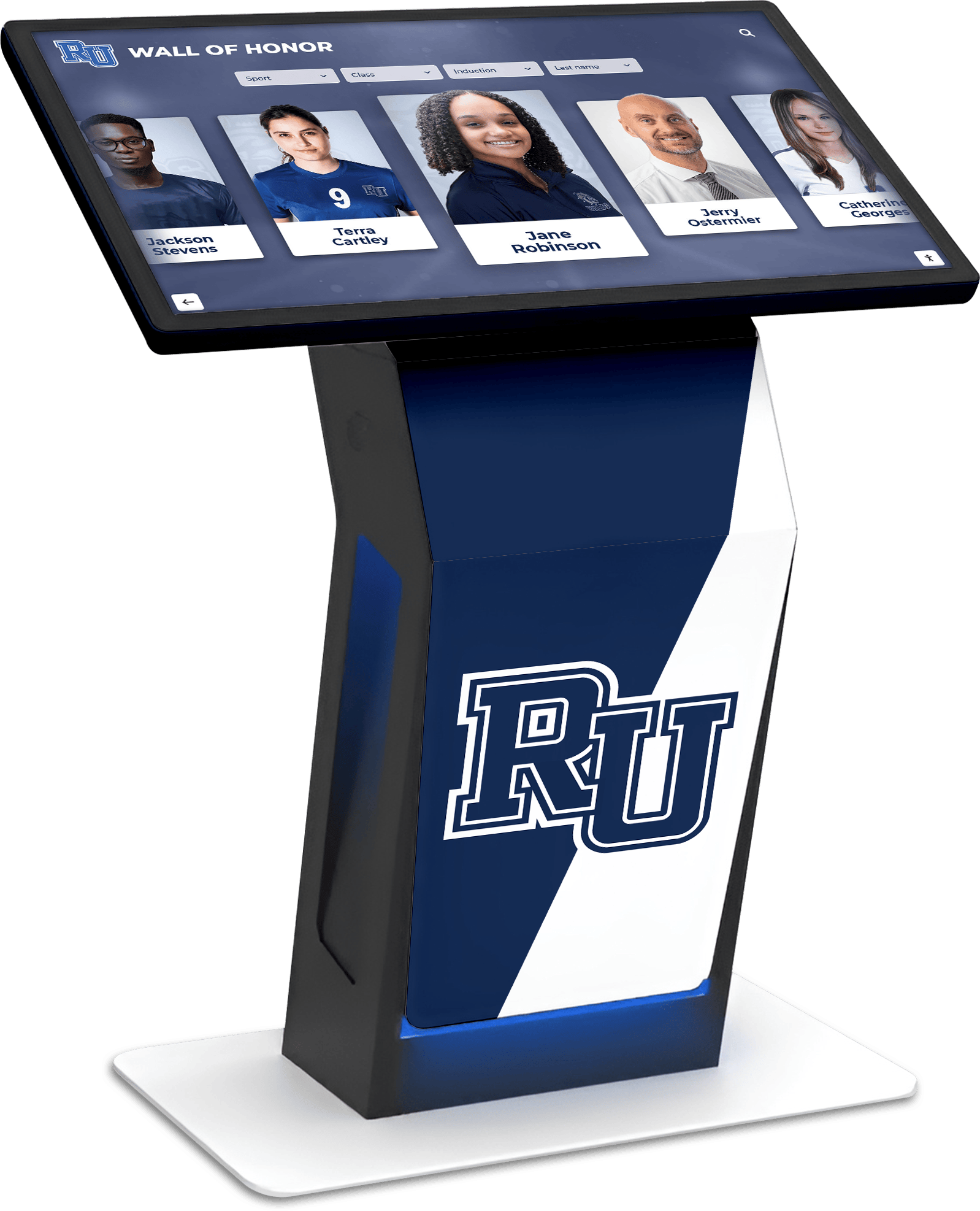
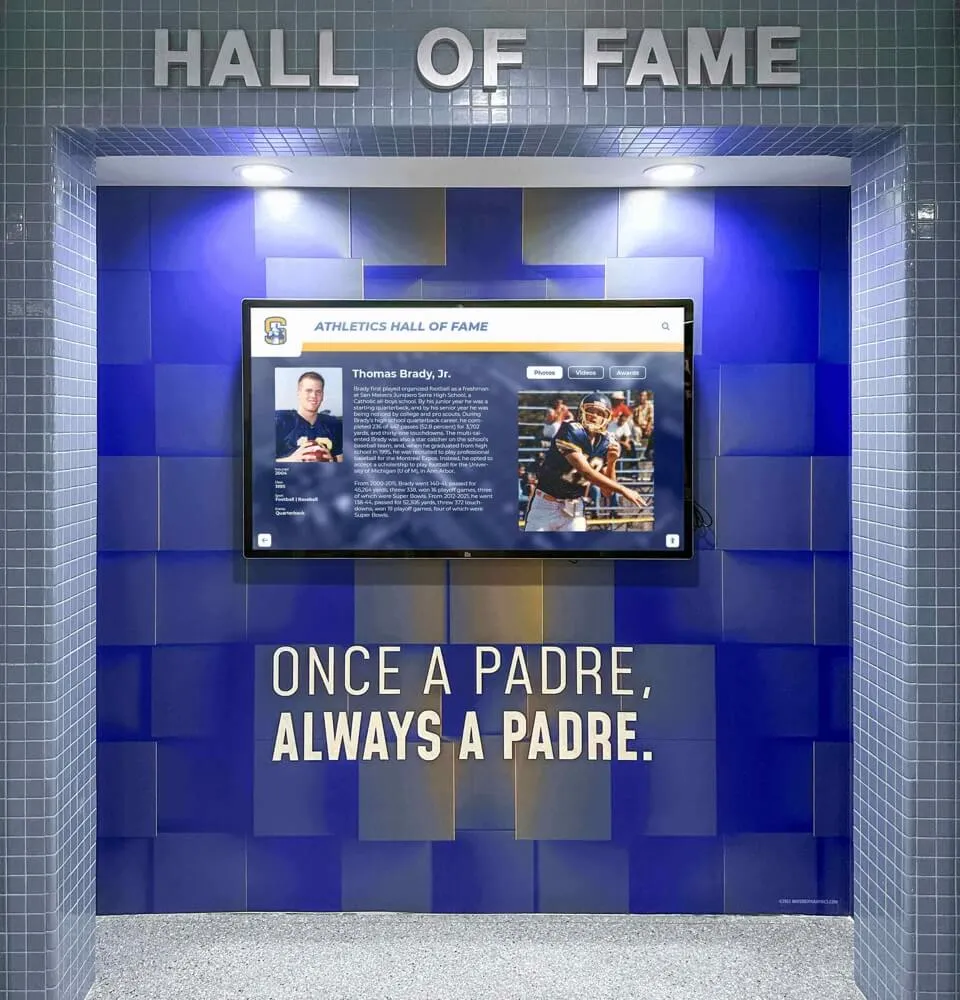
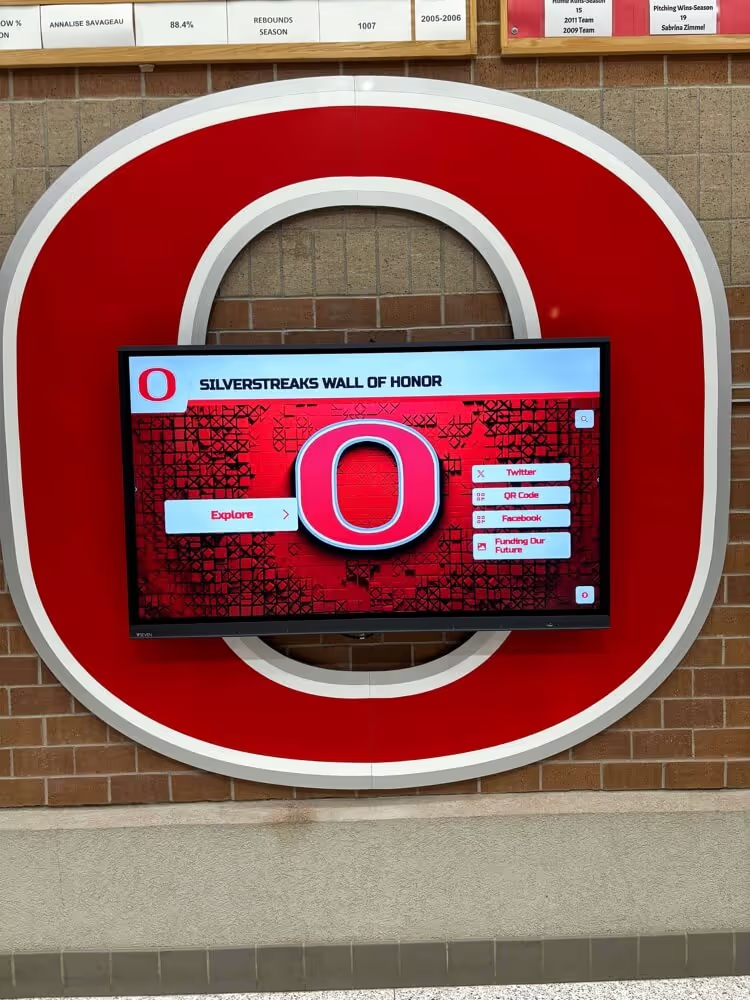
Admin staff authenticate into digital hall of fame content management systems to publish inductee records and manage kiosk displays like this interactive honor wall; a WCAG 2.2 accessible authentication audit confirms that sign-in is accessible to every authorized user
Password Reset Flow
Password reset is an authentication-adjacent flow that SC 3.3.7 and SC 3.3.8 both touch. Common failures in password reset flows on recognition CMS platforms:
- Redundant email entry: Admin enters email on the sign-in page, clicks “Forgot password,” and the reset form requests the email address again. This violates SC 3.3.7 Redundant Entry; the system collected the email in the same session and must either pre-populate the reset field or carry the value forward without re-asking.
- New password field with
autocomplete="new-password"absent: Password reset forms that ask the user to create a new password must includeautocomplete="new-password"on the new-password field andautocomplete="username"(or a hidden field with the user’s email value) on an associated non-visible field, so password managers can associate the new credential with the correct account domain. - Confirmation password field: A “confirm new password” field that requires the user to type the identical password a second time is arguably redundant entry under SC 3.3.7, and it prevents password manager autofill of the confirmation field if
autocompleteis absent. Many accessibility guides recommend eliminating the confirm-password field in favor of a password-reveal toggle on a single field.
Session-Timeout Re-Authentication
When a school admin leaves the CMS idle and returns to find a session-timeout screen, the re-authentication interface must also meet SC 3.3.8 requirements. A timeout screen that presents only a CAPTCHA challenge (sometimes used to confirm a human is resuming the session, not a bot) without offering an accessible alternative fails SC 3.3.8 just as a primary sign-in CAPTCHA does. A timeout screen that pre-populates the username from the expired session’s stored value and prompts only for the password—with autofill enabled—passes both SC 3.3.7 (username is not re-requested) and SC 3.3.8 (password manager can assist with the password field).
For recognition programs that manage content across dual-purpose donor wall and hall of fame displays, admins may switch between content types in a single session. A CMS that times out a session while an admin is switching between the athletic inductee archive and the donor recognition module and then re-asks for the full login credentials—including email—has introduced both a SC 3.3.7 failure (redundant email entry) and a usability barrier for the admin workflow.
Step-by-Step Digital Hall of Fame Accessible Authentication Audit Workflow
Run the following steps in sequence across all authentication screens and states. Document each finding in the issue log before moving to remediation.
Step 1: Inventory All Authentication Screens
List every screen where the admin must provide credentials or complete a verification challenge:
- Primary sign-in page (username + password)
- CAPTCHA challenge (if present on first attempt, or on triggered attempt)
- Multi-factor authentication screen (if the CMS uses 2FA)
- Password reset flow (steps 1 through completion)
- Session-timeout re-authentication screen or modal
- First-time account activation screen (if admins receive an activation link)
Note the URL or navigation path to each screen. Confirm which screens are rendered by the recognition platform vendor’s own code versus third-party identity providers (Auth0, Okta, Google Workspace, Microsoft Entra ID). Third-party identity providers are responsible for their own accessibility compliance, but schools should verify that the integrated sign-in flow is accessible end-to-end rather than assuming the provider has handled all WCAG requirements.
Step 2: Test Password Manager Autofill
Open the primary sign-in page in Chrome with a password manager extension active (Bitwarden, 1Password, or the browser’s built-in manager with a test credential saved for the CMS domain).
- Navigate to the sign-in page without clicking any field.
- Observe whether the password manager detects the sign-in form and offers to autofill. If the offer does not appear automatically, click the email/username field and check whether the manager offers to fill.
- Trigger autofill and confirm that both the email/username field and the password field are populated.
- Observe the browser’s DevTools HTML panel: inspect the
autocompleteattribute value on both fields.
Record a failure if:
- The password manager does not detect the form at all
- Only the username fills, not the password
- The
autocompleteattribute on either field is"off"or"false" - The
autocompleteattribute is absent from either field
Record a pass if:
- Both fields autofill correctly
autocomplete="username"(or"email") is present on the username fieldautocomplete="current-password"is present on the password field
Step 3: Test Clipboard Paste
- Open a text editor and type a test string (at least 12 characters including symbols).
- Copy the test string to the clipboard.
- Click into the password field on the sign-in page.
- Press Ctrl+V (Windows/Linux) or Cmd+V (macOS) to paste.
- Observe whether the paste is accepted or silently blocked.
To confirm whether paste is blocked programmatically, open Chrome DevTools → Event Listeners tab with the password field selected. Look for a paste event listener on the field or any ancestor element. If a paste listener is present, inspect the handler to determine whether it calls event.preventDefault().
Record a failure if pasting into the password field has no effect, or if the field value does not change after a paste attempt.
Record a pass if the pasted string appears in the field (it will be obscured by the password mask, but the field’s character count will increase).
Step 4: Evaluate CAPTCHA Accessibility
Navigate to the sign-in form and complete the CAPTCHA challenge (or use the test-attempt method to trigger a CAPTCHA if it only appears after failed logins).
- Identify the CAPTCHA type: text recognition, math challenge, image grid (object recognition), invisible score-based, or checkbox-only.
- For text-recognition or math CAPTCHAs: confirm whether an audio alternative, email-based alternative, or accessible login alternative (such as “Sign in with Google”) is visible on the same page without the user needing to navigate away first.
- For image-grid CAPTCHAs: confirm the type of matching required (object recognition such as “select all cars” passes at Minimum level; pattern or sequence recognition fails).
- For invisible or checkbox-only CAPTCHAs: confirm that no visual or cognitive challenge is required of the user.
Record a failure if:
- A text-recognition CAPTCHA is present with no audio alternative and no other sign-in method
- A math or logic CAPTCHA appears with no alternative
- The audio alternative button on an image CAPTCHA is present in HTML but is non-functional or cannot be activated by keyboard
Record a pass if:
- No CAPTCHA is present (the platform uses server-side bot detection)
- The CAPTCHA is invisible or checkbox-only and does not present a visual challenge to the user
- A text/image CAPTCHA has a working audio alternative reachable by keyboard
- An alternative sign-in method (magic link, SSO) is available on the same screen
Step 5: Verify Autocomplete Attribute Values Across All Fields
In Chrome DevTools, inspect the HTML source of every input field on the sign-in screen and the password reset screen. Record the autocomplete attribute value for each field.
| Field | Required autocomplete Value |
|---|---|
| Username / email (sign-in) | "username" or "email" |
| Current password (sign-in) | "current-password" |
| Email (password reset step 1) | "email" |
| New password (password reset) | "new-password" |
| Confirm new password (if present) | "new-password" |
| One-time code (if 2FA screen) | "one-time-code" |
Record a failure for any field where the correct autocomplete token is absent or suppressed.
Step 6: Test Login Error Announcement
- Submit the sign-in form with an intentionally incorrect password.
- With a screen reader active (NVDA or VoiceOver), listen for whether the error message is announced automatically without the user needing to navigate to the error text.
- If no screen reader is available, inspect the error message element in Chrome DevTools: confirm the presence of
role="alert"oraria-live="assertive"(oraria-live="polite"for less critical messages) on the container that receives the error text. - Confirm the error text is descriptive: “Incorrect email or password” is acceptable; “Error” alone does not communicate what failed.
Record a failure if the error message is visible but not announced by a screen reader, or if the message container lacks an appropriate ARIA live region.
Step 7: Test Focus Appearance on All Sign-In Controls
Tab through every interactive element on the sign-in page: the email field, the password field, any CAPTCHA widget controls, the “Forgot password” link, and the sign-in button. Verify that each receives a visible focus indicator meeting WCAG 2.2 SC 2.4.11 (at least 3:1 contrast, full perimeter enclosure). Record any element that shows no visible indicator or an indicator that clearly fails the contrast test.
The sign-in screen sits outside the main recognition platform content, which means it may use a different CSS theme that has not been updated to include :focus-visible styles applied to the main site. IT administrators who have completed a focus-appearance audit on the public-facing inductee directory should verify that the same audit was applied to the CMS sign-in interface.
Step 8: Test the Password Reset Flow for Redundant Entry
Complete the full password reset flow from the sign-in page:
- Enter your email in the sign-in form.
- Click “Forgot password.”
- Observe whether the email field on the reset request screen is pre-populated with the email you entered in step 1, or whether it is empty and requires re-entry.
- Receive the reset email and open the reset link.
- Complete the new password creation form. Verify that
autocomplete="new-password"is present on the new password field.
Record a failure if the email must be entered again on the reset request screen without an explicit functional reason (such as a separate application context with no session continuity).

Recognition program managers who publish content to campus recognition kiosks authenticate into cloud-based content management systems daily; WCAG 2.2 SC 3.3.8 requires that sign-in does not block any authorized admin user due to inaccessible authentication barriers
Test Matrix: Password Managers, Paste, and Cognitive-Function Checks
Use this matrix to record the result of each authentication mechanism test during the audit. Enter a pass, fail, or not applicable for each row. Complete one matrix per authentication screen in the inventory.
Authentication Screen: Primary Sign-In
| Test | Method | Pass / Fail / N/A | Notes |
|---|---|---|---|
| Password manager autofill (username field) | autocomplete="username" or "email" present; manager fills the field | ||
| Password manager autofill (password field) | autocomplete="current-password" present; manager fills the field | ||
| Paste into username field | Ctrl+V / Cmd+V accepted; character count increases | ||
| Paste into password field | Ctrl+V / Cmd+V accepted; no paste event blocking detected | ||
| No CAPTCHA on first attempt | No challenge presented for standard first-attempt sign-in | ||
| CAPTCHA audio alternative (if CAPTCHA present) | Audio challenge button present and keyboard-operable | ||
| Alternative sign-in method (if CAPTCHA present) | Magic link, SSO, or passkey visible on same screen | ||
| Error message announced to screen reader | role="alert" or aria-live present on error container | ||
| Error message is descriptive | Message names the field or action that failed | ||
| Focus indicator on email field | Visible indicator, ≥3:1 contrast, encloses field | ||
| Focus indicator on password field | Visible indicator, ≥3:1 contrast, encloses field | ||
| Focus indicator on sign-in button | Visible indicator, ≥3:1 contrast, encloses button | ||
| Keyboard-only sign-in possible | All sign-in controls reachable and operable by Tab and Enter |
Authentication Screen: Password Reset Flow
| Test | Method | Pass / Fail / N/A | Notes |
|---|---|---|---|
| Email pre-populated from prior entry | Reset screen’s email field contains value from sign-in screen | ||
autocomplete="email" on reset email field | DevTools inspection of autocomplete attribute | ||
autocomplete="new-password" on new password field | DevTools inspection of autocomplete attribute | ||
| Password reveal toggle present | Button adjacent to password field reveals/conceals characters | ||
| Confirmation password field absent or autofillable | Either no confirm field, or confirm field has correct autocomplete | ||
| Reset success message announced | role="alert" or aria-live on success confirmation |
Authentication Screen: Session-Timeout Re-Authentication
| Test | Method | Pass / Fail / N/A | Notes |
|---|---|---|---|
| Username pre-populated from expired session | Email field contains the user’s address without re-entry | ||
| Password manager autofill functions | Manager offers to fill the password on the timeout screen | ||
| No CAPTCHA on re-authentication (or accessible alternative present) | Re-auth screen does not introduce new cognitive barriers | ||
| Return to prior location after re-auth | After successful re-authentication, admin is returned to the CMS page they were on |
Execution Timeline: Plan, Audit, Fix, Verify
| Phase | Activities | Responsible Party | Cadence |
|---|---|---|---|
| Plan | Inventory all authentication screens and flows; identify which screens use platform vendor code versus third-party identity providers; collect CMS sign-in URL and any staging or test-environment sign-in URL; confirm whether the platform uses a CAPTCHA service and document the CAPTCHA type and configuration | IT administrator | Once at platform launch; once after any CMS upgrade, identity provider migration, or security configuration change |
| Audit | Run the eight-step audit across all authentication screens; complete the test matrix for each screen; document findings by criterion, screen, and field | IT staff or web administrator | At platform launch; before each academic year or induction season; immediately after any authentication-related update |
| Fix | Add correct autocomplete attribute tokens to all sign-in and reset fields; remove autocomplete="off" overrides; remove paste-blocking JavaScript event handlers from password fields; configure CAPTCHA to show accessible alternative or replace with alternative authentication method; add aria-live regions to error message containers | Developer or platform vendor | SC 3.3.8 and paste-blocking failures (complete barriers): within 48 hours; autocomplete attribute failures and ARIA live region failures: within 7 days |
| Verify | Re-run the test matrix for each screen that had at least one failure; confirm autofill works in Chrome and Firefox; confirm paste is accepted; confirm CAPTCHA alternative is keyboard-operable; confirm error announcement with a screen reader | IT staff | Immediately after each fix is deployed |
| Document | Record audit date, screens tested, test matrix results, findings by criterion and field, fixes applied with specific attribute values and code changes, and verification results | Administrative lead | Each audit cycle; retained for three years or the duration of the recognition program’s CMS agreement |
Schools procuring a new recognition platform should include the accessible authentication checklist as part of vendor evaluation criteria alongside contrast ratios, keyboard navigation, and screen-reader compatibility. Platforms that serve coach hall of fame displays alongside athletic inductee archives often have multiple admin roles—a coach liaison who updates coaching records, an athletic director who manages athlete profiles, and a facilities coordinator who manages kiosk display scheduling—all signing into the same CMS. Authentication accessibility that works for one admin role must work for all of them.
Looking for a recognition platform with accessible admin sign-in built in from the start?
Rocket Alumni Solutions’ cloud-based CMS supports password manager autofill, paste-compatible authentication fields, and accessible error messaging so every authorized admin on your school’s recognition program can sign in without accessibility barriers—no post-launch patching required.
Display Integration: Authentication Accessibility Across Web CMS and Kiosk Management
Digital hall of fame platforms commonly separate the guest-facing recognition display (the public web directory and wall-mounted kiosk interface) from the admin-facing content management system. The accessible authentication audit covers the CMS sign-in, not the public display—but the connection between the two surfaces is relevant to understanding why admin authentication accessibility matters operationally.
Remote CMS access from multiple locations. Athletic directors at schools that deploy recognition displays in athletic hallways and locker rooms update content from their office computers, personal laptops, and increasingly from mobile devices between events. A CMS that blocks password manager autofill functions differently on each device: the athletic director’s desktop may have a browser-stored credential that autofills despite the autocomplete="off" override (older browsers sometimes ignore the directive), while the same director’s laptop in a different browser will not. The inconsistency means some admins encounter the accessibility barrier and others do not, making the failure intermittent and harder to diagnose during a standard review.
Multi-user recognition programs. Recognition programs that maintain archives spanning decades of inductees—including programs that have digitized historical yearbook records into their hall of fame display—require multiple staff members to maintain content over time. New staff who receive CMS credentials for the first time use the account-activation authentication flow. Staff who replace a retiring recognition-program coordinator rely on the password reset flow. Both flows are covered by the accessible authentication audit scope, and both must pass SC 3.3.8 for the program to remain manageable by whoever holds the coordination role in any given year.
Kiosk management access. Wall-mounted kiosk displays that run a browser-based interface often include an administrative mode accessible by pressing a hardware button or entering a PIN. If the kiosk’s administrative mode uses a web-based authentication form embedded in the kiosk browser, that form is in scope for the accessible authentication audit. Schools that manage kiosk content scheduling directly from the kiosk—rather than through a remote CMS—should confirm that the on-device sign-in meets the same SC 3.3.8 and SC 1.3.5 requirements as the web-based CMS.
Shared recognition platforms. Some recognition programs use the same platform to manage digital recognition filter chip interfaces alongside donor walls and alumni directories. Admins who manage multiple content types within a single CMS session should not be required to re-authenticate between content sections without a functional security justification—re-authentication within a continuous session for no functional reason is a SC 3.3.7 Redundant Entry failure in addition to a usability obstacle.
Measurement: Evaluating Accessible Authentication Audit Results
After completing the audit and applying remediation, measure outcomes against the following benchmarks.
| Metric | Target | Action if Below Target |
|---|---|---|
| Authentication screens with no SC 3.3.8 failures | 100% of all authentication screens (sign-in, CAPTCHA, reset, re-auth) | Prioritize CAPTCHA failures first (complete barrier for affected users); then address autocomplete="off" overrides and paste blocking |
Fields with correct autocomplete token values | 100% of all username, password, email, and one-time-code fields | Add specific autocomplete token per the HTML Living Standard specification; verify in DevTools after deployment |
| Paste accepted in all password fields | 100% of password fields across all authentication screens | Remove onpaste event handlers that call event.preventDefault(); confirm in Chrome and Firefox |
Error messages with role="alert" or aria-live | 100% of login error, lockout, and session-timeout messages | Add role="alert" to error container elements; test announcement with NVDA on Windows and VoiceOver on macOS |
| Sign-in controls passing SC 2.4.11 focus appearance | 100% of fields, buttons, and links on all sign-in screens | Apply :focus-visible styles with ≥3:1 contrast; verify with DevTools contrast checker |
| Password reset email field pre-populated | 100% of reset flows where email was collected in the same session | Pass the email value as a query parameter or session variable to the reset screen; pre-populate the field on load |
| Re-audit after any auth library update | All screens pass within 48 hours of authentication system update | Include authentication accessibility test matrix in the CMS update deployment checklist |
Frequently Asked Questions
Does WCAG 2.2 SC 3.3.8 require us to remove password-based authentication from our hall of fame CMS?
No. SC 3.3.8 does not prohibit passwords. It requires that when a password is the authentication method, the system provides a mechanism to assist the user in completing the cognitive task of entering it—such as password manager autofill via correct autocomplete attributes, clipboard paste support, or an alternative sign-in method like a magic link or SSO. A well-configured password field that supports autofill and paste satisfies SC 3.3.8 without removing passwords from the authentication flow.
Our platform vendor says autocomplete="off" is a security requirement. Is that a valid reason to fail SC 3.3.8?
The reasoning that disabling autocomplete improves security is not supported by current guidance from major security authorities. The NIST Digital Identity Guidelines (SP 800-63B) explicitly recommend allowing password manager use, noting that prohibiting autocomplete makes it more difficult for users to maintain long, unique passwords—and simpler passwords are a greater security risk than password manager use. The UK NCSC similarly advises against blocking paste. If a vendor cannot provide a functional justification beyond a legacy security belief, the autocomplete="off" attribute should be removed.
We use Google reCAPTCHA on our sign-in page. Does that automatically pass SC 3.3.8?
It depends on the version. Google reCAPTCHA v3 (invisible, score-based) presents no challenge to the user and therefore imposes no cognitive function test—it passes SC 3.3.8. Google reCAPTCHA v2 with the checkbox-only (“I’m not a robot”) presentation also generally passes, though users who fail the invisible risk-scoring may be presented with an image challenge. reCAPTCHA v2 with an image challenge must offer the audio alternative, which it does by default—verify during the audit that the audio button is present, keyboard-operable, and functional in the CMS deployment configuration. A custom CAPTCHA implementation that does not use reCAPTCHA must be evaluated independently against SC 3.3.8.
Should we audit the sign-in screen that the recognition platform vendor hosts, or only our own login page?
Both. Many recognition CMS platforms host their sign-in screen on the vendor’s own domain (e.g., admin.vendorplatform.com) rather than on the school’s domain. Schools are responsible for procuring and using accessible products. If the vendor-hosted sign-in does not meet WCAG 2.2 SC 3.3.8, the school should formally request remediation from the vendor and document the request. In the meantime, schools should assess whether any workaround—such as an alternative authentication path the vendor may support—meets the criterion. For new platform procurements, include SC 3.3.8 compliance as a contractual requirement.
How does multi-factor authentication interact with SC 3.3.8?
MFA adds an authentication step beyond the password. The accessibility audit must evaluate each factor independently. A time-based one-time password (TOTP) from an authenticator app is generally accessible under SC 3.3.8 Minimum, because the user retrieves the code from the app rather than memorizing it, and autocomplete="one-time-code" supports browser and app autofill of the OTP field on mobile devices. An SMS one-time code is similarly accessible. A voice or email one-time code is accessible. A hardware security key (WebAuthn passkey) imposes no cognitive function test. A CAPTCHA as a second factor must meet the same requirements as a first-factor CAPTCHA. The complete accessible authentication audit should include a row in the test matrix for every MFA step, not just the primary password sign-in.
Can an automated scanner detect SC 3.3.8 failures?
Partially. Automated scanners such as axe DevTools can detect the presence or absence of autocomplete attributes and flag autocomplete="off" on password fields as a potential issue. Some scanners flag paste-blocking JavaScript handlers. However, automated scanners cannot verify that password manager autofill actually works in practice (the attribute value may be correct but the field structure may confuse the manager), cannot determine whether a CAPTCHA’s audio alternative is functional, and cannot test the session-timeout re-authentication screen without credentials. The manual test matrix in this guide is the only complete method for verifying SC 3.3.8 compliance.
Reusable Artifact: Accessible Authentication Audit Checklist (WCAG 2.2)
Copy this checklist before each recognition platform launch, CMS upgrade, identity provider migration, or annual WCAG 2.2 compliance review. Complete one checklist per authentication screen type.
Pre-Audit Inventory
- All authentication screens identified and URLs documented: primary sign-in, CAPTCHA (if applicable), MFA screen (if applicable), password reset steps, session-timeout screen
- Authentication implementation identified: vendor-hosted, self-hosted, or third-party identity provider (Auth0, Okta, Google Workspace, Microsoft Entra)
- CAPTCHA type identified if present: text recognition, math, image grid, checkbox, or invisible
- Test password manager credential created for the CMS domain and saved in a browser-based or extension-based manager
SC 3.3.8 — Accessible Authentication (Minimum)
- No text-recognition or math CAPTCHA present without an accessible alternative or alternative sign-in method
- If image-grid CAPTCHA: challenge type is object recognition (e.g., “select all cars”), not pattern or sequence recognition
- If CAPTCHA present: audio alternative is keyboard-operable and functional (tested end-to-end)
- Alternative sign-in method (magic link, SSO, passkey) visible on sign-in screen alongside any CAPTCHA
- Password manager autofill triggered successfully for both username and password fields (tested in Chrome and Firefox)
- Paste accepted in username field (Ctrl+V / Cmd+V produces content in field)
- Paste accepted in password field (character count increases after paste; no silent blocking)
- DevTools Event Listeners panel: no
pastehandler on password field or ancestor elements callingevent.preventDefault()
SC 1.3.5 — Identify Input Purpose
- Username/email field:
autocomplete="username"or"email"confirmed in DevTools - Current password field:
autocomplete="current-password"confirmed in DevTools - New password field (reset):
autocomplete="new-password"confirmed in DevTools - OTP field (if MFA):
autocomplete="one-time-code"confirmed in DevTools - No
autocomplete="off"orautocomplete="false"on any authentication field
SC 3.3.7 — Redundant Entry
- Email entered on sign-in screen is pre-populated or carried forward on password reset request screen
- No field on the reset form or re-authentication screen re-asks for information collected in the same session without functional justification
SC 4.1.3 — Status Messages
- Failed login error:
role="alert"oraria-live="assertive"confirmed on error container - Account lockout message: announced via live region; message describes lockout and next steps
- Password reset success confirmation: announced via live region; message confirms email was sent
- Error messages are descriptive (name the field or action, not just “Error”)
SC 2.4.11 — Focus Appearance on Sign-In Controls
- Email/username field shows focus indicator on Tab; indicator encloses the field, ≥3:1 state-change contrast
- Password field shows focus indicator on Tab; indicator encloses the field, ≥3:1 state-change contrast
- Sign-in button shows focus indicator on Tab; indicator encloses the button
- “Forgot password” link shows focus indicator on Tab
- CAPTCHA controls (if present) show focus indicators
- DevTools: no
outline: noneon sign-in form elements without:focus-visiblereplacement
SC 2.1.1 — Keyboard Access
- All sign-in controls reachable by Tab key without requiring a mouse
- Sign-in form submittable by pressing Enter on the password field or by pressing Enter/Space on the sign-in button
- “Forgot password” link activatable by pressing Enter on keyboard focus
Post-Fix Verification
- Password manager autofill re-tested after any
autocompleteattribute change; both fields fill correctly - Paste re-tested after any JavaScript change to confirm no new paste blocking was introduced
- Error announcement re-tested with NVDA (Windows) and VoiceOver (macOS)
- Focus indicators re-tested in Chrome (Windows), Firefox, and Safari
- All test matrix rows updated to reflect fixed status
Connecting the Accessible Authentication Audit to the Full Accessibility Workflow
An accessible authentication audit addresses the gateway to the recognition platform’s administrative experience. Schools that have completed this audit should extend the same rigor to the admin-facing CMS screens beyond sign-in, and to the public-facing recognition directory that authenticated admins manage.
A digital hall of fame keyboard trap audit confirms that filter panels, video players, and modal dialogs throughout the platform allow keyboard focus to enter and exit—the same keyboard accessibility principle that makes a fully keyboard-operable sign-in form valuable. A redundant entry accessibility audit for nomination forms applies SC 3.3.7 Redundant Entry to the public nomination workflow, which shares the same criterion as the password reset flow covered here. A WCAG 2.2 AA accessibility compliance guide provides a cross-criterion audit map for teams working toward complete WCAG 2.2 AA conformance across every page and screen in the recognition platform.
For recognition programs that manage dragging-movement interaction accessibility on their touchscreen kiosk interfaces, the accessible authentication audit fits into a broader WCAG 2.2 compliance initiative that touches every interaction type from sign-in to inductee browsing. The authentication layer is where every content update begins—accessible authentication is the prerequisite that makes every other accessibility investment reachable.
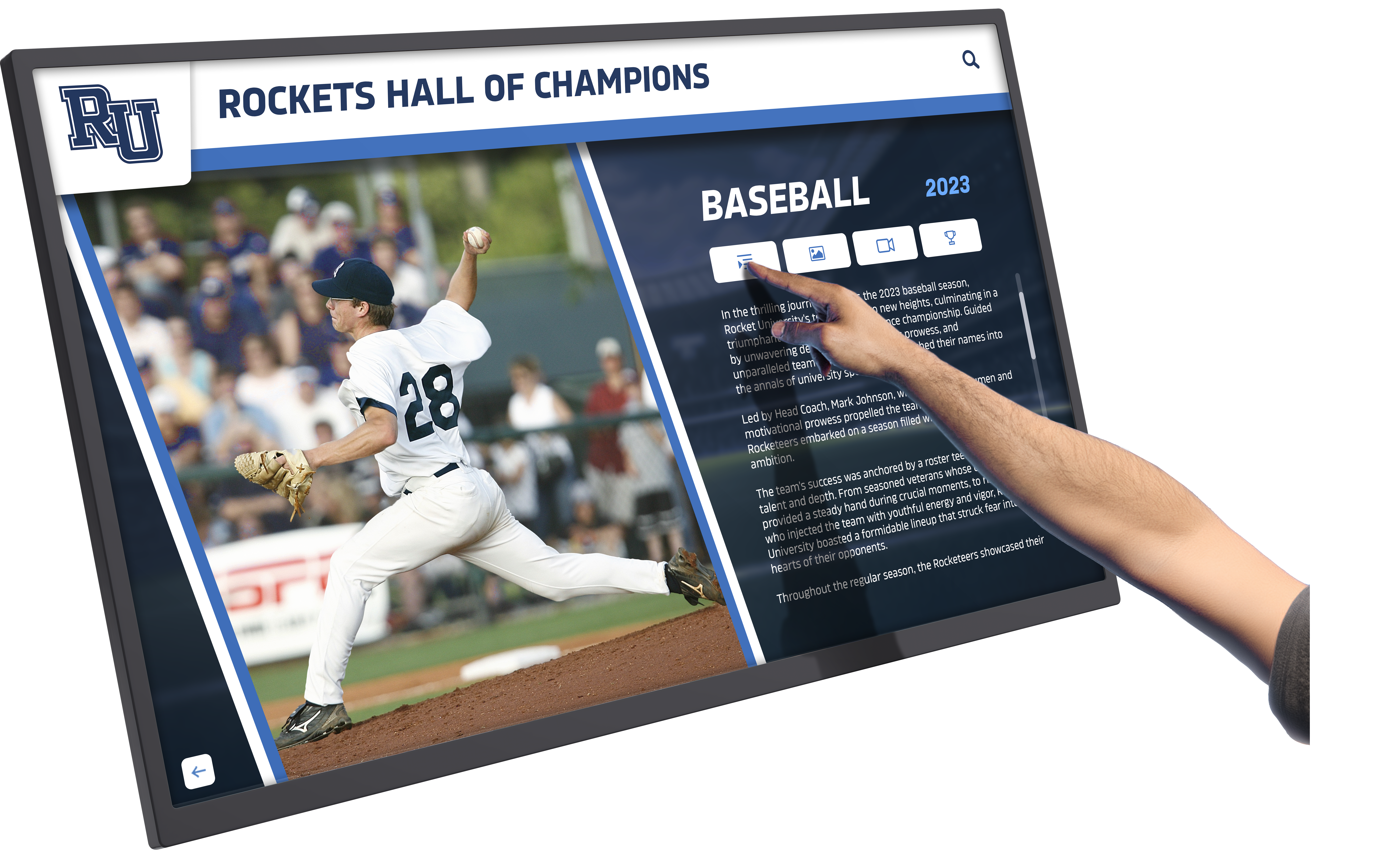
Every inductee profile and recognition achievement published to a digital hall of fame display was added by an admin who authenticated into the platform's content management system; accessible authentication ensures that every authorized staff member can complete that workflow regardless of how they access the internet
Recognition programs that honor decades of athletes, coaches, and community contributors generate content management responsibilities that persist across staff changes, school district reorganizations, and technology migrations. An accessible authentication sign-in is not a one-time configuration—it requires verification after every platform update, identity provider migration, or CAPTCHA service change. The checklist and test matrix in this guide are designed to be re-run quickly after each of those events, keeping the gateway to recognition content management open to every authorized user who needs it.
See Rocket Alumni Solutions’ Accessible Hall of Fame Platform in Action
Request a live demonstration to see how Rocket’s recognition platform delivers accessible admin authentication—supporting password manager autofill, paste-enabled sign-in fields, and WCAG 2.2-compliant error handling—so every member of your recognition program team can manage content without barriers.
Live Example: Rocket Alumni Solutions Touchscreen Display
Interact with a live example (16:9 scaled 1920x1080 display). All content is automatically responsive to all screen sizes and orientations.