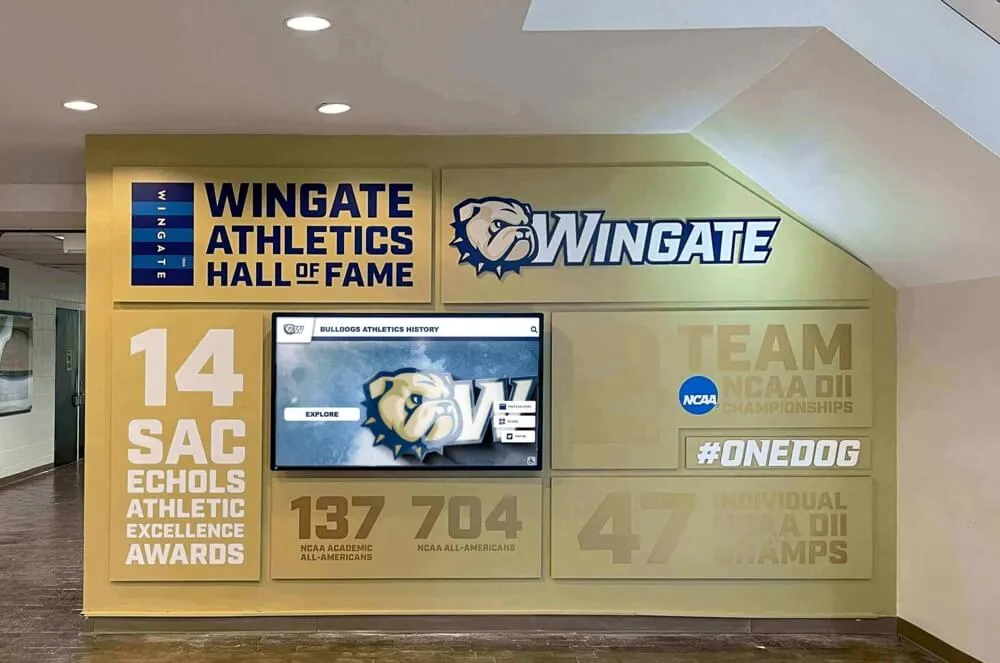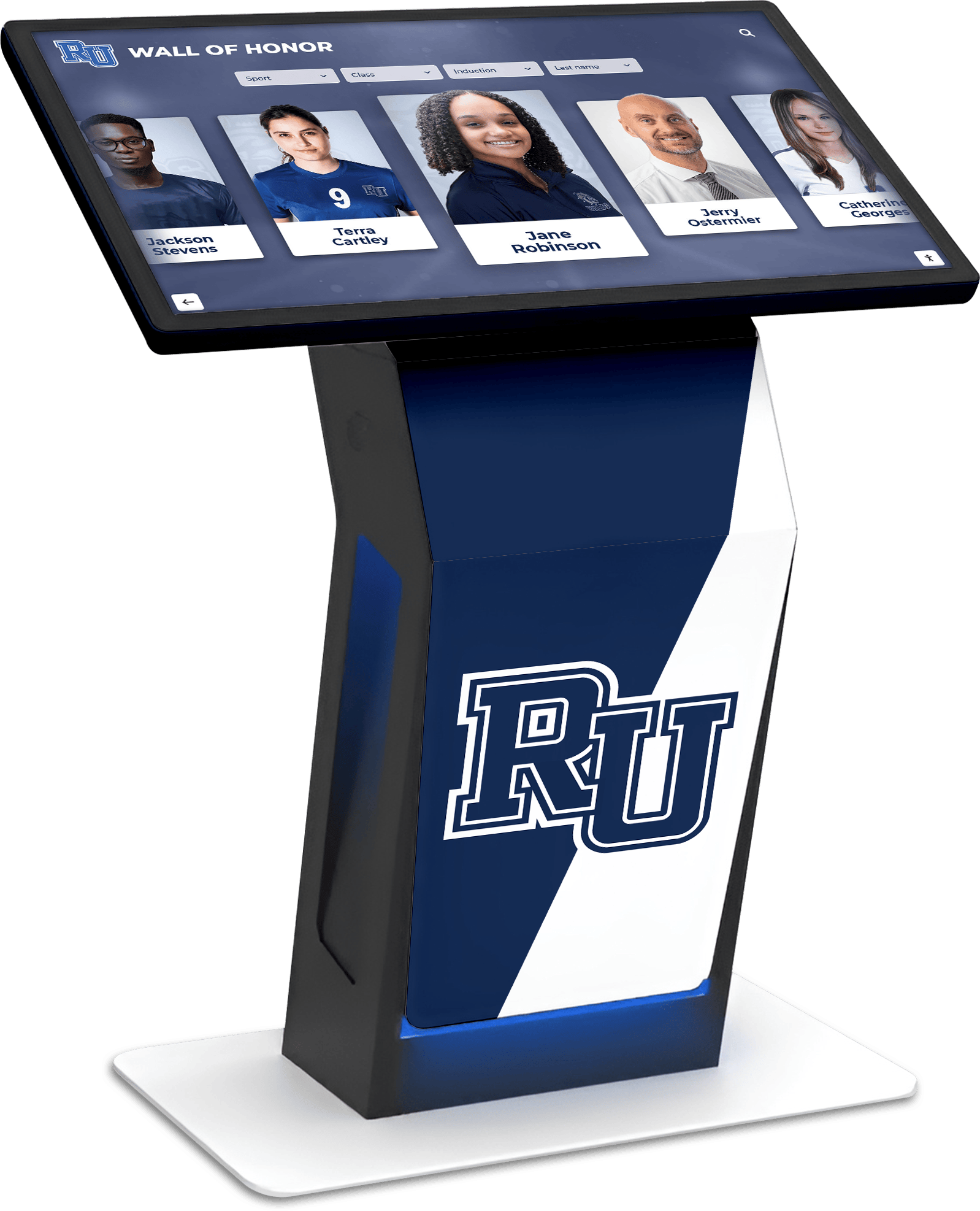




Mac touchscreen software has evolved significantly, enabling schools, organizations, and businesses to transform Mac computers into powerful interactive kiosk displays that showcase content, facilitate exploration, and create engaging digital experiences. While Mac has historically been underserved in the kiosk software market compared to Windows, new solutions are making Mac-based touchscreen installations increasingly practical for educational recognition displays, digital signage, and interactive exhibits.
Yet organizations considering Mac touchscreen implementations face crucial questions: What software solutions effectively enable kiosk mode on Mac? How do Mac-based kiosks compare to Windows alternatives for touchscreen applications? What features distinguish effective Mac kiosk software from basic browser full-screen modes? How can schools and organizations optimize Mac hardware for reliable, long-term touchscreen operation? What solutions address Mac’s traditional challenges with multi-touch gestures in public-facing installations?
This comprehensive guide explores the best touchscreen software for Mac in 2025, providing IT administrators, technology coordinators, and decision-makers with practical insights for evaluating, implementing, and optimizing Mac-based interactive displays that effectively serve organizational needs while delivering reliable performance and engaging user experiences.
Mac touchscreen software represents specialized applications designed specifically to address the unique requirements of kiosk and interactive display environments—from auto-launching into restricted browsing modes and managing single-touch versus multi-touch interactions to providing reliable content delivery and simplified management appropriate for unattended public installations. When organizations thoughtfully select appropriate solutions and configure Mac systems properly, Apple hardware delivers the reliability, performance, and professional aesthetics that make Mac platforms attractive for high-visibility interactive installations.

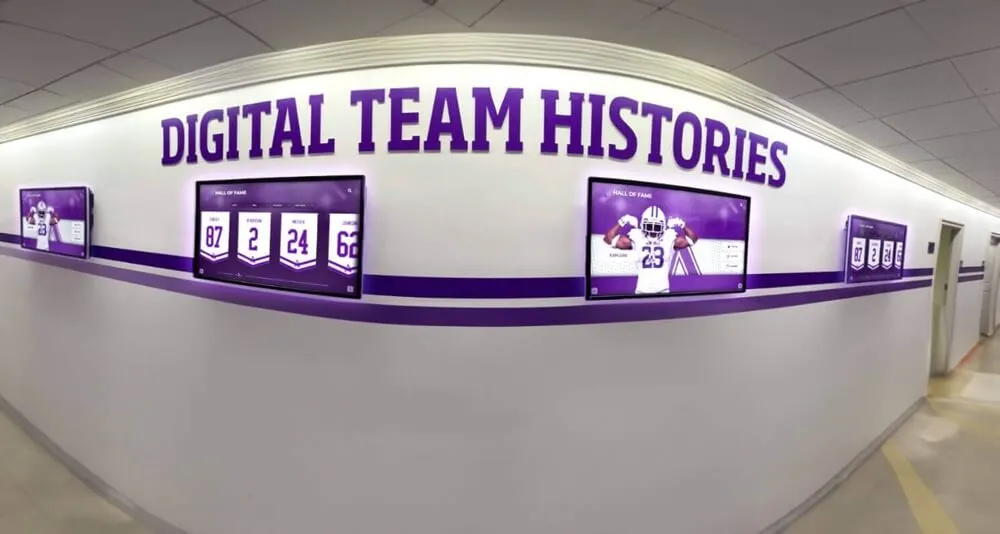
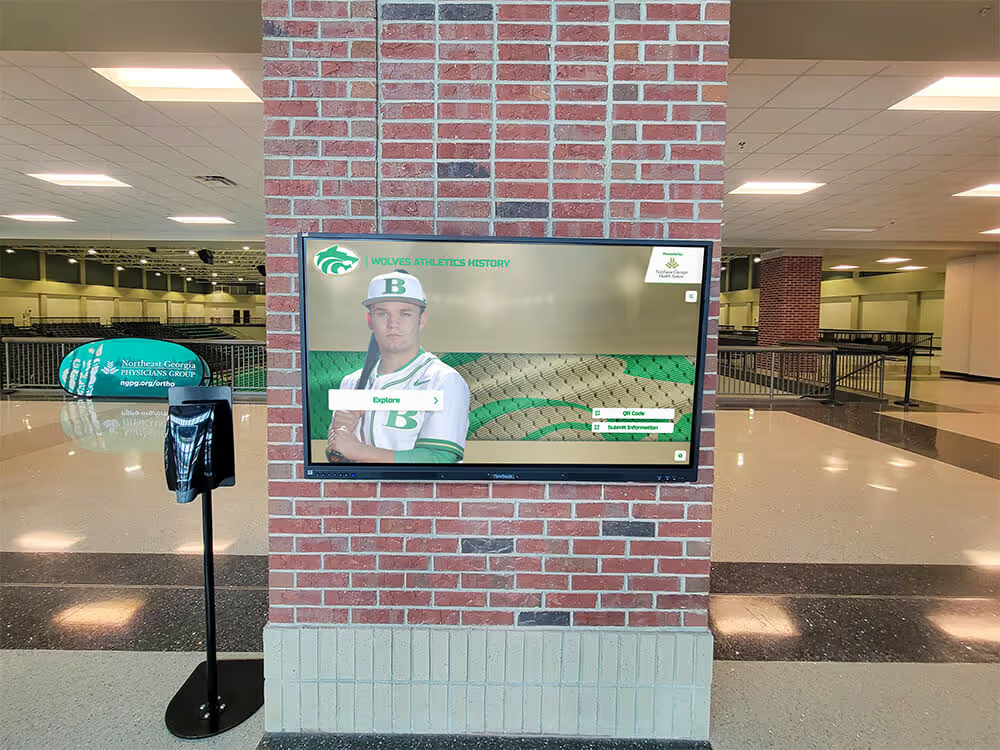
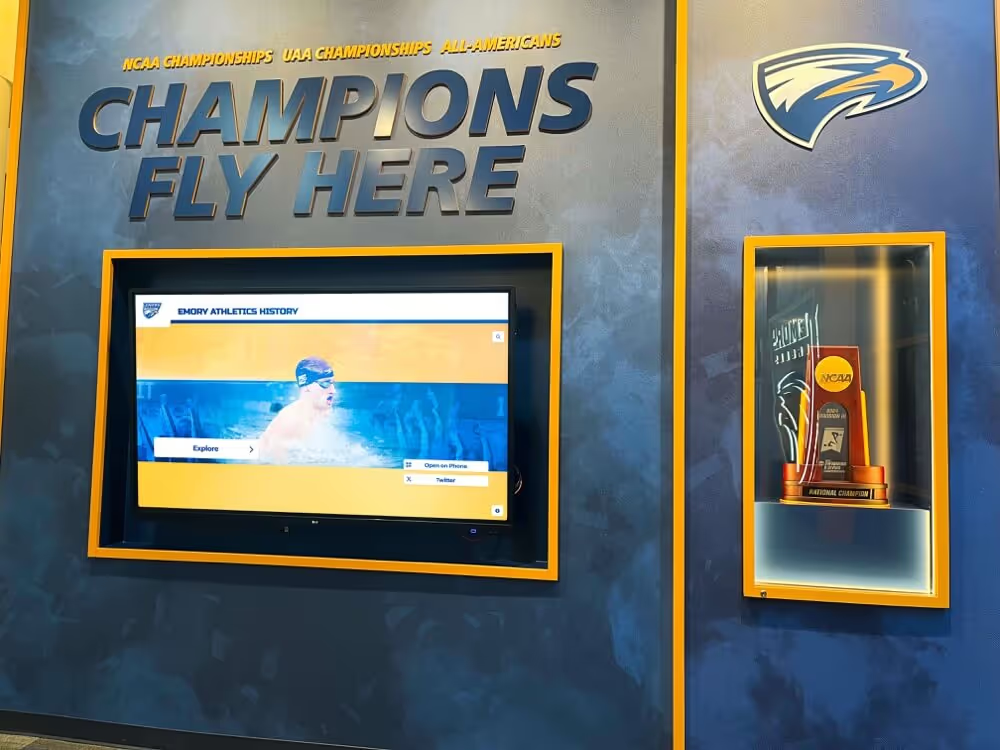
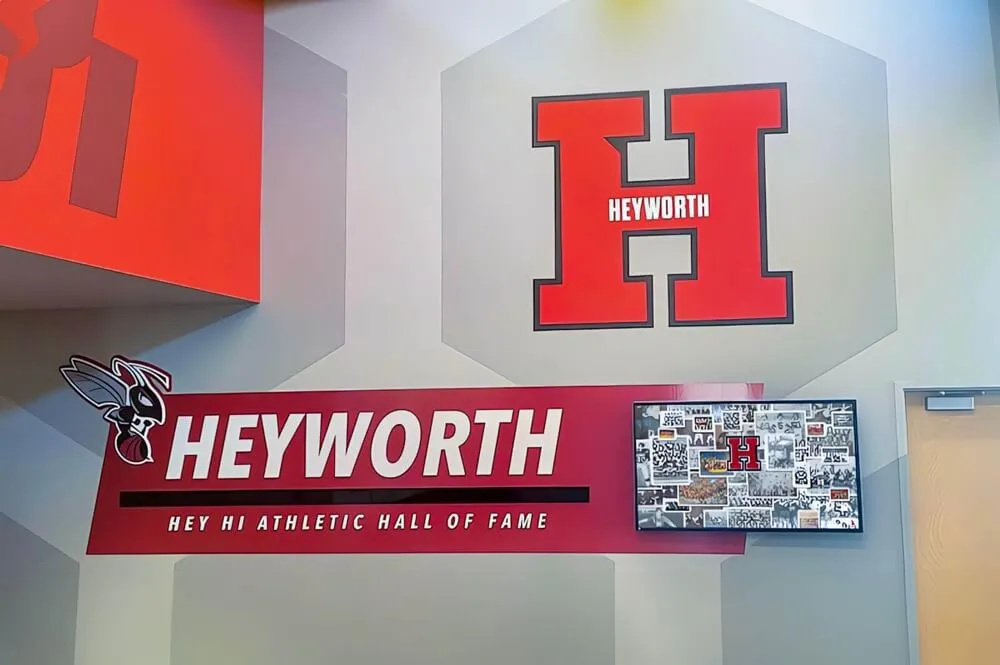
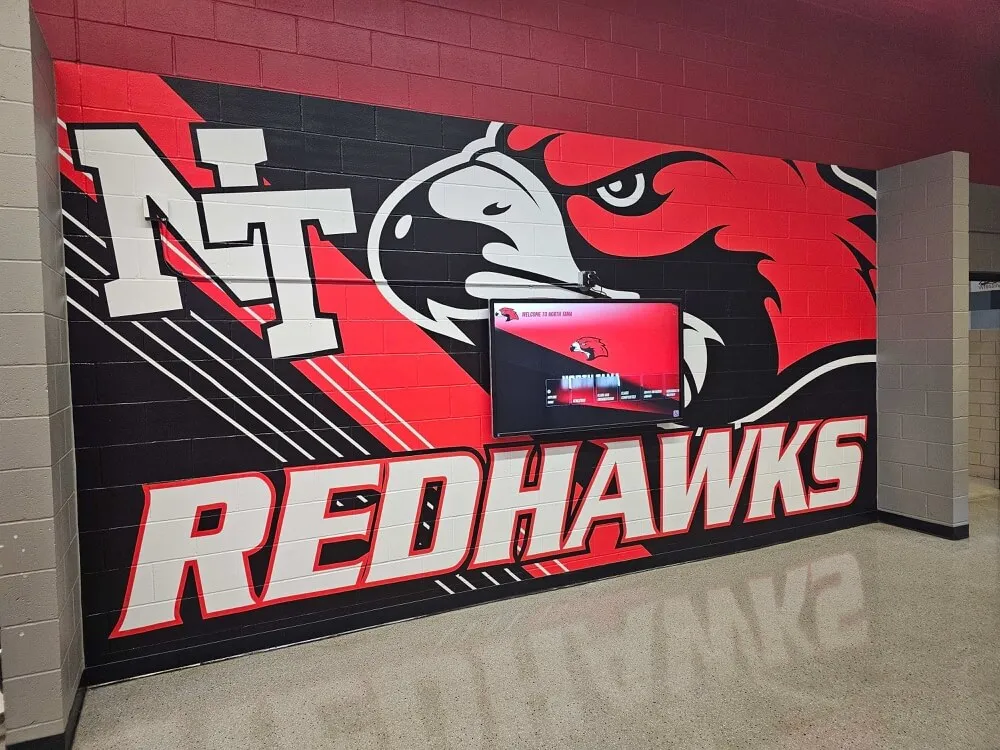
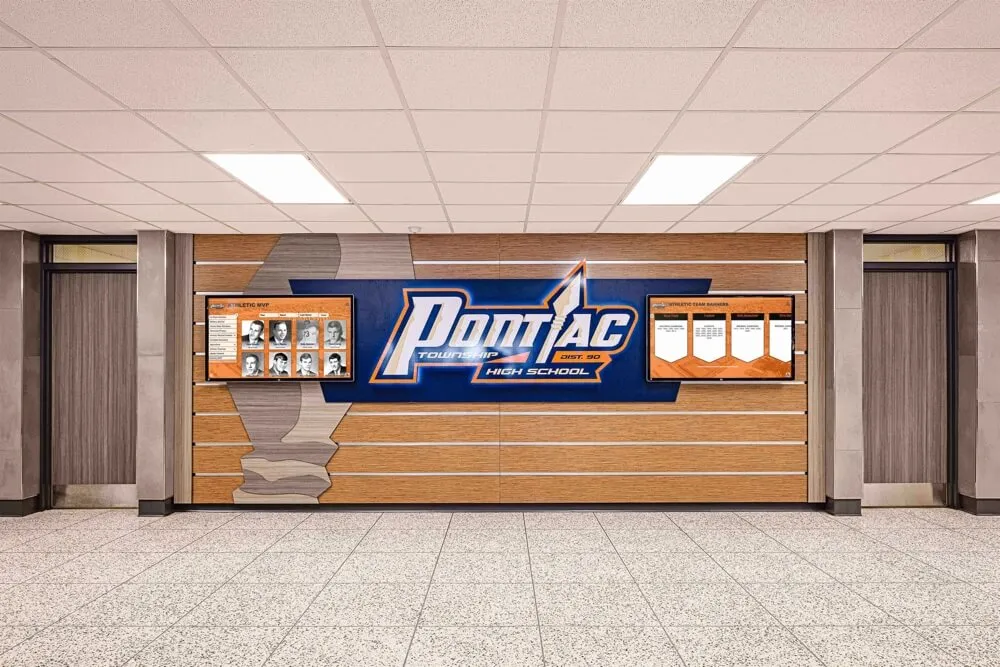
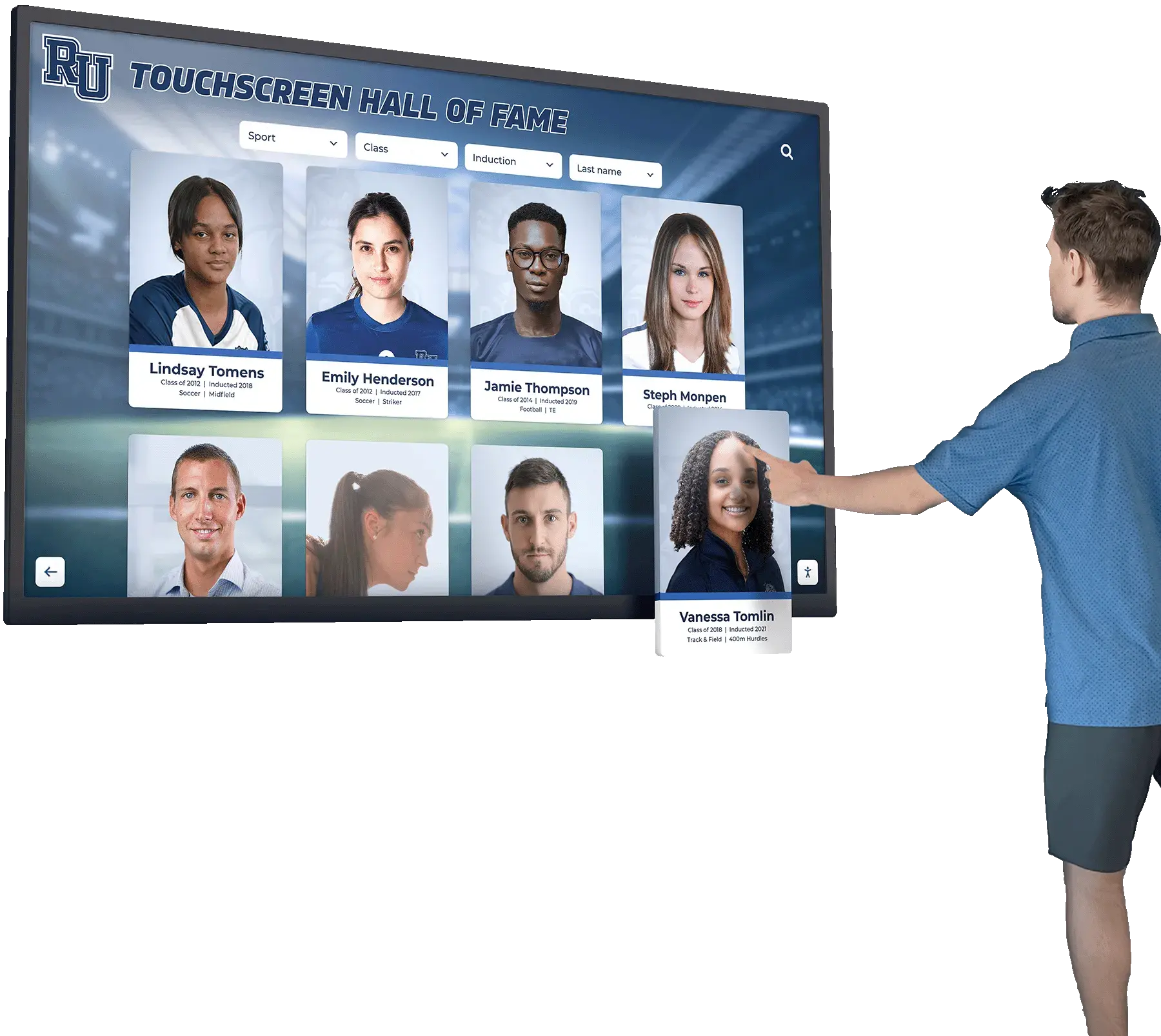
Mac-based touchscreen kiosks deliver professional aesthetics and reliable performance for interactive displays
Understanding Mac Touchscreen Software Requirements
Before evaluating specific products, understanding the unique requirements and challenges of Mac-based touchscreen installations helps organizations make informed decisions aligned with their operational goals and technical constraints.
The Mac Kiosk Mode Challenge
Mac computers weren’t originally designed for public kiosk applications, creating specific challenges that specialized software must address:
Limited Native Kiosk Features
Unlike some operating systems with built-in kiosk modes, macOS requires additional software to create locked-down environments:
- No native full-screen kiosk browser mode without command-line configuration
- Default browser functionality includes address bars, bookmarks, and navigation controls inappropriate for public kiosks
- Built-in accessibility features and system controls accessible without proper lockdown
- Dock, menu bar, and system preferences require restriction for unattended operation
- Multi-touch gestures (pinch-zoom, swipe navigation) can confuse single-touch displays
- Auto-launch and crash recovery not configured by default for continuous operation
Organizations attempting to use standard Mac browsers in full-screen mode quickly discover users can exit, access system settings, or trigger unintended functionality—making dedicated kiosk software essential for reliable public-facing installations.
Multi-Touch Gesture Complications
Modern Macs expect multi-touch input, creating complications for single-touch displays:
- Default macOS gestures require two or more fingers for navigation and zoom
- Single-touch displays may not support pinch-to-zoom, two-finger scroll, or gesture navigation
- Content designed for multi-touch interaction becomes inaccessible on single-touch hardware
- Users expect smartphone-like gestures but single-touch limitations frustrate these expectations
- Web content with zoom requirements becomes difficult to navigate with single-touch input
This multi-touch challenge particularly affects schools and organizations implementing cost-effective single-touch displays that provide adequate functionality for most applications but require specialized software configuration to enable full content accessibility.
Security and Access Control
Public kiosk environments require robust security preventing unauthorized access:
- Complete restriction of system settings and preferences
- Prevention of application switching or Finder access
- Blocking of keyboard shortcuts accessing system functions
- Automatic recovery from crashes or power interruptions
- Content filtering preventing navigation to inappropriate sites
- Password protection for administrative configuration access
- Remote management capabilities for distributed installations
Proper security configuration ensures Mac kiosks operate reliably without staff intervention while preventing misuse or unauthorized system access.
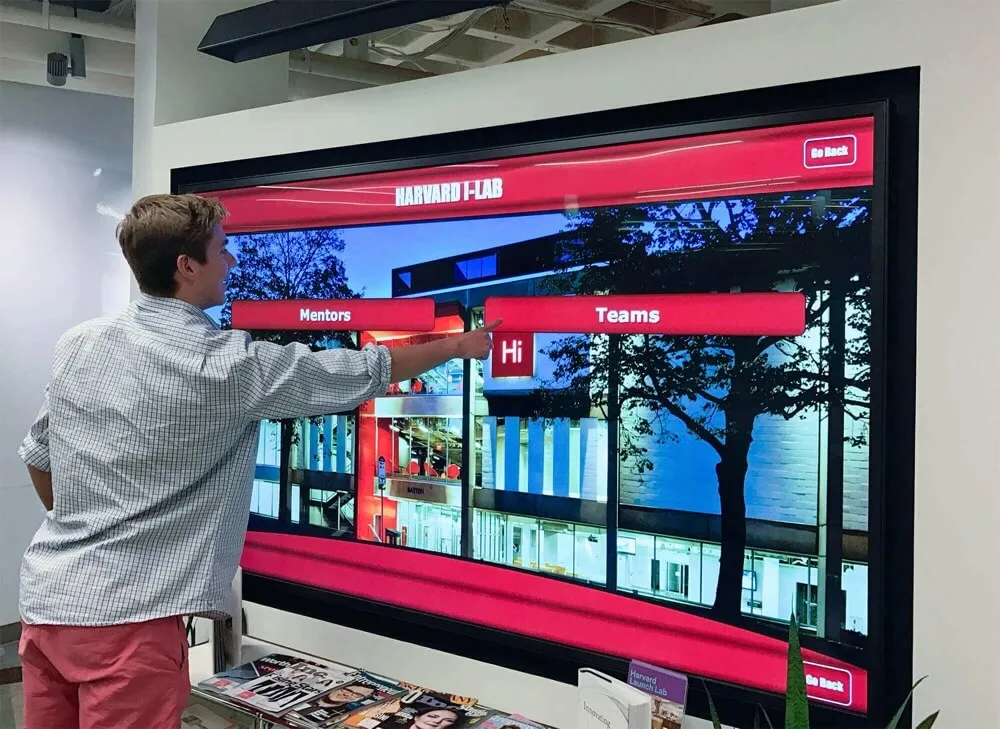
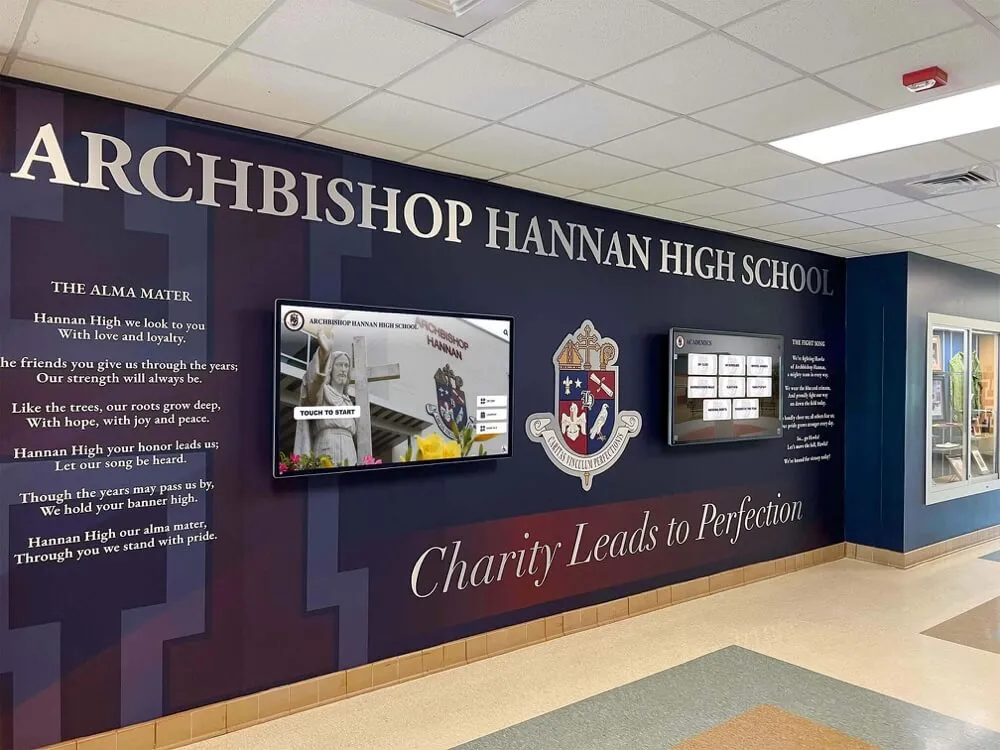
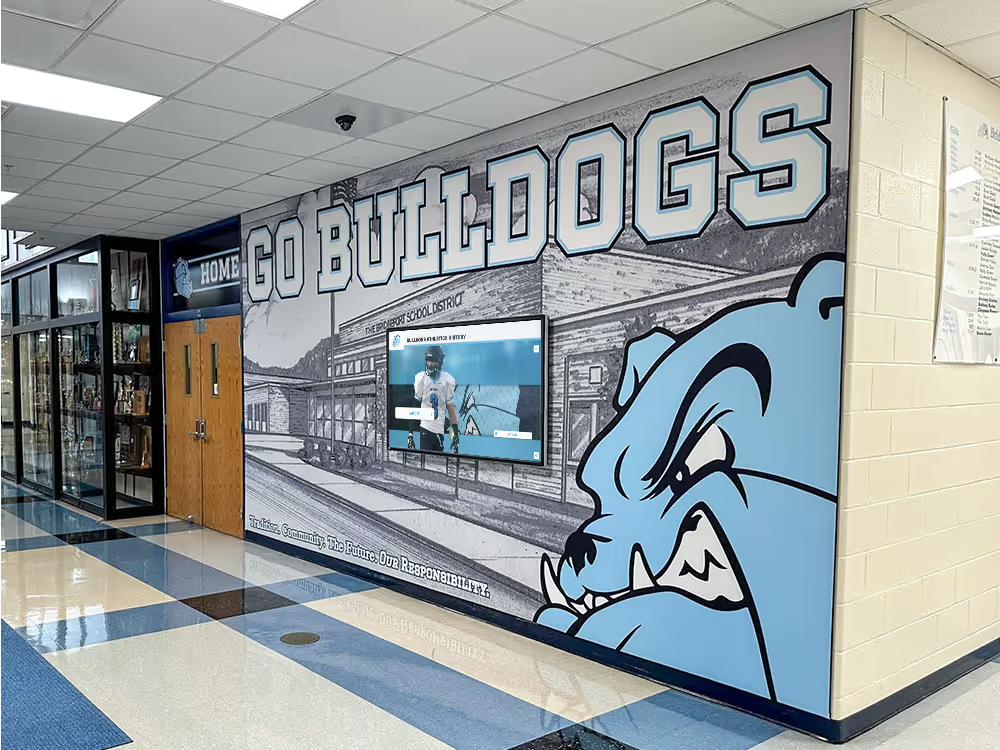
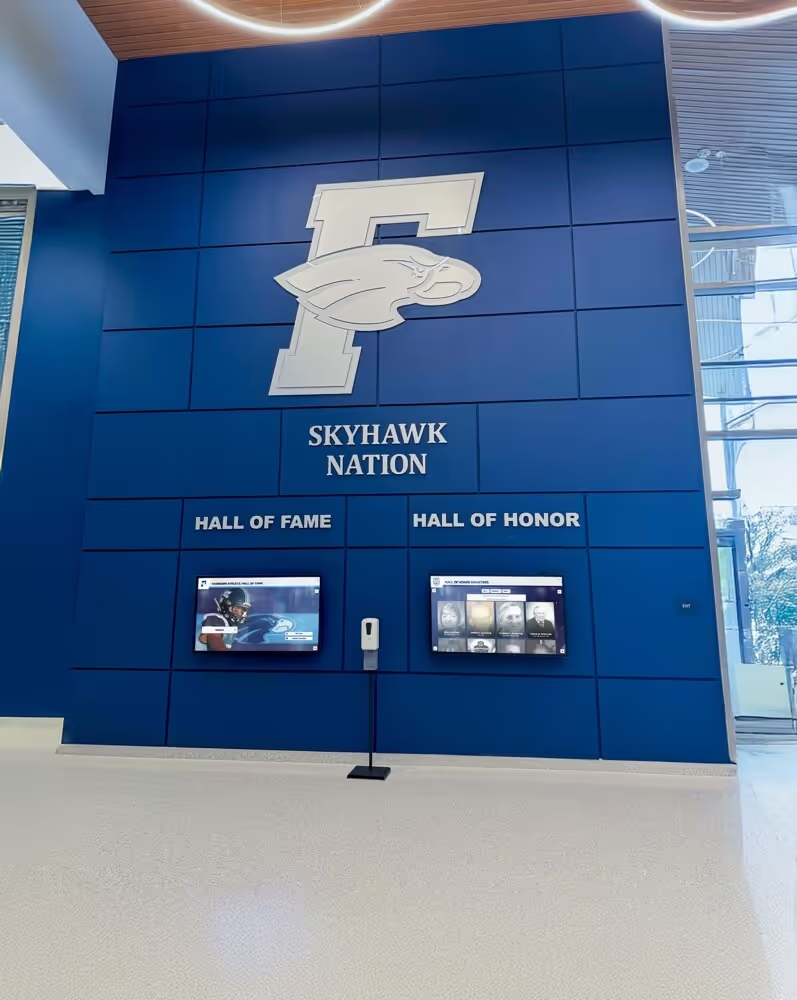
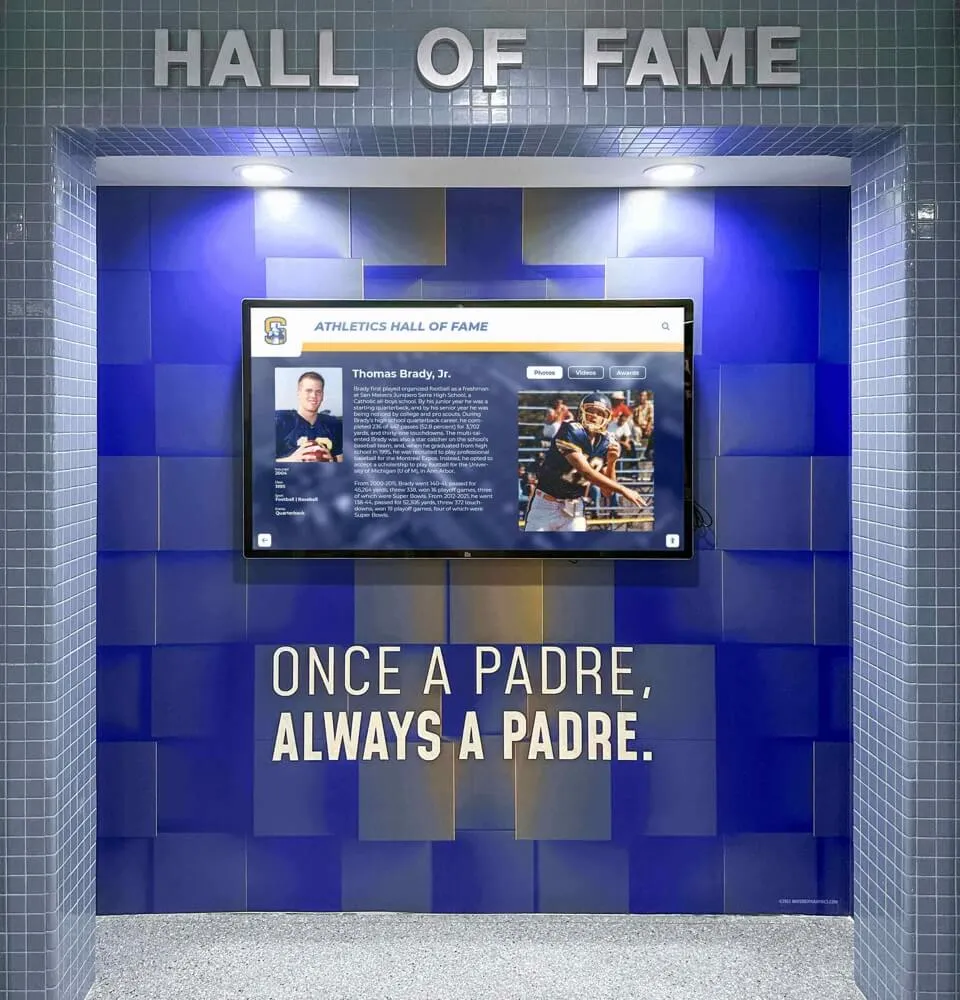
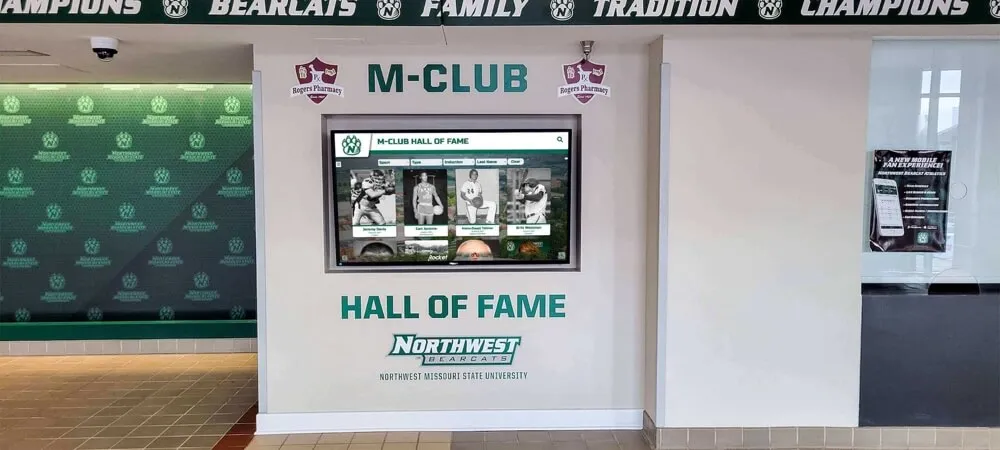
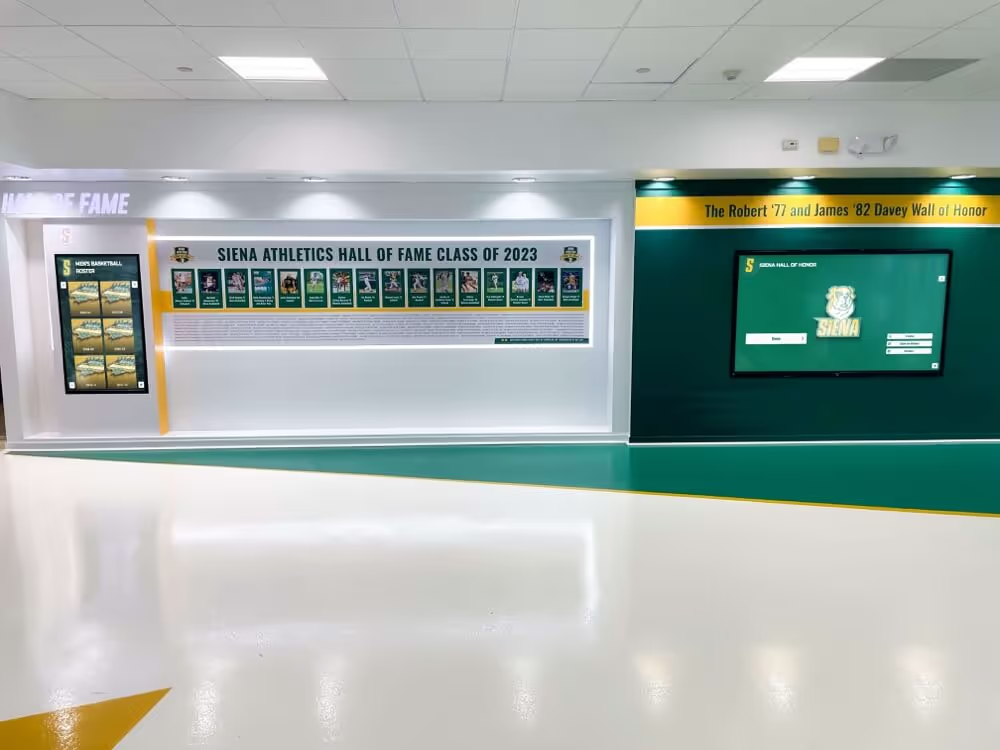
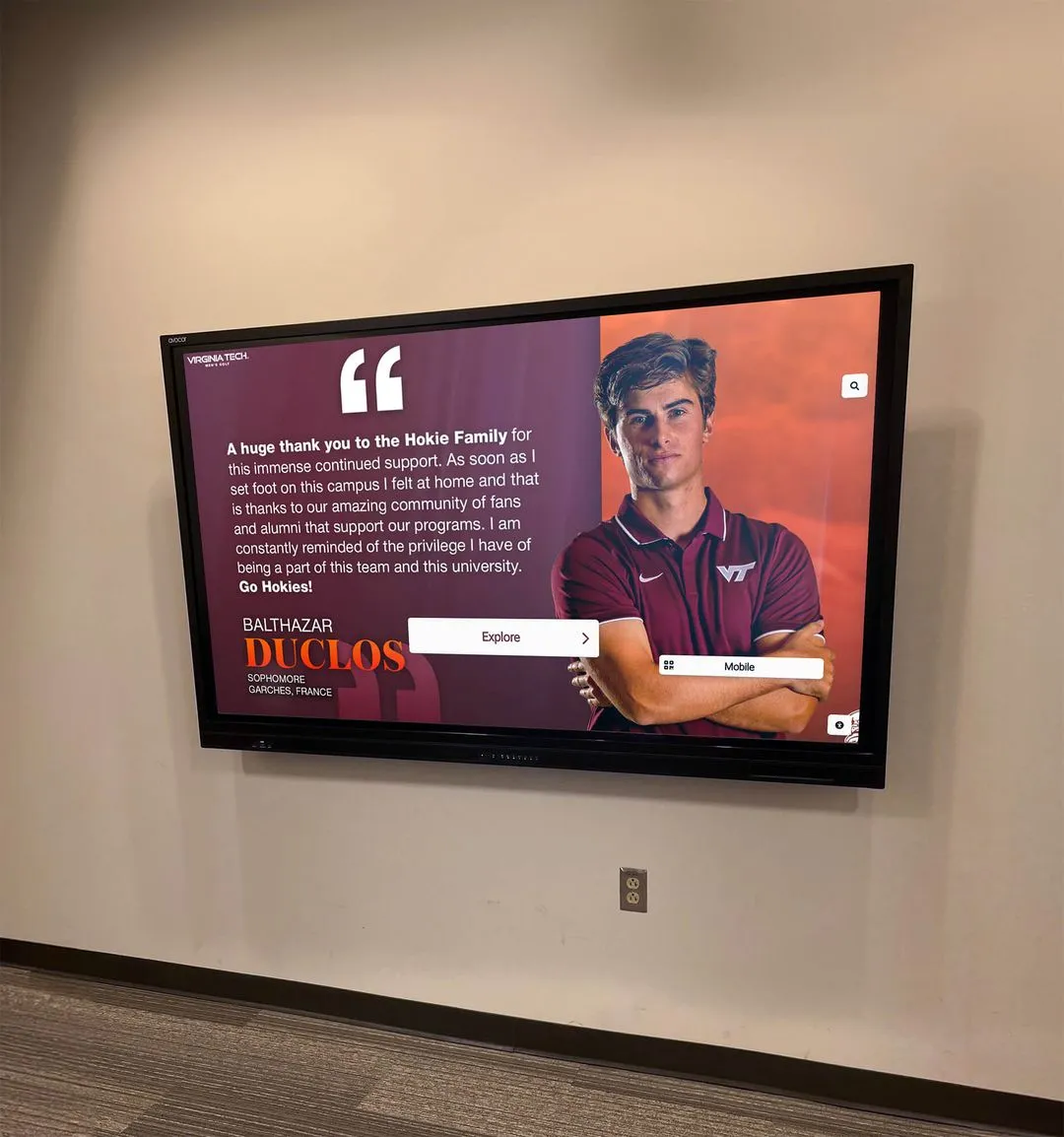
Properly configured Mac kiosks provide intuitive navigation and restricted access appropriate for public environments
Essential Features for Mac Touchscreen Software
Organizations should evaluate Mac kiosk solutions based on features critical for reliable touchscreen applications:
Automatic Kiosk Mode Launch
Effective Mac kiosk software must launch automatically without user intervention:
- Auto-start on system boot entering kiosk mode immediately
- Crash recovery automatically relaunching if applications close unexpectedly
- Power failure recovery resuming operation after electrical interruptions
- Scheduled restart capabilities for maintenance and updates
- Watchdog monitoring ensuring continuous operation
- Login bypass eliminating manual authentication requirements
Automatic operation proves essential for installations in remote locations or unattended facilities where manual intervention isn’t practical or cost-effective.
Content Presentation and Browser Capabilities
Mac kiosk software must provide appropriate web browsing functionality:
- Full-screen chromeless browsing without address bars or controls
- Modern rendering engines supporting current web standards
- HTML5, CSS3, and JavaScript support for interactive content
- Video playback capabilities including embedded media
- PDF document display and navigation
- Zoom and navigation controls appropriate for touchscreen interaction
- Home button functionality returning to designated start page
- Scheduled content rotation for multi-page displays
Solutions should balance feature-rich browsing with simplified controls appropriate for public interaction without technical support.
Single-Touch Mode Support
Specialized software should address single-touch display limitations:
- Custom navigation controls replacing multi-touch gestures
- On-screen zoom controls for content requiring magnification
- Single-finger scrolling without multi-touch requirements
- Alternative navigation for content designed with multi-touch assumptions
- Customizable button controls providing gesture alternatives
- Content optimization guidance for single-touch compatibility
Single-touch support enables organizations to implement cost-effective display hardware while maintaining full content accessibility for users.
Configuration and Management Tools
Sustainable kiosk programs require capable administration:
- User-friendly configuration interfaces requiring minimal technical expertise
- URL whitelisting or blacklisting for content control
- Customizable home pages and start-up content
- Idle timeout settings returning displays to default state
- Screensaver options protecting displays during inactivity
- Password-protected settings preventing unauthorized changes
- Remote management for distributed installations
- Backup and restore capabilities protecting configurations
Management tools should accommodate non-technical staff while providing flexibility required for diverse organizational needs and use cases.
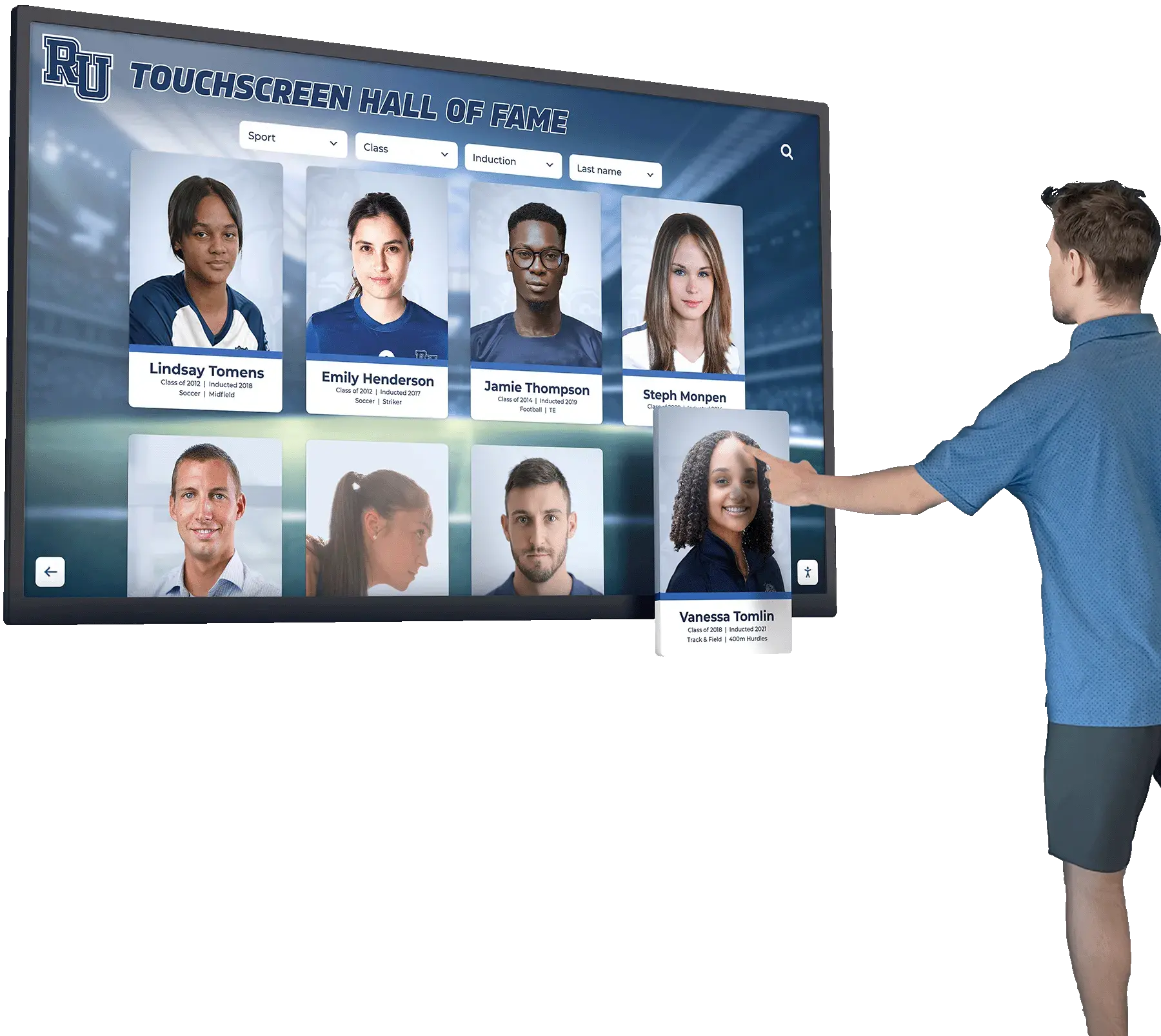
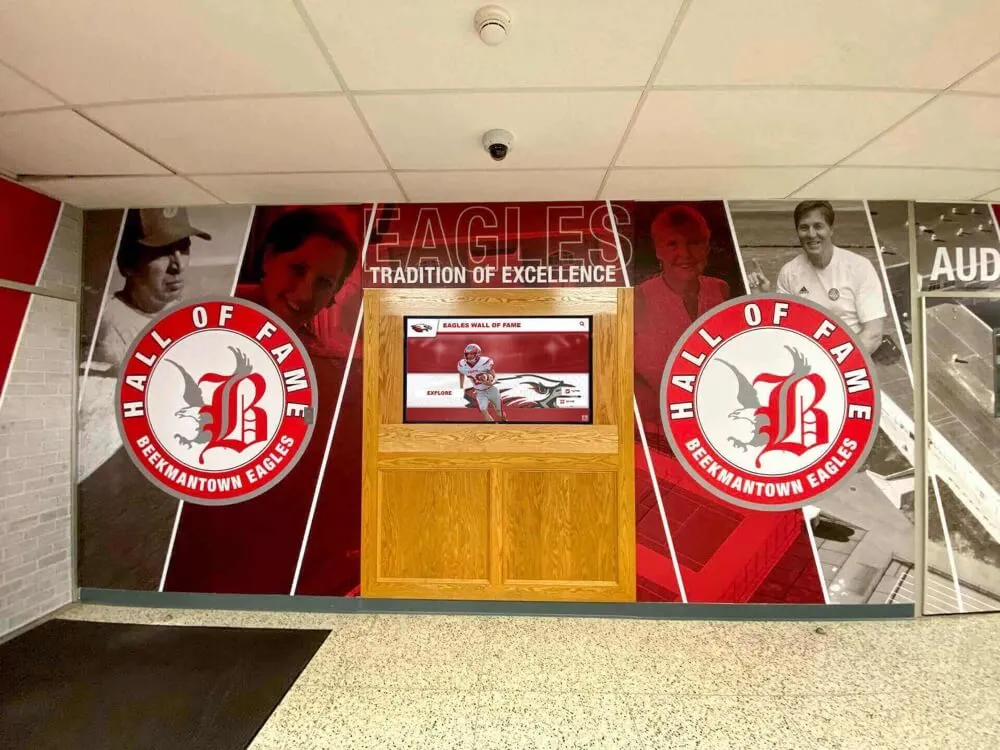
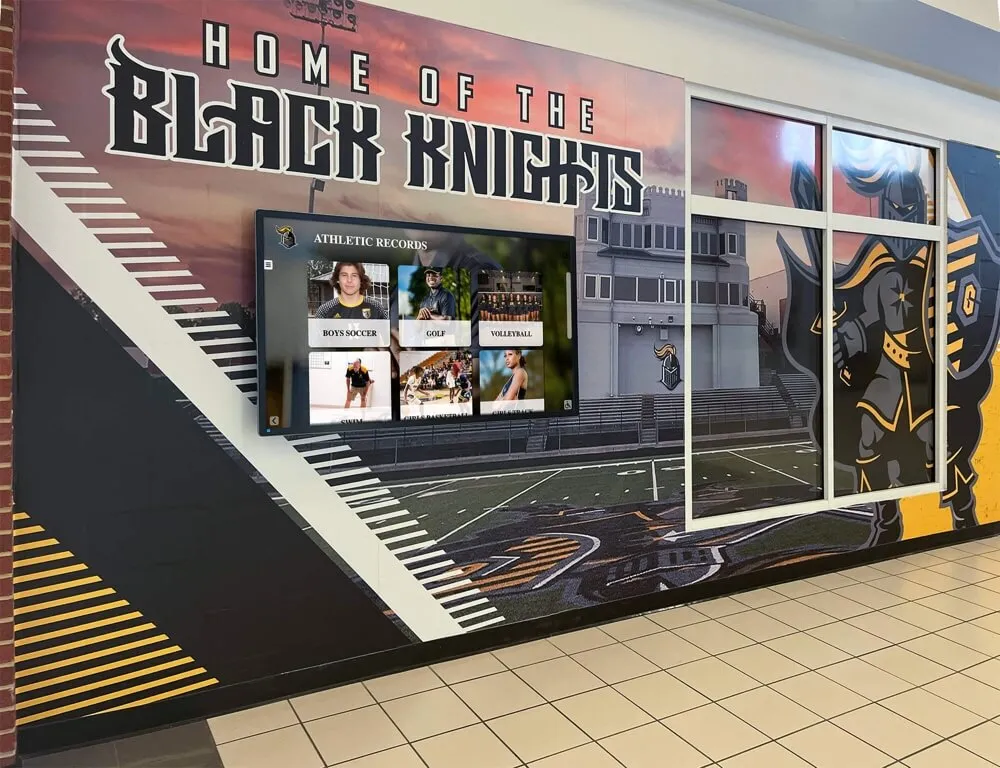
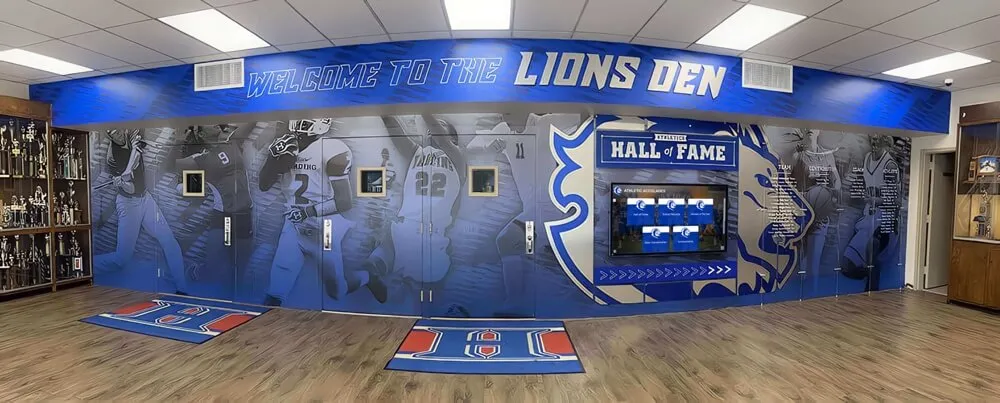
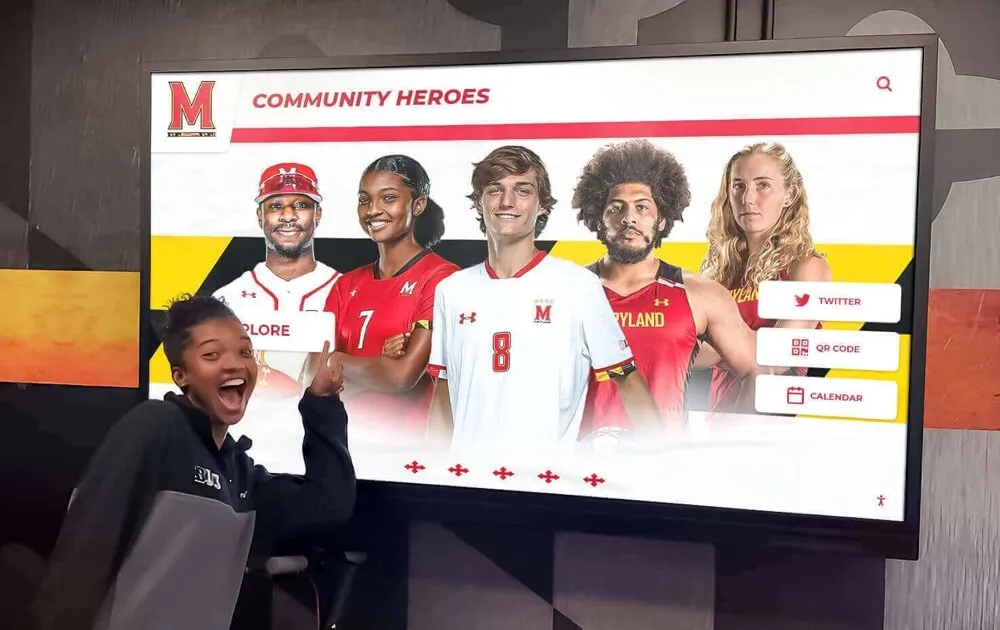
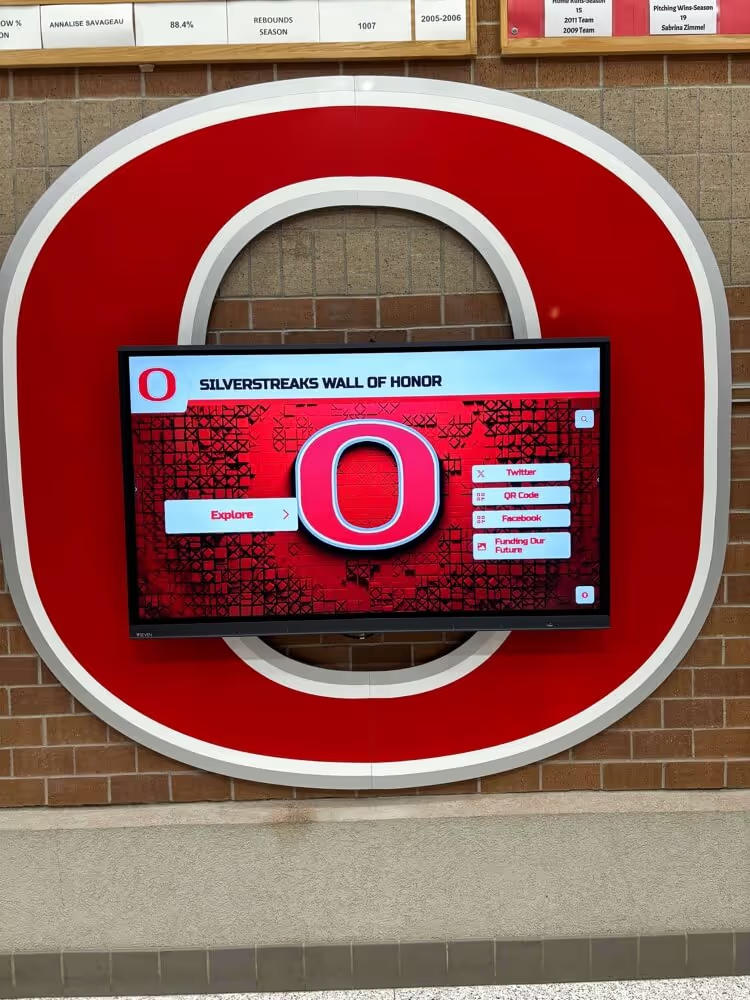
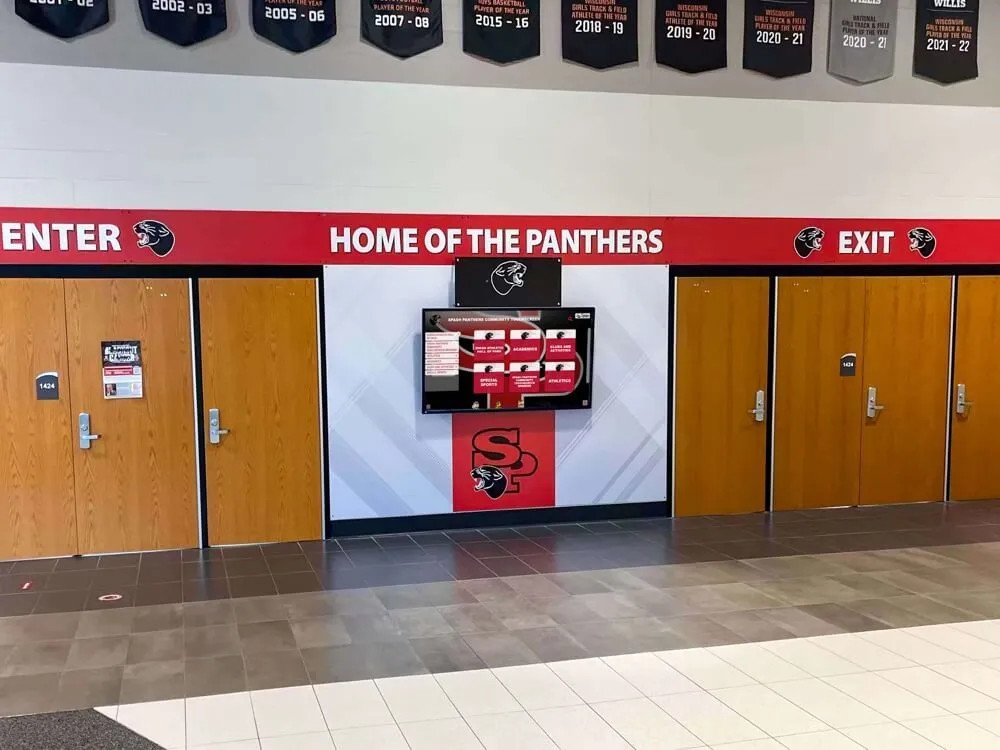
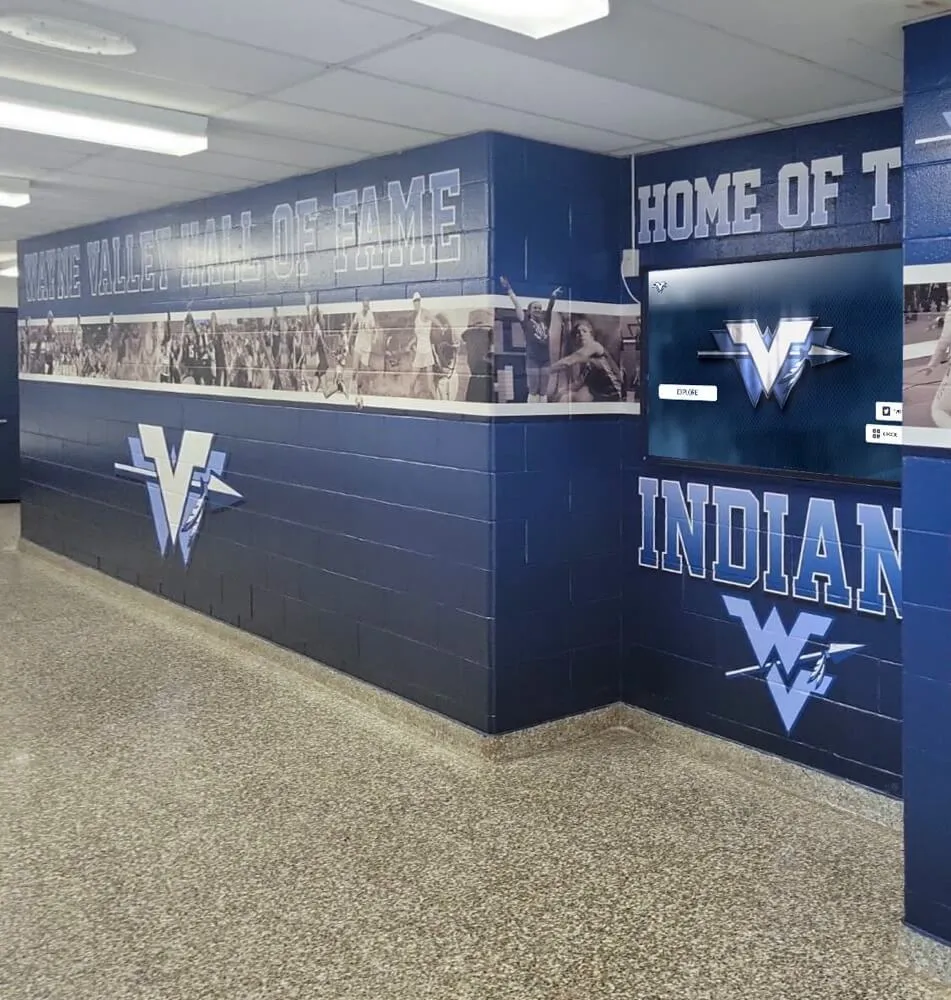
Mac kiosk software enables intuitive content exploration in educational and organizational settings
Rocket Touchscreen for Mac: Purpose-Built Kiosk Solution
Understanding the Mac kiosk landscape provides context for evaluating Rocket Touchscreen, a Mac App Store application specifically designed to address the challenges organizations face when implementing Mac-based touchscreen displays.
Overview and Core Capabilities
Rocket Touchscreen represents a purpose-built solution addressing Mac’s traditional kiosk limitations:
Mac App Store Availability
Rocket Touchscreen’s distribution through the official Mac App Store provides several advantages:
- Simplified installation through familiar App Store interface
- Automatic updates maintaining current functionality and security
- Apple’s review process ensuring application safety and reliability
- Compatibility verification across macOS versions
- Single-click installation without complex configuration
- Mac ecosystem integration following Apple design standards
App Store distribution reduces technical barriers for schools and organizations without dedicated IT staff, making professional kiosk functionality accessible to institutions regardless of technical expertise.
Automatic Kiosk Mode Launch
The application addresses one of Mac’s most significant kiosk challenges:
- Automatic full-screen launch on system startup
- Immediate entry into kiosk mode without login or manual application start
- Chromeless browsing eliminating address bars and browser controls
- Locked interface preventing exit to Finder or system settings
- Home button returning to designated start page
- Crash recovery automatically relaunching if application closes
- Complete Mac system lockdown appropriate for unattended public access
This automatic operation enables true walk-up-and-use functionality comparable to dedicated kiosk hardware while leveraging Mac’s reliability and performance.
Chromium-Based Rendering Engine
Rocket Touchscreen runs on Chromium, providing modern web capabilities:
- Current web standards support ensuring content compatibility
- HTML5, CSS3, and JavaScript rendering matching contemporary websites
- Video playback including embedded YouTube and streaming content
- Responsive design support adapting to various display sizes
- PDF viewing integrated into browsing experience
- Performance optimization for smooth interaction and scrolling
- Regular engine updates maintaining security and compatibility
Chromium foundation ensures content designed for modern browsers displays correctly without requiring special optimization or compatibility adjustments.
Single-Touch Mode Optimization
Perhaps most significantly for schools and organizations using cost-effective single-touch displays, Rocket Touchscreen addresses Mac’s multi-touch assumptions:
- Single-touch mode making all content accessible without multi-touch gestures
- On-screen controls replacing pinch-to-zoom requirements
- Alternative navigation eliminating two-finger scroll dependencies
- Zoom buttons providing magnification without gesture requirements
- Simplified interaction appropriate for single-touch hardware
- Content accessibility without multi-touch display investment
- User interface design optimized for single-finger operation
This single-touch optimization enables organizations to implement affordable single-touch displays—often costing 30-50% less than multi-touch alternatives—while maintaining full functionality and content accessibility that would otherwise require expensive multi-touch hardware.
Learn more about interactive touchscreen software considerations and how purpose-built solutions address specific organizational needs.
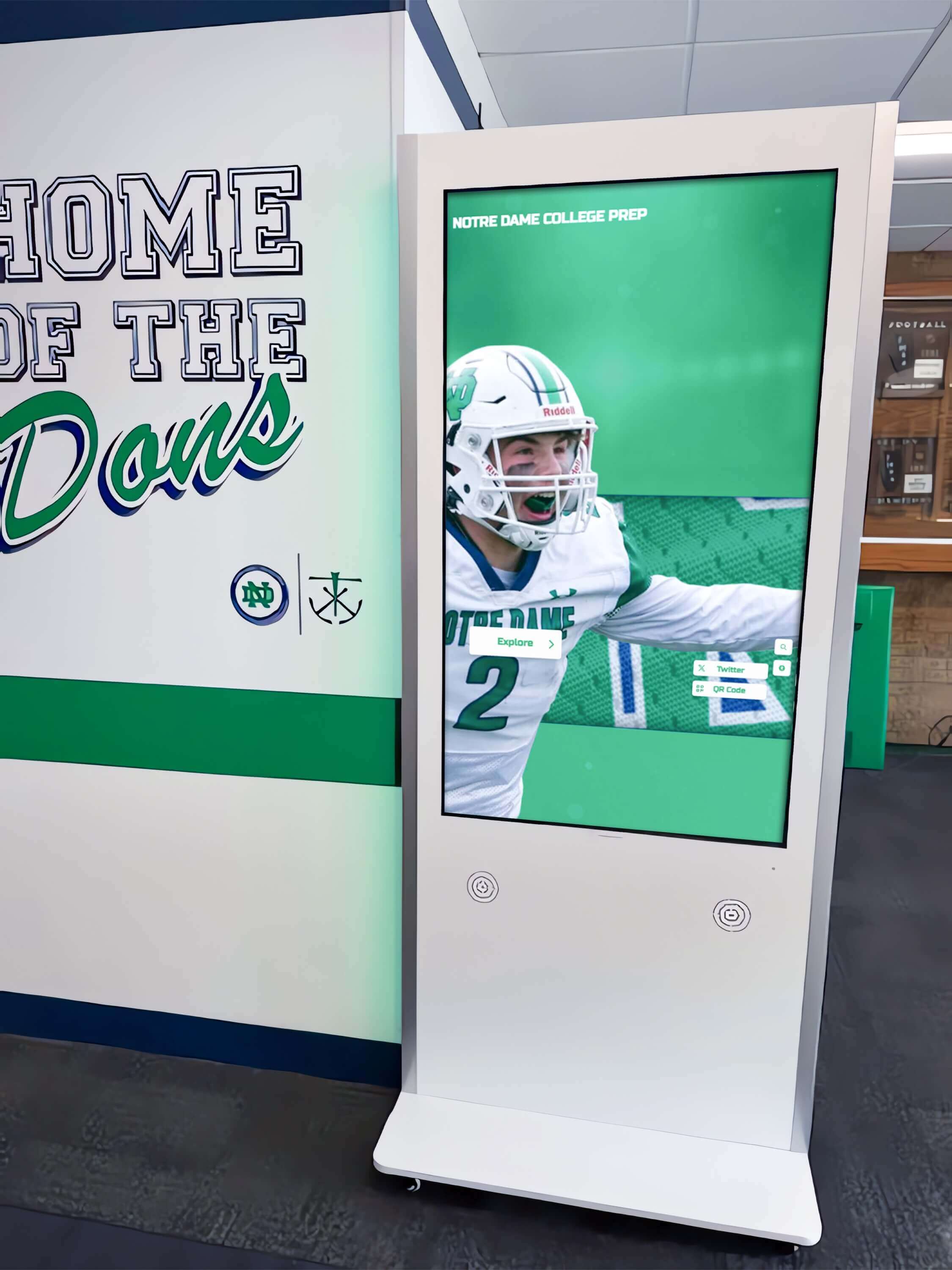
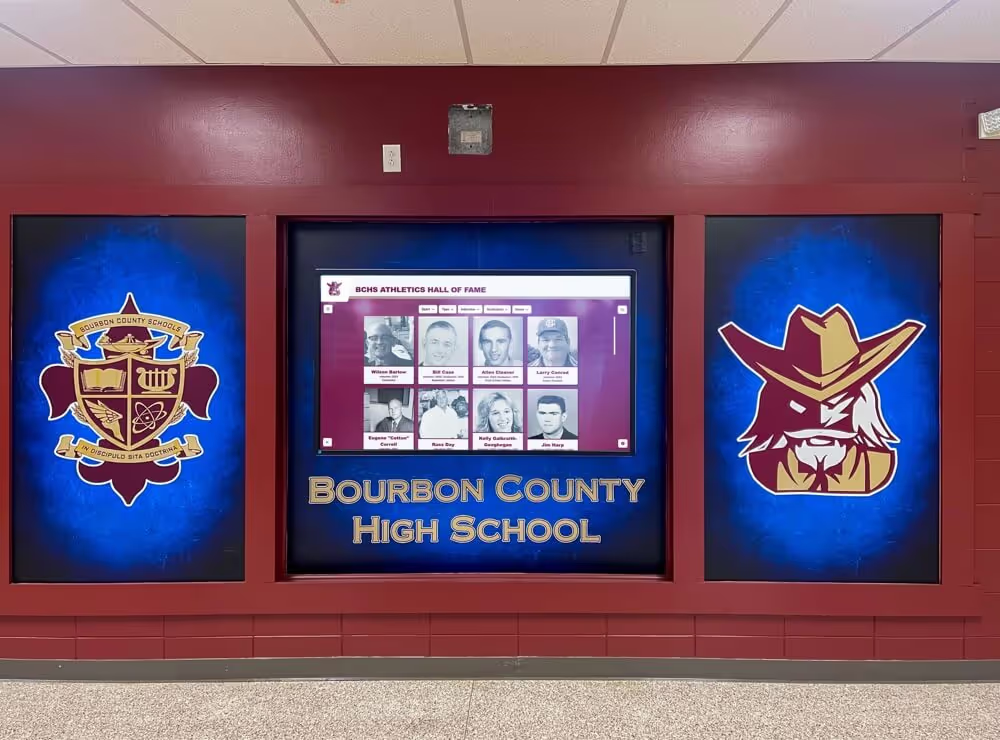
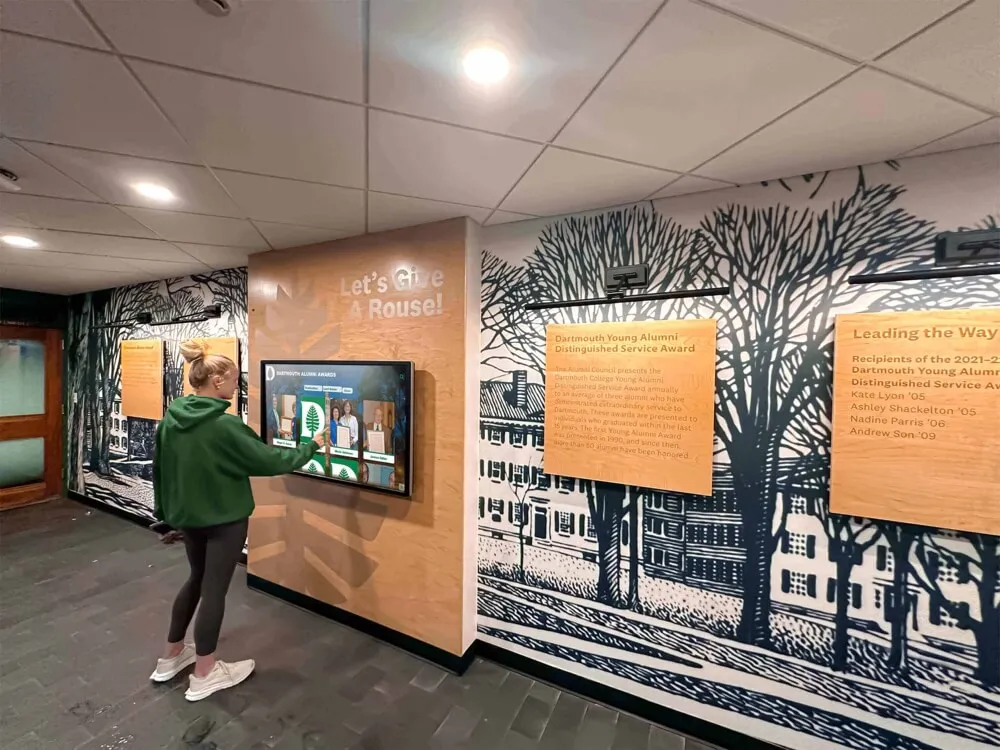
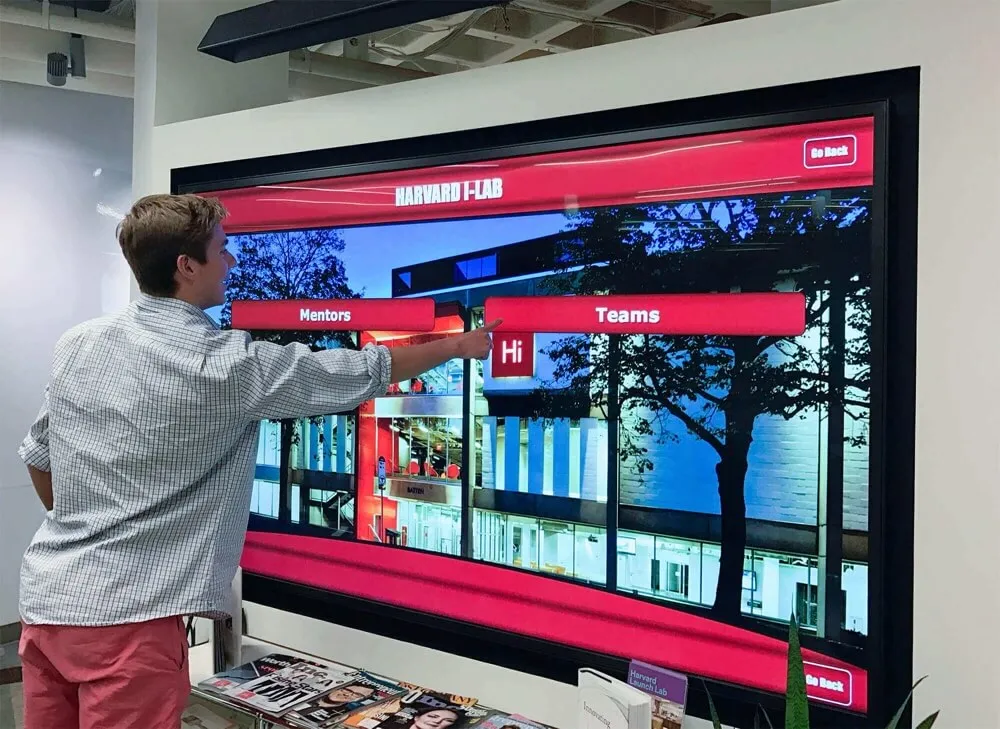
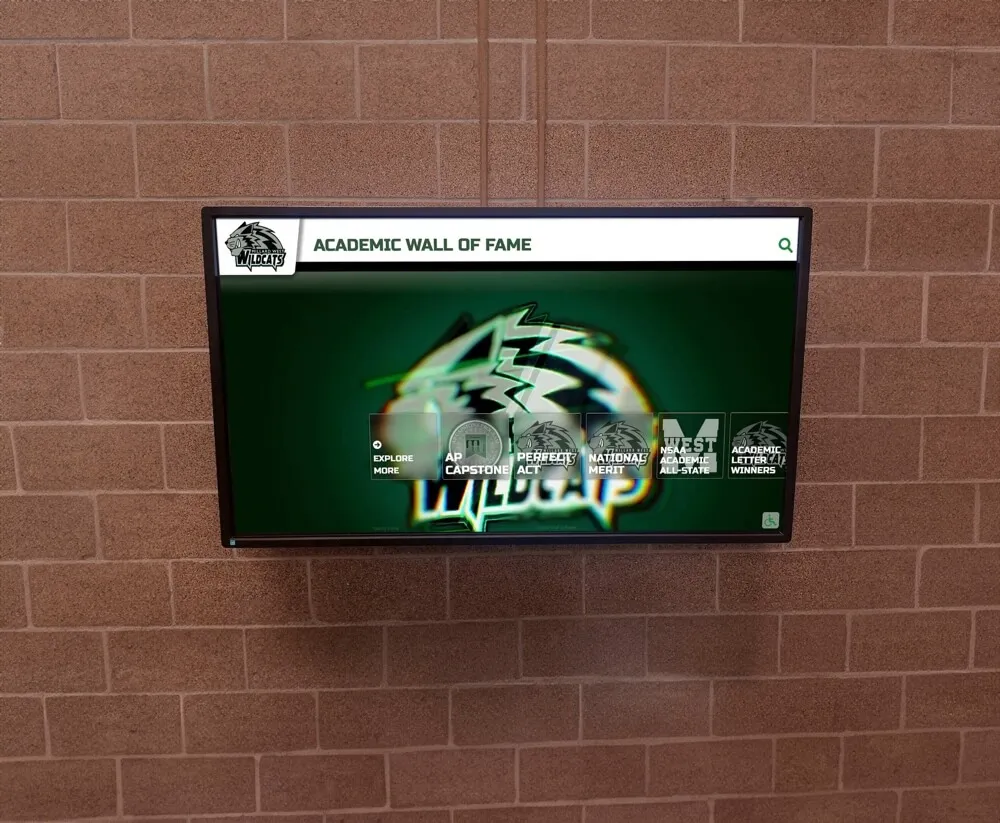
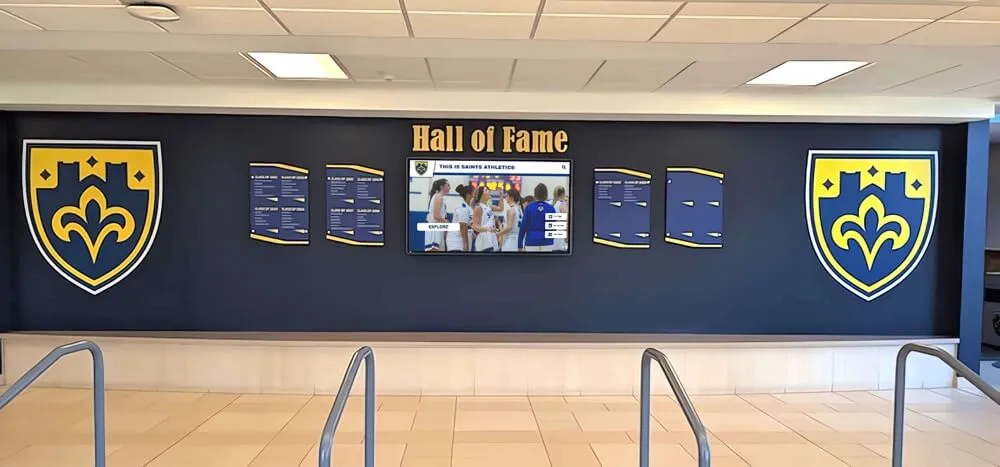
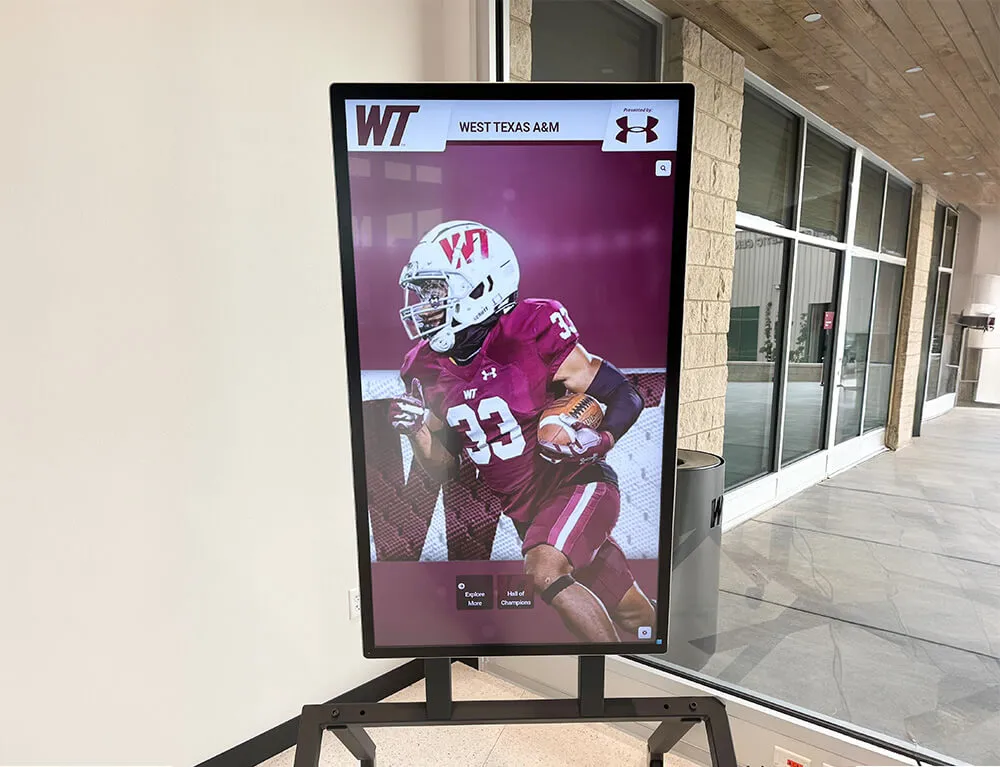
Purpose-built kiosk software transforms Mac computers into reliable interactive displays for schools and organizations
Configuration and Management
Rocket Touchscreen balances simplicity with necessary flexibility:
Setup and Configuration
Initial configuration accommodates non-technical administrators:
- Simple Mac App Store installation without command-line requirements
- Configuration interface accessible to users without programming expertise
- Home page URL setting designating start-up content
- Idle timeout configuration returning to home page after inactivity
- Auto-launch setup enabling automatic kiosk mode on system start
- Password protection for settings preventing unauthorized changes
- Documentation and support resources guiding implementation
This accessible configuration enables schools and small organizations to implement Mac kiosks without expensive IT consultants or specialized technical staff.
Operational Reliability
The application provides features ensuring continuous operation:
- Automatic recovery from browser crashes or errors
- Power interruption recovery resuming operation after electrical issues
- Memory management preventing performance degradation over time
- Scheduled restart options for overnight maintenance
- Monitoring capabilities detecting and resolving common issues
- Remote access compatibility enabling off-site troubleshooting
- macOS integration following Apple reliability standards
These reliability features prove essential for installations in remote locations or facilities without on-site technical support staff available for troubleshooting.
Use Cases and Applications
Rocket Touchscreen serves diverse organizational needs:
- School recognition displays showcasing student achievements and athletics
- Visitor information kiosks in lobbies and reception areas
- Digital wayfinding systems in large facilities and campuses
- Interactive donor recognition walls for nonprofits and institutions
- Museum and exhibit displays providing educational content
- Corporate information displays in offices and manufacturing facilities
- Library catalog and information terminals
- Alumni engagement displays at reunions and events
The versatility of web-based content combined with reliable Mac hardware creates solutions appropriate for virtually any interactive display application where organizations want to present web-based content through touchscreen interfaces.
Explore how digital recognition displays create engaging experiences in educational environments using kiosk software solutions.
Alternative Mac Touchscreen Software Solutions
While Rocket Touchscreen addresses many organizations’ needs, understanding alternative approaches provides context for informed decision-making:
Browser-Based Approaches
Some organizations attempt using standard browsers in kiosk configurations:
Chrome Kiosk Mode
Chrome supports command-line kiosk mode on Mac with limitations:
- Requires command-line launch with
--kioskflag - Provides full-screen chromeless browsing
- Limited auto-launch capabilities without additional scripts
- No built-in crash recovery or restart automation
- Requires additional tools for system lockdown
- No integrated single-touch mode optimization
- Manual configuration for each installation
Chrome kiosk mode provides basic functionality but requires significant technical expertise and additional tools to achieve reliable unattended operation comparable to purpose-built solutions.
Safari Full-Screen Mode
Apple’s native browser offers limited kiosk capabilities:
- Full-screen mode available but not chromeless
- Address bar and controls remain visible
- No native kiosk mode or lockdown features
- Requires third-party lockdown tools
- Limited auto-launch configuration
- No single-touch optimization
- Basic functionality requiring extensive customization
Safari’s consumer-focused design makes it poorly suited for public kiosk applications without substantial additional configuration and third-party software.
Enterprise MDM Solutions
Organizations with existing device management infrastructure can leverage Mobile Device Management:
Jamf Pro and Similar MDM Platforms
Enterprise management systems provide kiosk capabilities:
- System-wide lockdown preventing unauthorized access
- Single app mode restricting Mac to designated application
- Configuration profile deployment for consistent settings
- Remote management across multiple installations
- Comprehensive reporting and monitoring
- Integration with existing IT infrastructure
- Requires enterprise licensing and IT expertise
MDM solutions provide robust control but require significant IT infrastructure investment and expertise appropriate for large organizations with dedicated technology staff.
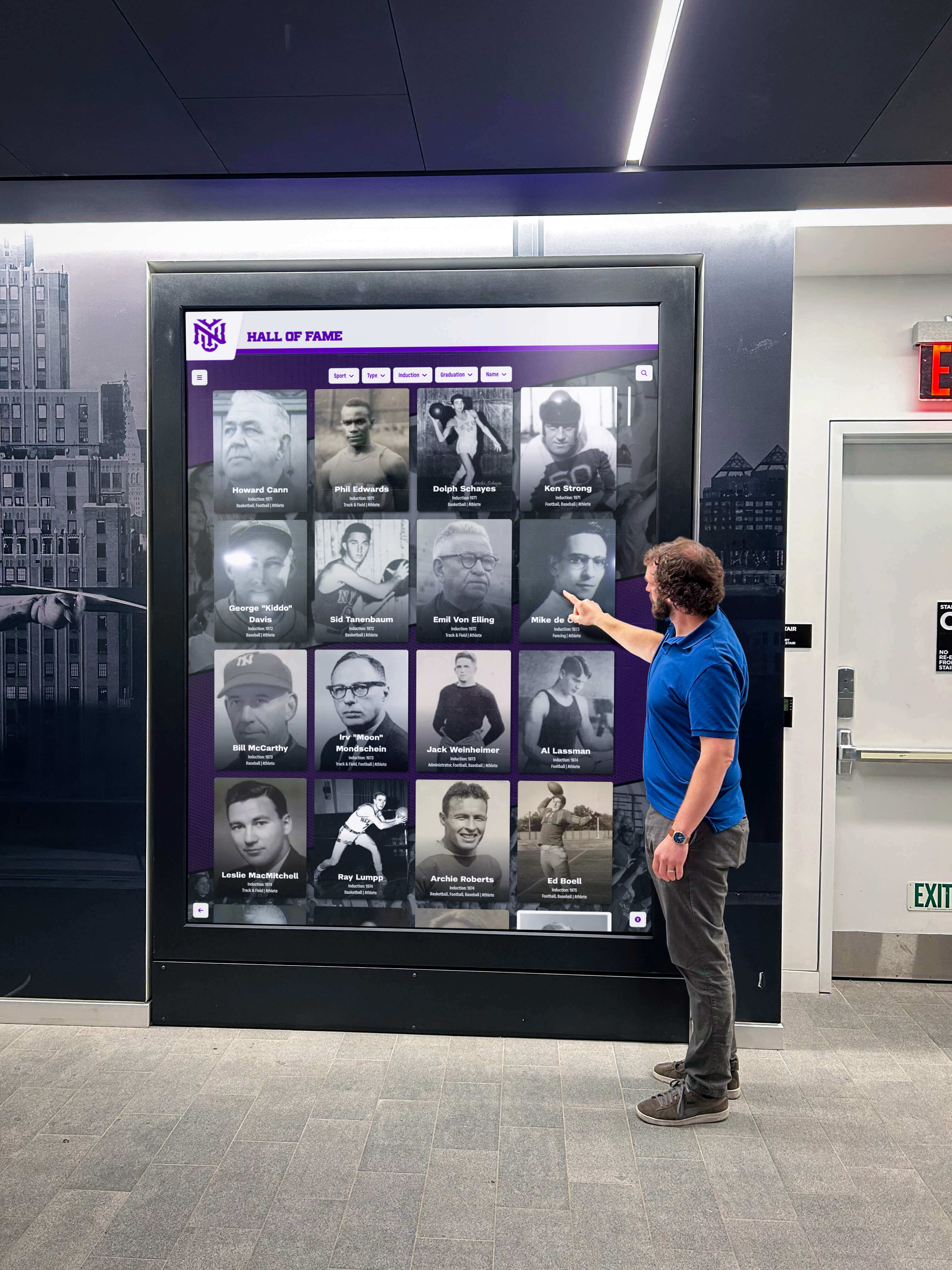
Purpose-built software enables reliable Mac kiosks in public spaces without enterprise infrastructure
Specialized Kiosk Platforms
Several cross-platform kiosk solutions support Mac:
Intuiface
Sophisticated interactive experience platform:
- Powerful authoring tools for custom interactive experiences
- Mac, Windows, and tablet deployment support
- Advanced interactivity beyond web browsing
- Database integration and dynamic content
- Significant learning curve and complexity
- Higher cost appropriate for sophisticated installations
- Requires design and development expertise
Intuiface serves organizations creating complex custom interactive experiences beyond simple web content presentation.
OptiSigns and Similar Digital Signage
Cloud-based digital signage platforms:
- Mac player applications for content display
- Cloud content management and scheduling
- Primarily passive display rather than interactive browsing
- Limited touchscreen interaction capabilities
- Subscription pricing per display
- Remote content updates and management
- Best for digital signage rather than interactive browsing
Digital signage solutions excel at scheduled content display but provide limited interactive browsing functionality compared to dedicated kiosk software.
Understanding touchscreen kiosk software options helps organizations evaluate which approach best serves their specific needs and capabilities.
Hardware Considerations for Mac Touchscreen Kiosks
Software selection represents only one component of successful Mac touchscreen implementations—appropriate hardware ensures optimal performance and reliability.
Mac Computer Selection
Choosing appropriate Mac hardware affects cost, performance, and longevity:
Mac Mini
The Mac Mini serves as the most popular choice for kiosk installations:
- Compact form factor fitting inside kiosk enclosures or behind displays
- Powerful performance handling rich media and interactive content
- Multiple I/O ports supporting various display and peripheral configurations
- Reliable solid-state storage with no moving parts
- Energy efficient with low power consumption
- Professional aesthetics appropriate for visible installations
- Starting at reasonable price points with excellent performance
Mac Mini provides optimal balance of cost, performance, size, and reliability for most touchscreen kiosk applications.
Mac Studio (For High-Performance Needs)
Sophisticated installations requiring maximum performance:
- Exceptional graphics capabilities for 4K+ displays
- Powerful processors handling complex web applications and multimedia
- Multiple display outputs supporting video walls or coordinated installations
- Excellent cooling and reliability under continuous operation
- Higher cost justified for demanding applications
- Compact design despite substantial computing power
Mac Studio serves organizations implementing high-resolution displays, processor-intensive interactive content, or multi-display coordinated installations.
MacBook Air/Pro (For Temporary or Mobile Installations)
Portable Mac computers for flexible deployments:
- Built-in displays for all-in-one portable kiosks
- Battery backup ensuring operation during power interruptions
- Easy relocation between events or locations
- Higher cost than desktop alternatives
- Display limited to built-in screen size
- Appropriate for temporary or mobile applications
MacBooks serve organizations requiring portable kiosk solutions for events, temporary installations, or applications moving between locations.
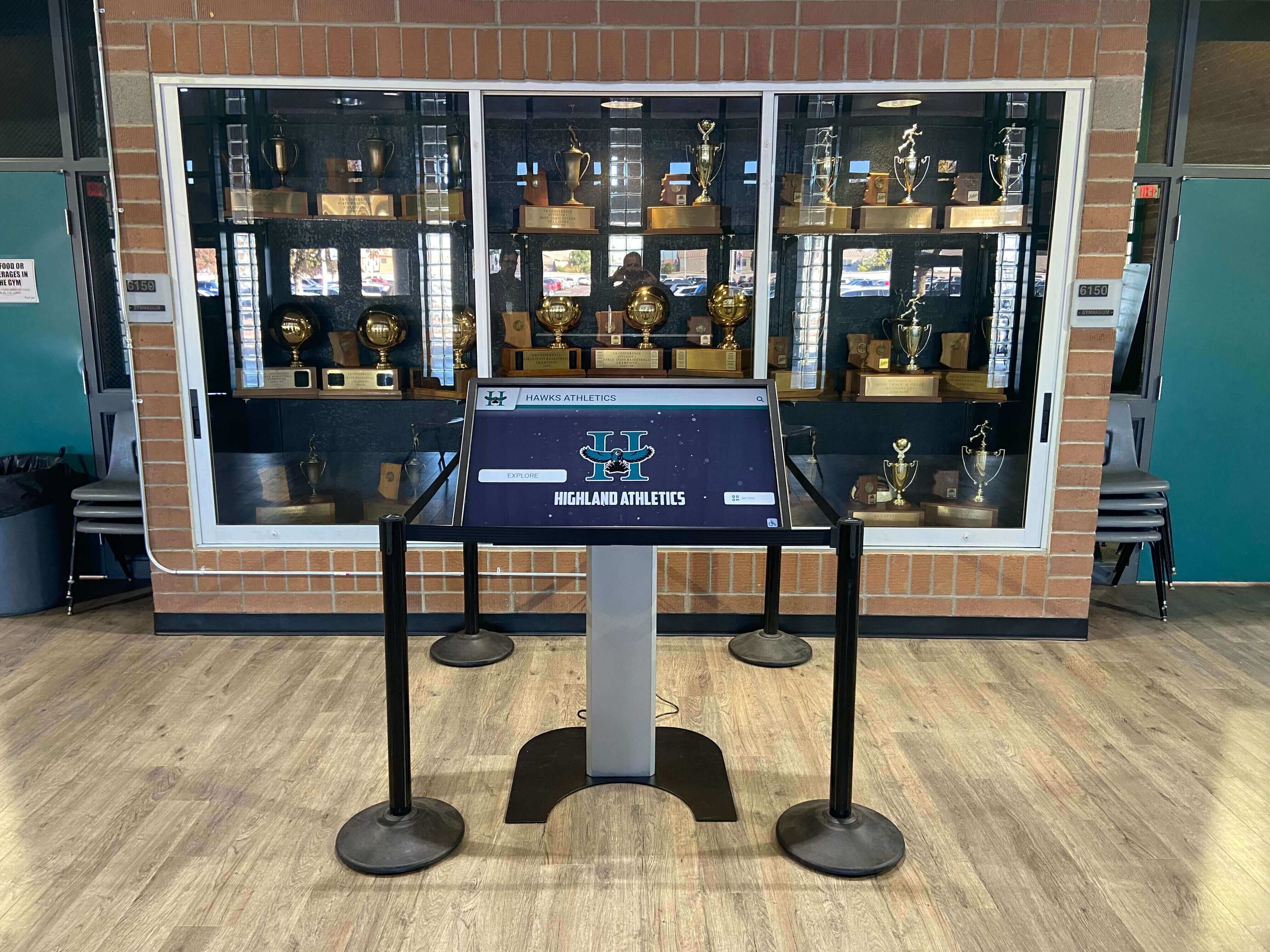
Compact Mac Mini computers fit discretely in kiosk enclosures while providing powerful performance
Display Selection and Compatibility
Touchscreen display choice significantly affects user experience and cost:
Single-Touch vs. Multi-Touch Displays
Understanding touch technology affects budget and functionality:
Single-Touch Displays
- Lower cost typically 30-50% less than multi-touch alternatives
- Adequate for most browsing and content exploration applications
- Requires software with single-touch mode support like Rocket Touchscreen
- No pinch-zoom or multi-finger gesture support
- Appropriate for budget-conscious implementations
- Durable with fewer complex components
- Perfect for schools and nonprofits maximizing budgets
Multi-Touch Displays
- Higher cost with advanced touch sensor technology
- Full gesture support matching smartphone interactions
- Pinch-zoom, two-finger scroll, and rotation gestures
- Better for applications specifically requiring gesture interaction
- Works with any Mac kiosk software
- More complex hardware with potential maintenance requirements
- Appropriate for installations where budget permits premium features
Organizations implementing single-touch displays should specifically select software like Rocket Touchscreen that provides single-touch mode ensuring full content accessibility without multi-touch requirements.
Display Size and Resolution Considerations
Screen specifications affect visibility and impact:
- 32-43 inch displays suitable for individual interaction at close range
- 43-55 inch displays most common for general interactive kiosk applications
- 55-65 inch displays appropriate for group viewing and high-traffic areas
- 65+ inch displays creating impressive focal points in lobbies and gathering spaces
- 1080p (Full HD) resolution adequate for most content at typical viewing distances
- 4K resolution beneficial for larger displays or close viewing applications
- Commercial-grade displays recommended for reliability in continuous operation
Display selection should balance visibility requirements, space constraints, budget considerations, and expected viewing distances in installation locations.
Mounting and Integration Options
Physical installation affects aesthetics and functionality:
- Wall-mount installations with displays mounted to walls and Mac Mini hidden behind
- Freestanding kiosk enclosures providing complete integrated solutions
- Countertop stands for reception desk or table installations
- Trophy case and display case integrated installations
- Cable management solutions creating professional appearances
- Security considerations preventing theft or tampering
- Accessibility compliance ensuring appropriate height and clearance
Professional installation ensuring clean cable management, secure mounting, and proper positioning enhances both functionality and aesthetic appeal of Mac touchscreen systems.
Learn more about digital touchscreen installation approaches and hardware selection for educational environments.
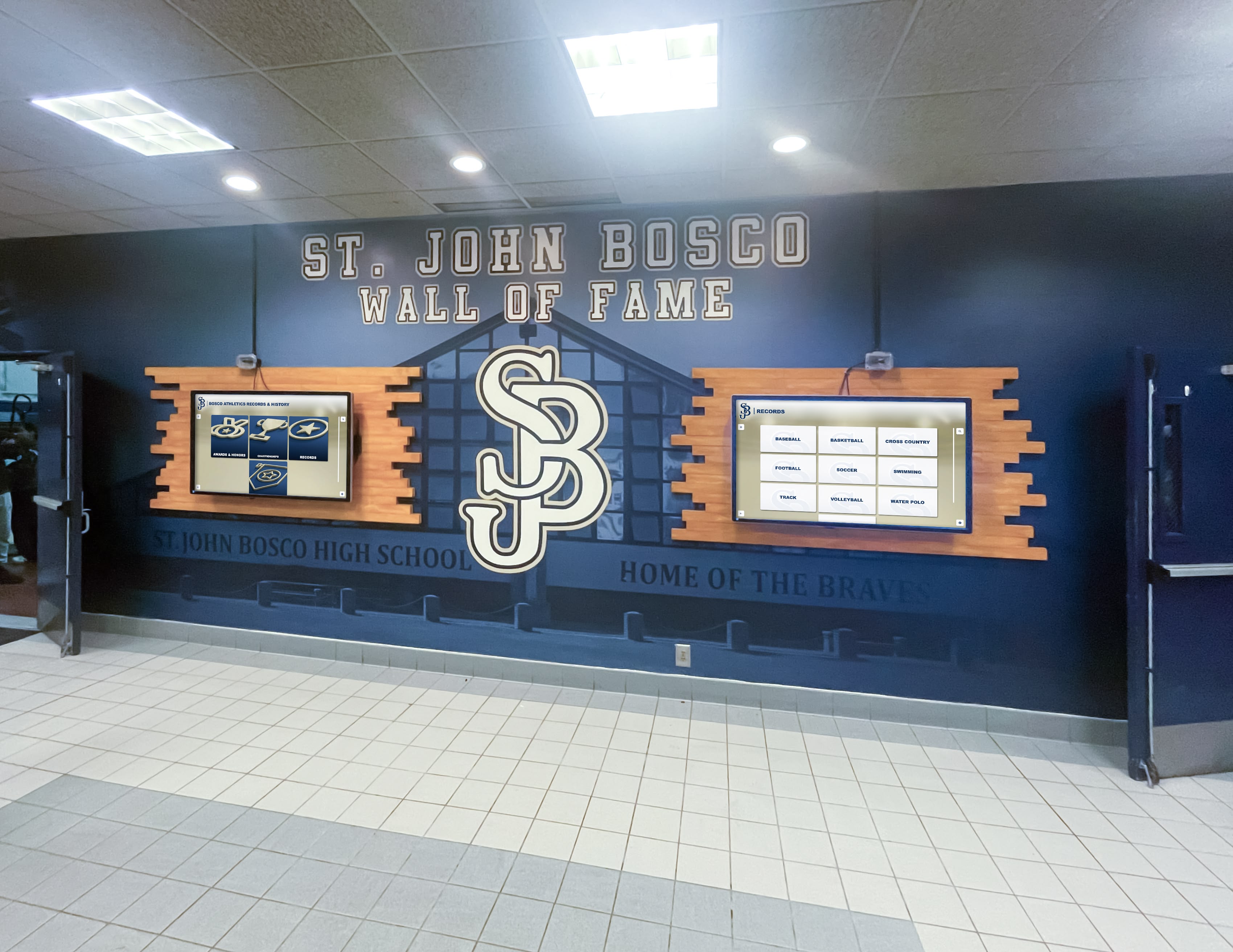
Professional installation integrates Mac-powered touchscreens seamlessly into school and organizational environments
Implementation Best Practices for Mac Touchscreen Systems
Successful Mac touchscreen deployments require thoughtful planning addressing technical configuration, content development, and operational considerations.
System Configuration and Optimization
Proper Mac setup ensures reliable, secure kiosk operation:
macOS Configuration
Operating system settings optimize kiosk functionality:
- Disable automatic software updates preventing unexpected interruptions
- Configure energy settings preventing sleep during operation hours
- Remove dock applications and minimize menu bar distractions
- Disable notification center preventing pop-up interruptions
- Configure firewall and security settings appropriately
- Disable automatic app updates that could restart applications
- Set appropriate display resolution and scaling for touchscreen
- Configure network settings ensuring reliable connectivity
Systematic configuration prevents common issues interrupting kiosk operation or exposing system controls to users.
Auto-Launch Configuration
Ensuring applications start automatically requires proper setup:
- Add Rocket Touchscreen or chosen software to login items
- Configure user account for auto-login bypassing password entry
- Test power failure recovery ensuring automatic restart
- Verify boot-to-kiosk functionality after system updates
- Document configuration for replication across multiple installations
- Create backup configurations protecting against accidental changes
- Schedule regular testing verifying automatic operation continues
Thorough auto-launch configuration eliminates manual intervention requirements making Mac kiosks suitable for unattended operation.
Security and Access Control
Protecting systems from unauthorized access ensures appropriate use:
- Create separate limited user account specifically for kiosk operation
- Remove administrative privileges from kiosk user account
- Configure Rocket Touchscreen with password-protected settings
- Disable keyboard shortcuts accessing system functions
- Hide or restrict access to system preferences
- Implement physical security for Mac hardware
- Configure remote access for administrative management only
- Test security attempting to exit kiosk mode using various methods
Comprehensive security prevents misuse while maintaining ease of access for legitimate interactions.
Content Development and Optimization
Effective content presentation requires optimization for touchscreen interaction:
Touchscreen-Friendly Design Principles
Web content should accommodate touch interaction:
- Large, touch-friendly buttons and controls (minimum 44x44 pixels)
- Generous spacing between interactive elements preventing accidental touches
- Clear visual feedback confirming touches and actions
- Minimal text input requirements (on-screen keyboards are cumbersome)
- Logical navigation with clear paths forward and back
- Home button functionality returning to start page easily
- Progressive disclosure preventing overwhelming information density
- Loading indicators showing activity during content loading
Design consideration for touch interaction substantially improves user experience compared to content designed exclusively for mouse interaction.
Single-Touch Compatibility
When implementing single-touch displays with Rocket Touchscreen:
- Rely on provided zoom controls rather than assuming pinch-zoom
- Use on-screen navigation buttons rather than gesture-based navigation
- Test all interactive elements with single-touch input
- Provide alternative navigation for content assuming multi-touch
- Consider content layout avoiding excessive zoom requirements
- Use reasonable font sizes reducing magnification needs
- Design with single-touch limitations as primary consideration
- Document single-touch mode availability for content creators
Single-touch optimization ensures content remains fully accessible to users of installations leveraging cost-effective single-touch display hardware.
Performance Optimization
Content should perform well within kiosk constraints:
- Optimize images and media for fast loading
- Minimize external dependencies that could cause delays
- Test content with expected network conditions
- Implement fallbacks for connectivity interruptions
- Avoid resource-intensive animations or effects
- Test performance on actual hardware configuration
- Monitor memory usage preventing browser slowdown over time
- Plan for graceful degradation if resources fail to load
Performance optimization ensures smooth, responsive experiences that retain user engagement rather than frustrating visitors with sluggish or unreliable interactions.
Understanding digital display design principles provides additional guidance for creating effective touchscreen content.
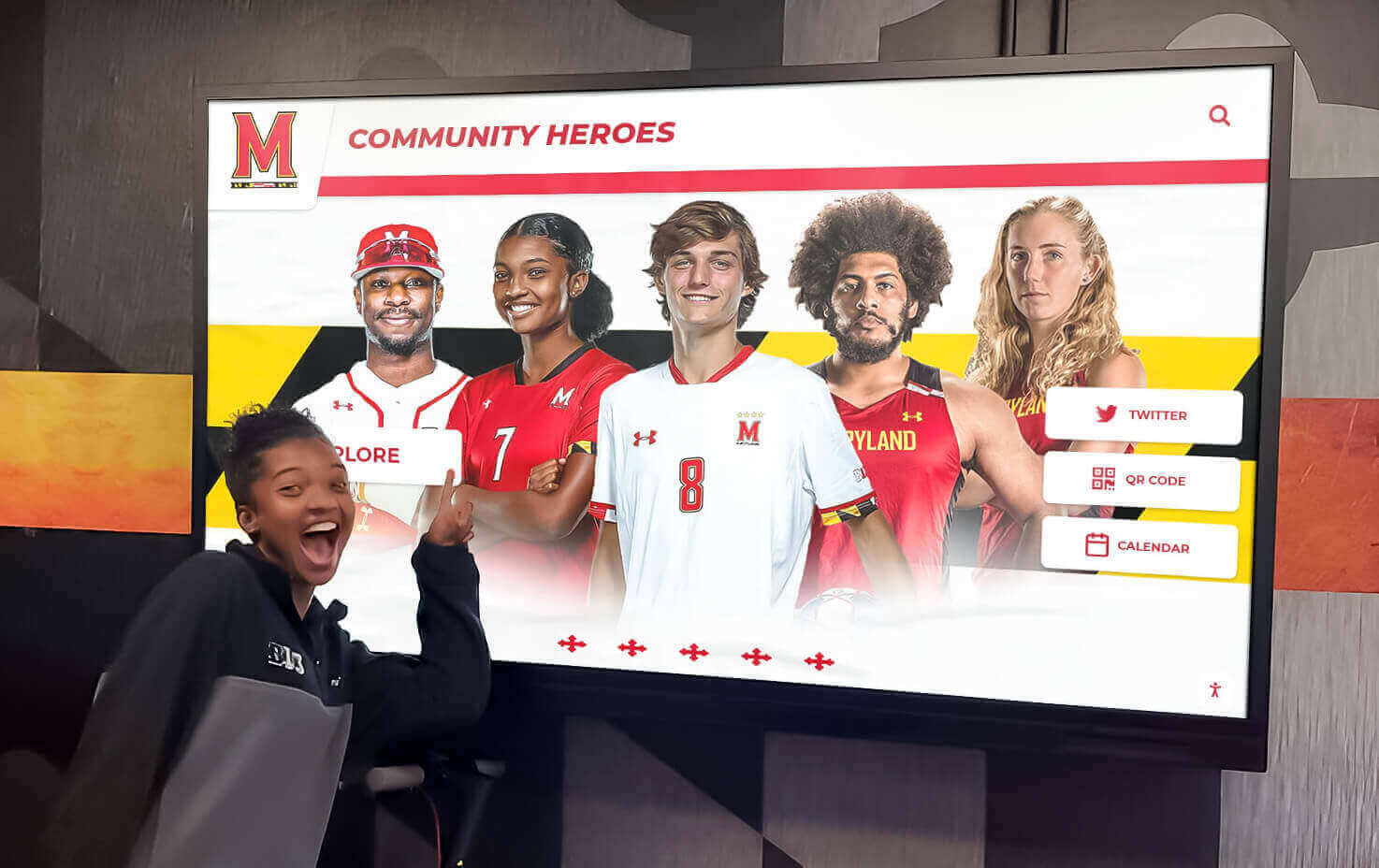
Well-designed content optimized for touch interaction creates engaging experiences that motivate exploration
Maintenance and Ongoing Management
Sustainable Mac touchscreen programs require planned maintenance:
Routine Maintenance Schedule
Regular upkeep ensures continuous reliable operation:
- Daily visual inspection confirming operational status
- Weekly physical cleaning of touchscreen surfaces
- Monthly software update checks and planned installations
- Quarterly content review ensuring information remains current
- Annual comprehensive testing and security assessment
- Backup configuration verification
- Hardware inspection checking cables and connections
- Performance monitoring identifying degradation requiring attention
Scheduled maintenance prevents problems and extends system operational life substantially compared to reactive-only approaches.
Remote Management Capabilities
Distributed installations benefit from remote administration:
- VPN or remote access solutions for off-site management
- Content management systems enabling remote updates
- Remote monitoring detecting issues before users report problems
- Screen sharing capabilities for troubleshooting
- Automated alerting notifying administrators of failures
- Centralized configuration management for multi-location deployments
- Remote restart capabilities resolving many issues without site visits
Remote capabilities reduce ongoing operational costs while improving reliability through proactive monitoring and rapid problem resolution.
Troubleshooting Common Issues
Understanding typical problems accelerates resolution:
- Application crashes: Verify automatic restart functionality
- Network connectivity: Check physical connections and configuration
- Touchscreen unresponsive: Clean screen, verify USB connection, restart system
- Content not loading: Test network access, verify URL, check for website changes
- System appearing slow: Restart application, clear caches, verify available resources
- Users exiting kiosk mode: Review security configuration and password protection
- Scheduled restart failures: Verify energy settings and auto-launch configuration
Systematic troubleshooting procedures enable non-technical staff to resolve common issues quickly without specialized expertise or expensive service calls.
Use Cases: Mac Touchscreen Applications Across Organizations
Understanding real-world applications helps organizations envision how Mac touchscreen solutions serve their specific needs:
Educational Recognition Displays
Schools and universities use Mac touchscreens for achievement celebration:
Athletic Hall of Fame and Record Boards
Interactive displays showcasing sports achievements:
- Athlete profiles with photos, statistics, and accomplishments
- Team histories exploring championship seasons and memorable games
- Record boards highlighting all-time performance leaders
- Video highlights bringing achievements to life
- Searchable databases enabling visitors to find specific individuals
- Championship celebrations and team recognition
- Coach and administrator tributes
Mac-powered displays in athletic facilities create engaging ways to celebrate sports heritage while motivating current athletes through authentic recognition of past excellence.
Academic Recognition Systems
Celebrating intellectual achievement through interactive displays:
- Honor roll and academic excellence recognition
- National Honor Society and academic society showcases
- Scholarship recipient celebrations
- Academic competition and achievement highlights
- College commitment day celebrations
- Advanced placement and honors recognition
- Student research and project showcases
Interactive academic recognition motivates achievement while demonstrating institutional commitment to intellectual excellence comparable to athletic recognition.
Alumni Engagement Displays
Connecting current and former students through technology:
- Alumni directories with career and contact information
- “Where Are They Now” profiles exploring alumni paths
- Alumni achievement celebrations highlighting notable accomplishments
- Historic class composites and yearbook archives
- Anniversary class reunion information
- Alumni event promotion and registration
- Donor recognition celebrating philanthropic support
Mac touchscreens in lobbies and gathering spaces create visible evidence of program quality and alumni success that resonates with prospective families, current students, and returning graduates.
Explore comprehensive school recognition programs and how technology enhances traditional achievement celebration.
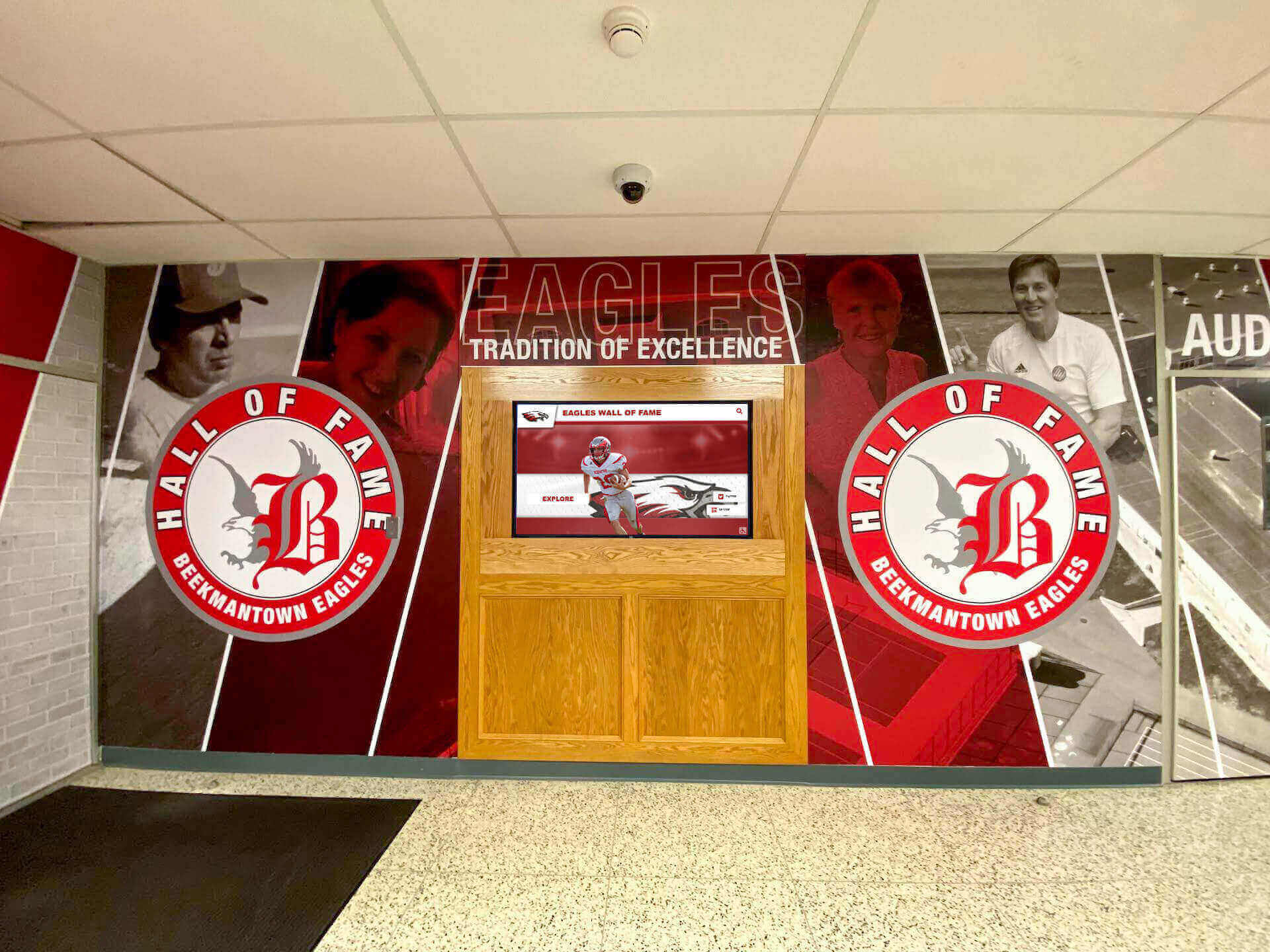
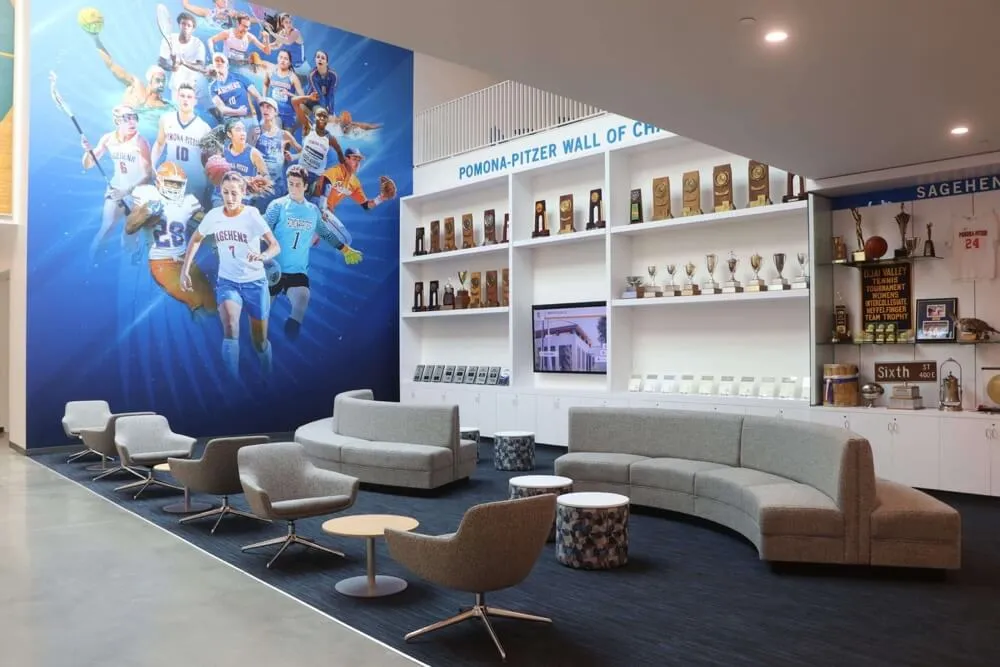
Mac-powered touchscreens integrate seamlessly into school recognition installations celebrating achievements
Organizational and Nonprofit Applications
Beyond educational environments, Mac touchscreens serve diverse organizational needs:
Visitor Information Kiosks
Helping visitors navigate facilities and find information:
- Building directories with office locations and contact information
- Wayfinding and mapping providing navigation assistance
- Event calendars and program information
- Frequently asked questions and self-service support
- Emergency information and evacuation routes
- Staff directories with photos and contact details
- Hours of operation and facility policies
- Multilingual support serving diverse visitors
Information kiosks reduce routine inquiries freeing staff for complex assistance while ensuring visitors access information conveniently when needed.
Donor Recognition Walls
Celebrating philanthropy through interactive displays:
- Donor directories organized by giving level
- Individual donor profiles with photos and recognition
- Campaign progress and fundraising goal visualization
- Giving histories showing cumulative contributions over time
- Impact stories demonstrating donation effects
- Tribute and memorial recognition honoring honorees
- Recognition society showcases celebrating major donors
- Pledge and donation information encouraging participation
Interactive donor walls create dynamic recognition adapting as giving continues rather than static plaques that become outdated or require expensive updates when donor lists change.
Corporate and Professional Environments
Mac touchscreens serve business applications:
- Reception area visitor management and information
- Employee recognition celebrating achievements and milestones
- Safety record and performance metric displays
- Manufacturing process and product information for plant tours
- Company history timelines exploring organizational heritage
- Project showcases highlighting company capabilities
- Training and professional development resources
- Corporate values and culture presentation for visitors
Professional environments benefit from Mac’s premium aesthetics and reliability creating installations that reflect organizational quality and attention to detail.
Understanding donor recognition approaches provides context for nonprofit and institutional applications of interactive technology.
Museum and Cultural Applications
Cultural institutions leverage Mac touchscreens for educational experiences:
Interactive Exhibit Elements
Enhancing traditional displays with digital content:
- Artifact detail and historical context information
- Audio tours and narrated content
- Video interviews with curators, artists, and historians
- Image galleries showing additional perspectives and details
- Interactive timelines exploring historical context
- Map interfaces showing geographic and cultural connections
- Educational games and activities for children
- Supplementary reading and research resources
Digital elements complement physical exhibits creating richer educational experiences that engage diverse learning styles and visitor interests.
Archival Collections and Research Access
Making collections accessible beyond physical limitations:
- Digitized photograph archives with searchable databases
- Historical document collections with transcriptions and context
- Oral history interview libraries
- Research guides and finding aids
- Collection highlights curated by subject or theme
- Educational resources for students and researchers
- Conservation information explaining preservation efforts
- Donation and acquisition information encouraging collection growth
Digital access democratizes cultural heritage reaching audiences beyond those who physically visit institutions while preserving fragile materials through reduced physical handling.

Mac touchscreens make historical archives and collections accessible through engaging interactive interfaces
Cost Considerations and Return on Investment
Understanding complete investment requirements helps organizations plan appropriately and make informed decisions comparing Mac solutions to alternatives.
Mac Touchscreen System Costs
Comprehensive budget planning requires considering all expense categories:
Hardware Investment
Equipment costs for Mac touchscreen installations:
- Mac Mini (base model): $599-799 appropriate for most applications
- Mac Mini (upgraded): $1,000-1,400 for high-performance needs
- Mac Studio: $1,999+ for demanding multi-display installations
- Touchscreen display (single-touch): $800-2,000 depending on size and quality
- Touchscreen display (multi-touch): $1,500-4,000 for premium functionality
- Mounting hardware: $100-500 for wall mounts or stands
- Kiosk enclosure: $1,500-4,000 for freestanding installations
- Cables and adapters: $50-200 for connections and peripherals
Total Hardware Range: $2,000-8,000+ depending on display size, touch capabilities, and enclosure requirements.
Software Costs
Application and licensing expenses:
- Rocket Touchscreen: Available through Mac App Store (pricing through App Store)
- macOS: Included with Mac hardware purchase
- Content management system: $0-5,000 annually depending on solution
- Website hosting: $50-500 annually for content hosting
- Remote management tools: $0-1,000 annually depending on needs
- Security and monitoring software: $0-500 annually
Total Software Range: $0-7,000 annually depending on chosen solutions and infrastructure requirements.
Implementation and Content Development
Launch preparation investment:
- Professional installation: $500-2,000 depending on complexity
- Network infrastructure: $200-2,000 if upgrades required
- Content development: $1,000-10,000 depending on complexity and whether developed internally or professionally
- Photography and media production: $500-3,000 for professional assets
- Staff training: Internal time or $500-2,000 for professional training
- Documentation and procedures: Internal time investment
Total Initial Investment: $4,000-25,000+ for complete Mac touchscreen system including hardware, software, installation, and content development.
Comparing Mac to Windows Alternatives
Understanding relative costs helps inform platform decisions:
Hardware Cost Comparison
Mac and Windows systems show different cost structures:
- Comparable Windows PC: $400-1,200 typically lower than Mac equivalents
- Mac premium: 30-50% higher hardware cost for similar specifications
- Mac reliability advantage: Lower failure rates and longer operational life often offsetting initial premium
- Mac aesthetics: Premium industrial design important for visible high-profile installations
- Windows flexibility: More hardware options at various price points
- Mac simplicity: Less variation simplifies selection and standardization
Organizations should evaluate whether Mac’s reliability, aesthetics, and ecosystem integration justify hardware premium for their specific applications and priorities.
Total Cost of Ownership
Long-term economics include ongoing operational expenses:
- Mac reliability: Fewer repairs and longer replacement cycles
- macOS stability: Less maintenance and troubleshooting time
- Software costs: Similar across platforms for equivalent functionality
- Energy consumption: Mac Mini notably energy efficient reducing electrical costs
- Staff expertise: Existing Mac proficiency reduces learning curve and training costs
- Resale value: Macs maintain higher residual value if upgrades occur
Many organizations find Mac total cost of ownership competitive with Windows despite higher initial investment, particularly when accounting for staff time, reliability, and longevity across 5-7 year operational cycles.
Return on Investment Analysis
Mac touchscreen systems deliver measurable value justifying investment:
Quantifiable Benefits
Measurable returns from interactive display implementation:
- 60-80% reduction in staff time answering routine visitor questions
- Increased engagement with recognition programs and organizational content
- Enhanced facility aesthetics improving perceptions and pride
- Extended content accessibility beyond traditional operating hours
- Reduced printing and physical signage ongoing costs
- Space efficiency compared to physical recognition installations
- Data collection providing insights into visitor interests and behavior
Non-Monetary Value
Additional benefits supporting organizational goals:
- Enhanced visitor experience and satisfaction
- Modern, technology-forward organizational image
- Comprehensive recognition capacity unconstrained by physical space
- Accessibility improvements serving diverse populations
- Environmental sustainability reducing paper and physical materials
- Flexibility enabling easy content updates without physical changes
- Preservation of institutional heritage in accessible digital archives
Organizations typically find Mac touchscreen installations achieve practical return on investment within 2-4 years through operational efficiencies while delivering superior experience quality throughout 6-10+ years of hardware operational life.
Explore technology investment strategies that demonstrate long-term value for stakeholders and funding decision-makers.
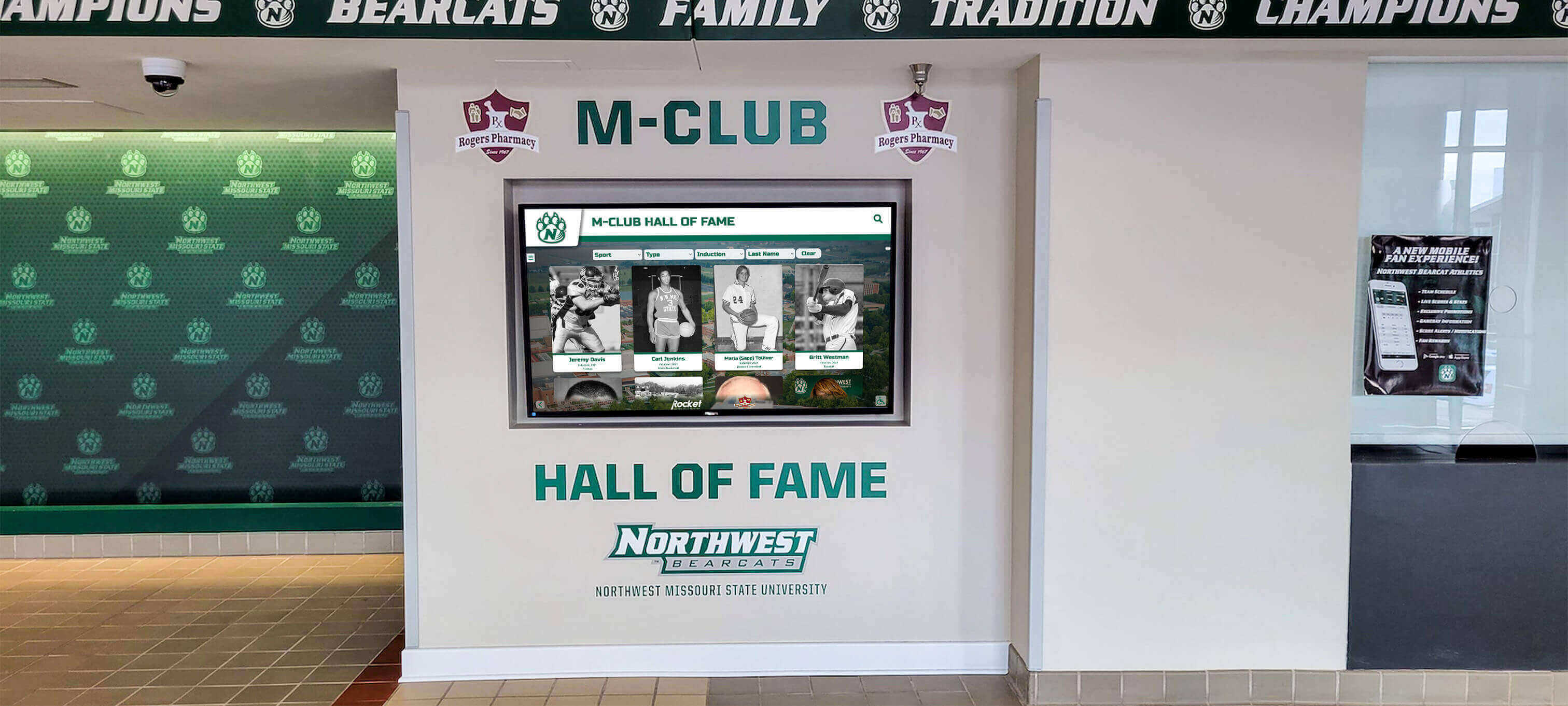
Professional Mac touchscreen installations deliver lasting value through reliability, aesthetics, and engaging functionality
Future Trends in Mac Touchscreen Technology
Mac touchscreen software and applications continue evolving with emerging capabilities enhancing functionality and user experience:
Software Evolution and Capabilities
Kiosk software advances improving Mac touchscreen applications:
Enhanced Touch Optimization
Future software developments will further improve touch interaction:
- Gesture customization enabling user-defined touch patterns
- Adaptive interfaces learning from usage patterns
- Improved single-touch modes making all content fully accessible
- Voice control integration supplementing touch interaction
- Accessibility enhancements serving users with diverse abilities
- Multi-display coordination creating synchronized experiences
- IoT integration connecting touchscreens with environmental systems
These advances will make Mac touchscreens even more versatile while reducing implementation complexity and improving accessibility for all users.
Artificial Intelligence Integration
AI capabilities emerging in kiosk applications:
- Natural language search understanding conversational queries
- Personalized recommendations based on interaction patterns
- Automatic content curation highlighting relevant information
- Chatbot assistants providing 24/7 information access
- Visual search enabling image-based discovery
- Predictive content showing information before users request it
- Analytics insights identifying engagement patterns and opportunities
AI integration will create more intuitive, personalized experiences while reducing administrative burden for content management and optimization.
Cloud and Remote Management
Centralized management capabilities expanding:
- Cloud-based configuration management for distributed installations
- Automated software updates maintaining current functionality
- Remote monitoring with proactive alerting
- Centralized analytics across installation portfolios
- Content management systems enabling simultaneous multi-location updates
- Security monitoring detecting and preventing threats
- Backup and disaster recovery protecting against data loss
Enhanced remote capabilities will make Mac touchscreen installations increasingly practical for organizations with multiple locations or limited on-site technical resources.
Hardware Developments
Apple hardware evolution affecting touchscreen applications:
Apple Silicon Performance
M-series chip capabilities improving touchscreen experiences:
- Exceptional performance with energy efficiency
- Superior graphics capabilities for rich multimedia
- Machine learning acceleration enabling on-device AI
- Extended operational life through efficiency and reliability
- Fanless designs eliminating mechanical failures
- Unified memory architecture improving responsiveness
- Advanced image processing for rich visual content
Apple Silicon delivers transformative performance improvements making Mac increasingly compelling for demanding interactive applications while maintaining reliability and energy efficiency.
Display Technology Advances
Screen technology evolution enhancing visual quality:
- Higher resolution displays improving clarity and detail
- Improved touch sensitivity and accuracy
- Larger format options for expansive installations
- Enhanced brightness for challenging lighting environments
- Lower costs making premium features more accessible
- Extended operational life reducing replacement frequency
- Sustainable manufacturing reducing environmental impact
Display improvements will make Mac touchscreen installations increasingly impressive while becoming more affordable and accessible for schools and smaller organizations.
Understanding emerging digital display technologies provides context for future Mac touchscreen capabilities and applications.
Conclusion: Mac Touchscreen Software Enabling Engaging Digital Experiences
Mac touchscreen software has matured substantially, transforming Apple computers from challenging platforms for kiosk applications into compelling solutions that deliver reliability, performance, and professional aesthetics appropriate for high-visibility interactive installations. Purpose-built solutions like Rocket Touchscreen address Mac’s traditional kiosk limitations—providing automatic launch, secure lockdown, single-touch optimization, and modern web rendering that enable schools, organizations, and businesses to create engaging interactive displays leveraging Mac’s strengths while overcoming historical challenges.
The considerations explored throughout this guide provide frameworks for evaluating Mac touchscreen software options, understanding hardware requirements, implementing reliable systems, and creating effective content that engages visitors and serves organizational goals. From kiosk mode configuration and single-touch optimization to content development and ongoing maintenance, each decision affects long-term program success and user satisfaction.
Ready to explore how Mac touchscreen software can transform interactive displays at your organization? Modern kiosk solutions make Mac-based touchscreen installations practical and reliable for diverse applications from educational recognition to visitor information and donor celebration. Solutions like Rocket Touchscreen available through the Mac App Store provide purpose-built functionality addressing Mac’s unique kiosk challenges while enabling organizations to leverage Apple hardware quality and reliability for interactive displays.
Whether implementing Mac touchscreens for the first time or enhancing existing systems, success depends on selecting appropriate software addressing your specific requirements, configuring systems properly for reliable unattended operation, developing content optimized for touch interaction, and planning ongoing maintenance ensuring sustained performance. Organizations like Rocket Alumni Solutions provide comprehensive solutions for educational recognition and interactive displays that can be delivered through Mac-based kiosk implementations.
Your community deserves interactive technology that combines reliability, professional aesthetics, and engaging functionality appropriate for your specific applications and organizational values. Mac touchscreen solutions deliver these qualities when properly implemented with appropriate software, thoughtful configuration, and content designed specifically for touch interaction and public-facing use.
The most important consideration isn’t whether Mac or Windows provides objectively superior kiosk platforms—it’s choosing solutions aligned with your technical capabilities, budget constraints, aesthetic preferences, and organizational ecosystem. For organizations already invested in Mac infrastructure, comfortable with macOS, or valuing Apple’s design aesthetics and reliability reputation, purpose-built kiosk software like Rocket Touchscreen makes Mac-based interactive displays practical and sustainable.
Start exploring Mac touchscreen options by evaluating your specific application requirements, assessing existing Mac infrastructure and expertise, testing software solutions with your planned content and hardware, and planning comprehensive implementation including configuration, content development, and maintenance procedures. Your visitors deserve interactive experiences that engage, inform, and create lasting positive impressions of your organization. Mac touchscreen solutions make those experiences achievable with Apple’s signature reliability, performance, and design excellence.